On a PC running Windows 11 version 24H2 or 25H2, the Windows 11 26H2 update is a small enablement package that Microsoft says installs like a monthly update, with a small download and a single restart; on Windows 11 23H2 or Windows 10 it is a full upgrade, and Microsoft says a feature update of that kind typically needs 6 GB to 11 GB or more of free space.
Microsoft has not published an exact file size for the 26H2 package, so this guide sets out what Microsoft does state: which PCs get the small download, how much free space each route needs, and what to do when Windows says there is not enough room.
How big the 26H2 update is on your PC
The size depends on the version you are running now. Check it in Settings > System > About under Windows specifications, then find your row.
| You are running | What you download | Size and space, as Microsoft states it |
|---|---|---|
| Windows 11 25H2 | The 26H2 enablement package, KB5121794, through Windows Update | A small download and a quick restart, similar to a monthly update; no exact size published |
| Windows 11 24H2 | Enablement package KB5121794 through Windows Update | Same small package; the PC needs the September 22, 2026 update KB5124010 or a later cumulative update first |
| Windows 11 23H2 | A full Windows 11 26H2 upgrade (Installation Assistant, media creation tool or ISO) | Installation Assistant needs 9 GB of free disk space for the download; feature updates typically need 6 GB to 11 GB or more free |
| Windows 10 | A full upgrade to Windows 11, if the PC meets the requirements | Microsoft describes the Windows 11 upgrade download as large; the same 9 GB Installation Assistant requirement applies |
| Making a USB or DVD | The Windows 11 26H2 ISO or media creation tool | A blank USB flash drive or DVD of at least 8 GB |
Most PCs are not offered 26H2 on day one, because Microsoft is using a controlled feature rollout.
Why Windows 11 26H2 is so small
Microsoft's KB5121794 article states that Windows 11 versions 24H2, 25H2 and 26H2 share a common core operating system with an identical set of system files. The 26H2 features already arrived inside the monthly quality updates for 24H2 and 25H2, in an inactive and dormant state.
The enablement package is the "master switch" that turns them on. That is why the update itself is small: the code is already on the drive, and the package only activates it.
| Piece | What it contains | When it reaches the PC |
|---|---|---|
| Monthly cumulative updates for 24H2 and 25H2 | The 26H2 feature code, switched off | Through normal Patch Tuesday and preview updates before 26H2 |
| KB5124010 (September 22, 2026) or later | The prerequisite cumulative update Microsoft names for the package | Before the 26H2 offer appears |
| KB5121794 enablement package | The switch that activates 26H2 features and moves the version to 26H2 | When Windows Update offers Windows 11, version 26H2 |
| Restart | One restart finishes the move to 26H2 | Straight after the package installs |
In other words, a 24H2 or 25H2 PC is not getting a switch instead of a download. It already downloaded the new code in earlier monthly updates, spread across several months.
Who gets the tiny update
Microsoft's announcement says 26H2 is delivered as an enablement package for eligible devices running Windows 11 versions 25H2 and 24H2. Every condition below has to be true before the small package is offered.
| Condition | Detail |
|---|---|
| Current version | Windows 11, version 24H2 or version 25H2 |
| Prerequisite | September 22, 2026 update KB5124010 or a later cumulative update installed |
| Rollout | Microsoft uses a controlled feature rollout, so most PCs are not offered 26H2 on day one |
| Safeguard holds | A PC with a known compatibility issue can be held back until Microsoft resolves it |
| Managed PCs | Organisations deploy it through Windows Update, WSUS, Windows Autopatch or the Microsoft 365 admin center; Microsoft notes downloads in the admin center may be delayed |
| 26H1 devices | Not covered; Microsoft says 26H1 is scoped to new devices, and KB5121794 applies to 24H2 and 25H2 |
A PC that meets every condition can still wait days or weeks while the staged 26H2 rollout reaches it.
Windows 11 26H2 upgrade paths
Microsoft offers four routes to 26H2. Only the first one uses the small enablement package; the other three carry a full copy of Windows 11.
| Route | Best for | Download and space |
|---|---|---|
| Windows Update (enablement package) | Windows 11 24H2 and 25H2 PCs | Small download, one restart |
| Windows 11 Installation Assistant | Upgrading the PC you are using from 23H2 or Windows 10 (x64 only) | 9 GB of free disk space to download Windows 11 |
| Media creation tool | Making a bootable USB or DVD for a reinstall or clean install (x64 only) | A blank USB flash drive or DVD of at least 8 GB |
| Windows 11 ISO | Bootable media, a virtual machine, or an Arm64 install from Microsoft's separate Arm64 ISO page | Enough storage on the PC or drive that holds the ISO, and at least 8 GB on the USB or DVD |
Microsoft does not print the ISO's file size on its download page. Each of these official ways to install 26H2 ends on the same version.
How much free space Windows 11 26H2 needs
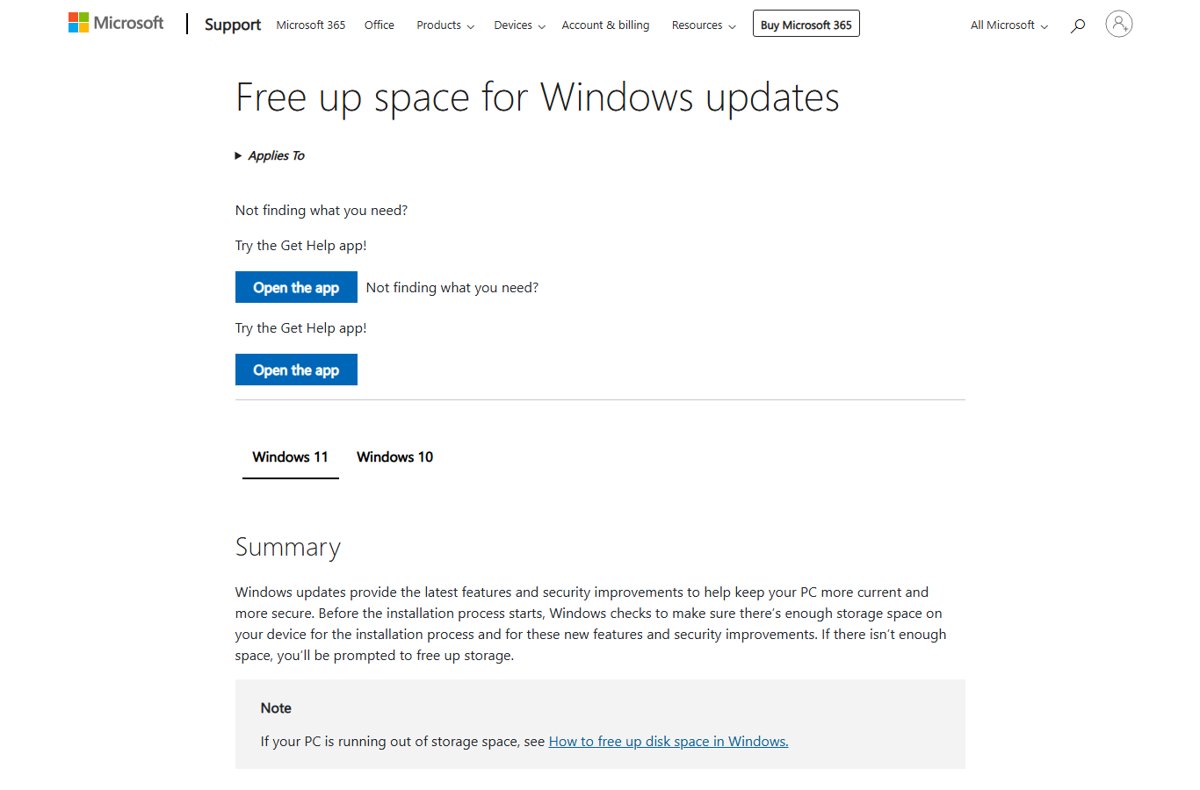
Before any update starts, Windows checks that the drive has enough space for the installation. If it does not, Windows prompts you to free up storage. These figures come from Microsoft's own support and download pages.
| Situation | Free space Microsoft states |
|---|---|
| Quality updates, such as the KB5124010 prerequisite | Typically 2 GB to 3 GB or more |
| Feature updates in general | Typically 6 GB to 11 GB or more |
| Windows 11 Installation Assistant download | 9 GB of free disk space |
| Updating to Windows 11, few optional features and languages | 20 GB for reduced offline time, 5.5 GB+ for minimal disk space, 4.5 GB+ with external storage |
| Updating to Windows 11, many optional features and languages | 20 GB+ for reduced offline time, 13.75 GB+ for minimal disk space, 7 GB+ with external storage |
| External storage to finish an update | A device with at least 10 GB of free space |
| Windows 11 minimum storage | 64 GB or greater available disk space |
Microsoft notes that Windows also needs extra space, typically for 10 days, so the update can be removed. Each installed language can add about 175 MB to more than 300 MB, and devices with reserved storage use that space first.
How to free up space before the 26H2 update
Do this before checking for 26H2, especially on a 64 GB or 128 GB drive. These are Microsoft's recommended steps for Windows 11.
- Select File Explorer on the taskbar, then select This PC to see the space left under Devices and drives.
- Open Start > Settings > System > Storage.
- Turn on Storage Sense so Windows removes temporary files automatically.
- Select Cleanup recommendations and review Temporary files, Large or unused files, Files synced to the cloud and Unused apps.
- Select the items to remove, then select Clean up for each section.
- Remove optional features you do not use under Settings > Apps > Optional features, and unused languages under Time & language > Language & region.
- Return to Settings > Windows Update and select Check for updates.
Deleting the previous version of Windows in Cleanup recommendations frees space too, but Microsoft warns it removes the Windows.old folder and the option to go back.
Upgrading from Windows 11 23H2 or earlier
KB5121794 lists only versions 24H2 and 25H2, so a 23H2 or Windows 10 PC does not get the small package. It needs a full upgrade, and Microsoft says the Windows 11 upgrade download is large and usually takes longer than a typical feature update. Windows 11 23H2 Home and Pro have already reached end of updates.
- Back up your files to OneDrive or an external drive.
- Confirm the drive has at least 9 GB free, using the steps in the previous section if needed.
- Switch off any metered connection limit you rely on, or move to an unmetered network, because internet providers might charge for large downloads.
- Open
https://www.microsoft.com/software-download/windows11and, under Windows 11 Installation Assistant, select Download Now. - Run the tool, accept the license terms and let it download and install Windows 11 26H2.
- Keep the PC plugged in while it restarts several times.
The Installation Assistant does not run on Arm-based PCs, and it runs a compatibility check against the 26H2 system requirements.
What actually changes
A small download does not mean nothing changes. These are the effects Microsoft lists for the move to 26H2.
| Change | Detail |
|---|---|
| Version label | The PC moves from 24H2 or 25H2 to version 26H2, OS build 26300 |
| Features | Dormant 26H2 features turn on, and select features first shipped disabled by default in 25H2 are enabled by default |
| Support clock | Resets to 24 months for Home and Pro and 36 months for Enterprise and Education |
| End of updates | 2028-10-10 for Home and Pro; 2029-10-09 for Enterprise and Education |
| Restarts | One restart for the enablement package |
None of these changes depends on download size: a 25H2 PC that installs the small package ends up on the same version as a PC upgraded from an ISO.
Why some PCs upgrade faster than others
Two PCs can be offered 26H2 weeks apart, and one can finish in minutes while another takes much longer. Microsoft's pages point to these factors.
| Factor | Effect |
|---|---|
| Starting version | 24H2 and 25H2 get the small package; 23H2 and Windows 10 need a full upgrade |
| Get the latest updates as soon as they're available | One of the Windows Update settings; turned on, it puts an eligible PC among the first to be offered 26H2 |
| Controlled rollout and safeguard holds | Availability expands over time; held PCs wait for a fix |
| Free disk space | With plenty of space, Windows does more work in the background; with limited space, it optimises for space and the offline install takes longer |
| Storage type | Microsoft notes HDD-based devices are typically slower than SSD or eMMC devices |
| Internet speed | Download time for a full upgrade depends on connection speed |
Download size is only one part of how long 26H2 takes to install; the restart and setup phases add the rest.
Why Microsoft uses different upgrade methods
An enablement package only works when the old and new versions share one servicing branch and codebase. Microsoft says 24H2, 25H2 and 26H2 do; 23H2 and Windows 10 do not, so they need a full operating system upgrade.
If you are on 23H2 or Windows 10, plan for a multi-gigabyte download and free at least 9 GB before starting; on 24H2 or 25H2, keep monthly updates installed and the 26H2 offer stays small. The small package depends on the 26H2 code already arriving through monthly cumulative updates. Skipping those updates means the prerequisite KB5124010 is missing and the offer does not appear.
How to check the 26H2 update installed
- Right-click Start and select Settings.
- Select System, then About.
- Under Windows specifications, check that Version reads 26H2.
- Check that OS build starts with 26300. A PC still on 25H2 shows 26200, and 24H2 shows 26100.
Typing winver in the taskbar search bar and pressing Enter is another way to check whether 26H2 is installed.
Fix space and download problems with the 26H2 update
Windows Update says more free space is needed
The drive has less free space than the update path needs.
- Open Settings > Windows Update and select Fix issues if it appears; Windows shows how much more space is needed.
- Connect an external drive with at least 10 GB free, back up important files on it, and select it from the drop-down menu.
- Select Next and follow the prompts to finish the update.
- To avoid the external drive, free space with Cleanup recommendations instead and check for updates again.
Low Disk Space error right after using Cleanup recommendations
The Temp folder can fill quickly with Microsoft Store app (.appx) files.
- Open Start > Settings > System > Troubleshoot > Other troubleshooters.
- Next to Windows Store Apps, select Run.
- Press Windows logo key + R, type
wsreset.exeand select OK to clear the Store cache. - Back in Other troubleshooters, select Run next to Windows Update, then restart the PC.
The small 26H2 update is not offered
The PC is waiting in the rollout, lacks the prerequisite update, or has a safeguard hold.
- Confirm the version is 24H2 or 25H2 in Settings > System > About.
- In Settings > Windows Update, select Check for updates and install KB5124010 or a later cumulative update, then restart.
- Turn on Get the latest updates as soon as they're available.
- Check again after a few days; a safeguard hold lifts only when Microsoft resolves the issue.
If the offer still does not appear after a week, work through the other fixes for 26H2 not showing in Windows Update. A problem after installing is more likely one of the confirmed 26H2 known issues than a space problem.
Frequently Asked Questions
How big is Windows 11 26H2?
On Windows 11 24H2 and 25H2 it is a small enablement package, KB5121794, that Microsoft says installs like a monthly update with one restart. Microsoft has not published an exact size. From 23H2 or Windows 10 it is a full upgrade that typically needs 6 GB to 11 GB or more of free space.
How much free space does Windows 11 26H2 need?
Microsoft says feature updates typically need 6 GB to 11 GB or more of free space, and the Installation Assistant needs 9 GB. A 24H2 or 25H2 PC gets a small package, but still needs room for the prerequisite cumulative update, which typically needs 2 GB to 3 GB or more.
Is the Windows 11 26H2 enablement package a full download of Windows?
No. Microsoft describes it as a small master switch that activates 26H2 features already delivered, in a dormant state, by the monthly quality updates for 24H2 and 25H2. The feature code arrived earlier; the package only turns it on.
How big is the Windows 11 26H2 ISO?
Microsoft does not state the ISO file size on its download page. It asks for sufficient storage on the drive that holds the ISO and a blank USB flash drive or DVD of at least 8 GB to make bootable media.
Can I download Windows 11 26H2 on a metered connection?
The enablement package is small, so a metered connection is rarely a problem on 24H2 or 25H2. A full upgrade from 23H2 or Windows 10 is large, and Microsoft warns that internet providers might charge fees for large downloads over metered connections.
Is the 26H2 update size different for UAE users or other regions?
No regional difference has been published, which means UAE users follow the same rules as everyone else. Microsoft's announcement describes one enablement package for eligible 24H2 and 25H2 devices and gives no regional difference in size or content. Eligibility depends on version, the prerequisite update and safeguard holds, not on country.
Why does Windows need extra space after the 26H2 update?
Microsoft says Windows temporarily keeps extra space, typically for 10 days, so the update can be removed. After that, or once you are sure you will not roll back, Cleanup recommendations in Settings > System > Storage can reclaim it.
Does the 26H2 update reset the support date?
Yes. Installing 26H2 resets the support lifecycle to 24 months for Home and Pro and 36 months for Enterprise and Education. Microsoft lists end of updates as 2028-10-10 for Home and Pro and 2029-10-09 for Enterprise and Education.
Bottom line
On Windows 11 24H2 or 25H2, the 26H2 update is small: keep monthly updates installed, keep a few gigabytes free, and install it when offered. On 23H2 or Windows 10, free at least 9 GB, back up, and use the Installation Assistant. The size gap comes from the codebase, not the features. PCs on the shared 24H2/25H2 branch already hold the 26H2 code, while older versions must download all of Windows 11.
Size is rarely a reason to delay; features, known issues and support dates matter more, and the Windows 11 26H2 overview sets those out.