WhatsApp Web is the browser version of WhatsApp at web.whatsapp.com: you link it once to the WhatsApp account on your phone, and it then runs as one of up to four linked devices that keep working even when your phone is off.
This guide covers how linking and syncing work, what the web version can and cannot do, calls, the desktop apps, iPad and iPhone use, security, logging out and fixes for the problems people hit most.
What is WhatsApp Web
WhatsApp Web lets you message from a browser on your computer without installing an app. It is not a separate account: it mirrors the WhatsApp account registered on your phone, and your personal messages, media and calls stay end-to-end encrypted.
New to WhatsApp itself? Start with How Does WhatsApp Work? (A Beginner’s Guide), then come back to link your computer.
- On your computer, go to web.whatsapp.com in Chrome, Edge, Firefox, Safari or Opera.
- On an Android phone, open WhatsApp and tap More options (three dots) > Linked devices > Link a device. On an iPhone, tap Settings or your profile picture > Linked devices > Link device.
- Unlock with your fingerprint, face or phone PIN if asked.
- Point the phone at the QR code on the computer screen. Your chats load in the browser.
The benefits of WhatsApp Web, as WhatsApp lists them: a bigger screen and a real keyboard, no download, free calls over your internet connection, quick switching between chats, and easy file and link sharing for work.
What You Need Before You Start
| Requirement | What WhatsApp’s Help Center says |
|---|---|
| A WhatsApp account on a phone | The primary phone registers the account and links new devices. Android 6.0 or newer, or iOS 15.1 or newer (iOS 15.5 or newer from November 30, 2026). |
| A supported browser | Chrome 85+, Edge 85+, Firefox 115+, Safari 15.2+ or Opera 85+. web.whatsapp.com itself asks Chrome users for version 100 or newer, so keep the browser updated. |
| A supported computer | WhatsApp Web runs on Windows, macOS and Linux. |
| Internet on the computer | Needed for messages and calls. The phone does not have to stay online once linked. |
| For calls | A microphone and speakers or a headset; a camera for video calls. Video calling isn’t supported on a computer without a camera. |
| A free linked-device slot | Up to four devices can be linked to one primary phone at a time. |
How to access and link WhatsApp Web
This is the standard QR code login and the way to connect WhatsApp Web in a browser for the first time. The phone only needs to be in your hand for the scan.
- Open web.whatsapp.com on the computer. A QR code appears with the login instructions.
- Open WhatsApp on your primary phone.
- Android: tap More options > Linked devices > Link a device. iPhone: tap Settings or your profile picture > Linked devices > Link device.
- Verify your identity with biometrics, or enter the PIN you use to unlock the phone.
- Scan the QR code on the computer screen.
- If WhatsApp flags an unrecognized device, tap Link device only if the computer in front of you is yours. Otherwise tap Don’t link.
- Wait for your chat list to appear in the browser, then start messaging.
Link only on web.whatsapp.com, the official Windows and Mac apps, or WhatsApp’s own tablet and companion-phone apps. WhatsApp warns that linking an account to an unofficial app or website can lead to a temporary or permanent ban.
How to log in to WhatsApp Web with your phone number instead of a QR code
Use this when the phone camera can’t read the QR code. WhatsApp offers it on WhatsApp Web and WhatsApp for Windows.
- On web.whatsapp.com, click Link with phone number or Log in with phone number.
- Select your country, enter the phone number of your WhatsApp account and click Next. An eight-character code appears.
- On your phone, tap the Enter code to link new device notification from WhatsApp.
- Check the device name and location shown, then tap Confirm.
- Verify your identity if asked, then enter the eight-character code on the phone.
No notification? Open Linked devices > Link a device (Android) or Link device (iPhone) and choose Link with phone number instead.
Multi-device: mobile independence and how it works
Early WhatsApp Web relayed everything through your phone. The current multi-device design connects each linked device to WhatsApp on its own, so the phone can be off or out of battery. This table covers how WhatsApp syncs messages on your computer and what still depends on the phone.
| Question | How it works now |
|---|---|
| Can you use WhatsApp on a computer without your phone? | Yes, after the first link. Linked devices work with the phone offline or switched off. |
| What does the phone still do? | It registers the account and links new devices. A browser, Windows, Mac or iPad session can’t be the primary device. |
| How many devices? | Up to four linked devices per primary phone at the same time. |
| When does it log out on its own? | All linked devices log out if you don’t use WhatsApp on the primary phone for over 14 days. WhatsApp also disconnects a linked device after 30 days of inactivity. |
| Is chat history copied? | Recent history syncs when you link. WhatsApp says an iPad syncs up to a year and an Android tablet up to two years; the full history stays on the phone. |
| Is it still encrypted? | Yes. Each linked device connects independently with end-to-end encryption, so messages sent from the browser are protected the same way as on the phone. |
| Do new messages appear everywhere? | Yes. Messages you send or receive show on the phone and on every linked device. |
WhatsApp Web, desktop app and mobile app: what’s changing
All three open the same account, but they are not equal. This is the WhatsApp Web vs. WhatsApp Desktop difference, with the phone app as the reference point.
| WhatsApp Web | WhatsApp for Windows / Mac | Phone app | |
|---|---|---|---|
| Install needed | No, runs in a browser tab | Yes, from the Microsoft Store, the App Store or whatsapp.com | Yes |
| System requirement | Chrome, Edge, Firefox, Safari or Opera on Windows, macOS or Linux | Windows 10 64-bit version 1903 or later; macOS 12.1 or newer | Android 6.0+ or iOS 15.1+ |
| Role | Linked device | Linked device | Primary device that registers the account |
| Voice and video calls | Yes, one-on-one and group, rolling out since July 2026 | Yes, with up to 32 people | Yes |
| Screen sharing during calls | Included with web calling as it rolls out | Yes | Yes |
| Code Verify extension check | Yes | Not applicable | Not applicable |
| Two accounts at once | One account per linked session | One account per linked session | Two accounts on Android and, since March 2026, on iOS |
Can you have two WhatsApp accounts on one computer? WhatsApp documents two-account switching only on phones. Because the browser and the desktop app are separate linked devices, each can be linked from a different phone’s account.
When to Use WhatsApp Web Instead of the Desktop App
| Your situation | Use this | Why |
|---|---|---|
| Shared, school or work computer where you can’t install apps | WhatsApp Web | No download, and you can log out from the phone afterwards |
| Linux PC or a Chromebook-style setup | WhatsApp Web | There is no WhatsApp desktop app for Linux |
| Your own Windows 10/11 or Mac for daily use | WhatsApp for Windows or Mac | WhatsApp describes the apps as faster, with calling and screen sharing built in |
| Windows older than 10 version 1903, or macOS older than 12.1 | WhatsApp Web | The desktop apps won’t install; the browser version still works |
| You want a check that the site code is genuine | WhatsApp Web with Code Verify | The extension validates WhatsApp Web’s code in Chrome, Firefox and Edge |
| You need an iPad | WhatsApp for iPad app | WhatsApp Web is only supported on Windows, macOS and Linux |
How to Install the WhatsApp Desktop App
The desktop app links the same way as WhatsApp Web, with the same QR code or phone number steps. Techdows keeps current links in Download WhatsApp for PC (Windows 11/10 and Mac).
- Windows: open the Microsoft Store, search for WhatsApp and install it.
- Mac: download the Mac app from whatsapp.com/download, or get it from the Apple App Store.
- Open the installed app. It shows a QR code and a Log in with phone number option.
- On your phone, open Linked devices > Link a device (Android) or Link device (iPhone) and scan the code.
- Wait for your chats to load, then pin the app to the taskbar or Dock if you use it daily.
Available features and what the web version doesn’t yet do
This is what you can do on WhatsApp Web and Desktop today, and what WhatsApp on your computer cannot do. Limits come from WhatsApp’s own help pages.
| Feature | On WhatsApp Web | Detail |
|---|---|---|
| Individual and group chats | Yes | Pin chats, organize them into lists, mark as unread |
| Photos and videos | Yes | Up to 100 at once, with a caption on each; drag and drop into the text box; choose Standard quality or HD quality |
| Documents | Yes | Up to 2 GB per file, including PDFs |
| PDF viewing and editing | Yes | Open a PDF in the chat, then Edit PDF to draw, highlight, underline or strike through, powered by Adobe Acrobat |
| Voice messages | Yes | Record through the computer’s microphone, with pause and resume |
| Contacts | Yes | Send contacts from your phone’s address book |
| Voice and video calls | Yes | One-on-one and group calls, with a Calls tab and call history |
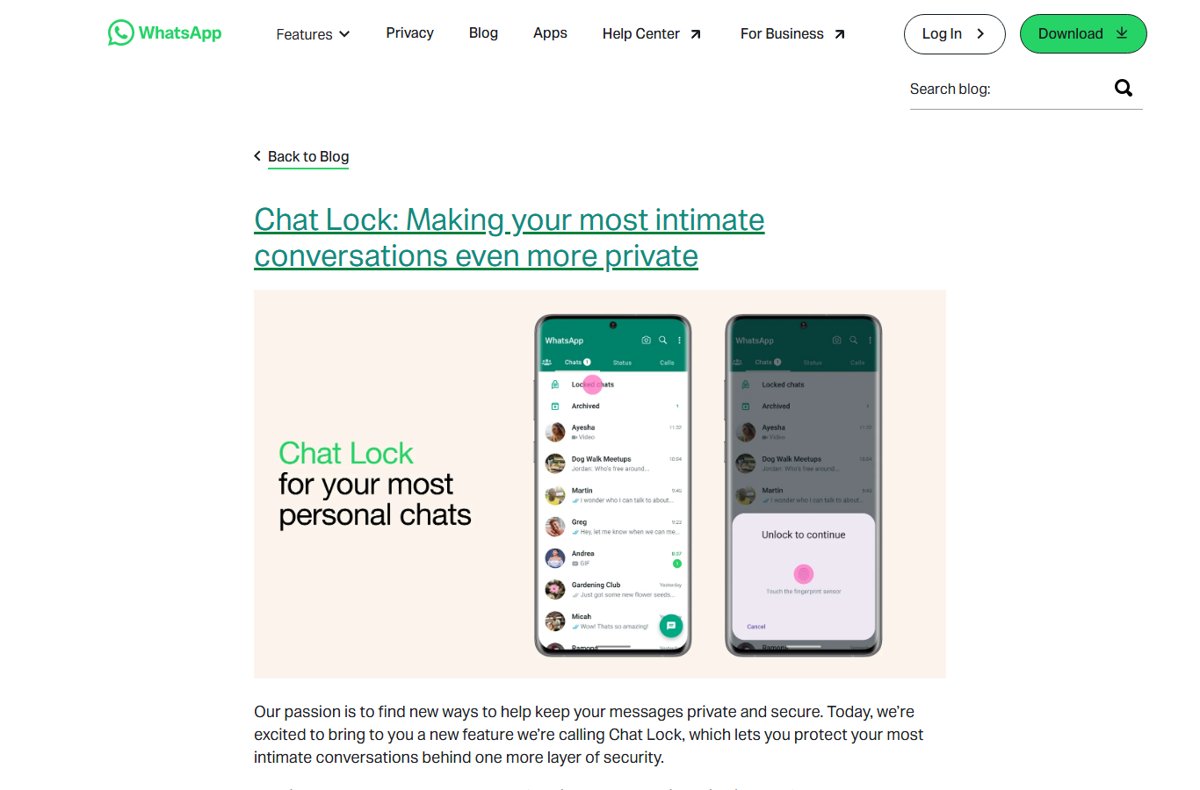
| Chat lock | Yes | Right-click a chat > Lock chat; the secret code must be created on your phone |
| Text formatting | Yes | Bold, italic, strikethrough, monospace, lists, quotes and inline code |
| Live location | No | Viewing a live location isn’t supported on linked devices |
| Broadcast lists | No | You can’t create or view them on a linked device |
| WhatsApp Flows with businesses | No | Not supported on linked devices |
| Registering an account | No | A browser session can’t be the primary device |
| Emergency numbers | No | WhatsApp can’t call services such as 911 |
How to make voice and video calls on WhatsApp Web
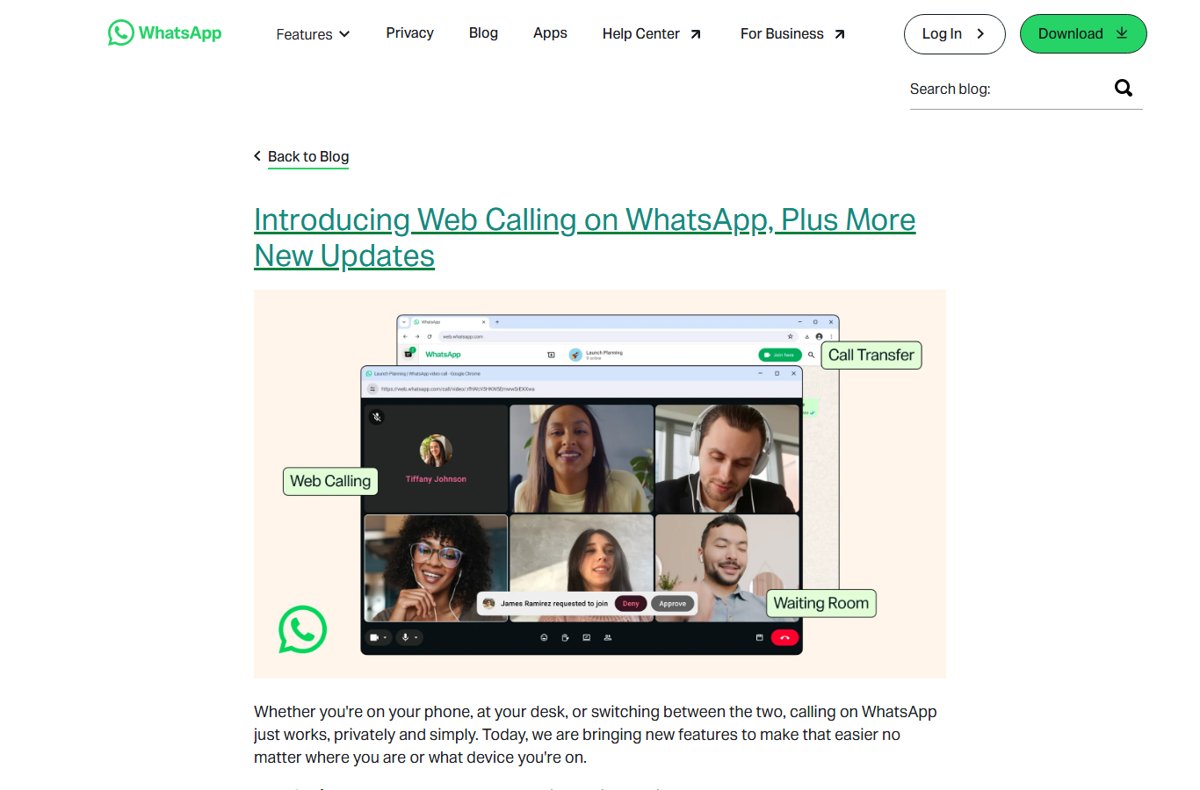
WhatsApp announced web calling on July 28, 2026: audio and video, one-on-one and group, end-to-end encrypted, with no time limit or cost. It is rolling out gradually, so the buttons may appear later on your account.
- Allow web.whatsapp.com to use your microphone and camera when the browser asks.
- Open the individual chat with the person you want to call.
- Click the video call icon for a video call, or the voice call option for audio.
- For a group call, open the group chat, click the dropdown next to the call icon and select Voice call.
- During a video call, use the extra options to send an emoji, share your screen or add people.
- To move an active group call to your phone or desktop app, use Call Transfer as it reaches your account.
Group voice calls take up to 32 people. WhatsApp recommends a headset, because a separate microphone and speakers can cause echo.
Using WhatsApp Web on a tablet
On a tablet, use WhatsApp’s tablet apps rather than the browser page. WhatsApp’s supported systems list for WhatsApp Web names only Windows, macOS and Linux.
| Tablet | What to install | How to sign in | Chat history |
|---|---|---|---|
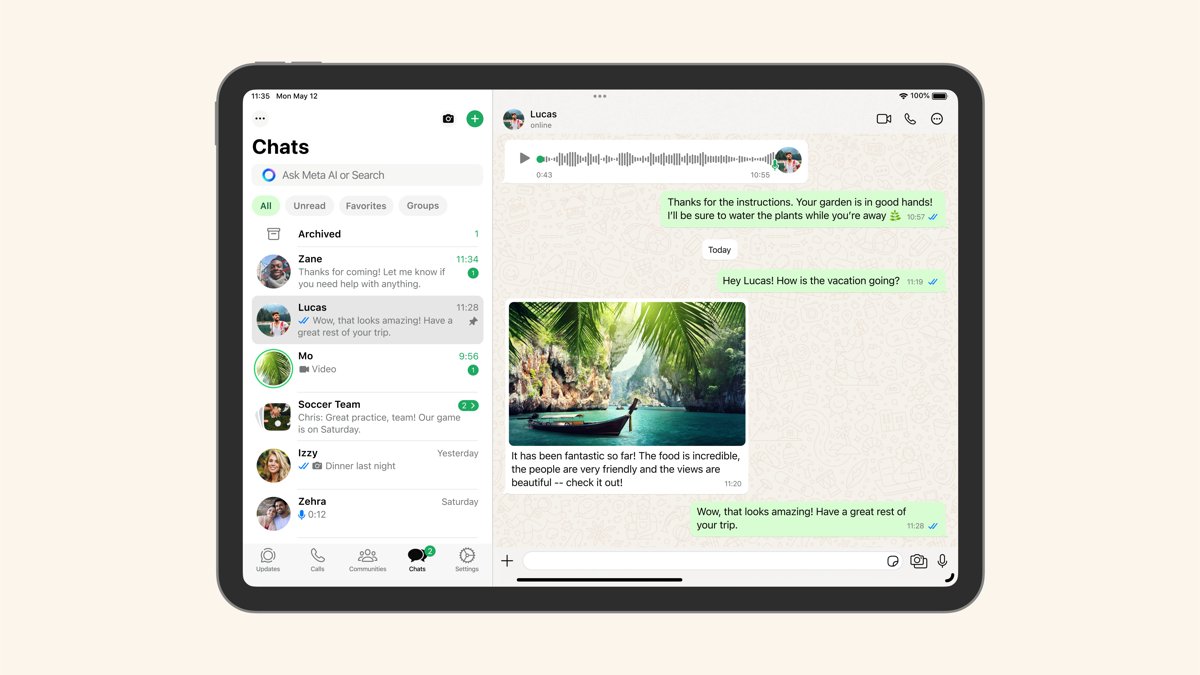
| iPad | WhatsApp for iPad from the App Store (iPadOS 15.1 or newer) | Scan the iPad’s QR code from your phone’s Linked devices, or since July 2026 register a new account directly on the iPad | Up to a year of recent chats when linked |
| Android tablet | WhatsApp from Google Play | Scan the tablet’s QR code from your phone, or tap More options > Register new account to make the tablet a primary device | Up to two years of recent chats when linked |
The iPad app adds calls with up to 32 people, screen sharing, chat lock, and support for Stage Manager, Split View, Slide Over, external keyboards and Apple Pencil.
Does WhatsApp Web work on an iPhone or iPad?
Not as a web page, but you don’t need it: WhatsApp has native apps that put one account on several iPhones and iPads.
Can I open web.whatsapp.com in Safari on an iPad?
WhatsApp doesn’t support that. Its WhatsApp Web requirements list Windows, macOS and Linux only. Install WhatsApp for iPad from the App Store instead; it links to your phone with a QR code and has calls, screen sharing and chat lock.
Can I use my iPhone’s WhatsApp account on an iPad?
Yes. Open WhatsApp on the iPad, then on the iPhone tap Settings or your profile picture > Linked devices > Link device > OK and scan the iPad’s QR code. The iPad counts as one of your four linked devices.
Can an iPad have its own WhatsApp account without a phone?
Yes, since July 2026. WhatsApp now lets you register a new account directly in the iPad app, without linking to a phone. Registration still needs a phone number that can receive a verification SMS or call.
Can I use one WhatsApp account on two iPhones?
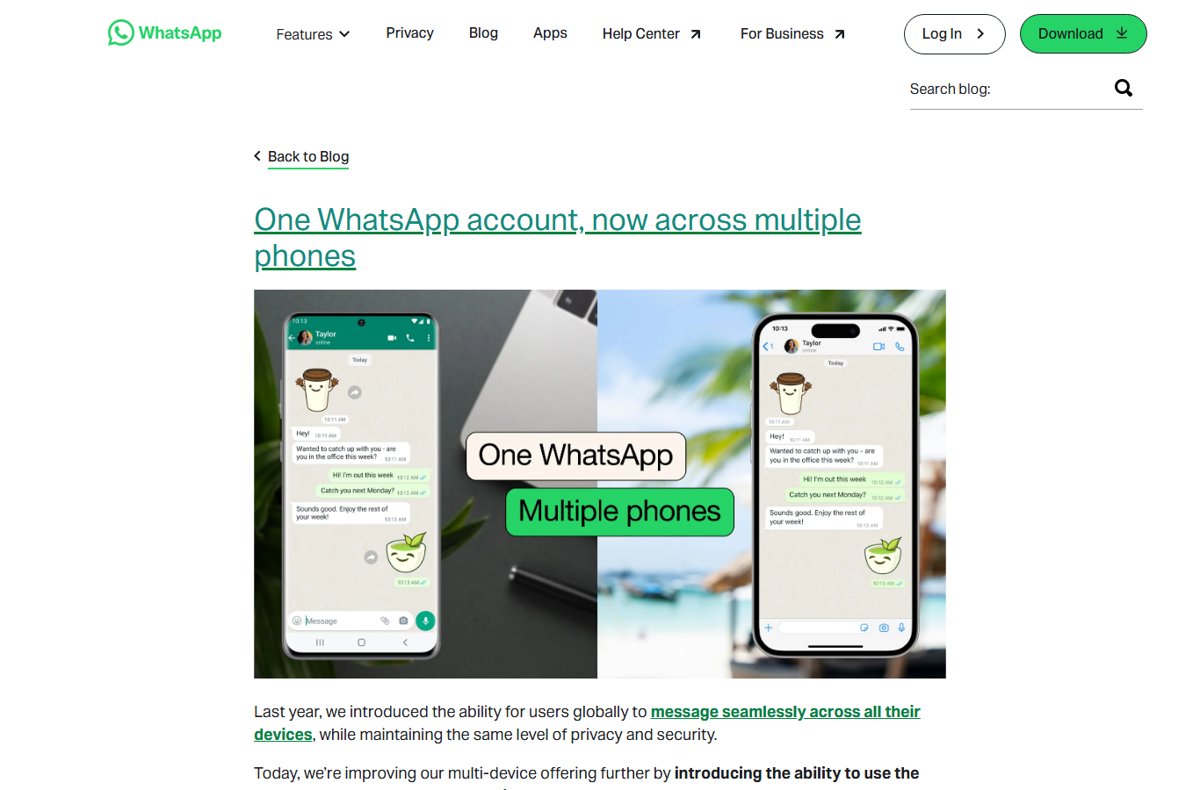
Yes. Install WhatsApp on the second iPhone, open the menu and tap Link as companion device, then scan its QR code from Linked devices on your main phone. See the next section for the full steps.
Use WhatsApp Web on a second mobile phone
A second phone runs the full WhatsApp app as a companion device, not the web page. It works on Android and iPhone, and the primary phone can be either.
- Install WhatsApp on the second phone, open it and tap Agree and continue.
- On an iPhone, tap Use a different number if prompted.
- Open the menu and tap Link as companion device. A QR code appears.
- On the primary phone, open Linked devices > Link a device (Android) or Link device (iPhone).
- Unlock with biometrics or your phone PIN.
- Scan the QR code on the second phone. It shows This is a linked device in Settings when linking succeeds.
Companion phones can’t use live location. They log out if the primary phone doesn’t use WhatsApp for over 14 days, the same rule as all linked devices.
Useful tricks and keyboard shortcuts
WhatsApp Web supports text formatting codes, a double-click formatting menu and drag and drop. For the full list of navigation key combinations, open WhatsApp’s Help Center article About keyboard shortcuts.
| Trick | What to type or do | Result |
|---|---|---|
| Bold | *text* |
text |
| Italic | _text_ |
Italic text |
| Strikethrough | ~text~ |
Struck-through text |
| Monospace | Three backticks on each side of the text | Fixed-width text |
| Inline code | One backtick on each side of the text | Code-style text |
| Lists and quotes | Start a line with * or - for bullets, 1. for numbers, > for a quote |
Formatted list or quote |
| Formatting menu | Double-click text in the message box | Choose Bold, Italic, Strikethrough or Inline code |
| Emoji panel on Windows | Windows key + . (period) | Opens the Windows emoji keyboard |
| Emoji viewer on Mac | Fn + E or Globe + E | Opens the Character Viewer |
| Send files fast | Drag a photo, video or document onto the message box | Attaches it without the menu |
| Chat without saving a number | Open https://wa.me/ followed by the full international number, without zeros, brackets or dashes |
Opens a chat with that number on WhatsApp Web |
How to Use WhatsApp Web to Send Emojis
- Click in the message box of a chat.
- Press Windows key + . (period) on Windows, or Fn + E / Globe + E on a Mac, to open the system emoji picker.
- Type a word such as “heart” to search, then click the emoji you want.
- Press Enter to send.
- To react to a message instead, hover over it, click the emoji icon and pick one, or click + for any emoji.
You can add one reaction per message, and only the message’s sender is notified.
How to Log Out of WhatsApp on a Computer
Always log out on a shared or public computer. Closing the tab does not end the session.
- In WhatsApp Web or the desktop app, open Settings.
- Click Log out.
- Click Log out again to confirm.
- Check your phone’s Linked devices list: the computer should no longer appear.
How to Log Out WhatsApp Web from All Devices
Use this when you left WhatsApp Web open somewhere else or see a device you don’t recognize. It works from the phone, so you don’t need the computer.
- Open WhatsApp on your primary phone.
- Android: tap More options > Linked devices. iPhone: tap Settings > Linked devices.
- Tap a device in the list.
- Tap Log out.
- Repeat for every device you want to remove, until only the ones you use are left.
Turn on push notifications for WhatsApp. When a new device links, the notification lets you review and remove it straight away.
How to check WhatsApp Web is linked and safe
- On the phone, open Linked devices. Your browser or computer should appear in the list.
- Send yourself or a contact a test message from the browser and confirm it appears on the phone too.
- Turn the phone’s Wi-Fi and data off and send another message from the browser. It should still go.
- If you installed Code Verify, look for a checkmark in a green circle on the browser toolbar while web.whatsapp.com is open.
Privacy, security, and extensions
The security and privacy tips below come from WhatsApp’s own guidance.
| Risk or tool | What to know | What to do |
|---|---|---|
| Code Verify extension | Official extension for Chrome, Firefox and Edge that checks WhatsApp Web’s code is authentic. It doesn’t read your messages or share data with WhatsApp. | Install it from your browser’s official store and pin it. Orange with a question mark means a timeout or interfering extension; red with an exclamation mark means validation failed. |
| Unofficial extensions and apps | Third-party tools that link to your account are not supported and can get the account banned. | Link only official WhatsApp apps and web.whatsapp.com. |
| Shared computers | Anyone at the keyboard can read an open session. | Log out when you finish, and check Linked devices afterwards. |
| Private chats | Chat lock works on WhatsApp Web behind a secret code. | Create the secret code on your phone, then right-click a chat > Lock chat. |
| Account takeover | A stolen verification code lets someone register your number. | Turn on two-step verification with a PIN or passkey. |
| Unknown linked device | WhatsApp asks you to confirm linking when it detects an unrecognized device. | Tap Don’t link, then log out any device you don’t recognize. |
Common problems and how to solve them
Find your symptom below for the common problems and how to fix them.
WhatsApp Web keeps logging out automatically
The primary phone hasn’t used WhatsApp for over 14 days, the linked session was inactive for 30 days, or someone logged it out from the phone.
- Open WhatsApp on your primary phone at least once every 14 days.
- Check Linked devices on the phone for the session and for devices you don’t recognize.
- Link the browser again with the QR code or phone number.
WhatsApp Web is not syncing or older chats are missing
Linked devices sync recent history only, and WhatsApp lists a known issue with some linked devices not showing up to a year of history.
- Refresh web.whatsapp.com to load the latest version.
- Update WhatsApp on your phone and, for the desktop app, on the computer.
- Read older messages on the phone, which keeps the full history.
- Log out of WhatsApp Web and link it again to start a fresh sync.
WhatsApp Web is not opening or not working on your laptop or PC
An outdated browser, a lost internet connection on the computer, or an extension interfering with the page.
- Update the browser; the site asks Chrome users for version 100 or newer.
- Check the computer’s internet connection, which WhatsApp names as the most common cause of connection problems.
- Try another supported browser: Edge, Firefox, Safari or Opera.
- If Code Verify shows a possible risk, pause other extensions and reload.
- Install WhatsApp for Windows or Mac as an alternative.
The QR code won’t scan
The phone is scanning from the wrong screen, or the camera can’t read the code.
- Scan from Linked devices > Link a device (Android) or Link device (iPhone), not from the WhatsApp camera or contact QR scanner.
- Hold the phone so the whole code fills the frame.
- Update WhatsApp on the phone.
- Click Log in with phone number on the computer and use the eight-character code instead.
WhatsApp Web cannot download files or images
A weak connection, a file over the limit, or a browser blocking downloads.
- Check the computer’s internet connection.
- Click the photo or video, click the download icon and click Save if prompted.
- Look in your browser’s downloads folder, where saved files go by default.
- Documents must be 2 GB or smaller.
Calls on WhatsApp Web don’t go through
Web calling is still rolling out, the browser blocks the microphone or camera, or the other person runs an old version.
- Refresh the page to get the latest version of WhatsApp Web.
- Allow microphone and camera access for web.whatsapp.com in the browser.
- Check that a microphone, speakers and, for video, a camera are connected.
- Ask the other person to update WhatsApp.
No notifications from WhatsApp Web
Browser notifications are off or blocked for web.whatsapp.com.
- Click Turn on desktop notifications in the banner above your chat list.
- In Firefox, open Settings > Privacy & Security, then Settings… next to Notifications under Permissions.
- Change web.whatsapp.com from Block to Allow and click Save Changes.
- If there is no banner after a refresh, check that notifications aren’t muted in WhatsApp’s own settings.
Frequently Asked Questions
How do I log in to WhatsApp Web?
Go to web.whatsapp.com on your computer. On your phone, open WhatsApp > Linked devices > Link a device (or Link device on iPhone) and scan the QR code. You can also click Log in with phone number and enter an eight-character code on your phone.
Does WhatsApp Web work when the phone is off?
Yes. Linked devices connect to WhatsApp on their own, so WhatsApp Web keeps working with the phone off or offline. You still need to use WhatsApp on the primary phone at least every 14 days, or linked devices log out.
Why does WhatsApp Web log out automatically?
WhatsApp logs out linked devices when the primary phone hasn’t used WhatsApp for over 14 days, and disconnects a linked device after 30 days of inactivity. A session also ends if someone logs it out from Linked devices on the phone.
What are the requirements for WhatsApp Web?
You need a WhatsApp account on an Android or iPhone and a supported browser on Windows, macOS or Linux: Chrome 85+, Edge 85+, Firefox 115+, Safari 15.2+ or Opera 85+. For calls, add a microphone and speakers, plus a camera for video.
Can you make calls and video calls on WhatsApp Web?
Yes. Since July 2026 WhatsApp Web supports one-on-one and group voice and video calls in the browser, with screen sharing and a Calls tab. The feature is rolling out gradually, and group voice calls take up to 32 people.
What can WhatsApp Web access?
WhatsApp Web shows the chats, media and calls of the account you link, and asks for microphone and camera access only for calls. It can’t view live locations or broadcast lists. Messages stay end-to-end encrypted on every linked device.
Is there a WhatsApp Web app for PC?
WhatsApp Web itself runs in a browser. For an installed app, get WhatsApp for Windows from the Microsoft Store (Windows 10 version 1903 or later) or WhatsApp for Mac (macOS 12.1 or newer). Both link to your phone the same way.
Where does WhatsApp Web save downloaded files?
Files you save from WhatsApp Web go to your browser’s download location, usually the Downloads folder. Click a photo or video, click the download icon and choose Save if the browser asks. Change the folder in your browser’s download settings.
How do I message someone on WhatsApp without saving their number?
Use click to chat. Open https://wa.me/ followed by the full phone number in international format, with no zeros, brackets or dashes. A chat with that number opens on your phone or on WhatsApp Web.
Is WhatsApp Web safe?
Yes, when you use the official web.whatsapp.com. Messages and calls are end-to-end encrypted, and the Code Verify extension can confirm the page code is genuine. Log out on shared computers and check Linked devices for sessions you don’t recognize.
Best Practices for Using WhatsApp on a Computer
Use the WhatsApp app for Windows or Mac on your own computer, and WhatsApp Web on shared, work or Linux machines. Open WhatsApp on your phone at least every 14 days, log out of any computer you don’t own, and review Linked devices regularly. Both options give the same encrypted account without the phone nearby. The app is faster and always available, while the browser leaves nothing installed, and the 14-day rule is the most common reason sessions disappear.





Online status and visibility: how to hide your active status and appear offline - Techdows
[…] By default, any WhatsApp user can see when you are online, and your contacts can see your last seen time. The privacy menu controls both, on your phone or under Settings > Privacy in WhatsApp Web on a computer. […]
Are WhatsApp calls free? Complete guide to costs & data usage - Techdows
[…] also work from a computer through WhatsApp Web or the WhatsApp desktop app for Windows, using the computer's internet […]