To sum a table column in Microsoft Word, click the empty cell under the numbers, select Table Layout > Formula, keep =SUM(ABOVE) and select OK.
This guide covers the steps on Windows and Mac, the other SUM directions and functions, cell references, updating totals, a Quick Access Toolbar shortcut and fixes for wrong or missing totals.
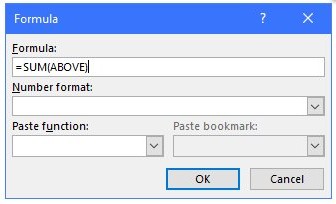
Add up a column in Word with =SUM(ABOVE)
- Click the empty cell at the bottom of the column you want to total.
- Select the Table Layout tab, then select Formula in the Data group.
- Check that the Formula box reads
=SUM(ABOVE), and type it if Word suggests something else. - Select OK. Word adds up the numbers above the cell and shows the total.
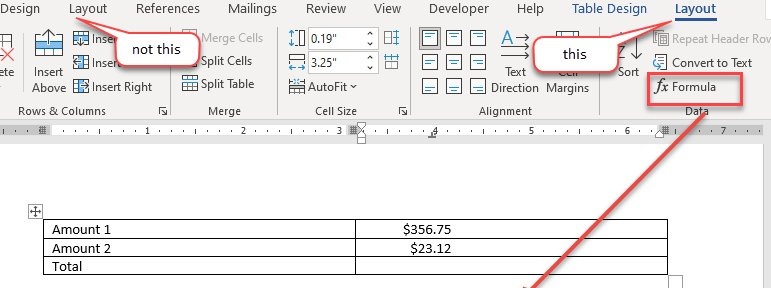
The Formula command works only inside a Word table, not in text columns in Word.
Sum a table column on Windows (Word for Microsoft 365, 2024, 2021, 2019, 2016)
These steps work in Word for Microsoft 365, Word 2024, Word 2021, Word 2019 and Word 2016 on Windows. The Table Layout tab on the Word ribbon appears only while the cursor is inside a table.
- Click the empty cell where you want the total. If the cell holds anything, delete it first.
- Type a zero (
0) in any empty cell inside the column, so the formula does not stop with an error. - Select the Table Layout tab and, in the Data group, select Formula.
- In the Formula dialog, check that the Formula box shows
=SUM(ABOVE). - Choose an entry in the Number format list if you want the total in a specific number format.
- Select OK. Word inserts the total as a field.
- After you change a number in the column, select the total and press F9 to update it.

Sum a table column on Mac (Word for Microsoft 365, 2024, 2021)
Word for Microsoft 365 for Mac, Word 2024 for Mac and Word 2021 for Mac use the same Formula command on the Table Layout tab.
- Click the empty cell where you want the total.
- Select the Table Layout tab, then select Formula.
- Check that the formula covers the cells you want;
=SUM(ABOVE)adds every number above the cell. - Select OK to insert the total.
- To refresh the total after an edit, Control-click it and choose Update Field.
Other SUM directions
SUM accepts four positional arguments, alone or in pairs. Positional formulas skip header rows, so a heading such as a year is never added to the total.
| To add the numbers | Type this in the Formula box |
|---|---|
| Above the cell (a column total) | =SUM(ABOVE) |
| Below the cell | =SUM(BELOW) |
| Above and below the cell | =SUM(ABOVE,BELOW) |
| Left of the cell (a row total) | =SUM(LEFT) |
| Right of the cell | =SUM(RIGHT) |
| Left and right of the cell | =SUM(LEFT,RIGHT) |
| Left of and above the cell | =SUM(LEFT,ABOVE) |
| Right of and above the cell | =SUM(RIGHT,ABOVE) |
| Left of and below the cell | =SUM(LEFT,BELOW) |
| Right of and below the cell | =SUM(RIGHT,BELOW) |
You can combine directions in one table: total each row with =SUM(LEFT) in the right-hand column, then add those row totals with =SUM(ABOVE) at the bottom.
Word table formula functions besides SUM
To use another function, open Formula, delete the SUM formula but keep the equal sign (=), then pick a function from the Paste function list.
AVERAGE, COUNT, MAX, MIN, PRODUCT and SUM accept the positional arguments ABOVE, BELOW, LEFT and RIGHT.
| Function | Example | Returns |
|---|---|---|
| AVERAGE | =AVERAGE(ABOVE) |
The average of the numbers above the cell |
| COUNT | =COUNT(LEFT) |
How many values sit to the left of the cell |
| MAX | =MAX(ABOVE) |
The largest number above the cell, header rows excluded |
| MIN | =MIN(ABOVE) |
The smallest number above the cell, header rows excluded |
| PRODUCT | =PRODUCT(LEFT) |
All the numbers to the left multiplied together |
| ROUND | =ROUND(123.456, 2) |
123.46 |
| IF | =IF(SUM(LEFT)>=10,10,0) |
10 when the row adds up to at least 10, otherwise 0 |
| INT | =INT(5.67) |
5, the value rounded down to a whole number |
| ABS | =ABS(-22) |
22, the absolute value |
Word tables support 18 functions in total, from ABS and AND to SIGN, SUM and TRUE.
Sum specific cells in a Word table with A1 references
Cell references add up exact cells instead of everything in one direction. Picture the table as a spreadsheet: the first column is A and the first row is 1.
| To add up | A1 style | RnCn style |
|---|---|---|
| Rows 2 to 6 of the second column | =SUM(B2:B6) |
=SUM(R2C2:R6C2) |
| Two separate cells in row 2 | =SUM(B2,D2) |
Not needed |
| The first two cells in the first row | =SUM(A1,B1) |
Not needed |
| Multiply the second and third columns in row 2 | =PRODUCT(B2:C2) |
=PRODUCT(R2C2:R2C3) |
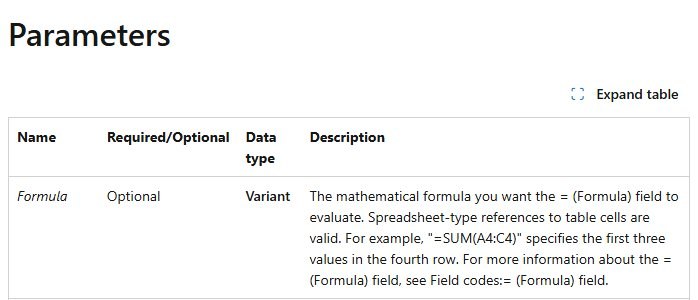
The cell that holds the formula is never part of its own calculation; Word ignores it even when the range includes it. A one-row header counts as row 1, so the first number usually sits in row 2.
How to update a SUM formula in a Word table
Word calculates a formula when you insert it and again when you open the document. It does not recalculate while you type new numbers.
| What you want | Do this |
|---|---|
| Update one total | Select the total and press F9, or right-click it and select Update Field |
| Update every total in a table | Select the whole table, then press F9 |
| Update all fields in the document | Press Ctrl + A, then F9; this also refreshes fields such as a table of contents |
| Update totals before printing | Select File > Options > Display and, under Printing options, select Update fields before printing |
| Stop a total from changing | Select it and press Ctrl + F11 to lock it; Ctrl + Shift + F11 unlocks it |
| Turn a total into plain text | Select it and press Ctrl + Shift + F9 to unlink the field |
If Ctrl + A and F9 leave a table total unchanged, select that table on its own and press F9 again.
Add the Sum button to the Quick Access Toolbar
Putting Formula on the Quick Access Toolbar gives you a one-click Sum button in every document. Word suggests the SUM formula when the dialog opens.
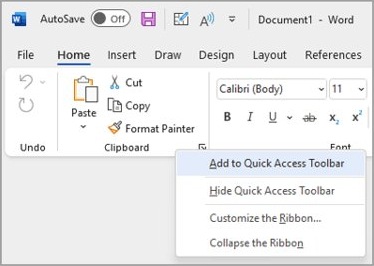
- Click inside any table so the Table Layout tab appears.
- Right-click Formula on the Table Layout tab.
- Select Add to Quick Access Toolbar.
- If the toolbar is hidden, right-click above the ribbon at the upper right of the window and select Show Quick Access Toolbar.
- To add a command that is not on the ribbon, select Customize Quick Access Toolbar > More Commands, set Choose commands from to Commands Not in the Ribbon, select the command and select Add.
- Click a total cell and select the new button to open Formula with the SUM formula ready.
On a Mac, open Word's Preferences, select Quick Access Toolbar and use the arrows to move a command into the Customize Quick Access Toolbar box. Commands that Word for Mac cannot place on the toolbar do not appear in the list.
Can you sum a table column in Word for the web?
No. Word for the web keeps formulas already in a document, but it has no way to add new ones. Select Open in Word to switch to the desktop app, add the formula there and save. The total stays in place when you open the document in the browser again.
If you do not have the desktop app yet, you can download Microsoft Word for Windows or Mac and add the formula there.
Common problems and fixes when summing a Word table
The cell shows { =SUM(ABOVE) } instead of a number
Word is showing field codes instead of their results.
- Press Alt + F9 to switch every field code back to its result.
- To switch only one total, select it and press Shift + F9.
The total is wrong and only sums part of the column
An empty cell inside the column breaks a positional formula such as ABOVE.
- Type
0in every empty cell in the column. - Select the total and press F9.
- If the column must keep blank cells, replace the formula with a range such as
=SUM(B2:B10).
The grand total includes subtotals or keeps getting larger
=SUM(ABOVE) adds every number above it, including the results of other formulas such as subtotals.
- Press Alt + F9 to see which cells above the total hold formulas.
- Replace
=SUM(ABOVE)with a cell range that leaves out the subtotal rows, such as=SUM(B2:B5). - Press Alt + F9 again, select the total and press F9.
The Formula button is grayed out
The cursor is not inside a table cell, or the document cannot be edited.
- Click inside a single table cell, then open the Table Layout tab again.
- If the document opened as read-only, make it editable and try again.
- In Word for the web, select Open in Word, because the browser version cannot add formulas.
The total does not change after you edit a number
Word formulas recalculate only when inserted, when the document opens, or when you update them.
- Select the total and press F9.
- To refresh every total at once, select the whole table and press F9.
A file from email or the internet can open read-only; you can make the Word document editable before you add the formula.
When to use Excel instead of a Word table formula
| Your situation | Use this | Why |
|---|---|---|
| A short column that rarely changes | A Word table formula | Quick to add, and F9 refreshes the total |
| Numbers that change often | Excel | Word recalculates only on insert, on open, on F9 or before printing when that option is on |
| Charts, sorting or more than basic math | Excel | Word tables offer 18 functions and no charting from the table itself |
| The data already lives in a workbook | Copy it in Excel and paste in Word with Link & Keep Source Formatting | The Word copy updates when the source worksheet changes |
| Spreadsheet math inside the document | Insert > Object > Create New, then choose an Excel worksheet object | Double-click the object to edit it with Excel's tools |
Word table SUM formula FAQ
How do I sum a column in a Word table?
Click the empty cell at the bottom of the column, select Table Layout > Formula, check that the Formula box shows =SUM(ABOVE) and select OK. Word adds every number above the cell and inserts the total as a field you can update with F9.
How do I sum a row in a Word table?
Click the empty cell at the right end of the row, select Table Layout > Formula and use =SUM(LEFT). Word adds every number to the left of the cell. Use =SUM(RIGHT) instead when the total cell sits at the start of the row.
Why does my Word table show { =SUM(ABOVE) } instead of a number?
Word is displaying field codes instead of results. Press Alt + F9 to switch every field back to its result, or select one total and press Shift + F9. The formula itself is fine and needs no change.
Does a Word table total update automatically?
Only when the document opens. Word calculates a formula when you insert it and again on opening, but not while you type. Select the total and press F9, or select the whole table and press F9, to refresh it after you change numbers.
Why is my Word table total wrong?
An empty cell in the column stops a positional formula such as =SUM(ABOVE) from adding every number. Type 0 in each empty cell and press F9, or use a cell range such as =SUM(B2:B10) that names the exact cells to add.
Why is the Formula button grayed out in Word?
The cursor is outside a table cell, the document is read-only, or you are in Word for the web. Click inside a single cell of an editable document in the desktop app, then open Table Layout > Formula again.
Can I average or count numbers in a Word table?
Yes. Open Formula, delete the SUM formula but keep the equal sign, and pick AVERAGE or COUNT from the Paste function list. Add a direction such as ABOVE or LEFT between the parentheses, for example =AVERAGE(ABOVE), then select OK.
How do I sum only some cells in a Word table?
Use A1 cell references. The first column is A and the first row is 1, so =SUM(B2:B6) adds rows 2 to 6 of the second column, and =SUM(B2,D2) adds two separate cells. Word ignores the formula's own cell.