WhatsApp carries your messages and calls over your internet connection instead of your carrier's SMS network, and your phone number is the account.
Below: how registration, chats, check marks, calls, groups, linked devices, backups, privacy settings and safety tools actually behave.
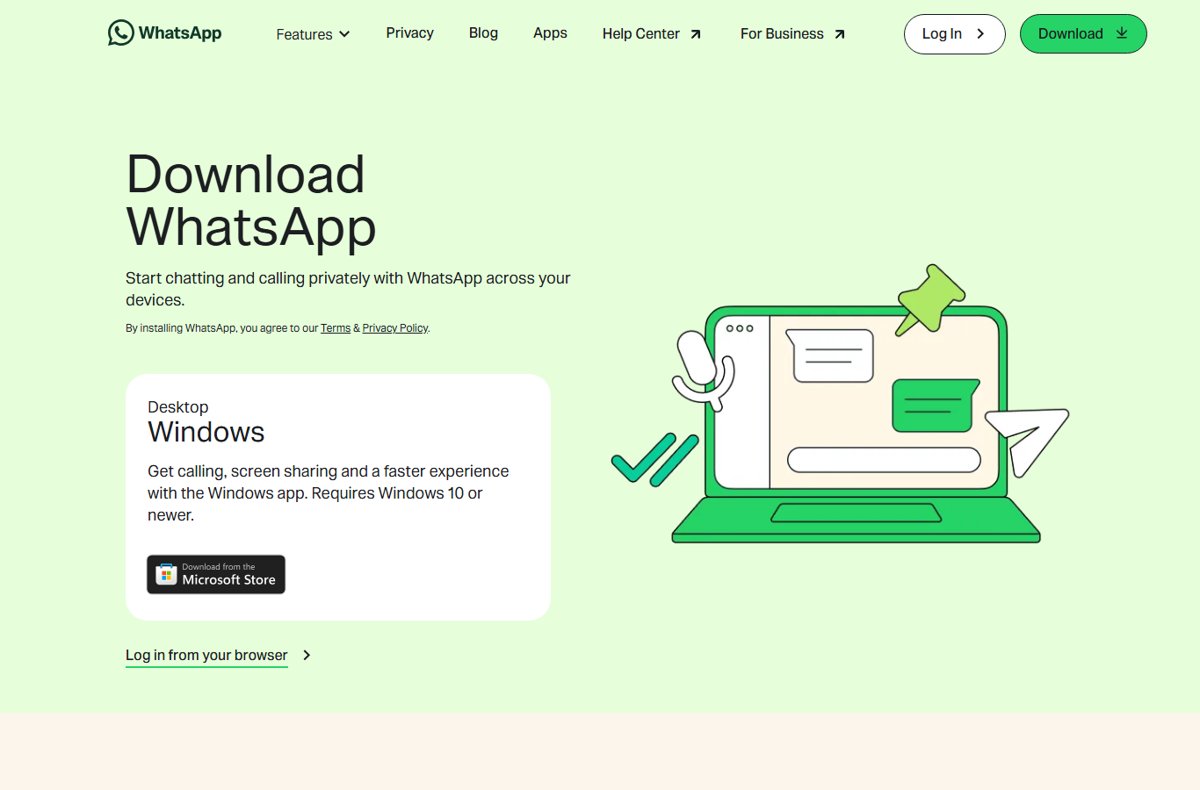
The fastest way to get WhatsApp working
Registration needs a phone number that can receive an SMS or a phone call.
Confirming that number with a registration code is the only way to activate the account.
- Install WhatsApp from Google Play or the App Store.
- Open it and tap Agree and continue to accept the Terms of Service.
- Tap Allow so calls and messages can raise notifications.
- Select your country, then enter your phone number in full international format.
- Enter the 6-digit registration code that arrives by SMS.
- Follow the prompts to restore an existing account or set up a new one.
The person you message must also have WhatsApp installed. Messages never fall back to SMS.
What Is WhatsApp?
| Point | What it means |
|---|---|
| What it is | A messaging and calling app for Android and iPhone, run by Meta. |
| Cost | Nothing for messages, media, voice calls or video calls. Subscription fees stopped in 2016. |
| What it needs | Mobile data or Wi-Fi. Your mobile provider may charge for that data. |
| Your account name | Your phone number, confirmed by a 6-digit registration code. |
| Privacy | Personal messages, calls and status updates are end-to-end encrypted by default. |
| Other devices | Up to four linked devices, including Windows, Mac, a browser, iPad and Android tablets. |
Which WhatsApp app should you use?
| Your situation | Use this | Why |
|---|---|---|
| Messaging friends and family | WhatsApp Messenger on Android or iPhone | Free, and the phone stays the primary device |
| Running a small business yourself | The WhatsApp Business app | Adds a business profile, contact lists and reply tools |
| Typing on a computer now and then | WhatsApp Web at web.whatsapp.com | Nothing to install, works in any current browser |
| On a computer all day | WhatsApp for Windows or Mac | Voice and video calls with up to 32 people |
| Bigger screen, no computer | WhatsApp for iPad or Android tablets | Links to the same account as a companion device |
How WhatsApp Uses Your Phone Number
The number is the account, and every new device or number triggers a fresh registration code.
| Rule | Detail |
|---|---|
| Verification | A 6-digit code arrives by SMS or phone call. Tap Didn't receive a code? to switch method. |
| Numbers that work | A mobile number you own that can receive SMS or phone calls. |
| Numbers that do not | VoIP, toll-free, premium-rate and universal access numbers. Landlines work only on the WhatsApp Business app. |
| Visibility | People you message can see your number even if they never saved you. |
| Two apps | WhatsApp Messenger and the WhatsApp Business app each need a different number. |
| Re-verifying abroad | The matching SIM must be in the device, with phone or SMS service enabled. |
Add an email address under Settings > Account > Email Address so you can still get a login code when SMS fails.
How Sending a WhatsApp Message Works
A message is locked on your device, travels over the internet, and is unlocked in the recipient's chat.
The check marks beside it report each stage of that trip.
| What you see | What it means |
|---|---|
| One check mark | The message was successfully sent. |
| Two check marks | Delivered to the recipient's phone or one of their linked devices. |
| Two blue check marks | The recipient has read it. In a group, everyone has read it. |
| A clock icon | Not sent or delivered yet, almost always a connection problem. |
| Voice message marker | Changes once every recipient has played the voice message. |
| Nothing changes for days | The recipient may have read receipts turned off, or may have blocked you. |
Open the chat, select the message and choose Message info for the delivered, read and played times.
Photos, videos, documents and voice messages travel the same encrypted path as text.
What End-to-End Encryption Means
| Question | Answer |
|---|---|
| What is protected | Messages, photos, videos, voice messages, documents, live location, status updates and calls. |
| Who holds the key | Only you and the other person in the chat. WhatsApp cannot read or listen. |
| How it is done | The Signal encryption protocol, applied before anything leaves your device. Keys change with every message. |
| What WhatsApp still knows | Account details you gave it, such as country code and age, plus device language and general location. |
| What is not end-to-end encrypted | Payments, chats with third-party agents, and chats where a business uses Meta hosting or AI from Meta. |
| How to check one chat | Open the chat, tap the contact's name, then tap Encryption for the QR code and 60-digit number. |
A business chat that is not end-to-end encrypted is labelled in the chat itself, so the status is never hidden.
How to Start a Chat
Both sides need WhatsApp installed and a working internet connection. Pick the container that matches the audience.
| You want to reach | Use this | What the other side gets |
|---|---|---|
| One person | An individual chat | Your message and your number, even if they never saved you |
| Up to 1,024 people who can all reply | A group | Every reply goes to everyone in the group |
| Up to 256 contacts, privately | A broadcast list | One ordinary message from you, only if they saved your number |
| A shop or service | A chat with a business account | The business's own privacy practices apply once it arrives |
| Yourself, as a notepad | Message yourself | Nothing. The chat stays on your account |
Contacts come from your phone's address book, so tidy that first. Deleting WhatsApp contacts covers clearing old entries.
How WhatsApp Calls Work
| Point | Detail |
|---|---|
| Cost | No charge for the call itself. Your data allowance pays for it. |
| Length | No time limit on one-to-one or group calls. |
| Group size | Up to 32 people on a voice or video call. |
| Devices | iPhone, Android, Mac, iPad, Windows and the browser. |
| Privacy | Calls are end-to-end encrypted, the same as chats. |
| Extras | Screen sharing, reactions, raise hand, call links and scheduled group calls. |
Connect to Wi-Fi whenever possible. Roaming data charges apply to calls abroad exactly as they do to browsing. To place one, open a chat and make a call on WhatsApp with the phone icon at the top of the screen.
Groups, Communities, and Broadcasts
| Feature | Size | How it behaves |
|---|---|---|
| Group | Up to 1,024 members | Everyone sees every reply. Admins set permissions and can restrict changes. |
| Community | Several groups under one roof | Admins send announcements to all members, who chat in smaller topic groups. |
| Broadcast list | Up to 256 contacts | Each person receives a separate one-to-one message, and replies stay private. |
Only contacts who saved your number receive a broadcast, which is the usual reason a broadcast seems to vanish.
Broadcast lists are not supported on Windows, Mac or the web.
How to create a group and invite people
- Open the Chats tab and start a new chat.
- Choose New group.
- Select the contacts you want, then confirm.
- Enter a group name of up to 100 characters and add a group icon.
- Set Disappearing messages to 24 hours, 7 days or 90 days if you want them.
- Tap Group permissions to decide what members may change.
- Create the group, open it, tap the group name and choose Invite to group via link.
Anyone holding that link can join and forward it, so share it only with people you trust.
Tap Reset link to kill an old invite. The previous link cannot be restored.
Admins and members in groups with fewer than 33 members can create invite links by default.
Status, Channels, and Updates
| Feature | What it is | Who sees it |
|---|---|---|
| Status | Text, photo, video or GIF that disappears after 24 hours, 90 seconds maximum for video | The audience you pick from your contacts. Status cannot be set to Everyone |
| Channels | One-way broadcasts from people and organisations you choose to follow | You. Followers cannot reply, and viewers cannot see who else follows |
| Updates tab | Where status and channels live, away from personal chats and calls | Only you |
Channel notifications stay muted until you turn them on for that channel.
Channel admins see your profile name and possibly your photo, never your phone number.
WhatsApp Web, Desktop, and Linked Devices
Up to four devices link to one account, and they keep working while the phone is switched off.
- Open WhatsApp on your primary phone.
- Tap the menu, then Linked devices > Link a device.
- Confirm your identity with your fingerprint, face or phone unlock PIN.
- On the computer, go to web.whatsapp.com, or open the Windows or Mac app.
- Point the phone at the computer screen and scan the QR code.
- Wait for the chats to sync, then use WhatsApp on the bigger screen.
Log in on the phone at least once every 14 days or linked devices sign out. Devices left idle for 30 days disconnect automatically.
Link only official apps and web.whatsapp.com. Unofficial clients can get the account banned and are not checked for security.
The Microsoft Store build is covered in a hands-on with WhatsApp UWP for Windows 11 and Windows 10.
How WhatsApp Backups Work
Chat history sits on your phone, not on WhatsApp servers, so support cannot restore it for you.
Android backs up to a Google Account, and iPhone backs up to iCloud.
- Tap the menu, then Settings > Chats.
- Tap Chat backup > Back up to your Google Account.
- Choose a backup schedule other than Never.
- Pick the Google Account that will hold the backup.
- Turn Include videos in chats on or off to control the backup size.
- Tap End-to-end encrypted backup > Turn on, then create a passkey, password or 64-digit key.
Restoring needs the same phone number and the same Google Account or iCloud account that made the backup.
A forgotten encrypted-backup password cannot be reset, and WhatsApp keeps no copy of it.
Moving to a new phone without a backup is still possible: chat transfer carries the whole account across.
Privacy Settings Beginners Should Check
By default, any user can see your profile photo, your read receipts and when you are online.
Your contacts can see your about text, your statuses and when you were last seen.
- Tap Settings > Privacy.
- Set Last seen and online, Profile photo and About to My contacts or Nobody.
- Tap Groups and choose who may add you to a group.
- Turn Read receipts off if you would rather not send blue check marks.
- Tap Calls and turn on Silence unknown callers.
- Set Default message timer if new chats should delete themselves automatically.
- Run Privacy checkup to review the whole set in one pass.
Turning read receipts off also hides other people's read receipts from you, and it never applies to group chats.
Your phone number cannot be hidden from anyone you message, and group members always see each other's numbers.
Disappearing Messages and View Once
| Feature | How long it lasts | Limits |
|---|---|---|
| Disappearing messages | 24 hours, 7 days or 90 days after sending | Applies to new messages only. Either side can turn it on in a one-to-one chat |
| Kept messages | Until unkept, with roughly 30 days to change your mind | The sender decides who may keep a message, and is told when someone does |
| View once | Gone after one open, and expires unopened after 14 days | No forwarding, copying, saving, starring or screenshots |
A backup taken before a message disappears still contains it, and restoring a backup deletes already-disappeared messages.
View once media can still be photographed with a second camera, so send it only to people you trust.
What WhatsApp Business Is
| Point | Detail |
|---|---|
| Who it is for | Small business owners who answer customers themselves. |
| Cost | Free to download on Android and iPhone. |
| What it adds | A business profile with address, email and website, contact lists, and tools for fast replies. |
| Phone number | Its own number. The same number cannot run both apps at once, though accounts can be moved between them. |
| Landlines | Accepted here, unlike WhatsApp Messenger. |
| Encryption | Chats are end-to-end encrypted unless the business uses Meta hosting or AI from Meta, which is labelled in the chat. |
Medium and large companies use the WhatsApp Business Platform instead, which handles customer messaging programmatically.
If you are not a business, there is no reason to install the second app.
How WhatsApp Makes Money
| Source | How it works |
|---|---|
| Not from your messages | Messages, media, voice calls and video calls are free. Subscription fees ended in 2016. |
| Ads in Status and Channels | Ads appear in the Updates tab, never in personal chats, and are rolling out region by region. |
| What targets those ads | Country code, age, device language, general location and channel activity. |
| What never targets them | Personal messages, calls, status content, location shared in chats, device contacts and group membership. |
| Paid subscription | A subscription removes ads from Status and Channels. |
| Business messaging | Companies pay to reach customers through the WhatsApp Business Platform. |
Tap Why you're seeing this ad on any ad to see the factors behind it and to manage which advertisers reach you.
Safety: Scams, Spam, and Account Protection
Scam messages come from numbers you never saved and push for money, a PIN or personal details.
- Pause when a stranger rushes you, threatens you, or asks for money or a password.
- Stop replying and end the call if you cannot confirm who they are.
- Block the sender and report them from inside the chat. The sender is not told.
- Turn on two-step verification so nobody can re-register your number without your password.
- Never share your 6-digit registration code or your two-step verification password with anyone.
- Open Linked devices regularly and log out anything you do not recognise.
- Cut spam at the source under Settings > Privacy > Groups by limiting who can add you.
WhatsApp removes most spam and scam accounts before they reach anyone, and prompts you to verify your identity when it spots a suspicious login.
Installing an unofficial WhatsApp app risks a temporary or permanent ban on top of the security risk.
Storage, Data Use, and Performance
Photos and videos fill a phone, not text. WhatsApp keeps its own storage and network report.
- Tap Settings > Storage and data.
- Tap Network usage to see how much data WhatsApp has used.
- Tap Manage storage to see the total space WhatsApp occupies on the device.
- Sort the list by Largest and review anything forwarded many times.
- Select items, delete them, and tick Delete any copies to clear duplicates.
- Open a heavy chat, tap its name and choose Manage storage to clear that chat alone.
- Turn media auto-download off for mobile data and roaming to cut data use.
Performance suffers when device storage runs critically low, and WhatsApp will prompt you to free space.
Back up before deleting, because deleted media cannot be downloaded again from the chat it came from.
How to check it worked
- Send a message to a contact and watch for a second check mark.
- Select that message and choose Message info to confirm the delivered time.
- Tap the contact's name, then Encryption, and wait for verification to finish.
- Open Settings > Chats > Chat backup and check the date of the last backup.
- Open Linked devices and confirm every device listed is one of yours.
Fix WhatsApp when it is not working
An unsupported browser is a common cause on a laptop, as WhatsApp Web in the Vivaldi browser shows.
WhatsApp Web is not working on your laptop
Usually the browser or the network, not the account.
- Open web.whatsapp.com and look for the yellow Computer not connected message.
- Refresh the page.
- Clear your browser cache and cookies.
- Log out of WhatsApp Web, then scan the QR code again.
- Switch to a different Wi-Fi network or a phone hotspot, because office and campus Wi-Fi often blocks WhatsApp.
- Ask the network owner to allow traffic to web.whatsapp.com and .whatsapp.net.
- Use a current version of Chrome, Firefox, Microsoft Edge, Opera or Safari. Internet Explorer is not supported.
WhatsApp is not working on your phone
A weak connection, an out-of-date app, or a device with no free storage.
- Open a web page to confirm the phone really has internet access.
- Switch between Wi-Fi and mobile data to test the other connection.
- Turn the phone off, wait 30 seconds, and turn it back on.
- Update WhatsApp from Google Play or the App Store.
- Open Settings > Storage and data > Manage storage and free space if the device is nearly full.
Messages will not send and show a clock icon
The message has not left the device, which points at the connection.
- Check the signal and move somewhere with better coverage.
- Switch to Wi-Fi.
- Correct the phone's date and time, since a wrong clock also breaks read receipts.
- Close WhatsApp, reopen it, and send the message again.
- Confirm the recipient still uses WhatsApp, because messages never fall back to SMS.
The 6-digit registration code never arrives
The number cannot receive the code, or something on the phone is blocking it.
- Confirm the SIM for that number is in the device and can receive SMS.
- Select the country, then enter the number in full international format.
- Turn off call-blocking apps and task killers.
- Wait for the progress bar to finish, tap Didn't receive a code? and choose Phone call.
- Never guess the code, because wrong guesses lock the number out for a while.
- Use the email address saved on the account to receive the code when SMS keeps failing.
Useful Beginner Tips
| Tip | How it works |
|---|---|
| Use a chat as a notepad | Message yourself keeps links and reminders in a normal chat. |
| Pin what matters | Pin a chat so it stays at the top of the Chats tab. |
| Lock a private chat | Chat lock hides a chat behind your passcode, fingerprint, Face ID or a secret code. |
| Star for later | Star a message to find it again without scrolling. |
| Fix a typo | Edit a sent message. Read receipts reset, so you can see who saw the corrected version. |
| Search by media type | Tap the search field, then Photos, Videos or Documents. |
| Mute unknown senders | Advanced privacy settings can block high volumes of messages from unknown accounts. |
What WhatsApp Is Best For
Use WhatsApp for private, cross-platform messaging and calling with people who already have it. Chats and calls are end-to-end encrypted by default, cost nothing beyond data, behave the same on Android and iPhone, and scale to 1,024 people in a group or 32 on a call. It replaces SMS only for contacts who run the app, so keep a fallback such as Google Messages for everyone else.
Frequently Asked Questions
How does WhatsApp work?
WhatsApp registers your phone number, then carries messages, photos, voice notes and calls over your internet connection instead of your carrier's SMS network. Everything is encrypted before it leaves your device. Both people need the app installed and an active data or Wi-Fi connection.
What is WhatsApp and how does it work?
WhatsApp is a free messaging and calling app from Meta for Android and iPhone. Your phone number is the account. It moves chats, media and calls over mobile data or Wi-Fi, end-to-end encrypted, and charges nothing beyond the data you use. Voice and video calls follow the same rule: WhatsApp calls are free, but a long video call on mobile data can use a lot of your allowance.
How does WhatsApp work internationally?
Exactly as it does at home, because it uses the internet rather than international SMS or call minutes. There is no extra WhatsApp charge for messaging or calling another country. Roaming data charges from your mobile provider still apply, so use Wi-Fi where you can.
How does WhatsApp work on a PC or laptop?
Link the computer to your phone. Open web.whatsapp.com or the Windows or Mac app, then scan the QR code from Linked devices on the phone. Up to four devices can be linked, and they keep working while the phone is switched off.
How does WhatsApp work with dual SIM?
One WhatsApp account uses one phone number, so two SIMs do not create two accounts in one app. Register the number you want. A second number can run the WhatsApp Business app, which requires a different number from WhatsApp Messenger.
How does WhatsApp work with your phone number?
The number is the account. WhatsApp sends a 6-digit code by SMS or phone call to prove you own it, and that code is the only way to activate the account. People you message can see your number even if they never saved it.
How does WhatsApp work technically?
Messages are encrypted on your device with the Signal protocol, relayed over the internet, and decrypted only on the recipient's device. The keys change with every message. WhatsApp cannot read the contents, and your chat history stays on your phone rather than on its servers.
How does WhatsApp Business work?
The WhatsApp Business app is a free, separate download for small businesses on Android and iPhone. It adds a business profile with address, email and website, contact lists and quick reply tools. It needs its own number, and a landline is accepted.
Why is my WhatsApp not working?
A poor internet connection causes most failures. Open a web page to test it, switch between Wi-Fi and mobile data, restart the phone, and update the app. Free some storage too, because WhatsApp stops working properly when the device is critically low.
Why is WhatsApp Web not working?
Check for the yellow Computer not connected notice, refresh the page, clear the browser cache, then log out and scan the QR code again. Office and campus Wi-Fi often blocks WhatsApp, so try a hotspot. Older browsers such as Internet Explorer are unsupported.
Why do people use WhatsApp?
It costs nothing beyond data, behaves the same on Android and iPhone, and carries messages, voice notes, files, voice calls and video calls in one app. Personal chats and calls are end-to-end encrypted by default, and a group holds up to 1,024 people.




![Unable to accept invite in Discord [Fix]](https://techdows.com/wp-content/uploads/2026/10/Unable-to-accept-invite-in-Discord-Fix-1-600x338.jpg)

What is WhatsApp Web, how does it work, and everything you can do with it? - Techdows
[…] to WhatsApp itself? Start with How Does WhatsApp Work? (A Beginner’s Guide), then come back to link your […]
2025 WhatsApp updates roundup: new features for chats, calls & channels - Techdows
[…] Calls and Updates are WhatsApp's three main tabs, and the sections below follow that […]