To fix the "Windows cannot find javaw.exe" error, install the current Java release from java.com with the offline installer, which puts javaw.exe back on disk and back in the PATH variable.
If a reinstall is not enough, this guide shows where javaw.exe lives, how to find it with the where command, how to add it to PATH and how to point .jar files back to it, plus fixes for the Java Update installer, crashes in Java Platform SE binary and Java Update notifications.
Fix Windows cannot find javaw.exe error
The error means a shortcut, a .jar file association or the PATH variable still points at a Java folder that no longer exists, usually after an uninstall, an update or a cleanup tool removed it.
A fresh Java install copies new javaw.exe helper files and updates the PATH system variable, so it fixes most cases in one pass. Installing Java needs an administrator account.
- Open the manual download page on java.com in your browser.
- Select Windows Offline and save the installer to your desktop.
- Close all open apps, including the browser.
- Double-click the saved file and select Yes in the User Account Control prompt.
- Select Install to accept the license terms, then follow the remaining dialogs.
- When the installer offers to remove older versions of Java, choose Uninstall so only the new version remains.
- Select Close on the last dialog, then restart the PC and open the Java app again.
If you need a JDK rather than the desktop runtime, install the JDK from oracle.com instead. JDK 11 and later installers place their own javaw.exe helper in the javapath folder and add it to PATH.
What is the Windows can't find javaw.exe error?
javaw.exe is the Java launcher Windows uses for desktop Java programs. It works like java.exe but opens no console window, and Windows shows "cannot find" when the file it was told to run is missing.
| What you see | Likely cause | Fix to use |
|---|---|---|
| Error when you double-click a .jar file | The .jar association points to a removed Java folder | Reinstall Java, or set the .jar default app again |
| Error from a game or app launcher | The launcher has a fixed path to an old javaw.exe | Reinstall Java, then update the Java path in the launcher's settings |
| "javaw" is not recognized in Command Prompt | The Java folder is not in the PATH variable | Add the Java bin folder to PATH |
| Error right after removing Java with a cleanup tool | The helper files in javapath were deleted | Reinstall Java to restore them |
Where is javaw.exe located on Windows 11 and Windows 10?
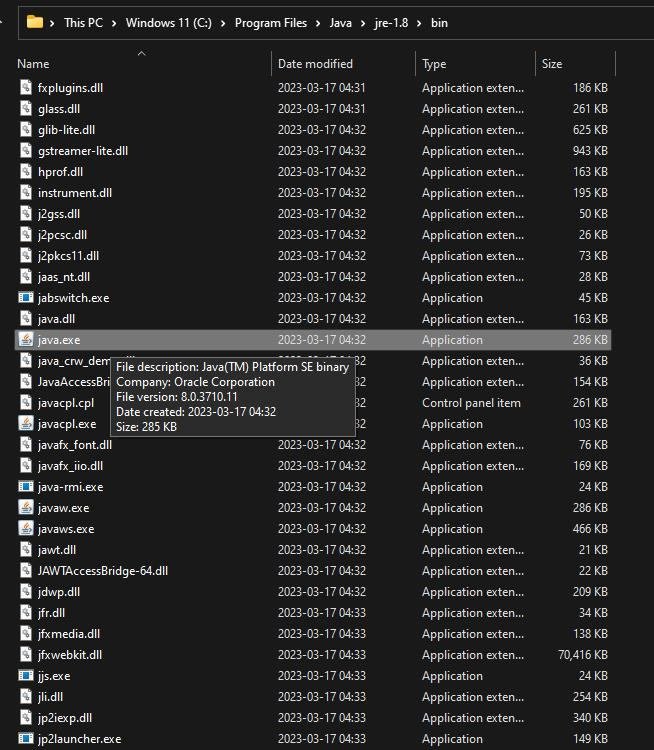
Oracle installers put javaw.exe in two places: a small helper copy that sits on PATH, and the real launcher inside the Java version's bin folder.
| Java you installed | Default javaw.exe location |
|---|---|
| JDK 11 and later (helper on PATH) | C:\Program Files\Common Files\Oracle\Java\javapath\javaw.exe |
| JDK 21 (real launcher) | C:\Program Files\Java\jdk-21\bin\javaw.exe |
| JRE 8 64-bit | C:\Program Files\Java\jre1.8.0_<update>\bin\javaw.exe |
| JRE 8 32-bit | C:\Program Files (x86)\Java\jre1.8.0_<update>\bin\javaw.exe |
| JRE 8u421 and later (helper on PATH) | %CommonProgramFiles(x86)%\Oracle\Java\java8path\javaw.exe |
| JRE 8u411 and earlier (helper on PATH) | %CommonProgramFiles(x86)%\Oracle\Java\javapath\javaw.exe |
Replace <update> with your update number, for example 1.8.0_421 for Java 8 Update 421. Java builds from other vendors use their own install folders, but javaw.exe always sits in the build's bin folder.
How to find javaw.exe with the where command
The where command searches the current folder and every folder in PATH, so it shows exactly which javaw.exe Windows will run.
where javawLists every javaw.exe that Windows can reach through the PATH variable, in the order Windows tries them. If nothing is found, search the Program Files folder directly with where /r "C:\Program Files" javaw.exe, and repeat it for C:\Program Files (x86) to catch 32-bit Java.
You should see: One or more full paths ending in javaw.exe. The first path listed is the one Windows uses. "INFO: Could not find files" means javaw.exe is not on PATH.
Open Command Prompt from the Start menu to run it. If the recursive search finds javaw.exe in a bin folder but where javaw does not, the fix is the PATH section below.
Add the Java bin folder to the PATH variable
Use this when javaw.exe exists on disk but Command Prompt or an app says it cannot be found. Copy the bin folder path you found with the where command first.
- Search for System (Control Panel) or open Settings > System > About.
- Select Advanced system settings.
- Select Environment Variables.
- Under System variables, select Path and select Edit.
- Select New and paste the bin folder path, for example C:\Program Files\Java\jdk-21\bin.
- Select OK in every open window.
- Close and reopen Command Prompt so it picks up the new PATH.
If the same error mentions another missing folder, the steps to fix a path that cannot be found work the same way for other programs.
Point .jar files back to javaw.exe
When the error appears only on double-clicking a .jar file, the file type is still tied to a Java folder that was removed. Reinstall Java first so a working javaw.exe exists, then set the default app.
- Open Settings and go to Apps > Default apps.
- Under Set a default for a file type or link type, type .jar in the search box.
- Select the .jar result.
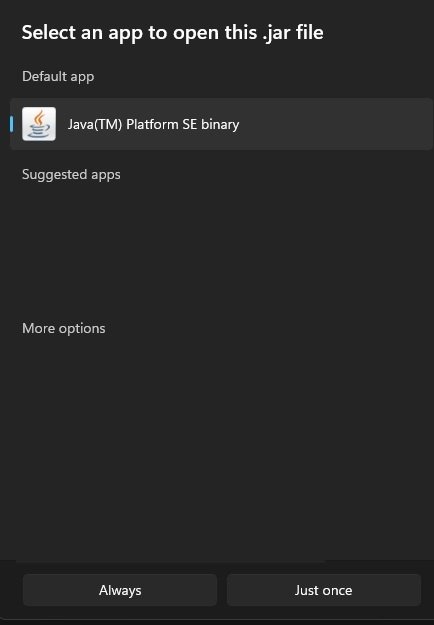
- Choose Java(TM) Platform SE binary from the list of apps.
- Double-click the .jar file again to test it.
Java(TM) Platform SE binary is the name Windows shows for javaw.exe. If it is missing from the list, use the option to look for another app and browse to the javaw.exe path from the table above.
Unable to launch the Java Update installer [Fix]
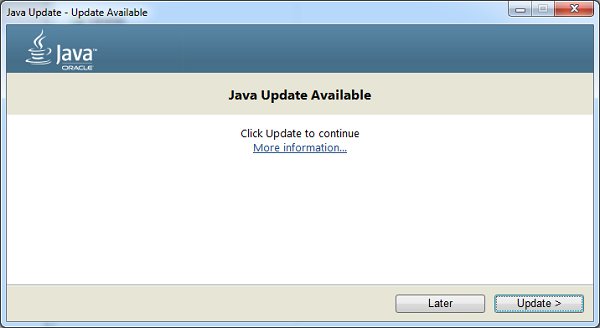
Clicking the Java Update notification does nothing or shows "Unable to launch the Java Update installer"
The updater cannot start or download the new version, often because the old install is damaged or the download is blocked.
- Download the Windows Offline installer from the java.com manual download page instead of using the updater.
- Close all apps and browsers.
- Run the installer from an administrator account and select Yes at the User Account Control prompt.
- Let it remove older versions when it offers to.
The Update tab settings cannot be changed
You are not signed in as an administrator, or an administrator disabled updates during installation.
- Sign in with an administrator account.
- Open Configure Java from the Java folder in the Start menu.
- Open the Update tab and change the settings.
Java Update keeps failing after reinstalling
Leftover files from a partial uninstall block new installs.
- Uninstall every Java entry in Settings > Apps > Installed apps (or Apps & features on Windows 10).
- Restart the PC.
- Install Java again with the offline installer.
Java Platform SE binary has stopped working & is not responding
Java Platform SE binary is javaw.exe itself, so this message means the Java program crashed or hung while running.
"Java(TM) Platform SE binary has stopped working" on launch
An outdated or damaged Java version, or an old version that the app picks up first.
- Check your version under Start > Java > About Java.
- Install the latest Java with the offline installer.
- Remove older Java versions in Settings > Apps so the app cannot load them.
- Restart the PC and open the app again.
Java Platform SE binary is not responding
Stale files in the Java cache can stop downloaded Java programs from loading.
- Open Configure Java from the Start menu.
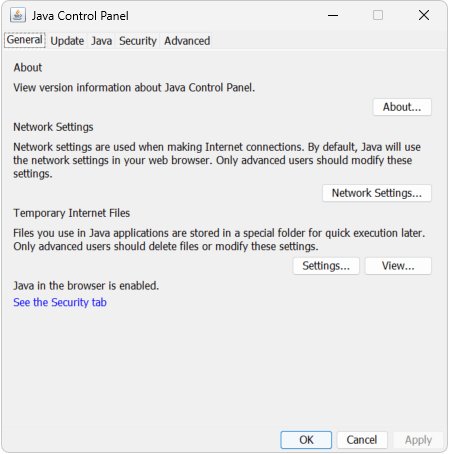
- On the General tab, select Settings under Temporary Internet Files.
- Select Delete Files, then OK twice.
- Open the Java program again.
If Windows Error Reporting itself throws errors while the crash is being reported, you can fix WerFault.exe errors separately.
How to disable Java Update notification on Windows PC
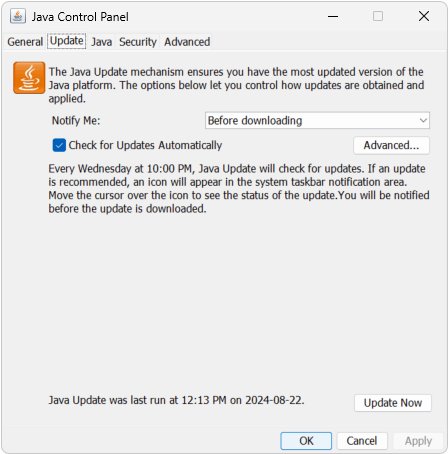
Java Update checks for new versions on a schedule and shows a desktop notification when one is ready. Oracle advises changing how often it checks rather than switching it off, because updates carry security fixes.
- Open Start, open the Java folder and select Configure Java.
- Select the Update tab.
- To stop the notifications, clear Check for Updates Automatically.
- To keep updates but see fewer prompts, select Advanced and set the check to Monthly.
- Select OK, then Apply.
Change settings on the Update tab from an administrator account. 64-bit Java versions before Java 8 have no Update tab at all.
Check that Windows can find javaw.exe again
- Open a new Command Prompt window.
- Run
where javawand confirm it returns a path ending in javaw.exe. - Run
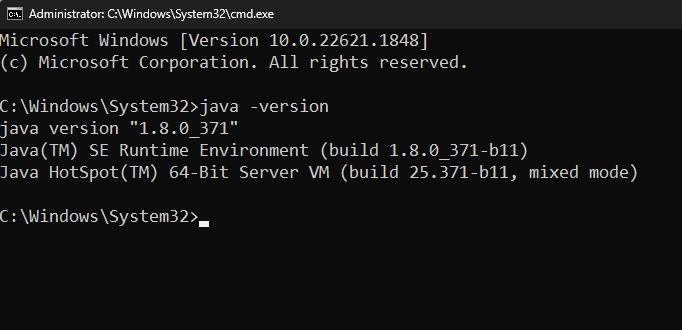
java -versionand confirm the version number matches the Java you installed. - Double-click the .jar file or open the app that showed the error. It should start without the message.
If java -version shows 1.8.0 while you installed a newer JDK, the JRE 8 helper folder sits ahead of the JDK in PATH. Oracle's fix is to uninstall and reinstall the JDK.
Javaw.exe error still showing after reinstalling Java
"Failed to determine version of javaw.exe"
The launcher reached a javaw.exe path that is empty or belongs to a removed version.
- Run
where javawand note the first path. - Open that folder in File Explorer and check that javaw.exe is there.
- If it is missing, edit Path in Environment Variables and delete the dead entry.
- Reopen the app and point its Java setting at the bin folder of the installed version.
"Java not found on your computer" or can't find Java on my computer
No Java runtime is installed, or only a 32-bit Java is installed for a 64-bit app.
- Check Settings > Apps for an entry named Java, Java SE or Java Runtime Environment.
- Install the 64-bit version if your Windows is 64-bit and the app needs it.
- Restart the PC and run
java -versionto confirm.
Javaw.exe error on a Lenovo laptop or other new PC
An app on the laptop needs Java, but no working Java runtime is installed.
- Install Java from java.com with the offline installer.
- Restart the PC.
- Reinstall the app that shows the error if it still points to an old path.
Javaw.exe error FAQ
What is Windows can't find javaw.exe?
It is a Windows message that appears when a shortcut, file association or app tries to run javaw.exe from a folder where it no longer exists. It usually follows a Java uninstall, update or cleanup. Reinstalling Java restores the file and the PATH entry.
Where is javaw.exe located?
javaw.exe sits in the bin folder of each Java install, such as C:\Program Files\Java\jdk-21\bin. Oracle installers also place a helper copy in C:\Program Files\Common Files\Oracle\Java\javapath, which is the copy most apps find through PATH.
How to find javaw.exe?
Open Command Prompt and run where javaw. It lists every javaw.exe Windows can reach through PATH. If nothing appears, run where /r "C:\Program Files" javaw.exe to search the Program Files folder and its subfolders.
How to get javaw.exe?
Install Java from java.com or a JDK from oracle.com. javaw.exe is part of every Java runtime and JDK for Windows, so it is never downloaded on its own. Avoid sites that offer javaw.exe as a single file.
Why isn't javaw.exe running?
javaw.exe opens no console window, so it can be running with nothing visible until the Java program draws its own window. If the program never appears, the launch failed, and javaw shows a dialog with the error details.
What is the difference between javaw.exe and java.exe?
They run Java programs the same way, but javaw.exe opens no Command Prompt window. Use java.exe for console programs and javaw.exe for desktop programs that have their own window, such as a .jar with a graphical interface.
How do I find java.exe?
Run where java in Command Prompt. java.exe sits beside javaw.exe in the same bin folder and in the same javapath helper folder, so the locations match the javaw.exe table in this guide.
How to fix a Java error that will not go away?
Uninstall every Java version in Settings > Apps, restart, then install the latest Java with the offline installer. A clean install replaces damaged files, removes stale PATH targets and clears out old versions that apps may load first.