To install an app on a Windows laptop or PC, open Microsoft Store, search for the app and select Get; if the app is not in the Store, download its installer from the developer's own website and run it.
This guide covers Windows 11 and Windows 10: the Store, installers from official sites, winget, web apps, discs and USB drives, portable and work apps, plus updating, uninstalling and fixing apps that will not install.
Install an app from the Microsoft Store in under a minute
The Microsoft Store is the quickest and safest route on both Windows 11 and Windows 10. Store apps install without a separate installer file and update themselves.
You need to be signed in to the Store with a Microsoft account to install apps.
- Select Start, then select Microsoft Store. You can also select the Microsoft Store icon on the taskbar.
- Search for the app by name, or browse Apps and select Show all in a category.
- Select the app to open its page. Check that the publisher named on the page is the company that makes the app.
- Select Get.
- Sign in with your Microsoft account if the Store asks.
- Wait for the install to finish, then open the app from its Store page or from Start.
Apps you have owned before, on this or another PC, are in the Store under Library. Any app with a Download icon there is not installed yet; select the icon to install it.
Understand the basics: pick the right app type and installation method
Windows runs several kinds of apps, and each installs a different way. Match what you have to a row, then jump to that section.
| Your situation | Install method | Why |
|---|---|---|
| The app is listed in the Microsoft Store | Microsoft Store | No installer file to download, and updates arrive automatically |
| The app is only offered on the developer's website as an .exe or .msi file | Official website installer | This is the traditional desktop program install; it usually needs administrator approval |
| You install the same apps on several PCs, or prefer typing to clicking | Windows Package Manager (winget) | One command installs, updates or removes an app; supported on Windows 10 version 1809 and later |
| The service is a website you use every day, such as webmail | Install the site as a web app in Edge or Chrome | Opens in its own window with a Start menu entry, and installs no desktop program |
| The installer came on a disc, a USB drive or a network folder | Local file | Run the setup file directly from the media |
| You cannot or do not want to install anything | Portable app | Runs from a folder without an installer, if the developer offers a portable version |
| The laptop belongs to your employer or school | Company Portal | Your organization publishes the apps it approves there |
| Your PC runs Windows in S mode | Microsoft Store only, or switch out of S mode first | S mode blocks every app that does not come from the Store |
Check these settings before installing software on Windows 11 or Windows 10
Most failed installs trace back to one of these settings, not to the app itself.
| Check | Where to find it | What it means for installing apps |
|---|---|---|
| Windows version and system type | Right-click Start > Settings > System > About; look under Windows specifications and Device specifications | Download the installer that matches your Windows version and your System type (64-bit or 32-bit) |
| S mode | Windows 11: Settings > System > Activation. Windows 10: Settings > Update & Security > Activation | In S mode you can install apps only from the Microsoft Store |
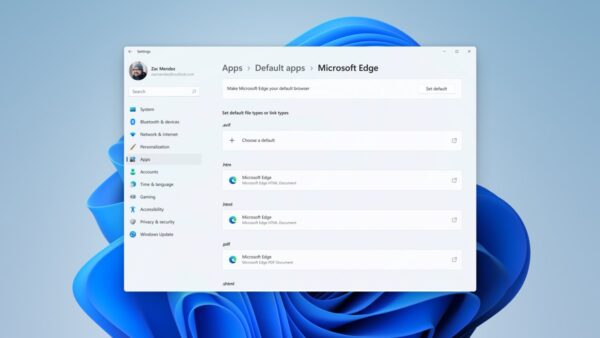
| Windows 11 app source setting | Start > Settings > Apps > Advanced app settings > Choose where to get apps | The Microsoft Store only (Recommended) blocks other installers; Anywhere allows them |
| Windows 10 app source setting | Start > Settings > Apps > Apps & features > Choose where to get apps | Options vary by Windows 10 version; pick the option that allows apps from anywhere to run downloaded installers |
| Account type | The User Account Control prompt when you run an installer | A standard account needs an administrator's password to install most desktop programs |
| Pending restart | Start > Settings > Windows Update | If Windows installed updates but has not restarted, restart before installing Store apps |
Download and run an .exe or .msi installer from the developer's official website
Use this for desktop programs that are not in the Microsoft Store. Get the installer only from the developer's own website, reached by typing its address or through a link on the Store listing.
Avoid third-party download sites and search ads that imitate a download button. Microsoft advises installing programs only from trusted publishers and retail websites.
- Open the developer's official website in your browser and go to its download page.
- Pick the version for Windows that matches your system type, then select the download link.
- Select Save to put the file in your Downloads folder, or Save as to choose another folder. Antivirus software such as Microsoft Defender scans the file during download.
- Open the Downloads folder and double-click the .exe or .msi file.
- On the User Account Control prompt, check the publisher name, then select Yes. On a standard account, enter an administrator's password.
- Follow the setup wizard. Read each screen and clear the checkbox for any extra software, toolbar or browser change you did not ask for.
- Select Finish or Close when setup ends, and restart the PC if the installer asks you to.
If Choose where to get apps is set to the Store only, Windows stops the installer and points you to the Store. Change the setting as shown in the checks table above, then run the file again.
Advanced installation: install apps with winget, the Windows Package Manager
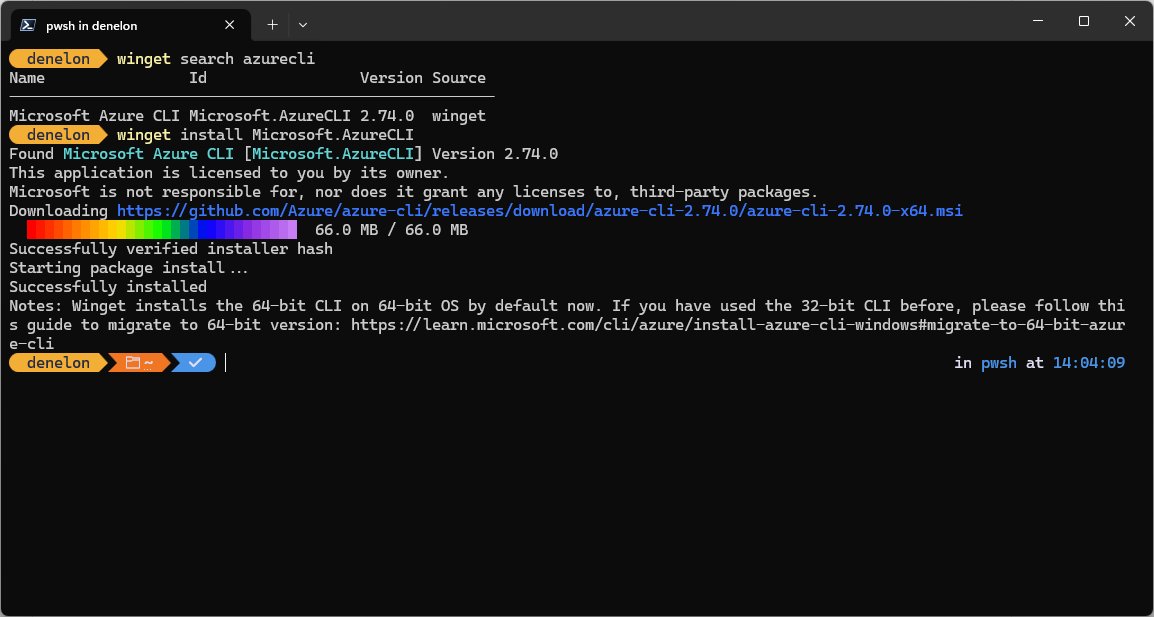
WinGet is Microsoft's command-line tool for installing, upgrading and removing apps. It comes with App Installer, which the Microsoft Store delivers on Windows 11 and on Windows 10 version 1809 (build 17763) or later.
If typing winget returns an error, install or update App Installer from the Microsoft Store, then open a new terminal window.
- Select Start, type
cmdand open Command Prompt. - Type
winget search <appname>and press Enter, replacing<appname>with the app you want. - Find the app in the results and note the value in its Id column.
- Type
winget install --id <Id> -eand press Enter. For example,winget install --id Microsoft.PowerToys -einstalls PowerToys. - Type
Yif WinGet asks you to accept the source or package agreements. If you decline, the app does not install. - Select Yes on the User Account Control prompt if the app's installer asks for administrator approval.
- Type
winget listto confirm the app now appears in your installed packages.
Install a website as an app in Microsoft Edge or Google Chrome
A web app is a website that opens in its own window with its own Start menu entry. It uninstalls from the browser, not from Programs and Features.
- Open the website in Microsoft Edge or Google Chrome.
- In Edge, select Settings and more (the three dots) > More tools > Apps > Install this site as an app.
- In Chrome, select More (the three dots) > Cast, save, and share > Install page as app.
- Follow the on-screen prompt to name and install the app.
- Open the app from Start, or go to
edge://appsin Edge orchrome://appsin Chrome and select it.
Install software from a disc, USB drive or file already on your PC
Boxed software and installers copied from another computer install the same way: setup starts on its own, or you start it from the setup file.
- Insert the disc into the PC or an external CD/DVD drive, or plug in the USB drive.
- Follow the instructions if setup starts automatically, and provide administrator approval if asked.
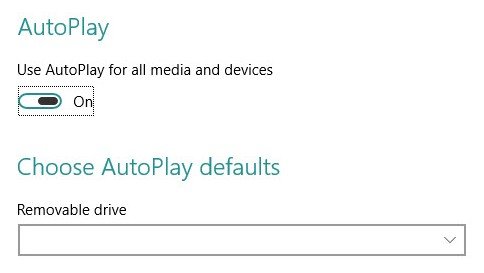
- If nothing happens, check AutoPlay: on Windows 11 select Start > Settings > Bluetooth & devices > AutoPlay and make sure it is On.
- Otherwise, open File Explorer, select the disc or USB drive and find the setup file, usually Setup.exe or Install.exe.
- Double-click the setup file and follow the setup wizard.
- For an installer saved in a local or network folder, browse to it in File Explorer and double-click it the same way.
SmartScreen checks files downloaded from the internet, but it does not check files on internal network shares. Run installers from a shared folder only when you know where they came from.
Use a portable app that runs without installing
Some developers offer a portable version, usually as a .zip file, that runs straight from a folder without an uninstall entry.
- Download the portable .zip file from the developer's official website.
- Open File Explorer and go to the Downloads folder.
- Right-click the zipped folder, select Extract All, and follow the instructions.
- Open the extracted folder and double-click the app's .exe file to run it.
- Move the folder to a location you will remember, or to a USB drive if you want to carry the app between PCs.
- To remove the app later, close it and delete its folder.
Install work or school apps from Company Portal
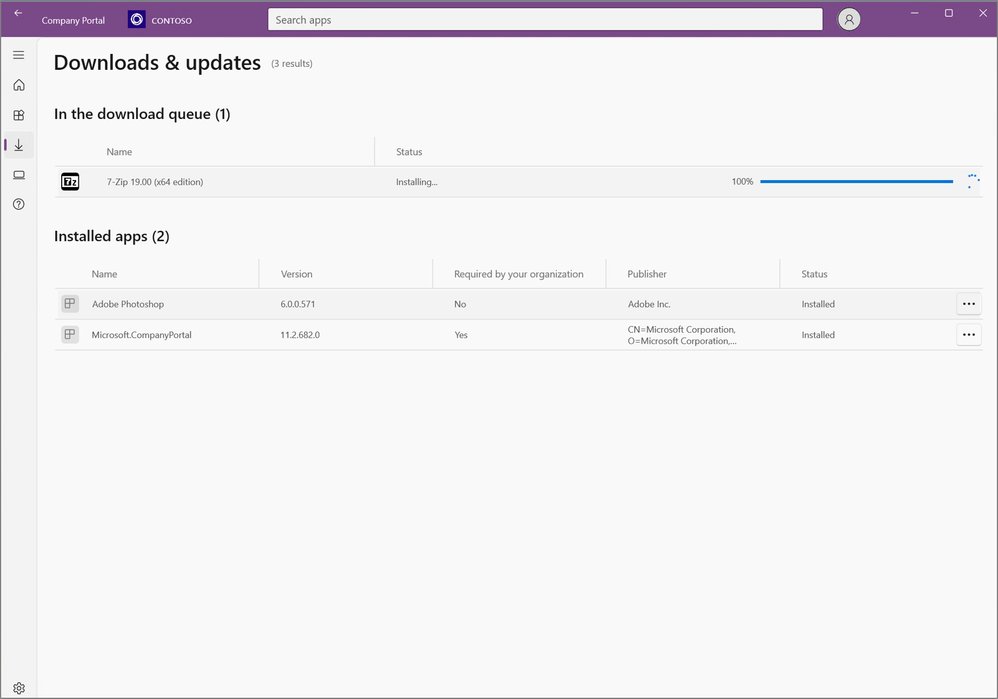
On a laptop managed by your employer or school, IT publishes approved apps in the Intune Company Portal app. Required apps install on their own; optional apps wait for you to install them.
- Install Intune Company Portal from the Microsoft Store if it is not already on the device.
- Open Company Portal and sign in with your work or school account.
- Find the app on Home, under Apps or App categories, or with the search bar.
- Select the app, then select Install.
- Wait for the status to change from Installing to Installed. It can take up to ten minutes to update.
- If an app you need is missing, go to Help & support for your organization's helpdesk contact.
How to check whether an app is safe before you install it
Windows gives you three safety signals before any app runs. Check each one, and stop if any of them looks wrong.
| Check | What to look for | What to do if it fails |
|---|---|---|
| Source | The Microsoft Store, or the developer's own website that you typed or followed from the developer's official page | Do not use a download portal, a file-sharing link or a pop-up download button |
| Store listing | The publisher shown on the app page matches the company that makes the app | Look-alike apps from other publishers are not the real app; skip them |
| User Account Control prompt | A gray prompt means a Windows app or a verified, signed publisher; a yellow prompt means the file is unsigned or not trusted | On a yellow prompt for software from a known company, select No and download the file again from the official site |
| Microsoft Defender SmartScreen | No warning; SmartScreen warns when a file is reported as malicious or is not commonly downloaded | Treat a warning as a reason to stop. Do not turn SmartScreen off to get past it |
| Microsoft Defender Antivirus | The download finishes without a threat notification | Delete the file if Windows Security reports a threat |
| Setup wizard | Only the app you chose is being installed | Clear offers for extra software, toolbars or a new home page before selecting Next |
Best practice and additional tips for a successful installation: prefer the Store, then the developer's own website, and keep Windows and your apps updated. Never disable security software to make an installer run.
Find and open the app after installing, and put it on your taskbar or desktop
A successful install adds the app to the Start menu. If it is there and opens, the install worked.
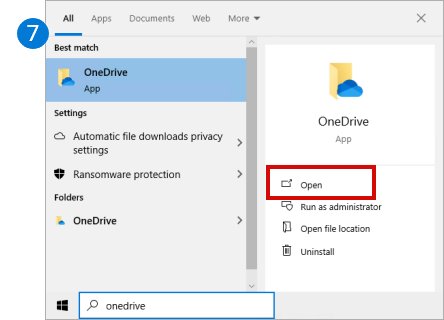
- Press the Windows key and type the app's name; select it in the results to open it.
- To browse instead, select Start > All on Windows 11, or scroll the alphabetical list in Start on Windows 10.
- To pin it, type its name in the taskbar Search box, right-click the app and select Pin to taskbar.
- To add a desktop shortcut, open the app list in Start and drag the app's name onto the desktop.
- To confirm a desktop program registered correctly, open Start > Settings > Apps > Installed apps (Windows 10: Apps & features) and find it in the list.
How to update installed apps and keep them maintained
Outdated apps miss security fixes. How you update depends on where the app came from.
| App came from | How to update | Notes |
|---|---|---|
| Microsoft Store | Open Microsoft Store, select Library > Get updates | Store app updates are automatic by default, and you can pause them |
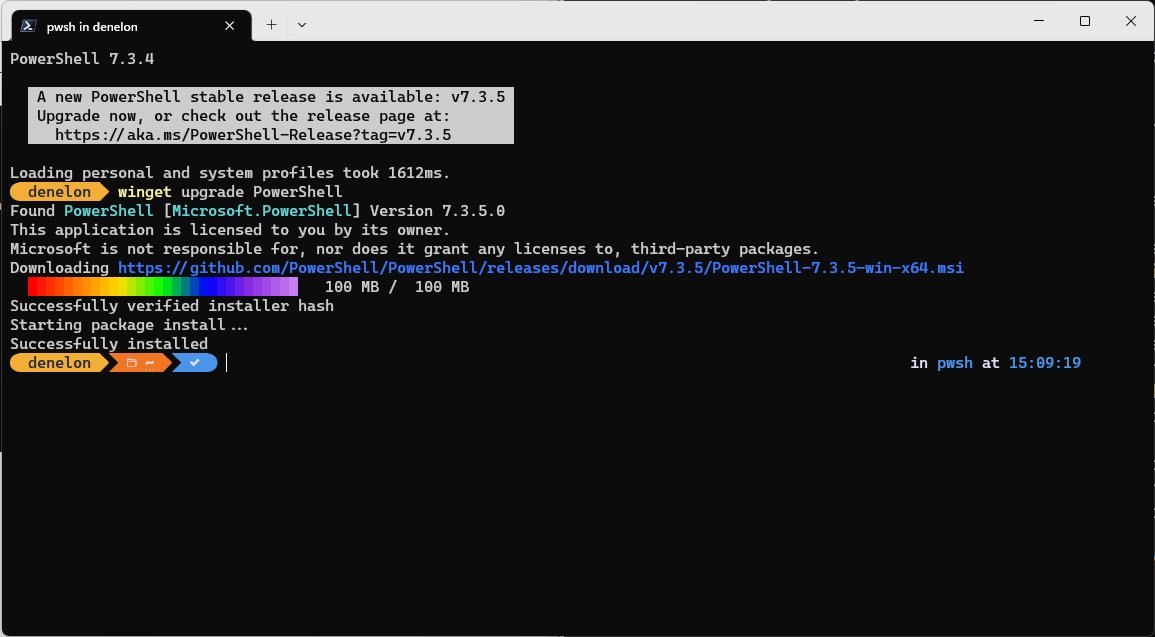
| winget or any app WinGet recognizes | Run winget upgrade to list available updates, then winget upgrade --all |
Run winget upgrade alone first to preview what will change |
| Developer's website | Use the update option built into the app, or download the latest installer from the same official site | Many desktop programs also appear in winget upgrade, which lists more than winget-installed apps |
| Web app in Edge or Chrome | Nothing to install | The app is the website itself, opened in its own window |
| Company Portal | Open Downloads & updates in Company Portal | Your organization controls versions and required updates |
| Portable app | Download the new portable version from the developer's site and replace the old folder | There is no installer to run, so keep only one copy of the folder |
How to uninstall apps you no longer need
Windows 11 and Windows 10 share the Start menu and Control Panel routes. Some built-in Windows apps cannot be uninstalled.
- Select Start > All apps (Windows 11) or open the Start list (Windows 10) and find the app.
- Right-click the app, or press and hold it, then select Uninstall.
- If that option is missing, select Start > Settings > Apps > Installed apps, find the app and select More (the three dots) > Uninstall.
- For older desktop programs, search for Control Panel on the taskbar and select Programs > Programs and Features.
- Right-click the program and select Uninstall or Uninstall/Change, then follow the on-screen directions.
- For a web app, go to
edge://appsin Edge, select Details > Uninstall; in Chrome, open the app, select More > Uninstall, then Remove. - From a terminal, run
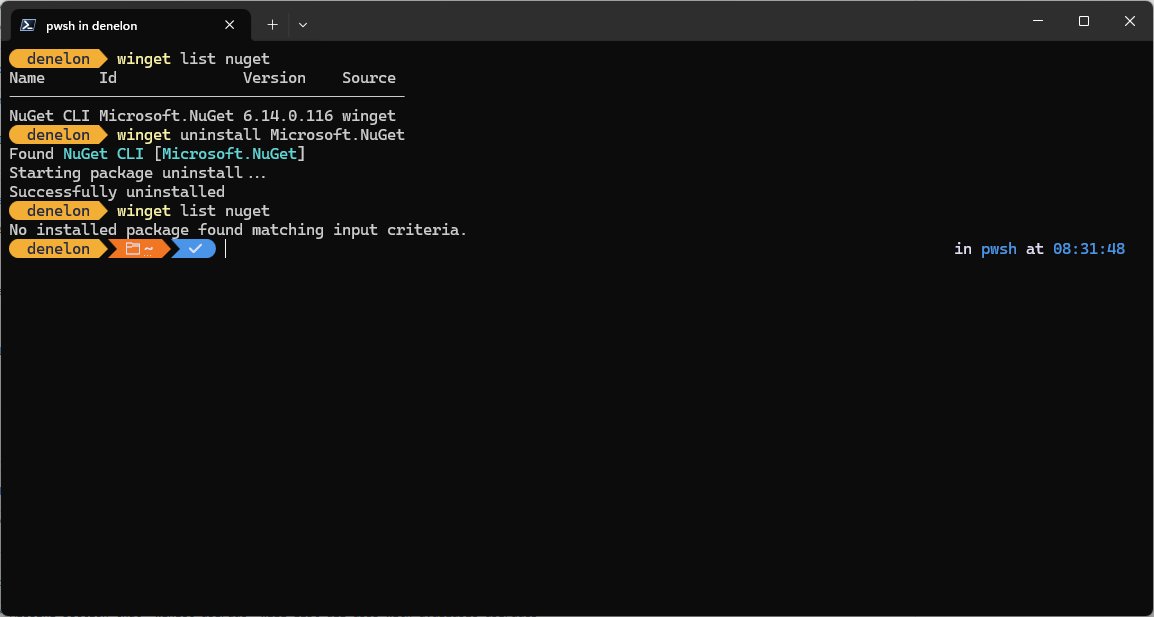
winget uninstall --id <Id>, using the ID shown bywinget list.
Fix common installation problems when a laptop can't install apps
Match what you see to a heading. Each fix starts with the most likely cause.
The laptop only allows apps from the Microsoft Store
Windows is in S mode, which permits Store apps only.
- Open Settings > System > Activation on Windows 11, or Settings > Update & Security > Activation on Windows 10.
- In the section that offers to switch out of S mode (for example Switch to Windows 11 Pro), select Go to the Store.
- On the Microsoft Store page, select Get.
- Run your installer again. Switching out of S mode is free, but it is one-way: you cannot turn S mode back on.
Windows says the app you're installing isn't from the Microsoft Store
Choose where to get apps is set to the Store only, or to warn before non-Store apps.
- Select Start > Settings > Apps > Advanced app settings (Windows 10: Apps > Apps & features).
- Open Choose where to get apps.
- Select Anywhere or Anywhere, but let me know if there's a comparable app in the Microsoft Store on Windows 11, or the option that allows apps from anywhere on Windows 10.
- Run the installer again.
An app won't install from the Microsoft Store, or has no Get button
The app is unavailable in your region, hidden by family settings, incompatible with the device, or Windows is waiting for a restart.
- Restart the PC if Windows installed updates recently.
- Make sure you are signed in to the Store with your Microsoft account.
- Select Start > Settings > Windows Update > Check for updates and install what it finds.
- In Microsoft Store, select Library > Get updates to update the Store itself.
- Press Windows + R, type
wsreset.exeand select OK to reset the Store. - On Windows 10, select Settings > Update & Security > Troubleshoot > Windows Store apps > Run the troubleshooter.
The installer asks for an administrator password you don't have
You are signed in with a standard account, and desktop programs need administrator approval.
- Ask the person who manages the PC to enter the administrator credentials on the prompt.
- On a work or school laptop, install the app from Company Portal or request it through Help & support.
- Check whether the app is available in the Microsoft Store as an alternative.
A SmartScreen or Windows Security warning appears when you run the installer
The file is reported as unsafe or is not commonly downloaded.
- Close the warning without running the file.
- Delete the downloaded file.
- Go to the developer's official website directly and download the installer again.
- If the same warning appears on the official file, contact the developer or use the Store version instead.
A program is blocked from installing, updating or uninstalling
Corrupt registry keys left by an earlier install can stop new installs and removals.
- Restart the PC and try again.
- Get the Program Install and Uninstall troubleshooter from Microsoft's support page and select Run or Open.
- For an installed app that misbehaves, open Settings > Apps > Installed apps, select the app's Advanced options, and use Repair or Reset.
- Run the installer again.
winget is not recognized as a command
App Installer is missing or not registered yet, which happens right after a first sign-in.
- Install or update App Installer from the Microsoft Store.
- Confirm the PC runs Windows 10 version 1809 or later, or Windows 11.
- Close and reopen the terminal, then type
winget --version.
Frequently asked questions
Can I install apps on my laptop?
Yes. Any Windows laptop can install apps from the Microsoft Store. Laptops that are not in S mode can also run installers from developers' websites. Work or school laptops may limit installs to apps your organization publishes in Company Portal.
How do I install apps on a laptop with Windows 11?
Select Start, open Microsoft Store, search for the app and select Get. For apps not in the Store, download the installer from the developer's official website, open it from the Downloads folder and select Yes on the User Account Control prompt.
How do I install apps on a laptop with Windows 10?
The steps match Windows 11: use Microsoft Store and select Get, or run an installer from the developer's website. The app source setting is under Settings > Apps > Apps & features. Windows 10 support ended on October 14, 2025, so some new apps may not support it.
Can I install apps on my computer without the Microsoft Store?
Yes, unless the PC is in S mode. Download the installer from the developer's own website, or use winget from a terminal. If Windows blocks the installer, set Choose where to get apps to Anywhere in Settings > Apps.
How do I install apps on an HP laptop?
An HP laptop installs apps the same way as any Windows PC: through Microsoft Store, an installer from the developer's website, or winget. If only Store apps install, check whether Windows is in S mode under Settings > System > Activation.
Why can't I install apps on my laptop?
The usual causes are S mode, Choose where to get apps set to the Microsoft Store only, a standard account without administrator rights, or a pending Windows restart. Store installs can also fail when an app is unavailable in your region or incompatible with your device.
How do I install phone apps on my laptop?
Windows cannot install Android or iPhone apps directly. Windows Subsystem for Android was removed from the Microsoft Store on March 5, 2025. Phone Link can mirror apps from select Samsung, HONOR, OPPO and ASUS Android phones to your PC, and many services also offer a Windows app in the Store.
How do I install Google apps on my laptop?
Google's web services such as Gmail and Docs install as web apps. Open the site in Chrome, select More > Cast, save, and share > Install page as app. Google desktop programs, where offered, download from Google's own website.
How do I put an installed app on my laptop screen?
Open the app list in Start and drag the app's name onto the desktop to create a shortcut. To keep it on the taskbar instead, search for the app, right-click it and select Pin to taskbar.