Download NVIDIA Broadcast from nvidia.com, install it on a PC with a GeForce RTX 2060 or better, turn on effects in the app, then choose the NVIDIA Broadcast microphone, speaker or camera in Zoom, Teams, Discord or OBS.
This guide covers the requirements, driver update, install, microphone, speaker and camera setup, per-app selection, recommended settings, fixes and removal.
The fastest way to install and use NVIDIA Broadcast
NVIDIA Broadcast works by creating virtual devices in Windows. Your real microphone and webcam feed into the app, and other apps read the cleaned-up NVIDIA Broadcast devices.
- Open the NVIDIA Broadcast page on nvidia.com and select Download Now.
- Run the installer and keep the PC online. It downloads about 3 GB of AI models for your GPU during setup.
- Open NVIDIA Broadcast, go to the microphone device, and pick your real microphone at the top.
- Turn on Noise Removal for the microphone.
- Go to the camera device, pick your real webcam, and turn on an effect such as background blur.
- In Zoom, Teams, Discord or OBS, open the audio and video settings.
- Select Microphone (NVIDIA Broadcast) and Camera (NVIDIA Broadcast) as your devices.
What Nvidia Broadcast Does
NVIDIA Broadcast is a standalone NVIDIA app that runs AI effects on the Tensor Cores of RTX GPUs. It takes your microphone, speaker or webcam signal, applies the effect, and outputs a virtual device other apps can use. Without an RTX GPU, free virtual webcam software such as OBS Studio’s virtual camera does the same job for video.
| Effect | Device | What it does |
|---|---|---|
| Noise Removal | Microphone and speakers | Removes keyboard typing, mic static, PC fan noise and similar background sounds |
| Room Echo Removal | Microphone and speakers | Filters echo and reverb from small rooms without sound treatment |
| Studio Voice | Microphone | An AI equalizer that makes a standard mic sound like a studio recording; needs a GeForce RTX 3060 desktop GPU or higher |
| Virtual Background | Camera | Background Blur, Background Replacement with an image, or Background Removal |
| Auto Frame | Camera | Tracks your movement and crops and zooms so you stay in frame |
| Video Noise Removal | Camera | Cleans up the grainy picture webcams produce in low light |
| Eye Contact | Camera | Makes you appear to look at the camera while you glance aside or read notes |
| Virtual Key Light | Camera | Relights your face to reduce shadows; needs a GeForce RTX 3060 desktop GPU or higher |
| Vignette | Camera | Darkens the corners of the frame like a camera lens |
Since version 2.0.0 you can combine several effects on one device, but not every pair works together. Studio Voice, for example, cannot run alongside microphone noise removal.
System Requirements for Windows 11
NVIDIA's requirements table lists Windows 10 64-bit as the platform. Windows 11 is 64-bit only, and NVIDIA's setup guide uses the Windows 11 Settings > System > Sound path. The GPU is the requirement that decides whether it runs at all.
| Requirement | What NVIDIA lists | How to check |
|---|---|---|
| Graphics card | GeForce RTX 2060, Quadro RTX 3000, TITAN RTX or higher, desktop or laptop | Right-click Start > Device Manager > Display adapters |
| GeForce GTX cards | Not supported; the app needs the Tensor Cores on RTX GPUs | A model name starting with GTX will not work |
| Driver | Game Ready, Studio or RTX Enterprise driver R570 or newer | Drivers tab of the NVIDIA app |
| Memory | 8 GB RAM or more | Settings > System > About |
| Processor (recommended) | Intel Core i5 8600 or AMD Ryzen 5 2600 or higher | Settings > System > About |
| Internet and storage | A connection during install, and about 3 GB of free space for AI models | Keep the PC online until setup finishes |
| Studio Voice and Virtual Key Light | GeForce RTX 3060 desktop GPU or higher | Other effects run on any supported RTX GPU |
Update Your Nvidia Driver First
Broadcast needs driver R570 or newer. The NVIDIA app is the quickest way to get it, and the NVIDIA driver page is the manual route.
- Open the NVIDIA app. If it is not installed, get it from the NVIDIA app page.
- Select the Drivers tab.
- Use the dropdown to choose Game Ready for gaming or Studio for creative apps.
- Select Download next to the newest driver and let it install.
- For a manual update, open the NVIDIA driver page, enter your GPU and Windows version, and select Find Drivers.
- Run the downloaded driver installer and follow the prompts.
- Restart the PC when the installer asks.
Download and Install Nvidia Broadcast
Get the installer only from NVIDIA’s own page. The current listed version is 2.2.1. If you’re new to installing desktop software, installing apps on a Windows PC covers the general steps.
- Open the NVIDIA Broadcast app page.
- Select Download Now and save the installer.
- Double-click the installer and select Yes if User Account Control asks for permission.
- Follow the on-screen prompts to start the install.
- Wait while setup downloads the AI models for your GPU. This needs an internet connection and about 3 GB of space.
- Restart the PC if the installer asks, then open NVIDIA Broadcast from Start.
Setup downloads only the models your GPU needs, which is why a connection is required. An offline install is not an option NVIDIA documents.
Set Up Your Microphone
- Open NVIDIA Broadcast and go to the microphone device.
- At the top, select your real microphone as the input. Pick (Default device) instead if you plug and unplug headsets often.
- Turn on Noise Removal to cut typing, fan and static noise.
- Add Room Echo Removal if you sit in a small, bare room with echo.
- Use the strength slider under each effect to set how hard it filters.
- Record a short test clip with background noise, then play it back with the effect on and off.
- On an RTX 3060 desktop GPU or higher, try Studio Voice for calls and streams where you are not gaming.
Studio Voice cannot be combined with microphone noise removal. It also uses a larger share of the GPU, so NVIDIA does not recommend it while gaming.
Set Up Speaker Noise Removal
Speaker effects clean the audio you hear, such as a teammate's noisy mic in Discord. Use them for voice chat and calls, not for music or videos.
- In NVIDIA Broadcast, go to the speaker device.
- Select your real headset or speakers as the playback device at the top.
- Turn on Noise Removal, and add Room Echo Removal if other speakers sound echoey.
- Play one of the built-in sample recordings and switch the effect on and off to hear the change.
- Adjust the strength slider.
- In your chat app only, set the output device to Speakers (NVIDIA Broadcast).
Keep your real headset or speakers as the Windows output device. Setting the Broadcast speaker as the Windows default filters every system sound, including music and video.
Set Up Your Camera
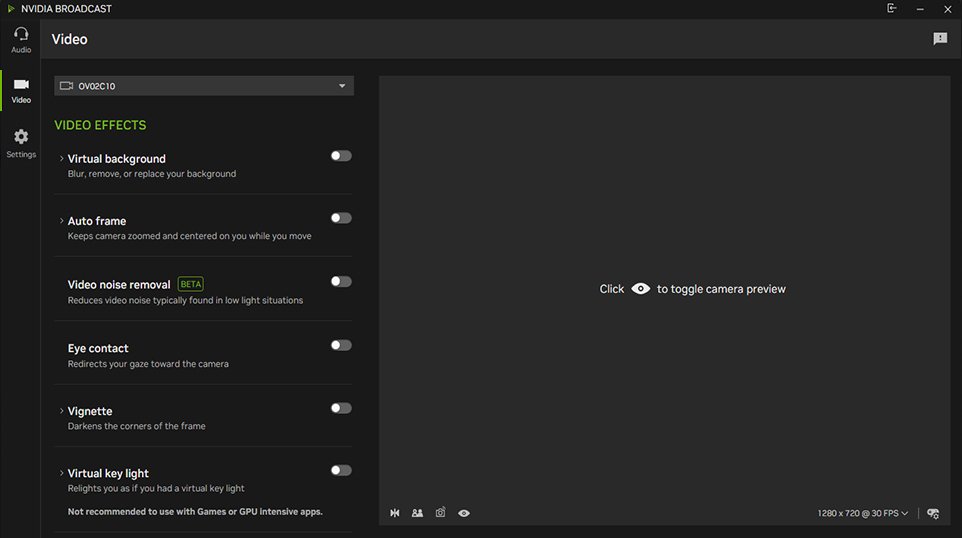
- Go to the camera device and choose your real webcam as the source at the top.
- Set the camera resolution and frame rate here, in NVIDIA Broadcast, not in your video app.
- For background blur, turn on the blur effect and set its strength with the slider.
- For background replacement, turn on replacement and choose an image. Use background removal to drop the background entirely.
- Turn on Auto Frame if you move around and want the picture to follow you.
- Turn on Video Noise Removal in a dim room to reduce grain.
- Turn on Eye Contact only for scripted recordings or presentations, and check the preview for unnatural eye movement.
- Select the side-by-side icon in the preview to compare raw and processed video, then turn it off before a call.
If you change the webcam resolution in NVIDIA Broadcast, turn the camera off and on again in your video app so it picks up the new setting.
Select Nvidia Broadcast in Your Apps
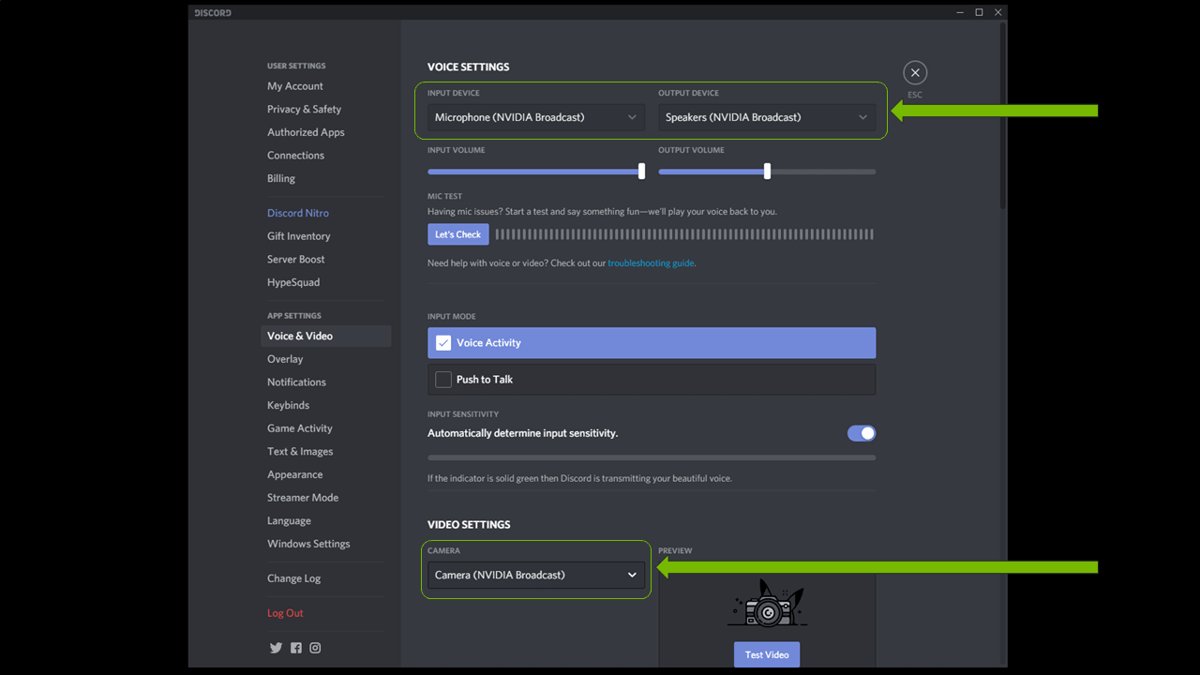
Every app needs to be pointed at the NVIDIA Broadcast devices, or it keeps reading your raw mic and camera. These paths come from NVIDIA's setup guide.
| App | Where to change it | What to select |
|---|---|---|
| Zoom desktop app | Settings > Audio, then Video. In a meeting, use the small arrow next to the mic and camera buttons. | NVIDIA Broadcast speaker and microphone; Camera (NVIDIA Broadcast) |
| Microsoft Teams | Teams settings > Devices, custom audio setup | NVIDIA Broadcast microphone, speaker and camera; turn off Teams noise suppression |
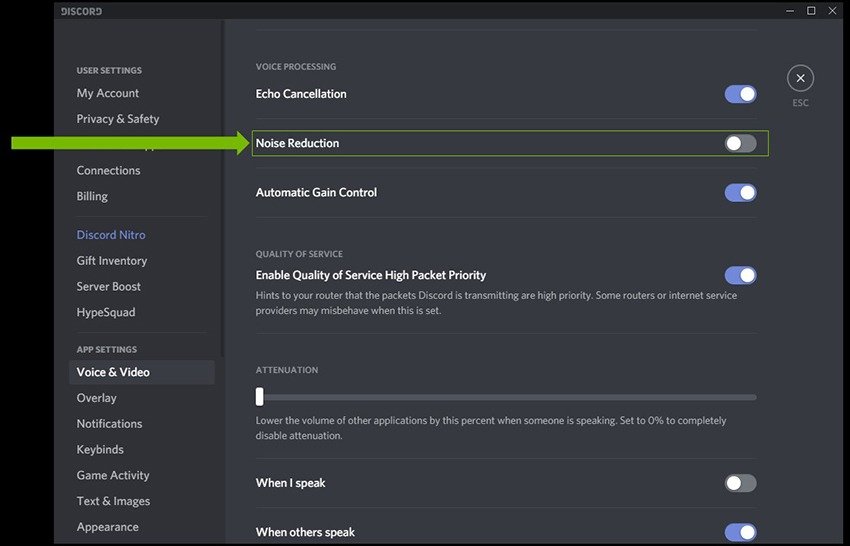
| Discord | Settings (cog icon) > Voice & Video | NVIDIA Broadcast input, output and camera; turn off Discord's noise cancellation |
| OBS Studio | Settings > Audio > Mic/Auxiliary Audio; add a video capture source to the scene | Microphone (NVIDIA Broadcast) and Camera (NVIDIA Broadcast) with default settings |
| Streamlabs | Settings > Audio > Mic/Auxiliary Device 1; add a video capture source | Microphone (NVIDIA Broadcast) and Camera (NVIDIA Broadcast) |
| Webex | When joining, choose Call Using Computer; in a meeting, Audio > Audio and Video Connections > Change Settings | NVIDIA Broadcast devices; untick Automatically adjust volume |
| Slack | Your profile icon > Preferences > audio and video | NVIDIA Broadcast devices |
| Google Chrome (Meet and web apps) | Settings > Site settings > Microphone, then Site settings > Camera | Microphone (NVIDIA Broadcast) and Camera (NVIDIA Broadcast) |
Recommended Settings for Common Setups
| Your setup | Turn on | Why |
|---|---|---|
| Work calls in a quiet home office | Mic Noise Removal, camera background blur | Covers typing and a messy room at low GPU cost |
| Small untreated room with echo | Mic Noise Removal plus Room Echo Removal | Echo removal targets reverb that noise removal leaves |
| Gaming while streaming | Mic Noise Removal only, one camera effect at most | Every extra effect takes GPU time from the game |
| Just Chatting streams, podcasts, calls (RTX 3060 desktop or higher) | Studio Voice, Virtual Key Light | Best quality, but too heavy to run while gaming |
| Dim room with a basic webcam | Video Noise Removal | Removes low-light grain |
| You move around or stand up | Auto Frame | Keeps you centred without a camera operator |
| Teammates with noisy mics | Speaker Noise Removal in your chat app only | Cleans incoming voices without touching system audio |
Best Practices for Better Audio and Video
| Practice | Why it matters |
|---|---|
| Turn on only the effects you need | Each effect adds GPU load; NVIDIA measures 5 to 10% impact on an RTX 5090, more on slower cards |
| Turn off noise cancelling in your apps and headset software | Applying the same effect twice often stops it working correctly |
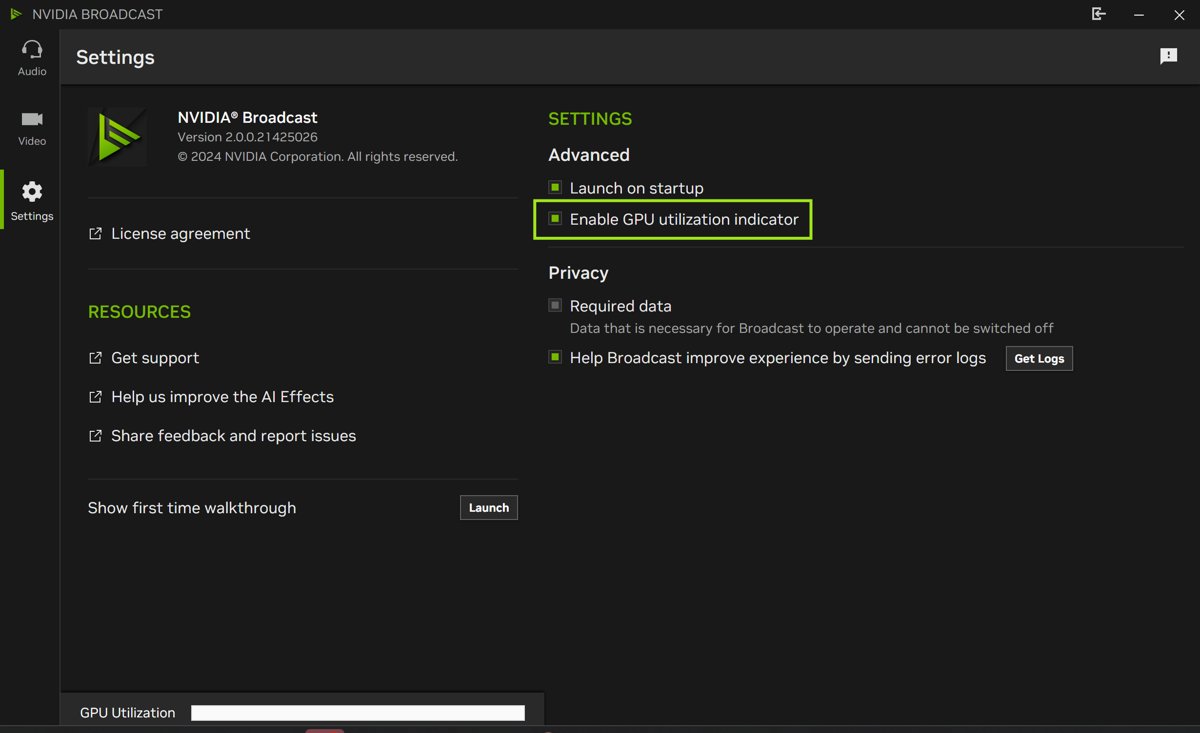
| Watch the GPU utilization indicator | Turn it on in NVIDIA Broadcast settings to see what each effect costs |
| Lower the camera resolution or frame rate if the PC slows | NVIDIA's first fix for performance problems |
| Set camera resolution in NVIDIA Broadcast only | Leave your video app on default or matching settings |
| Assign keyboard shortcuts | Turn effects on and off mid-call; enable them in NVIDIA Broadcast settings. An Elgato Stream Deck plugin also exists |
| Test before going live | Use the mic recording, speaker samples and camera preview built into the app |
How to check NVIDIA Broadcast is working
- Open Settings > System > Sound and confirm NVIDIA Broadcast appears in the list of input devices.
- In NVIDIA Broadcast, record a mic test near a noisy fan or keyboard and play it back with Noise Removal on and off.
- Watch the camera preview and confirm the blur or background follows your outline.
- In Zoom or Teams, open the audio settings and use the mic test with Microphone (NVIDIA Broadcast) selected.
- Check the video preview in the same app shows the processed picture, not your raw webcam.
- Turn on the GPU utilization indicator in NVIDIA Broadcast settings to confirm the effects are running.
Troubleshooting Nvidia Broadcast in Windows 11
NVIDIA Broadcast will not install
An unsupported GPU, a driver older than R570, no internet during setup, or too little disk space.
- Confirm the GPU in Device Manager > Display adapters is an RTX 2060, Quadro RTX 3000, TITAN RTX or newer.
- Update to driver R570 or newer from the NVIDIA app Drivers tab.
- Free at least 3 GB of disk space for the AI models.
- Keep the PC online and run the installer again.
The effect makes no difference in Zoom, Teams or Discord
The app still uses the raw device, or its own noise suppression is fighting the Broadcast effect.
- Open the app's audio and video settings.
- Select the NVIDIA Broadcast microphone, speaker and camera by name.
- Turn off or lower the app's own noise cancelling or noise suppression.
- Turn off noise reduction in your headset or webcam software too.
- Rejoin the call.
Camera (NVIDIA Broadcast) is missing or the video is black
Windows camera access is off, the wrong source is chosen, or the resolution changed while the app was open.
- Select Start > Settings > Privacy & security > Camera.
- Turn on Camera access and Let desktop apps access your camera.
- In NVIDIA Broadcast, check the correct real webcam is selected as the source.
- Close other apps using the webcam directly.
- In your video app, turn the camera off and on again to reload it.
No sound from music, videos or games
Speakers (NVIDIA Broadcast) is set as the Windows default output.
- Open Settings > System > Sound.
- Under Output, select your real headset or speakers.
- Use the Broadcast speaker only inside your chat app.
Mic stops working after unplugging a headset
NVIDIA Broadcast still points at the device you removed.
- Open NVIDIA Broadcast and go to the microphone device.
- Select (Default device) as the input so it follows the Windows default.
- Do the same on the speaker device.
Games stutter or the PC slows with Broadcast on
Too many effects, or a heavy effect such as Studio Voice, is running alongside the game.
- Turn on the GPU utilization indicator in NVIDIA Broadcast settings.
- Turn off effects you are not using right now.
- Turn off Studio Voice while gaming.
- Lower the camera resolution or frame rate in NVIDIA Broadcast.
Viewers see a split, side-by-side video
The before/after preview is still on.
- Select the side-by-side icon in the NVIDIA Broadcast camera preview to turn it off.
- Check your video app preview again.
To report a bug, select Feedback in the upper-left corner of NVIDIA Broadcast.
How to Uninstall or Reset Nvidia Broadcast
NVIDIA does not document a separate reset button, so a reinstall is the reset. First switch your apps back to your real microphone and camera, or they will lose audio and video once the virtual devices are gone.
- In Zoom, Teams, Discord or OBS, select your real microphone, speakers and webcam.
- Open Settings > System > Sound and set your real devices under Output and Input.
- Select Start > Settings > Apps > Installed apps.
- Find NVIDIA Broadcast, select More (the three dots), then Uninstall.
- Restart the PC.
- To reset, download the installer again from the NVIDIA Broadcast page and reinstall.
Should You Set Nvidia Broadcast as the Windows Default?
| Device | Set as Windows default? | Why |
|---|---|---|
| Microphone | Yes, if you want every app to get the cleaned-up mic | You avoid setting it per app; select your real mic inside NVIDIA Broadcast |
| Speakers | No | All system audio, including music and video, would be filtered |
| Camera | Select it per app | Video apps choose the camera in their own settings |
To make the Broadcast mic the default, open Settings > System > Sound and select it under Input.
Privacy and Security Notes
| Point | What it means for you |
|---|---|
| Effects run on your GPU | The AI networks run in real time on the Tensor Cores of your RTX card |
| Internet is needed during install | Setup downloads the latest AI models for your GPU |
| Feedback is optional | NVIDIA runs a separate page where users can submit recordings to help train the AI |
| Windows camera privacy still applies | Desktop apps need Let desktop apps access your camera turned on |
| Download only from nvidia.com | Avoid third-party download sites offering Broadcast installers |
Frequently Asked Questions
How do you use NVIDIA Broadcast?
Pick your real microphone, speakers and webcam inside NVIDIA Broadcast and turn on the effects you want. Then select the NVIDIA Broadcast devices in Zoom, Teams, Discord or OBS. Those apps then receive the processed audio and video.
Can you install NVIDIA Broadcast on Intel or AMD graphics?
No. NVIDIA Broadcast needs an NVIDIA RTX GPU: a GeForce RTX 2060, Quadro RTX 3000, TITAN RTX or higher. It uses the Tensor Cores on RTX cards, so GTX cards and Intel or AMD graphics are not supported. Every card in the GeForce GTX lineup, from the GTX 260 to the GTX 1660 Ti, lacks those Tensor Cores.
How do you install the latest NVIDIA driver for Broadcast?
Open the NVIDIA app, select the Drivers tab, and select Download next to the newest Game Ready or Studio driver. NVIDIA Broadcast needs driver R570 or newer. You can also search manually on nvidia.com/drivers.
How do you install NVIDIA drivers manually?
Open the NVIDIA driver page, enter your GPU series, model and Windows version, and select Find Drivers. Download the newest driver, run the installer, follow the prompts, and restart the PC when asked.
How do you install an NVIDIA driver after download?
Double-click the downloaded installer, approve the User Account Control prompt, and follow the setup screens. Restart the PC when the installer asks, then check the version in the NVIDIA app Drivers tab.
Should you install the NVIDIA app?
Yes, if you have an NVIDIA GPU. The NVIDIA app keeps Game Ready and Studio drivers up to date, which covers the R570 driver NVIDIA Broadcast needs. It also lists NVIDIA Broadcast among the NVIDIA apps you can discover.
How do you use the NVIDIA app?
Use the Drivers tab to install Game Ready or Studio drivers, and the Graphics tab to change game and driver settings. For NVIDIA Broadcast, the app's main job is keeping your driver at R570 or newer.
Does NVIDIA Broadcast slow down games?
It adds some GPU load. NVIDIA measures 5 to 10% impact on a GeForce RTX 5090, and more effects mean more load. Turn off unused effects, avoid Studio Voice while gaming, and lower the camera resolution.
Which apps work with NVIDIA Broadcast?
NVIDIA lists OBS Studio, Streamlabs, XSplit Broadcaster, Discord, TeamSpeak, Skype, Zoom, Webex, Microsoft Teams, Slack and Google Meet. Any app that lets you choose a microphone, speaker or camera can select the NVIDIA Broadcast devices.







Download Corsair iCUE for PC, Windows 11/10 & Mac (Free) - Techdows
[…] features depend on other hardware. The NVIDIA Broadcast noise and echo removal in iCUE requires an NVIDIA GeForce RTX graphics […]