To repair a broken app in Windows 11, open Settings > Apps > Installed apps, select More (the three dots) next to the app, choose Advanced options and select Repair; desktop programs use Repair or Change in Control Panel's Programs and Features instead.
This guide covers both routes on Windows 11 and Windows 10, Office's Quick Repair and Online Repair, reinstalling Microsoft Store apps, and the DISM and SFC scans for damaged system files.
The fastest way to repair a broken app in Windows 11 and 10
Start here for any app that crashes, hangs on launch or shows a blank window. Try Repair first; Microsoft warns that Reset, the stronger option, can delete the app's data.
- Select Start > Settings > Apps > Installed apps. On Windows 10, the last item is Apps & features.
- Find the broken app in the list.
- Select More (the three dots) next to it, then Advanced options. On Windows 10, select the app, then Advanced options under its name.
- Select Repair and wait for it to finish.
- Open the app again. If it still fails, return to the same page and select Reset.
No Advanced options link means the app is a classic desktop program. Use the Control Panel method below for those.
Which repair method should you use?
| Your situation | Use this | Why |
|---|---|---|
| A Store or built-in app crashes or will not open | Settings > Advanced options > Repair, then Reset | Only Reset carries Microsoft's data-loss warning |
| A desktop program (installed from a setup file) misbehaves | Control Panel > Programs and Features > Repair or Change | Runs the program's own installer repair |
| Word, Excel, Outlook or another Office app fails | Office Quick Repair, then Online Repair | Office repairs the whole suite in one pass |
| Repair and Reset did nothing | Uninstall, then reinstall from the Store Library or the publisher | Replaces every app file |
| Several apps and Windows features break at once | DISM, then sfc /scannow |
The damage is in Windows system files, not one app |
| Everything broke after a recent change | System Restore or uninstall the latest update | Rolls programs and settings back to a working state |
| Nothing else worked | Reinstall now under Fix problems using Windows Update, then Reset PC | Rebuilds Windows itself |
Understanding Why Apps and Programs Become Broken
The symptom usually points to the cause. Match what you see, then jump to the fix in the last column.
| Cause | What you typically see | Fix to try first |
|---|---|---|
| Damaged or missing app files | App closes on launch or shows errors about missing files | Repair in Settings or Programs and Features |
| Corrupt app data or settings | App opens but behaves wrongly, or sign-in keeps failing | Reset in Advanced options |
| An outdated app or outdated Windows | App worked before, then stopped after other software changed | Windows Update and Store Get updates |
| A recent Windows update | Problem started the day an update installed | Uninstall that update |
| An older program built for an earlier Windows | Program refuses to start or displays incorrectly | Program Compatibility Troubleshooter |
| Malware | Unknown apps, pop-ups, or programs that close themselves | Windows Security full or offline scan |
| Damaged Windows system files | Several apps and Windows tools fail together | DISM and SFC |
| File system errors on the drive | Files will not open, or errors appear across many programs | chkdsk with /f |
Basic Troubleshooting Steps
These take a few minutes and fix a surprising share of app problems. Microsoft lists them before any repair option.
- Close the app with Close (X) in its upper-right corner, then open it again.
- Restart the PC from Start > Power > Restart.
- Select Start > Settings > Windows Update > Check for updates, and select Install now if an update is waiting.
- Open Microsoft Store, select Library > Get updates to update Store apps, including the Store itself.
- Make sure you are signed in to your Microsoft account, which Microsoft lists as the first step for Store app problems.
- On Windows 11, open Settings > System > Troubleshoot > Other troubleshooters and select Run next to Windows Store Apps for Store app problems.
Repair or reset an app from Settings
Repair and Reset both live on the app's Advanced options page. Not every app shows them, and some show only Reset.
| Button | What it does | When to use it |
|---|---|---|
| Repair | Tries to fix the app's installation; Microsoft's data warning applies to Reset, not Repair | Always first |
| Reset | Returns the app to a fresh state; Microsoft warns it can delete the app's data | When Repair does not help, or no Repair button exists |
| Uninstall | Removes the app completely | When Reset also fails; reinstall afterwards |
Expect to set the app up again after a Reset, since its data may be gone.
Repair a desktop program from Control Panel
Programs installed from a setup file often carry their own repair routine. Windows opens it from Programs and Features.
- Search for Control Panel on the taskbar and open it.
- Select Programs > Programs and Features.
- Right-click the broken program.
- Select Repair. If there is no Repair, select Change instead.
- Follow the program's on-screen instructions, then restart the PC if the installer asks.
Some programs offer only Uninstall. For those, uninstall and reinstall the latest version from the publisher's site.
Repair Microsoft Office with Quick Repair or Online Repair
Office is repaired from its entry in the apps list, and the repair covers the whole suite even if only Word or Outlook is broken. Close all Office apps first.
- Right-click the Start button and select Installed apps. On Windows 10, select Apps and Features.
- Find your Microsoft 365 or Office entry. On Windows 11, select the three dots next to it; on Windows 10, select the entry.
- Select Modify and allow the prompt.
- Choose Quick Repair and select Repair. It only detects and replaces corrupted files, so it finishes fastest.
- If the problem remains, run the same steps again and choose Online Repair > Repair, which Microsoft recommends to make sure everything gets fixed.
- Restart the PC when the repair completes.
Standalone Office apps bought separately appear under their own name, such as Visio or Project. Search for that name in the list instead.
Reinstall a broken Microsoft Store app
When Reset fails, a clean reinstall from your Store library replaces every file. The Library lists the apps tied to your Microsoft account, so there is nothing to buy again.
- Select Start > Settings > Apps > Installed apps.
- Select More next to the app, then Uninstall, and confirm.
- Open Microsoft Store and select Library.
- Find the app and select Install.
- If the Store itself misbehaves, press Windows + R, type
wsreset.exeand select OK. A blank window opens, closes after about ten seconds, and the Store reopens with its cache cleared.
Desktop programs are reinstalled from the publisher instead, following the same routes covered in installing apps on a Windows PC.
How to uninstall broken apps
Uninstalling is also the fix for an app too broken to repair. Some programs cannot be removed from Settings and need Control Panel.
- Select Start > All apps, right-click the app and select Uninstall. This is the quickest route.
- If that fails, open Start > Settings > Apps > Installed apps, select More > Uninstall.
- If the app is not listed there, open Control Panel > Programs > Programs and Features.
- Right-click the program, select Uninstall or Uninstall/Change, and follow the on-screen instructions.
- Restart the PC before reinstalling, so no leftover process holds the old files.
If a suspicious app will not uninstall, run a Windows Security scan first and remove it after threats are cleaned.
Advanced Methods to Repair Broken Apps and Programs
Use these when a single app's Repair, Reset and reinstall have all failed. Each row targets one cause from the table above.
| If this matches your problem | Do this | Where |
|---|---|---|
| An older program will not run on Windows 11 or 10 | Run the Program Compatibility Troubleshooter | Windows 11: Settings > System > Troubleshoot > Other troubleshooters > Run. Windows 10: Settings > Update & Security > Troubleshoot > Additional troubleshooters |
| You suspect malware | Run a Full scan, or Microsoft Defender Antivirus (offline scan) | Windows Security > Virus & threat protection > Scan options |
| Many apps fail, or Windows tools also crash | Run DISM, then SFC | Elevated Command Prompt (next section) |
| Files will not open and errors appear across programs | Check the drive with chkdsk C: /f |
Elevated Command Prompt; accept the offer to check at the next restart |
| The problem began after a Windows update | Uninstall that update | Settings > Windows Update > Update history > Uninstall updates |
| Apps worked a few days ago | Apply a restore point | Press Windows + R, type rstrui.exe |
| Apps fail only in your account | Create a second user account and test there | Settings > Accounts > Other users > Add account |
If the app works in the new account, the fault is in your profile rather than in the app. Move your files across and switch to the new account.
Repair Windows system files with DISM and SFC
Run DISM first. It restores the files that System File Checker needs to make its repairs.
Both commands need an elevated Command Prompt and take several minutes.
- Type cmd in the taskbar search box.
- Right-click Command Prompt and select Run as administrator, then select Yes at the prompt.
- Type
DISM.exe /Online /Cleanup-image /Restorehealthand press Enter. Wait for it to finish. - Type
sfc /scannowand press Enter. - Leave the window open until verification reaches 100%, then read the result message.
- Restart the PC and open the broken app again.
How to check the repair worked
- Open the broken app the same way you did before and repeat the action that failed.
- After Office Quick or Online Repair, open the Office app that failed and confirm the old error is gone.
- After
sfc /scannow, read the final line: "Windows Resource Protection did not find any integrity violations" or "found corrupt files and successfully repaired them" both mean success. - After
chkdsk C: /f, check the report or its exit code: 0 means no errors were found, 1 means errors were found and fixed. - After a reinstall, confirm the app appears again in Settings > Apps > Installed apps.
- Use the PC for a day. A fix that holds through several restarts is a real fix.
Fix repair problems by symptom
There is no Advanced options, Repair or Reset for the app
Not every app exposes repair options; classic desktop programs use their own installer instead.
- Open Control Panel > Programs > Programs and Features.
- Right-click the program and look for Repair or Change.
- If only Uninstall exists, uninstall and reinstall the program from the publisher.
A broken app will not uninstall
Settings cannot remove some programs, and malware can block removal.
- Try Uninstall from Programs and Features in Control Panel instead of Settings.
- Restart the PC with Start > Power > Restart, then try again.
- Run a Full scan in Windows Security if the app looks suspicious, then uninstall it.
- If removal still fails, contact the app's publisher for its removal instructions.
A Windows app broke after an update
The update changed a file or component the app depends on.
- Open Settings > Windows Update > Update history > Uninstall updates.
- Select the most recent update and select Uninstall. Some updates cannot be removed.
- Restart and test the app, then check for an updated version of the app before reinstalling the Windows update.
Microsoft Store apps will not open or update
The Store cache or the Store app itself is damaged.
- Press Windows + R, type
wsreset.exeand select OK. - Run the Windows Store Apps troubleshooter from Settings > System > Troubleshoot > Other troubleshooters.
- In Microsoft Store, select Library > Get updates.
SFC says it could not perform the requested operation
Another process or a pending change blocks System File Checker.
- Restart Windows in safe mode.
- Open an elevated Command Prompt and run
sfc /scannowagain. - Restart normally once the scan completes.
SFC found corrupt files but could not fix some of them
DISM did not supply a good copy of the damaged files.
- Run
DISM.exe /Online /Cleanup-image /Restorehealthagain while connected to the internet. - Run
sfc /scannowa second time. - If errors remain, use Reinstall now under Fix problems using Windows Update, covered below.
When All Else Fails: Reinstall Windows
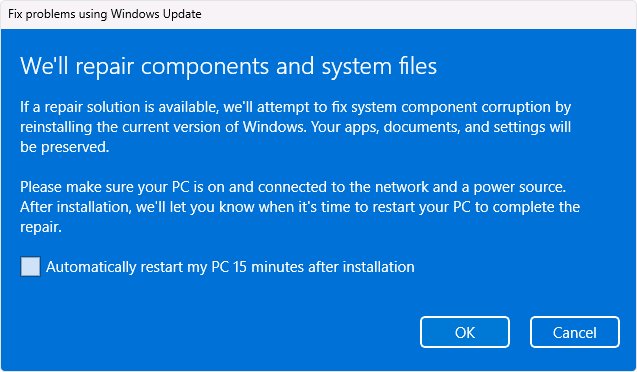
Try the reinstall that keeps everything first. Fix problems using Windows Update reinstalls the same Windows version and preserves your apps, files and settings. It needs Windows 11, version 22H2 or later, with the February 2024 optional update or newer.
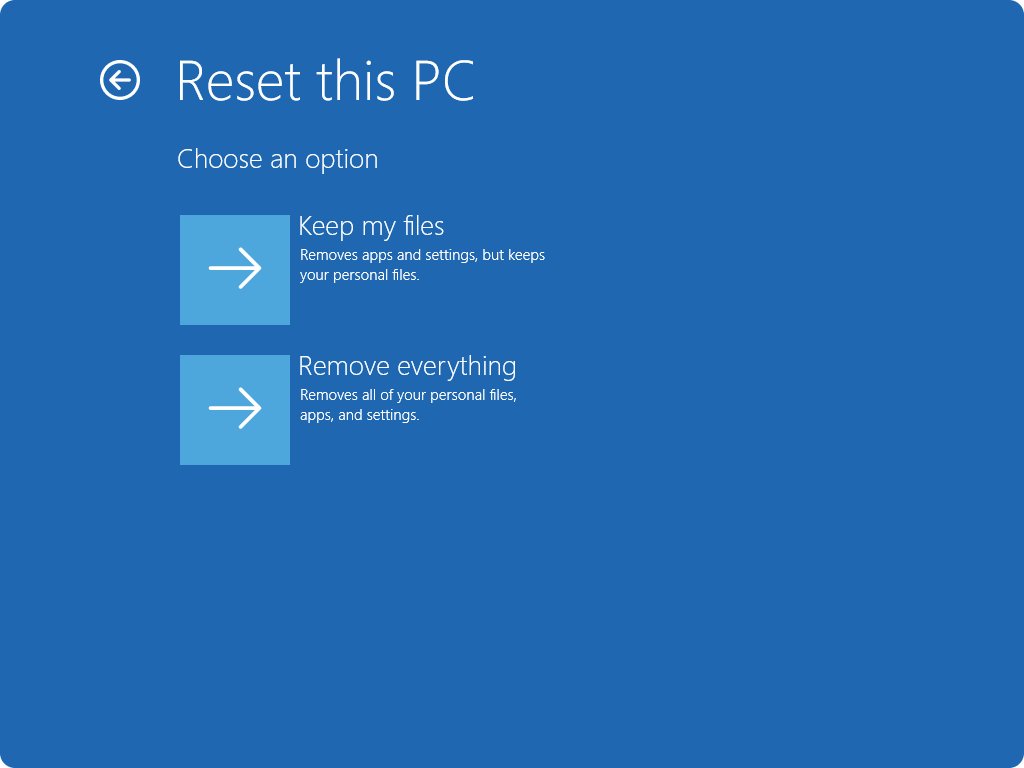
Reset PC goes further. Keep my files removes apps and settings but keeps documents and photos; Remove everything also deletes personal files. Back up first, and have your BitLocker recovery key if the drive is encrypted.
- Keep the PC plugged in and connected to the internet.
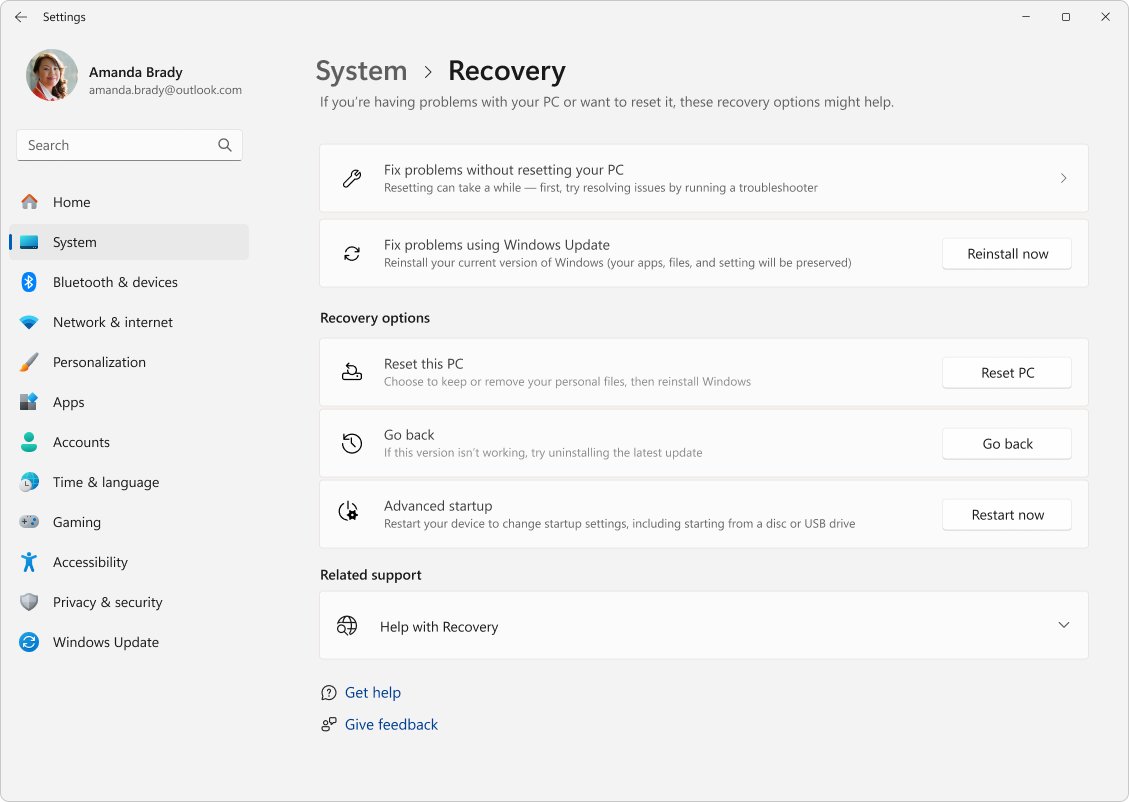
- Select Start > Settings > System > Recovery.
- Under Fix problems using Windows Update, select Reinstall now, choose whether to allow an automatic restart 15 minutes after installation, and select OK.
- Test the broken app after Windows restarts.
- If it still fails, return to Recovery and select Reset PC under Recovery options.
- Choose Keep my files, then Cloud download or Local reinstall, and follow the on-screen instructions.
- Do not restart the PC yourself if the screen stays black; the reset can take over 15 minutes and interrupting it can make it fail.
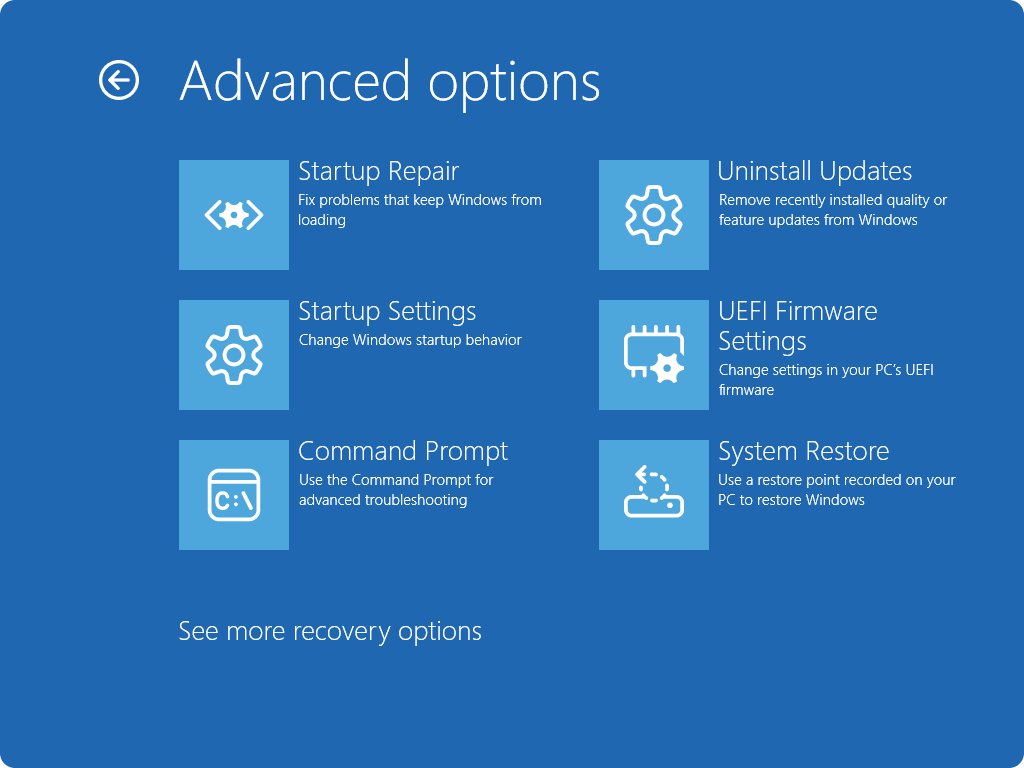
Managed work or school PCs may not show Fix problems using Windows Update. If Windows will not start, the same Reset this PC option is in the Windows Recovery Environment under Troubleshoot.
Additional Tips for Managing Otherwise Persistent Problems
| Tip | How | Why it helps |
|---|---|---|
| Read the SFC log | Look for CBS.Log details after SFC reports repairs | Shows which system files were damaged |
| Read the chkdsk log | Open eventvwr.msc > Windows Logs > Application > Filter Current Log, source Chkdsk and Wininit |
Confirms whether the disk check found and fixed errors |
| Check what Defender caught | Windows Security > Protection history | Shows whether a threat was quarantined, including results of an offline scan |
| Clear temporary files | Settings > System > Storage > Cleanup recommendations, then Temporary files | Removes stale temp files; a full drive can stop apps from saving or updating |
| See which programs a restore point affects | Select Scan for affected programs in System Restore before Finish | Lists programs that will be removed or restored |
| Contact the publisher | Use the support page of the company that makes the app | Microsoft sends app-specific faults to the app's publisher |
Preventative Measures to Avoid Future App Failures
| Habit | Setting or tool | What it prevents |
|---|---|---|
| Keep Windows current | Settings > Windows Update > Check for updates | Apps failing because Windows lacks a fix they expect |
| Keep Store apps current | Microsoft Store > Library > Get updates | Old app versions that break after Windows changes |
| Keep restore points available | System Protection, with points created during installs and updates | Losing a quick way back after a bad install or driver |
| Free drive space automatically | Storage Sense, which clears temporary files and the Recycle Bin | Failed updates and apps that cannot write data |
| Scan regularly | Windows Security quick scan or full scan | Malware damaging or replacing program files |
| Back up personal files | Any backup before a Reset or reinstall | Losing data if the fix requires Remove everything |
Frequently Asked Questions
How do I repair an app on Windows?
Open Settings > Apps > Installed apps, select More next to the app, choose Advanced options and select Repair. On Windows 10 the list is under Apps & features. Desktop programs without that option are repaired from Control Panel's Programs and Features with Repair or Change. The Apps and Features page in Windows 11 is the same list under its new name, Installed apps.
What does repairing an app do?
Repair tries to fix the app's installation, and Microsoft's data-loss warning applies only to Reset. Reset is the stronger option: it returns the app to a fresh state and can delete its data. Try Repair first and use Reset only when Repair fails.
How do I repair apps on a PC when there is no Repair button?
Use Control Panel instead. Open Programs > Programs and Features, right-click the program and select Repair or Change. If only Uninstall is offered, uninstall the program and reinstall the latest version from the publisher or from your Microsoft Store Library.
How do I uninstall broken apps?
Right-click the app in Start > All apps and select Uninstall, or use Settings > Apps > Installed apps > More > Uninstall. Programs that Settings cannot remove are uninstalled from Control Panel > Programs and Features. Restart before reinstalling.
How do I fix corrupted apps?
Run Repair, then Reset, from the app's Advanced options page, and reinstall it if both fail. When several apps are corrupted at once, run DISM.exe /Online /Cleanup-image /Restorehealth and then sfc /scannow in an elevated Command Prompt to repair Windows system files.
How do I repair Microsoft apps like Word or Outlook?
Right-click Start, select Installed apps, open the three dots next to Microsoft 365 or Office and select Modify. Choose Quick Repair first, then Online Repair if the problem continues. The repair covers the whole Office suite, not only the app that failed.
How do I repair Windows apps that came with Windows?
Built-in apps such as Photos or Calculator are repaired like Store apps: Settings > Apps > Installed apps > More > Advanced options > Repair or Reset. For Store-wide problems, run wsreset.exe and the Windows Store Apps troubleshooter.
Why did a Windows app break after an update?
An update can change a component the app relies on. Update the app from the Microsoft Store Library first. If it still fails, uninstall the latest update from Settings > Windows Update > Update history > Uninstall updates, noting that some updates cannot be removed.
Does resetting an app delete my files?
Resetting an app can delete that app's own data, and Microsoft warns about this on its repair page. Resetting the whole PC is a separate step: Keep my files keeps documents and photos, while Remove everything deletes personal files, apps and settings.
Can I repair apps without losing my programs?
Yes. Repair, DISM, SFC and Fix problems using Windows Update all keep installed apps. System Restore reverts installed programs to their state at the restore point, and Reset PC with Keep my files removes apps, so leave those two until the other fixes fail.







How to Reinstall Calculator in Windows 10 & 11 - Techdows
[…] If Calculator still appears in your app list, Repair keeps your data and Reset clears it. Both are faster than a reinstall. Techdows has a wider walkthrough in how to repair broken apps and programs in Windows. […]
How to Repair/Reset Microsoft Store or Clear Windows (11/10) Store Cache - Techdows
[…] The same buttons fix any other Store app. For apps that are not Store apps, see how to repair broken apps and programs in Windows 11/10. […]