Paint 3D cannot be installed on Windows 10 or Windows 11 any more: Microsoft removed it from the Microsoft Store on 4 November 2024.
This guide shows how to find the copy your PC may already have, repair or reset it, keep it as the default image app, and what replaces it once it is gone.
Check Whether Paint 3D Is Already Installed
An existing installation keeps working after the Store removal, so this check decides everything else on the page.
- Select Start, then type
Paint 3D. - Open Paint 3D if it appears under Best match or Apps.
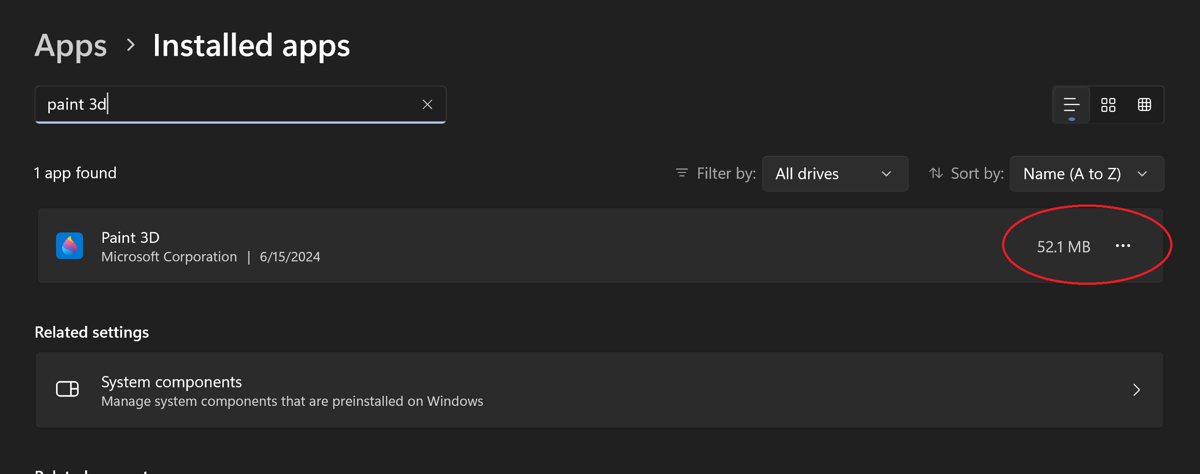
- If nothing appears, select Start > Settings > Apps > Installed apps on Windows 11, or Start > Settings > Apps > Apps & features on Windows 10.
- Type
paintin the app list search box. - Read the result: Paint 3D listed means it is installed, and no entry means this PC no longer has it.
No entry is the common outcome on a Windows 11 PC, because Paint 3D was never preinstalled there.
What You Need to Know Before Installing Paint 3D
Microsoft documents the dates and the replacement apps on its deprecated features page.
| Fact | Detail |
|---|---|
| Deprecated | August 2024 |
| Removed from the Microsoft Store | 4 November 2024 |
| Copies already installed | Continue to work |
| New downloads after that date | Not available from Microsoft |
| Preinstalled on Windows 10 | On some devices |
| Preinstalled on Windows 11 | No |
| Microsoft's 2D replacement | Paint or Photos |
| Microsoft's 3D viewing replacement | Babylon.js Sandbox |
Read those two rows together before you spend time hunting for an installer. There is no supported download left.
Which route applies to your PC
| Your situation | Do this | Why |
|---|---|---|
| Paint 3D opens from Start | Leave it alone and keep using it | Existing installations still work |
| Paint 3D is listed but will not open | Repair, then reset it in Advanced options | Reset rebuilds the app without a download |
| Paint 3D was uninstalled before 4 November 2024 and never reinstalled | Check the Store Library once, then move to Paint | The listing is gone, so Install usually fails |
| Clean install or Windows reset since November 2024 | Use Paint or Photos | No supported source remains |
| Windows 11 PC that never ran Windows 10 | Use Paint or Photos | Paint 3D was never preinstalled on Windows 11 |
| Managed work or school PC | Ask your IT team | Some organisations kept an offline package for internal deployment |
Install Paint 3D from Your Microsoft Store Library
The Library page lists apps tied to your Microsoft account, including ones you removed. It is the only Microsoft route worth trying.
- Select Start, then select Microsoft Store from the apps list.
- Sign in with the Microsoft account that originally had Paint 3D.
- Select Library in the lower-left corner.
- Scroll the list, or filter it, and look for Paint 3D.
- Select Install next to the entry if one appears.
- Move to the replacement apps below if Paint 3D is absent or Install returns an error.
An absent entry is expected behaviour now, not a fault with your account. The same Library page still reinstalls every other app you own, and the general routine is in how to install apps on a laptop or PC on Windows.
Restore Paint 3D If It Was Removed from Your PC
Removal has two causes with different outcomes: you uninstalled the app, or Windows was reset and rebuilt the app list.
- Confirm the app is gone using the check at the top of this page.
- Sign in to the Microsoft Store with the same account you used on the old installation.
- Open Library and look for Paint 3D one time.
- Select Install if it is there, and wait for the progress bar to finish.
- Check whether a second user account on the same PC still has Paint 3D, because packages are installed per user account.
- Switch to Paint for 2D edits if neither route produces the app.
A Windows reset that keeps your files still rebuilds installed apps, so Paint 3D does not survive one unless it is reinstalled from the Store.
Install Paint 3D on Windows 10
Windows 10 is the version that shipped with Paint 3D, so a long-running Windows 10 PC is the most likely place to still find it.
- Select Start and scroll the alphabetical app list to P.
- Look for Paint 3D directly above or below Paint.
- Open Start > Settings > Apps > Apps & features if the list is long, and search
paintthere. - Right-click Paint 3D in the Start list and select Pin to Start once you find it.
- Open the Microsoft Store and check Library if the app is missing.
- Use Paint instead when the Library has no entry.
Paint 3D shipped on some Windows 10 devices and not on others, so a missing app here is not a sign of a broken install.
Install Paint 3D on Windows 11
Paint 3D was never preinstalled on Windows 11. A Windows 11 PC only has it if it was installed while the machine still ran Windows 10.
- Select Start > All apps and scroll to P.
- Open Paint 3D if the upgrade carried it across.
- Open Start > Settings > Apps > Installed apps and search
paintif the Start list is unclear. - Open the Microsoft Store, select Library, and look for Paint 3D if it is absent.
- Open Paint instead, which ships with every Windows 11 edition and now handles layers and background removal.
A clean Windows 11 installation has no path to Paint 3D at all. Treat that as final rather than a problem to fix.
Repair or Reset Paint 3D If It Is Installed but Not Working
Repair keeps your settings. Reset clears the app's data and rebuilds it, which is the stronger fix and needs no download.
- On Windows 11, select Start > Settings > Apps > Installed apps, then select More next to Paint 3D and choose Advanced options.
- On Windows 10, select Start > Settings > Apps > Apps & features, select Paint 3D, then select Advanced options.
- Select Repair and wait for the tick to appear beside the button.
- Open Paint 3D and test it.
- Return to Advanced options and select Reset if the fault is still there.
- Select Reset again at the confirmation prompt.
Reset is safe for the app but not for its stored preferences. Saved project files in your own folders are untouched.
Confirm the Paint 3D package from PowerShell
The app list in Settings hides packages that are registered but broken. PowerShell reports them accurately for the signed-in account.
Get-AppxPackage -Name *paint*Lists every app package containing "paint" that is installed in the current user profile. The wildcards avoid guessing the exact package name.
You should see: A block of output with Name, PackageFullName, InstallLocation and Status for each match. No output at all means no matching package is installed for this account.
Run it in an ordinary PowerShell window. Administrator rights are only needed to list packages belonging to other user accounts.
How to check Paint 3D actually works
- Open Paint 3D from Start and wait for the welcome screen to finish loading.
- Select New and confirm a blank canvas appears.
- Draw one stroke with the brush tool.
- Select Menu > Save as and save a PNG to your Pictures folder.
- Close the app, then reopen the saved file to confirm it is intact.
A canvas that loads but closes within a few seconds points to the reset step above, not to a reinstall.
How to Update Paint 3D If It Is Already Installed
Microsoft Store apps update automatically. A manual check forces the queue to run now.
- Select Start, then select Microsoft Store from the apps list.
- Select Library in the lower-left corner.
- Select Get updates.
- Wait for the list to finish checking every installed app.
- Let any pending Paint 3D update finish before opening the app.
Expect no update to arrive. Paint 3D stopped receiving new versions after it was deprecated, so a clean check with nothing to install is the normal result.
How to Make Paint 3D the Default App for Images
Windows assigns defaults per file extension, so each image format has to be set on its own.
- Select Start > Settings > Apps > Default apps.
- Type
.pngin the search box at the top of the page. - Select the .png result.
- Select Paint 3D from the list of apps offered, then select Set default.
- Repeat for
.jpg,.jpegand.bmp. - Open an image from File Explorer to confirm Paint 3D now handles it.
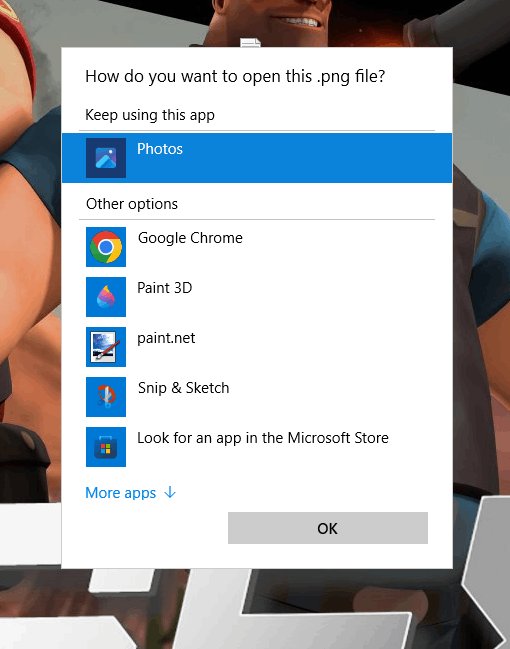
Paint 3D only appears in the list while it is installed. Once it is uninstalled, Windows falls back to Photos or Paint.
Can You Download Paint 3D from a Third-Party Website?
No. Do not install a Paint 3D package from a download portal, a file host or any site that is not Microsoft. Microsoft is the only publisher of the Paint 3D package and it has withdrawn the download. Anything still offering an installer is redistributing a file Microsoft no longer signs updates for, or something else entirely under the same name. A Store package from an unknown source gets the same access to your files as the real one.
Sites that promise a Paint 3D installer often serve a bundled downloader instead. The cost of a wrong install is far higher than the cost of switching to Paint.
Common Paint 3D Installation Problems and Fixes
Paint 3D does not show in Microsoft Store search
The Store listing was withdrawn on 4 November 2024, so search has nothing to return.
- Stop searching the Store catalogue and select Library instead.
- Confirm you are signed in with the account that owned the app.
- Install Paint from the Store if no Library entry exists.
The Install button is missing in your Library
The entry is shown as owned, but the package is no longer distributed.
- Select Library > Get updates and let the check finish.
- Close and reopen the Microsoft Store.
- Sign out of the Store and sign back in with the original account.
- Move to Paint or Photos if the button still does not appear.
Microsoft Store gets stuck on Downloading
A stalled download queue or a pending Windows update blocking the Store service.
- Select Start > Settings > Windows Update > Check for updates and install what is offered.
- Restart the PC.
- Reopen the Microsoft Store, select Library > Get updates.
- On Windows 10, select Start > Settings > Update & Security > Troubleshoot, then select Windows Store apps > Run the troubleshooter.
Paint 3D opens and immediately closes
Corrupted app data, which a reset clears without needing the withdrawn installer.
- Open Settings > Apps > Installed apps on Windows 11, or Apps & features on Windows 10.
- Select Advanced options for Paint 3D.
- Select Repair first, then test the app.
- Select Reset if the crash repeats, and confirm the prompt.
- Sign out of Windows and back in, then open the app again.
PowerShell cannot find the Paint 3D package
Packages are registered per user account, and an exact name typed from memory rarely matches.
- Run
Get-AppxPackage -Name *paint*instead of typing a full package name. - Read the Name column in the output to get the real package identity.
- Sign in to the user account that installed the app and run the command again.
- Treat empty output as confirmation that the package is not installed for that account.
Paint 3D is not working in Windows 10 after an update
A Windows update left the app registration in a partial state.
- Select Start > Settings > Update & Security > Windows Update > Check for updates and finish any pending install.
- Restart the PC.
- Reset Paint 3D from Apps & features > Advanced options.
- Create or sign in to a second local account and test Paint 3D there to separate a profile fault from an app fault.
How to Uninstall Paint 3D
Uninstalling is permanent now. There is no supported way to put it back afterwards, so keep the app if you still use it.
- On Windows 11, select Start > Settings > Apps > Installed apps, select More next to Paint 3D, then select Uninstall.
- On Windows 10, select Start > Settings > Apps > Apps & features, select Paint 3D, then select Uninstall.
- Select Uninstall again at the confirmation prompt.
- Alternatively, select Start > All apps, right-click Paint 3D and select Uninstall.
- Reset your image defaults afterwards under Settings > Apps > Default apps.
What to Use Instead of Paint 3D
Microsoft names specific replacements rather than leaving the gap open.
| Task you used Paint 3D for | Use this | Where it comes from |
|---|---|---|
| Quick 2D drawing and annotation | Paint | Ships with Windows 11 and Windows 10 |
| Cropping, resizing and light retouching | Photos | Ships with Windows 11 and Windows 10 |
| Removing a picture background | Paint | Background removal is built into current Paint |
| Viewing a 3D model file | Babylon.js Sandbox | Runs in a browser, named by Microsoft |
| 3D printing preparation | Your printer maker's own software | 3D Builder and Print 3D were both retired |
Paint and Photos both update through the Microsoft Store, so they keep gaining features that Paint 3D no longer receives.
Bottom line
Keep Paint 3D if your PC already has it, and switch to Paint for everything else. Microsoft removed the download on 4 November 2024 and existing installations are the only supported copies left. Paint now covers layers, transparency and background removal, so the 2D work most people did in Paint 3D has a maintained home.
Frequently Asked Questions
How do you install Paint 3D on Windows?
You cannot install it from Microsoft any more. Paint 3D was removed from the Microsoft Store on 4 November 2024, and no new download is offered. Check the Store Library for an existing entry tied to your account, then use Paint if nothing appears.
Does Paint 3D work on Windows 11?
Yes, an installed copy keeps working on Windows 11. Microsoft states that existing installations continue to run after the Store removal. Windows 11 never shipped with Paint 3D, so only a PC upgraded from Windows 10 is likely to have it.
Is Paint 3D available in Windows 11?
No. Paint 3D was not preinstalled on Windows 11 devices and it is no longer available to download. Windows 11 ships with Paint and Photos instead, and Paint now handles layers, transparency and background removal.
Where can you download Microsoft Paint 3D?
Nowhere official. Microsoft withdrew the Store listing on 4 November 2024 and publishes no installer elsewhere. Any third-party site offering a Paint 3D download is redistributing an unsupported file, so avoid it.
How do you reinstall Paint 3D on Windows 10?
Open the Microsoft Store, select Library, and look for Paint 3D under the account that originally had it. Select Install if an entry appears. Because the package was withdrawn, most PCs get no entry and no working Install button.
Why is Paint 3D not working in Windows 10?
Corrupted app data is the usual cause. Open Settings, Apps, Apps & features, select Paint 3D, then Advanced options, and select Repair. Select Reset if the fault continues. Reset rebuilds the app without needing the withdrawn download.
How do you update Paint in Windows 10 to Paint 3D?
Paint and Paint 3D are separate apps, and Paint does not upgrade into Paint 3D. Paint is the one still maintained. Update it by opening the Microsoft Store, selecting Library, then Get updates.
Where is the Paint 3D install location?
Paint 3D is a Microsoft Store package rather than a normal program folder, so there is no installer directory to browse. Find it under Settings, Apps, Installed apps, or run Get-AppxPackage -Name *paint* in PowerShell to read its install location.
Is there a free download of Paint 3D for Windows 10?
Not from Microsoft. The app was free while it was listed, but the listing was removed on 4 November 2024. Paint and Photos are the free, supported replacements and are already on the PC.
Can you still use Microsoft Paint 3D on Windows 10 today?
Yes, if it is already installed. Microsoft confirms existing installations keep working, though the app receives no further updates. Uninstalling it is permanent, because there is no supported way to reinstall it.