To switch out of S mode, open the Switch out of S mode page in the Microsoft Store and select Get; it is free on Windows 11 and Windows 10, but it is permanent.
This guide covers the Store and Settings routes, what changes after the switch, how to confirm it worked, and what to do when the option is missing or the Store says to try again.
The fastest way to switch out of S mode
Microsoft's own support page links straight to the Store offer, so this route skips all searching. It works the same way on Windows 11 and Windows 10.
- On the PC that is in S mode, open Microsoft Edge and go to Microsoft's Switching out of S mode in Windows support page (linked at the end of this guide).
- Under your Windows version, select the click here link. Microsoft Store opens on the Switch out of S mode page.
- Sign in to the Store with your Microsoft account if it asks.
- Select Get.
- Wait for the confirmation message on the page. You can now install apps from outside the Microsoft Store.
The switch costs nothing and needs no product key. It also cannot be reversed from Settings, so read the next section first if you are still deciding.
What S Mode Actually Changes (and What Doesn’t)
S mode is a Windows configuration that the manufacturer turns on before the PC ships. The rows below show the key limitations in S mode and what improves after you switch out.
| Area | In S mode | After you switch out |
|---|---|---|
| App sources | Apps from Microsoft Store only | Apps from any source, including installers from vendor websites |
| Default browser | Microsoft Edge is always the default; you cannot set Chrome or Firefox as default | Any installed browser can be the default |
| Default search engine | Bing is the default search engine | You choose the search engine in your browser |
| Antivirus | The only compatible antivirus is the built-in Windows security app | Other antivirus products can be installed |
| Domain join (Windows 11) | Not available in Windows 11 Home in S mode | Follows the rules of the edition you land on |
| Printers and peripherals | Some devices have limited functionality | Full driver and utility software can be installed |
| Your Windows edition | Windows 11 Home in S mode, or Windows 10 Home, Pro or Enterprise in S mode | The equivalent edition without S mode (on Windows 10, Home in S mode becomes Home and Pro in S mode becomes Pro) |
| Store apps you already own | Linked to your Microsoft account | Unchanged, still linked to the same account |
What does not change: your edition stays the same, your Microsoft account stays the same, and Microsoft Edge stays installed. Buying a higher edition is a separate, paid step.
Should you switch out of S mode?
Microsoft recommends staying in S mode unless you need something it blocks. Match your situation to a row.
| Your situation | Decision | Why |
|---|---|---|
| You need Chrome, Firefox, Zoom's desktop installer or any app that is not in the Store | Switch out | S mode only runs Store apps |
| You want Chrome or Firefox as your default browser | Switch out | Edge is always the default browser in S mode |
| Your printer or scanner needs the maker's full software | Switch out | Peripherals can have limited functionality in S mode |
| You have Windows 10 Pro, Enterprise or Education in S mode and want Windows 11 | Switch out first | Windows 11 in S mode exists only in the Home edition |
| Everything you use is in the Store and Edge suits you | Stay in S mode | You keep the security and performance benefits of S mode |
| The PC belongs to a school or employer | Ask the IT admin | The organisation may block switching or switch devices centrally |
Prerequisites Before You Switch Out
| Check | What you need | Why it matters |
|---|---|---|
| 1) A valid Microsoft account | An account you can sign in to the Microsoft Store with | Microsoft's procedure starts with signing in to the Store |
| 2) Your current Windows edition | Look at Settings > System > Activation (Windows 11) or Settings > Update & Security > Activation (Windows 10) | The switch-out section on that page names the edition you will land on |
| 3) Expect a one-way change | Accept that you cannot turn S mode back on | Only a bare-metal recovery to factory state can restore S mode |
| 4) Not blocked by policy | A personal PC, or permission from your IT admin | Organisations can set devices to Keep in S mode |
| Updates installed | Restart after any recent Windows updates | The Store cannot install apps until pending updates finish with a restart |
| Open work saved | Save and close your files | The switch prompts you to save files before it starts |
Method 1 (Most Common): Switch Out of S Mode via Microsoft Store
Use this when you are already in the Store, or when the support page link does not open it. This is the per-device route Microsoft documents for Windows 10 and Windows 11.
- Select Start and open Microsoft Store.
- Sign in with your Microsoft account using the profile icon at the top of the Store.
- Type S mode in the Store search box and press Enter.
- Open the Switch out of S mode result. The title can vary slightly by version.
- Select Get (older builds may show Buy or Learn more instead).
- Follow the prompts, and save your files when asked.
- Wait for the confirmation message before closing the Store.
The offer is free even when the button reads Buy. If the Store asks for payment details, you are on the paid edition upgrade page, not the S mode page.
Method 2: Use Settings (If Your Build Shows the Option)
Settings shows the switch-out offer on the Activation page and hands you to the same Store page. Pick the section carefully, because the page can show two Store links.
- Windows 11: open Settings > System > Activation.
- Windows 10: open Settings > Update & Security > Activation.
- Find the Switch to Windows 11 Pro section on Windows 11, or Switch to Windows 10 Home or Switch to Windows 10 Pro on Windows 10.
- Select the Go to the Store link inside that section.
- Do not select the link under Upgrade your edition of Windows; that is a different process that keeps you in S mode.
- On the Store page that opens, select Get and wait for the confirmation.
Method 3: Upgrade or Reinstall Using the Correct Windows Edition (When Switching Isn’t Available)
When the free switch is not offered, the fix depends on why. These are the Windows 10/11 upgrade paths to consider, and the order that avoids paying for the wrong thing.
| Your situation | Path | What to expect |
|---|---|---|
| Windows 10 Pro, Enterprise or Education in S mode, and you want Windows 11 | Switch out of S mode first, then upgrade to Windows 11 | Windows 11 in S mode is only available in Home |
| Windows 10 Home in S mode, and you want Windows 11 | Accept the free upgrade in Windows Update if the PC meets the requirements | You get Windows 11 Home in S mode, then switch out with Method 1 or 2 |
| Windows 11 Home in S mode, and you want Pro | Switch out of S mode first, then buy Pro through Upgrade your edition of Windows | Buying Pro while in S mode keeps you in S mode |
| School or work PC with switching blocked | Your admin switches the device in Microsoft Intune under Edition upgrade and mode switch | Admins can switch one device or many, during setup or later |
| Windows 11 SE education device | Talk to the school's IT team | SE runs a Microsoft-curated app list managed through Intune for Education, and its support ends in October 2026 |
| You switched out and want S mode back | Only a bare-metal recovery to factory state restores it | A normal reset keeps the PC out of S mode |
Verification: How to Confirm You’re No Longer in S Mode
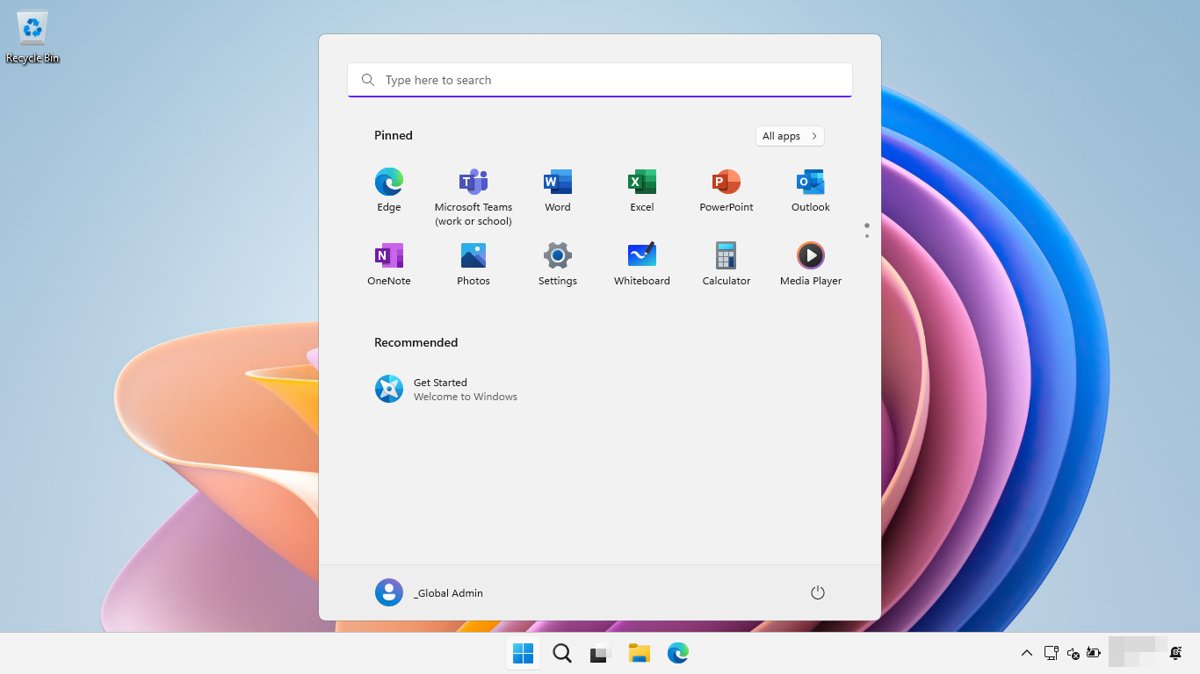
The Store confirmation is the first proof. These checks confirm the PC now behaves like standard Windows.
- Check the confirmation message on the Store page before you close it; it states that you can now install apps from outside the Microsoft Store.
- Try installing a classic desktop app: download a browser installer, such as Firefox from mozilla.org, and run it. It should install instead of being blocked.
- Set that browser as default under Settings > Apps > Default apps. S mode would keep Edge as the default.
- If the installer is still blocked, restart the PC and try again before troubleshooting.
Troubleshooting: What to Do When the Switch Out Option Is Missing
Try this checklist in order. Before reinstalling anything, try the small fixes first; most failures come from the Store, the account or a policy.
The Store page says "Try again" or will not load
The Microsoft Store cache is damaged, Windows has pending updates, or the date and time are wrong.
- Press Windows logo key + R, type
wsreset.exeand select OK. - Wait about ten seconds; a blank window closes and the Store reopens on its own.
- Install any pending Windows updates and restart the PC.
- Confirm the time, date and region settings are correct.
- Open the Switch out of S mode page again and select Get.
Why can't I switch out of S mode on a school or work PC?
The organisation set the device to Keep in S mode in Microsoft Intune, which blocks the Store offer.
- Contact the IT admin who manages the device.
- Ask them to switch it under Edition upgrade and mode switch in Intune, or to lift the Keep in S mode setting.
- Do not try to work around the policy; the device is not yours to reconfigure.
You're signed into the wrong account, or Get does nothing
The Store needs a working Microsoft account sign-in, and some family settings restrict what a child account can install.
- Select the profile icon in the Microsoft Store and check which account is signed in.
- Sign out, then sign in with your own Microsoft account.
- If the account belongs to a Microsoft family group, ask the family organiser to check its family settings.
- Return to the Switch out of S mode page and select Get.
The Activation page shows no Switch to Windows 11 Pro section
Settings does not always show the offer, or the PC is not in S mode at all.
- Use Method 1 and search the Store for S mode instead.
- Or open the direct link on Microsoft's Switching out of S mode in Windows page.
- If a desktop installer already runs normally, the PC is not in S mode and there is nothing to switch.
You're using Windows 11 SE
Windows 11 SE is a separate education edition with an app allowlist managed by the school, not a consumer S mode offer.
- Ask the school's IT team whether the app you need can be added through Intune for Education.
- Plan for a replacement device, because Windows 11 SE support ends in October 2026.
The Store opened, but it asks for payment
You selected the link under Upgrade your edition of Windows, which is the paid Pro upgrade and keeps you in S mode.
- Close that Store page without buying.
- Go back to Activation and use the Go to the Store link in the Switch to Windows 11 Pro section instead.
Common Mistakes That Waste Time
| Mistake | What happens | Do this instead |
|---|---|---|
| Clicking the link under Upgrade your edition of Windows | You are sent to a paid upgrade that keeps S mode | Use the switch-out section's Go to the Store link |
| Buying Windows 11 Pro to escape S mode | You pay and stay in S mode | Switch out for free first, then upgrade only if you need Pro features |
| Resetting the PC to undo the switch | The PC stays out of S mode after a reset | Treat the switch as permanent before you select Get |
| Trying it on a school or work PC | The offer is blocked by policy | Ask the IT admin |
| Retrying right after Windows updates | The Store cannot install until you restart | Restart first, then retry |
| Installing a third-party antivirus while still in S mode | It is not compatible in S mode | Keep using Windows Security, or switch out first |
Windows 10 vs Windows 11: What Changes in the UI
The Store step is identical on both versions. The UI differences you'll notice are all on the Settings side.
| Item | Windows 11 | Windows 10 |
|---|---|---|
| Activation page | Settings > System > Activation | Settings > Update & Security > Activation |
| Switch section name | Switch to Windows 11 Pro | Switch to Windows 10 Home or Switch to Windows 10 Pro |
| Link to select | Go to the Store | Go to the Store |
| Editions that can be in S mode | Home only | Home, Pro, Pro Education and Enterprise |
| Store button | Get | Get, or Buy / Learn more on older builds |
| Support status | Supported | Support ended October 14, 2025 |
FAQ
Is switching out of S mode free?
Yes. Microsoft charges nothing to switch out of S mode on Windows 11 or Windows 10. You select Get on the Store's Switch out of S mode page. Only the separate Home-to-Pro edition upgrade costs money.
Can I switch out of S mode and switch back?
No. Switching out of S mode is one-way, and Settings has no option to turn it back on. A normal reset keeps the PC out of S mode; only a bare-metal recovery to factory state restores it.
Should I switch out of S mode on Windows 11?
Switch out if you need an app that is not in the Microsoft Store, a browser other than Edge as default, or full printer software. Stay in S mode if Store apps and Edge cover everything you do.
How do I switch out of S mode on Windows 11 Home?
Open Settings > System > Activation, find Switch to Windows 11 Pro, select Go to the Store, then select Get. No product key or payment is needed.
Why switch out of S mode for Chrome?
S mode only installs apps from the Microsoft Store and always keeps Microsoft Edge as the default browser. To install Chrome from Google's site and make it your default, you must switch out of S mode first.
How do I switch out of S mode on an HP, Lenovo or ASUS laptop?
The steps are the same on every brand. S mode is a Windows setting the maker turns on at the factory, so use the Microsoft Store Switch out of S mode page or Settings > Activation on any laptop.
Can I switch out of S mode without a Microsoft account?
Microsoft's documented procedure starts with signing in to the Microsoft Store with a Microsoft account. Plan to sign in to the Store for the switch, even if you use Windows with a different account.
Why does switch out of S mode say try again?
Usually the Store cache is damaged or updates are pending. Press Windows logo key + R, run wsreset.exe, install pending Windows updates, restart, check the date and time, then select Get again.
Why can't I switch out of S mode?
The common causes are a school or work policy set to Keep in S mode, the wrong Store account, a broken Store cache, or a Windows 11 SE device. Each cause has its own fix in the troubleshooting section above.
Will my files and apps stay after switching?
Microsoft describes the switch as a Store offer that only asks you to save open files before it starts, not as a reinstall. Store apps stay linked to your Microsoft account either way.
What if I switched out, but Chrome or other apps still won't install?
Restart the PC, because the change and any recent updates need a restart before installs work. If installers are still blocked, check whether the PC is managed by a school or employer.
Is S mode the same as safe mode?
No. S mode is a permanent Windows configuration that limits apps to the Microsoft Store. Safe mode is a temporary troubleshooting startup with a minimal set of drivers. Switching out of S mode does not affect safe mode.
Bottom Line
Switch out of S mode through the Microsoft Store Switch out of S mode page as soon as you need a single app or browser the Store cannot give you, and stay in S mode otherwise. The switch is free and takes a minute, but it is permanent, so the only real decision is whether you need software outside the Store.
Official reference: Switching out of S mode in Windows and the Windows 10 and Windows 11 in S mode FAQ.