The fastest way to join a Microsoft Teams meeting is to select the meeting link in your invite email, then select Join now on the pre-join screen.
This guide covers the six main ways to join, from the email link and meeting ID to Outlook, notifications, the Teams calendar and chat, plus phone and browser options, joining without an account, and fixes for the messages that block you.
1. Join with an email link
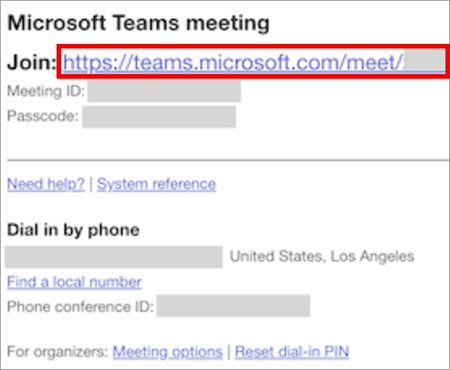
Every Teams invite carries a join link. Meetings scheduled after January 20, 2026 show the full meeting URL; older invites show a Join the meeting now link. Both work the same way.
- Open the meeting invite in your email.
- Select the meeting link, or Join the meeting now in an older invite.
- If the Teams app is installed, the meeting opens there. Otherwise choose Continue on this browser or Join on the Teams app.
- Turn your camera and microphone on or off on the pre-join screen.
- Select Sign in if you have a Teams account, or type your name if you are joining as a guest.
- Select Join now.
You either enter the meeting straight away or wait in the lobby until the organizer admits you. On a phone, tapping the link opens the Teams app, or the app store if Teams is not installed.
Which way to join a Teams meeting should you use?
| Your situation | Use this method | Why |
|---|---|---|
| You have the invite email open | 1. Email link | One click, works with or without a Teams account |
| You only have a meeting ID and passcode | 2. Meeting ID and passcode | No link needed; works in the Teams calendar or any browser |
| You live in classic Outlook | 3. Outlook calendar | Join Teams Meeting sits on the meeting's ribbon |
| The meeting is starting now | 4. Notification | The live meeting bar or phone notification has a Join button |
| You use Teams all day | 5. Teams calendar | Every accepted meeting has a Join button in Calendar |
| The meeting has already started and has a chat | 6. Chat | Join appears at the top of the meeting chat |
2. Join using your meeting ID and passcode
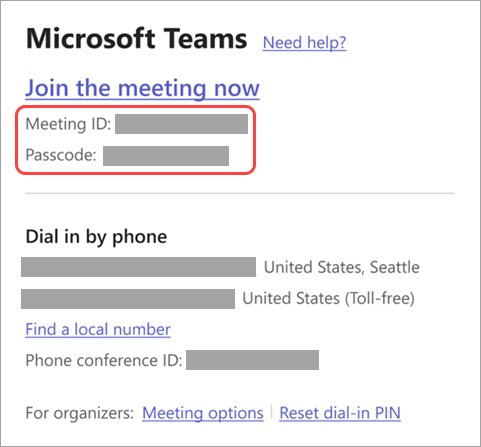
The meeting ID and passcode are at the top of the Teams invite email, or in the Teams calendar under Details > Show meeting info.
- In Teams on desktop, select Calendar on the left side.
- Select the dropdown arrow next to Meet now, then select Join with an ID.
- Enter the meeting ID and passcode, then join.
- On mobile, tap Calendar > More > Join with meeting ID, enter the ID and passcode, and tap Join meeting.
- Without the app, open the Microsoft Teams join page at microsoft.com/microsoft-teams/join-a-meeting in any browser.
- Enter the meeting ID and passcode in the two fields, then select Join a meeting.
The Join with an ID option in the Teams calendar needs an Exchange Online mailbox. If you do not see it, use the browser join page instead.
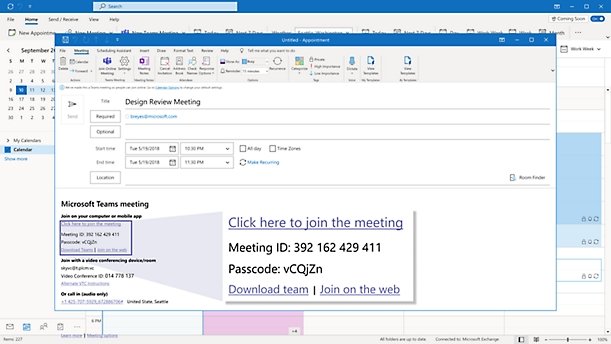
3. Join via a calendar link in Microsoft Outlook calendar
When the organizer adds Teams to an Outlook invite, the join details sit in the event itself, so you can join from your Outlook calendar without opening Teams first.
- Open Calendar in Outlook.
- Open the calendar event for the meeting.
- On the Meeting tab in the ribbon, select Join Teams Meeting, or select the join link in the message body.
- If the meeting reminder pops up, select Join Online instead.
- In the browser page that opens, choose the Teams app or the browser, then select Join now on the pre-join screen.
To skip the browser choice every time, select Always allow teams.microsoft.com to open links of this type in the associated app on that page, then select Open. Future links from Outlook then open directly in the Teams desktop app.
4. Join from a notification
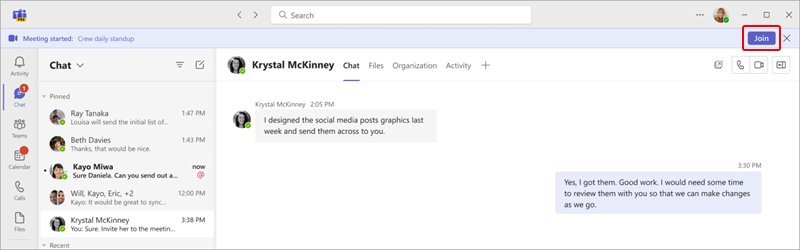
Teams alerts you when a meeting you accepted, or tentatively accepted, goes live. On desktop that alert is the live meeting bar; on mobile it is a notification.
- On desktop, wait for the live meeting bar showing the meeting title.
- Select Join on the bar.
- If several meetings are live, select View meetings and pick the one you want.
- On iPhone or Android, tap the Teams notification when the meeting starts.
- Select Join now on the pre-join screen.
If the bar is missing, open Settings and more > Settings > Notifications and activity > Meetings and check that Show meeting join bar is on. When you are already in the meeting on another device, the mobile notification offers Join the meeting on this device, which mutes the phone's speaker and mic.
5. Join from a calendar link in the Microsoft Teams app
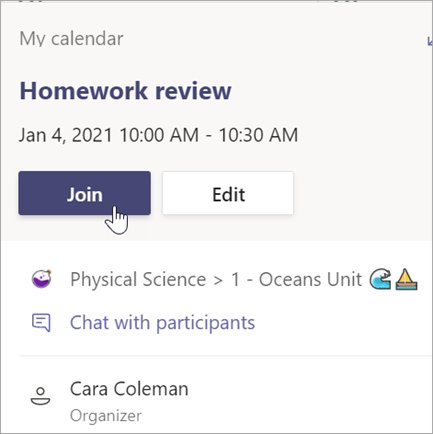
- Open Teams and select Calendar on the left.
- Select the meeting you want to attend.
- Select Join.
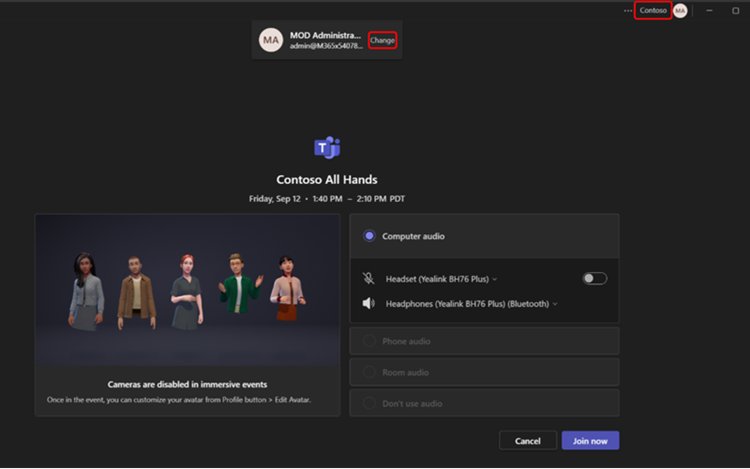
- Choose your camera, microphone and audio device on the pre-join screen.
- Select Join now.
The same calendar shows meetings set up by people on Teams personal accounts, so you do not need to switch accounts to attend them. On mobile, tap Calendar, tap the meeting, then tap Join.
6. Join from chat
Each scheduled meeting has its own chat, and a meeting that is already running shows a join control at the top of it. This is the quickest way back in if you dropped out.
- Select Chat in Teams.
- Open the meeting chat, or the chat where someone sent you the meeting invite.
- Select Join at the top of the chat.
- If the invite was posted as a link, select the link, then select Join now.
The live meeting status bar in the chat also shows who has joined and lets you post in the meeting chat before you go in. The meeting chat itself works like any other Microsoft Teams chat.
Join a Microsoft Teams meeting from anywhere
Beyond the six methods above, Teams has routes for when you have no computer, no app or no account. These are extra options, not replacements.
| Where you are | How to join | What to know |
|---|---|---|
| Only a phone, no data | Dial a number in the invite and enter the conference ID | Available only if the invite lists a phone number and conference ID; select Find a local number for other countries |
| At a computer, poor audio | Select Join, then more join options > Call me on the pre-join screen, enter your number and select Call me | Answer and say OK or press 1 to join, depending on org settings |
| A computer without the Teams app | Select the invite link, then Continue on this browser | Teams for web works in Microsoft Edge and Google Chrome |
| A phone without the Teams app | Tap the invite link and install Teams when the store opens | Teams meetings are not supported in mobile web browsers |
| In a team channel | Select Join on the meeting invitation in the channel | The channel also shows the meeting's content and who is in it |
| In a car with CarPlay | Tap Teams and ask Siri to call your next meeting using Teams | Audio only, iPhone and Teams iOS app required; mic starts muted |
| In a meeting room | Wait for a room to be detected, select Room audio, then Join now | Bluetooth must be on |
Once you dial in, press \*6 to mute or unmute and \*1 to hear the list of phone commands. Invites from other services work differently; you join a Google Meet meeting from its own link or code.
Join a Teams meeting without an account or with a different account
You do not need a Teams account to join a meeting, but some organizations require you to verify your email first. People who sign in get more meeting features than guests.
- To join without an account, open the invite and select the meeting link.
- Select Continue on this browser, allow access to your mic and camera, type your name, and select Join now.
- If asked for an email address, enter it, select Next, then enter your Microsoft account password or select Send code and type the one-time passcode.
- To switch accounts in the Teams app, select the meeting in Calendar and select Join.
- Select Change next to your account at the top of the pre-join screen.
- Pick another account, select Add another account, or select Join without signing in and type your name.
- Select Join to enter the meeting.
Other participants see Unverified next to your name if you joined with no email, Email verified after a one-time code, and External with a Microsoft account from another organization.
How to check you joined the Teams meeting
- Look for the meeting window with the meeting controls, not the pre-join screen with Join now.
- If the screen says someone will let you in soon, you are in the lobby; wait for the organizer to admit you.
- Select People in the meeting controls and confirm your name is in the participant list.
- Check the label next to your name, such as Unverified or External, if you joined as a guest.
- Unmute briefly and confirm others can hear you, or press \*6 if you joined by phone.
If no one admits you from the lobby within 30 minutes, Teams removes you and you need to join again.
Can't join a Microsoft Teams meeting: fixes by message
"Sign in to join this meeting"
The organization does not allow anonymous joins.
- Sign in with your Teams work or school account on the pre-join screen.
- If you are the organizer and want guests to join without signing in, ask your IT admin; the change can take up to 24 hours.
"Sign in with a different account to join this meeting"
The meeting only admits the account the invite was sent to.
- Select Change next to your account on the pre-join screen.
- Sign in with the address that received the invite.
- Select Join.
"This meeting is locked"
The organizer has locked the meeting to new joins.
- Ask the organizer to unlock the meeting.
- Select the join link again.
"Your organizational policy does not allow you to join this meeting"
The organizer turned on end-to-end encryption, which limits who can join.
- Contact the organizer and ask for access.
- Join again once they confirm.
"The meeting lobby is full right now" or no one responds
The lobby is at capacity, or your request timed out after 30 minutes.
- Wait a few minutes and try again.
- Confirm you are using the correct meeting link from the latest invite.
- Message the organizer to check your request arrived.
No join option, or the link fails on a phone browser
The event is not a Teams meeting, or you are using a mobile web browser that Teams meetings do not support.
- Install the Teams mobile app and join from it.
- Ask the organizer to turn on the Teams meeting toggle in the meeting details if the invite has no join link.
- On a computer, update Microsoft Teams or join in Microsoft Edge or Google Chrome instead.
Joining a Microsoft Teams meeting FAQ
Can I join a Teams meeting without the app?
Yes, on a computer. Select the meeting link and choose Continue on this browser to join in Microsoft Edge or Google Chrome. On a phone or tablet you need the Teams mobile app, because Teams meetings are not supported in mobile web browsers.
Can I join a Teams meeting without an account?
Yes. Select the invite link, type your name and select Join now. Some organizations require you to verify your email with a one-time passcode first, and you will be labelled Unverified or Email verified in the meeting.
Where do I find the Teams meeting ID and passcode?
Both are at the top of the Teams meeting invite email. In the Teams calendar, open the meeting and select Details > Show meeting info. Enter them under Calendar > Meet now > Join with an ID, or on the Teams join page in a browser.
Why can't I see Join with an ID in Teams?
The Join with an ID option in the Teams calendar needs an Exchange Online mailbox. Without one, the option does not appear. Use the Microsoft Teams join page in any browser instead and enter the meeting ID and passcode there.
Can I join a Teams meeting by phone?
Yes, if the invite lists a dial-in number and conference ID. Call the number and enter the ID. From a computer, you can also select more join options > Call me on the pre-join screen so Teams calls your phone.
How early can I join a Teams meeting?
You can open the meeting link at any time to test your setup on the pre-join screen, or make a Teams test call beforehand. Guests without an account can enter the meeting up to 15 minutes before its start time, and participants are notified when you join.
How do I join a Teams meeting with a different account?
Select the meeting in your Teams calendar and select Join. On the pre-join screen, select Change next to your account, pick or add the account you want, then select Join.
Why am I stuck in the Teams lobby?
The organizer controls who skips the lobby, and someone in the meeting must admit you. If no one does within 30 minutes, Teams removes you from the lobby and you can try joining again.

![Rockstar Games Launcher not working on Windows PC [Fix]](https://techdows.com/wp-content/uploads/2026/10/Rockstar-Games-Launcher-not-working-on-Windows-PC-Fix-600x338.jpg)