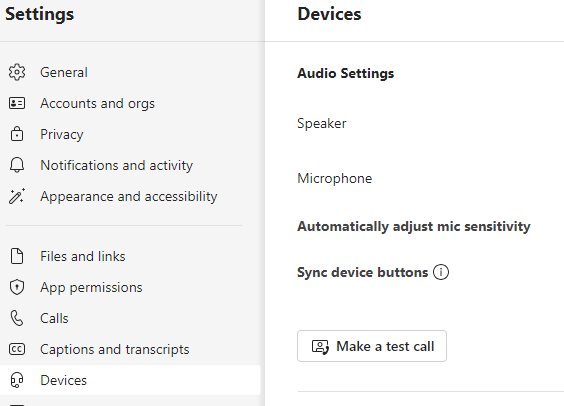
To do a test call on Teams, open Settings and more > Settings > Devices in the desktop app and select Make a test call under Audio settings.
This guide covers the full test call walkthrough, what the summary tells you, how to check audio in a browser where the test call is missing, and fixes for mic, speaker, camera and connection problems.
Using the built-in ‘make a test call’ feature in Teams
The test call is built into the Teams desktop app for Windows and Mac, and it needs nobody else on the line.
- Select Settings and more (the three dots) next to your profile picture at the top of Teams.
- Select Settings.
- Select Devices.
- Under Audio settings, select Make a test call.
- Follow the Test Call Bot prompts, record a short message, and listen to the playback.
A summary appears when the playback ends, with a shortcut back to your device settings if something sounded wrong.
What is a test call in Teams and why is it necessary?
A Teams test call is a private call with an automated bot that checks your mic, speaker and camera before a real meeting.
It catches the wrong headset, a muted mic or a blocked camera while nobody is waiting on you. Once it passes, you can join a Teams meeting from the invite link knowing your devices work.
| What the test call checks | How it checks it | Why it matters before a meeting |
|---|---|---|
| Microphone | Records a short message you speak after the bot's prompt | Others hear exactly what the playback sounds like |
| Speaker or headset | Plays the bot's instructions and your recording back to you | Confirms sound goes to the device you expect, not the laptop speakers |
| Camera | Included in the device check and the summary | A blocked or busy camera shows up before you join |
| Selected devices | The summary links back to Devices in Settings | You can switch a device and test again in under a minute |
Prerequisites for making a test call on Teams
| Requirement | Details |
|---|---|
| Teams app | The Teams desktop app for Windows or Mac. The test call is not available in Teams on the web. |
| Language | The test call runs in English only. |
| Devices connected | Plug in or pair your headset, mic and camera before you open Devices, so they appear in the dropdowns. |
| App permissions | Windows or macOS must allow Teams to use the microphone and camera (privacy settings). |
| Up-to-date app | Install the latest Teams update plus current Windows or macOS updates. |
Step-by-step guide to performing a test call on Microsoft Teams
These are the same steps as the quick route, with what to do at each stage of the call.
- Step 1: Open Microsoft Teams on your Windows PC or Mac and sign in.
- Step 2: Access settings by selecting Settings and more next to your profile picture, then Settings.
- Step 3: Navigate to Devices in the left pane of Settings.
- Step 4: Start a test call by selecting Make a test call under Audio settings.
- Step 5: Record your message when the Test Call Bot asks, speaking at your normal meeting volume.
- Step 6: Review the playback, listening for clipping, echo, hiss or a voice that sounds far away.
- Step 7: Adjust settings if necessary from the summary, change the Speaker, Microphone or camera, then run the test again.
Microsoft deletes the test recording as soon as the call ends and does not keep or use it.
What happens during the test call in Teams
Each stage of the call tests something different, so it helps to know what to listen for.
| Stage | What you hear or do | What a problem sounds like |
|---|---|---|
| Bot instructions | The Test Call Bot explains what to do | Silence means the wrong speaker is selected or the speaker is muted |
| Recording | You speak a short message after the prompt | Nothing recorded points to a muted, blocked or wrong microphone |
| Playback | Teams plays your message back | Muffled or distant audio usually means the laptop mic is in use instead of your headset |
| Summary | Teams shows the results and a link to device settings | A device you did not expect listed in the summary |
Teams test call post-test review: how to check it worked
- Read the summary that appears after the playback and confirm it names the mic, speaker and camera you plan to use.
- Confirm you heard the bot clearly through the device you will wear in the meeting.
- Confirm your recorded voice played back at a steady level without echo.
- If anything is off, select the device settings link in the summary and fix that one device.
- Select Make a test call again to follow up after testing and prove the change worked.
Alternative methods for testing audio and video on Teams
Use another route when the test call is missing, for example in Teams on the web, or when you want to isolate one device.
| Your situation | Use this | Why |
|---|---|---|
| Desktop app, want to pick devices without a call | Device settings in Teams | Change Speaker, Microphone and camera from one page |
| Teams in a browser, no test call option | A solo Meet now meeting | Opens the pre-join screen and a real meeting with only you in it |
| Not sure if the mic works at all | Windows sound settings mic test (an external testing tool) | Tests the mic outside Teams, so you know whether Teams or the hardware is at fault |
| Mic works in other applications but not Teams | Testing through other applications, then app permissions | Points to a Teams permission or device selection problem |
| No device appears anywhere | Hardware checks | Cable, Bluetooth charge, mute switch and a reconnect come first |
Using device settings in Teams to test your mic and speaker
- Select Settings and more > Settings > Devices.
- Under Audio settings, choose your headset or speakers in the Speaker dropdown.
- Choose your mic in the Microphone dropdown.
- Set Noise suppression to suit the room you are in.
- Under the video settings, choose your camera from the dropdown.
- Select Make a test call to confirm the new choices.
During a meeting, select the dropdown arrow next to Mic and then More audio settings to switch devices without leaving the call.
How to do a test call on Teams in a browser with Meet now
Teams on the web has no test call, so a meeting with only you in it is the closest substitute.
Use a fully supported browser for calling: current Microsoft Edge or Google Chrome. Firefox supports Teams meetings but not Teams calling.
- Sign in to Teams in your browser.
- Select Calendar on the left side of Teams.
- Select Meet now in the upper-right corner.
- Select Start meeting to open the pre-join screen.
- Choose Computer audio, then select the Audio settings icon to check the speaker and mic.
- Select Join now, turn on your camera, speak, and check that the mic indicator reacts.
- Leave the meeting when you are done.
If the browser asks to use your microphone and camera, allow it. Meet now from the calendar needs an Exchange Online mailbox. You can also start a group chat with a colleague and select Meet now at the top of it for a two-person test.
Using external testing tools: test a microphone in Windows sound settings
Testing through other applications tells you whether a fault belongs to Teams or the device. Windows has a mic test built into Sound settings.
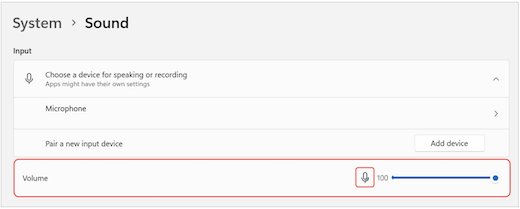
- Select Start > Settings > System > Sound.
- Under Input, select your microphone, then select the arrow to its right to open its properties.
- Under Input settings, select Start test and speak normally.
- Select Stop test and check the result.
- Raise the Input volume slider if your voice is too quiet.
If the mic passes here but fails in the Teams test call, the problem is the Teams device selection or its microphone permission, covered in the fixes below.
Troubleshooting common issues during test calls on Teams
Why can't I make a test call in Teams? The option is missing
The test call exists only in the Teams desktop app for Windows and Mac, not Teams on the web.
- Open the Teams desktop app instead of the browser tab.
- Install the pending Teams update: select the update notice at the top of Teams, then Update and restart Teams.
- Return to Settings > Devices and look under Audio settings for Make a test call.
- If you must stay in the browser, use a solo Meet now meeting instead.
Audio issues: the playback is silent or the mic is not detected
Windows privacy settings block Teams, the mic is muted, or the wrong mic is selected.
- Check the headset boom or the mic's physical mute switch.
- In Windows, open Settings > Privacy & security > Microphone.
- Turn on Microphone access and Let apps access your microphone.
- Turn on Microsoft Teams (work or school) and Let desktop apps access your microphone. If they were on, turn them off and on again.
- Close all apps, restart, and pick the mic in Teams Devices before you test again.
Audio issues: you cannot hear the Test Call Bot
Sound is going to another output device, or that device is muted.
- In Teams Devices, choose the right device in the Speaker dropdown.
- In Windows, open Settings > System > Sound and pick the speaker under Choose where to play sound.
- Make sure Volume is not muted.
- For a Bluetooth headset, charge it, disconnect it from other devices, and reconnect it.
Video problems: the camera is black or missing
Another app is holding the camera, or Teams has no camera permission.
- Close other apps that use the camera, such as Skype or FaceTime.
- Unplug an external camera and plug it back in.
- In Windows, open Settings > Privacy & security > Camera.
- Turn on Let apps access your camera and Microsoft Teams (work or school).
- On a Mac, open System Settings > Privacy & Security > Camera and select Microsoft Teams (work or school).
- Restart the device and test again.
Teams in a browser cannot use the mic or camera
The browser's site permissions block access.
- In Chrome, open Settings > Privacy and security > Site settings > Permissions > Microphone, select the right mic, and let sites ask to use it.
- Repeat for Camera under the same Permissions list.
- In Edge, open Settings > Privacy, search, and services > Site permissions > All permissions > Camera and turn on Ask before accessing (recommended).
- Reload Teams and allow access when the browser asks.
No sound in a Remote Desktop session
Remote Desktop is not passing your local audio through.
- Open Remote Desktop Connection from the Start menu.
- Select the Local Resources tab, then Settings… under Remote audio.
- Set Remote audio playback to Play on this computer.
- Set Remote audio recording to Record from this computer, then select OK.
Connectivity and performance: choppy or robotic audio in a real call
Packet loss, high round-trip time or limited bandwidth on the network.
- In the meeting, select More actions > Settings > Call health.
- Watch Roundtrip time, Received packet loss and the Teams send limit; the figures refresh every 15 seconds.
- If the send or receive limit is unusually low, pause large downloads or other video streams on the same network.
- Move closer to the router or use a wired connection, then test again.
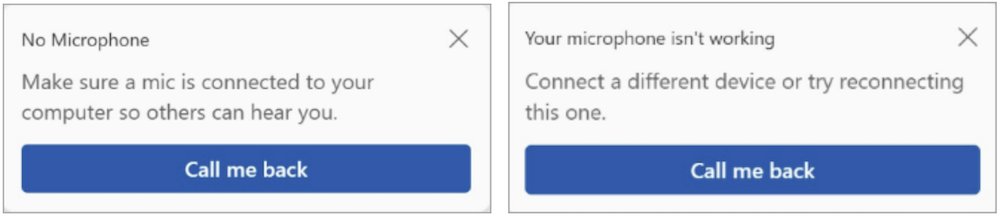
- If audio still fails, select Call me back and take the meeting audio on your phone.
Configure Teams settings for optimal call performance
Two settings make the biggest difference to how you sound after the test call passes.
| Setting in Settings > Devices | Choose this | When |
|---|---|---|
| Noise suppression | Background noise only | Fans, typing or street noise around you |
| Noise suppression | Voice isolation | Other people talking nearby; needs a voice profile if you are not on a headset |
| Speaker and Microphone | The same headset for both | Avoids echo from laptop speakers feeding back into the mic |
| Camera dropdown | The camera you will actually use | Laptops with a docked external webcam often default to the built-in one |
Best practices for ensuring quality in Teams test calls
| Practice | What to do |
|---|---|
| Prepare your equipment | Connect the headset, mic and camera first. Run hardware checks: cable seated, Bluetooth charged, mute switch off. |
| Configure settings for optimal performance | Pick each device by name in Devices and set Noise suppression for your room. |
| Conduct the test call effectively | Test in the room and with the headset you will use for the meeting, and speak at meeting volume. |
| Follow up after testing | Change one device at a time and run the test call again after every change. |
| Test before important meetings | Run the test a few minutes before a meeting, after updates, and after you change docks or headsets. |
Additional tips for effective Teams meetings after a test call
| Tip | Why it helps |
|---|---|
| Keep Teams updated | Teams updates itself when idle, but Update and restart Teams installs a waiting update immediately. |
| Check the Mic button when you join | A line through the mic icon means you are muted; select Unmute mic. |
| Switch devices mid-meeting | The dropdown arrow next to Mic opens More audio settings, and changes apply immediately. |
| Keep a phone audio fallback | Call me in the join options sends meeting audio to your phone if the PC audio fails. |
| Close camera-hungry apps | Only one app can reliably hold the camera at a time. |
Teams test call FAQ
How do I do a test call in MS Teams?
Open the Teams desktop app, select Settings and more > Settings > Devices, and select Make a test call under Audio settings. The Test Call Bot asks you to record a message, plays it back, and shows a summary of your devices.
How do I do a test call on the Teams app?
The test call is in the Teams desktop app for Windows and Mac, under Settings > Devices > Make a test call. Microsoft's support pages document it only for the desktop app, so on a phone use a short Meet now meeting to check audio instead.
How do I do a test call on Teams in a browser?
Teams on the web has no test call option. Start a meeting with only yourself from Calendar > Meet now, check your devices on the pre-join screen, then join and confirm the mic indicator reacts when you speak.
How do I do a test call on Teams for audio only?
The standard test call already focuses on audio: you record a short message and hear it played back. Choose the right Speaker and Microphone in Devices first, then select Make a test call to hear exactly what others will hear.
Why can't I make a test call in Teams?
The test call only exists in the Teams desktop app for Windows and Mac, so it is missing in a browser. It also runs in English only. Install any pending Teams update, then look under Settings > Devices > Audio settings.
Does Teams save the test call recording?
No. Microsoft deletes the test call recording immediately after the call ends and does not keep or use it. The message exists only so you can hear your own mic through your own speaker.
Can Teams make a test call to my phone?
The test call runs inside the desktop app, not on your phone line. When joining a meeting, Call me under the join options rings your phone and carries the meeting audio there, which is the fallback when the PC mic fails.
How do I do a test call on Zoom?
Zoom has its own test meeting at zoom.us/test. Select Join to test your internet connection and device settings. It is separate from Teams, so it does not check the devices Teams has selected.
Bottom line: is a Teams test call worth running before every meeting?
Run Make a test call in the desktop app before any meeting where you present or speak first, and after every headset or dock change. It takes under a minute, tests mic, speaker and camera together, and deletes the recording afterwards; in a browser, a solo Meet now meeting does the same job.