Click the meeting link the organiser sent you, then select Join now to enter a Google Meet meeting.
The ten routes below cover the link, the meeting code, Calendar, Gmail, the Meet app, phone dial-in, Google Chat, a mobile browser, Companion mode and a conference-room system.
Join from a Google Meet Link
A Meet link looks like meet.google.com/ followed by a ten-character meeting code. It works in Chrome, Firefox, Microsoft Edge and Safari.
- Open the email, calendar invite or chat message that contains the meeting link.
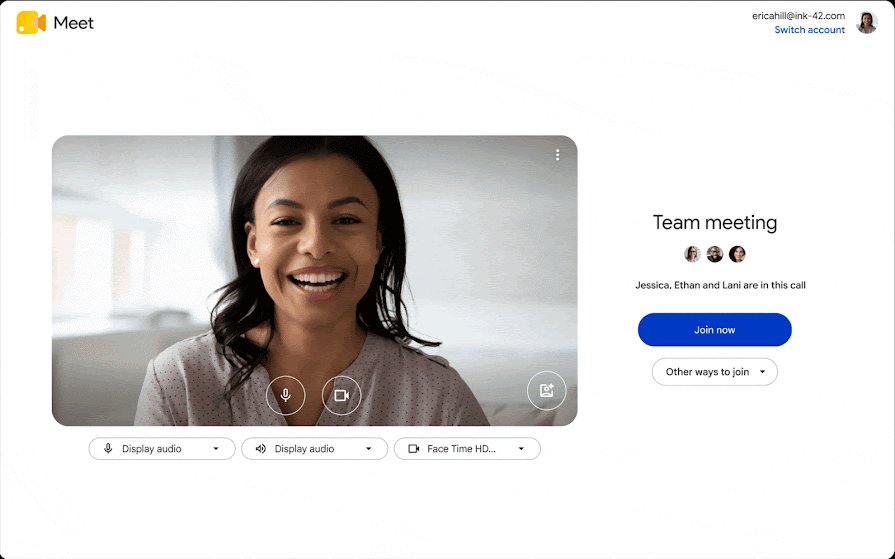
- Click the link. Meet opens a preview screen with your camera and microphone controls.
- Allow camera and microphone access if the browser asks.
- Turn the camera or microphone off here if you want to enter quietly.
- Select Join now. If the host has to let you in, select Ask to join instead and wait.
Meet limits joining to 15 minutes before the scheduled start time, so an early click can return you to the waiting screen.
Which route should you use?
Every route lands in the same meeting. Pick the one that matches what the organiser actually sent you.
| Your situation | Use this | Why |
|---|---|---|
| You have a clickable link | The meeting link | One click, no code to type |
| Someone read you a code over the phone | meet.google.com, then the code | Meet accepts the code without the full URL |
| The meeting is on your calendar | Google Calendar event | The event carries the link and the dial-in details |
| You live in your inbox | Meet in the Gmail sidebar | Scheduled meetings appear under My meetings |
| You are away from a computer | The Meet app on Android or iOS | Scheduled meetings are listed on the home screen |
| Your data connection is poor | Phone dial-in number and PIN | Audio runs over the phone network, not the internet |
| The invite arrived in Google Chat | The Meet link in the message | Chat links open the same preview screen |
| You have a phone but no Meet app | Safari or Chrome on the phone | The mobile browser opens the meeting directly |
| You are in a room with Meet hardware | Companion mode on your laptop | Chat, polls and Q&A without audio feedback |
| The room runs Zoom Rooms or Cisco Webex | The Meet app on the room device | Enter the meeting code on the room controller |
What you need before you join
| Requirement | Detail |
|---|---|
| Account | A Google Account. Work and school users need a Google Workspace administrator to turn Meet on. |
| Browser | The current version of Chrome, Mozilla Firefox, Microsoft Edge or Apple Safari. |
| Desktop OS | The current release plus the two previous major releases of macOS, Windows, ChromeOS, or Ubuntu and other Debian-based Linux. |
| Mobile OS | Android 5.0 and later, or iOS 17 and later. |
| Hardware | A dual core processor and 2GB of memory as the minimum. |
| Connection | A broadband connection to the internet, plus a built-in or external USB camera for video. |
No Google Account is needed to join a personal-account meeting from a link. Type your name and select Ask to join, then wait for the host.
Join by Entering a Meeting Code
Every meeting code is 10 characters long, drawn from a 25-character set. Type it without the dashes if that is easier.
- Open
meet.google.comin your browser. - Select Join with a code on a personal account, or Join a meeting on a work or school account.
- Type the meeting code or nickname the organiser gave you.
- Select Join.
- Check the preview screen, then select Join now.
On a phone, open the Meet app, tap the keyboard or code icon at the top, enter the code and tap Join.
Join from Google Calendar
This route is best when the meeting is a scheduled event and you want the dial-in number and PIN in the same place.
- Open
calendar.google.com, or the Google Calendar app on Android or iOS. - Select the event you want to join.
- Select Join with Google Meet.
- Select Join now in the window that opens.
Calendar guests listed on the invite normally enter without knocking, so this is the fastest route for an external guest.
Join from Gmail
Meet has its own section in the Gmail sidebar. Google added Meet to Gmail in 2020, and scheduled meetings surface there automatically.
- Open Gmail and select Meet in the left sidebar.
- Select Join with a code on a personal account, or Join a meeting on a work or school account.
- Enter the meeting code or nickname, then select Join.
- For a scheduled meeting, open My meetings instead and select Join now next to it.
- Select Join now on the preview screen.
Only meetings created in Google Calendar appear under My meetings. A Meet invite that arrived as a plain email is joined by clicking its link in the message.
Join from the Google Meet App
The Meet app lists your scheduled meetings on its home screen. There is also a Google Meet app for Windows and Mac if you prefer a desktop window to a browser tab.
- Open the Meet app on your Android phone, iPhone or iPad.
- Under Meetings, tap the scheduled meeting you want to join.
- To use a code instead, tap the keyboard icon next to the search bar and type the meeting code or nickname.
- Tap Join.
- Tap Join again in the window that opens.
Without a Google Account, tap the code icon, enter the code, tap Join, type your name and tap Ask to join.
Join from a Phone Dial-In Number
Dial-in is the route for a weak data connection or a drive. It is available for meetings organised through a Google Workspace account, in supported countries, when an administrator has turned it on.
- Open the Calendar event or the meeting invitation and find the phone number and PIN.
- Dial the number on any phone.
- Enter the PIN followed by the # key.
- Press 1 on the keypad if you are prompted to confirm.
- To pair the call with the on-screen meeting instead, select Join and use a phone for audio on the preview screen, then Dial in.
- Already inside the meeting, select More, then Use a phone for audio.
You join muted when the meeting already has more than five people. Closing the laptop or the meeting tab keeps the phone connected but drops your video feed.
Join from Google Chat or Other Shared Invites
A Meet link pasted into Google Chat, Slack, WhatsApp, a text message or a document behaves exactly like a link in an email.
- Open the Google Chat conversation, the direct message or the shared document.
- Select the
meet.google.comlink in the message. - Wait for the preview screen to load in the browser or in the Meet app.
- Select Join now, or Ask to join when the host must admit you.
Common places a shared invite turns up: a Google Chat space, a calendar description, a Google Doc, a Slack channel, a text message and a printed room sign.
Join from a phone browser without installing the app
A borrowed phone or a locked-down work phone can still reach a meeting through Safari or Chrome.
- Open the email or message that carries the meeting link.
- Tap the link and let it open in the browser.
- If you only have the code, type
meet.google.com/followed by the code in the address bar. - Allow camera and microphone access when the browser asks.
- Tap Join, or tap Ask to join and wait for the host.
Join in Companion mode on a second screen
Companion mode turns your laptop into a second screen for a meeting whose audio and video run on room hardware. Your microphone and camera stay off, which stops audio feedback.
- Open the meeting invite on a laptop or desktop and select Join.
- Under Other joining options, select Use Companion mode.
- Alternatively, type
g.co/companionin the address bar and pick the meeting or enter its code. - Check in to your conference room if you are prompted to.
- Use chat, polls, Q&A and hand raising from this window.
Companion mode runs on a computer only. Room check-in needs Google Meet hardware or a Nest Hub Max on the call.
Join from a Zoom Rooms or Cisco Webex room system
Rooms built around third-party conferencing hardware can still enter a Google Meet meeting.
- Wake the room controller for the Zoom Rooms or Cisco Webex system.
- Open the Google Meet app on the device.
- Enter the meeting code from the invite.
- Start the call and wait to be admitted if the host controls entry.
How to check you joined the right meeting
- Confirm the meeting name at the top of the window matches the invite.
- Open the people panel and check the organiser is listed.
- Compare the code at the end of the meeting details with the code in the invite.
- Speak once and watch your own microphone tile light up to confirm audio is live.
- On a dial-in call, confirm the phone audio indicator shows next to your name.
What a meeting link, a code and a PIN each do
| Item | What it is | How long it lasts |
|---|---|---|
| Meeting link | meet.google.com/ plus the meeting code, clickable from any message |
As long as its code stays valid |
| Meeting code | 10 characters from a 25-character set, typed at meet.google.com | Calendar codes expire after 60 days unused; Chat, Classroom, Gmail and meet.google.com codes expire 365 days after last use |
| Nickname | A short name used in place of a code inside one organisation | Expires as soon as everyone leaves |
| Dial-in PIN | The number typed after the phone number, followed by # | Tied to that meeting |
| Breakout room code | A code for a room split out of the main meeting | Expires when all users leave |
Who has to ask to join, and who walks straight in
Meeting access is set per meeting, so the same person can knock on one call and enter another without a prompt.
| Access type | Who joins without knocking | Who must knock |
|---|---|---|
| Open | Anyone with the meeting link | No one |
| Trusted | Anyone in the host's organisation, and outside guests invited through a Google Calendar event | Everybody else |
| Restricted | People invited through a Calendar event, or added from inside the meeting by a host | Everyone else; not available on personal accounts |
The host admits people one at a time with Admit or Deny entry, or clears the queue with Admit all or Deny all.
Fix Google Meet when it will not let you join
Google Meet says you need permission to join
The meeting access type requires a host to admit anyone not on the Calendar invite.
- Select Ask to join and leave the tab open. The request disappears if you close it.
- Message the organiser and ask them to stay in the meeting, because only the host can approve the request.
- Ask the organiser to add your address to the Google Calendar event, then rejoin.
- Sign in to the Google Account that received the invite, not a second account in the same browser.
The meeting code is rejected
The code has expired, or a character was mistyped.
- Re-enter all 10 characters of the code and ignore the dashes.
- Open the original link instead of typing the code by hand.
- Ask the organiser for a fresh link if the Calendar event has not been used for 60 days.
- Check you are not using a breakout room or nickname code, which stops working once everyone leaves.
The Join button does nothing, or the meeting has not started
Joining opens 15 minutes before the scheduled start time.
- Check the start time on the Calendar event and wait until 15 minutes before it.
- Reload the page, then select Join now again.
- Switch to the current version of Chrome, Firefox, Edge or Safari.
- Try the same link in a private window to rule out a browser extension.
Meet is missing from the Gmail sidebar
The Meet section can be hidden in Gmail settings, or switched off by a Workspace administrator.
- Open Gmail settings and turn the Meet section back on. The setting that hides Meet in Gmail controls this.
- Ask your Google Workspace administrator to confirm Meet is enabled for your account.
- Join from
meet.google.comor the Calendar event in the meantime.
You cannot join by phone
Dial-in is limited to meetings organised through a Google Workspace account.
- Confirm the invitation lists a phone number and PIN. A personal-account meeting usually has none.
- Check your country is supported for dial-in with the meeting organiser.
- Ask the administrator to turn on dial-in by phone for the domain.
- Enter the PIN followed by the # key, then press 1 if prompted.
Camera or microphone will not turn on after joining
The browser is holding the permission, or another app owns the device.
- Allow camera and microphone access in the browser prompt or the site permissions panel.
- Close any other app using the webcam, then reload the meeting tab.
- Reconnect an external USB camera and select it again in Meet.
- Fall back to the phone dial-in number so you can still hear and speak.
Frequently Asked Questions
How do I join a Google Meet meeting?
Click the meeting link the organiser sent, check the preview screen, then select Join now. Without a link, open meet.google.com, select Join with a code, type the 10-character meeting code and select Join.
How can I join a Google Meet meeting without a link?
Use the meeting code. Open meet.google.com or the Meet app, choose Join with a code, type the 10 characters the organiser gave you and select Join. The code alone is enough; the full URL is not needed.
Do I need a Google account to join a Google Meet meeting?
Not for a meeting created from a personal Google Account. Open the link, type your name and select Ask to join, then wait for the host to admit you. Some Workspace meetings do require a signed-in account.
What is the difference between a Google Meet link and a meeting code?
The code is 10 characters drawn from a 25-character set. The link is that code attached to meet.google.com so it can be clicked. Typing the code at meet.google.com reaches the same meeting.
Can I join a Google Meet meeting from my phone without installing the app?
Yes. Tap the meeting link and let Safari or Chrome open it, or type meet.google.com/ followed by the code in the address bar. Allow camera and microphone access, then tap Join.
What should I do if Google Meet says I need permission to join?
Select Ask to join and keep the tab open. Only the host can approve the request, so ask the organiser to stay in the meeting or to add your address to the Google Calendar event.
Can I join the same Google Meet from Calendar, Gmail, and the Meet app?
Yes. All three open the same meeting code, so the route you pick makes no difference to what you see. Use whichever surface already has the meeting listed in front of you.
How early can I join a Google Meet meeting?
Fifteen minutes before the scheduled start time. Meet limits participants from entering earlier than that, so a click before the window opens returns you to the waiting screen.
How does joining a Google meeting by phone work?
Dial the number in the invitation, enter the PIN followed by the # key, then press 1 if prompted. Dial-in covers meetings organised through a Google Workspace account in supported countries.
How do I use Google Meet on a work or school account?
A Google Workspace administrator must turn Meet on for your account first. After that, join from meet.google.com, the Calendar event, the Meet section in Gmail, or the mobile app with Join a meeting.
Bottom Line
Click the meeting link when you have one, and fall back to the 10-character code at meet.google.com when you do not. Both routes land on the same preview screen, and the code works on every device including a borrowed phone with no Meet app installed.






Download Google Meet App for PC, Windows 11/10/8/7 & Mac - Techdows
[…] a scheduled meeting, enter a meeting code, or click New […]
How Google Meet join code works and how to use it - Techdows
[…] The code alone is enough. You do not need the full link, and the same code works in Chrome, Edge, Firefox and Safari. A clickable invite is only one of the other ways to join a Google Meet meeting. […]