Select New chat at the top of your chat list, type a name in the To field, write your message and press Enter to chat in Microsoft Teams.
This guide covers one-on-one and group chats, meeting chat, formatting, files, polls, notification settings, and the fixes for chats that will not open, delete or unhide.
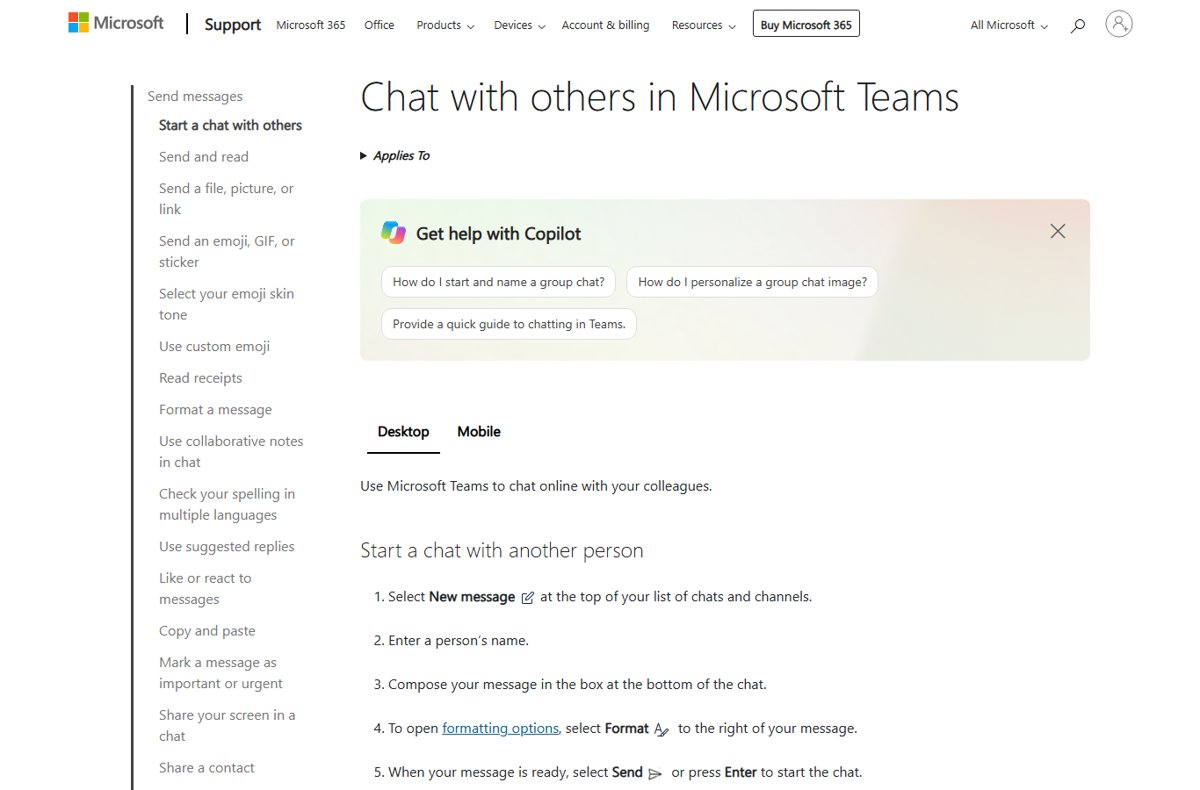
The fastest way to start a chat in Microsoft Teams
The same five steps work in the Teams desktop app, the browser and the mobile app.
- Select Chat in the Teams sidebar.
- Select New chat at the top of your chats and channels list.
- Type the person's name in the To field, then pick them from the list that appears.
- Type your message in the compose box at the bottom of the window.
- Press Enter, or select Send.
The thread now sits in your Chat list and keeps its history back to the first message.
Introduction to Microsoft Teams Chat
Teams keeps a separate searchable thread for every person, group and meeting you talk to.
| Chat type | Who it reaches | Where it appears |
|---|---|---|
| One-on-one chat | One other person | Your Chat list |
| Group chat | Up to 250 people | Your Chat list, under the group name you set |
| Meeting chat | People invited to or joined into that meeting | Your Chat list, marked with a calendar icon |
| Channel conversation | Everyone with access to that channel | The team's channel, not your chat list |
| External chat | People at other organizations who use Teams | Your Chat list, once external access is on |
Chat history is saved the entire way back to the first message, so search finds old threads.
Getting Started with Microsoft Teams Chat
| What you need | Detail |
|---|---|
| The Teams app | Desktop, browser or mobile. Get the installer from Download Microsoft Teams for PC, Windows 11/10 & Mac (Free). |
| A signed-in account | A work, school or personal Microsoft account. Chat threads follow the account, not the device. |
| Chat turned on for you | An admin controls the Chat setting in your messaging policy. With it off, new one-on-one and group chats are disabled. |
| The Chat list | Select Chat in the sidebar. Windows 11 also added a Teams chat taskbar button in build 22000.100. |
| External access | On by default, so you can find, call and chat with people who use Teams at other organizations. |
Which kind of chat should you use?
| Your situation | Use this | Why |
|---|---|---|
| One person, one topic | One-on-one chat | Read receipts work, and the thread stays private to the two of you |
| A small project team | Group chat with a Group name | Holds up to 250 people and keeps one named thread |
| Everyone in a scheduled meeting | Meeting chat | Attached to the meeting, so links and notes stay with it |
| A whole team, topic by topic | Channel conversation | Files land in the team's SharePoint site instead of your OneDrive |
| Someone at another company | External chat | External access covers chat, calls and @mentions with Teams users elsewhere |
| Someone must act right now | A message set to Urgent | Priority notifications repeat every 2 minutes for 20 minutes until it is read |
Initiating and Managing Conversations
A group chat needs a name before the first message, or the thread shows only a list of people.
- Select New chat at the top of your chats and channels list.
- Select the down arrow to the right of To.
- Type a name for the thread in the Group name box.
- Enter each person's name in the To field. A group chat holds up to 250 people.
- Type the first message and select Send.
- To bring someone in later, select View and add participants in the top right, select Add people, then choose how much chat history to share.
- To tidy the list, point at a chat and select More options, then Hide, Mute, Mark as unread, or Move to > Favorites.
- To step out of a group chat, select More options > Leave, select the confirmation box, then select Leave.
A chat in Favorites stays at the top of the list; drag it there directly if you prefer.
Sending Messages in Microsoft Teams Chat
- Open the chat and select the compose box at the bottom.
- Select Format to expand the box and reveal bold, italic, lists, headings and Insert link.
- Press Shift + Enter to start a new line instead of sending.
- Type @ followed by a name to mention one person, or @everyone to notify everyone in that chat.
- Select Actions and apps > Set delivery options > Important to stamp the message with IMPORTANT!.
- Press Enter to send, or Ctrl + Enter when the compose box is expanded.
- To correct a sent message, hover over it, select Edit, change the text and select Done.
- To pull a message back, select More options > Delete; select Undo on the deleted message to restore it.
Urgent uses priority notifications, which alert the recipient every 2 minutes for 20 minutes or until it is read. An urgent message cannot be edited after it is sent.
If Edit and Delete are missing, an admin has turned those settings off in your messaging policy.
Sharing Files and Collaborating
- Open the chat and select Actions and apps beneath the compose box.
- Select Attach file.
- Pick a recent file, or select Attach cloud files or Upload from this device.
- Add a message for context and select Send.
- Select the file in the message to open it and work on it from the chat.
- To find it again later, open OneDrive and go to the Microsoft Teams Chat Files folder.
Files shared in a one-on-one or group chat live in your OneDrive and stay available only to people in that conversation. Files posted in a channel go to the team's SharePoint folder instead.
Images, videos, PDFs and many document types preview inside the message, so most files need no download.
Advanced Chat Features
A poll collects answers inside the thread, so nobody has to count replies by hand.
- Open the chat and select Actions and apps next to the compose box.
- Open the Polls app, or select Find more apps to add it first.
- Type the question, then fill at least two Option boxes.
- Turn on Multiple selections if people may choose more than one answer.
- Turn on Record names of respondents if you need to know who voted; only you see those names.
- Select Preview to check it, then select Send.
Recipients answer with Submit Vote. Turn on Share aggregated results with respondents if everyone should see the totals.
Managing and Customizing Chat Settings
- Open Settings > Notifications and activity. On a Mac, select Settings and more first.
- Under Chats and channels, open each dropdown to choose where that notification appears, or select Off.
- Under General, change the notification sound and display options.
- To silence one thread, point at it and select More options > Mute.
- To keep a thread at the top, select More options > Move to > Favorites.
- To clear a thread from the list, select More options > Hide. It returns as soon as someone posts.
- To group threads by project, select New items and create a custom section.
Quick views at the top of the list can surface @mentions and Followed threads always, when unread, or never.
How to check the message landed
- Look under your sent message for the read receipt. Receipts work in one-on-one chats and group chats of 20 people or fewer.
- Open the Chat list and confirm the thread has moved to the top with your message as the preview line.
- For a group chat, select View and add participants and confirm everyone you meant to include is listed.
- For an attachment, open the Microsoft Teams Chat Files folder in OneDrive and confirm the file is there.
A missing read receipt is not proof of a missing message. An admin can set read receipts to off for everyone in the organization.
Best Practices for Effective Chat Use
| Habit | Do this | Why it helps |
|---|---|---|
| Name every group chat | Fill the Group name box before the first message | The thread is findable later instead of being a list of names |
| Mention one person, not the room | Type @ and the name of whoever must act | @everyone notifies the whole chat and dulls real alerts |
| Keep Urgent rare | Use it only when someone must act immediately | It repeats every 2 minutes for 20 minutes and cannot be edited afterwards |
| Attach, do not email | Use Attach file in the chat | One copy sits in Microsoft Teams Chat Files for everyone in the thread |
| Correct instead of resending | Hover the message and select Edit | The thread stays readable and no one acts on the old version |
| Move long threads to a call | Select More chat options > Schedule a meeting | Ten replies about timing cost more than ten minutes of talking |
| Hide, do not leave | Select More options > Hide | The thread reappears when someone posts, and the history is intact |
Integrating Chat with Other Features
| Feature | How chat connects | What to select |
|---|---|---|
| Meetings | Turn an existing thread into a scheduled meeting with the same people | More chat options > Schedule a meeting |
| Meeting chat | Every scheduled meeting carries its own thread before, during and after | Chat, then the entry with a calendar icon |
| Calls | Any chat can become a one-to-one or group call | The call controls at the top of the chat |
| OneDrive | Chat attachments are stored for you, not duplicated per person | The Microsoft Teams Chat Files folder |
| Apps and bots | Add an app or bot that posts into the thread | Actions and apps > Find more apps |
| Channels | Move a topic that concerns a whole team out of chat | The team and channel in your list |
| People outside the company | External access covers chat, calls and @mentions; guest access also allows file sharing | Their email or SIP address in the To field |
Customer-facing conversations usually need guest access, because external access users cannot share files with you.
Troubleshooting Common Issues
Why can't I chat in Microsoft Teams?
The Chat setting in your messaging policy is off, or the wrong account is signed in.
- Check whether the compose box is missing in every thread, not just one.
- Select your profile picture and confirm the account is the one your colleagues message.
- Ask your IT admin whether the Chat setting in your messaging policy is turned off, which disables new one-on-one and group chats.
- Restart Teams after any policy change; a restart is sometimes needed before the change syncs.
Why can't I see the chat in a Microsoft Teams meeting?
Meeting chat access depends on how you joined and whether you are on the invite.
- Select Chat and look for the entry with a calendar icon and the meeting title.
- Select More list options > Customize view and turn on Show meeting chats in their own section.
- If you joined anonymously, expect chat access only while the meeting is running.
- If you were never on the invite, ask the organizer to select View and add participants > Add people and add you.
Why can't I delete a chat in Microsoft Teams?
The Delete chat policy setting is off, or you own the meeting the chat belongs to.
- For a one-on-one thread, select More options > Remove chat history. It clears the thread for you only, and you cannot reach it again, including through search.
- For a group or meeting thread, select More options > Leave, select the confirmation box and select Leave.
- As the meeting owner, expect no delete or leave option on that meeting chat; a participant has both.
- To remove one message instead of the thread, select More options > Delete on that message.
- If no delete option appears anywhere, ask your IT admin whether Delete chat is turned off for your policy.
How to unhide a chat in Microsoft Teams
A hidden thread stays out of the list until someone posts a new message to it.
- Select Search at the top of Teams and type the person's or group's name.
- Select More options next to the name and select Unhide.
- Select Show hidden chat history to bring the older messages back into view.
Not receiving messages
The thread is muted, or chat notifications are set to off.
- Point at the thread, select More options and select Unmute if it is muted.
- Open Settings > Notifications and activity and set Chats and channels to something other than Off.
- Check the Unread filter at the top of the list in case the message is already marked read.
- Restart Teams, then send yourself a test message from the browser app.
Chat not loading or syncing slowly
The signed-in session is stale, or the installed app is at fault rather than the account.
- Sign out of Teams and sign back in with the same account.
- Restart the Teams app, not just the window.
- Open Teams in a browser and check whether the same thread loads there.
- If the browser works and the app does not, reinstall the app rather than changing account settings.
File upload or download problems
Chat files route through OneDrive, so a OneDrive or policy block stops them.
- Confirm OneDrive opens in a browser with the same account.
- Select Actions and apps > Attach file > Attach cloud files instead of uploading from the device.
- Check that the recipient is still in the thread, because only people in that conversation can open the file.
- Ask your IT admin whether a data loss prevention policy is blocking that file or its contents.
Tips for Power Users
| Task | Shortcut on Windows |
|---|---|
| Start a new chat | Ctrl + N |
| Send from the expanded compose box | Ctrl + Enter |
| New line without sending | Shift + Enter |
| Move focus to the chat and channel list | Ctrl + L |
| Jump to search | Ctrl + E |
| Reply to the last message | Alt + Shift + R |
| Bold, italic, underline | Ctrl + B, Ctrl + I, Ctrl + U |
| Insert a link | Ctrl + K |
| Show every shortcut | Ctrl + Period (.) |
Security and Compliance Considerations
Chat messages sit inside Microsoft 365, so the organization's compliance tools reach them.
| Control | What it means for chat |
|---|---|
| Encryption | Data is encrypted in transit and at rest |
| Retention policies | Chat content can be kept for a set period, then removed |
| eDiscovery and legal hold | Chats, messages and files can be preserved and exported; discovery can lag content by up to 24 hours |
| Communication compliance | Individual chats, channel chat and attachments can be scanned for offensive or sensitive content |
| Data loss prevention | Policies can stop sensitive information leaving in a message or an attached file |
| Information barriers | Named people or groups can be blocked from chatting with each other |
| Read receipts | Not captured in eDiscovery reporting |
| Audio messages | Not captured in eDiscovery reporting |
| External and guest access | Decides who outside the organization can chat with you, and whether files can be shared |
Report a message you should not have received by using Report inappropriate content, when your admin has enabled it.
Frequently Asked Questions
How do you chat in Microsoft Teams?
Select Chat in the sidebar, then New chat at the top of the list. Type a name in the To field, write your message in the compose box and press Enter. The thread then stays in your chat list.
How do you chat in a Microsoft Teams meeting?
Select the Chat icon in the meeting controls to open the meeting chat pane. Type in the compose box and select Send. The same thread stays available in your Chat list after the meeting ends, marked with a calendar icon.
How do you create a group chat in Microsoft Teams?
Select New chat, then the down arrow to the right of To. Type a name in Group name, add each person in the To field, and send the first message. A group chat holds up to 250 people.
How do you unhide a chat in Microsoft Teams?
Search for the person or group at the top of Teams, select More options next to the result, then select Unhide. Select Show hidden chat history to see earlier messages. A hidden chat also returns on its own when someone posts.
Why can't I chat in Microsoft Teams?
An admin can turn the Chat setting off in your messaging policy, which disables new one-on-one and group chats. Confirm you are signed in to the right account, then ask your IT admin to check the policy. A restart may be needed afterwards.
Why can't I delete a chat in Microsoft Teams?
The Delete chat policy setting may be off for your account, and a meeting owner cannot delete or leave their own meeting chat. Use Remove chat history on a one-on-one thread, or Leave on a group thread, instead.
Why can't I see the chat in a Microsoft Teams meeting?
Access depends on how you joined. Anonymous joiners only see chat while the meeting runs, and someone who joins outside the meeting window without being added gets no access. Ask the organizer to add you through View and add participants.
How do you make a Microsoft Teams chat message important?
Select Actions and apps, then Set delivery options, then Important. The message is stamped IMPORTANT! in the thread. Choose Standard in the same menu to take the label off again after editing the message.
How do you start a new line in a Teams chat instead of sending?
Press Shift + Enter to move to a new line without sending. Press Enter when the message is finished. In the expanded compose box opened with Format, send with Ctrl + Enter instead.
How do you enable chat in Microsoft Teams?
Chat is on by default. An admin turns it on or off with the Chat setting in a messaging policy in the Microsoft Teams admin center, under Messaging policies. Individual users cannot switch it back on themselves.
How do you access Microsoft Teams chat?
Select Chat in the Teams sidebar on desktop, in a browser at the Teams web app, or on the mobile app. Threads follow the account, so the same history appears everywhere you sign in.
Can you chat with someone outside your organization?
Yes. External access is on by default and lets you find, call and chat with Teams users at other organizations. External access users cannot share files with you; guest access is needed for that.




How to do a test call on Teams - Techdows
[…] and camera, allow it. Meet now from the calendar needs an Exchange Online mailbox. You can also start a group chat with a colleague and select Meet now at the top of it for a two-person […]
Microsoft Teams keyboard shortcuts - Techdows
[…] pinned messages and the other Teams chat features sit in the same chat window as the compose […]