Windows Remote Assistance (msra.exe) is the built-in Windows 11 and Windows 10 tool that lets a trusted helper see your screen and, with your consent, control your PC after you turn on Allow Remote Assistance connections to this computer.
This page answers the common questions in order: setup, invitations, Easy Connect, firewall ports, Offer Remote Assistance for IT admins, security controls, and when Quick Assist is the simpler tool.
Basic setup: how to enable Windows Remote Assistance
Both PCs need this switch on before an invitation can work. Changing it needs administrator rights, so expect a User Account Control prompt.
- Press the Windows key, or select the search box on the taskbar.
- Type
remote assistance. - Select Allow Remote Assistance invitations to be sent from this computer in the results.
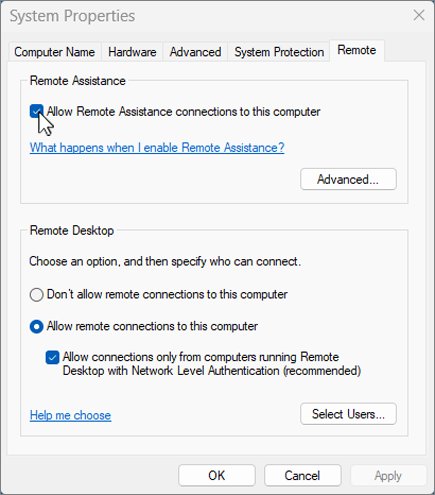
- On the Remote tab of the System Properties window, tick Allow Remote Assistance connections to this computer.
- Select OK to save the change.
The setting applies to every user account on the PC. If the check box is greyed out, a Group Policy setting manages Remote Assistance on that machine, and only the administrator who set it can change it.
At a glance: Remote Assistance versus Quick Assist
Windows ships two remote help tools, and they solve different problems. Remote Desktop is a third tool that signs you in to your own PC from elsewhere rather than sharing someone's live session; you can enable Remote Desktop on Windows 11 when that is the actual goal.
| Your situation | Use this | Why |
|---|---|---|
| Helping family or a friend over the internet | Quick Assist | A 6-digit code connects the two PCs; no invitation file, password or firewall changes |
| Help desk supporting domain-joined PCs on the same network | Remote Assistance (Offer Remote Assistance) | The helper connects by computer name or IP address, and Group Policy controls who may offer help |
| Locked-down PC where the Microsoft Store is blocked | Remote Assistance | msra.exe is part of Windows; Quick Assist installs from the Microsoft Store |
| You need session logs for an audit trail | Remote Assistance | Session logging can be forced on with the Turn on session logging policy |
| Helper uses a Mac | Neither, unless Microsoft Support sets it up | Quick Assist for macOS is available only during Microsoft Support interactions |
| You want to sign in to your own PC remotely | Remote Desktop | Remote Assistance and Quick Assist share a session someone is already using |
Creating and opening an invitation
An invitation is a small file (.MsRcIncident) that the person needing help creates and sends to the helper. Remote Assistance requires a password with it, and Microsoft recommends passing that password by a separate route, such as a phone call, so a stranger who intercepts the file still cannot connect.
- On the PC that needs help, type
remote assistancein the taskbar search box and open the Remote Assistance result. - Select Invite someone to connect to your PC and help you, or offer to help someone else.
- Select Invite someone you trust to help you.
- Choose the option to save the invitation as a file, then send that file to your helper by email or a shared folder.
- Read the password shown in the Remote Assistance window to your helper by phone or text, and leave that window open until they connect.
- On the helper's PC, open Remote Assistance, select Invite someone to connect to your PC and help you, or offer to help someone else, then Help someone who has invited you.
- Select Help someone new, open the invitation file, and type the password.
- Back on the first PC, accept the prompt that asks whether the helper may connect.
Closing the waiting window on the first PC cancels the invitation, so a new one is needed. Invitations sent by email or file also expire; the default lifetime is 6 hours unless a policy sets a different maximum ticket time.
Easy Connect: what it does and why it fails
Easy Connect is the Remote Assistance option that replaces the invitation file with a password exchange. After the first session, each side can pick the other from a contact list instead of starting over.
- On the PC that needs help, open Remote Assistance and select Invite someone to connect to your PC and help you, or offer to help someone else.
- Select Invite someone you trust to help you.
- Select Use Easy Connect the first time, or pick your helper's contact name if you have used it before.
- On the helper's PC, select Help someone who has invited you, then Use Easy Connect or the person's contact name.
- Follow the prompts on both PCs to exchange the password and approve the connection.
When Easy Connect is unavailable or fails, send an invitation file instead; that route does not depend on Easy Connect at all. Remote Assistance links the two PCs directly, peer to peer, and its original way through home routers was Teredo, which Windows 10 has disabled by default since version 1803. So a session between two separate home networks can fail even when the same PCs connect fine inside one network. Quick Assist avoids that problem.
Firewall and port requirements
Windows Firewall has a built-in Remote Assistance rule group. Whether it is on depends on the network profile, which is the most common reason a session works at home and fails on public Wi-Fi.
| Item | Requirement | Notes |
|---|---|---|
| Session traffic between current Windows PCs | Dynamic TCP/UDP ports 49152–65535 | Allocated by Windows for each session |
| Offer Remote Assistance (help desk) | TCP 135 plus %WINDIR%\System32\msra.exe and %WINDIR%\System32\raserver.exe |
Enable the Remote Assistance exception for the domain profile |
| Windows XP-era sessions only | TCP 3389 | Not used between two Vista-or-later PCs |
| Private network profile | Remote Assistance rule enabled by default | Includes UPnP for compatible routers |
| Public network profile | Remote Assistance rule disabled by default | An administrator must enable it |
| Domain network profile | Remote Assistance rule disabled by default | Usually turned on through Group Policy |
A router that blocks all UDP traffic, or a symmetric NAT, also stops the direct connection. In those cases no firewall rule on the PC fixes it.
Offer Remote Assistance for administrators
Offer Remote Assistance lets an approved helper start the session instead of waiting for an invitation. It is off unless a policy turns it on, and the user still has to accept the connection.
- Open the Group Policy Management Editor for the GPO that targets the users' computers, or
gpedit.mscon a single PC. - Go to Computer Configuration > Administrative Templates > System > Remote Assistance.
- Open Configure Offer Remote Assistance and select Enabled.
- Choose Allow helpers to only view the computer or Allow helpers to remotely control the computer.
- Select Show next to the helpers list and add each user or group as
Domain\UserorDomain\Group. - Enable the Remote Assistance firewall exception for the domain profile, including TCP port 135.
- Run
gpupdate /forceon a target PC, then have the helper openmsra.exe, choose to offer help, and enter that PC's computer name or IP address.
Domain Admins are not helpers automatically. Add that group to the helpers list explicitly if your admins need to offer help.
Permission and security controls
Every Remote Assistance policy sits under Computer Configuration > Administrative Templates > System > Remote Assistance. On an unmanaged PC, the same choices live on the Remote tab and its Advanced button.
| Control | What it does | Where to set it |
|---|---|---|
| Configure Solicited Remote Assistance | Allows or blocks asking for help by email or file; sets view-only or control, and the maximum ticket time | Group Policy, or the Remote tab when not configured |
| Configure Offer Remote Assistance | Lets listed helpers start a session; view-only or control | Group Policy only |
| Allow only Windows Vista or later connections | Creates encrypted invitations that older Windows versions cannot open | Group Policy, or Advanced on the Remote tab |
| Customize warning messages | Replaces the default warning shown before connecting and before sharing control | Group Policy |
| Turn on session logging | Writes a log of each session to the user's Documents folder | Group Policy |
| Turn on bandwidth optimization | Scales from no optimization to full optimization for slow links | Group Policy |
| User consent | The user approves the connection, and separately approves shared control | Prompt on every session |
| UAC prompts | Appear on the secure desktop, which the helper cannot see; the user must approve them | Built in |
Shared control gives the helper the same rights as the signed-in user, no more. A helper on a standard user's PC cannot elevate unless the user supplies administrator credentials.
Useful commands for Remote Assistance and Quick Assist
These commands are documented by Microsoft. Run them from the Run box (Windows + R), Command Prompt or PowerShell.
| Command | What it does | When to use it |
|---|---|---|
msra.exe |
Opens Windows Remote Assistance | Any time you need the invite or offer wizard |
gpupdate /force |
Reapplies Group Policy now | After changing a Remote Assistance policy, from an elevated prompt |
netsh interface teredo show state |
Shows the Teredo state and NAT type | When an invitation fails between two home networks |
wsreset.exe |
Resets the Microsoft Store cache | When Quick Assist will not install from the Store |
| Ctrl + Windows + Q | Opens Quick Assist | Fastest way to start Quick Assist |
When Quick Assist is the better choice
Quick Assist is the better choice for most home users: no invitation file, no password to read out, and no firewall rule to open. It installs from the Microsoft Store, so you may first need to install Quick Assist on an older PC.
- On both PCs, press Ctrl + Windows + Q, or select Start, type
Quick Assistand open it. - On the helper's PC, select Help someone and share the 6-digit code.
- On the other PC, type the code in the Code from assistant box and select Submit.
- Select Allow to start sharing the screen.
- If the helper selects Request control, select Allow to give full control, or Cancel control later to take it back.
- Select Leave on either PC to end the session.
Quick Assist needs Microsoft Edge WebView2, which Windows 11 already has and which installs on first launch elsewhere. Work or school PCs may block the Store install by policy.
How to check Remote Assistance is enabled and connected
- Search for
remote assistance, open Allow Remote Assistance invitations to be sent from this computer, and confirm Allow Remote Assistance connections to this computer is ticked on the Remote tab. - During a session, confirm the Remote Assistance window on the helper's PC shows the other person's desktop.
- Send a short chat message; both windows should show it.
- After the session, open your Documents folder and look for the Remote Assistance log folder, which records when the connection and shared control started and ended.
Windows Remote Assistance not working: fixes by symptom
Easy Connect is unavailable or never connects
Easy Connect cannot reach the other PC, often across two separate home networks.
- Cancel the Easy Connect attempt on both PCs.
- Create an invitation file instead and send it to the helper.
- Read the password to the helper by phone.
- If the file route also fails across the internet, switch to Quick Assist.
Windows Remote Assistance not working with an invitation file
Remote Assistance is off, the firewall rule is disabled for the current network profile, or the invitation expired.
- Confirm Allow Remote Assistance connections to this computer is ticked on the Remote tab.
- Check that the network is set to private, or have an administrator enable the Remote Assistance firewall rule for the public profile.
- Keep the Remote Assistance window open on the inviting PC until the helper connects.
- Create a fresh invitation if more than the allowed ticket time has passed.
Offer Remote Assistance cannot connect to a domain PC
The policy, the helpers list or the domain firewall exception is missing on the target PC.
- Confirm Configure Offer Remote Assistance is enabled for that computer.
- Confirm the helper's account, or a group it belongs to, is on the helpers list.
- Confirm the domain-profile firewall exception covers TCP 135,
msra.exeandraserver.exe. - Run
gpupdate /forceon the target PC and try again by computer name or IP address.
Quick Assist will not install as the alternative
A Microsoft Store cache problem, outdated Windows, or a work policy.
- Press Windows + R, type
wsreset.exeand select OK. - Install the latest Windows updates.
- Check that the time and region settings are correct.
- On a work or school PC, ask the IT administrator whether Store installs are blocked.
Windows Remote Assistance FAQ
What is Windows Remote Assistance?
Windows Remote Assistance is a tool built into Windows that lets a trusted person view your screen and, if you approve, control your PC to fix a problem. It runs as msra.exe, works by invitation or by an administrator's offer, and keeps the session tied to your signed-in account.
Is Windows Remote Assistance still available in Windows 11?
Yes. Microsoft's support article on Remote Assistance covers Windows 11 and Windows 10, and the setup path is the same on both: search for remote assistance and tick the check box on the Remote tab. Microsoft also points users to Quick Assist as the alternative.
How to enable Windows Remote Assistance?
Search for remote assistance, open Allow Remote Assistance invitations to be sent from this computer, tick Allow Remote Assistance connections to this computer on the Remote tab, and select OK. You need administrator rights, and a Group Policy setting can override the check box.
What command opens Remote Assistance?
Type msra.exe in the Run box, Command Prompt or PowerShell to open Windows Remote Assistance. The program lives in the Windows System32 folder, so it opens without a full path on any Windows 11 or Windows 10 PC.
How does someone request help with Remote Assistance?
The person needing help opens Remote Assistance, selects Invite someone you trust to help you, and sends the helper an invitation file or uses Easy Connect. They then pass the session password to the helper separately and approve the connection when the helper joins.
Can I use an invitation file instead of Easy Connect?
Yes. Saving the invitation as a file is the standard alternative when Easy Connect is unavailable or fails. Send the file by email or a shared folder, give the password by phone, and keep the Remote Assistance window open until the helper connects.
Does Remote Assistance use TCP port 3389?
Not between current Windows PCs. Sessions between Windows Vista or later machines use dynamic ports from 49152 to 65535, and Offer Remote Assistance also needs TCP 135. Port 3389 applied only to sessions with Windows XP, and it remains the Remote Desktop port.
How to offer remote assistance in Windows 11?
An administrator enables Configure Offer Remote Assistance in Group Policy, adds the helper accounts, and opens the firewall exception for the domain profile. The helper then runs msra.exe, chooses to offer help, and enters the user's computer name or IP address.
Should Remote Assistance be enabled?
Enable it only while you need it, and only for people you contacted yourself. Microsoft warns that tech support scammers use remote access tools, so turn the check box off afterwards if you rarely get help this way.
Do I need to download Windows Remote Assistance?
No. Remote Assistance is part of Windows 11 and Windows 10, so there is nothing to download. Quick Assist is the one that installs from the Microsoft Store, and on Windows Server, Remote Assistance is an optional component that is not installed by default.
Where is Windows Remote Assistance located?
The program file is msra.exe in C:\Windows\System32. Its on-off switch is on the Remote tab of System Properties, which you reach by searching for remote assistance and opening Allow Remote Assistance invitations to be sent from this computer.
Can the helper see my UAC prompts?
No. User Account Control prompts appear on the secure desktop, which is not shared with the helper. You must approve them yourself, and the helper only ever gets the rights of the account you are signed in with.
The bottom line: Remote Assistance or Quick Assist?
Use Quick Assist for helping friends and family over the internet, and keep Windows Remote Assistance for managed networks where Group Policy, Offer Remote Assistance and session logs matter. Quick Assist connects with a 6-digit code and no firewall changes, while Remote Assistance needs invitations, passwords and open ports but runs on locked-down PCs without the Microsoft Store and gives administrators policy control. To use Quick Assist, both people press Ctrl + Windows + Q, and the helper reads out a code for the other person to enter.
If your Windows question is not about remote help at all, Windows has other built-in ways to get help in Windows without handing over your screen.