To use Remote Desktop Connection, turn on Enable Remote Desktop under Settings > System > Remote Desktop on a Windows 11 or 10 Pro, Enterprise or Education PC, then connect to it by name or IP address with Remote Desktop Connection or Windows App.
This hub covers which editions can host a session, every way to switch it on, connecting from a Mac or phone, port 3389 and the firewall, Quick Assist for remote help, third-party tools, and fixes when Remote Desktop is not working.
How to enable Remote Desktop on Windows 11
The switch lives in the same place on Windows 11 and current Windows 10 builds. You need an administrator account on the PC you want to reach.
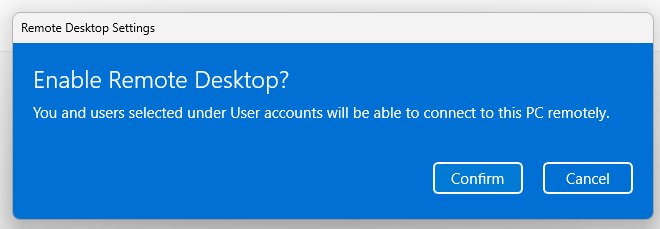
- Select Start, select Settings, then select System.
- Select Remote Desktop and turn Enable Remote Desktop to On.
- Select Confirm in the pop-up dialog.
- Leave Make my PC discoverable on private networks to enable automatic connection from a remote device checked if you connect from the same home network.
- Note the PC name shown on the page; you type it into the client later.
You can also enable Remote Desktop on Windows 11 from Control Panel, Command Prompt or PowerShell, then add users and open the firewall.
How Remote Desktop works
Remote Desktop uses the Remote Desktop Protocol (RDP) to let one device control another as if you sat at its desk, with access to its apps, files and network resources.
The PC you connect to is the host. The device you connect from is the client, and the edition rules apply only to the host.
| Windows edition | Can host Remote Desktop? | Can connect out as a client? |
|---|---|---|
| Windows 11/10 Pro | Yes | Yes |
| Windows 11/10 Enterprise | Yes | Yes |
| Windows 11/10 Education | Yes | Yes |
| Windows Server editions | Yes | Yes |
| Windows 11/10 Home | No | Yes |
A Home PC cannot accept incoming RDP sessions. For remote help on Home, use Quick Assist or one of the third-party tools further down.
Prerequisites
| Requirement | Why it matters |
|---|---|
| Administrator rights on the host | Only an administrator can change the Remote Desktop setting |
| Host powered on and on the network | A sleeping or offline PC refuses the connection |
| Remote Desktop enabled on the host | The RDP listener only runs once the toggle is on |
| Network access to the host | Same local network, a VPN, or port forwarding for outside access |
| Your account on the allowed list | Administrators plus any users you add can sign in |
| RDP allowed through the host firewall | Blocked port 3389 looks like an offline PC |
Enabling Remote Desktop opens a port, so Microsoft advises turning it on only on trusted networks and giving every allowed account a strong, unique password.
Enable Remote Desktop from Control Panel, Command Prompt or PowerShell
Settings is the quickest route on a PC in front of you. Command-line routes suit scripts and PCs you manage remotely.
| Your situation | Use this | Why |
|---|---|---|
| Sitting at a Windows 11 or 10 PC | Settings > System > Remote Desktop | One toggle plus a confirmation |
| You prefer Control Panel | Settings toggle for RDP, Windows Defender Firewall (wf.msc) for the inbound rules | Current Microsoft instructions place the switch in Settings; firewall rules stay in the classic console |
| Scripting or Server Core | Command Prompt reg add | Sets fDenyTSConnections to 0 with no UI |
| Managing several PCs | PowerShell Set-ItemProperty plus firewall cmdlet | Turns on RDP and its firewall rules in two lines |
Enable Remote Desktop from Command Prompt
Open Command Prompt as administrator. The fDenyTSConnections value controls RDP: 0 allows connections and 1 blocks them.
reg add "HKLM\SYSTEM\CurrentControlSet\Control\Terminal Server" /v fDenyTSConnections /t REG_DWORD /d 0Writes 0 to fDenyTSConnections, which turns Remote Desktop on. If a Group Policy sets the same value under HKLM\SOFTWARE\Policies\Microsoft\Windows NT\Terminal Services, the policy wins at the next refresh.
You should see: Run reg query "HKLM\SYSTEM\CurrentControlSet\Control\Terminal Server" /v fDenyTSConnections and the value reads 0x0.
Enable Remote Desktop from PowerShell
Open PowerShell as administrator and run the first line to turn on RDP, then the second to enable the built-in Remote Desktop firewall rules.
Set-ItemProperty -Path 'HKLM:\System\CurrentControlSet\Control\Terminal Server' -Name 'fDenyTSConnections' -Value 0 -Type DWord
Get-NetFirewallRule -DisplayGroup "Remote Desktop" | Set-NetFirewallRule -Enabled True
The first cmdlet sets fDenyTSConnections to 0. The second finds every rule in the Remote Desktop group, including Remote Desktop – User Mode (TCP-In) and (UDP-In), and enables it.
You should see: Run qwinsta and look for an rdp-tcp line in the Listen state.
Why allow connections only with Network Level Authentication?
Network Level Authentication (NLA) makes the user sign in before a remote session is created, so an unauthenticated visitor never reaches the Windows sign-in screen.
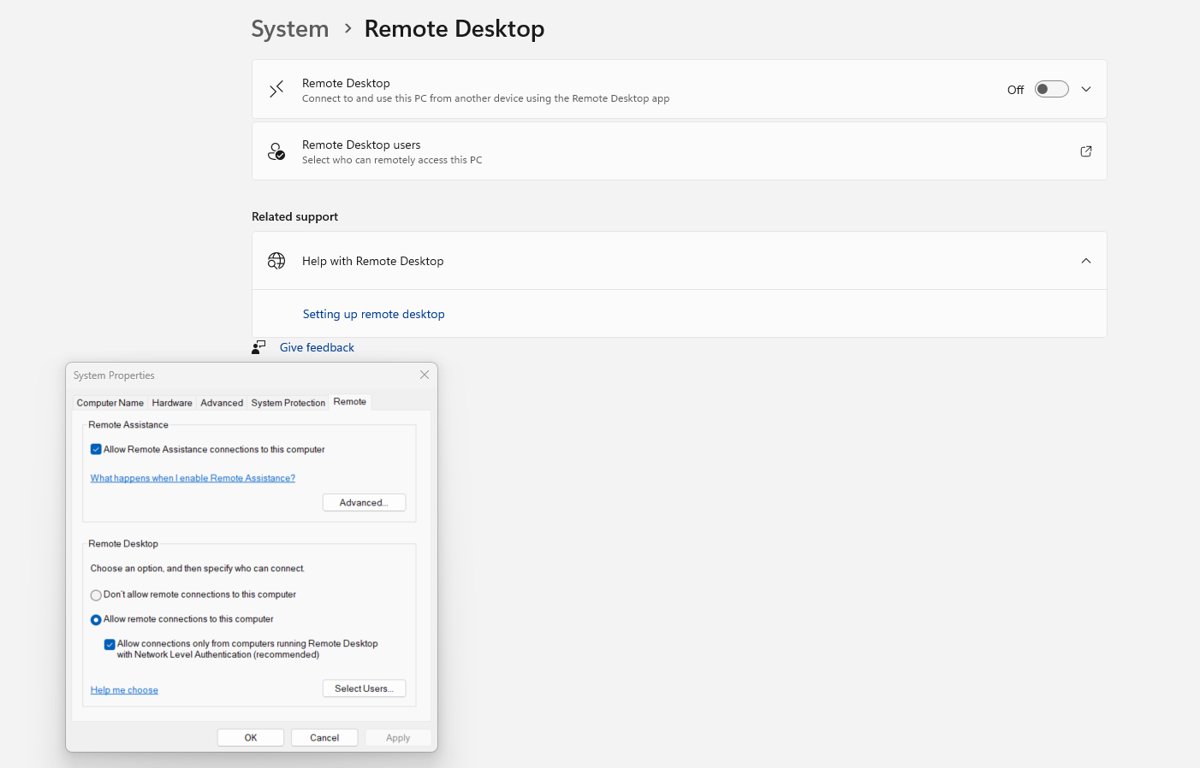
Keep NLA on for every Remote Desktop host. Microsoft recommends NLA for most environments because it cuts the risk of unauthorized access; turn it off only briefly for an old client that cannot use it.
Set up the remote PC
Administrators can connect as soon as RDP is on. Add standard accounts yourself, one or several at a time.
- Open Settings > System > Remote Desktop on the host.
- Select Remote Desktop users (older builds show Select users that can remotely access this PC).
- Select Add, type the username, then select OK.
- Confirm each account has a strong, unique password.
- Write down the PC name or IP address for the client.
Remote connect to a device
Remote Desktop Connection (mstsc.exe) is built into every edition, Home included, which answers where Remote Desktop Connection is located.
- Select Start, type Remote Desktop Connection and open the app, or press Win + R, type
mstscand press Enter. - Enter the remote PC's computer name or IP address in the Computer box.
- Add
:portafter the name if the host uses a port other than 3389. - Select Connect.
- Enter the credentials of an allowed account and select OK.
The same client works from Windows 10, and the Windows 10 Remote Desktop walkthrough adds finding the PC name and common connection errors.
How to use the Remote Desktop app to access your PC
Windows App is Microsoft's newer client. It connects to remote PCs without signing in, and also to Windows 365, Azure Virtual Desktop and Microsoft Dev Box with a work or school account.
- Install Windows App from the Microsoft Store.
- Open it and select Add a remote PC on the welcome page, or open the Devices tab and select Add (+).
- In Add a PC, type the PC Name (computer name or IP address).
- Open Additional settings for a friendly name, display options or device redirection, which are off by default.
- Select Add & Connect, then enter the user account for the remote PC.
Windows App adds multiple-monitor support, dynamic resolution and redirection of webcams, audio, storage and printers.
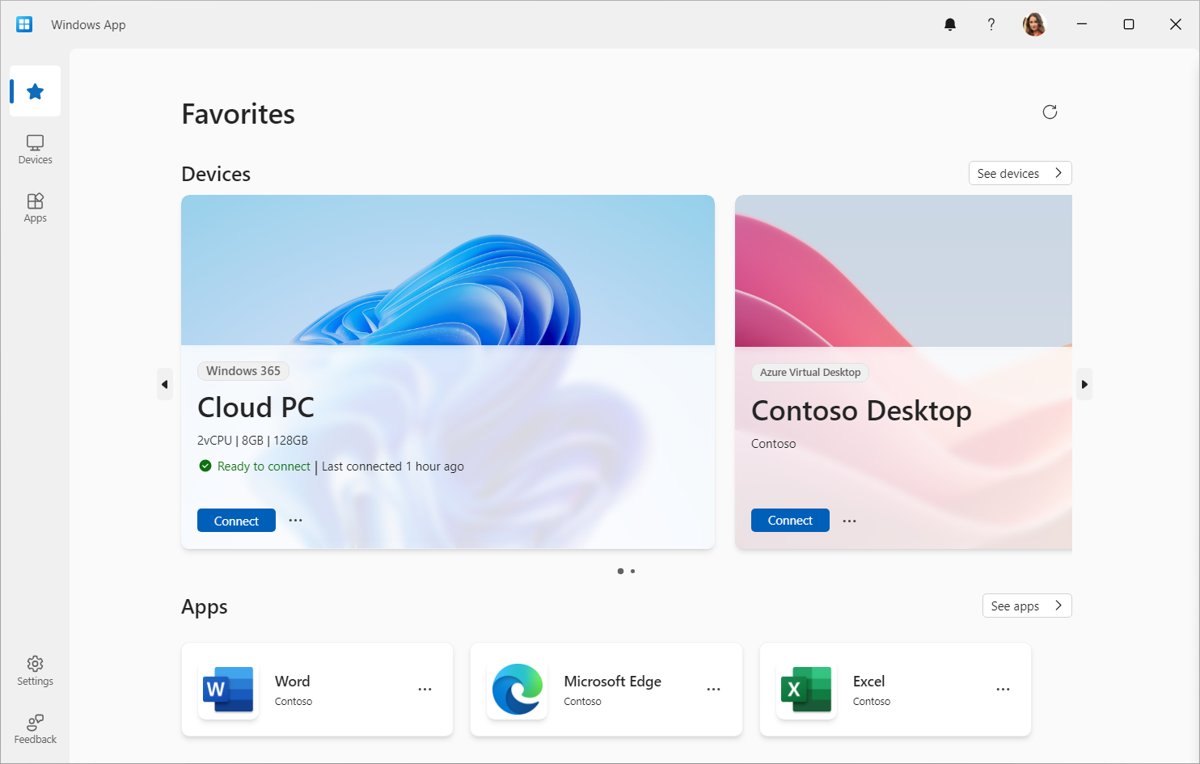
Remote desktop connection for Mac, iPhone and Android
Windows App is the Microsoft client on every platform. The web browser version connects to cloud PCs only, not to your own PC.
| Device | Where to get Windows App | Minimum version for a remote PC |
|---|---|---|
| Windows | Microsoft Store | Not stated separately |
| Mac | Mac App Store (a standalone .pkg also exists) | macOS 12.0 |
| iPhone and iPad | App Store | iOS or iPadOS 16.0 |
| Android and Chromebook | Google Play Store | Android 10 or ChromeOS 126 |
| Web browser | No install | Remote PC connections not supported |
On each device you add the PC by name or IP and sign in with an account on that PC. For Linux and other non-Microsoft options, compare these remote desktop clients for Windows, macOS and Linux.
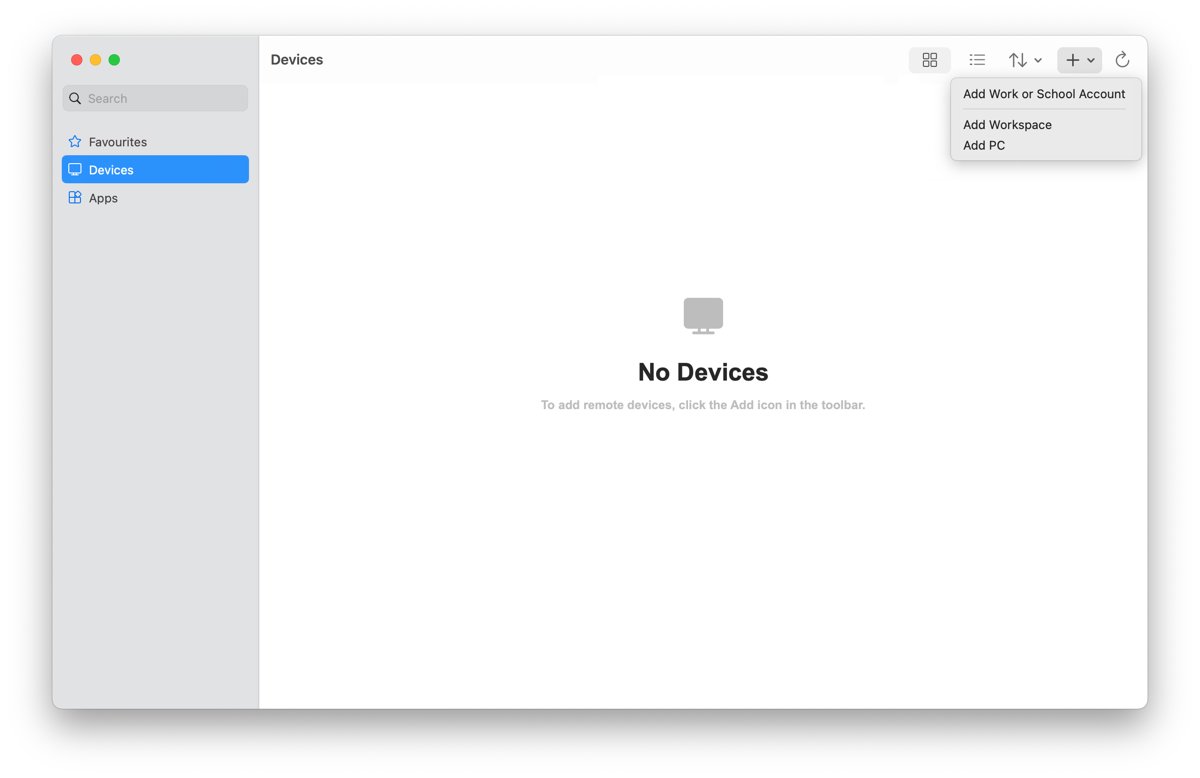
Change the RDP port 3389 with PowerShell
RDP listens on port 3389 by default. Changing it means three things: the registry value, a new firewall rule, and host:port in the client.
$portValue = 3390
Set-ItemProperty -Path 'HKLM:\SYSTEM\CurrentControlSet\Control\Terminal Server\WinStations\RDP-Tcp' -name 'PortNumber' -Value $portValue
New-NetFirewallRule -DisplayName 'RDPPORTLatest-TCP-In' -Profile Public -Direction Inbound -Action Allow -Protocol TCP -LocalPort $portValue
New-NetFirewallRule -DisplayName 'RDPPORTLatest-UDP-In' -Profile Public -Direction Inbound -Action Allow -Protocol UDP -LocalPort $portValue
Replace 3390 with your port. The first line writes PortNumber under the RDP-Tcp key; the two firewall lines open the new port for TCP and UDP. Restart the PC afterwards.
You should see: Get-ItemProperty on the same key shows the new PortNumber, and pc1:3390 connects from the client.
Registry Editor works too, and the full steps for changing the default RDP port include the Decimal setting and connecting with host:port.
Allow Remote Desktop through Windows Firewall
If the toggle is on but nothing connects, check the two inbound rules Windows ships for RDP.
- Press Win + R, type
wf.mscand press Enter. - Select Inbound Rules.
- Find Remote Desktop – User Mode (TCP-In) and Remote Desktop – User Mode (UDP-In).
- Make sure both are enabled for the profile your network uses.
- For a third-party firewall, allow port 3389 or your custom port in that product instead.
Connecting from outside your home network needs port forwarding on the router or a VPN, since RDP is a direct connection to the host.
Test a remote desktop connection with Test-NetConnection
Run this from another PC on the same network to prove the host is listening before you blame the client.
Test-NetConnection -ComputerName PC-NAME -Port 3389 -InformationLevel DetailedTries a TCP connection to the RDP port on the host. Swap 3389 for your custom port if you changed it.
You should see: TcpTestSucceeded : True means the network path and listener work; False points to the firewall, port or network.
Remote Desktop vs Quick Assist vs Remote Assistance
Remote Desktop is for reaching your own PC. Quick Assist and Remote Assistance are for one person helping another, with the other person watching.
| Tool | Who starts it | Host edition | Best for |
|---|---|---|---|
| Remote Desktop | You, from the client | Pro, Enterprise, Education | Using your own PC from elsewhere |
| Quick Assist | Helper shares a code, sharer allows | Any Windows 11/10 edition | Helping family or users over the internet |
| Remote Assistance | Invitation or offer between two PCs | Built into Windows | Older help-desk setups |
Windows enables a HelpAssistant account only while a Remote Assistance request is pending. These Remote Assistance answers on msra.exe explain invitations, offers and firewall ports.
Connect remotely and provide support with Quick Assist
Quick Assist lets a helper view a Windows device's screen, annotate it, or take full control. The helper needs a Microsoft account; the sharer does not sign in.
| Before you begin | Detail |
|---|---|
| Internet access | Both sides need HTTPS on port 443 to Microsoft's endpoints |
| Helper account | Microsoft account or Microsoft Entra ID; local Active Directory is not supported |
| Sharer account | No sign-in needed |
| Domain | Neither PC needs to be in one |
| Settings used | The sharer's keyboard layout and mouse settings |
Install Quick Assist on Windows
Quick Assist now ships as a Microsoft Store app. Windows 11 includes the WebView2 runtime it needs; on Windows 10 the app installs WebView2 itself when missing.
- Open the Microsoft Store and search for Quick Assist.
- Select Install.
- Wait until Install changes to Open.
- Press Ctrl + Windows + Q to launch it any time.
If the Store fails, the Quick Assist download for PC also lists fixes for WebView2 errors.
Use Quick Assist
Either person can open the app first. The code from the helper is time-limited, so share it right away.
- Both people open Quick Assist from Windows search, All apps, or Ctrl + Windows + Q.
- The helper selects Help someone, signs in if asked, and reads out the security code.
- The sharer types it into Security code from assistant under Get help and selects Submit.
- The sharer selects Allow to share the screen.
- The helper selects Request control if needed, and the sharer chooses Allow or Deny.
How it works
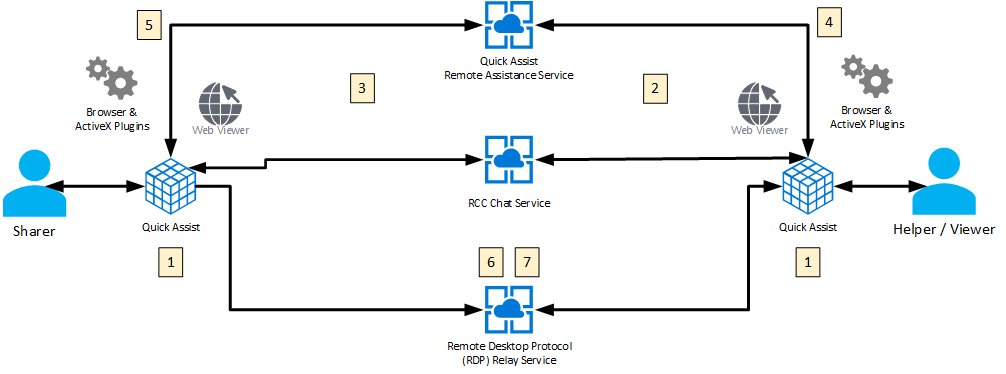
Quick Assist connects over port 443 (HTTPS) through a Microsoft relay rather than the RDP port 3389.
| Stage | What happens |
|---|---|
| Code | The helper's app asks the Remote Assistance Service for a session code |
| Join | The sharer's app uses the code to join the same chat session |
| Consent | The sharer confirms screen sharing |
| Relay | RDP video and input pass over port 443 through the RDP relay service, encrypted with TLS 1.2 |
| Logs | Microsoft keeps session start, end and error data no longer than three days; no logs are created on either device |
Make it a teachable moment
Quick Assist does not have to mean taking over. Staying in view-only mode and annotating the sharer's screen shows them where to click, so they can fix it themselves next time.
Start in view-only mode with annotations, and request control only when the sharer gets stuck. The helper sees the screen and can draw on it without control, and the sharer keeps their own permissions and must answer any UAC prompt.
Install Quick Assist on macOS
Do not look for a public Mac download of Quick Assist. Microsoft provides Quick Assist for macOS only during Microsoft Support interactions, and the support agent guides the install.
Disable Quick Assist within your organization
Organizations that use another tool, such as Intune Remote Help, should block or remove Quick Assist. Blocking the endpoint also breaks Remote Help.
Get-AppxPackage -Name MicrosoftCorporationII.QuickAssist | Remove-AppxPackage -AllUsersRun in PowerShell as administrator to remove Quick Assist for every user. On one PC you can use Settings > Apps > Installed apps > Quick Assist > … > Uninstall. Blocking https://remoteassistance.support.services.microsoft.com stops all sessions.
You should see: Quick Assist no longer appears in All apps, and Ctrl + Windows + Q does nothing.
Report abuse
Anyone with control of your PC can install apps or damage it. Microsoft never contacts you unprompted to ask for access.
- Allow a connection only if you started the contact with Microsoft Support or your own IT staff.
- Refuse anyone who claims an urgent need to reach your device.
- Never share passwords for websites or apps during a session.
- Disconnect at once if the helper seems malicious.
- Report it to local authorities, your IT team, and Microsoft's technical support scam form.
Remote desktop software comparison: Chrome Remote Desktop, AnyDesk, TeamViewer
Third-party tools work on Windows Home, cross platforms and need no port forwarding. Plans below come from each vendor's own site; a dash means the vendor page could not be checked.
| Tool | Host OS | Cost tier | Best for |
|---|---|---|---|
| Windows App / Remote Desktop | Windows Pro, Enterprise, Education | Included with Windows | Your own Windows PC on a trusted network |
| Chrome Remote Desktop | Windows, macOS, Linux | No price listed by Google | Reaching a PC from any browser or phone |
| AnyDesk | – | License needed only for commercial outgoing use; Solo to Ultimate plans | Support where the receiving side needs no license |
| TeamViewer | – | Free for personal use; paid Remote Access plan for 3 unattended devices | Personal remote help and access |
| RemotePC | PC, Mac, Linux | Paid from the Solo plan (1 user, 1 computer); 7-day free trial | Always-on access to a few computers |
| Parsec | Windows 10+, macOS 10.15+ | Free for personal, non-commercial use; paid Teams plans | Low-latency 60 FPS desktop and games |
| RealVNC Connect | – | – | VNC-based access |
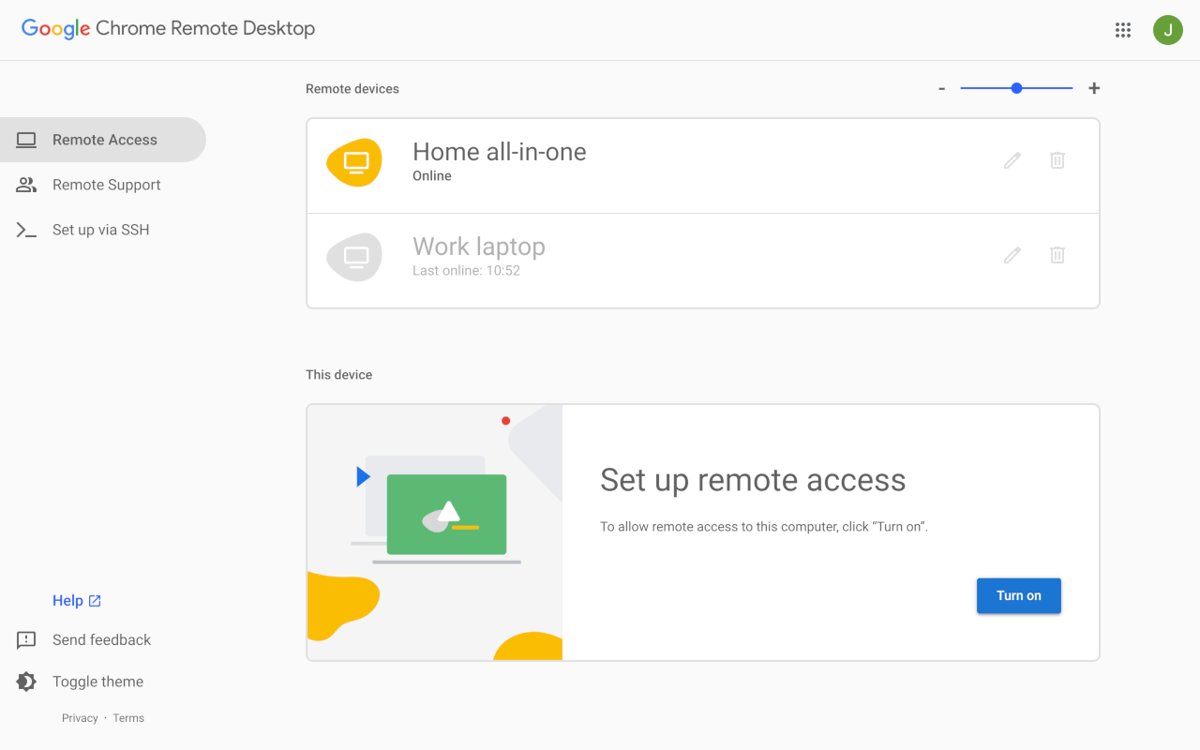
Chrome Remote Desktop is set up at remotedesktop.google.com/access and protected by a PIN; the steps to configure Chrome Remote Desktop cover phones and remote support. TeamViewer also publishes a separate TeamViewer QuickSupport module for the person receiving help.
Remote Desktop not working: symptom, cause and fix table
| Symptom | Likely cause | Fix |
|---|---|---|
| Remote Desktop option missing on the host | Windows Home edition | Use Quick Assist or a third-party tool, or upgrade the host to Pro |
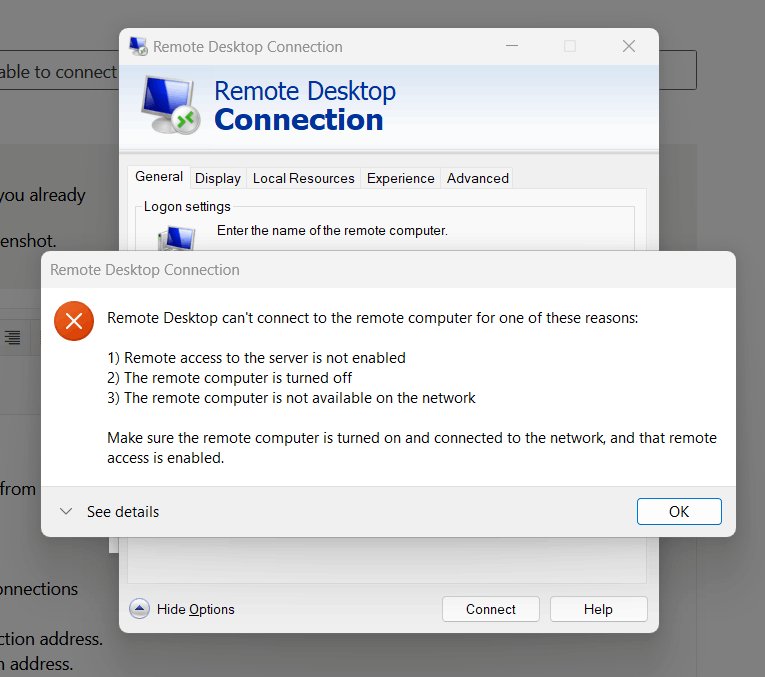
| "Remote Desktop can't connect to the remote computer" | RDP off, PC asleep, or listener down | Turn the toggle on and check qwinsta for rdp-tcp Listen |
| Toggle turns itself off again | Group Policy sets fDenyTSConnections to 1 | Run gpresult and set the policy to Enabled or Not configured |
| Test-NetConnection returns False | Firewall rule disabled or port blocked | Enable the Remote Desktop – User Mode rules; fix Remote Desktop not working step by step |
| Works by IP, fails by name | Name resolution | Connect with the IP address |
| Slow, frozen or blank session | Display, bandwidth or redirection settings | Lower resolution and work through these Remote Desktop screen issues |
| Fails after changing the port | Client still uses 3389 | Type host:port and open the new port in the firewall |
Why won't my Remote Desktop connection work?
Remote Desktop connection not working at all
The RDP listener is not running or its services are stopped.
- On the host, open Command Prompt and run
qwinsta. - Look for
rdp-tcpwith the stateListen. - If it is missing, check that fDenyTSConnections is 0 under
HKLM\SYSTEM\CurrentControlSet\Control\Terminal Server. - Open Services and make sure Remote Desktop Services and Remote Desktop Services UserMode Port Redirector are running.
- Restart the PC and connect again.
Remote Desktop option greyed out or keeps switching off
A Group Policy disables Remote Desktop Services connections.
- Open Command Prompt as administrator and run
gpresult /H c:\gpresult.html. - Open the file and find Allow users to connect remotely by using Remote Desktop Services.
- If it is Disabled, note the Winning GPO.
- Set the policy to Enabled or Not configured, or ask the admin who owns that GPO.
- Run
gpupdate /force.
Remote desktop connection fails on another port or app
Another program is listening on port 3389.
- Run
netstat -anob | findstr 3389as administrator. - Run
tasklist /svc | findstr TermServiceand compare the PIDs. - If the PIDs differ, stop the other process or move it to another port.
- Restart the Remote Desktop Services service.
Why is my remote desktop connection so slow or freezing?
Remote Desktop Connection lets you change the display and local device settings it uses for a session.
- Open the connection settings in Remote Desktop Connection or Windows App.
- Lower the display resolution or use a single monitor.
- Turn off redirection of devices you do not need.
Remote Desktop Connection FAQ
What is Remote Desktop Connection?
Remote Desktop Connection is the Windows client, mstsc.exe, that connects to another PC over the Remote Desktop Protocol. You see and control that PC's desktop, apps and files as if you sat in front of it.
Where is Remote Desktop Connection located?
Select Start and type Remote Desktop Connection, or press Win + R, type mstsc and press Enter. It is included in every Windows 11 and 10 edition, including Home, because any edition can act as the client.
Why is Remote Desktop Connection on my PC?
Remote Desktop Connection comes preinstalled with Windows as the built-in client. Having it installed does not let anyone into your PC; incoming connections only work once Enable Remote Desktop is turned on, and Home editions cannot accept them at all.
Can I uninstall Remote Desktop Connection?
You do not need to remove it to stay safe, because the client cannot accept incoming connections. To block incoming RDP, keep Enable Remote Desktop off under Settings > System > Remote Desktop.
Is Remote Desktop Connection safe?
It is reasonably safe on a trusted network with Network Level Authentication on and strong, unique passwords on every allowed account. Microsoft advises against exposing it on networks that need strict access control; use a VPN for outside access.
Why is it called RDP?
RDP stands for Remote Desktop Protocol, the protocol Remote Desktop uses to carry the screen, keyboard and mouse between PCs. It listens on port 3389 by default.
How do I allow Remote Desktop Connection on Windows 11?
Open Settings > System > Remote Desktop, turn Enable Remote Desktop on and select Confirm. This works on Windows 11 Pro, Enterprise and Education; Home cannot host sessions.
How do I connect Remote Desktop to a server?
Use the same Remote Desktop Connection client: type the server's name or IP address, select Connect and sign in with an account allowed on the server. Windows Server editions can host Remote Desktop like Windows Pro.
Is there a remote desktop connection for Mac?
Yes. Install Windows App from the Mac App Store on macOS 12.0 or later, add the PC by name or IP address, and sign in with an account on that PC.