No: as of September 30, 2026, Microsoft lists no SSD, storage or data corruption issue for Windows 11, version 26H2, and none of its three known issues involves drives.
This guide shows what Microsoft does list, why the 26H2 upgrade changes so little on disk, how to check your SSD's health before and after, and what to do if a drive misbehaves after updating.
The short answer: no known 26H2 SSD problem
Windows 11 26H2 has no documented SSD corruption problem. Back up, check the drive's health in Settings, and install 26H2 normally when Windows Update offers it. Microsoft's Windows release health page for 26H2 lists three issues at launch, covering USB audio, domain trust and a black screen in virtual desktops. None of them involves SSDs, disks or file corruption.
Microsoft updates that page as new problems are confirmed, so check it again before you upgrade. The same list, with fixes, is kept on the 26H2 known issues page.
What Microsoft lists as Windows 11 26H2 known issues
These are the issues on Microsoft's release health page for 26H2, last updated September 29, 2026. All three were marked Mitigated.
| Known issue | Who it affects | Storage-related? |
|---|---|---|
| USB audio devices might fail to start or produce no sound | Some USB Audio Class 1.0 devices; Device Manager shows Code 10 | No |
| Domain-joined devices might lose their secure trust relationship | Credential Guard protected machine accounts with Machine Identity Isolation enforced | No |
| Black screen or desktop loading issues after sign-in | Mainly Azure Virtual Desktop hosts using FSLogix | No |
If a problem you see is not on this list, Microsoft asks you to report it through the Feedback Hub app.
Why the 26H2 upgrade changes so little on your drive
Windows 11, versions 24H2, 25H2 and 26H2 share a common core with an identical set of system files. On a 24H2 or 25H2 PC, the 26H2 features already sit on disk in a dormant state, delivered by earlier monthly updates.
The enablement package, KB5121794, is a small switch that turns them on with a single restart. It does not rewrite Windows the way a full upgrade does.
| Enablement package (24H2 or 25H2) | Full upgrade (23H2 or Windows 10) | |
|---|---|---|
| What is written to the drive | A small package that activates dormant features | A complete new copy of Windows |
| Restarts | One | Several |
| Delivered through | Windows Update or WSUS | Installation Assistant, ISO or installation media |
| Apps and files | Kept | Kept by default when setup runs inside Windows |
The mechanics of the switch are unpacked in the KB5121794 enablement package explainer.
Protect your data before you install 26H2
No update is a reason for an SSD to fail, but drives do fail on their own schedule. A current backup turns any drive problem into an inconvenience rather than a loss.
- Select Start, type backup and open Windows Backup.
- Expand Folders and turn on the Desktop, Documents, Pictures, Videos and Music folders you want copied to OneDrive.
- For a local copy instead, connect an external drive, open Control Panel > System and Security > Save backup copies of your files with File History and select Turn on.
- Check the SSD's health using the next section before you start the update.
- Install 26H2 from Settings > Windows Update when it is offered, with the PC on mains power.
Windows Backup needs a personal Microsoft account; work or school accounts do not work with it. The upgrade itself is covered step by step in the guide to download and install 26H2.
Check your SSD's health in Windows 11
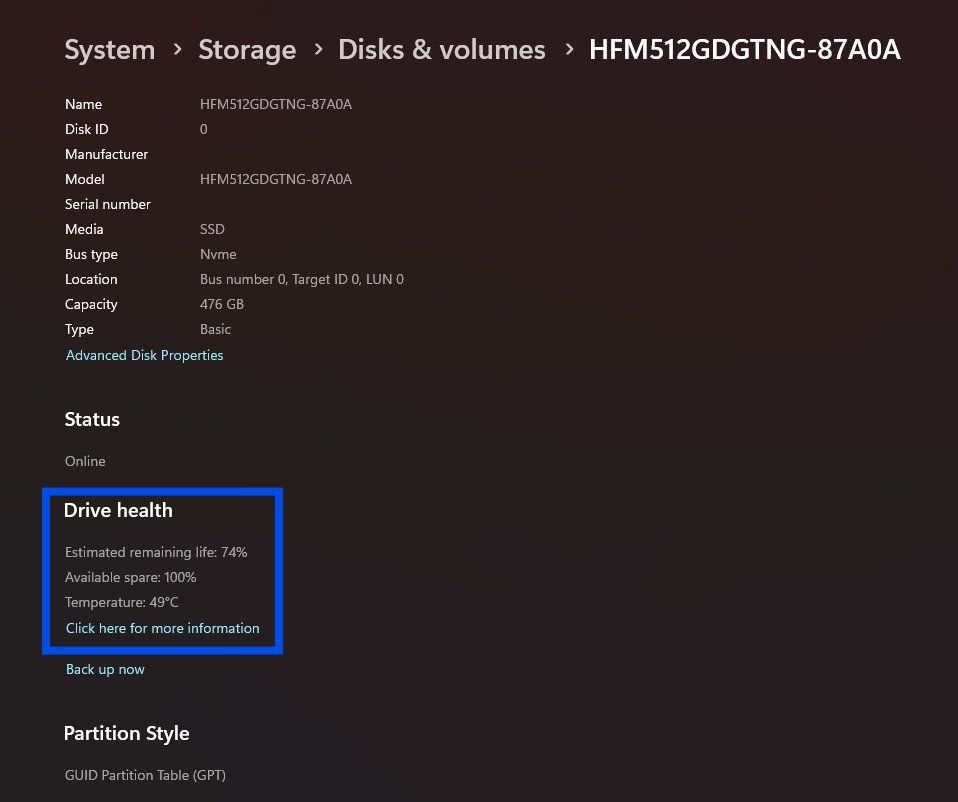
Windows reads health data from NVMe SSDs and shows it in Settings. It does not monitor SATA SSDs or hard disk drives, so those need the drive maker's own tool.
- Select Start > Settings > System > Storage.
- Select Advanced storage settings, then Disks & volumes.
- Select Properties for the SSD you want to check.
- Read Estimated remaining life, Available spare and Temperature under drive health.
- Note any critical warning shown on the page and act on it using the table below.
What the drive health warnings mean
| Warning or attribute | What it means | What to do |
|---|---|---|
| Spare capacity is low | Spare storage capacity is below the maker's safety threshold | Back up now and plan to replace the drive |
| Reliability is degraded | Significant media-related errors or an internal NVM subsystem error | Back up now; contact the drive maker or Microsoft support |
| Drive is set to read-only | You can still read data but cannot write to the drive | Copy your files off the drive immediately |
| Estimated remaining life | Approximate percentage of rated life used, based on the maker's prediction | A low value is not an automatic failure, but keep backups current |
| Available spare | Remaining spare capacity, 0% to 100% | Watch for a steady drop |
| Temperature | Current drive temperature in degrees Celsius | Check airflow if it runs hot |
These warnings come from the drive's own reporting, not from a Windows version. A warning that appears right after 26H2 installs was already developing before it.
Scan the drive for file system errors with chkdsk
If files seem damaged after any update, check the file system before blaming the SSD. Right-click Command Prompt in the Start menu results and select Run as administrator; chkdsk requires administrator rights.
chkdsk C: /scanRuns an online scan of the NTFS volume C: while Windows keeps running. Without /f, chkdsk reports problems but does not fix them. To fix errors, run chkdsk C: /f and accept the offer to check the drive at the next restart, because the Windows volume is in use.
You should see: chkdsk prints a status report for the volume; exit code 0 means no errors were found and 1 means errors were found and fixed.
Microsoft notes that interrupting chkdsk is not recommended, but it should not leave a volume more corrupt than before; running it again repairs what remains.
Roll the PC back with point-in-time restore
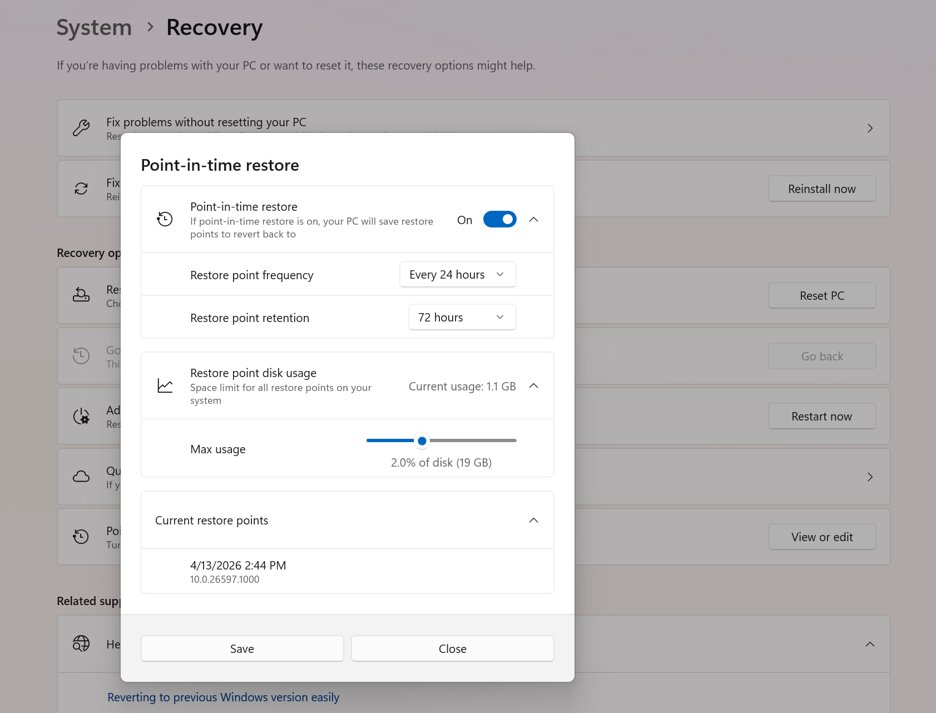
Point-in-time restore, one of the recovery features listed for 26H2, returns the whole PC, including apps, settings and local files, to a restore point from the last 72 hours. It is on by default on Home and unmanaged Pro PCs whose Windows volume is 200 GB or larger.
Anything changed after the restore point is lost, so copy recent files to OneDrive or an external drive first.
- Plug the PC into power.
- Open Settings > Recovery > Advanced startup to enter the Windows Recovery Environment.
- Select Troubleshoot > Point-in-time restore.
- Enter your BitLocker recovery key if asked.
- Pick a restore point from before the problem started and select Continue.
- Review the restore point, OS version and data-loss warning, then select Restore.
If only Windows is damaged and your files are fine, there are gentler options for repairing 26H2 without losing files. To remove the version entirely, you can safely uninstall 26H2.
Fix drive problems you notice after updating
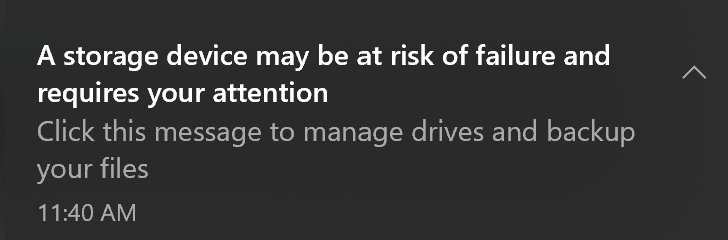
Windows shows a critical warning for a storage device
The NVMe drive reports low spare capacity, degraded reliability or read-only mode.
- Select the notification, or open Settings > System > Storage > Advanced storage settings > Disks & volumes.
- Select Properties for the drive to see which warning applies.
- Back up your data straight away.
- Contact the drive maker or Microsoft support about replacement.
A second SSD is missing from File Explorer
The disk is offline or has no drive letter, which hides it from File Explorer without touching its data.
- Right-click Start and select Disk Management.
- If the disk shows as Offline, right-click it and select Online.
- If the volume has no letter, right-click it and select Change Drive Letter and Paths, then Add, to assign a drive letter.
- Never select Initialize Disk or Format on a disk that holds data.
Files are damaged or Windows will not start after the update
File system errors or a failed restart, which may or may not involve the drive.
- If Windows starts, run
chkdsk C: /scanfrom an administrator Command Prompt. - If Windows repeatedly fails to boot, it enters the Windows Recovery Environment on its own.
- Select Troubleshoot > Point-in-time restore and choose a restore point from before the update.
- Report the problem in the Feedback Hub app (Windows logo key + F).
The drive is not detected or runs slowly after the update
An outdated storage controller driver or SSD firmware.
- Open Settings > Windows Update > Advanced options, select Optional updates under Additional options, and install any storage driver listed.
- Check the SSD maker's support site for a firmware update for your exact model.
- Follow the Windows 11 driver update steps for the storage controller.
Frequently asked questions
Does Windows 11 26H2 corrupt SSDs?
No. Microsoft's release health page for Windows 11, version 26H2 lists no SSD, storage or data corruption issue as of September 30, 2026. Its three known issues cover USB audio, domain trust and a black screen in virtual desktops.
Is it safe to install 26H2 on a PC with an SSD?
Yes, based on everything Microsoft has published. On 24H2 or 25H2 the upgrade is a small enablement package with one restart. Back up first and check the drive's health, as you would before any update.
Can Windows check the health of a SATA SSD?
No. Windows only monitors NVMe SSDs in Settings > System > Storage > Advanced storage settings > Disks & volumes. SATA SSDs and hard disk drives need the drive maker's own health tool.
Will point-in-time restore bring back files lost after 26H2?
It can, if a restore point from the last 72 hours exists. Point-in-time restore reverts the whole Windows volume, including local files, apps and settings, so changes made after that point are lost. Other volumes are not restored.
What should I do if my SSD shows a critical warning after updating?
Back up your data immediately, then open the drive's Properties under Disks & volumes to see which warning applies. Spare capacity low, reliability degraded and read-only warnings come from the drive itself, not from the Windows version.
How do I report a drive problem after installing 26H2?
Open the Feedback Hub app with the Windows logo key + F and describe the problem, including the drive model. Microsoft also points home users to the Get Help app for direct support with Windows update issues.
Bottom line
Do not skip 26H2 over SSD fears. Back up, check drive health in Settings, and install it when Windows Update offers it. Microsoft documents no storage issue for 26H2, and on 24H2 or 25H2 the update only switches on features already on the drive. A backup and a health check protect you from real drive failures, which have nothing to do with the version number.