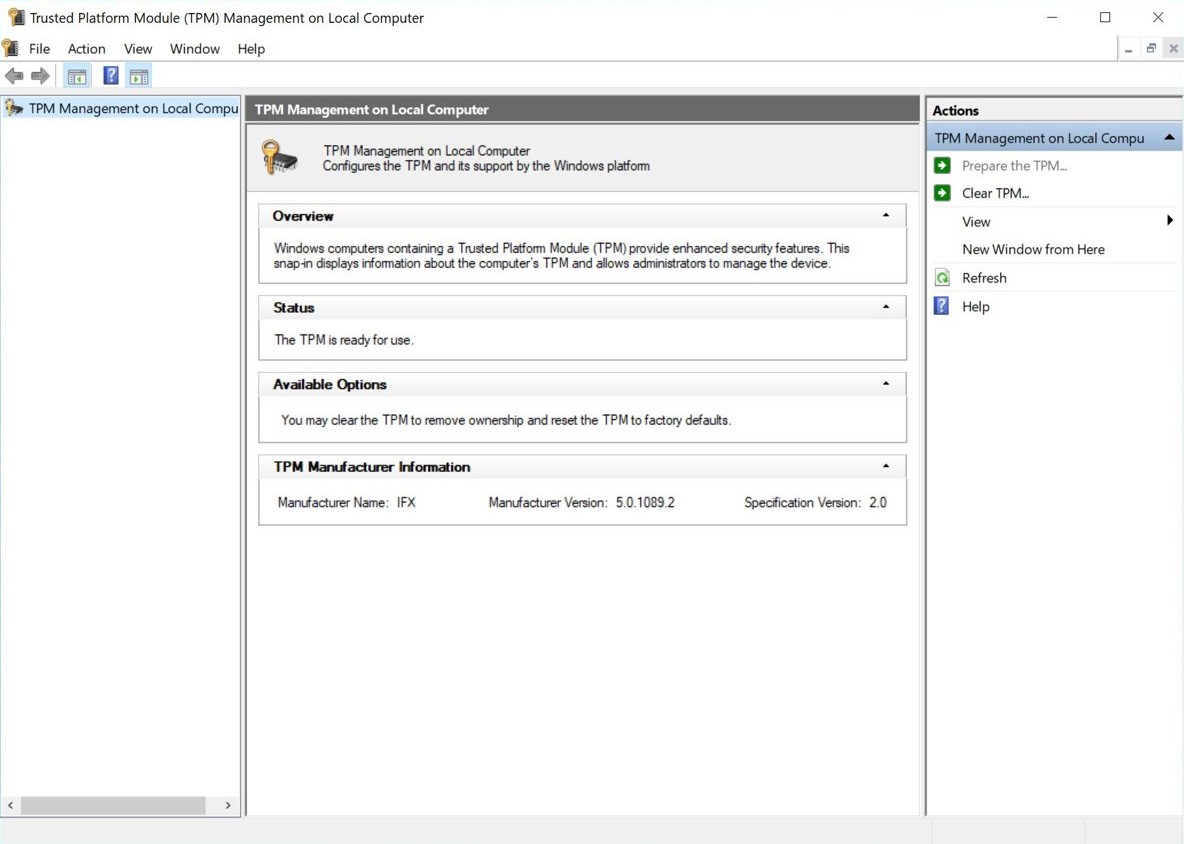
Press Windows key + R, type tpm.msc and select OK to open the TPM Management console on Windows 11 and Windows 10.
This guide covers every way to run the tpm.msc command, what its status and version fields mean, how to turn the TPM on in UEFI, and how to fix the errors it reports.
How to open TPM Management
The Run dialog is the fastest route, and it works the same way on Windows 11 and Windows 10.
- Press Windows key + R, or select Start > Run.
- Type
tpm.mscwithout quotation marks. - Select OK.
- Select Yes if the User Account Control prompt appears.
- Read the Status area: The TPM is ready for use means the TPM is on and working.
You can also type tpm.msc in the Start menu search box and open the result, or type it at a Command Prompt or PowerShell prompt and press Enter.
How to run tpm.msc as administrator
TPM Management needs an administrator account for most actions. Microsoft's procedures for tpm.msc expect a User Account Control prompt, which you confirm with Yes.
On a standard account, the prompt asks for an administrator password instead. Every route below opens the same console.
| Where you start | What to do | Good for |
|---|---|---|
| Run dialog | Press Windows key + R, type tpm.msc, select OK, then Yes at the prompt |
The quickest way to access TPM from the Run command |
| Start search | Type tpm.msc in Start, right-click the result and select Run as administrator |
Mouse users and touch screens |
| Command Prompt | Open Command Prompt as administrator, type tpm.msc and press Enter |
Scripts and remote support sessions |
| PowerShell or Windows Terminal | Open an admin PowerShell window, type tpm.msc and press Enter |
Running Get-Tpm in the same window afterwards |
What does tpm.msc do?
tpm.msc is the Microsoft Management Console (MMC) snap-in for the Trusted Platform Module. A TPM is a security chip, or firmware inside the processor, that stores the cryptographic keys behind Windows Hello and BitLocker.
The console shows the TPM's state and holds a few admin tools that Windows Security doesn't have.
| Task | Where it is in tpm.msc | Who needs it |
|---|---|---|
| Check whether the TPM is ready | Status area of the main page | Anyone checking Windows 11 or BitLocker readiness |
| Read the TPM version | Specification Version under TPM Manufacturer Information | Anyone confirming TPM 2.0 |
| Block or allow TPM commands | Command Management in the console tree | IT admins hardening a PC |
| Reset a TPM lockout | Reset TPM Lockout in the Action pane | Admins who kept the TPM owner password |
| Turn a TPM 1.2 on or off | Turn TPM On or Turn TPM Off in the Action pane | Older TPM 1.2 hardware only |
| Clear the TPM | Operating system tools such as tpm.msc or Windows Security, never UEFI | A clean reinstall or a TPM error that asks for it |
What to check in tpm.msc
Three readings answer most questions: the status line, the specification version and the manufacturer details.
| What tpm.msc shows | What it means | What to do |
|---|---|---|
| The TPM is ready for use | The TPM is on, initialized and owned by Windows | Nothing, unless the version is below 2.0 |
| Ready for use, with reduced functionality | Windows doesn't treat the TPM as fully Ready | Back up, then clear the TPM so Windows can set it up again |
| Compatible TPM cannot be found | The TPM is missing, or it is turned off or hidden in UEFI | Turn it on in UEFI firmware settings |
| Specification Version 2.0 | The TPM meets the Windows 11 requirement | Nothing |
| Specification Version 1.2 | The TPM is too old for Windows 11 | Check the PC maker's site for firmware TPM 2.0 support |
| Manufacturer name and version | The chip or firmware vendor, such as Intel, AMD or Infineon, and its firmware level | Compare it with the PC maker's TPM firmware notices |
How to check TPM status, version, and manufacturer details
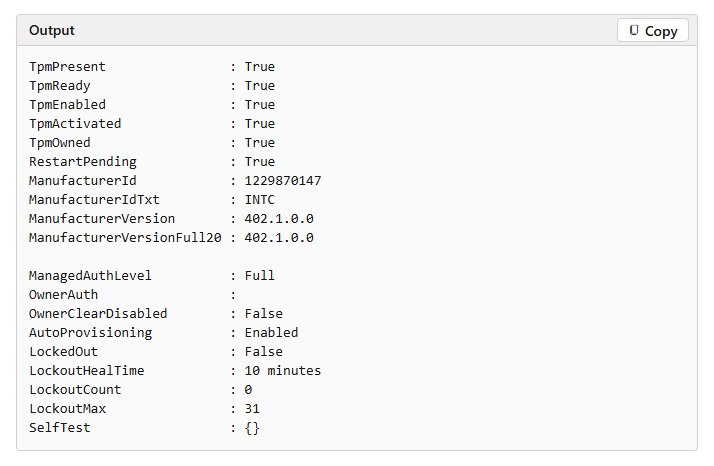
The Get-Tpm cmdlet is the command to check if TPM is enabled without opening any console. It returns the same facts as tpm.msc as plain text you can copy into a support ticket.
Get-TpmRun it in a PowerShell window opened as administrator. TpmPresent says whether Windows sees a TPM, TpmReady whether it is ready for use, and TpmEnabled, TpmActivated and TpmOwned report its state. ManufacturerIdTxt names the vendor (for example INTC for Intel), and ManufacturerVersion is its firmware version. LockedOut and LockoutCount show dictionary-attack lockout.
You should see: TpmPresent : True and TpmReady : True mean the TPM is on and working. TpmPresent : False means Windows can't see a TPM, so check UEFI.
Get-Tpm doesn't print the specification version. Read Specification Version in tpm.msc or in Windows Security when you need to confirm TPM 2.0.
Check TPM details through Windows Security
Windows Security shows the TPM version and status without the MMC console. It is the simplest route on a work PC where tpm.msc is blocked.
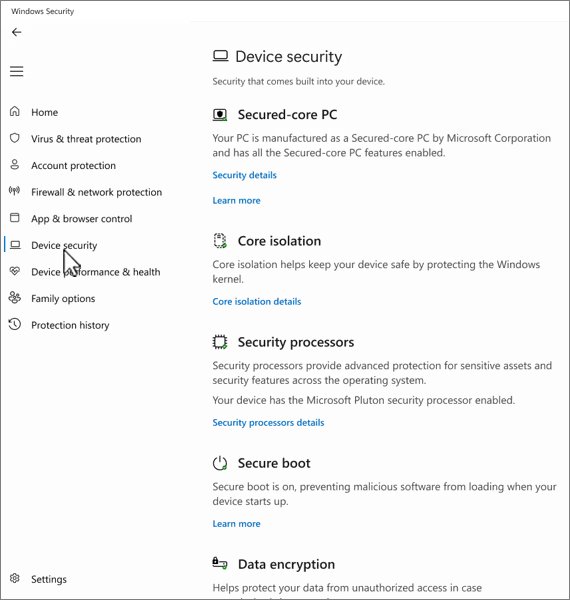
- Select Start, type Windows Security and open the app.
- Select Device security.
- Look for the Security processor section. If it is missing, the TPM is absent or turned off in UEFI.
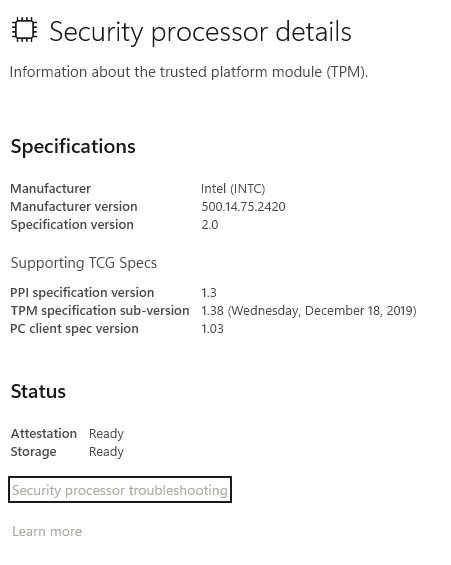
- Select Security processor details.
- Read Specification version: 2.0 meets the Windows 11 requirement, and 1.2 doesn't.
- Select Security processor troubleshooting to see any TPM error message and the Clear TPM button.
On Windows 10, the same page is under Settings > Update & Security > Windows Security > Device security.
TPM requirements for Windows 11 and security features
Windows 11 requires TPM 2.0. Several individual features have their own TPM rules, and some run without a TPM at all.
| Feature | TPM required? | TPM 1.2 | TPM 2.0 |
|---|---|---|---|
| Windows 11 itself | Yes | No | Yes |
| BitLocker | No | Supported | Supported and recommended |
| Device Encryption | Yes | Not applicable | Required |
| Measured Boot | Yes, with UEFI Secure Boot | Supported | Supported and recommended |
| Windows Hello and Windows Hello for Business | No | Supported | Supported and recommended |
| Credential Guard | No | Supported | Supported; Windows 11 uses TPM 2.0 by default |
| System Guard (DRTM) | Yes | No | Required, with UEFI firmware |
| Virtual Smart Card | Yes | Supported | Supported |
| Autopilot self-deploying mode | For TPM scenarios | Not applicable | Required, with UEFI firmware |
TPM 2.0 doesn't work in Legacy or CSM BIOS mode. The firmware must run in native UEFI mode, and Microsoft recommends turning on Secure Boot as well.
How to enable a TPM
The TPM is turned on in the UEFI firmware, not in Windows. Many retail motherboards ship with it off, even though the hardware supports it.
- Open Settings > System > Recovery. On Windows 10, open Settings > Update & Security > Recovery.
- Next to Advanced startup, select Restart now.
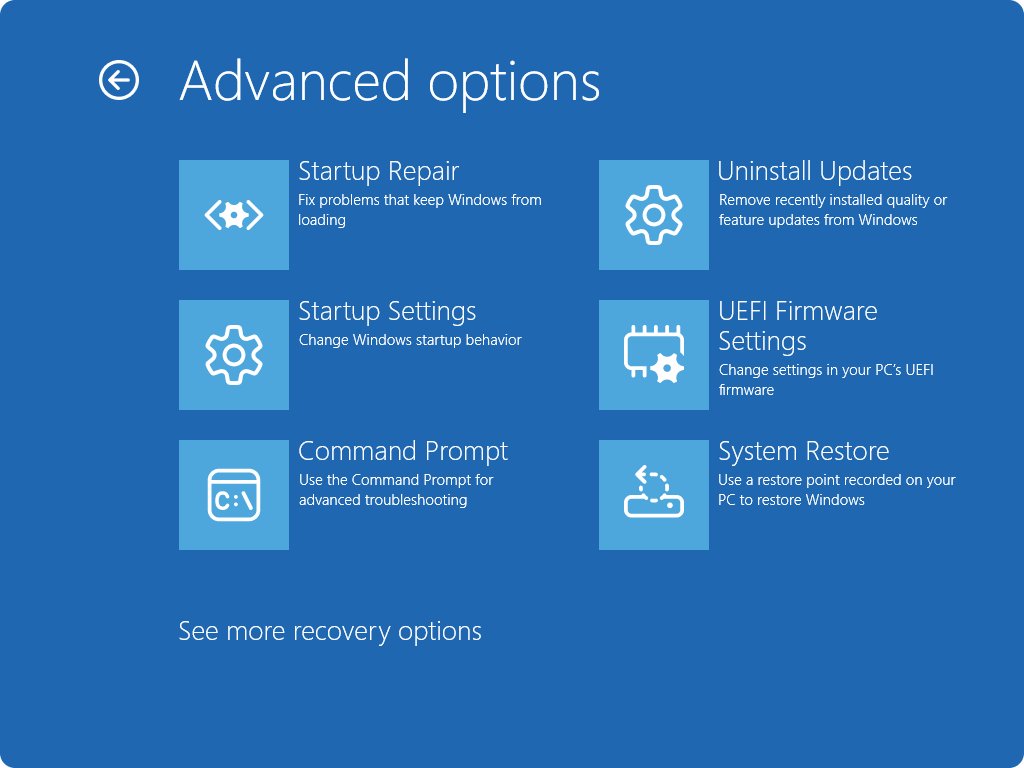
- Select Troubleshoot > Advanced options > UEFI Firmware Settings > Restart.
- Open the Advanced, Security or Trusted Computing menu in the firmware.
- Turn on the TPM option. It may be named Security Device, Security Device Support, TPM State, AMD fTPM switch, AMD PSP fTPM, Intel PTT or Intel Platform Trust Technology.
- Save the change and exit the firmware.
- Accept any TPM reconfiguration prompt at startup, sign in, and run
tpm.mscagain.
A board with no TPM option at all may need you to find and install a TPM 2.0 module, or a firmware update from the PC maker.
Don't switch an installed Windows from Legacy to UEFI mode without running MBR2GPT first, because Windows won't boot after the change.
How to enable TPM using Command Prompt
No Windows command turns a TPM on while it is disabled in firmware. The command below is the closest thing: it restarts the PC straight into the UEFI settings, where the TPM switch lives.
shutdown /r /fw /t 0Run it from a Command Prompt opened as administrator. /r restarts the PC, /fw sends the next restart to the firmware user interface, and /t 0 removes the default 30-second wait. Save open work first.
You should see: The PC restarts into the UEFI firmware settings screen. Turn on the TPM option there, save, and exit.
Windows provisions the TPM automatically once it is on. The Initialize-Tpm PowerShell cmdlet performs part of that provisioning by hand, which is rarely needed on a home PC.
Windows normally initializes the TPM automatically
Windows initializes the TPM and takes ownership of it by itself. There is no owner password to create, and tpm.msc has nothing you must run after turning the TPM on.
| Situation | What Windows does | What you do |
|---|---|---|
| TPM just turned on in UEFI | Initializes it and takes ownership at the next start | Restart, then check the status in tpm.msc |
| TPM cleared | Prepares it for use again after the restart | Set up your Windows Hello PIN again |
| Domain PC that must back up TPM data to Active Directory, away from the network | Can't finish initialization | Connect to the corporate network so a domain controller is reachable |
| Non-Microsoft TPM driver installed | BitLocker can report that no TPM is present | Remove that driver and let Windows use its own |
| Two TPMs, switched in UEFI | Doesn't support the setup and may not detect the new TPM | Pick one TPM and keep it; switching triggers BitLocker recovery |
Should you clear the TPM?
Usually not. Clearing resets the TPM to an unowned state and deletes every key it holds, plus any data protected only by those keys.
| Your situation | Clear it? | Why |
|---|---|---|
| Checking the TPM for Windows 11 | No | Clearing doesn't change the version or the status of a working TPM |
| Windows Security says TPM storage is not available or Device health attestation isn't available | Yes, after a backup | Microsoft's fix for both messages is the Clear TPM button |
| Windows warns about a TPM firmware vulnerability | Yes, last | Install Windows updates, then the PC maker's firmware, then clear |
| Preparing a clean Windows install | Optional | It lets the new installation use every TPM feature, such as attestation |
| Work or school PC | Only if IT tells you to | The TPM may protect company keys and certificates |
| BitLocker is on | Only with the recovery key saved | Clearing deletes the TPM keys, so keep a recovery method for protected data |
Always clear the TPM from Windows, never from the UEFI menu. Windows Hello PINs, fingerprint sign-in and virtual smart cards stop working until you set them up again.
How to clear the TPM in Windows 11
You need an administrator account. Back up your files and save your BitLocker recovery key before you start.
- Open Windows Security and select Device security.
- Select Security processor details.
- Select Security processor troubleshooting.
- Under Clear TPM, select Clear TPM.
- Restart when prompted, and press the key the firmware asks for to confirm the clear.
- Sign in and set up your Windows Hello PIN again. Windows prepares the TPM automatically.
TPM support across Windows editions
The TPM rules are the same on Home, Pro, Enterprise and Education. What changes between editions is which TPM-based features and admin tools you get.
| Edition | TPM requirement | Edition-specific notes |
|---|---|---|
| Windows 11 Home | TPM 2.0 | The TPM Management snap-in policy isn't listed for Home |
| Windows 11 Pro | TPM 2.0 | Policy can permit or prohibit the TPM Management snap-in |
| Windows 11 Enterprise and Education | TPM 2.0 | Credential Guard is available only on these editions |
| New Windows desktop PCs since 28 July 2016 | TPM 2.0 implemented and on by default | Applies to new device models from PC makers |
| Windows IoT Core | Optional | No TPM needed |
| Windows Server | Optional | TPM 2.0 is required only for Host Guardian Service scenarios |
When an organization blocks tpm.msc
On a managed PC, IT can stop tpm.msc from opening or limit what it can do. Each block shows a different sign.
| What you see | Policy behind it | What you can do |
|---|---|---|
| An error says policy is prohibiting the use of this snap-in | TPM Management set to disabled under User Configuration, in Restricted/Permitted snap-ins | Check the TPM in Windows Security or with Get-Tpm, or ask IT |
| Every snap-in except a few is blocked | Restrict users to the explicitly permitted list of snap-ins is enabled | Ask IT to permit the TPM Management snap-in |
| Allow Selected Command is unavailable in Command Management | Configure the list of blocked TPM commands under Trusted Platform Module Services | Only a Group Policy change can allow that command |
| A prompt to clear the TPM appears at every sign-in | Configure the system to clear the TPM if it isn't in a ready state | Contact IT before you clear anything |
| The prompt asks for an administrator password | Standard user account | Sign in with an admin account, or ask IT |
Common errors and their fixes
These are the messages tpm.msc and the Windows Security Security processor troubleshooting page report, with Microsoft's fix for each.
tpm.msc says "Compatible TPM cannot be found"
The TPM is turned off or hidden in UEFI, or the PC has none.
- Restart into UEFI Firmware Settings from Settings > System > Recovery.
- Turn on Intel PTT, AMD fTPM or the Security Device option.
- Check that the firmware runs in UEFI mode, not Legacy or CSM.
- Run
tpm.mscagain after Windows starts.
Windows cannot find tpm.msc
The command name was mistyped, or the Run box can't start the console.
- Type
tpm.mscexactly, with no spaces or quotation marks. - Search for
tpm.mscfrom Start instead of the Run dialog. - Check the TPM in Windows Security > Device security > Security processor details if the console still won't open.
- Run
Get-Tpmin an admin PowerShell window as a second check.
No Security processor section in Windows Security
The PC has no TPM, or it isn't enabled in UEFI.
- Turn on the TPM in UEFI firmware settings.
- Check the PC maker's support page if the firmware has no TPM option.
"TPM is disabled and requires attention"
The TPM is turned off in the BIOS or UEFI.
- Restart into UEFI Firmware Settings.
- Turn on the TPM option, save and exit.
- Follow the PC maker's documentation if the option name differs.
"A firmware update is needed for your security processor (TPM)"
The motherboard doesn't support the TPM with its current firmware.
- Install all pending updates in Windows Update first.
- Get the firmware update for your exact model from the PC maker's support site.
- Restart and check Security processor details again.
"Your TPM isn't compatible with your firmware and may not be working properly"
The TPM and the system firmware versions don't match.
- Check the PC maker's support site for a firmware update.
- Install it with the maker's own tool or instructions.
- Contact the maker if no update is listed.
"TPM storage is not available" or "Device health attestation isn't available"
Windows can't use the TPM in its current state.
- Back up your files and save your BitLocker recovery key.
- Select Clear TPM on the Security processor troubleshooting page.
- Restart and set up your Windows Hello PIN again.
"TPM measured boot log is missing" or "There is a problem with your TPM"
A temporary TPM fault during the last start.
- Restart the PC.
- Check Security processor troubleshooting again.
- Contact the PC maker if the message returns.
TPM lockout or authorization errors
Too many wrong PIN or authorization attempts triggered anti-hammering protection.
- Leave the PC switched on. Windows sets a TPM 2.0 limit of 32 failures, and each 10 minutes powered on without a failure lowers the count by 1.
- Run
Get-Tpmand watch LockoutCount fall. - Use Reset TPM Lockout in tpm.msc only if you saved the TPM owner password. A wrong password blocks another try for 24 hours.
tpm.msc command FAQ
How do you enable tpm.msc?
You don't enable tpm.msc itself; it is built into Windows and opens with Windows key + R and tpm.msc. If it says Compatible TPM cannot be found, turn the TPM on in the UEFI firmware settings, under a name such as Intel PTT, AMD fTPM or Security Device.
Does running tpm.msc enable TPM?
No. Running tpm.msc only opens the TPM Management console and reports the TPM's state. A TPM that is off in firmware stays off. Turn it on in UEFI, restart, and Windows initializes it automatically.
How do you enable TPM using Command Prompt?
No Command Prompt command turns on a TPM that is disabled in firmware. Run shutdown /r /fw /t 0 from an admin Command Prompt to restart straight into the UEFI settings, then turn the TPM option on there, save and exit.
How do you run tpm.msc as admin?
Type tpm.msc in Start, right-click the result and select Run as administrator. You can also press Windows key + R, run tpm.msc and select Yes at the User Account Control prompt, or type tpm.msc in an admin Command Prompt or PowerShell window.
What is the command to see if TPM is enabled?
Run Get-Tpm in a PowerShell window opened as administrator. TpmPresent : True means Windows sees a TPM, and TpmReady : True means it is ready for use. tpm.msc shows the same result as The TPM is ready for use.
How do you disable TPM in tpm.msc?
On TPM 1.2 hardware, tpm.msc has Turn TPM Off in the Action pane. On TPM 2.0 PCs, the TPM is switched off in the UEFI firmware settings instead. Windows 11 needs the TPM, and BitLocker and Windows Hello use it, so turn it off only when needed.
How do you know whether your TPM supports Windows 11?
Open tpm.msc and read Specification Version under TPM Manufacturer Information, or open Windows Security > Device security > Security processor details. Version 2.0 meets the Windows 11 requirement. Version 1.2 doesn't.
Is it safe to clear the TPM?
Clearing the TPM is safe only when you have backups, because it deletes every key the TPM holds. Save your BitLocker recovery key first, never clear a work or school PC without IT approval, and expect to set up your Windows Hello PIN again.
What should you do if TPM Management says with reduced functionality?
Ready for use, with reduced functionality means Windows doesn't consider the TPM fully Ready. Back up your files and BitLocker recovery key, then clear the TPM from Windows Security so Windows can prepare it again after the restart.
How do you enable a secure TPM for Windows 11?
Turn on the firmware TPM in UEFI, set the firmware to native UEFI mode with Legacy and CSM off, and turn on Secure Boot. Then check that tpm.msc shows Specification Version 2.0 and The TPM is ready for use.
Should you use tpm.msc or Windows Security to check the TPM?
Use tpm.msc for a quick status and version check, and Windows Security when you need to clear the TPM or read an error message. The bottom line is that tpm.msc reads the TPM in one step from the Run dialog, while Windows Security's Security processor troubleshooting page holds Microsoft's error list and the Clear TPM button. On a locked-down work PC, Get-Tpm gives the same answer without the console.