To fix a Miracast connection on Windows 10 or 11, confirm the PC and display support Miracast, turn on Wi-Fi, update the graphics and Wi-Fi drivers, restart both devices, then remove the display and reconnect with Windows logo key + K.
This guide covers every step for both versions, plus firewall access, the Wi-Fi band setting, network reset, work PC policies and the errors that remain after a connection.
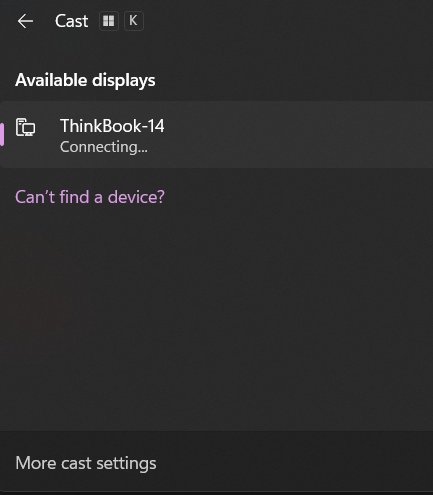
How to fix Miracast not working on Windows 11
Run these steps in order. They clear most failed Miracast connections without touching advanced settings.
- Turn on the TV, monitor or projector. If it lacks Miracast, plug a Miracast adapter into its HDMI port.
- Select the Network icon on the right side of the taskbar and turn on Wi-Fi.
- Restart the PC and the wireless display.
- Open Settings > Bluetooth & devices > Devices, select the display under Wireless displays & docks, and select Remove device.
- Press Windows logo key + K and select the display from the list.
On Windows 10, remove the display from the Devices section of Settings instead. If the display still fails, work through the six essential steps below.
Understanding Miracast
Miracast is a wireless display standard based on Wi-Fi Direct. It builds a peer-to-peer link between the PC and the display, so no router sits in the middle.
| Part | What it does | Why it matters when casting fails |
|---|---|---|
| Built-in Miracast stack | Ships with Windows 10 and Windows 11 and works on any GPU | No separate Miracast app or download is needed to send a screen |
| Wi-Fi Direct | Creates the direct link between PC and display | Wi-Fi must be on even when the PC is not joined to a network |
| Sender | The PC that projects its screen | Needs a WDDM 2.0 graphics driver and a Wi-Fi Direct capable adapter |
| Receiver | The TV, adapter or second PC that shows the picture | Needs built-in Miracast, a Miracast adapter, or the Wireless Display feature |
| Windows logo key + K | Opens the Cast panel that lists nearby displays | The quickest way to test whether Windows sees the display at all |
Before buying an adapter, check whether the PC supports Wi-Fi Direct, since the Cast panel depends on it.
Check for Miracast compatibility
Windows gives a fast answer through the Cast panel and an exact answer through the DirectX Diagnostic Tool.
- On Windows 11, press Windows logo key + K. A message telling you to connect an external display with a cable means the PC has no Miracast support.
- On Windows 10, open Start, search for Connect and open the Connect app. Its text states whether the PC supports Miracast.
- For the exact status, press Windows logo key + R, type
dxdiagand press Enter. - Select Save All Information and save the
DxDiag.txtfile. - Open the file and search for Miracast. Available, with HDCP means the PC can cast, including protected video.
The tool has more uses than this one line, and you can open and run dxdiag from Run, Search or Command Prompt.
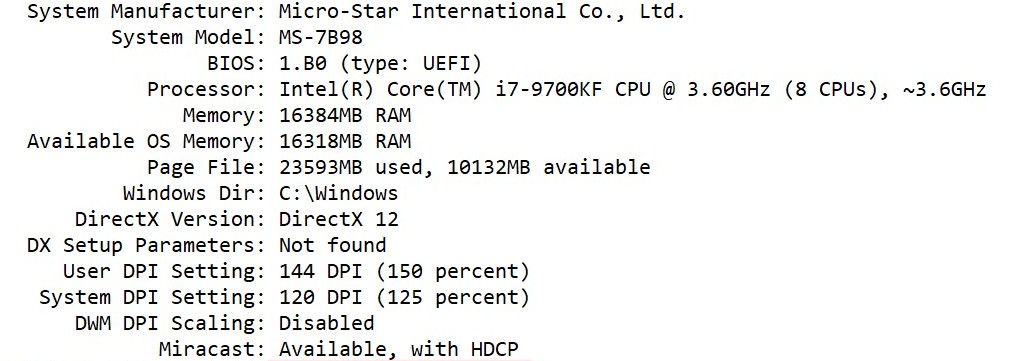
Check whether your PC and display support Miracast
A missing requirement on either side cannot be fixed in Settings. Match each part below to the device that owns it.
| Device | Requirement | If it is missing |
|---|---|---|
| PC graphics driver | WDDM 2.0 or higher | Update the graphics driver; older drivers cannot use the Windows Miracast stack |
| PC graphics hardware | Hardware accelerated AVC (H.264) encoding | Use an HDMI cable; the PC cannot encode the stream |
| PC Wi-Fi adapter | Wi-Fi Direct over 802.11n or 802.11ac, 2.4 GHz or 5 GHz | Update the Wi-Fi driver, or use a cable |
| PC and display, protected video | HDCP 2.0 or greater | Streaming services refuse to play over the cast |
| TV, monitor or projector | Built-in Miracast receiver | Plug a Miracast adapter into an HDMI port |
| Second Windows PC as receiver | Wireless Display optional feature installed and running | Install it from Projecting to this PC |
Essential troubleshooting steps
Start at step 1 if you have never cast from this PC. Jump to the matching step if you already know where the fault is.
| Your situation | Go to | Why |
|---|---|---|
| The Cast panel finds no displays at all | 1. Ensure Wi-Fi is enabled | Miracast runs over the Wi-Fi radio |
| Other PCs or phones also fail with this TV | 2. Verify display compatibility | The TV may lack Miracast or sit on the wrong input |
| The receiver is another Windows PC | 3. Install the Wireless Display app | A PC only receives a screen with that feature installed |
| Casting broke after a Windows or driver update | 4. Update device drivers and firmware | Both the graphics and Wi-Fi drivers carry the stream |
| It worked yesterday and stopped today | 5. Restart devices | A restart clears a stuck session on both ends |
| The display is listed but will not connect | 6. Remove and reconnect the device | A stale saved pairing blocks the new connection |
1. Ensure Wi-Fi is enabled
The PC does not need to join a Wi-Fi network for Miracast, but the Wi-Fi radio must be on. Airplane mode turns it off.
- Select the Network, Sound or Battery icon on the right side of the taskbar.
- Turn off Airplane mode if it is on.
- Turn on Wi-Fi.
- For a Microsoft Wireless Display Adapter, connect the PC to your Wi-Fi network before you connect to the adapter.
- Press Windows logo key + K and wait for the display to appear.
2. Verify display compatibility
Many TVs call Miracast screen mirroring or screen sharing in their menus. The display's own manual or support site confirms the name.
- Check the TV, monitor or projector documentation for Miracast support.
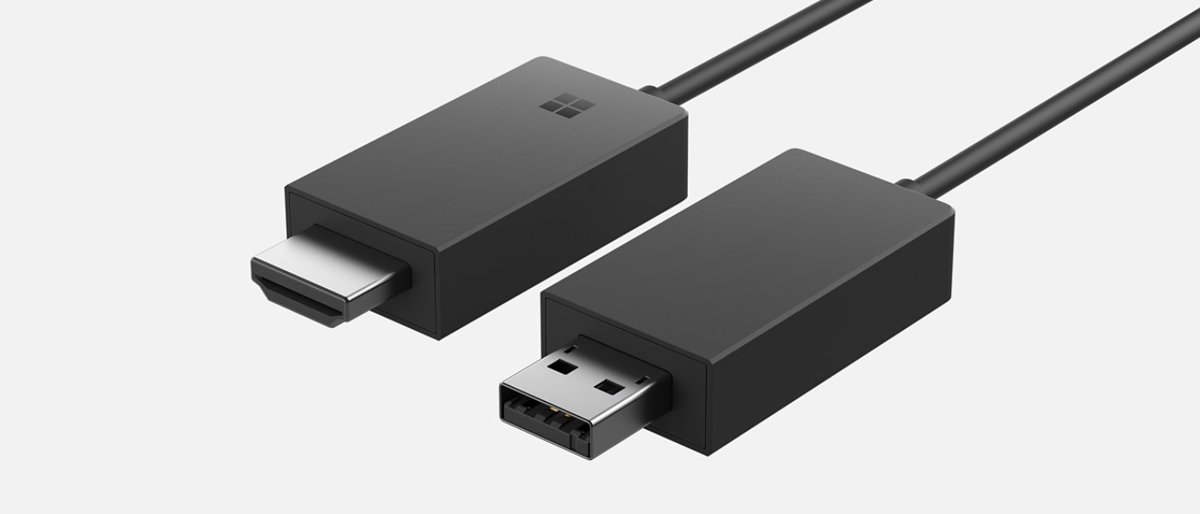
- If it has none, plug a Miracast adapter into an HDMI port and power the adapter's USB end.
- Set the display to the HDMI input that holds the adapter.
- Turn on the display's screen mirroring mode if it has one.
- Check that the display supports HDCP if you plan to play streaming video.
A Microsoft Wireless Display Adapter needs a USB port that provides at least 5W (5V/1A). A port wired to a wall outlet gives the most stable connection, and you can set up the Microsoft Wireless Display Adapter from scratch if it has never connected.
3. Install the Wireless Display app
Do this on the PC that receives the screen. The PC that sends the picture can cast to a TV without it.
- On the receiving PC, select Start > Settings > System > Projecting to this PC.
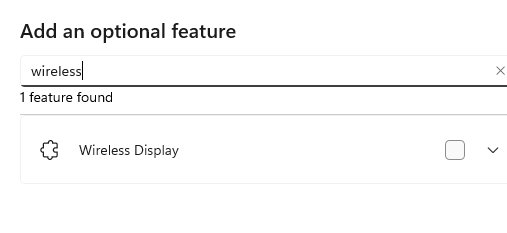
- Under Add the "Wireless Display" optional feature to project to this PC, select Optional features.
- Next to Add an optional feature, select View features and enter
wireless display. - Check Wireless Display, select Next, then select Install.
- Return to Projecting to this PC and set the PC so it can be discovered.
- Search for wireless display on the taskbar and open Wireless Display. Keep it open while the other PC connects.
The Wireless Display app runs on Windows 11, version 22H2 and later. On earlier versions, including Windows 10, search for Connect and open the Connect app instead.
4. Update device drivers and firmware
Windows Update delivers most graphics and network drivers. Device Manager can check again when Windows Update finds nothing.
- Select Start > Settings > Windows Update > Check for updates and install what it finds.
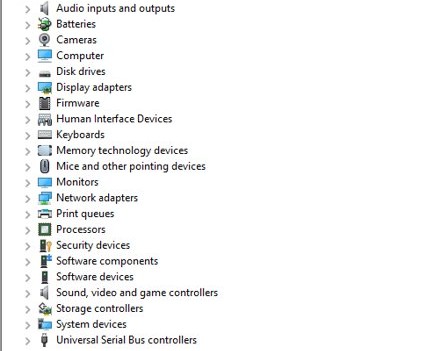
- Right-click Start and select Device Manager.
- Expand Display adapters, right-click the graphics adapter and select Update driver.
- Select Search automatically for updated driver software. If nothing is found, select Search for updated drivers on Windows update, then Close.
- Expand Network adapters and repeat the same steps for the Wi-Fi adapter.
- Update the TV, adapter or dock firmware from its maker's website or its app in Microsoft Store.
- Restart the PC and press Windows logo key + K again.
Take drivers only from Windows Update or the PC maker's own site. You can also update the graphics driver straight from Intel, AMD or NVIDIA.
5. Restart devices
A restart ends a session that closed badly and resets the Wi-Fi Direct link on both sides.
- Save your work and select Start > Power > Restart on the PC.
- Turn the TV or projector off and on with its power button.
- For a Miracast adapter, unplug its USB end, wait a few seconds and plug it back in.
- For a receiving PC, restart it and open the Wireless Display app again.
- Press Windows logo key + K on the sending PC and select the display.
6. Remove and reconnect the device
Windows remembers each wireless display it has paired with. A corrupt saved pairing stops the display from connecting even though it appears in the list.
- On Windows 11, open Settings > Bluetooth & devices > Devices.
- Under Wireless displays & docks, select the display or adapter, then select More options > Remove device and confirm with Yes.
- On Windows 10, open Settings > Devices, select the display and select Remove device.
- Select Add device, then select Wireless display or dock.
- Select the display and enter a PIN if the display shows one.
Verify Wi-Fi, Bluetooth, and network requirements
Miracast uses Wi-Fi Direct, not Bluetooth. Bluetooth matters only because Windows 11 lists wireless displays on the Bluetooth & devices page and offers Swift Pair pop-ups for the Microsoft 4K adapter.
| Requirement | What to check | Where |
|---|---|---|
| Wi-Fi radio on | Wi-Fi is on and Airplane mode is off | Taskbar quick settings |
| 2.4 GHz band available | The adapter's Band value is Auto, not 5 GHz only, while pairing a Microsoft adapter | Device Manager > Wi-Fi adapter > Advanced |
| Bluetooth | Not needed for Miracast; turn on Show notifications to connect using Swift Pair only for 4K adapter pop-ups | Settings > Bluetooth & devices |
| Distance | PC within 23 feet (7 m) of the display | Room layout |
| Proxy server | No proxy server for internet access when using the Microsoft adapter | Network & internet settings |
| Miracast over Wi-Fi | 5 GHz home network secured with WPA, WPA2 or WPA3; enterprise sign-in networks are not supported | Router settings; Microsoft 4K adapter only |
Set the Wi-Fi adapter band for Miracast on Windows 11
A Microsoft Wireless Display Adapter talks on 2.4 GHz or 5 GHz, but pairing needs the 2.4 GHz band enabled on the PC. Auto keeps both bands open.
- Search for device manager on the taskbar and open Device Manager.
- Expand Network adapters, right-click the Wi-Fi adapter and select Properties.
- Select the Advanced tab. If it is missing, select Change Settings and enter an administrator password.
- Under Property, select Band.
- Under Value, select Auto, then select OK.
- Press Windows logo key + K and pair the display again.
Some adapters name the setting Wireless Mode instead of Band.
Update or reinstall graphics and wireless drivers
Reinstall the driver when an update changes nothing. Save a copy of the Wi-Fi driver from the PC maker first, because the PC loses wireless access if Windows cannot reinstall it.
- Search for device manager on the taskbar and open Device Manager.
- Expand Network adapters, right-click the Wi-Fi adapter and select Properties.
- On the Driver tab, note Driver Version and Driver Date, then compare them with the PC maker's support page.
- Select Uninstall device, check Attempt to remove the driver for this device, and select Uninstall.
- Expand Display adapters, right-click the graphics adapter and select Uninstall device.
- Select Start > Power > Restart. Windows reinstalls both drivers at startup.
- Open Settings > Bluetooth & devices, select Add device > Wireless display or dock, and reconnect.
If casting broke right after a driver update, open the same Driver tab and select Roll Back Driver and Yes instead of uninstalling.
Use Windows Settings and built-in troubleshooters
Windows has no dedicated Miracast troubleshooter. The Get Help app on Windows 11 runs the network diagnostics that cover the Wi-Fi side of a cast.
- Open the Get Help app.
- In the search bar, enter connect to network and internet.
- Select Run network diagnostics and apply the fixes it suggests.
- For a cast that connects but shows broken video, search Get Help for Video playback troubleshooter and select Start.
- Open Settings > System > Projecting to this PC on a receiving PC and confirm it is set to be discovered.
- Open Settings > Windows Update and install pending updates.
The same Get Help app hosts the other Windows diagnostics, and Settings lists the remaining troubleshooters too.
Allow Miracast through Windows Firewall on Windows 11
Windows Firewall can block Miracast traffic. Give Wireless Display access instead of turning the firewall off.
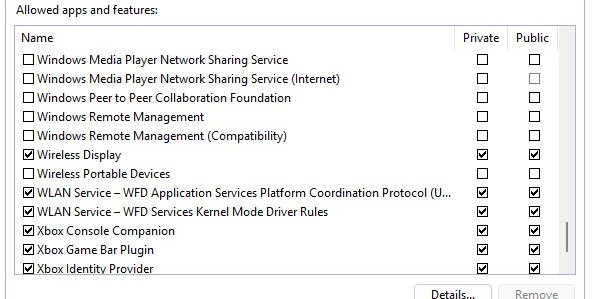
- Search for allow firewall on the taskbar and open Allow an app through Windows Firewall.
- If the list is greyed out, select Change Settings and enter an administrator password.
- Under Name, find Wireless Display.
- Check both Private and Public for it.
- Select OK and press Windows logo key + K to try again.
Reset network components and wireless display features
Microsoft calls network reset the last step to try. It removes every network adapter and its settings, then reinstalls the adapters with default settings after a restart.
- Select Start, enter settings, and open Settings > Network & internet.
- On Windows 11, select Advanced network settings > Network reset. On Windows 10, select Status > Network reset.
- Select Reset now, then select Yes.
- After the restart, reconnect to your Wi-Fi network.
- Remove the wireless display from Wireless displays & docks and pair it again.
- On a receiving PC, open Optional features and confirm Wireless Display is still installed. Install it again from View features if it is missing.
Reinstall VPN software or Hyper-V virtual switches afterwards if you use them. A network settings reset can also set known networks to the public profile, which hides a receiving PC from others.
Fix common Miracast errors and connection failures
Windows says to connect an external display with a cable
The PC lacks Miracast support, usually because of an old graphics or Wi-Fi driver.
- Check
DxDiag.txtfor the Miracast line. - Update both drivers with step 4.
- If support is still missing, connect the display with an HDMI cable.
The display or PC does not appear in the Cast list
The receiver is off, lacks Miracast, or is a PC that is not discoverable.
- Turn the display on and select the adapter's HDMI input.
- On a receiving PC, set Projecting to this PC to be discovered and open the Wireless Display app.
- Move the PC within 23 feet (7 m) of the display.
- Press Windows logo key + K again.
Miracast can't connect after you select the display
A stale pairing, a firewall block or a 5 GHz-only Wi-Fi adapter stops the handshake.
- Remove the display and reconnect it with step 6.
- Allow Wireless Display through Windows Firewall.
- Set the Wi-Fi adapter Band to Auto.
- Hold a Microsoft adapter's reset button for 10 seconds until the LED blinks, then connect when Ready to connect appears.
Connected, but nothing shows on the TV
Windows is in the wrong projection mode, or the display is on the wrong input.
- Press Windows logo key + P and select Duplicate or Extend.
- Set the display to the HDMI input that holds the adapter.
- Unplug the adapter's USB end and plug it back in.
- Update the adapter firmware from its app under Update & security.
Miracast is blocked on a work or school PC
Group Policy can block Miracast on domain-joined PCs.
- Press Windows logo key + R, type
rsop.mscand press Enter. - Open Computer Configuration > Windows Settings > Security Settings > Wireless Network (IEEE 802.11) Policies.
- Open the wireless policy and select the Network Permissions tab.
- Check whether Allow everyone to create all user profiles is selected, and send the result to your IT admin.
If a connection still fails, read the Wlanautoconfig events in Event Viewer. Windows logs Miracast there, and the errors show where the connection stops.
Additional considerations
| Limit | What it means for you |
|---|---|
| Windows 10 support ended on October 14, 2025 | Miracast still works, but driver and Windows fixes now target Windows 11 |
| One display at a time | A Microsoft Wireless Display Adapter serves one PC connection at a time |
| DFS Wi-Fi channels 49 through 148 | Some Wi-Fi drivers perform poorly on these channels; a non-DFS router channel can smooth the stream |
| 5 GHz versus 2.4 GHz | 5 GHz carries more bandwidth with less interference, so the picture is usually cleaner |
| Household interference | Microwave ovens, cordless phones and baby monitors can disrupt the link |
| HDMI to VGA converters | They weaken and distort the video signal from the adapter |
| Resolution | A display below 1080p sets the PC to its own lower resolution while connected |
If the picture connects and then drops after a few minutes, the causes differ, and the fixes for Miracast disconnecting randomly cover power saving and channel changes.
How to tell if Miracast is working on Windows 11
- Press Windows logo key + K, select the display, and wait for your desktop to appear on it.
- Press Windows logo key + P and switch between Duplicate and Extend. The TV should follow each change.
- Play a video and check that picture and sound both reach the display.
- Open Settings > Bluetooth & devices > Devices. The display is listed under Wireless displays & docks.
Miracast no sound or video on TV from Windows 11
Video plays on the TV, but sound stays on the PC
Windows is sending sound to a different output.
- Search for sound on the taskbar and open Sound settings.
- Under Choose where to play sound, select the output you want.
- Check that the TV volume is up and not muted.
Netflix, YouTube or Amazon video will not play over Miracast
Protected video needs HDCP on both the PC and the display.
- Close and reopen or refresh the video app.
- Disconnect from the display, restart the PC and reconnect.
- Check
DxDiag.txtfor Available, with HDCP. - On the Microsoft 4K Wireless Display Adapter, turn on Enable HDCP in its app.
Miracast video is pixelated or the audio stutters
Distance, radio interference or a crowded Wi-Fi channel slows the stream.
- Move the PC closer to the display.
- Move the adapter away from microwave ovens, cordless phones and baby monitors.
- Plug the adapter in straight, using the HDMI extension cable if the port is cramped.
- Set the router to a less crowded, non-DFS channel.
Video plays on the PC but is frozen on the TV
The adapter session has stalled.
- Select Network on the taskbar, select Cast, select the adapter and select Disconnect.
- Unplug both ends of the adapter and plug them in again.
- Select Cast again and choose the adapter.
What fixes most Miracast connection issues on Windows
Check DxDiag first, then update both the graphics and Wi-Fi drivers before you try anything else. Most Miracast connection failures trace back to missing support or an outdated driver, and DxDiag tells you in one line which of the two you face. A network reset comes last, because it wipes every adapter setting.
Miracast on Windows 10 and 11 FAQ
Why is Miracast not working on Windows 11?
The usual causes are Wi-Fi being off, a display without Miracast support, outdated graphics or Wi-Fi drivers, or a stale saved pairing. Turn on Wi-Fi, update both drivers, restart both devices, remove the display in Settings and reconnect with Windows logo key + K.
Does Windows 11 support Miracast?
Yes. Windows 11 includes a built-in Miracast stack, but the PC still needs a WDDM 2.0 or newer graphics driver and a Wi-Fi adapter that supports Wi-Fi Direct. Search DxDiag.txt for Miracast to see the status of your own PC.
How do I enable Miracast on Windows 11?
A supported PC needs nothing switched on beyond Wi-Fi: press Windows logo key + K and pick the display. To let a Windows 11 PC receive a screen, install the Wireless Display optional feature from Settings > System > Projecting to this PC.
Is there a Miracast download for Windows 11?
No separate Miracast download exists, because Windows ships its own Miracast stack. The only related install is the Wireless Display optional feature, which Windows adds from Settings when a PC needs to receive a projected screen.
Is there a Miracast driver for Windows 11?
No single Miracast driver exists. Miracast relies on your graphics driver, which must be WDDM 2.0 or higher, and on your Wi-Fi driver. Update both through Windows Update, Device Manager or your PC maker's support site.
What is Miracast on Windows 11?
Miracast is a wireless display standard based on Wi-Fi Direct. It creates a peer-to-peer link between the PC and a TV, monitor or adapter, so Windows can project the screen without a cable or a router in between.
How do I Miracast Windows 11 to a TV?
Turn on the TV and plug in a Miracast adapter if it needs one. Press Windows logo key + K on the PC and select the TV. Then press Windows logo key + P to choose Duplicate or Extend.
How do I fix a wireless display connection on Windows 10?
Open the Connect app to confirm Miracast support, turn on Wi-Fi, update the graphics and Wi-Fi drivers, and restart the PC and display. Then remove the display from the Devices section of Settings and reconnect it with Windows logo key + K.