To disable memory compression in Windows 11 or Windows 10, run Disable-MMAgent -MemoryCompression in an elevated PowerShell window, and run Enable-MMAgent -MemoryCompression to turn it back on.
This guide covers both commands, how to check the current state, what the compression store does, and what to try when memory compression uses a lot of RAM.
How to disable memory compression in Windows 11 and Windows 10
Memory compression is controlled by the Memory Manager agent, and the MMAgent PowerShell module is the supported way to change it. There is no switch for it in the Settings app.
- Right-click the Start button.
- Select Terminal (Admin) on Windows 11, or Windows PowerShell (Admin) on Windows 10.
- Select Yes in the User Account Control prompt.
- Type
Disable-MMAgent -MemoryCompressionand press Enter. - Type
Get-MMAgentand press Enter to read the new state. - Restart the PC so Windows starts without a populated compression store.
The command returns no message when it succeeds. A red error usually means the window is not running as administrator.
How to enable memory compression in Windows 11 and Windows 10
Memory compression is on by default in Windows 10 and Windows 11. Use this command if you or a tuning script turned it off and you want the default behaviour back.
Enable-MMAgent -MemoryCompressionRun it in an elevated PowerShell or Terminal window. The -MemoryCompression switch (alias -mc) tells the Memory Manager agent to compress unused pages again instead of writing them to the page file.
You should see: No output on success. Run Get-MMAgent afterwards and confirm that MemoryCompression reads True, then restart the PC.
How to check memory compression status with Get-MMAgent
Get-MMAgent reports which Memory Manager agent features are on. It does not change anything, so it is safe to run at any time.
Get-MMAgentLists the state of application launch prefetching, application prelaunch, the operation recorder API, page combining and memory compression, plus the maximum number of prefetch files for operation recorder scenarios.
You should see: MemoryCompression : True means compression is on. MemoryCompression : False means it is off.
Run the same command after a restart. If the value flips back, a script, management tool or work policy is setting it again.
Should you disable memory compression? Decision table
| Your situation | What to do | Why |
|---|---|---|
| Home PC with 8 GB of RAM or less | Leave memory compression on | Compressed pages stay in RAM instead of going to the page file on disk |
| Task Manager shows high memory use but the PC feels fine | Leave it on | The store grows exactly when Windows is freeing memory for other apps |
| You are testing performance or troubleshooting a specific app | Disable it, test, then compare | A before-and-after test shows whether compression matters on that machine |
| A tuning script turned it off and you did not ask for that | Run Enable-MMAgent -MemoryCompression | It returns Windows to its default memory behaviour |
| Work or school PC | Leave it as IT set it | Management tools can reapply their own setting after your change |
What is memory compression in Windows 11 and Windows 10?
Microsoft added memory compression to Windows 10 as a new part of the Memory Manager called the compression store. It is an in-memory collection of compressed pages.
When RAM runs short, Windows compresses pages that apps are not using instead of writing them to disk. Windows 11 keeps the same design.
| Fact | Detail |
|---|---|
| Where it lives | The compression store sits in the working set of the System process |
| What it does | Compresses unused memory pages rather than paging them out to disk |
| Main effect | Lowers the memory used per process, so more apps stay in physical memory at once |
| Stated benefit | Better responsiveness across Windows, according to Microsoft |
| Why System looks large | The store grows exactly when memory is being freed for other processes, so the System or Memory Compression entry in Task Manager can look big |
| Default state | On in Windows 10 and Windows 11 |
| Control | Enable-MMAgent, Disable-MMAgent and Get-MMAgent with the -MemoryCompression switch |
What is the memory compression process in Task Manager?
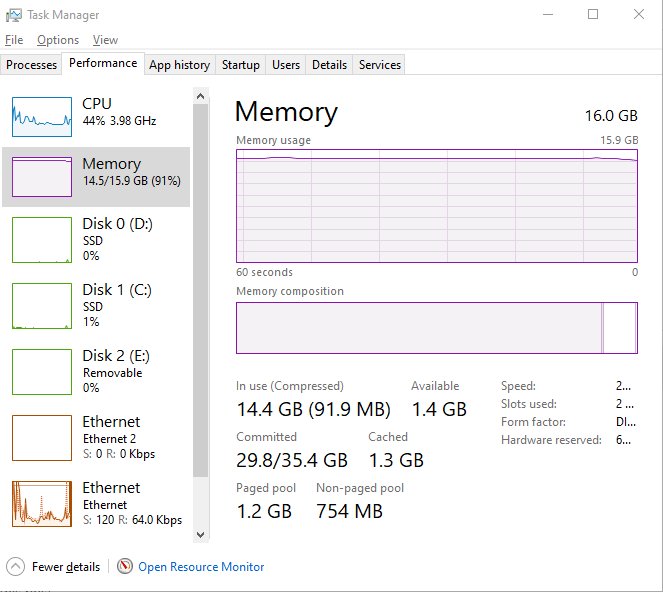
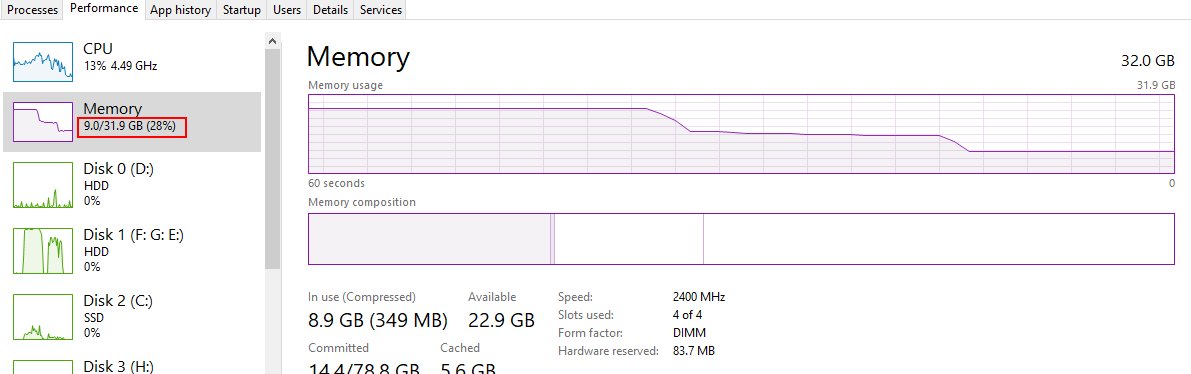
The memory compression process is the visible owner of the compression store, and you can watch its size when you open Task Manager. Its memory figure is compressed data that would otherwise be in the page file, not a leak.
| What you see | What it means | Action |
|---|---|---|
| Memory Compression or System using hundreds of MB | The store is holding compressed pages from idle apps | None needed |
| The figure rises when you open more apps | Windows is compressing pages to keep those apps in RAM | Close apps you are not using if the PC slows down |
| The figure drops after closing apps or restarting | Compressed pages were freed or no longer needed | None needed |
| The entry is gone after you disabled compression | No compression store is in use | Run Enable-MMAgent -MemoryCompression to restore it |
Memory compression and page combining: related MMAgent settings
The MMAgent module controls several memory features besides compression. Each switch changes only its own feature, so you can turn one off and leave the rest alone.
| Switch | Feature | What it does |
|---|---|---|
| -MemoryCompression | Memory compression | Compresses unused pages in RAM instead of writing them to disk |
| -PageCombining | Page combining | Periodically combines pages in physical memory that have identical content |
| -ApplicationLaunchPrefetching | Launch prefetching | Preloads the code and data an app used last time to speed up its next start |
| -ApplicationPreLaunch | App prelaunch | Speculatively launches apps you are likely to open soon to cut switch time |
| -OperationAPI | Operation recorder API | Exposes the Windows prefetching mechanism to apps that repeatedly read the same file data |
Combine switches in one command if you need to, for example Disable-MMAgent -MemoryCompression -PageCombining. Use the matching Enable-MMAgent command to reverse it.
Fix memory compression using high RAM in Windows 11
Memory compression is using so much RAM
The store holds compressed pages from apps that are open but idle, so its size tracks how much you have open.
- Press Ctrl + Shift + Esc to open Task Manager.
- Select Processes and sort by the Memory column.
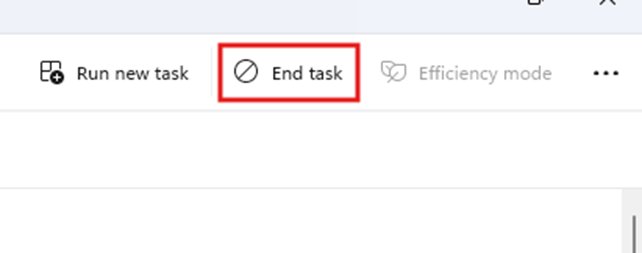
- Right-click apps you are not using and select End task.
- Close spare browser tabs, which often hold the most idle memory.
- Restart the PC if memory use stays high after closing apps.
Memory compression high RAM usage with a slow PC
Windows is compressing pages because the open workload needs more RAM than the PC has, so check how much RAM is installed before changing memory settings.
- Open Task Manager and select Startup apps.
- Select apps you do not need at sign-in and select Disable.
- Restart the PC and open only the apps you need.
- Compare speed with compression off by running
Disable-MMAgent -MemoryCompression, restarting, and repeating the same workload. - Run
Enable-MMAgent -MemoryCompressionagain if the PC is no faster without it.
Memory compression turns back on after a restart
A script, optimisation tool or device management policy reapplies its own setting.
- Run
Get-MMAgentand note the MemoryCompression value. - Remove or disable the tuning tool that changed memory settings.
- On a work or school PC, ask IT whether memory settings are managed.
- Run
Disable-MMAgent -MemoryCompressionagain and restart.
Windows memory compression FAQ
How do I disable memory compression in Windows 11?
Open Terminal (Admin) from the Start button's right-click menu and run Disable-MMAgent -MemoryCompression. Run Get-MMAgent to confirm that MemoryCompression reads False, then restart the PC so Windows starts with no compression store.
How do I enable memory compression?
Run Enable-MMAgent -MemoryCompression in an elevated PowerShell or Terminal window. The command prints nothing on success, so run Get-MMAgent afterwards and check that MemoryCompression reads True, then restart the PC.
How do I check if memory compression is on?
Run Get-MMAgent in PowerShell. The MemoryCompression line reads True when compression is on and False when it is off. The command only reports state, so it is safe to run on any PC at any time.
What is memory compression in Windows?
Memory compression is a Memory Manager feature that keeps a compression store of compressed pages in RAM. Instead of writing unused pages to disk, Windows compresses them, which lowers memory use per process and keeps more apps in physical memory.
What does memory compression do?
It compresses memory pages that apps are not actively using and keeps them in RAM rather than paging them out to disk. Microsoft states the goal is to keep more apps in physical memory and improve responsiveness across Windows.
What is the memory compression process?
It is the Task Manager entry that owns the compression store. The store lives in the System process working set, so its memory figure grows when Windows compresses idle pages to free memory for other apps.
Why is memory compression using so much RAM?
The store grows when Windows compresses pages from idle apps, which happens exactly when memory is needed elsewhere. A large figure usually means many apps or browser tabs are open. Closing unused apps shrinks it.
Is memory compression good for gaming?
Memory compression helps when a game and background apps need more RAM than the PC has, because idle pages are compressed instead of written to disk. On a PC with ample free RAM there is little to compress, so it has little effect.
Does memory compression affect performance?
Microsoft designed it to improve responsiveness by keeping more data in RAM. The only reliable answer for one PC is a test: run the same workload with compression on and off, restarting after each change. If the PC still freezes or crashes under load, test the RAM with Windows Memory Diagnostic.
Is memory compression on by default in Windows 10 and Windows 11?
Yes. Memory compression is on by default in Windows 10 and Windows 11. If Get-MMAgent shows MemoryCompression as False, someone or some tool turned it off, and Enable-MMAgent -MemoryCompression restores it.
Bottom line: should you turn off memory compression?
Leave memory compression on unless a before-and-after test on your own PC shows a clear gain with it off. It keeps idle pages in RAM instead of on disk, it is the Windows default, and a large Memory Compression figure in Task Manager is the feature doing its job rather than a fault. Disable-MMAgent and Enable-MMAgent make the test easy to reverse.


![How to see clipboard history in Windows 11/10[Complete guide]](https://techdows.com/wp-content/uploads/2026/10/How-to-See-Clipboard-History-in-Windows-1110Complete-Guide-600x338.jpg)