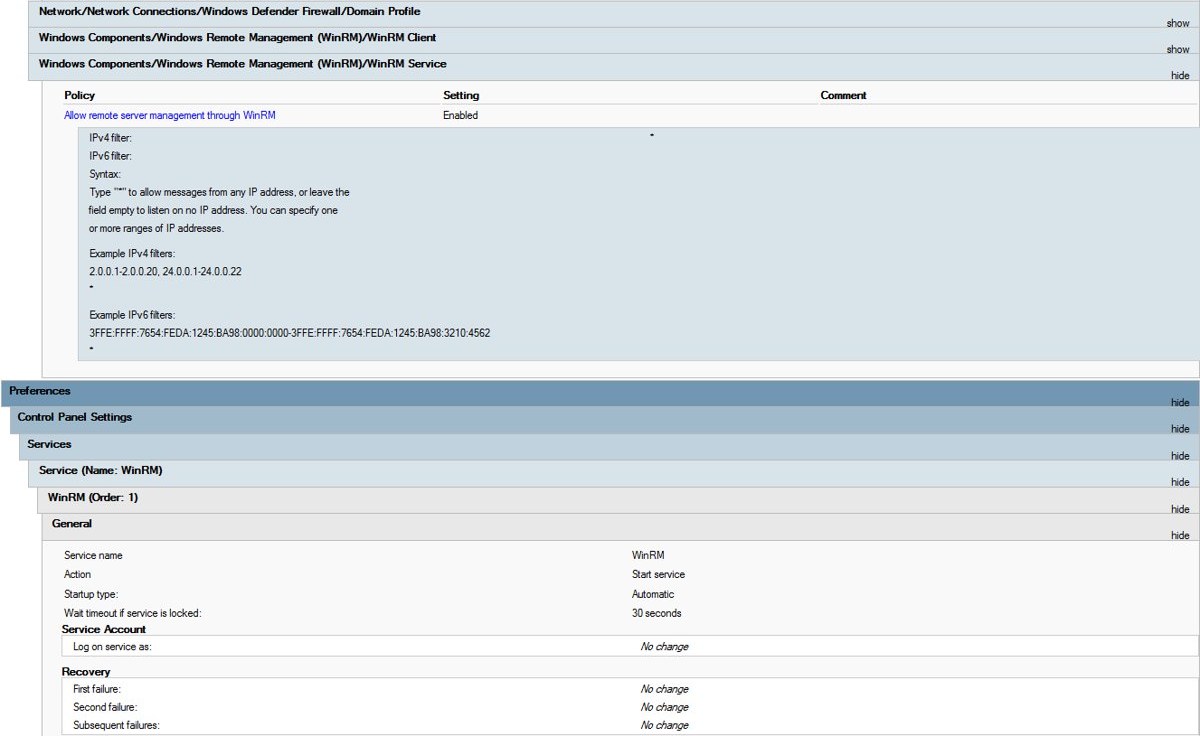
To enable WinRM and PowerShell remoting with Group Policy, link a GPO that turns on Allow remote server management through WinRM, opens TCP port 5985 in the firewall, and sets the WinRM service to start automatically.
This guide covers each of those three settings, the manual Enable-PSRemoting route for a single PC, how to check the result on client computers, and the errors you are likely to hit.
Enable WinRM and PSRemoting on Windows machines via Group Policy
Run these steps on a domain controller or an admin workstation with the Group Policy Management Console (GPMC) installed. Your account needs rights to create Group Policy objects and link them to an organizational unit (OU).
Windows client editions ship with the WinRM service disabled and no listener, so all three settings are needed on Windows 10 and Windows 11 PCs.
- Open Group Policy Management, right-click Group Policy Objects and select New.
- Name the GPO, for example
WinRM - Enable PowerShell remoting, and select OK. - Right-click the new GPO and select Edit to open the Group Policy Management Editor.
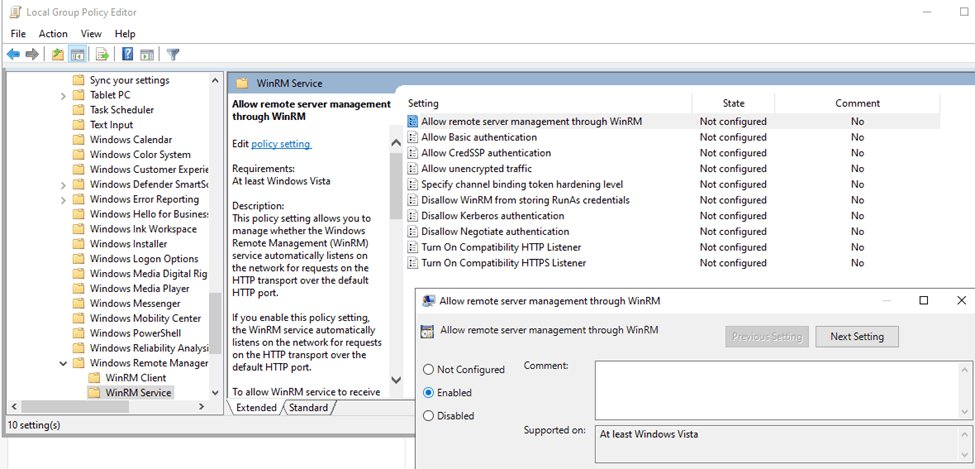
- Go to Computer Configuration > Policies > Administrative Templates > Windows Components > Windows Remote Management (WinRM) > WinRM Service and enable Allow remote server management through WinRM with
*in both filter boxes. - Go to Computer Configuration > Policies > Windows Settings > Security Settings > Windows Firewall with Advanced Security and add an inbound rule that allows TCP port 5985.
- Under Computer Configuration > Preferences > Control Panel Settings, add a service item that sets the WinRM service to start automatically and starts it.
- Close the editor, then link the GPO to the OU that holds the target computers.
- On a target PC, run
gpupdate /forceor wait for the next background refresh, then test it withTest-WSMan.
Test the GPO on a small OU first. Each setting is explained in its own section below, with the exact options to pick.
Allow remote server management through WinRM policy
This policy creates the WinRM listener. Older templates and some Microsoft pages call it Allow automatic configuration of listeners; it is the same setting, stored as AllowAutoConfig under HKLM\Software\Policies\Microsoft\Windows\WinRM\Service.
If the policy is disabled or not configured, the WinRM service does not answer remote requests, whatever listeners exist.
- In the GPO, open Computer Configuration > Policies > Administrative Templates > Windows Components > Windows Remote Management (WinRM) > WinRM Service.
- Double-click Allow remote server management through WinRM.
- Select Enabled.
- Type
*in the IPv4 filter box so the service listens on every IPv4 address of the computer. - Type
*in the IPv6 filter box, or leave it empty to listen on IPv4 only. - Select OK.
To narrow it down, enter ranges in the form IP1-IP2 separated by commas, such as 10.0.0.1-10.0.0.50. When * is present, other ranges in that box are ignored, and an empty box means no addresses at all.
Open WinRM port 5985 in Windows Firewall with Group Policy
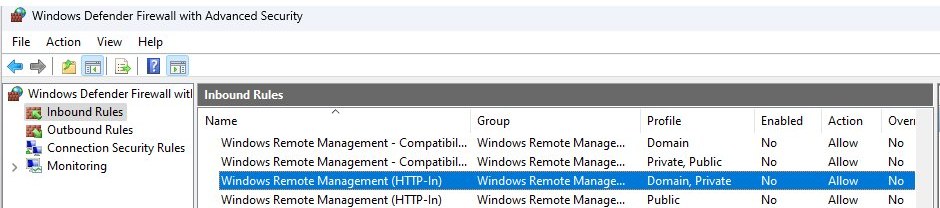
The listener policy does not open the firewall. Microsoft's policy text says to add an inbound firewall exception for port 5985, the default WinRM HTTP port.
- In the GPO, expand Computer Configuration > Policies > Windows Settings > Security Settings > Windows Firewall with Advanced Security.
- Select Inbound Rules, then select Action > New rule.
- On the Rule Type page, select Custom and then Next.
- On the Program page, select All programs and then Next.
- On the Protocol and Ports page, set the protocol to TCP, enter
5985as the local port, and select Next. - On the Scope page, limit the remote IP addresses to your admin subnet if you can, then select Next.
- On the Action page, select Allow the connection and then Next.
- On the Profile page, tick Domain (and Private if needed), then name the rule
WinRM HTTP 5985and select Finish.
An older alternative is the Windows Firewall: Allow local port exceptions policy under Computer Configuration > Administrative Templates > Network > Network Connections > Windows Firewall > Domain Profile, which lets local administrators create the WinRM exception themselves. If you use HTTPS listeners instead, open TCP 5986.
Set the WinRM service to Automatic with Group Policy
On Windows Server the WinRM service already starts automatically. On Windows 10 and Windows 11 it is disabled by default, so the GPO has to switch it on.
- In the GPO, expand Computer Configuration > Preferences > Control Panel Settings.
- Right-click Services and create a new service item.
- Pick
WinRM(display name Windows Remote Management (WS-Management)) as the service. - Set the startup type to Automatic.
- Set the service action to start the service, then select OK.
Without a GPO, the same change can be pushed from PowerShell with Invoke-CimMethod and the Win32_Service ChangeStartMode method, which accepts several computer names at once.
How to manually enable WinRM and PowerShell remoting in Windows
For one PC, or a test machine before you build the GPO, a single command does all three jobs. Run PowerShell as administrator first, or it fails with Access is denied.
Enable-PSRemoting starts WinRM, sets it to Automatic, creates a listener on every IP address, adds the firewall exception, and registers the PowerShell session endpoints.
Enable-PSRemoting -ForceConfigures the computer to receive PowerShell remote commands over WS-Management. -Force skips the confirmation prompts. Run it in Windows PowerShell to cover Windows PowerShell endpoints; running it in PowerShell 7 only adds PowerShell 7 endpoints.
You should see: The command returns without an error, and New-PSSession then opens a session to localhost in the Opened state.
winrm quickconfig (short form winrm qc) from an elevated Command Prompt does the WinRM part only: it starts the service, creates the listener and adds the firewall exception. Type y at Make these changes [y/n]?. For an HTTPS listener, run winrm quickconfig -transport:https and open port 5986.
Checking WinRM settings on client computers
Run these from an elevated PowerShell window on a client that should have the GPO, or from your admin PC against it.
- Run
gpupdate /forceon the client to force a Group Policy update now. - Run
gpresult /r /scope computerand look for your WinRM GPO under Applied Group Policy Objects. - Run
Get-Service WinRMand check that Status shows Running. - Run
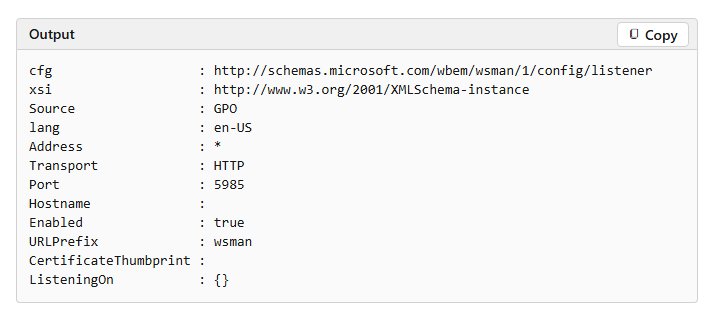
winrm enumerate winrm/config/listenerand check for an HTTP listener on port 5985 whose Source is GPO and whose ListeningOn lists the PC's addresses. - Run
winrm get winrm/configto see the full client and service configuration, including TrustedHosts and the IPv4 and IPv6 filters. - From your admin PC, run
Test-WSMan -ComputerName PC01(use the client's name). A reply instead of an error means the WinRM service on that PC is running and reachable over the network. - Run
Enter-PSSession -ComputerName PC01to open an interactive remote session, then typeexitto leave it.
What port does WinRM use?
WinRM 2.0 and later use their own ports instead of 80 and 443. These are the defaults that winrm quickconfig and Group Policy listeners use.
| Setting | Default | Notes |
|---|---|---|
| HTTP listener port | TCP 5985 | Traffic is still encrypted by default when Kerberos or Negotiate is used |
| HTTPS listener port | TCP 5986 | Needs a server certificate on the target |
| Compatibility HTTP listener | Off (port 80) | Turn On Compatibility HTTP Listener policy adds it |
| Compatibility HTTPS listener | Off (port 443) | Turn On Compatibility HTTPS Listener policy adds it |
| URL prefix | wsman |
Remote address takes the form http://PC01:5985/wsman |
| Service authentication | Kerberos and Negotiate on; Basic, CredSSP and Certificate off | Change these in the WinRM Service policy folder |
| Remote shell users per PC | 5 concurrent users | Set in the Windows Remote Shell policy folder |
Configure WinRM TrustedHosts with Group Policy
Kerberos handles authentication between domain computers. Workgroup PCs, computers in another domain, and connections made by IP address fall back to NTLM, so the client must either use HTTPS or list the target in TrustedHosts.
Computers on the TrustedHosts list are not authenticated, so keep the list as short as you can.
- In a GPO linked to your admin PCs, open Computer Configuration > Policies > Administrative Templates > Windows Components > Windows Remote Management (WinRM) > WinRM Client.
- Double-click Trusted Hosts and select Enabled.
- Enter a comma-separated list of computer names, IP addresses or wildcards, such as
server01, 10.0.0.25, *.fabrikam.com. - Select OK, then run
gpupdate /forceon the admin PC. - Run
Get-Item WSMan:\localhost\Client\TrustedHoststo see the list the client now uses.
On a single PC without a GPO, set it locally from an elevated prompt with Set-Item WSMan:\localhost\Client\TrustedHosts -Value server01. The value applies to every user of that computer.
WinRM not working after Group Policy
"The connection to the remote host was refused" or "The client cannot connect to the destination specified in the request"
The listener, the firewall rule or the service has not reached the target, or the listener policy has a filter error.
- On the target, run
gpresult /r /scope computerand confirm the WinRM GPO is listed as applied. - Run
Get-WSManInstance winrm/config/listener -Enumerateand check the ListeningOn value. - If ListeningOn is empty
{}, reopen Allow remote server management through WinRM and fix the IPv4 and IPv6 filters. - Run
Get-Service WinRMand start the service if it is stopped. - Check that the inbound TCP 5985 rule applies to the network profile the target is on.
"Access is denied" when connecting
The account is not allowed on the remote session endpoint, or the local shell is not elevated.
- Connect with an account in the remote PC's Administrators or Remote Management Users group.
- Pass other credentials with
Enter-PSSession -ComputerName PC01 -Credential Domain01\Admin01. - Start PowerShell with Run as administrator for loopback connections and WSMan: drive changes.
- To let standard users connect, run
Set-PSSessionConfiguration Microsoft.PowerShell -ShowSecurityDescriptorUIon the target and grant Execute permission.
"The WinRM client cannot process the request" when using an IP address
Kerberos does not work with IP addresses, so NTLM is used and the target must be trusted or reached over HTTPS.
- Connect by computer name instead of IP address where DNS allows it.
- Otherwise add the IP address to Trusted Hosts through the WinRM Client policy or
Set-Item WSMan:\localhost\Client\TrustedHosts. - Or set up an HTTPS listener on port 5986 on the target.
Enable-PSRemoting says "Unable to check the status of the firewall"
A client edition of Windows has a network connection set to Public, where remoting is blocked by default.
- Change the network to Private in Settings if it is a trusted network.
- Or run
Enable-PSRemoting -SkipNetworkProfileCheck -Forceto allow remoting from the same local subnet on public networks. - Run
Get-NetFirewallRule -Name 'WINRM*'to see the WinRM rules the command created.
How to disable WinRM with Group Policy
Removing the GPO link stops new computers from getting the settings, but listeners and services already configured can stay in place. Set the policies explicitly to switch remoting off.
- Edit the WinRM GPO and set Allow remote server management through WinRM to Disabled, so the service stops answering remote requests.
- Delete or disable the inbound TCP 5985 firewall rule in the same GPO.
- Change the WinRM service item to a Manual or Disabled startup type if nothing else on those PCs needs WinRM.
- Run
gpupdate /forceon a target and check withTest-WSMan -ComputerName PC01from your admin PC, which should now fail. - On a single PC set up by hand, run
Disable-PSRemoting -Forcein an elevated Windows PowerShell window.
Event forwarding and Windows Remote Shell (winrs) also depend on WinRM, so check those before you disable it on servers.
WinRM Group Policy FAQ
Is WinRM enabled by default in Windows?
WinRM is installed on every supported version of Windows, but no listener exists by default. PowerShell remoting is on by default on Windows Server 2012 and later, while Windows 10 and Windows 11 ship with the WinRM service disabled until you enable it.
Where is the WinRM policy in the Group Policy Editor?
Open Computer Configuration > Administrative Templates > Windows Components > Windows Remote Management (WinRM). The WinRM Service folder holds the listener and server authentication settings, and the WinRM Client folder holds Trusted Hosts and client authentication settings.
Do I need to run Enable-PSRemoting on the computer that sends commands?
No. Enable-PSRemoting is only needed on computers that receive remote commands. Any supported Windows PC can start a remote session without extra setup, so leave the listener off machines that never need to be managed remotely.
Can I use the local Group Policy Editor instead of a domain GPO?
Yes. Open the Local Group Policy Editor as an administrator and set the same policies under Computer Configuration > Administrative Templates > Windows Components. The settings then apply to that one PC only. The WinRM policies are available on Pro, Enterprise and Education editions.
Who can connect with PowerShell remoting?
Use an account in the remote computer's Administrators or Remote Management Users group, as Microsoft's remoting requirements state. The default Windows PowerShell endpoints admit Administrators only. Other users need Execute permission added to the session configuration with Set-PSSessionConfiguration.
Is WinRM over HTTP on port 5985 secure?
WinRM encrypts traffic by default when Kerberos or Negotiate authentication is used, and the service rejects unencrypted traffic and Basic authentication unless a policy allows them. HTTPS on port 5986 adds server certificate checks, which matter outside a domain.
How often does the WinRM GPO apply to client computers?
Computer policy applies at startup and then during the regular background refresh. Run gpupdate /force on a client to reapply every setting immediately, then check the result with gpresult /r /scope computer.