To update Razer Synapse 4, open the app and select the update prompt on its dashboard, or run the latest installer from Razer's Synapse 4 page to upgrade in place.
This guide covers both routes on Windows, the move from Synapse 3 to Synapse 4, the Mac preview, the beta channel and what to do when Synapse will not update or open.
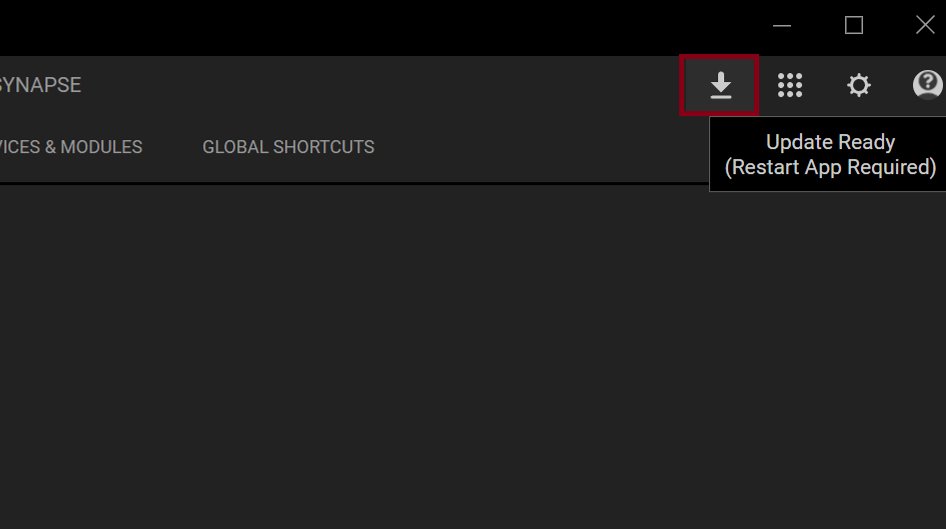
Update Razer Synapse via application interface
Razer installs Synapse updates automatically in the background, so a manual check is usually unnecessary. When a new update is ready, Synapse shows a prompt on its dashboard.
- Select Start, type Razer Synapse and open the app.
- Sign in with your Razer ID if Synapse asks for it.
- Look at the dashboard for an update prompt.
- Select the prompt and follow the on-screen instructions to install the update.
- Wait for Synapse to finish and reopen; your devices stay connected while each one updates.
No prompt on the dashboard means Synapse has nothing waiting. If you still want to be sure you run the newest build, install it over the top with the Razer installer described below.
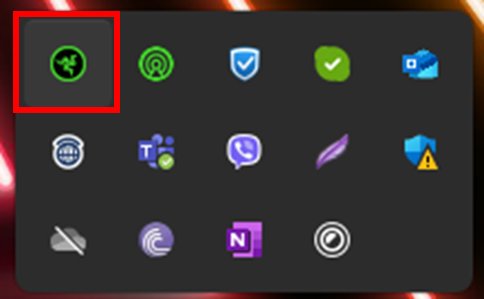
Update Razer Synapse via Windows system tray
Synapse keeps running in the background after you close its window, which is how it installs updates on its own. The notification area at the right end of the taskbar is the quickest way back into it.
Razer does not document a separate update command in the Synapse 4 tray menu. The tray icon is simply the fastest route to the dashboard, where the update prompt appears.
- Select the Show hidden icons arrow at the right end of the taskbar.
- Select the Razer Synapse icon to bring the app window back.
- Check the dashboard for an update prompt and select it if one is shown.
- Let the update finish before you unplug or switch any Razer device.
- If the icon is missing, Synapse is not running; open it from the Start menu instead.
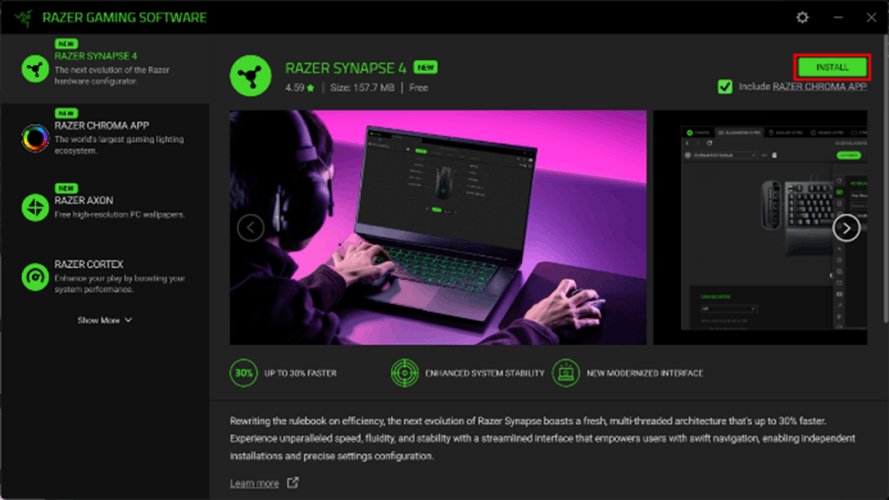
Update Razer Synapse via Razer gaming software installer
Razer's own installer is labelled for both installing and upgrading. Running the current build over an existing copy updates Synapse 4 to the latest release, which is the reliable route when the dashboard prompt never appears.
- Go to razer.com/synapse-4 and select Download for Windows.
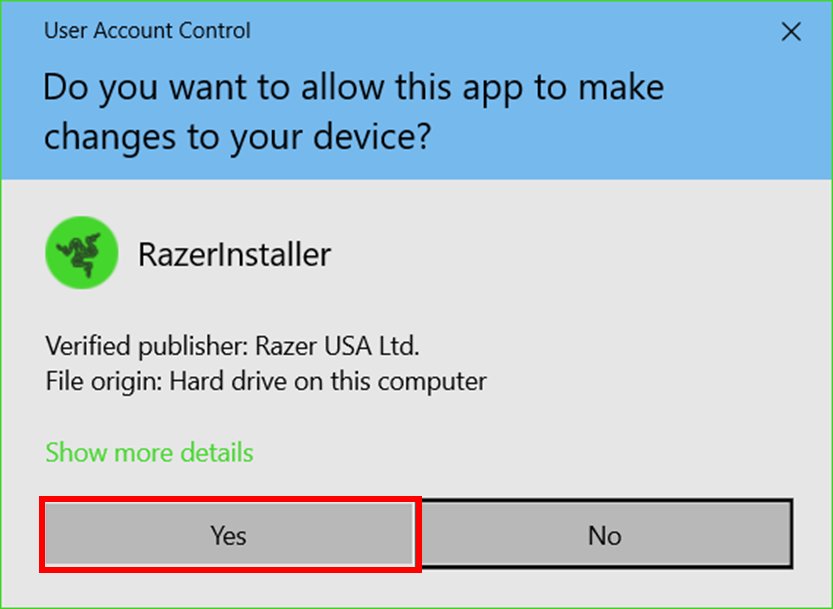
- Run the downloaded installer and select Yes in the User Account Control window.
- Select CONTINUE to accept the Razer Software License Agreement.
- Select INSTALL. The Include RAZER CHROMA APP option is checked by default; clear it if you do not want the Chroma app.
- Skip or accept any extra app suggestions that pop up.
- Sign in with your Razer ID to continue; the install can take a few minutes.
- Wait for Razer Synapse 4 to launch on its own when the upgrade is done.
Synapse 4 needs a 64-bit copy of Windows 10 or Windows 11, a Razer ID, licence acceptance and an internet connection for full features and software updates. You can also download Razer Synapse and compare the Windows and Mac builds before you install.
How to update Razer Synapse 3 to Synapse 4
Synapse 3 now sits on a legacy page that points to Synapse 4, so its updates have effectively ended. Synapse 4 is backwards compatible with Synapse 3 devices, and installing it removes Synapse 3 automatically.
- Plug in the Razer devices whose profiles you want to keep and sign in to Synapse 3 with your Razer ID.
- Download Synapse 4 from razer.com/synapse-4 and run the installer.
- Complete the install with CONTINUE, INSTALL and your Razer ID sign-in; Synapse 3 is uninstalled during this step.
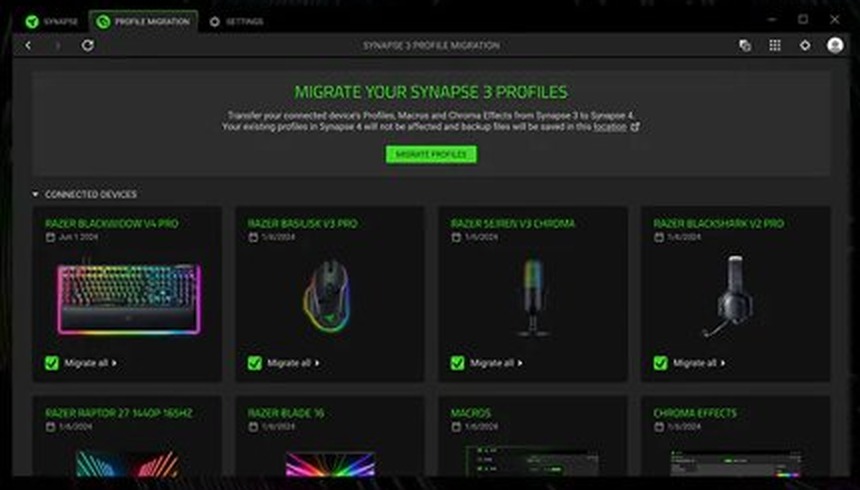
- Open the Profile Migration tool when Synapse 4 detects your Synapse 3 profiles.
- Move every profile across in one click, or pick only the profiles, macros and Chroma effects you want to keep.
Enable automatic Razer Synapse updates
Automatic updates are how Synapse 4 is designed to work, and Razer does not publish a separate on/off switch for them. What keeps them flowing is the set of conditions below.
| What automatic updates depend on | Why it matters | What to do |
|---|---|---|
| Synapse running in the background | Updates install in the background, not while the app is closed | Leave Synapse running in the notification area instead of quitting it |
| An internet connection | Razer lists it as a requirement for software updates | Stay online after you sign in |
| A Razer ID sign-in | Required to activate full features and updates | Sign in rather than staying signed out |
| Firewall and antivirus rules | A blocked app cannot reach Razer's update servers | Allow Razer Synapse in your firewall or security app instead of turning protection off |
| A supported Windows build | Synapse 4 is built for 64-bit Windows 10 and Windows 11 | Move off 32-bit Windows before you install |
Can you update Razer Synapse on the Mac?
Yes, if your Mac has Apple silicon and runs macOS 15 Sequoia or later. Razer Synapse for Mac is still a preview build, and Intel Macs are not supported.
Razer's Mac instructions cover install and upgrade with the same download, so running the current installer is how you update it.
- Go to razer.com/synapse-4-mac and select Download Now.
- Run the installer when the download finishes and follow the on-screen instructions.
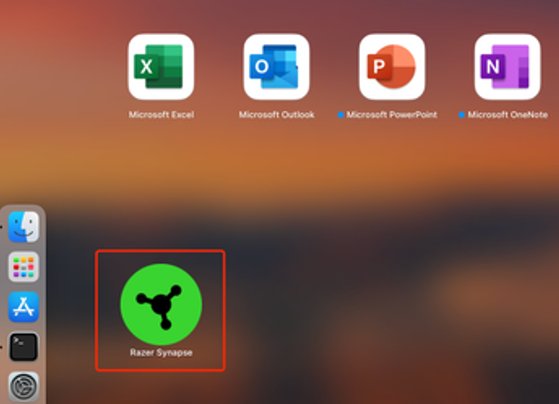
- Open Launchpad and select the Razer Synapse icon.
- Log in with your Razer ID, or select Continue as guest.
- Sign in with your Razer ID if you want profiles to sync across devices through the cloud.
Razer Synapse is now up-to-date
An up-to-date copy of Synapse shows no pending update and runs your devices normally. Check these three things once the update finishes.
- Open Razer Synapse and confirm the dashboard no longer shows an update prompt.
- Check that every connected Razer device is listed on the dashboard.
- Open one device and check that your profiles, key assignments and macros are still there.
- Check that lighting effects run if you kept the Razer Chroma App.
If a device is missing after the update, use the device detection fixes below rather than reinstalling straight away.
Razer Synapse 4 vs Synapse 3 vs Synapse 2.0 updates
The update route depends on which generation of Synapse is installed. Older generations no longer get the same treatment as Synapse 4.
| Version | Platform | Update status | How to get current |
|---|---|---|---|
| Razer Synapse 4 | Windows 11 and Windows 10, 64-bit | Current; updates install automatically | Dashboard prompt, or rerun the latest installer |
| Razer Synapse for Mac (Preview) | Apple silicon, macOS 15 Sequoia and later | Preview; install and upgrade use one installer | Download Now on the Mac page |
| Razer Synapse 3 | Windows | Legacy; Razer points users to Synapse 4 | Install Synapse 4, which replaces it |
| Razer Synapse 2.0 | Windows | Still runs, but cloud features ended on 28 October 2025 | Export profiles and macros, then move to Synapse 4 if your device supports it |
How to install the Razer Synapse 4 beta
Razer runs a public beta for testers who want new features before the stable release. It is a Windows-only download from the same Synapse 4 page.
- Go to razer.com/synapse-4 and scroll to Become a beta tester.
- Select Download Beta for Windows.
- Run the installer, select Yes at the User Account Control prompt and accept the licence.
- Sign in with your Razer ID to finish the install.
To return to the stable channel, reinstall Synapse with Download for Windows from the same page.
How to reinstall Razer Synapse on Windows
Razer recommends a clean re-installation when updates keep failing, devices drop out or Synapse misbehaves after an update. Export or sync any profiles you need first.
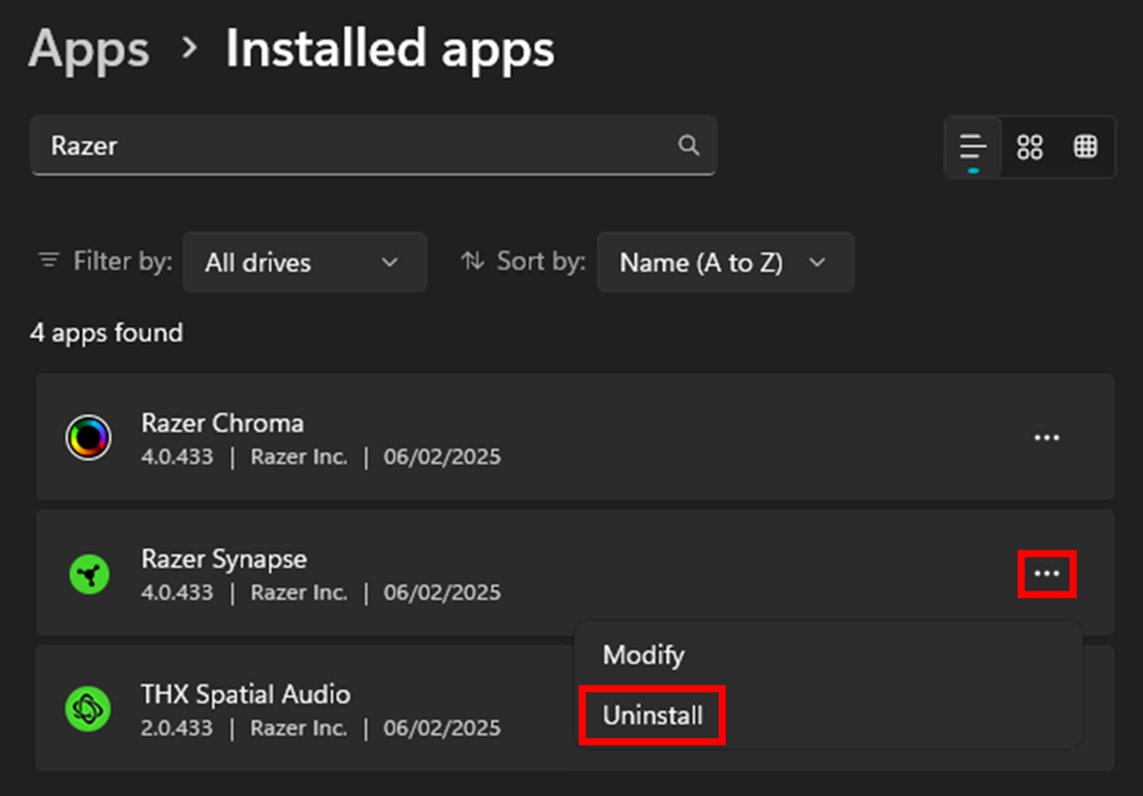
- Select Start > Settings > Apps > Installed apps.
- Find Razer Synapse, then select More > Uninstall and confirm.
- Remove Razer Chroma App the same way if you want a fully clean start.
- Restart the PC.
- Download the current installer from razer.com/synapse-4 and run it.
- Select CONTINUE, then INSTALL, and sign in with your Razer ID.
Razer Synapse not updating or not opening
Razer Synapse crashes or fails to start
Razer names four causes: system admin restrictions, firewall restrictions, corrupted or missing files, and a log-in issue.
- Check that your firewall or antivirus software is not blocking Razer Synapse, and add it as an allowed app if it is.
- Sign in with an account that has administrator rights if the PC is managed or the installer was refused.
- Confirm the PC runs 64-bit Windows 10 or Windows 11.
- Sign out of your Razer ID and sign back in.
- Reinstall Synapse cleanly if the crash continues.
Razer Synapse does not detect my Razer device after updating
A software or hardware fault, an unsupported device, an outdated Riot Vanguard (version 1.7.0.27) blocking Razer drivers, or Synapse running in compatibility mode.
- Check Razer's supported device list; a device that is not on it does not need Synapse to work.
- Update Riot Vanguard if you play Riot games and still run version 1.7.0.27.
- Make sure Razer Synapse is not set to run in compatibility mode.
- Unplug the device, plug it into another USB port and reopen Synapse.
- Reinstall Synapse cleanly if the device is still missing.
Razer Synapse update prompt never appears
Synapse cannot reach Razer, is signed out, or is closed when updates would install.
- Check the PC is online and sign in with your Razer ID.
- Leave Synapse running in the notification area for a while.
- Run the latest installer from razer.com/synapse-4 to upgrade in place.
Razer Synapse for Mac will not install
The Mac preview supports only Apple silicon Macs on macOS 15 Sequoia or later.
- Select Apple menu > About This Mac and check the chip and macOS version.
- Update macOS to version 15 or later if the Mac has Apple silicon.
- Use Razer Synapse Web at synapse.razer.com on an Intel Mac for supported devices.
Razer Synapse update FAQ
Does Razer Synapse update automatically?
Yes. Razer Synapse 4 installs updates automatically in the background, so manual checks are typically not required. When a new update is ready, Synapse shows a prompt on its dashboard that you can select to install it.
How do I manually update Razer Synapse 4?
Download the current installer from razer.com/synapse-4 and run it over your existing copy. Razer's installer handles both installs and upgrades, and Synapse 4 relaunches automatically with the newest build once you accept the licence and sign in.
Do I need a Razer ID to update Razer Synapse?
Yes for full use on Windows. Razer lists a Razer ID, licence acceptance and an internet connection as requirements to activate full features and software updates in Synapse 4. On the Mac preview you can continue as a guest.
Can you update Razer Synapse on a Mac?
Yes, on Apple silicon Macs running macOS 15 Sequoia or later. Razer Synapse for Mac is a preview, and you update it by downloading and running the current installer from razer.com/synapse-4-mac. Intel Macs are not supported.
Does installing Synapse 4 remove Synapse 3?
Yes. Razer states that installing Synapse 4 uninstalls Razer Synapse 3. Synapse 4 is backwards compatible with Synapse 3 devices, and its Profile Migration tool can move your Synapse 3 profiles, macros and Chroma effects across.
Is Razer Synapse 2.0 still supported?
Only partly. Razer Synapse 2.0 keeps working on existing PCs, but its cloud features ended on 28 October 2025. Local profiles stay on the PC, and you can still export profiles and macros before moving to newer software.
Will updating Razer Synapse reset my profiles?
It should not. Synapse 4 keeps profiles tied to your Razer ID, and updating one device does not interrupt other devices in use. Sign in before you update so your profiles and macros sync and come back after a reinstall.
Is there a Razer Synapse beta?
Yes. Razer offers a Synapse 4 beta for Windows through the Download Beta for Windows button on razer.com/synapse-4. Reinstall the standard build from the same page to return to the stable channel.
Can I use Razer Synapse without installing it?
For some devices, yes. Razer Synapse Web at synapse.razer.com adjusts settings, switches on-board profiles and runs Chroma quick effects from a browser for compatible devices. Razer advises updating the device firmware first.