To see what graphics card you have on Windows 11 or Windows 10, open Task Manager with Ctrl + Shift + Esc, select Performance, then select GPU; the card's name appears in the top-right corner.
This guide also covers Settings, Device Manager, dxdiag and PowerShell, plus Mac, Linux, Chromebook and phone checks, VRAM, integrated versus dedicated graphics, and what to do when the GPU is missing.
Method 1: Check GPU in Task Manager
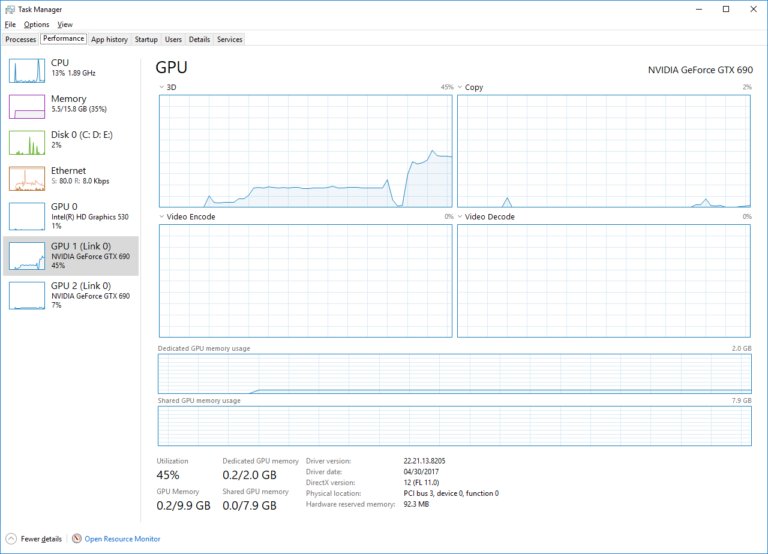
Task Manager is built into Windows 11 and Windows 10, so there is nothing to install. It lists every GPU in the PC, including both chips on a laptop that has two. The same view shows the card’s live load, which is how you check GPU usage while a game or app runs.
- Press Ctrl + Shift + Esc, or right-click the Start button and select Task Manager.
- Select More details if Task Manager opens as a small window.
- Select the Performance tab.
- Select GPU in the left pane. It is usually near the bottom of the list, and a PC with two graphics chips shows GPU 0 and GPU 1.
- Read the name in the top-right corner of the pane. That is your graphics card's make and model.
No GPU entry at all usually means the display driver is older than WDDM 2.0, which Task Manager needs to show GPU data. Use the Device Manager method below instead.
How to Check Your Graphics Card on Windows 11 or Windows 10
Every built-in tool below reads the same hardware. Pick the one that matches what you also want to know, not just the name.
| What you want | Use this tool | Where the GPU appears |
|---|---|---|
| Just the name, as fast as possible | Task Manager | Performance > GPU, top-right corner |
| The name without leaving Settings (Windows 11) | Settings | System > Display > Advanced display > Display information |
| The name plus driver status and warnings | Device Manager | Display adapters |
| The name, driver version, driver model and video memory | DirectX Diagnostic Tool (dxdiag) |
Display tab |
| A full hardware inventory you can export | System Information (msinfo32) |
The Components category; msinfo32 /report saves it as a text file |
| The name in text you can copy or script | PowerShell | Get-CimInstance -ClassName Win32_VideoController |
Method 2: Check GPU in Windows Settings
Microsoft documents this route for Windows 11. It needs no extra tools and ends on the GPU's make and model.
- Press Win + I to open Settings.
- Select System, then Display.
- Scroll down to Related settings and select Advanced display.
- Read the GPU make and model under Display information.
Method 3: Check GPU in Device Manager
Device Manager also shows whether Windows has the right driver for the card, which the other tools do not flag as clearly.
- Press Win + X and select Device Manager. You can also search for Device Manager from Start.
- Select Display adapters to expand it.
- Note every entry listed. A laptop with switchable graphics shows two, such as an Intel entry and an NVIDIA entry.
- Look for a yellow exclamation mark beside an entry. That means Windows found a problem with the device, and Properties shows the error message.
An entry named Microsoft Basic Display Adapter or Standard VGA adapter means Windows is running a generic driver. The real card name appears once the maker's driver is installed.
Method 4: Use the DirectX Diagnostic Tool
dxdiag adds the driver model and video memory to the card name, which helps when a game lists minimum requirements.
- Press Win + R, type
dxdiagand press Enter. - Select Yes if Windows asks to check whether your drivers are digitally signed.
- Wait for the tool to finish loading, then select the Display tab.
- Read Name in the Device section. That is the graphics card Windows is using for that display.
- Read Driver Model in the Drivers section. Windows 11 needs WDDM 2.0 or later.
The full walkthrough of every tab, and how to save a report for support, is in the guide to opening and running dxdiag on Windows 10/11.
Method 5: Check GPU Using PowerShell or Command Prompt
This queries the Win32_VideoController WMI class, which describes each video controller in the PC. It runs in a normal PowerShell window.
Get-CimInstance -ClassName Win32_VideoController | Select-Object Name, DriverVersionGet-CimInstance reads every video controller Windows knows about. Select-Object keeps only the card name and the installed driver version.
You should see: One line per graphics adapter, for example an Intel entry and an NVIDIA entry on a laptop with two GPUs, each followed by its driver version.
Do not trust the AdapterRAM property from this class for VRAM. Microsoft defines it as a 32-bit value in bytes, so it cannot report more than about 4 GB. On a PC with an NVIDIA card and driver, nvidia-smi -L in Command Prompt lists each NVIDIA GPU by name.
What Is a GPU, and Why Should You Check It?
The GPU, or graphics processing unit, is the chip that draws everything on screen, from the desktop to video and games. The more powerful it is, the higher the resolution and frame rate a game can run at.
| Reason to check | What the GPU name tells you |
|---|---|
| Installing or updating a graphics driver | Which maker's driver to download: Intel, AMD or NVIDIA |
| Checking a game's minimum or recommended requirements | Whether your card meets the listed model or video memory |
| Buying or selling a used PC | Whether the listing's graphics claim matches what is actually installed |
| Video editing, 3D or design work | Whether the app will run on a dedicated GPU or only integrated graphics |
| Troubleshooting a black screen, low resolution or stutter | Whether Windows is using the real driver or a generic one |
How to Check Your Graphics Card on a Mac
What you see depends on the Mac. Intel-based Macs name the graphics card directly. On Apple silicon Macs the GPU is part of the Apple chip, so the chip is what identifies it.
- Choose Apple menu > About This Mac. On Intel-based Macs, the graphics cards in use appear next to Graphics.
- For the full hardware report, choose Apple menu > System Settings, select General, select About, then select System Report.
- Alternatively, hold Option and choose Apple menu > System Information to open the same report.
- On an Apple silicon Mac, look up the Tech Specs page for your exact model on Apple's support site. It lists the GPU core count, because one chip can ship with different GPU configurations.
- To see live GPU load, open Activity Monitor and choose Window > GPU History.
Many 15-inch MacBook Pro models have two GPUs. In Activity Monitor, the Energy tab shows a Graphics Card column only on those Macs, and apps using the discrete GPU show Yes in it. To open Activity Monitor quickly, press Command + Space, type Activity Monitor and press Return.
How to Check Your Graphics Card on Linux
Intel documents this command for identifying graphics hardware on any Linux distribution. It lists VGA, 3D and display controllers and the kernel driver in use for each.
lspci -k | grep -EA3 'VGA|3D|Display'lspci lists PCI devices, -k adds the kernel driver, and grep keeps the graphics controllers plus the three lines after each.
You should see: A line naming each graphics controller, followed by lines showing the kernel driver in use.
With the NVIDIA driver installed, nvidia-smi -L lists each NVIDIA GPU with its UUID. Most distributions ship Intel graphics drivers themselves, so driver updates for Intel graphics come from your distribution vendor.
How to Check Your GPU on a Chromebook
A Chromebook's model identifies its GPU, and Chrome's own GPU diagnostics page shows what the browser is doing with it.
- Open Chrome on the Chromebook.
- Type
chrome://gpuin the address bar and press Enter. - Read the graphics feature status at the top to see whether hardware acceleration is on.
- Scroll down the page for the details and any errors or warnings the GPU process logged.
- For the official GPU name, look up your Chromebook model on the maker's specification page.
How to Check the GPU in an iPhone, iPad, or Android Device
Phones and tablets have no separate graphics card. The GPU is part of the main chip, such as Apple's A17 Pro with its 6-core GPU or Google's Tensor chips, so the device model is what you look up.
| Device | Find the model here | Then read the GPU here |
|---|---|---|
| iPhone | Settings > General > About; tap the part number beside Model Number to see the model number | The Chip section of that model's Tech Specs page on Apple's support site |
| iPad | Settings > General > About | The Chip section of that iPad's Tech Specs page |
| Android phone or tablet | Settings > About phone or About tablet | The processor or chip listed on the phone maker's specification page |
How to Tell Whether Your GPU Is Integrated or Dedicated
An integrated GPU is built into the processor and borrows system memory. A dedicated, or discrete, GPU is a separate chip with its own memory and usually its own cooling, and it is the better choice for gaming, video editing and design.
| Check | Integrated graphics | Dedicated graphics |
|---|---|---|
| Name in Task Manager or Device Manager | Named after the processor's graphics, such as Intel UHD Graphics | A separate graphics card name, such as an NVIDIA GeForce or AMD Radeon RX model |
| Video memory in Task Manager | Relies mostly on Shared GPU memory taken from system RAM | Shows its own Dedicated GPU memory, the VRAM on the card |
| Power and size | Uses less power, common in thin laptops | Uses more power and may need a fan |
| Two entries under Display adapters | The Intel or AMD processor graphics is one of them | The NVIDIA or AMD card is the other; laptops switch between them per app |
How to Check How Much VRAM Your GPU Has
VRAM is the memory on the graphics card itself. Task Manager and dxdiag both report it without extra software.
- Press Ctrl + Shift + Esc and select the Performance tab.
- Select GPU in the left pane. On a PC with two GPUs, select the one you want to check.
- Read Dedicated GPU memory below the graphs. On a dedicated card this is the VRAM on the card.
- Read Shared GPU memory next to it. This is system RAM the GPU may borrow, and Windows caps it at half of installed memory.
- For a second opinion, open
dxdiag, select the Display tab and read the video memory figures there.
On a Mac, the System Report opened from System Settings > General > About lists the installed hardware, including graphics.
How to Check Which GPU an App or Game Is Using
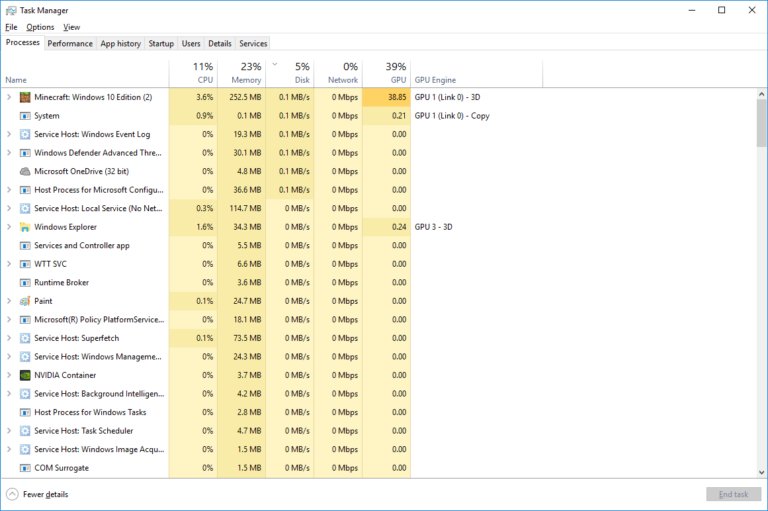
Laptops with two GPUs often run light apps on the integrated chip to save power. Task Manager shows which GPU each app is using right now, and Settings lets you change it.
- Start the app or game, then press Ctrl + Shift + Esc.
- On the Processes tab, find the app and read its GPU column and the column beside it that names the GPU and engine in use.
- If those columns are missing, right-click any column header and turn them on.
- To change the GPU, press Win + R, type
ms-settings:display-advancedgraphicsand press Enter, or right-click the desktop and select Display settings > Graphics. - Under Custom options for apps, select the app, then select Options.
- Choose High performance for the dedicated GPU, Power saving for the integrated GPU, or Let Windows decide, then select Save.
- Close and reopen the app so the change takes effect.
NVIDIA laptops also have Preferred graphics processor under Manage 3D Settings in the NVIDIA Control Panel. Programs that are already running must be restarted before it applies.
How to Identify Your Exact Graphics Card Model
Sometimes Windows shows only a family name, such as Intel UHD Graphics with no number, or a generic adapter. These steps get to the exact model.
- For an NVIDIA card, open NVIDIA Control Panel and select System Information at the bottom-left corner, or from the Help menu. It lists the graphics card, driver and DirectX details.
- For Intel graphics, run Intel Driver & Support Assistant, expand the Intel Graphics entry under Devices and Drivers, and note the name shown.
- If Intel graphics shows no model number, identify your Intel processor and look it up on Intel's product specification site (ARK), which lists the processor's graphics.
- For any card, open Device Manager, expand Display adapters, right-click the adapter and select Properties.
- Select the Details tab. It shows the device identification strings the maker's support site can match to an exact model.
- On a laptop or prebuilt PC, check the maker's specification page for your model number, since it lists the graphics option that shipped.
What the GPU Name Means
The name Windows shows tells you who made the chip and whether the right driver is installed. Match what you see to a row.
| Name you see | What it means | What to do |
|---|---|---|
| NVIDIA GeForce, RTX or Quadro followed by a model | An NVIDIA GPU with NVIDIA's driver installed | Get drivers from NVIDIA or the NVIDIA app |
| AMD Radeon followed by a model | An AMD GPU, either a card or graphics built into an AMD processor | Get drivers from AMD's driver download page |
| Intel UHD, Iris Xe or Arc followed by a model | Intel graphics, built into the processor, or an Intel Arc card | Use Intel Driver & Support Assistant or your PC maker |
| Intel HD or UHD Graphics with no number | Intel graphics, but the exact model is not shown | Identify the processor and look it up on Intel ARK |
| Microsoft Basic Display Adapter or Standard VGA adapter | Windows is using a generic driver, not the card maker's | Run Windows Update, then install the maker's driver |
How to confirm you found the right graphics card
Two tools agreeing on the same name is the proof. Do this before buying a game or downloading a driver.
- Note the name from Task Manager's Performance > GPU pane.
- Open Device Manager and confirm the same name appears under Display adapters with no warning icon.
- Open
dxdiagand confirm the Display tab Name matches too. - On a laptop with two GPUs, confirm both names appear in Task Manager as GPU 0 and GPU 1.
- If any tool shows Microsoft Basic Display Adapter instead, install the driver before relying on the result.
What If Your GPU Is Not Showing Up?
Start with the symptom that matches what you see. Most cases are a missing driver rather than a failed card.
Graphics card not detected in Device Manager
The card has no driver yet, is hidden, or Windows has not rescanned the hardware.
- Open Device Manager, select View, then Show hidden devices.
- Expand Display adapters and look for your card or a yellow warning icon.
- Run Windows Update and install every driver update offered, then restart.
- Install the driver from the card maker's website or your PC maker's support page.
Only "Microsoft Basic Display Adapter" shows up
Windows is using its built-in generic driver because the maker's driver is missing.
- Open Settings > Windows Update and select Check for updates.
- Install the updates and restart.
- If the name has not changed, download the driver from your graphics card maker's website.
- Recheck Display adapters in Device Manager.
NVIDIA graphics card not detected on a laptop
The laptop is running everything on the integrated GPU, or the NVIDIA driver is missing.
- Check Display adapters in Device Manager for an NVIDIA entry.
- If it is missing or shows a warning, install the NVIDIA driver from NVIDIA or the laptop maker.
- Open Settings > System > Display > Graphics and set your game to High performance.
- Restart the game and check the Processes tab in Task Manager to confirm it now uses the NVIDIA GPU.
No GPU entry in Task Manager's Performance tab
Task Manager only shows GPU data for drivers that support WDDM 2.0 or later.
- Open
dxdiagand read Driver Model on the Display tab. - If it shows WDDM 1.x, install the current driver for your graphics card.
- Restart and check the Performance tab again.
Graphics card not working or crashing after a driver update
The new driver is faulty or does not suit your card.
- Open Device Manager and expand Display adapters.
- Right-click the adapter, select Properties, then the Driver tab.
- Select Roll Back Driver and follow the prompts.
- If rollback is unavailable, select Uninstall device, restart, and let Windows reinstall a driver.
Should You Update Your GPU Driver?
Yes, if the name shows a generic adapter, a game asks for a newer driver, or you have crashes or display glitches; get it from Windows Update or the GPU maker, never from a third-party driver updater. Windows Update is the safest first source. NVIDIA offers its drivers through the NVIDIA app and nvidia.com, AMD through amd.com, and Intel through Intel Driver & Support Assistant. Your PC maker's support page is also an official source, and on a laptop it is the one to check first.
Driver download pages ask for your Windows version and edition, so check which version of Windows you have before you pick a download.
Quick Reference: The Fastest Way to Check Your GPU
| Device | Fastest check |
|---|---|
| Windows 11 or Windows 10 PC | Ctrl + Shift + Esc > Performance > GPU |
| Intel-based Mac | Apple menu > About This Mac > Graphics |
| Apple silicon Mac | Your model's Tech Specs page, Chip section |
| Linux | lspci -k | grep -EA3 'VGA|3D|Display' |
| Chromebook | chrome://gpu in Chrome, then the model's spec page |
| iPhone, iPad or Android | Find the model in Settings, then read its chip on the spec page |
Frequently Asked Questions
What graphics card do I have on Windows 11?
Press Ctrl + Shift + Esc to open Task Manager, select Performance, then select GPU. The graphics card's name appears in the top-right corner. You can also open Settings > System > Display > Advanced display and read Display information.
What graphics card do I have on Windows 10?
On Windows 10, open Task Manager with Ctrl + Shift + Esc and select Performance > GPU, or press Win + X, open Device Manager and expand Display adapters. Both show the name of every graphics adapter installed.
What graphics card do I have in my laptop?
Open Device Manager and expand Display adapters. Many laptops list two entries: integrated graphics built into the processor and a dedicated NVIDIA or AMD GPU. Task Manager shows them as GPU 0 and GPU 1 on the Performance tab.
What model graphics card do I have?
Task Manager, Device Manager and dxdiag all show the model name. If Windows shows only Intel HD or UHD Graphics with no number, identify your processor and look it up on Intel ARK. NVIDIA Control Panel's System Information lists NVIDIA models in detail.
How do I get graphics card information?
Run dxdiag and open the Display tab for the name, driver version, driver model and video memory. For a text list, run Get-CimInstance -ClassName Win32_VideoController in PowerShell. System Information (msinfo32) can export a full hardware report.
Where do I find graphics card info on my PC?
The quickest place is Task Manager's Performance tab, under GPU. Device Manager under Display adapters, the dxdiag Display tab and Settings > System > Display > Advanced display on Windows 11 also show it.
Does my computer have a graphics card?
Every PC that shows a picture has a GPU, but it may be integrated into the processor rather than a separate card. If Display adapters lists only Intel UHD or AMD Radeon processor graphics, there is no dedicated card.
Why is my graphics card not detected?
The driver is usually missing, so Windows shows Microsoft Basic Display Adapter or hides the card. Run Windows Update, install the maker's driver, and check Device Manager with View > Show hidden devices.
What does a graphics card do?
A graphics card processes everything you see on screen, including the desktop, video and games. A more powerful GPU runs games at higher resolutions and frame rates and speeds up video editing, 3D and design work.
Why is a graphics card required?
A computer needs a GPU to produce any display output. Integrated graphics handle everyday work and light gaming, while demanding games, video editing and 3D apps need a dedicated GPU with its own memory.
What graphics card do I need?
Check the game's or app's listed minimum and recommended GPU, then compare it with the model Task Manager shows. Also compare video memory, which appears as Dedicated GPU memory in Task Manager, against the requirement. Games also list processor and memory requirements, so check your computer’s specs in full before you buy.



How to open intel graphics control panel Windows 11 - Techdows
[…] and the right one depends on your processor or graphics card. Confirm your hardware first with how to check which graphics card you have, or open Device Manager from Windows + X and expand Display […]
What Is VRAM, How to Check It, and Can You Increase It? - Techdows
[…] The GPU view needs a graphics driver that supports WDDM 2.0, the driver model introduced with the original release of Windows 10. If you are not sure which card you have in the first place, see what graphics card do I have. […]
How to turn on vsync Windows 11 - Techdows
[…] VSync itself needs nothing special: any game that offers the option can use it. The extras in this guide have real requirements, listed below. If you are unsure which graphics card is in your PC, check your GPU first. […]
How to Update DirectX In Windows 10/11 - Techdows
[…] Find your graphics card name first on the Display tab in DxDiag, or in Device Manager > Display adapters. […]
How to Update Drivers on Acer Laptop (Step-By-Step Guide) - Techdows
[…] Device Manager and expand Display adapters to see which graphics hardware your Acer has. If two adapters are listed, update each one from its own maker's row […]
What graphics card does the MacBook Pro have - Techdows
[…] On an Intel MacBook Pro with two GPUs, the report lists both the Intel graphics and the AMD or NVIDIA chip. On Windows laptops the equivalent check is different; see how to check your graphics card on a PC. […]