Windows Media Player is still in Windows 11 and Windows 10: search Start for Windows Media Player Legacy on Windows 11 or Windows Media Player on Windows 10, and add it as an optional feature if the search finds nothing.
This guide covers every way to open it, how to install it when it is missing, the N-edition exception, and fixes for wmpnetwk.exe, the 0x10100be error and WMA playback.
How to open Media Player in Windows 11/10
On Windows 11 the classic player is named Windows Media Player Legacy. On Windows 10 it keeps the plain name Windows Media Player.
- Select Start or press the Windows key.
- Type Windows Media Player Legacy on Windows 11, or Windows Media Player on Windows 10.
- Select the app in the results to open it.
- Right-click the result and choose Pin to Start or Pin to taskbar if you want it one click away next time.
- If nothing appears, the player is not installed yet. Add it with the optional-feature steps further down.
Typing just Media Player on Windows 11 usually finds the newer Media Player app first. Both players can be installed side by side.
Windows Media Player Legacy vs Media Player app in Windows 11
Windows 11 ships two players with similar names. Microsoft recommends the Media Player app for modern video features such as 4K, while the Legacy player keeps the classic library, CD ripping and burning.
| What you want to do | Open this player | Why |
|---|---|---|
| Play 4K or modern video formats | Media Player app | Microsoft recommends it for modern video features |
| Rip or burn audio CDs | Windows Media Player Legacy | Burn and rip are features of the classic player |
| Use an old .wpl playlist or classic library | Windows Media Player Legacy | .wpl is the classic player's own playlist format |
| Watch a DVD | Neither | DVD playback is not included in Windows Media Player Legacy on Windows 10 or 11 |
| Use command-line switches such as /fullscreen | Windows Media Player Legacy | wmplayer supports documented command-line parameters |
Launch Windows Media Player via the Run dialog
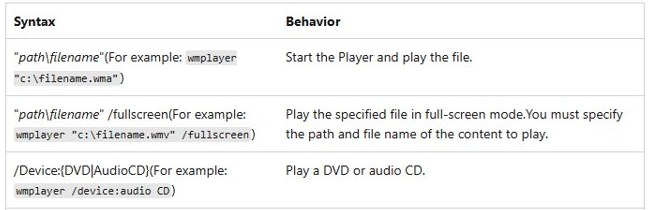
The classic player's program file is wmplayer.exe, so the Run box opens it without searching Start.
- Press Windows + R to open Run.
- Type
wmplayerin the Open box. - Select OK or press Enter.
- To open a file directly, type
wmplayer "C:\Music\song.wma"with your own file path instead. - Add
/fullscreenafter a video file path, for examplewmplayer "C:\Videos\clip.wmv" /fullscreen, to start it full screen.
If Run says Windows cannot find wmplayer, the Legacy player is not installed. Install it with the next section.
Install Windows Media Player Legacy in Windows 11
Microsoft offers Windows Media Player Legacy as an optional feature in some editions of Windows 11. It is free and installs from Settings, with no separate download page.
- Select Start > Settings > System > Optional features.
- Select View features next to Add an optional feature.
- Type Windows Media Player Legacy in the search box.
- Check the box next to Windows Media Player Legacy.
- Select Next, then select Add.
- Wait for the install to finish, then search Start for Windows Media Player Legacy.
Older Windows 11 builds place Optional features under Settings > Apps instead of System. The rest of the steps are the same.
Install Windows Media Player in Windows 10
Clean installs of Windows 10 include Windows Media Player. Some editions offer it as an optional feature instead, so add it when Start cannot find it.
- Select Start > Settings > Apps > Apps & features.
- Select Manage optional features.
- Select Add a feature.
- Find Windows Media Player in the list and select it.
- Select Install, then wait for the progress bar to finish.
- Search Start for Windows Media Player to open it.
The Windows Media Player download options differ by Windows version, but every route is free.
Windows Media Player missing in Windows 11 N or Windows 10 N
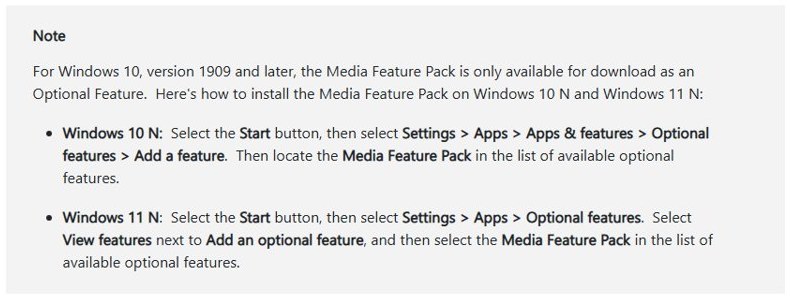
N editions of Windows leave out media-related technologies, Windows Media Player and certain preinstalled media apps. The Media Feature Pack restores them, and from Windows 10 version 1909 onward it installs only as an optional feature.
- Windows 11 N: select Start > Settings > Apps > Optional features.
- Select View features next to Add an optional feature.
- Select Media Feature Pack in the list and install it.
- Windows 10 N: select Start > Settings > Apps > Apps & features > Optional features > Add a feature, then pick Media Feature Pack.
- Restart the PC, then search Start for Windows Media Player.
- Reinstall hardware drivers if a device stops working, because some media features need it after the pack is installed.
Is Windows Media Player on this computer?
Any one of these checks confirms the classic player is installed and working.
- Search Start for Windows Media Player Legacy (Windows 11) or Windows Media Player (Windows 10) and confirm it is listed as an app.
- Press Windows + R, type
wmplayerand press Enter. The player window should open. - On Windows 11, open Settings > System > Optional features and look for Windows Media Player Legacy under installed features.
- In the player, press Ctrl + M to show the menu bar and confirm Tools, View and Help menus appear.
What is Windows Media Player?
Windows Media Player is the multimedia player built into Windows. It plays local music and video, manages a media library, and rips and burns CDs.
| Detail | Windows Media Player (Legacy) |
|---|---|
| Name on Windows 11 | Windows Media Player Legacy |
| Name on Windows 10 | Windows Media Player |
| How it is installed | Optional Windows feature, free, no separate download |
| Program file | wmplayer.exe |
| Audio formats supported out of the box | MP3, AAC, M4A, FLAC, ALAC, WAV, WMA, 3GP, AMR and more |
| Video formats supported out of the box | MPEG-4 (H.264), H.263, VC-1, WMV, DV, VP8, Motion JPEG |
| Playlist format | .wpl, plus .asx and .m3u |
| DVD playback | Not included |
| Library database folder | %LOCALAPPDATA%\Microsoft\Media Player\ |
How to play WMA files on Windows 11 and what to do if WMA does not play in WMP
WMA is Windows Media Audio, an Advanced Systems Format file with audio compressed by the WMA codec. Windows supports it out of the box, so WMA problems are usually about the default app or a damaged file.
- Open File Explorer and find the .wma file.
- Right-click the file, select Open with, then choose Windows Media Player Legacy or Media Player.
- If the WMA file still will not play, open Windows Media Player, press Ctrl + M, then select Tools > Options > Privacy and select Clear History.
- Check for updates with Start > Settings > Windows Update > Check for updates, then try the file again.
- If the track is protected content from an old music store, it can fail with a digital rights management (DRM) error such as 0xC00D1163. Only the original store or license can fix that.
If a WMA file plays in no app on any PC, the file itself is damaged. A third-party player such as VLC media player is a second opinion, not a fix for a broken file.

Wmpnetwk.exe high CPU or memory usage on Windows 11
wmpnetwk.exe is the Windows Media Player Network Sharing Service. It shares your library with other devices on your home network, and disabling it turns Windows Media Sharing off.
wmpnetwk.exe uses high CPU or memory and you do not stream media to other devices
The sharing service runs even though nothing on the network uses it.
- Press Windows + R, type
services.mscand press Enter. - Double-click Windows Media Player Network Sharing Service.
- Set Startup type to Disabled.
- Select Stop under Service status, then select OK.
- Open Task Manager and confirm wmpnetwk.exe is no longer listed.
wmpnetwk.exe stays busy and you do share media
A damaged library database keeps the player and the sharing service working.
- Open Windows Media Player and press Ctrl + M to show the menu bar.
- Select Tools > Advanced > Restore Media Library.
- If usage stays high, close the player and press Windows + R.
- Type
%LOCALAPPDATA%\Microsoft\Media Player\and press Enter. - Delete all files in that folder, but not the folder itself.
- Restart Windows Media Player and let it rebuild the library.
Error 0x10100be, file isn’t playable in Films & TV or Media Player app
This message means the app cannot play that file. The usual causes are a format with no installed codec, or a file that is incomplete or damaged.
"File isn't playable" for MKV, HEVC, VP9, AV1, MPEG-2 or OGG files
Windows does not include every codec out of the box.
- Note the file's format or extension.
- Open Microsoft Store and install the matching extension: HEVC Video Extension, VP9 Video Extension, AV1 Video Extension, MPEG-2 Video Extension or Web Media Extension for OGG.
- Restart the Media Player or Films & TV app.
- Open the file again.
Surround (Dolby Digital AC-3) audio is silent or the file will not play on Windows 11 24H2
Starting with Windows 11 version 24H2, the AC-3 codec is no longer included with Windows unless your PC maker pre-installed one.
- Check whether the file's audio track is AC-3 (Dolby Digital).
- Look in Microsoft Store or your PC maker's support site for an AC-3 codec for your device.
- Try the file in Windows Media Player Legacy with Open with as a comparison.
Only one file fails while others of the same type play
The file is incomplete or damaged.
- Download or copy the file again from its source.
- Run Start > Settings > Windows Update > Check for updates.
- Update the graphics driver from the PC or GPU maker's website, then try again.
Windows Media Player not showing up after install
When the optional feature is added but the player still does not open, repair the install before anything else. If files still fail with codec or playback errors after that, troubleshoot Windows Media Player playback next.
Windows Media Player Legacy is installed but will not open
The player's files or settings are damaged.
- Select Start > Settings > Apps > Installed apps.
- Select the three dots next to Windows Media Player and choose Advanced options.
- Select Repair. If that fails, select Reset, which clears settings but keeps your media files and library.
Repair and reset are not enough
The Media Features component needs reinstalling.
- Open Control Panel > Programs.
- Select Turn Windows features on or off.
- Uncheck Media Features, select OK, then restart the PC.
- Return to the same window, check Media Features again, select OK and restart.
Windows Media Player location FAQ
Where is Windows Media Player in Windows 11?
Windows Media Player is in Windows 11 as Windows Media Player Legacy. Search Start for that name, or press Windows + R and run wmplayer. If neither finds it, add it from Settings > System > Optional features > View features.
Where is Windows Media Player in Windows 10?
Search Start for Windows Media Player on Windows 10. Clean installs include it. If it is missing, open Settings > Apps > Apps & features > Manage optional features > Add a feature and install Windows Media Player.
What is Windows Media Player?
Windows Media Player is the multimedia player built into Windows. It plays music and video, keeps a media library, and rips and burns audio CDs. On Windows 11 it is called Windows Media Player Legacy and sits beside the newer Media Player app.
Is Windows Media Player on this computer?
Press Windows + R, type wmplayer and press Enter. If the player opens, it is installed. If Windows says it cannot find wmplayer, install Windows Media Player Legacy as an optional feature, or the Media Feature Pack on an N edition.
Where is Windows Media Player installed?
Windows Media Player installs as part of Windows, not as a separate app, and its program file is wmplayer.exe. Its library database lives in %LOCALAPPDATA%\Microsoft\Media Player\, which you can open from the Run box.
Where do I find Windows Media Player if search shows only Media Player?
Search for the full name Windows Media Player Legacy. The plain name Media Player belongs to the newer app. If the Legacy name returns nothing, the classic player is not installed yet and needs adding from Optional features.
How does Windows Media Player work?
Windows Media Player builds a library from your music and video folders and plays files using the codecs installed in Windows. It also rips CDs to files, burns playlists to disc, and can share the library on your home network through its sharing service.
Can I install Windows Media Player on Windows 11 for free?
Yes. Windows Media Player Legacy is a free optional feature of Windows 11. Open Settings > System > Optional features, select View features, search for Windows Media Player Legacy, check it, then select Next and Add.
Does Windows Media Player play DVDs on Windows 11?
No. Microsoft states that DVD playback is not included in Windows Media Player Legacy on Windows 10 or Windows 11. You need separate DVD playback software for video discs.