To uninstall MacKeeper, quit the app, use its own uninstaller if one is in the Applications folder, or drag MacKeeper to the Trash and empty it.
This guide also covers removing the login items, background activity and Safari extensions it can leave behind, cancelling the subscription, and keeping unwanted utilities off your Mac in the first place.
How to uninstall MacKeeper on a Mac
MacKeeper is a third-party app, so you remove it like other Mac apps you downloaded from the internet. Apple's advice for apps not made by Apple is to use the app's own uninstaller first, because it also removes login items, extensions and data stored in other folders.
- Quit MacKeeper if it is open.
- Open Finder and click Applications in the sidebar, or choose Go > Applications from the menu bar.
- Look for an app named Uninstall or Uninstaller next to MacKeeper, or an uninstall option inside the app's own menus or settings, and run it if one exists.
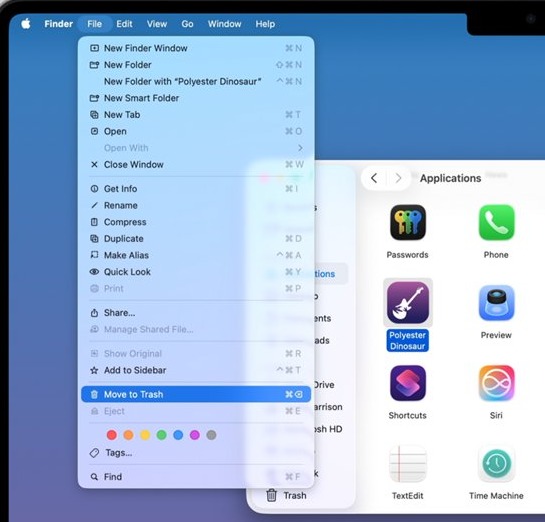
- If there is no uninstaller, drag MacKeeper to the Trash, or select it and choose File > Move to Trash.
- Enter the name and password of an administrator account on your Mac if you are asked.
- Choose Finder > Empty Trash to delete the app and free its storage space.
- Restart your Mac so nothing from the app keeps running in the background.
Deleting the app does not remove documents you created with it, and it does not cancel any subscription you bought. Both are handled in the sections below.
Is MacKeeper approved by Apple?
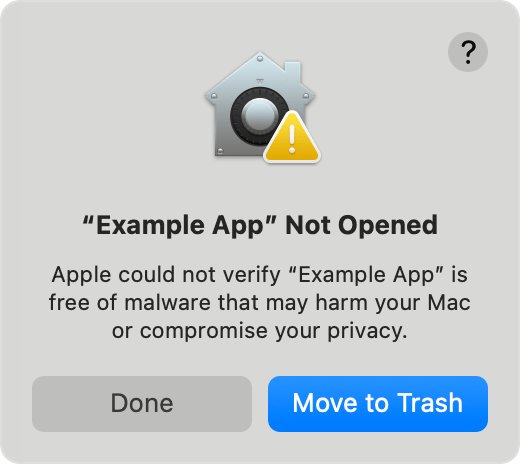
Apple does not approve or endorse third-party utilities sold outside the App Store. macOS runs a set of security checks on every downloaded app, and passing them only means the software met those checks.
| Apple check | What it means | What it does not mean |
|---|---|---|
| App Store review | Apple reviews each App Store app before accepting it and can remove it later | An app sold only from its developer's website has not gone through this review |
| Developer ID signature | The app comes from a developer registered with Apple and has not been altered | Apple recommends or vouches for the app's claims |
| Notarization | Apple checked the app for known malicious software and found none | The app is necessary, useful or good value |
| Gatekeeper first-launch prompt | macOS asks for your approval before downloaded software opens the first time | You have to accept; you can cancel and delete the app |
| Revoked authorization | If problems occur, Apple can revoke a developer's authorization and macOS warns you | An app with no warning today has Apple's endorsement |
Apple's own support pages state that information about products not made by Apple is provided without recommendation or endorsement.
How to quit MacKeeper in Activity Monitor
Finder will not move an app to the Trash while it is running. If MacKeeper keeps running after you close its window, force quit its processes in Activity Monitor first.
- Open Activity Monitor from Applications > Utilities, or search for it with Spotlight.
- Type MacKeeper in the search field at the top of the window.
- Select a MacKeeper process in the Process Name list.
- Click the Stop button in the upper-left corner of the window.
- Click Quit, or click Force Quit if the process does not close.
- Repeat for any other MacKeeper process, then move the app to the Trash.
Force Quit closes a process immediately, so any file it has open may lose unsaved data. If you try to quit a process you do not own, macOS asks for an administrator password.
How to remove MacKeeper from login items on Mac
A login item opens an app every time you log in, and App Background Activity lets an app run tasks while it is closed. Check both after you delete MacKeeper.
- Choose Apple menu > System Settings.
- Click General in the sidebar, then click Login Items & Extensions. You may need to scroll down.
- Under Open at Login, select any MacKeeper item and click the Remove (–) button below the list.
- Under App Background Activity, turn off any switch that belongs to MacKeeper.
- Scroll to the extensions list and turn off any MacKeeper extension you find.
- Restart your Mac.
An item with a warning symbol next to it will not open, because the app it points to was moved or deleted. Remove it anyway to keep the list clean.
How to remove a MacKeeper extension from Safari
Safari extensions can read the content of the pages you visit, so remove any you no longer use.
- Open Safari on your Mac.
- Choose Safari > Settings, then click Extensions.
- Select any MacKeeper extension in the list.
- Click Uninstall.
- Refresh the open tabs or open a new webpage so the change takes effect.
Deleting the app that contains an extension also removes the extension. Clearing the checkbox only turns it off.
How to cancel a MacKeeper subscription
Uninstalling an app does not cancel a subscription you bought with it. Where you cancel depends on who bills you.
- Search your email for "receipt from Apple" or "invoice from Apple" that mentions MacKeeper.
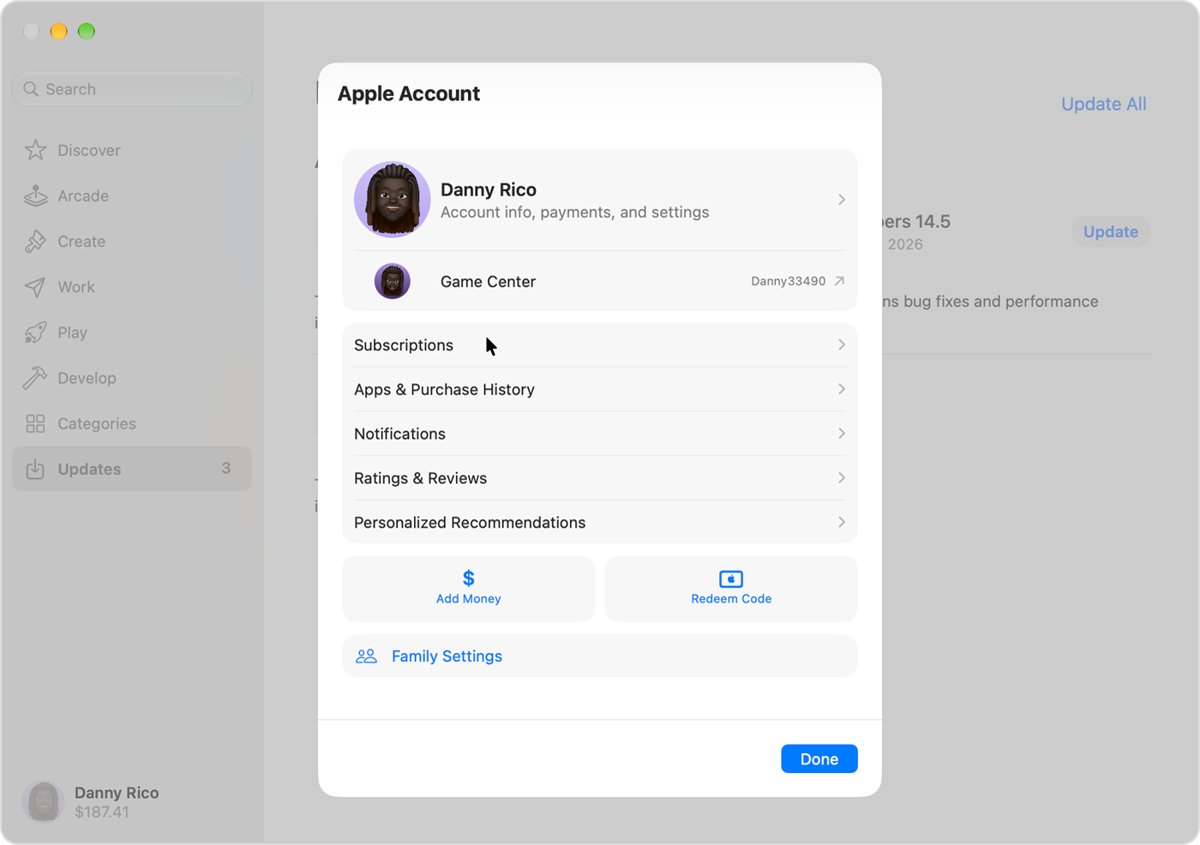
- If you find one, open the App Store on your Mac and click your name at the bottom of the sidebar.
- Click your name again on the page that appears, signing in to your Apple Account if asked.
- Click Subscriptions, then click the MacKeeper subscription.
- Click Cancel Subscription. If there is no cancel button, the subscription is already cancelled.
- If there is no Apple receipt, check your bank or card statement to see which company bills you, and contact that company to cancel.
Cancel a trial at least 24 hours before it ends if you do not want it to renew.
Mac cleaner vs MacKeeper: what macOS already includes
Most cleaner apps sell storage cleanup and malware protection. macOS has built-in tools for both, and none of them needs a separate subscription.
| Job | Built-in macOS tool | Where to find it |
|---|---|---|
| See what is using storage | Storage settings by category | System Settings > General > Storage (About This Mac > Storage before Ventura) |
| Free space automatically | Optimize storage with iCloud | The recommendations in Storage settings |
| Remove large app data | More Info next to Applications, Documents, Messages, TV and others | System Settings > General > Storage |
| Delete old downloads | Downloads folder | Finder > Go > Downloads |
| Clear some system caches | Safe mode, which also checks the startup disk | Start up with the Shift key held |
| Block known malware | Gatekeeper, Developer ID checks and notarization | System Settings > Privacy & Security |
| Stop a runaway process | Activity Monitor | Applications > Utilities |
Space you free only becomes available after you empty the Trash. Deleted files stay counted until then.
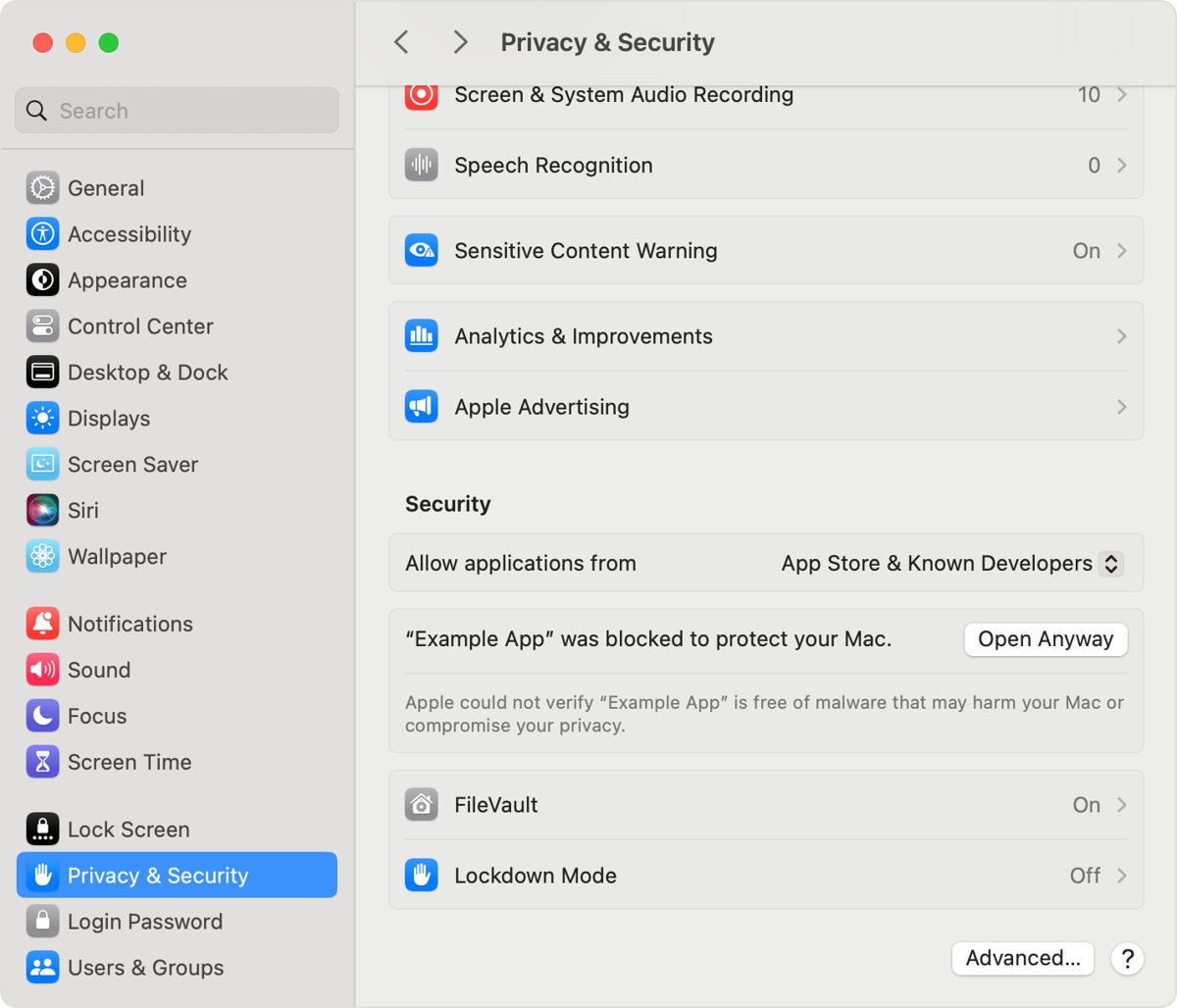
How to allow apps only from the App Store on Mac
The App Store setting is the strictest option macOS offers and the most secure against malware. Use it if you want to stop utilities from outside the store being installed again.
- Choose Apple menu > System Settings.
- Click Privacy & Security in the sidebar. You may need to scroll down.
- Scroll down to Security.
- Open the pop-up menu next to Allow applications from.
- Choose App Store, or App Store and identified developers if you also install software directly from known developers.
These options may be missing on a Mac managed by a school or employer. In that case the IT department sets them.
How to tell if MacKeeper is completely removed
- Press Command + Space, type MacKeeper, and check that no app appears in the Spotlight results.
- Open Finder > Applications and check that MacKeeper is gone, then check the Applications folder inside your home folder (Go > Home).
- Open System Settings > General > Login Items & Extensions and check that no MacKeeper item is listed.
- Open Activity Monitor, type MacKeeper in the search field, and check that no process is running.
- Open Safari > Settings > Extensions and check that no MacKeeper extension is installed.
If all five checks come back empty after a restart, the app and its startup pieces are gone.
MacKeeper will not uninstall on Mac
Finder says MacKeeper is in use
A MacKeeper process is still running, so the app cannot be moved to the Trash.
- Quit the app, then close any frozen MacKeeper process in Activity Monitor.
- Try moving MacKeeper to the Trash again.
- If it is still in use, restart your Mac and try again before opening any other app.
MacKeeper still says it is in use after a restart
A login item or extension starts it again every time you log in.
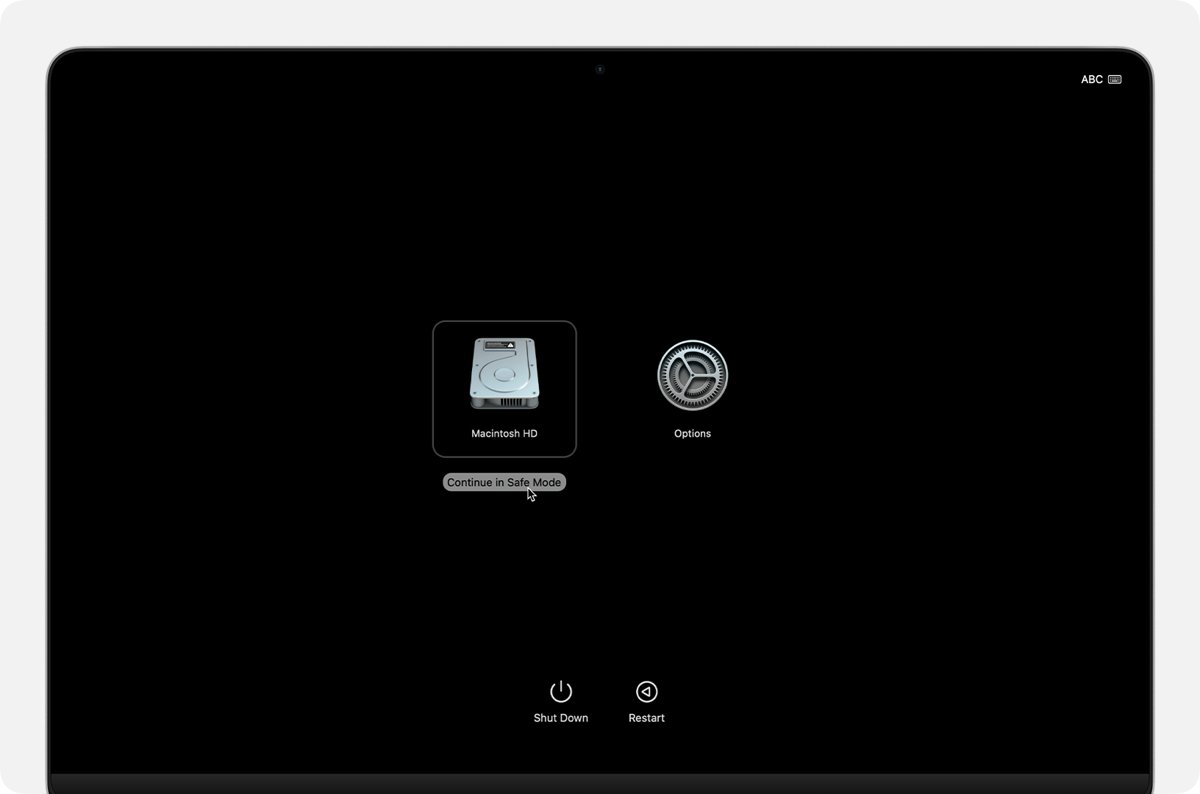
- Shut down your Mac.
- On a Mac with Apple silicon, press and hold the power button until you see Loading startup options, select Macintosh HD, then hold Shift and click Continue in Safe Mode.
- On an Intel-based Mac, turn it on and immediately hold Shift until the login window appears.
- Log in, then drag MacKeeper to the Trash and empty it.
- Restart normally to leave safe mode.
macOS asks for a password to delete MacKeeper
Removing the app needs an administrator account.
- Enter the name and password of an administrator account on the Mac.
- If your account is a standard account, ask the Mac's administrator to log in and remove the app.
MacKeeper opens again after you deleted it
A leftover login item or background item is still listed.
- Open System Settings > General > Login Items & Extensions.
- Remove any MacKeeper entry under Open at Login.
- Turn off MacKeeper under App Background Activity.
- Search Spotlight for MacKeeper and move any remaining copy of the app to the Trash.
You are still being charged after uninstalling
Deleting an app never cancels its subscription.
- Check for an Apple receipt and cancel in App Store > your name > Subscriptions if one exists.
- Otherwise contact the company named on your bank or card statement.
MacKeeper uninstall FAQ
How do I uninstall MacKeeper?
Quit MacKeeper, then run its uninstaller if one is in the Applications folder. If there is none, drag MacKeeper from Applications to the Trash, enter your administrator password if asked, and choose Finder > Empty Trash.
Is MacKeeper approved by Apple?
Apple does not approve or endorse third-party utilities sold outside the App Store. Notarization only means Apple checked the app for known malicious software and found none. It is not a recommendation of the app or its claims.
Is MacKeeper safe and legit?
Apple publishes no verdict on individual third-party utilities. What Apple does state is that macOS checks downloaded apps with Gatekeeper and notarization, and that Storage settings help you find and delete files you no longer need.
Is MacKeeper a scam?
There is no official Apple ruling on MacKeeper. If you no longer want it, uninstall it, remove its login items, and cancel the subscription with whoever bills you. Built-in macOS tools cover storage cleanup and malware protection.
Does deleting MacKeeper cancel my subscription?
No. Apple states that deleting or uninstalling an app does not cancel any subscription you bought with it. Cancel in App Store subscriptions if Apple bills you, or contact the company on your card statement.
Do I need a Mac cleaner like MacKeeper?
No separate cleaner is required. System Settings > General > Storage shows what uses space and offers recommendations, Gatekeeper and notarization check downloaded apps, and Activity Monitor stops runaway processes.
How do I disable Gatekeeper on a Mac?
System Settings offers two choices under Allow applications from: App Store, or App Store and identified developers. Apple calls the App Store option the most secure setting against malware. Removing MacKeeper does not require changing either setting.
Why can't I delete MacKeeper from Applications?
The app is usually still running. Quit its processes in Activity Monitor, restart, or start up in safe mode, then drag MacKeeper to the Trash again and enter an administrator password when asked.