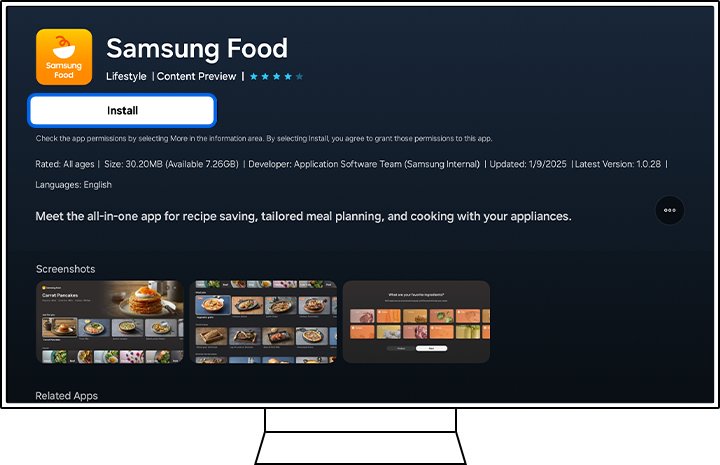
To download apps on a Samsung Smart TV, press Home on the remote, open Apps or the Search icon, pick the app and select Install, then choose Add to Home so it sits on the Home screen.
This guide covers the steps for 2015 and newer TVs and for 2011 to 2014 Smart Hub models, the Samsung account you need, casting and streaming-stick alternatives, updating and deleting apps, and what to do when an app will not download.
How to download apps on a Samsung Smart TV (step by step)
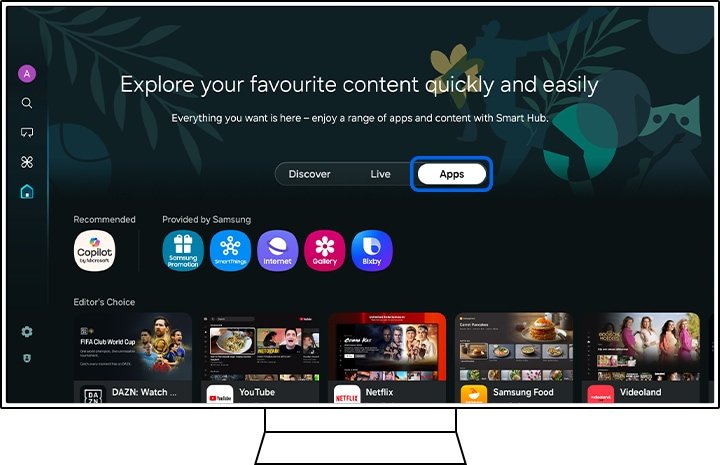
These steps work on Samsung Smart TVs from 2015 onward, including current models running One UI Tizen. Connect the TV to the internet and sign in to your Samsung account first, because Samsung requires an account to download apps.
- Press the Home button on the remote to open the Home screen.
- Select Apps, or select the Search icon (the magnifying glass) on the left side of the screen.
- Type the name of the app, then select it from the results. You can also pick an app from the recommended rows on the Apps screen.
- Select Install on the app's detail screen and wait for the download to finish.
- Select Open to start the app now, or Add to Home to pin it to the Home screen.
- Press Home again. Apps you added appear on the Home screen and under Downloaded App.
On 2022 and newer menus, video and media apps you add go to Media Home, and game apps go to Game Home. Screens and labels vary slightly by model and software version.
Samsung TV app store, casting or a streaming stick: what to use
Which method you should use depends on whether the app exists in the Samsung TV app store for your country and model. Start with the store, and fall back to the other routes only when the app is missing.
| Your situation | Use this | Why |
|---|---|---|
| The app appears when you search on the TV | Install it from Apps on the TV | It runs natively, updates itself and works with the TV remote |
| The app exists on your phone but not on the TV, and it has a cast icon | Cast from the phone app | The TV plays the stream; the phone acts as the remote |
| You want to show any phone screen, photo or app on the TV | Screen mirroring with Smart View (Galaxy) or AirPlay (iPhone) | Mirrors exactly what the phone shows |
| The app is not offered for Samsung TVs at all | Plug a streaming device into a spare HDMI port | The device brings its own app store |
| You built or are testing your own Tizen app | Developer mode and the Samsung TV SDK | Only signed Tizen apps install; Android APK files do not run on Tizen |
Developers who need to sideload a test build can turn on developer mode on a Samsung TV and install it from the Tizen SDK; regular viewers never need this.
Why downloading apps on Samsung TVs is a little different
Samsung Smart TVs run Tizen, a Linux-based operating system, not Android TV or Google TV. Apps come only from the Samsung TV app store inside Smart Hub, so the process and the rules differ from a phone.
| What is different | What it means for you |
|---|---|
| Tizen OS instead of Android | Google Play and Android APK files do not work on a Samsung Smart TV |
| Samsung account required | You must be signed in to a Samsung account on the TV to download apps |
| Smart Hub terms and conditions | If the terms were skipped during setup, only the Apps tile shows and the app list stays hidden until you accept them |
| Region-based catalogue | Available apps vary by country or region and can change at any time |
| Model year | Smart Hub arrived on 2011 TVs and got a new interface in 2015, so older models use different menus |
| Pre-installed apps | Some apps come with the TV and cannot be deleted |
| Subscriptions | The download is free, but some apps and games need a separate paid subscription |
TVs released before 2011 have no Smart Hub, so they cannot download apps at all.
How to sign in to a Samsung account on a Samsung TV
You can create the account during first-time setup by following the on-screen prompts. If you skipped it, sign in from the settings menu. The TV must be online for the account to activate.
- On a 2015 or newer TV, press Home or Menu on the remote.
- Go to Settings > General > System Manager.
- Select Samsung Account, then sign in or select the option to create an account.
- On a 2011 to 2014 TV, press Menu or Settings on the remote instead.
- Select Smart Features > Samsung Account, then choose Log in or Create Account and follow the prompts.
If you have lost access to the account, the Samsung account backup code can get you back in on a phone or the web first.
How to download apps on Samsung TV Smart Hub (2011 to 2014 models)
Samsung TVs from 2011 to 2014 (D, E, F, H and HU series) use the older Smart Hub with a separate Samsung Apps store. The download button on these models is labelled Download, not Install.
- Press the Smart Hub button on the remote.
- Press the left directional key to select Apps.
- Select Samsung Apps.
- Select Search Samsung Apps.
- Type the app name in the search bar and select Done.
- Select the app, then select Download.
If a search returns nothing, the app is not offered for that model or region, so use casting or a streaming device instead.
Alternative ways to get apps on a Samsung TV
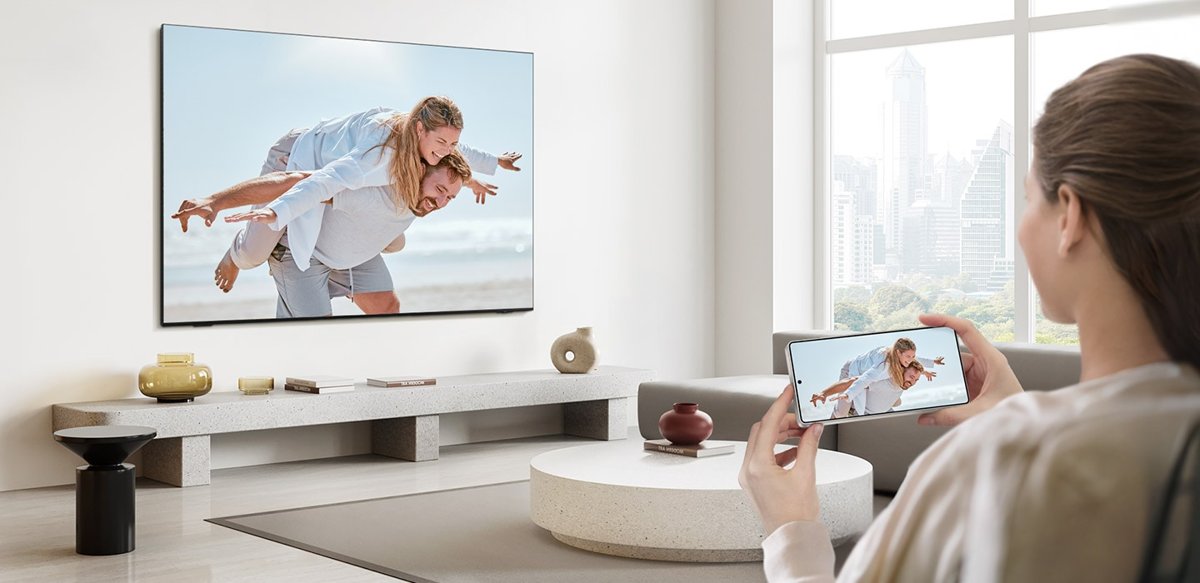
When an app is not in the Samsung store for your TV, you can still cast your phone to the TV to get its content on the screen. Put the phone and the TV on the same Wi-Fi network before you start.
- To cast, open an app such as YouTube or Netflix on your phone, sign in with the same account as on the TV, start a video and tap the cast icon, then pick your TV.
- To mirror a Galaxy phone, pull down the Quick settings panel, tap Smart View, choose your TV under Available devices and tap Start now.
- If the TV shows a PIN or an access request, enter the PIN or select Allow on the TV.
- To mirror an iPhone, open Control Center, tap Screen Mirroring, select the TV and enter the AirPlay code shown on the TV.
- To add a different app store, plug a streaming stick or box into a free HDMI port, switch the TV to that input and install apps from the device's own store.
Smart View works on all Samsung Smart TVs, while AirPlay mirroring from an iPhone needs a Samsung TV released in 2018 or later. Mirroring also needs the TV signed in to a Samsung account, and some apps block it under their own policies. Android phones on other brands can mirror to a TV through their own cast settings.
Tips for managing apps on your Samsung Smart TV
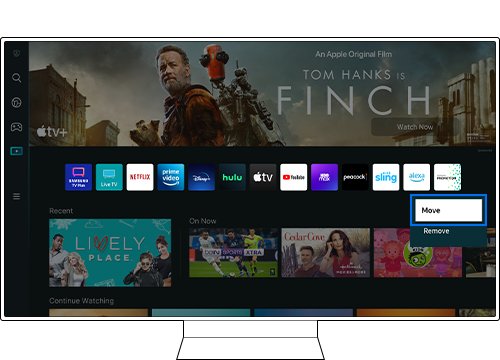
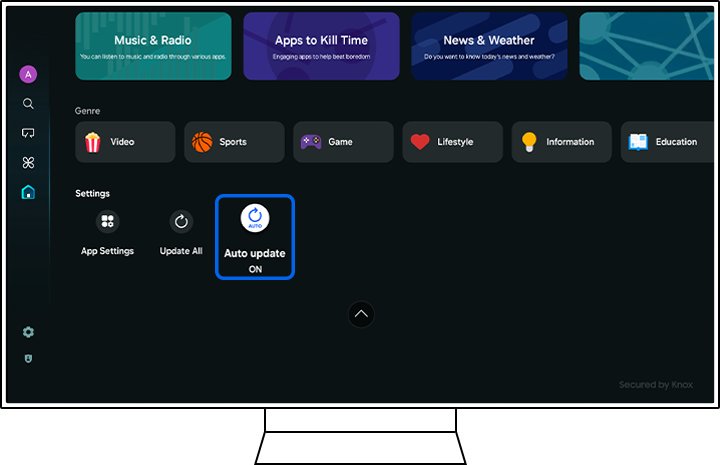
Most app management lives under Apps > App Settings at the bottom of the Apps screen. Highlight an app there and open its drop-down menu for each option below.
| What you want | Where to do it | Note |
|---|---|---|
| Add an app to the Home screen | Apps > App Settings > select the app > Add to Home | Also offered right after an install finishes |
| Move an app on the Home screen | Highlight the app, press the down key, then Move | On 2022 menus, use List Edit at the end of the Apps list, or long-press Select |
| Remove an app from the Home screen only | Highlight the app, press the down key, then Remove | The app stays installed |
| Lock or unlock an app | Apps > App Settings > select the app > Lock or Unlock | Needs the TV PIN, which is 0000 by default; a lock icon appears on the app |
| Close a running app | Press Return on the remote, then select Exit if asked | Some apps close without a prompt |
| Turn automatic updates on or off | Apps > Auto Update at the bottom of the screen | Keeps every installed app current |
To change the default PIN on a 2022 TV, go to Menu > Settings > All Settings > General & Privacy > System Manager > Change PIN.
How to delete apps on a Samsung Smart TV
Deleting an app also removes its saved data and signs you out of it, so note your login details before you start. Pre-installed apps cannot be deleted, and Delete is greyed out for them.
- Press the Home button on the remote.
- Select Apps.
- Scroll to the bottom of the screen and select App Settings.
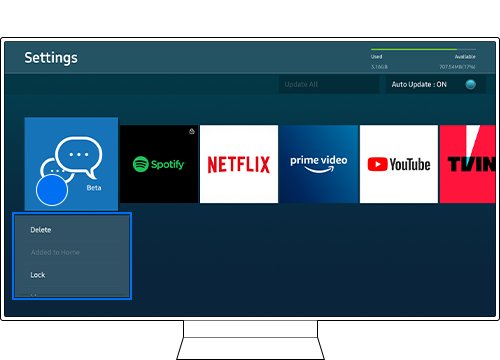
- Highlight the app and open its drop-down menu.
- Select Delete, then select Delete again to confirm.
- To get the app back later, search for it on the Apps screen and select Install, or select Reinstall from the same drop-down menu.
How to update apps on a Samsung TV
Updated apps and up-to-date TV software fix many download and loading problems, so turn both on to update automatically.
- Connect the TV to the internet.
- Press Home and select Apps.
- At the bottom of the screen, select Update All to update every app now, or Auto Update to turn automatic app updates on.
- To update the TV software, go to Settings > All Settings > Support > Software Update and select Update Now.
- Turn on Auto Update on the same Software Update screen so the TV installs future updates itself.
- Leave the TV on until the update finishes; it restarts on its own when done.
If the TV has no stable internet connection, download the update for your model from Samsung's download centre, copy it to a USB stick and run Update Now with the stick plugged in.
Samsung TV still can't download an app? Try this
The Apps list does not appear, only an Apps tile
The Smart Hub terms and conditions were not accepted during setup.
- Select the Apps tile on the Home screen.
- Agree to the terms and conditions in the pop-up.
- Wait for the Apps list to load, then search for the app again.
Why won't my Samsung TV download apps?
The TV is not signed in to a Samsung account or has no working internet connection.
- Sign in under Settings > General > System Manager > Samsung Account.
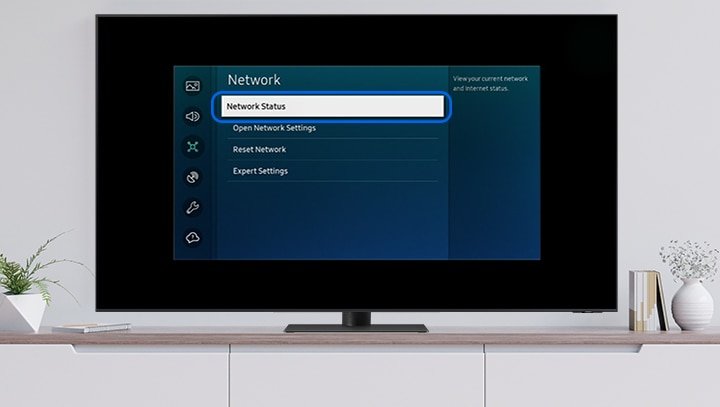
- Go to Settings > All Settings > Connection > Network > Network Status.
- Read the result: it shows whether the TV reaches the router and whether the router reaches the internet.
- If another device on the same router also fails, contact your internet provider.
- Check that the date and time are correct or that Clock Mode is set to Auto, because a wrong clock can break Wi-Fi.
Why can't I find an app on my Samsung TV?
The app is not offered for your country, region or TV model.
- Search again by the app's exact name from the Search icon on the Home screen.
- Update the TV software under Settings > Support > Software Update > Update Now, then search again.
- If it is still missing, cast the app from your phone or use a streaming device.
Download stops or the TV reports low storage
Too many installed apps leave no room for a new one.
- Run Settings > All Settings > Support > Device Care, which flags insufficient storage space.
- Delete apps you no longer use from Apps > App Settings > Delete.
- Try the download again.
A downloaded app is slow, crashes or will not open
A temporary glitch, an outdated app or corrupted Smart Hub data.
- Unplug the TV from the wall socket, wait 30 seconds and plug it back in.
- Check for a software update and install it.
- Delete the app and install it again from Apps.
- As a last resort, go to Settings > Support > Device Care > Self Diagnosis > Reset Smart Hub and enter the PIN (0000 by default).
- Reinstall your apps and sign in to each one again.
"Smart Hub is being updated. Please try again later"
Smart Hub data on the TV needs resetting.
- Press Home and open Settings.
- Select Support > Device Care > Self Diagnosis.
- Select Reset Smart Hub and enter the TV PIN.
Resetting Smart Hub clears all Smart Hub settings, downloaded apps and accounts stored on the TV, so use it only after the other fixes fail.
Samsung Smart TV apps FAQ
Can I download apps on my Samsung TV?
Yes, any Samsung Smart TV from 2011 onward can download apps from the Samsung TV app store in Smart Hub. You need an internet connection and a Samsung account signed in on the TV. TVs made before 2011 have no Smart Hub and cannot install apps.
How do I download apps on Samsung TV Smart Hub?
Press Home, select Apps or the Search icon, choose the app and select Install. On 2011 to 2014 models, press Smart Hub, select Apps > Samsung Apps > Search Samsung Apps, pick the app and select Download.
Why can't I download apps on my Samsung TV?
The usual causes are no Samsung account on the TV, a failed internet connection, Smart Hub terms that were never accepted, or an app that is not offered in your region. Sign in, run Network Status, accept the terms from the Apps tile and update the TV software.
How do I download apps on a 2016 Samsung Smart TV?
A 2016 Samsung TV uses the 2015-and-later Smart Hub, so press Home or Smart Hub, go to APPS, select the search icon, type the app name, select it and choose Install. Sign in to a Samsung account first under Settings > General > System Manager.
How do I download apps on a 2014 Samsung Smart TV?
Press Smart Hub, press left to select Apps, then choose Samsung Apps and Search Samsung Apps. Type the app name, select Done, pick the app and select Download. If an app is missing from the results, it is not offered for that model, so cast it from a phone instead.
How do I download apps on a 2025 Samsung Smart TV?
Press Home, select the Search icon on the left, type the app name and select Install, then choose Add to Home. 2025 models run One UI Tizen, which needs a Samsung account and acceptance of the Smart Hub terms before apps download.
Can I install Android or Google Play apps on a Samsung TV?
No. Samsung Smart TVs run Tizen, not Android, so Google Play and Android APK files do not install. Get Android-only apps on the TV screen by casting from your phone, mirroring it with Smart View, or adding a streaming device with its own app store.
Do apps on Samsung Smart TVs update automatically?
They do when Auto Update is on. Press Home, select Apps and turn on Auto Update at the bottom of the screen, or select Update All to update everything now. The TV must stay connected to the internet.
Why isn't my downloaded app showing up on the Home screen?
Installing an app does not always pin it. Select Add to Home when the install finishes, or go to Apps > App Settings, select the app and choose Add to Home. Media apps may land in Media Home and games in Game Home.
Do Samsung TV apps cost money?
Downloading apps from the Samsung TV app store is free. Some services, such as streaming platforms and certain games, need a separate paid subscription before you can watch or play, and the Art Store needs a paid subscription for its full collection.
Quick summary
Sign in to a Samsung account, press Home, search for the app and select Install, then Add to Home; use casting, Smart View or AirPlay only when the app is missing from the Samsung store for your region or model. Samsung Smart TVs run Tizen, so the built-in store is the only place to install apps, and most download failures come from a missing Samsung account, unaccepted Smart Hub terms, a broken network connection or outdated TV software.