To create a group chat in Microsoft Teams and name it, select New message, select the down arrow to the right of To, type a name in Group name, then add the people you want in the To box.
This guide covers naming on desktop and mobile, renaming an existing chat, Teams Free labels, adding people and outside users, group chats versus teams, and naming chats with Microsoft Graph.
Create and name a group chat in Teams for work or school
- Open Microsoft Teams and select Chat on the left.
- Select New message at the top of your list of chats and channels.
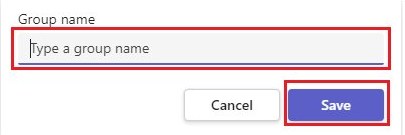
- Select the down arrow to the far right of To to reveal the Group name box.
- Type the group name.
- Type the names of the people you want to add in the To box.
- Type the first message and press Enter or select Send to create the chat.
A group chat can hold up to 250 people, and everyone in it can send messages and use Teams chat features such as formatting, files and reactions.
Rename an existing group chat
| Where | Steps | Notes |
|---|---|---|
| Teams desktop or web | Open the group chat, select the pencil icon next to the chat name at the top, type the new name and press Enter | Only group chats can be named; one-on-one chats keep the other person's name |
| Teams mobile app | Open the group chat, tap its name at the top, tap Edit next to the name, type the new name, then tap Save | The Edit button sits next to the group name in the chat dashboard |
| Teams Free | Open the chat, select Name group chat, type the name and save it | Names cannot contain links, profanity or restricted terms |
Create and name a group chat on mobile
- Open the Teams app and tap Chat.
- Tap New message.
- Enter the names of the people you want to add in the To field.
- Type a message and tap Send to create the group chat.
- Tap the participants' names at the top of the chat.
- Tap Group chat name, enter a name, then tap Save.
Teams Free uses different labels
Microsoft Teams Free, the version for personal accounts, starts chats from a different button and invites contacts by email or phone number.
| Task | Teams for work or school | Teams Free |
|---|---|---|
| Start a chat | New message | New Chat |
| Who you can add | Names in your organization, plus allowed external users | Names, email addresses or phone numbers in the To: field |
| Name the chat | Group name box under the arrow beside To | Name group chat option |
| Add people later | View and add participants > Add people | Tap Info > Add on mobile, or People > Add |
| Invite by link or QR code | Add people by name instead | Allow join via link, Share join link and Show QR code under More; new contacts must accept the invitation |
Add someone to an existing group chat
- Open the group chat.
- Select View and add participants in the top-right corner, then select Add people.
- Type the names of the people you want to add.
- Choose how much of the chat history the new people can see.
- Select Add.
On mobile, tap the participant names at the top, tap Add people, choose the history option and tap Done.
Turn a one-to-one chat into a group conversation
Adding a third person to a one-on-one chat creates a new group chat. The original one-on-one chat stays as it was, and its history does not carry over.
- Open the one-on-one chat.
- Select View and add participants > Add people.
- Type the names of the people you want to include.
- Select Add to open the new group chat.
- Name the new chat so it is easy to tell apart from the one-on-one.
- In Teams Free, select More > Create group chat in the one-on-one chat instead, add contacts and select Create.
Invite people outside your organization
| Person outside your organization | Can they join a group chat? | What to know |
|---|---|---|
| Teams user in another organization (external access) | Yes | External access is on by default; they cannot receive shared files through the chat |
| Guest in one of your teams | Yes | They sign in with a guest account in your organization and can share files |
| Teams account not managed by an organization | Yes, if your admin allows it | Admins can turn this off for the whole organization or for selected users |
Type the person's full email address in the To box when creating the chat. Searching for people in other organizations works only by email or SIP address.
Create a Teams group chat from a distribution list or Microsoft 365 group
- Select New message at the top of your list of chats and channels.
- Next to To, type the name of the distribution list, Microsoft 365 group or mail-enabled security group.
- Select the group from the suggestions to add its members.
- Name the chat in Group name and send the first message.
The group can have up to 250 members, and dynamic distribution groups are not supported. If the list does not exist yet, create a distribution list in Outlook first.
Do not confuse a group chat with a Team or channel
| Feature | Group chat | Team and channels |
|---|---|---|
| Size | Up to 250 people | A team of members, guests and owners |
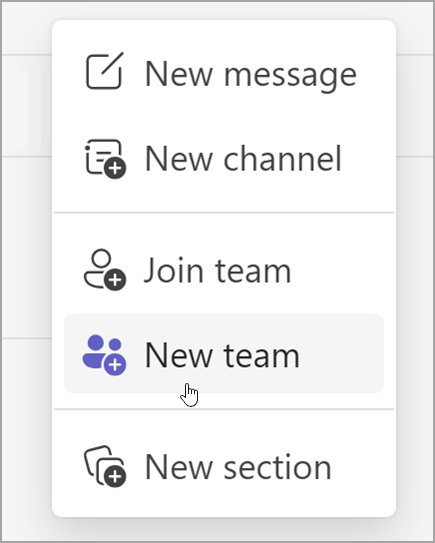
| How you create it | New message in Chat | New items > New team |
| Name | Optional group name, changeable later | Required team name and a first channel name |
| Extra resources | None beyond the chat and shared files | A SharePoint site and OneNote are created |
| Privacy | Only the people in the chat | Private or public to your organization |
| Best for | Quick conversations with a fixed set of people | Ongoing projects with several topics in channels |
Automate naming with Microsoft Graph
Microsoft Graph sets a group chat's name through its topic property, and you can try the request in Microsoft Graph Explorer before scripting it. This works only for work or school accounts and only for chats whose type is group.
PATCH https://graph.microsoft.com/v1.0/chats/{chat-id}
Content-Type: application/json

{ "topic": "Project Falcon - design review" }
Renames an existing group chat. The topic can be up to 250 characters and cannot contain a colon. The call needs the Chat.ReadWrite delegated permission or ChatSettings.ReadWrite.Chat as an application permission. To name a chat when creating it, send POST https://graph.microsoft.com/v1.0/chats with chatType set to group, a topic and every member, including yourself, with the owner role.
You should see: A 200 OK response returns the chat with the new topic, and Teams shows the new name in the chat list.
Change the group chat picture in Microsoft Teams
- Select Chat on the left side of Teams and open the group chat.
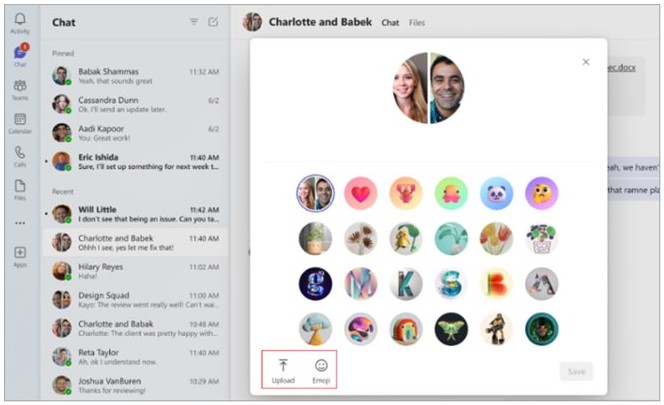
- Hover over the picture to the left of the group's name and select Change profile picture.
- Choose an illustration or emoji and select Save.
- To use your own image, select Upload, pick an image up to 4 MB, then select Save.
Group chat pictures can be changed on desktop or web only, and meeting chats and one-on-one chats do not support them. If your own photo keeps showing an old image, fix Teams profile picture syncing separately.
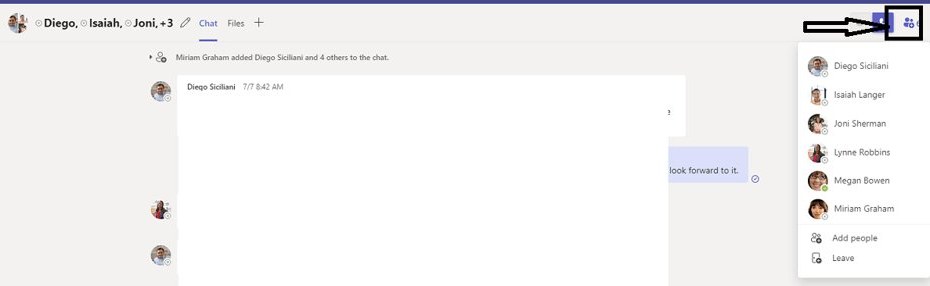
How to see who is in a Teams group chat
- Open the group chat.
- Select View and add participants in the top-right corner.
- Check the list of names; on mobile, tap the participant names at the top of the chat instead.
How to leave or remove someone from a Teams group chat
- To leave, find the group chat in your chat list, select More options, then select Leave.
- To remove someone, open the chat and select View and add participants.
- Find the person's name, select Remove, then confirm.
- On mobile, tap the chat name at the top, tap Leave chat, then tap Leave.
Removal works in group chats of three or more people, and your admin may need to allow members to remove others. A removed person keeps the earlier history but cannot see new messages or files.
Common Teams group chat problems and fixes
The Group name box is missing
The box stays hidden until you expand the arrow next to To, or you are in a one-on-one chat.
- Select New message to start a fresh chat.
- Select the down arrow to the far right of To.
- Type the name in Group name before adding people.
Why can't I create a group chat in Teams?
Your organization's policy, a 250-person limit or an unsupported group type is blocking the chat.
- Keep the chat to 250 people or fewer.
- Add members individually if a dynamic distribution group fails to expand.
- Ask your Teams admin whether chat or Chat with Groups is turned off for your account.
An external person cannot be added
External access to that domain or to unmanaged Teams accounts is turned off.
- Enter the person's full email address rather than a display name.
- Ask your admin to allow external access for that person's organization.
- Ask your admin to add the person as a guest in a team if they need file sharing.
Teams Free will not save the chat name
The name contains a link, profanity or a restricted term.
- Remove any web address from the name.
- Use plain words that describe the topic.
- Select Name group chat again and save.
FAQ
How many people can be in a Teams group chat?
Up to 250 people can be in one Teams group chat. Chats started from a distribution list or Microsoft 365 group have the same 250-member limit.
Can I name a Teams group chat before sending a message?
Yes. On desktop, select New message, open the arrow beside To and type the name in Group name before adding people. On mobile, the name is added after the first message creates the chat.
Why can't I see Group name in Teams?
The Group name box is hidden until you select the down arrow to the far right of the To box in a new message. It does not appear for one-on-one chats, which cannot be named.
Can I rename a one-to-one Teams chat?
No. Only group chats take a name; Microsoft Graph also allows a topic only for chats of the group type. Add a third person to create a group chat if you need a named conversation.
Is a Teams group chat the same as a channel?
No. A group chat is a single conversation with up to 250 people. A channel belongs to a team, which also gets a SharePoint site and OneNote and can be public or private.
Can I add someone to a group chat and show them old messages?
Yes. When adding someone to an existing group chat, choose how much chat history to include. This option is not available when adding someone to a one-on-one chat.
How do I create a group chat in Teams with external users?
Type each external person's full email address in the To box of a new message. External access is on by default, but your admin can turn it off for some or all organizations.
Can I create a group chat in Teams on my phone?
Yes. Tap Chat, tap New message, add the people in To and send the first message. Then tap the participant names at the top and use Group chat name to name it.
Should you use a Teams group chat or a team?
Name every group chat when you create it, using the Group name box on desktop, and add people from the To box in the same step. A named chat is easy to find among one-on-one conversations, and anyone in it can rename it later if the topic changes. Use a team with channels instead when the conversation needs several topics or a shared file site.