To locate an iPhone, open the Find My app (called Localiser on French-language devices) on another Apple device, or sign in at icloud.com/find, and select the iPhone to see it on a map.
This guide covers locating it from a computer, a family member's device or your own iPad, playing a sound, Lost Mode, offline phones, the IMEI question, and what to do when no location shows.
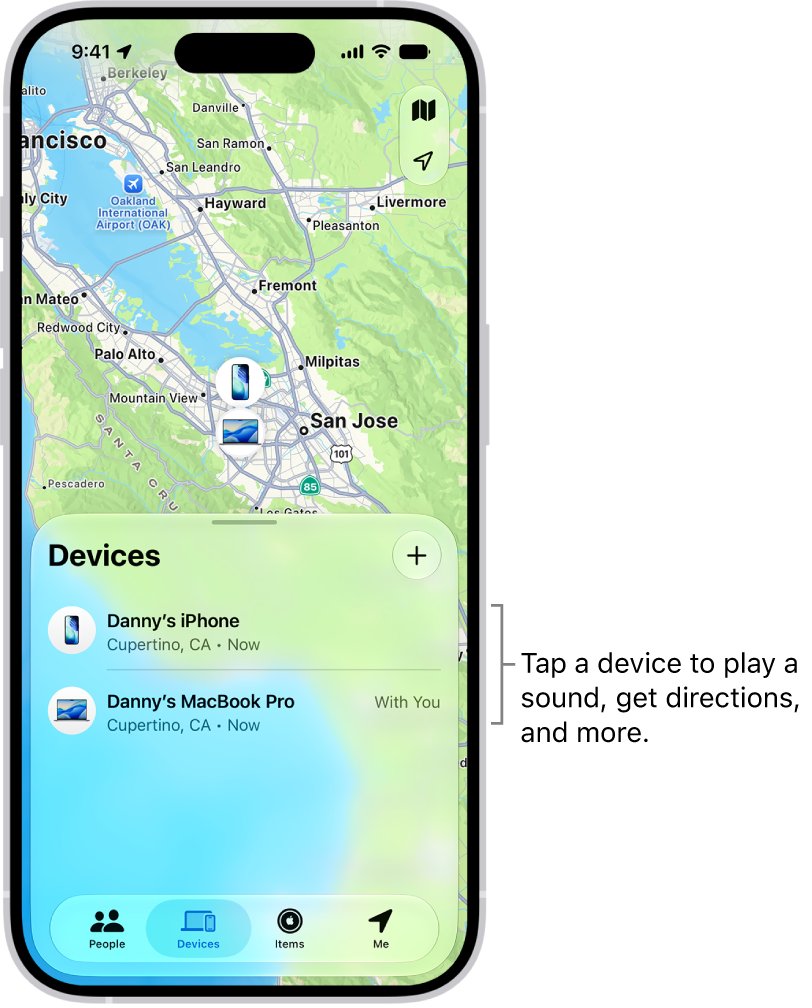
How to locate an iPhone with Localiser (Find My)
These steps work only if Find My iPhone was on before the phone went missing. If it was, they show where it is now or where it was last seen.
- Open the Find My app (Localiser) on another iPhone, iPad, Mac or Apple Watch signed in to your Apple Account.
- Tap Devices (Appareils).
- Tap the name of the missing iPhone.
- Read its location on the map.
- Tap Directions (Itinéraire) to open the location in Maps.
- When you are close, tap Play (Émettre un son) to make the iPhone ring.
No other Apple device nearby? Use a web browser at icloud.com/find, which is covered below.
What is Localiser on iPhone?
Localiser is the French name of Apple's Find My app and service. The app, the website and the steps are the same in every language; only the labels change.
| French label (Localiser) | English label (Find My) | What it does |
|---|---|---|
| Localiser | Find My | The app that shows your devices, items and people on a map |
| Appareils | Devices | List of your iPhone, iPad, Mac, Apple Watch, AirPods and family devices |
| Objets | Items | AirTags and Find My network accessories |
| Itinéraire | Directions | Opens the device location in Maps |
| Émettre un son | Play Sound | Rings the device so you can find it nearby |
| Mode Perdu | Lost Mode | Locks the device and shows your contact details |
| Localiser des appareils | Find Devices | The device finder on iCloud.com |
| Envoyer la dernière position | Send Last Location | Uploads the location when the battery is about to run out |
| Réseau Localiser | Find My network | Lets other Apple devices report an offline device's location |
| Aucune position trouvée | No location found | No location reported for more than seven days |
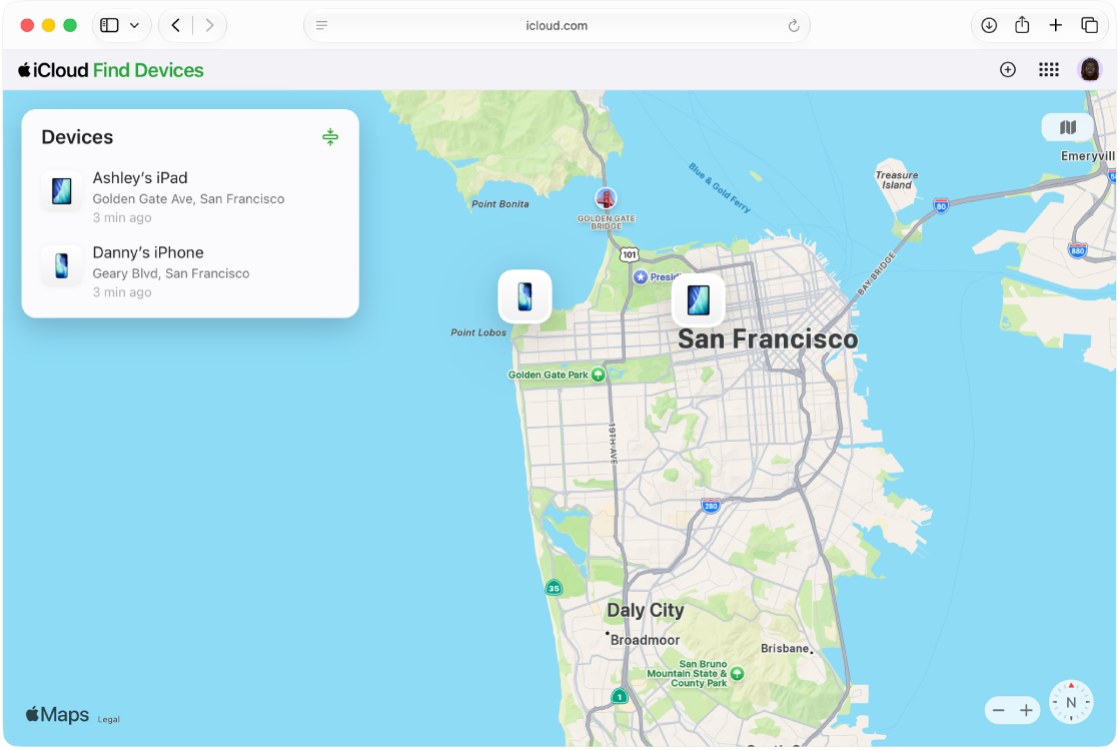
How to locate an iPhone on iCloud.com from a computer
Find Devices on iCloud.com works in a web browser on a Windows PC, a Mac or a borrowed phone. You do not need a verification code, which matters when the lost iPhone is the device that receives your codes.
- Go to icloud.com/find in a web browser.
- Sign in with your Apple Account email or phone number and password.
- If you are asked for a verification code, select the Find Devices button instead.
- Select your iPhone in the All Devices list.
- Read its location on the map, or the Offline label under its name.
- Select Notify me when found if it is offline, to get an email when it comes back online.
iCloud.com shows a last known location for up to 24 hours. The Find My app on a device signed in to your account keeps it for up to seven days when the Find My network is on.
How to locate a lost iPhone from another Apple device
Any iPad, Mac or second iPhone signed in to the same Apple Account already lists the missing iPhone.
- Open Find My on the other device.
- Tap Devices.
- Tap the missing iPhone.
- If it shows No location found, turn on Notify When Found below Notifications.
- Allow notifications for the Find My app so the alert can reach you.
To see how far away the iPhone is from you, turn on Precise Location for the Find My app on the device you are using.
How to locate your child's iPhone with Family Sharing
In a Family Sharing group, family members' devices appear below yours in the device list. Each family member must first set their devices to share their location with the family.
- Open Find My on your own iPhone.
- Tap Devices.
- Scroll below your own devices to the family member's iPhone.
- Tap it to see it on the map.
- To see where the person is rather than the device, tap People, then tap their name.
On iCloud.com, family devices also appear below yours in All Devices. A friend's device cannot be added; friends sign in at icloud.com/find with their own Apple Account.
How to play a sound on a lost iPhone
- Open Find My and tap Devices.
- Tap the missing iPhone.
- Tap Play.
- Listen for a sound that starts quietly, grows louder and plays for about two minutes.
- Press the side button or a volume button on the iPhone to stop it once found.
If the iPhone is offline, Find My shows Sound Pending and the sound plays the next time the phone connects to Wi-Fi or cellular. A confirmation email goes to your Apple Account email address.
How to mark your iPhone as lost in Find My
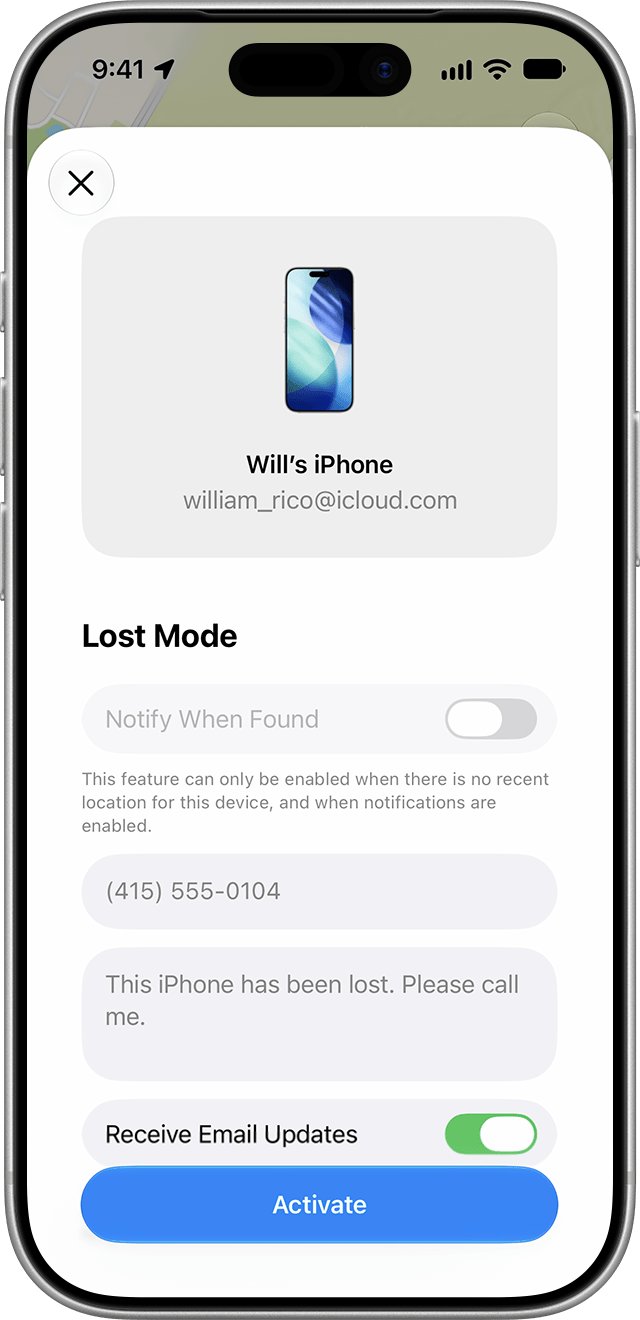
Lost Mode (Mode Perdu) locks the iPhone with its passcode, suspends Apple Pay cards and passes, and can show a phone number for whoever finds it. Turn it on while you search.
- Open Find My on another device and tap Devices.
- Tap the missing iPhone, then tap the More button.
- Scroll down to Lost iPhone and turn on Lost Mode.
- Follow the onscreen steps to add a phone number and message.
- Tap Activate.
On iCloud.com, select the iPhone in All Devices and choose the lost option there. Apple never contacts you to say a lost iPhone has been found, so treat any such message as a scam and keep to the other lost iPhone do's and don'ts.
How to turn on Find My iPhone
Locating only works if Find My iPhone was on before the phone was lost. Turn it on now on every iPhone you own.
- Open Settings and tap your name.
- Tap Find My.
- Tap Find My iPhone, then turn on Find My iPhone.
- Turn on Find My network so the iPhone can be found while offline.
- Turn on Send Last Location so the location is sent when the battery is critically low.
Find My iPhone also turns on Activation Lock, which stops anyone else from activating the phone even after it is erased.
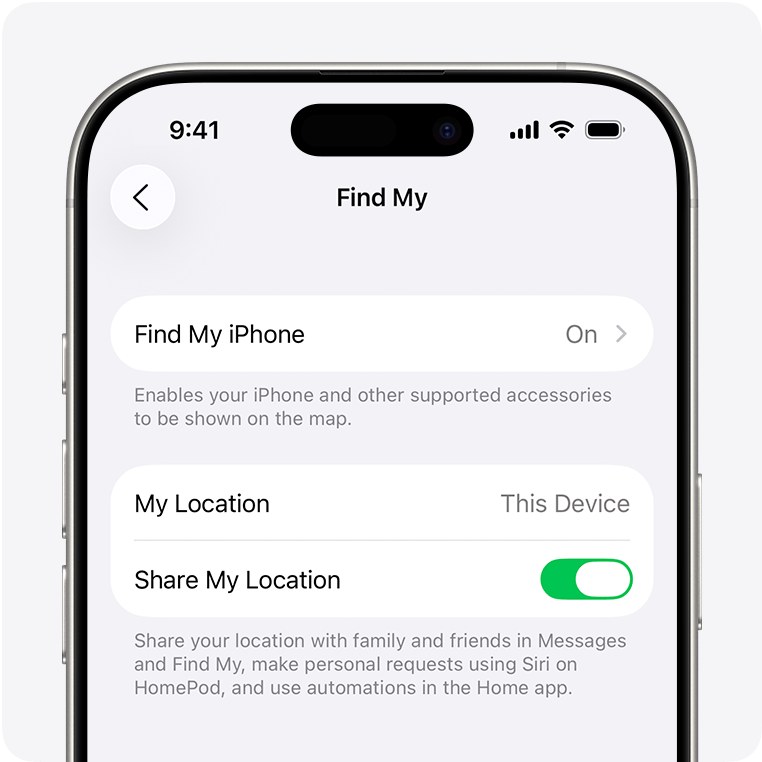
How to see if Find My iPhone is turned on
- Open Settings and tap your name.
- Tap Find My and read the status next to Find My iPhone.
- On another device or at icloud.com/find, check that the iPhone appears in your device list.
- Tap Play once from the other device to prove the connection works.
If the iPhone is missing from the list, Find My was not on for that device and it cannot be located, locked or erased remotely.
Can you locate an iPhone that is turned off or offline?
| iPhone state | What Find My shows | For how long |
|---|---|---|
| On and connected | Live location on the map | While it stays online |
| Turned off, Find My network on (supported iPhone) | Location reported by nearby Apple devices | Up to 24 hours after it is turned off |
| Power reserve mode, Find My network on | Location through the Find My network | Up to 5 hours |
| Battery dead, Send Last Location on | The location sent just before the battery ran out | Last known location up to seven days in the app |
| No report for more than seven days | No location found | Until it connects again |
| Online but Location Services problem | Not sharing location • Online | Until the location issue is fixed |
Can you locate an iPhone with the IMEI?
Find My and iCloud.com locate devices through the Apple Account they are signed in to. Neither one asks for an IMEI, so the number is no use for finding the phone yourself, and tracking a lost phone by serial number fails for the same reason.
| Who uses the IMEI or serial number | What it is for |
|---|---|
| Police | Identifying the iPhone in a loss or theft report |
| Your wireless carrier | Reporting the iPhone missing and disabling your account |
| Apple Support | Identifying your device in a support request or claim |
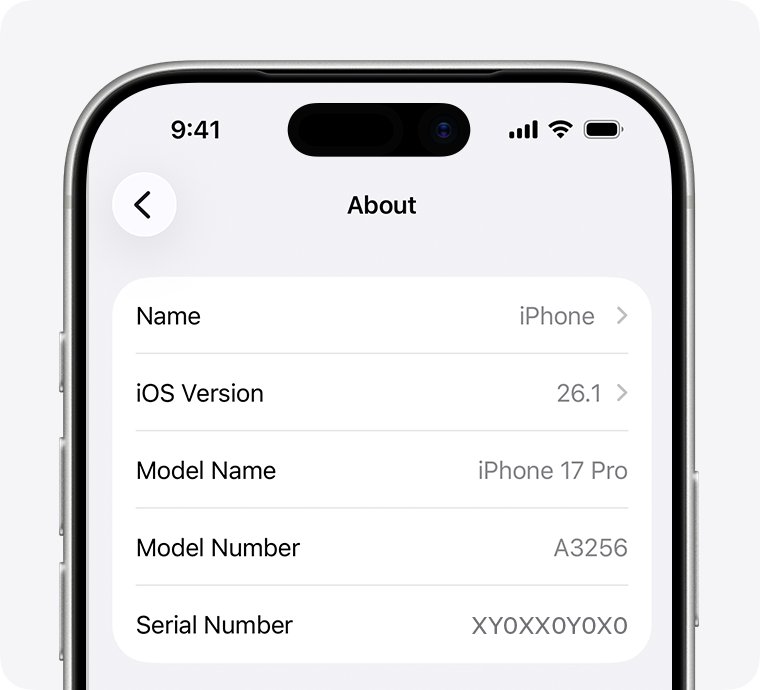
With the phone in hand, the IMEI is in Settings > General > About. Without it, check the original packaging or the device list of your Apple Account. If Find My was never turned on, these are the routes left for finding a stolen iPhone with Find My off.
How to erase an iPhone from Find My or iCloud.com
Erase only after every other step has failed, because erasing cannot be undone. On iOS 15 and later, you can still locate the iPhone after it is erased.
- Open Find My and tap Devices.
- Tap the missing iPhone, then tap the More button.
- Scroll down and choose Erase This Device.
- Complete the onscreen steps.
- On iCloud.com, sign in at icloud.com/find, choose the iPhone, select Erase iPhone, then tap Erase.
Without two-factor authentication on your Apple Account, the Find My app cannot erase remotely; use iCloud.com. Do not remove the iPhone from Find My afterwards, because that removes Activation Lock.
Localiser iPhone not working: no location found or offline
No location found
The iPhone has not sent a location through the Find My network for more than seven days.
- Turn on Notify When Found for the iPhone in Find My.
- Mark the iPhone as lost so it locks as soon as it reconnects.
- Report it to the police and your carrier if it stays missing.
Offline under the iPhone's name
The phone is off, the battery ran out, or it has no network connection.
- Open Find My on a device signed in to your account to see the last known location for up to seven days.
- Select Notify me when found on iCloud.com.
- Turn on Lost Mode; it applies when the phone next connects.
Not sharing location • Online
The iPhone is online but cannot send its location, for example because of a Location Services issue.
- Play a sound if you think the phone is nearby.
- Turn on Lost Mode so the person holding it sees your contact message.
The iPhone is not in the device list
Find My iPhone was not turned on, or the phone is signed in to a different Apple Account.
- Sign in at icloud.com/find with the Apple Account the iPhone used.
- If it still does not appear, contact your carrier and the police with the serial number or IMEI.
Locations are hidden after a password change
Stolen Device Protection can hide device locations on iCloud.com for a period after you change your Apple Account password in an unfamiliar place.
- Use the Find My app on another trusted device instead.
- Try icloud.com/find again later.
Localiser iPhone FAQ
Comment localiser mon iPhone? (How do I locate my iPhone?)
Open the Find My app (Localiser) on another Apple device signed in to your Apple Account, tap Devices, and tap your iPhone. Without another device, sign in at icloud.com/find in any web browser.
Can I locate my iPhone on a computer?
Yes. Go to icloud.com/find on any computer, sign in with your Apple Account, and select the iPhone in All Devices. No verification code is needed, so it works even when the lost iPhone receives your codes.
Is Localiser iPhone free?
Yes. Find My is built into iPhone, iPad, Mac and Apple Watch, and Find Devices on iCloud.com runs in a web browser. Both work with your Apple Account and no separate app.
Can I locate a lost iPhone with the IMEI?
No. Find My locates the iPhone through your Apple Account and never asks for an IMEI. Give the IMEI or serial number to the police and your carrier when you report the phone missing.
Can I locate my child's iPhone?
Yes, if you are in the same Family Sharing group and they share their location with the family. Their iPhone appears below your devices in Find My, and they appear under People.
Can I locate a lost iPhone that is turned off?
A supported iPhone with the Find My network on can be located for up to 24 hours after it is turned off. After that, Find My shows the last known location for up to seven days.
Can I locate my iPhone on iCloud without another device?
Yes. Sign in at icloud.com/find from any browser and select the Find Devices button if a verification code is requested. You can then locate, play a sound on, mark as lost or erase the iPhone.
Why does Find My say no location found?
No location found means the iPhone has not reported a location for more than seven days. Turn on Notify When Found and mark the phone as lost so it locks when it reconnects.
Can I locate a friend's lost iPhone?
You cannot add a friend's device to your Find My. Your friend can sign in at icloud.com/find with their own Apple Account, from your phone or computer, to locate it.