Most Windows Media Player faults in Windows 11 and Windows 10 clear after you end the stuck player process, restart the PC, and reinstall Windows Media Player Legacy from Optional features.
This page covers playback errors, missing sound, black and green video, a damaged library, CD ripping, DVD limits, streaming and default-app problems.
Restart Windows and check the basics first
A crashed player keeps a file handle open and refuses to load anything until the process ends.
- Press Ctrl + Shift + Esc to open Task Manager.
- On the Processes tab, select Media Player or Windows Media Player, then select End task.
- Restart the PC from Start > Power > Restart.
- Open the player and play a file you know is good, such as an
.mp3or a.wmv. - If it still fails, right-click the player in Start and select Run as administrator.
A file that plays after the restart points at a stuck process, not a broken install.
First, know which Windows media app you are using
Windows 11 ships two separate players, and the fix for one does nothing for the other.
The modern app arrived in 2021 as Windows 11's new Media Player and picks up its own accent colour settings.
| App | Where it comes from | How to open it | What it handles |
|---|---|---|---|
| Media Player (Windows 11) | Preinstalled and updated through Microsoft Store | Start, then Media Player | Music, video and playlists, including modern 4K video |
| Windows Media Player Legacy (Windows 11) | Optional feature, not installed by default | Start, then Windows Media Player Legacy | Local files, CD ripping and burning; no DVD playback |
| Windows Media Player (Windows 10) | Included in clean installs, otherwise an optional feature | Start, then Windows Media Player | Local files, CD ripping and burning; no DVD playback |
Microsoft points at the Media Player app for modern video features such as 4K.
Fix Windows Media Player not opening
Repair rebuilds the app package and keeps your settings. Reset wipes app data and signs you out of it.
- Open Settings > Apps > Installed apps.
- Select the More icon next to Media Player, then select Advanced options.
- Select Repair and wait for the tick to appear.
- Open the app. If it still will not start, return to the same page and select Reset.
- On Windows 10, open Settings > Apps > Apps & features, select the app, then select Advanced options.
- For the legacy player, right-click Windows Media Player Legacy in Start and select Run as administrator.
Repair and Reset are not offered for every app, so a missing button means the app has no app data to clear.
Enable or reinstall Windows Media Player Legacy
The legacy player is an optional feature in both Windows 11 and Windows 10, so removing and adding it again is a clean reinstall.
- On Windows 11, select Start > Settings > System > Optional features, then select View features next to Add an optional feature.
- Type
Windows Media Player Legacy, tick the box beside it, select Next, then select Add. - On Windows 10, select Start > Settings > Apps > Apps & features > Manage optional features > Add a feature > Windows Media Player, then select Install.
- To reinstall, find the entry in the installed optional features list, select Uninstall, restart the PC, then add it again.
- On an N edition of Windows, add Media Feature Pack from the same optional features list before you add the player.
- Restart the PC if Windows asks for one.
DVD playback is not part of either install.
Fix “Windows Media Player cannot play the file” errors
Codec faults report as error codes starting 0xC00D11. Match the file against the supported list before you change anything else.
| File you are opening | Windows Media Player Legacy | What to do |
|---|---|---|
| .mp3, .wma, .wav, .flac, .m4a, .aac | Supported | Suspect a damaged file or a damaged library; repair the library below |
| .wmv, .avi, .mpeg, .mp4, .m4v, .3gp, .m2ts | Supported | Copy the file to a local folder such as Music or Videos and play it there |
| .mov | QuickTime version 2.0 or earlier only | Play it in the Media Player app or another player |
| .mkv, .webm, .flv, .rmvb | Not on the supported list | Use a player that reads those containers |
| HEVC, VP9 or AV1 video inside a supported container | Needs an extension | Install HEVC Video Extensions, VP9 Video Extensions or AV1 Video Extension from Microsoft Store |
| Purchased or rented protected content | DRM error 0xC00D1163 | Play it in the store app that sold it |
Install codecs only from Microsoft Store. Random codec packs replace system decoders and are a common cause of the errors they claim to fix.
Fix no sound in Windows Media Player
Silence in one app and sound in another almost always means the wrong output device or a muted mixer channel.
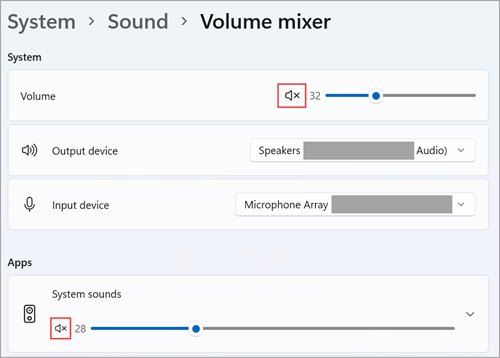
- Right-click the volume icon on the taskbar and open the volume mixer.
- Raise the slider for the player and clear any mute on that channel.
- Select the volume icon, open the device list, and pick the speakers or headphones you are actually using.
- Open Settings > System > Sound, select that output device, and turn off Audio enhancements.
- Right-click Start, select Device Manager, expand Sound, video and game controllers, right-click the audio device, then select Update driver > Search automatically for drivers.
- Restart the PC and play the file again.
The audio troubleshooter in the Get Help app runs the same checks automatically and applies the fix it finds.
Fix video problems: black screen, green screen, stutter, or lag
Audio that plays under a black or green picture is a decoder or display driver fault, not a broken file.
- Right-click Start and select Device Manager.
- Expand Display adapters, right-click the graphics adapter, then select Update driver > Search automatically for drivers.
- Restart the PC and replay the clip.
- Open Settings > Apps > Video playback and turn off the setting that lets Windows process video to enhance it.
- On the same page, let Windows play video at a lower resolution to test whether the clip is too demanding for the hardware.
- Play a lower-resolution copy of the same clip. Smooth playback there points at the decoder, not the player.
Stutter that appears only on battery usually comes from power settings rather than the player.
Repair the Windows Media Player library
Missing album art, duplicate tracks and songs that vanish after a restart all come from the media database, not the files.
- Open Windows Media Player Legacy and press Ctrl + M to show the menu bar.
- Select Tools > Advanced > Restore Media Library.
- Select Tools > Options > Privacy, then select Clear History.
- Close the player, reopen it, and let it rebuild the database before you judge the result.
- Right-click an album with wrong details and select Find album info to pull the metadata again.
- Make OneDrive-synced music available offline first; online-only placeholders show up as missing or duplicated items.
Restore Media Library discards the index only. Your music and video files are untouched.
Fix CD ripping and burning problems
Ripped tracks land in the Music folder as WMA, WAV or MP3 files unless you change the rip settings.
- Insert the disc, open File Explorer, select This PC, and confirm the optical drive is listed.
- If the drive is missing, open Device Manager and expand DVD/CD-ROM drives to check for an error mark on it.
- In the Player Library, select the Rip CD button and untick any track you do not want.
- To change quality or format, select the Rip settings menu, then Format or Audio Quality.
- To burn, select the Burn tab, select the Burn options button, then choose Audio CD or Data CD or DVD.
- Drag the tracks into the list pane on the right to build the burn list, then select Start burn.
- Keep an audio CD under 80 minutes; a data CD holds about 700 MB and a data DVD about 4.7 GB.
A burn that fails part way through is usually a scratched blank or a drive writing faster than the media allows.
Fix DVD playback issues
DVD playback is not included with Windows Media Player Legacy on Windows 11 or with Windows Media Player on Windows 10.
That means no amount of repairing the player will make a commercial DVD play in it.
- Right-click Start, select Device Manager, and expand DVD/CD-ROM drives to confirm the drive is present and free of error marks.
- Open File Explorer, select This PC, and check that the disc's folders list when you open the drive.
- Wipe the disc from centre to edge and try a second DVD to rule out the media.
- Play the disc in a player that ships its own DVD decoder, such as VLC media player.
- If no disc reads at all, test the drive on another PC before replacing it.
Fix streaming and media sharing problems
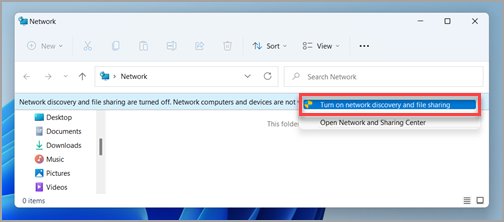
A library that will not appear on another device is almost always a network profile problem.
- Open Settings, type
manage advanced sharing settingsin the search box, and open the result. - Under Private networks, turn on Network discovery and File and printer sharing.
- Set the connection you use at home to Private, because a Public profile blocks discovery by design.
- Confirm both PCs sit on the same network and neither is asleep.
- Restart both devices, then look for the shared library again.
Guest and hotel networks isolate clients from each other, so sharing will not work on them at all.
Set Windows Media Player as the default app
Windows 11 assigns defaults per file type, so setting one extension does not move the rest.
- Open Settings > Apps > Default apps.
- Type the extension you want to change, such as
.mp3or.wmv, in the search box. - Select the result, choose Windows Media Player Legacy from the list, and confirm the choice.
- Repeat for every extension the player should own.
- On Windows 10, open Settings > Apps > Default apps, then select Choose default apps by file type.
- Double-click a media file in File Explorer to confirm the right player now opens.
Run Windows troubleshooters
The built-in troubleshooters fix the audio and update faults that stop playback, and they log what they changed.
- On Windows 11, select Start > Settings > System > Troubleshoot.
- On Windows 10, select Start > Settings > Update & Security > Troubleshoot.
- Open the Get Help app and run the audio troubleshooter, which diagnoses and repairs most sound faults without input.
- Restart the PC after a fix is applied.
- Check Recommended troubleshooter history on Windows 11, or View troubleshooting history on Windows 10, to see what ran.
The full list of entry points is in how to run any troubleshooter on Windows 10 and 11.
Repair Windows system files
Damaged system files break the media stack for every player at once, so run these two commands in order.
- Right-click Start and select Terminal (Admin), or Command Prompt (Admin) on Windows 10.
- Type
DISM.exe /Online /Cleanup-image /Restorehealthand press Enter. - Wait for it to complete, then type
sfc /scannowand press Enter. - Leave the window open until verification reaches 100%.
- Restart the PC and play a file again.
Success reads Windows Resource Protection did not find any integrity violations, or Windows Resource Protection found corrupt files and successfully repaired them.
Check security software and folder permissions
A file that plays from one folder and not another is a permissions problem, not a codec problem.
- Copy the file to a local folder such as Music or Videos and play it there.
- Right-click the file, select Properties, open the Security tab, and confirm your account has Read permission.
- Copy files off a network share or a USB drive to the internal drive before playing them.
- Make OneDrive files available offline so the player is not waiting on a download.
- If security software blocks the player, add it to that product's allowed list using the vendor's own instructions.
Never switch protection off to make a file play. Allow the specific app instead.
Create a new Windows user profile
This is the last test before a repair install, and it separates a damaged profile from a damaged Windows.
- Open Settings > Accounts > Other users.
- Select Add account under Add other user.
- Choose Add a user without a Microsoft account if you want a plain local profile.
- Name the account, set a password, and finish the wizard.
- Sign out, sign in to the new account, and open the player there.
A player that works in the new profile means the fault lives in your old profile's app data, not in Windows.
How to check the fix worked
- Play an
.mp3and a.wmvfile from the local Music and Videos folders. - Confirm the seek bar moves and the sound comes from the device you selected.
- Open the Player Library and check that album art and track names show against each item.
- Insert an audio CD and confirm the Rip CD button becomes available.
- Double-click a media file in File Explorer and confirm the player you chose opens it.
All five passing means the player, the codecs, the audio path and the file associations are all working.
When to use another media player
| Your situation | Use this | Why |
|---|---|---|
| Playing a DVD | A player with its own DVD decoder, such as VLC | Windows does not include DVD playback |
| 4K or HDR video | The Media Player app | Microsoft points to it for modern video features |
| .mkv, .webm or .flv files | VLC or another third-party player | Those containers are not on the legacy player's supported list |
| Ripping or burning audio CDs | Windows Media Player Legacy | The Rip CD button and Burn tab are built in |
| Everyday local music and video | The Media Player app | It is preinstalled and updated through Microsoft Store |
The VLC 4.0 interface shows what a third-party player adds over the built-in ones.
Fix Windows Media Player when it still does not work
Media Player not working in Windows 11 after an update
The app package was left inconsistent by the update.
- Open Settings > Windows Update and install everything pending.
- Open Settings > Apps > Installed apps > Media Player > Advanced options and select Repair.
- Restart the PC and try the app again.
- If it still fails, select Reset on the same page.
Windows Media Player Legacy is missing from the Start menu
The optional feature is not installed, or an N edition is missing its media components.
- Open Settings > System > Optional features and check the installed list.
- Select View features, search for
Windows Media Player Legacy, and add it. - On an N edition, add Media Feature Pack first, then add the player.
- Restart the PC and look in Start again.
The player opens and closes immediately, or crashes during playback
A damaged media database or a bad decoder brings the process down as soon as it loads.
- Open the player, press Ctrl + M, then select Tools > Advanced > Restore Media Library.
- Run
sfc /scannowfrom an elevated Terminal window. - Uninstall any third-party codec pack from Settings > Apps > Installed apps.
- Remove and re-add the optional feature, then restart.
Windows Media Player does not detect an inserted CD
The drive is missing from Windows, or AutoPlay handed the disc to a different app.
- Open File Explorer, select This PC, and check the optical drive is listed.
- Open Device Manager, expand DVD/CD-ROM drives, right-click the drive, then select Update driver.
- Open Settings > Bluetooth & devices > AutoPlay and set the audio CD action to the player you want.
- Eject the disc, reinsert it, and open the Rip view again.
Frequently Asked Questions
How do you troubleshoot Windows Media Player in Windows 11?
End the player in Task Manager, restart the PC, then repair the app from Settings > Apps > Installed apps > Advanced options. If the fault stays, remove Windows Media Player Legacy from Optional features and add it again.
Why is Media Player not working in Windows 11?
A pending Windows update, a damaged app package or a missing codec extension causes most failures. Install updates, run Repair and then Reset on the Media Player app, and add the codec extension the file needs from Microsoft Store.
Is Windows Media Player still in Windows 11?
Yes. Windows Media Player Legacy is an optional feature in Windows 11 and is off by default. Add it from Settings > System > Optional features. The newer Media Player app is preinstalled alongside it.
How do you reinstall Windows Media Player in Windows 10?
Open Settings > Apps > Apps & features > Manage optional features. Uninstall Windows Media Player, restart the PC, then select Add a feature, pick Windows Media Player and select Install.
Why does Windows Media Player say it cannot play the file?
The container or the codec is unsupported. Error codes starting 0xC00D11 point at codecs. Check the extension against the supported list, then install the HEVC, VP9 or AV1 extension from Microsoft Store if the video uses one of those codecs.
Can Windows Media Player play DVDs in Windows 11?
No. DVD playback is not included with Windows Media Player Legacy in Windows 11 or with Windows Media Player in Windows 10. Use a player that ships its own DVD decoder, such as VLC.
How do you fix no sound in Windows Media Player?
Unmute the player in the volume mixer, pick the right output device from the taskbar volume icon, then turn off Audio enhancements in Settings > System > Sound. Update the audio driver from Device Manager if sound is still missing.
How do you reset the Windows Media Player library?
Open the player, press Ctrl + M to show the menu bar, then select Tools > Advanced > Restore Media Library. The index is rebuilt and your media files are left untouched.
Does Windows Media Player play MKV files?
No. The .mkv container is not on the supported file type list for Windows Media Player. Open MKV files in the Media Player app or a third-party player instead.
Which troubleshooter helps with Windows Media Player problems?
The audio troubleshooter in the Get Help app covers the sound path, and the Windows Update troubleshooter covers failed app updates. Both are reached from Settings > System > Troubleshoot on Windows 11.