iPhone volume usually drops suddenly because a setting is lowering one kind of sound: a speaker volume limit, a headphone safety cap, Attention Aware Features, a Bluetooth device taking the audio, or a blocked speaker opening.
This guide matches each quiet sound to its setting, then covers ring volume, calls, headphones, cleaning, restarting, updating and resetting, and when the speaker needs Apple service.
Start with the sound that is too quiet
iPhone keeps separate volumes for media, calls, ringtones and alerts, and the volume buttons change only one of them at a time. Find your case in the table and go straight to its fix.
| What is too quiet | Most likely cause | Where to fix it |
|---|---|---|
| Music, videos and games through the speaker | Volume Limit or Reduce Loud Sounds under Built-In Speaker | Settings > Sounds & Haptics |
| Everything, but only in headphones | Reduce Loud Audio or a headphone notification that lowered the volume | Settings > Sounds & Haptics > Headphone Safety |
| The other person on a call | Call volume set low, or audio routed to another device | Volume buttons during the call, then the Audio button |
| Ringtone and alerts | Ringer slider low, or volume buttons not linked to the ringer | Settings > Sounds & Haptics > Ringtone slider |
| Alerts get quieter when you look at the phone | Attention Aware Features | Settings > Accessibility > Face ID & Attention |
| No sound from the speaker at all | Silent mode, a Bluetooth device, or a blocked opening | Control Center, Settings > Bluetooth, then the openings |
1. Check media volume and where audio is playing
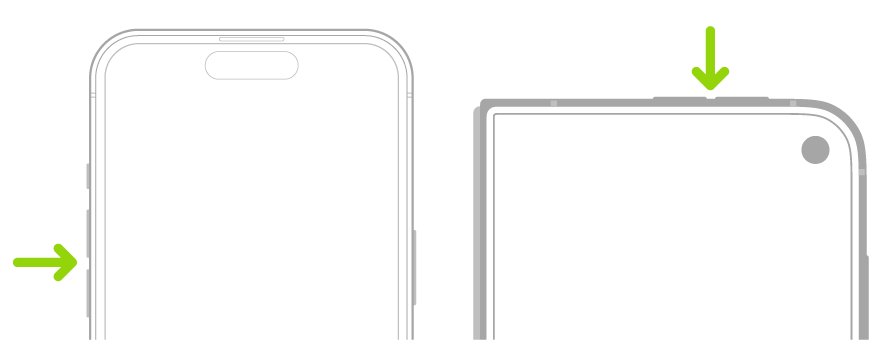
When audio is playing, the volume buttons change media volume. When nothing is playing, the same buttons change the ringer, so pressing them on the Home Screen does not make a video louder.
- Start playing a song or video, then press the volume up button until the onscreen slider is full.
- Open Control Center and check the volume slider there as well.
- Look at the playback controls in Control Center or on the Lock Screen. If a speaker, TV or headphones name appears as the destination, tap the output button and choose iPhone.
- Go to Settings > Sounds & Haptics. Under Built-In Speaker, tap Volume Limit and turn off Limit Maximum Volume, or drag its slider higher.
- On the same screen, turn off Reduce Loud Sounds under Built-In Speaker if loud passages sound flattened.
- Play the same audio again and compare.
If the volume limit will not move on a child's iPhone, Screen Time is holding it. On that iPhone go to Settings > Screen Time > Content & Privacy Restrictions > Speaker Volume Limit and change Don't Allow to allow changes.
2. Check calls separately
Call volume is set during a call, not from the Home Screen. If the caller sounds faint but music is loud, the call audio is the problem.
- Make or answer a call.
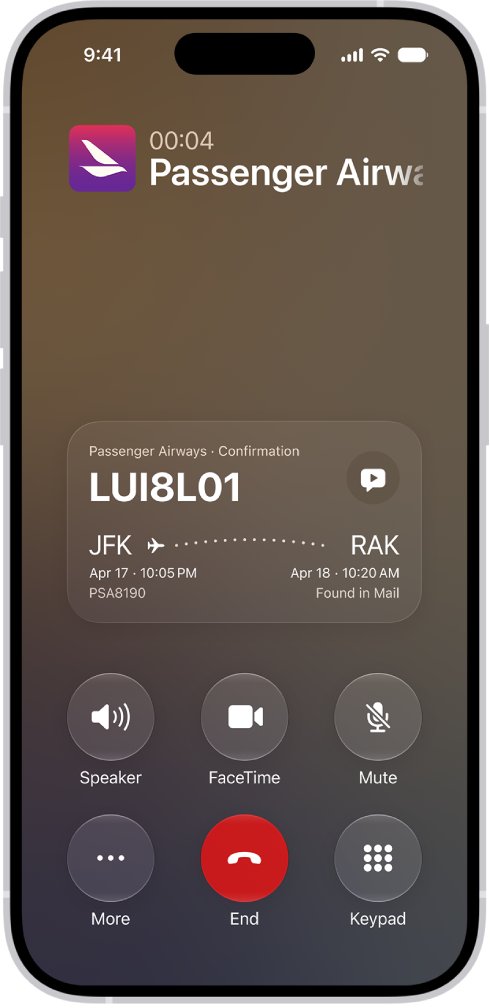
- Press the volume up button on the side of iPhone while the call is active.
- Swipe down on the call banner and tap the Audio button to check where the call is going. Choose iPhone or Speaker if a headset or car is selected.
- Turn on speakerphone and listen. If speakerphone is loud but the earpiece is quiet on calls, inspect the receiver opening at the top of the screen.
- If speakerphone also crackles or cuts out, call again from a different location, because weak reception lowers call quality.
On iPhone 12 and earlier, Phone Noise Cancellation is on by default. You can switch it off for comfort in Settings > Accessibility > Audio & Visual to compare how calls sound.
3. Check ringtones and alerts
Ringtone volume has its own slider in Settings. Alarms and other alerts may follow it or have their own volume, depending on how Match Ringtone Volume is set.
- Go to Settings > Sounds & Haptics.
- Under Ringtone, drag the volume slider to the right. iPhone plays the ringtone as you drag.
- Turn on Change with Buttons if you want the side buttons to raise the ringer when no audio is playing.
- Scroll to Alarms and Timers and Alerts and System Sounds. If Match Ringtone Volume is off for either, set that slider separately.
- Lock the phone and ask someone to call you to hear the result.
If only your morning alarm is quiet, change the iPhone alarm volume on its own slider rather than raising every alert.
4. Check headphones and automatic volume reductions
iPhone lowers headphone volume on its own in two cases. After it warns you about loud listening, the next time you connect headphones the volume starts at a lower level. Reduce Loud Audio also caps any sound above the level you set.
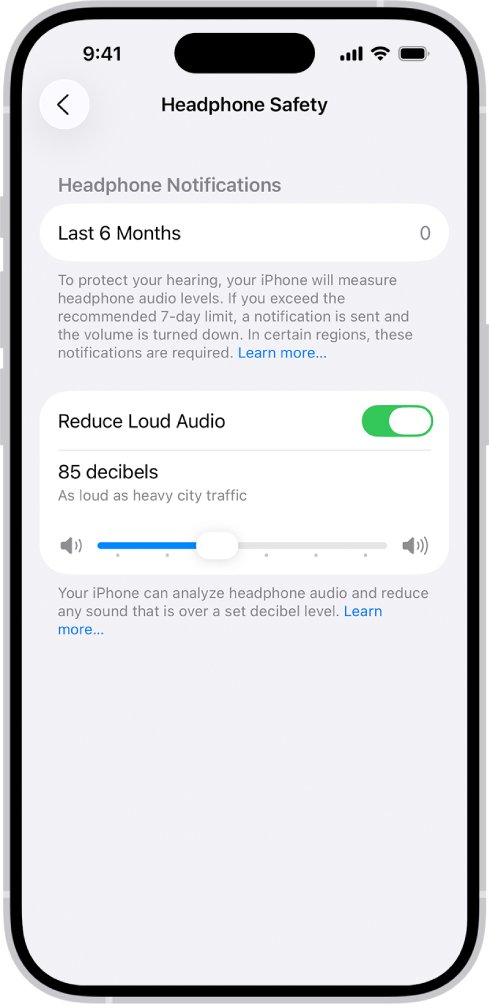
- Go to Settings > Sounds & Haptics, scroll down and tap Headphone Safety.
- Turn off Reduce Loud Audio, or drag its slider to a higher level.
- Press the volume up button with the headphones connected. The automatic reduction after a notification can be turned back up.
- Open the Health app, tap Browse > Hearing > Headphone Notifications to see whether a notification lowered the volume.
- Go to Settings > Accessibility > Audio & Visual and check that the Balance slider sits in the middle and Mono Audio is set the way you want.
- If you use AirPods or Beats with Headphone Accommodations on, open it on the same screen and check the soft-sound slider.
In some countries or regions, Headphone Notifications is on by default and cannot be turned off.
5. Inspect the openings and restart
A case, film or screen protector can cover the speaker or the receiver. Lint in the bottom speaker grille is a common reason a phone gets quieter over weeks.
- Remove the case, any screen protector and any film.
- Look at the bottom speaker openings and the receiver at the top of the display for dirt or blockage.
- Play a sound with the case off and compare the volume.
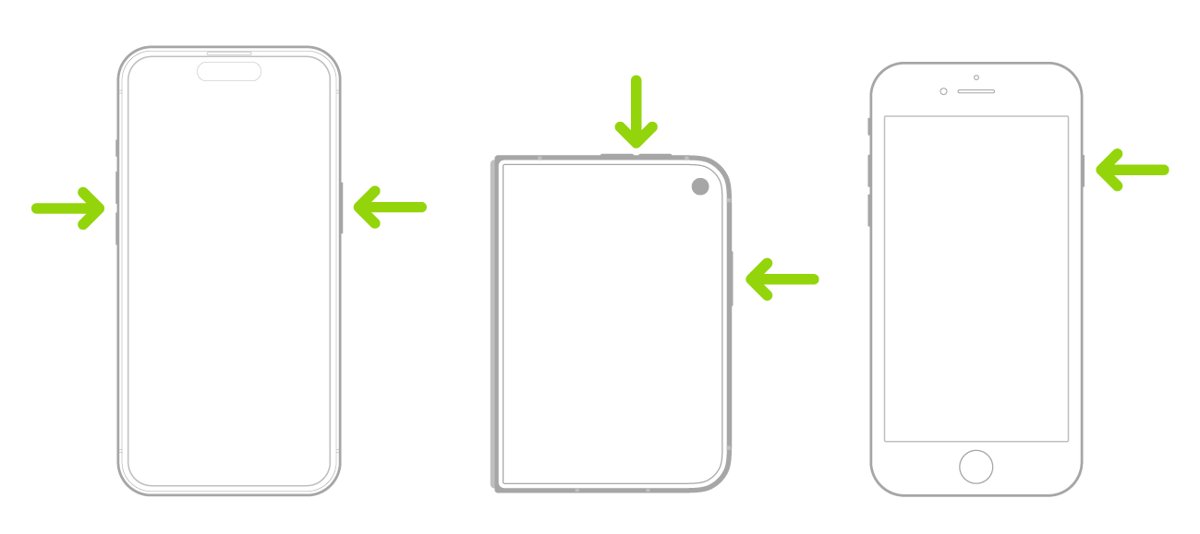
- Press and hold the side button and either volume button, then drag the Power Off slider.
- Press and hold the side button until the Apple logo appears, then test the sound again.
How to test iPhone speaker volume with the ringtone slider
This test separates a settings problem from a hardware problem in under a minute.
- Go to Settings > Sounds & Haptics.
- Drag the Ringtone slider back and forth a few times.
- Listen for the ringtone. A clear tone means the speaker works and a setting is the cause.
- If you hear nothing, or the speaker icon on the slider is dimmed, the speaker may need service.
- Make a call and turn on speakerphone. Static or crackling only on calls points to reception rather than the speaker.
Understanding iPhone ring volume
Ring volume is not the same control as the volume you hear in music or calls. This table shows which control changes which sound.
| Sound | Controlled by | Changes with the side buttons? |
|---|---|---|
| Ringtone | Ringtone slider in Sounds & Haptics | Only when Change with Buttons is on and nothing is playing |
| Text tones and other alerts | Ringtone volume, or Alerts and System Sounds when Match Ringtone Volume is off | Same as ringtone |
| Alarms and timers | Ringtone volume, or Alarms and Timers when Match Ringtone Volume is off | Same as ringtone |
| Music, video, games | Media volume | Yes, while audio is playing |
| Phone calls | Call volume | Yes, during the call |
With Change with Buttons off, the side buttons only control media playback, so the ringer stays where you set it in Settings.
Common reasons for low iPhone ring volume
| Reason | What you notice | Fix |
|---|---|---|
| Ringer slider set low | Ringtone quiet, music loud | Drag the Ringtone slider up |
| Attention Aware Features | Ringtone gets quieter when you look at a Face ID iPhone | Turn it off in Settings > Accessibility > Face ID & Attention |
| Silent mode or a Focus | No ring at all, maybe only vibration | Turn off Silent mode and Do Not Disturb |
| Bluetooth device connected | Ringtone plays in a car, headset or speaker | Turn off Bluetooth or disconnect the device |
| Blocked speaker opening | Everything from the speaker is muffled | Remove the case and clean the openings |
| A soft ringtone | Ringtone quieter than other tones at the same volume | Pick a different ringtone |
| Speaker fault | Ringtone slider test is silent or the slider is dimmed | Contact Apple for service |
6. Adjust volume settings
Several settings cap or shape iPhone volume without telling you. Work through them on one screen.
- Go to Settings > Sounds & Haptics.
- Drag the Ringtone slider most of the way to the right.
- Under Built-In Speaker, tap Volume Limit and check Limit Maximum Volume.
- Go back and check Reduce Loud Sounds under Built-In Speaker.
- Go to Settings > Accessibility > Face ID & Attention and turn off Attention Aware Features if alerts drop when you pick up the phone.
- Test the ringtone with a call from another phone.
7. Check Silent and Do Not Disturb modes
Silent mode stops ringtones and alerts, though iPhone may still vibrate. Alarms, Music and many games still play through the speaker in Silent mode, which is why it can look like only some sounds disappeared.
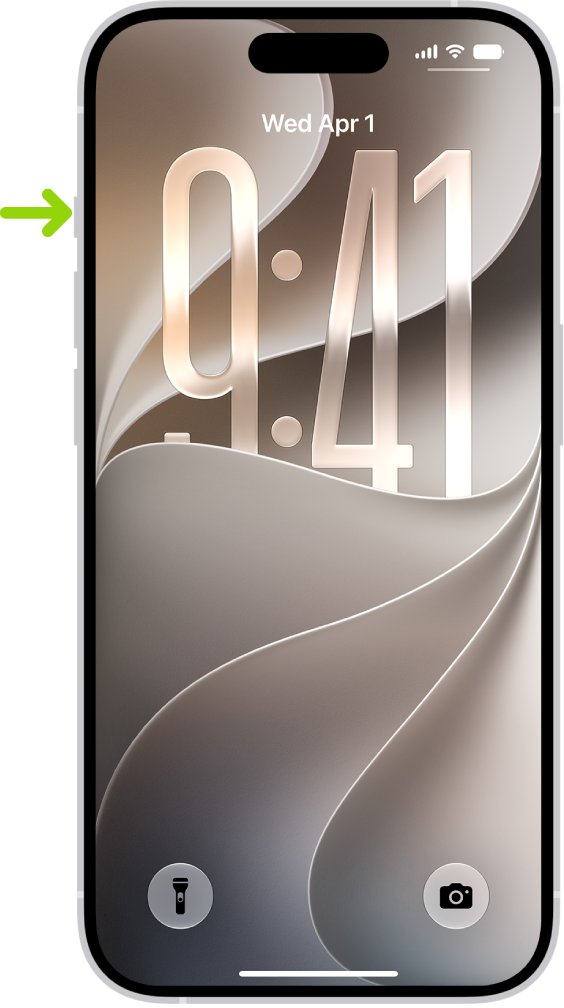
- Open Control Center and tap the Silent mode button so it is off.
- On an iPhone with a Ring/Silent switch, flip it toward the display so the orange color is not showing.
- On an iPhone with an Action button set to Silent mode, press and hold the Action button to switch Silent mode off.
- Go to Settings > Focus > Do Not Disturb and make sure it is off.
- Check any other Focus in the same list that runs on a schedule.
To always see when Silent mode is on, keep Show in Status Bar turned on in Settings > Sounds & Haptics.
8. Disconnect Bluetooth devices
A car, headset or speaker in range can grab the audio the moment it connects, leaving the iPhone speaker silent or faint.
- Open Control Center and look at the playback destination on the music controls.
- Tap the output button and choose iPhone to move the audio back.
- Go to Settings > Bluetooth and tap the connected accessory to see its status, or turn Bluetooth off to test.
- If a third-party speaker or headset is quiet, tap the info button next to it, tap Device Type and choose the correct type, such as headphone, speaker or car stereo.
The playback destination returns to iPhone on its own when the Bluetooth accessory moves out of range.
9. Restart your iPhone
Apple's first step when iPhone is not working as expected is to turn it off and back on, then force restart it if that does not help.
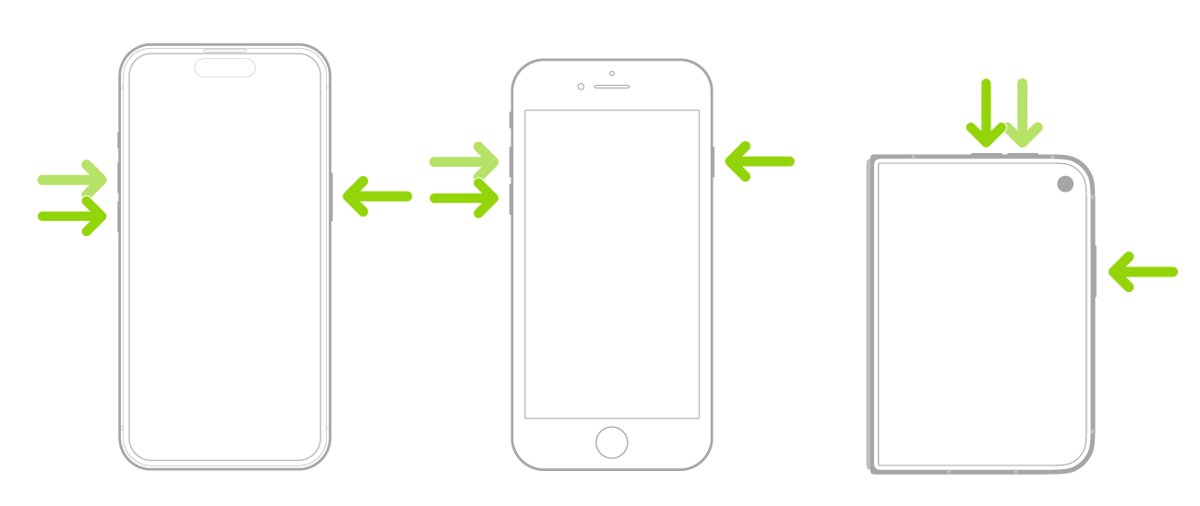
- On an iPhone with Face ID, press and hold the side button and either volume button until the sliders appear. On iPhone SE, press and hold the side button.
- Drag the Power Off slider.
- Wait for the screen to go dark, then press and hold the side button until the Apple logo appears.
- If iPhone is not responding, force restart it: press and quickly release volume up, press and quickly release volume down, then press and hold the side button until the Apple logo appears.
- Test the sound again once you are back on the Home Screen.
You can also go to Settings > General > Shut Down if a button is not working. If the phone stays on the Apple logo, fix the iPhone boot loop before going further.
10. Check for software updates
Updating iOS keeps your data and settings unchanged. Back up first anyway.
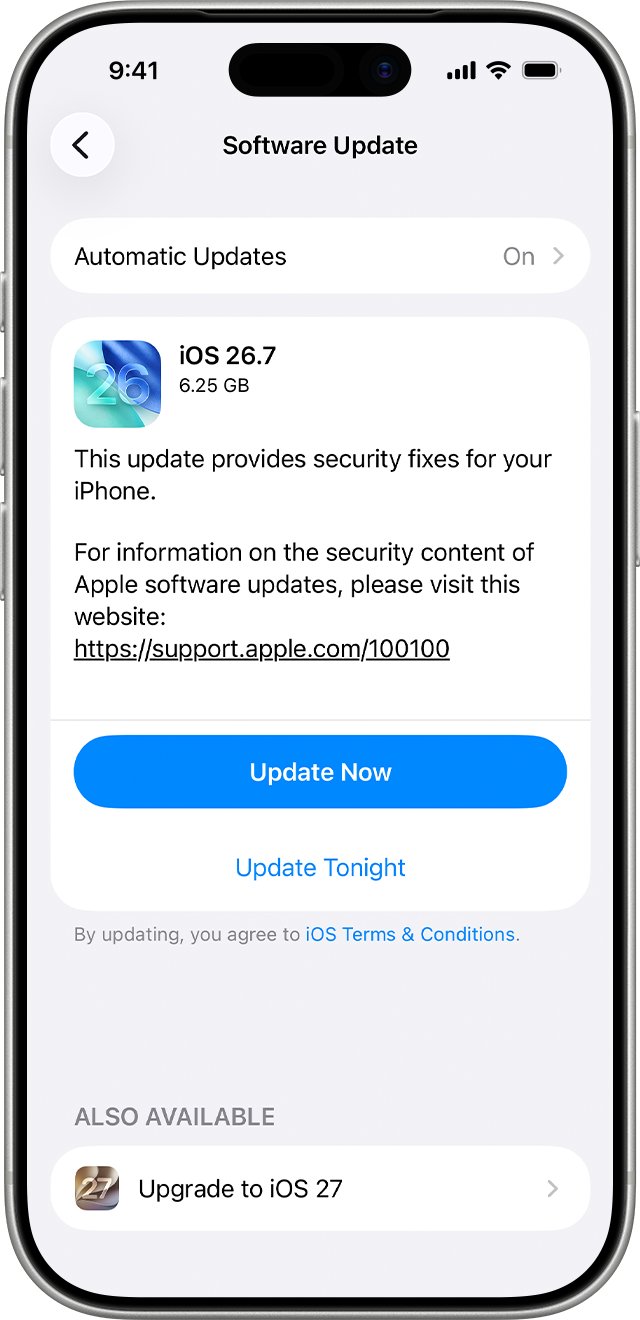
- Go to Settings > General > Software Update.
- Check the installed iOS version shown and whether an update is available.
- Tap Download and Install if one is listed, then follow the onscreen instructions.
- To stay current, tap Automatic Updates and turn on Automatically Install.
11. Clean your speakers
Apple recommends a small, soft-bristled brush that is clean and dry for the speaker and receiver openings. Use nothing wet or sharp in the grilles.
- Turn off iPhone and take off the case.
- Gently brush across the bottom speaker openings with a clean, dry, soft-bristled brush.
- Brush the receiver opening at the top of the display the same way.
- Turn iPhone back on and run the Ringtone slider test in Settings > Sounds & Haptics.
12. Change ringtones
Some ringtones are softer than others at the same slider position. Swapping tones tells you whether the tone or the phone is quiet.
- Go to Settings > Sounds & Haptics.
- Tap Ringtone under the Ringtone section.
- Tap a few ringtones to preview them and select one that sounds louder.
- For one contact, open Contacts, tap the person's name, tap Edit, then choose a ringtone and text tone.
13. Reset all settings
Reset All Settings returns every setting to its default without deleting your data or media. It removes network settings, the keyboard dictionary, location and privacy settings and Apple Pay cards, so back up first.
- Back up iPhone so you can restore your previous settings if the reset does not help.
- Go to Settings > General > Transfer or Reset iPhone.
- Tap Reset.
- Tap Reset All Settings. Do not choose Erase All Content and Settings, which removes your content.
- Enter your passcode if asked and confirm.
- Rejoin Wi-Fi and test the volume again.
iPhone volume too low FAQ
Why did my iPhone volume suddenly get lower?
A setting usually lowered one kind of sound. Check Volume Limit and Reduce Loud Sounds under Built-In Speaker, Headphone Safety, Attention Aware Features and any connected Bluetooth device. If the Ringtone slider test is silent, the speaker may need service.
Why is my iPhone volume low even at full volume?
Limit Maximum Volume under Built-In Speaker caps the speaker even when the slider is full. Go to Settings > Sounds & Haptics > Volume Limit and turn it off. Also remove the case and check the speaker openings for lint.
Why does my iPhone ringtone get quieter when I look at it?
Attention Aware Features lowers the volume of some alerts when a Face ID iPhone sees you looking at the screen. Turn it off in Settings > Accessibility > Face ID & Attention if you want the ringtone to stay at full volume.
Why is my iPhone volume low with headphones?
Reduce Loud Audio in Headphone Safety caps headphone sound, and after a loud-listening notification iPhone starts headphones at a lower volume. Raise the volume with the buttons and check Settings > Sounds & Haptics > Headphone Safety.
Why is my iPhone call volume low but music is loud?
Call volume is separate from media volume. Press the volume up button during the call and tap the Audio button to check where the call is going. If speakerphone is loud but the earpiece is faint, clean the receiver opening.
Why won't my volume buttons change the ringer?
Change with Buttons is off. With it off, the side buttons only control media playback. Turn it on in Settings > Sounds & Haptics under Ringtone, or keep it off and set the ringer with the slider.
Does Reset All Settings delete anything?
No data or media is deleted. Reset All Settings returns settings to their defaults and removes network settings, the keyboard dictionary, location and privacy settings and Apple Pay cards. Back up first so you can restore your old settings.
How do I know if my iPhone speaker is broken?
Drag the Ringtone slider in Settings > Sounds & Haptics. If you hear nothing, or the speaker icon on the slider is dimmed, the speaker may need service. Remove the case and clean the openings first to rule out a blockage.
When to contact Apple
Contact Apple Support or set up a repair if the Ringtone slider test is silent, the speaker icon on the slider is dimmed, or the sound stays quiet or distorted after you remove the case, clean the openings, restart and update. At that point the settings that cap volume are ruled out, and a quiet or crackling speaker points to hardware that needs service.