To recover an unsaved PowerPoint presentation on Windows, open PowerPoint, select File, then Recover Unsaved Presentations, and open the AutoRecover copy from the folder that appears.
This guide covers Windows and Mac, the Document Recovery pane after a crash, the AutoRecover folder paths, version history for saved files, other recovery routes, and how to stop it happening again.
Recover unsaved PowerPoint presentations on Windows
PowerPoint saves an AutoRecover copy in the background every 10 minutes by default. Those copies are what you open here, so a presentation you never saved can still come back.
- Open PowerPoint.
- Select File, then the Home tab in the menu.
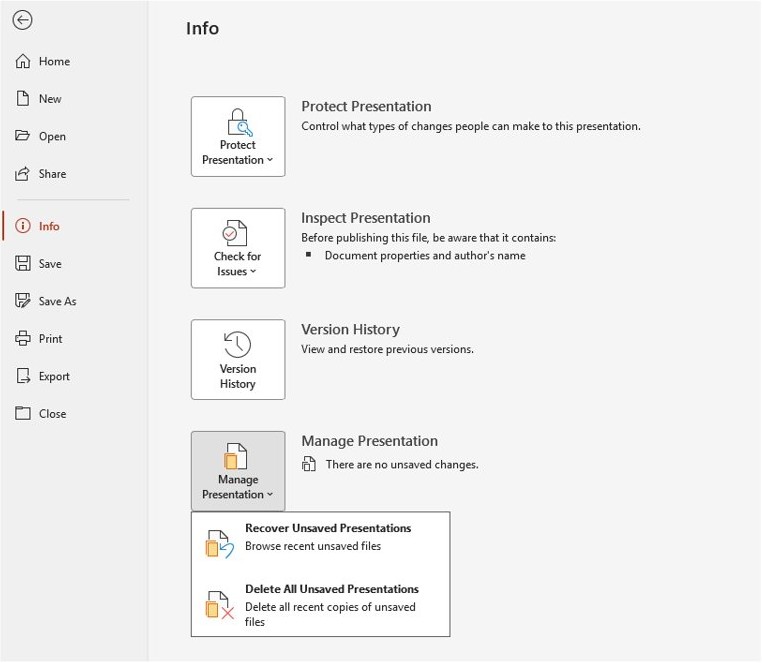
- Select Recover Unsaved Presentations at the bottom of the screen; in older versions, go to File > Info > Manage Presentation > Recover Unsaved Presentations.
- In the folder that opens, select the presentation with the most recent date and select Open.
- Select Save As in the bar at the top of the file and save it to a folder you will remember.
Save the recovered copy before you edit or close it. Word has the same safety net when you need to recover an unsaved Word document, while lost text in Notepad needs a different route for unsaved Notepad files.
PowerPoint Document Recovery pane after a crash
After a crash, power cut or forced shutdown, PowerPoint normally reopens your work the next time it starts. In Office 2021 and earlier, and in Microsoft 365 apps, this appears as the Document Recovery pane.
- Open PowerPoint again after the crash.
- Look for the Document Recovery pane on the left; drag its right edge to widen it if the file names are cut off.
- Check the date and time under each file name and pick the most recent version of the presentation.
- Select the down arrow next to the file and choose Open or View to check it, or Save As to keep it.
- When you have saved everything you need, select Close and choose Yes, I want to view these files later if you are not sure yet.
Choose No, remove the files. I have saved the files I need only after every copy you want is saved. If you close the pane without reviewing all files, PowerPoint offers them again the next time you open it.
Where is the PowerPoint AutoRecover folder?
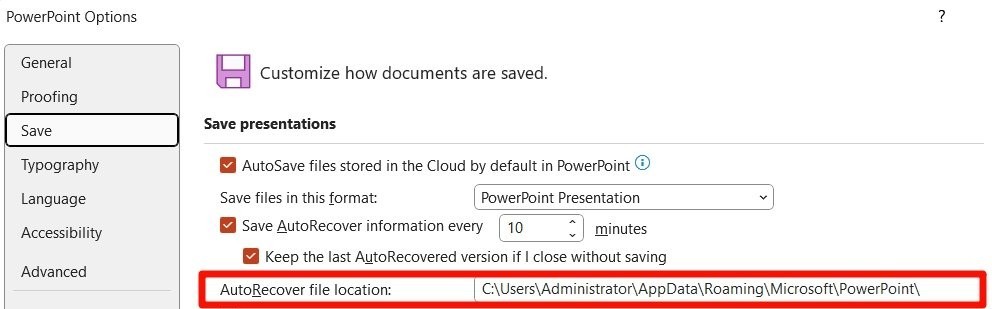
You can also open the AutoRecover folder directly. Its exact location is listed in File > Options > Save under AutoRecover File Location.
| System | Default AutoRecover folder | How to open it |
|---|---|---|
| Windows 11 and Windows 10 | C:\Users\<username>\AppData\Roaming\Microsoft\PowerPoint | Paste the path into the File Explorer address bar, replacing <username> with your user name |
| Mac | /Users/<username>/Library/Containers/Microsoft PowerPoint/Data/Library/Preferences/AutoRecovery | In Finder, press Shift-Command-G to open Go to Folder and paste the full path |
| Custom location | Whatever is set in AutoRecover File Location | Copy the path from File > Options > Save |
If you changed the default AutoRecover path, some AutoRecover files may not be deleted automatically when they are no longer needed, so the folder can hold older copies too.
Recover unsaved PowerPoint files on macOS
PowerPoint for Mac keeps its AutoRecover copies in a hidden Library folder, so Finder does not show them until you go to the path directly.
- Quit PowerPoint if it is open.
- In Finder, press Shift-Command-G to open the Go to Folder window.
- Paste
/Users/<username>/Library/Containers/Microsoft PowerPoint/Data/Library/Preferences/AutoRecovery, replacing <username> with your Mac user name, and press Return. - Find the file with the most recent date and open it in PowerPoint.
- Choose File > Save As and save it with a new name in Documents or another folder you use.
To make Mac AutoRecover save more often, open the PowerPoint menu > Preferences > Save under Output and Sharing, and lower the Save every x minutes value under Save Options.
Restore a previous version of a PowerPoint file
Use this when the presentation was saved at least once but you closed it without saving later changes, or saved over something you needed.
- Open the presentation in PowerPoint.
- Go to File > Info.
- Under Manage Presentation, select the file labelled (when I closed without saving).
- Select Restore in the bar at the top of the file to overwrite the saved version.
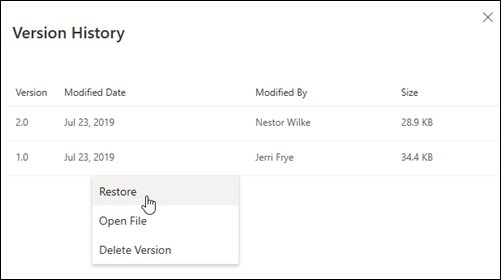
- For a file on OneDrive or SharePoint, select the file name at the top of the window, choose Version History, select Open version on the one you want, then Restore.
With AutoSave on, a new version is added to version history about every 10 minutes during an editing session. OneDrive keeps file version history for 30 days.
Other methods to recover PowerPoint files
When PowerPoint has no AutoRecover copy, the file may still exist somewhere else. Match your situation to a row.
| Your situation | Where to look | How |
|---|---|---|
| You deleted a saved .pptx on Windows | Recycle Bin | Open the Recycle Bin on the desktop and restore the presentation; if the icon is missing, turn it on in Settings > Personalization > Themes > Desktop icon settings |
| You deleted it on a Mac | Trash | Click the Trash icon in the Dock, select the file, then choose File > Put Back |
| The file was in OneDrive and was deleted | OneDrive recycle bin | Sign in at onedrive.com, select Recycle bin, tick the file and select Restore (30 days for personal accounts, 93 days for work or school) |
| The file is in OneDrive but the content is wrong | OneDrive version history | Right-click the file in File Explorer or on onedrive.com, select Version history, then Restore on an earlier version |
| File History was turned on in Windows | Previous Versions | Right-click the folder that held the file, select Restore previous versions, pick a date and select Restore |
| Time Machine backs up your Mac | Time Machine backup | Restore the file from the backup to the same Mac or a different Mac |
| Deleted from a local drive and emptied from the Recycle Bin | Windows File Recovery | Install Windows File Recovery from the Microsoft Store and run winfr C: E: /regular /n *.pptx to copy recovered presentations to drive E: |
If you need Microsoft's Windows File Recovery tool, use the PC as little as possible until you run it. New files can overwrite the free space where the deleted presentation still sits.
Don't forget to save or AutoSave your presentations
AutoSave saves every change to a presentation stored on OneDrive or SharePoint, so AutoRecover files are rarely needed. It is available in PowerPoint for Microsoft 365 subscribers.
- Turn on the AutoSave switch in the upper-left corner of the PowerPoint title bar.
- If the presentation is not on OneDrive or SharePoint yet, choose a OneDrive location when prompted.
- For files you keep elsewhere, press Ctrl + S often, or select File > Save.
- Go to File > Options > Save and lower Save AutoRecover information every x minutes under Save Presentations, for example from 10 to 5.
- Select OK.
If you edit a copy of an original or a template, use File > Save a Copy before you make changes. With AutoSave on, changes go straight into the original.

How to check if PowerPoint AutoRecover is on
- In PowerPoint, select File > Options.
- Select Save in the left pane.
- Under Save Presentations, check that Save AutoRecover information every x minutes is ticked and shows a number of minutes.
- Note the folder in AutoRecover File Location; that is where recovery copies are written.
- Select OK to close Options.
PowerPoint AutoSave not working or recovered file missing
AutoSave is greyed out or disabled
The file is not on OneDrive or SharePoint, or another condition turns AutoSave off.
- Save the presentation to OneDrive or SharePoint; AutoSave is disabled for local paths like C:\, file servers and other cloud services.
- Convert an old .ppt file to .pptx with File > Save As.
- Resume OneDrive sync if it is paused, and leave slide show mode.
- Check the file is not embedded inside another Office file.
The AutoSave switch is not shown at all
AutoSave needs a Microsoft 365 subscription and the latest PowerPoint for Windows.
- Sign in to PowerPoint with the Microsoft account that holds the subscription.
- Update Office to the latest version; a work or school administrator may control which version you get.
- Rely on AutoRecover and Ctrl + S if you do not have a subscription.
Recover Unsaved Presentations shows an empty folder
AutoRecover was off, the interval had not passed yet, or the copy was already removed.
- Open File > Options > Save and check the AutoRecover box is ticked and the folder path is correct.
- Open the folder in AutoRecover File Location in File Explorer and sort by Date modified.
- Try the routes in the other-methods table above, starting with the Recycle Bin and OneDrive.
Several recovered copies of the same presentation
Document Recovery keeps each saved, AutoSaved and AutoRecovered version it found.
- Compare the date and time shown under each file name.
- Open the most recent one first; it has the latest changes.
- Save the one you want with Save As, then close the rest.
Recover unsaved PowerPoint FAQ
Can I recover a PowerPoint I never saved?
Yes, if AutoRecover saved a copy. Open PowerPoint, select File, then Recover Unsaved Presentations, and open the newest file in the folder. AutoRecover saves every 10 minutes by default, so the last few minutes of work may be missing.
Where are unsaved PowerPoint files stored?
On Windows, AutoRecover copies are in C:\Users\<username>\AppData\Roaming\Microsoft\PowerPoint by default. On a Mac they are in /Users/<username>/Library/Containers/Microsoft PowerPoint/Data/Library/Preferences/AutoRecovery. The current path is shown in File > Options > Save.
How do I recover a PowerPoint after it crashed?
Reopen PowerPoint. It normally opens the AutoRecover file automatically, or shows the Document Recovery pane with every file it saved. Pick the version with the latest time and save it straight away with Save As before you edit it.
How do I recover a PowerPoint I saved over?
Open the file, go to File > Info and look under Manage Presentation for an older version, then select Restore. If the file is on OneDrive, use Version History from the file name at the top of the window, open the older version and select Restore.
What is the difference between AutoSave and AutoRecover?
AutoSave saves your actual file as you work, like pressing Save constantly, and only works on OneDrive or SharePoint for Microsoft 365 subscribers. AutoRecover saves a separate recovery copy at a set interval so you can get work back after a crash.
How do I recover unsaved PowerPoint on a Mac?
In Finder press Shift-Command-G, paste /Users/<username>/Library/Containers/Microsoft PowerPoint/Data/Library/Preferences/AutoRecovery and press Return. Open the newest file in PowerPoint and save it with File > Save As.
How long does OneDrive keep old versions of a presentation?
OneDrive keeps file version history for 30 days. Deleted files stay in the OneDrive recycle bin for 30 days on personal accounts and 93 days on work or school accounts, unless an administrator changed the retention setting.
How do I make PowerPoint AutoRecover save more often?
Go to File > Options > Save and lower the number in Save AutoRecover information every x minutes under Save Presentations. On a Mac, open PowerPoint > Preferences > Save and change Save every x minutes.