Outlook PWA is the web version of Outlook, either Outlook.com or Outlook on the web, installed as a progressive web app from Microsoft Edge or Google Chrome so it opens in its own window like a desktop program.
This guide explains what the PWA does and does not do, then covers installing it in Edge and Chrome on Windows, macOS and ChromeOS, notifications, extra accounts, removal and fixes.
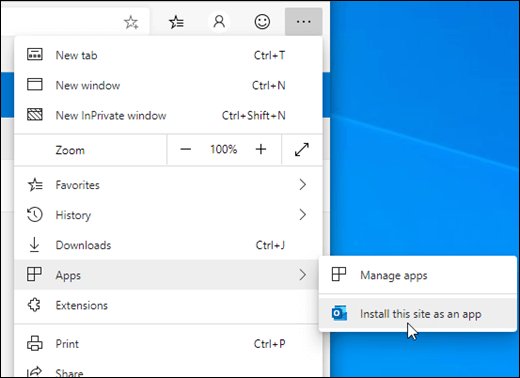
Quick installation summary
Sign in to Outlook in your browser first, then use the browser's install command. The install takes seconds and downloads no installer file.
| Your browser | Install command after signing in to Outlook | Where the app shows up |
|---|---|---|
| Microsoft Edge (Windows or macOS) | Settings and more (…) > Apps > Install this site as an app, then Install | Its own window, edge://apps, and on Windows the Start menu and taskbar |
| Google Chrome (Windows, macOS or Linux) | More (three dots) > Cast, save, and share > Install page as app, or the Install icon in the address bar | Its own window, chrome://apps, and your device's launcher |
| Chrome on a Chromebook | Same Chrome menu as above | The ChromeOS launcher |
Go to outlook.com for a personal account or outlook.office.com for a work or school account before you run the install command.
What is Outlook PWA?
PWA stands for progressive web app. Microsoft defines PWAs as apps built with web technologies that can be installed and run on any device from one codebase.
| Question | Answer |
|---|---|
| What PWA means | Progressive web app: a website that a supporting browser can install so it behaves like a native app |
| What gets installed | Outlook on the web (work or school) or Outlook.com (personal), the same mailbox you use in a browser tab |
| Which browsers can install it | Microsoft Edge and Google Chrome, per Microsoft's Outlook support page |
| Is it a separate download | No. The browser creates the app from the site; nothing comes from the Microsoft Store or a setup file |
| What it looks like | A standalone Outlook window without tabs or an address bar, with its own taskbar or launcher icon |
Microsoft's support article calls this using "the web version of Outlook like a desktop app". The mail, calendar and settings are identical to the browser tab.
Outlook PWA vs Outlook desktop app
Windows now has two Outlook desktop apps plus the PWA. The new Outlook for Windows requires Outlook on the web to be enabled for the mailbox, so it shares the web experience but installs as a real app.
| Outlook PWA | New Outlook for Windows | Classic Outlook | |
|---|---|---|---|
| How you get it | Install from Edge or Chrome | Microsoft Store, preinstalled on new Windows 11 devices, or the Try the new Outlook toggle | Microsoft 365 or Office installer |
| Operating systems | Anything that runs Edge or Chrome, including macOS and ChromeOS | Windows 10 version 2004 (build 19041) or later | Windows (Outlook for Mac is a separate app) |
| Offline access | Microsoft says you can access your account while offline | On by default; keeps 30 days of mail unless changed under Settings > General > Offline | Cached Exchange Mode and .ost files |
| Full .pst support | Not offered; Microsoft points .pst users to classic Outlook | Not yet fully available, per Microsoft | Yes |
| Removal | Uninstall from edge://apps, Chrome, or Windows Settings |
Uninstall like any Store app | Uninstall Office |
If you just want Outlook out of a browser tab, the PWA is enough. If you need offline settings you can control, pick new Outlook; for .pst files and mail merge, keep classic Outlook.
What you get with Outlook PWA
| Feature | What it does | Source |
|---|---|---|
| App-like window | Opens Outlook in its own window, separate from your browser tabs | Microsoft Edge PWA docs |
| Taskbar, Start menu, dock, or launcher access | Pin to the Windows taskbar or Start, or open from the launcher on other systems | Microsoft Support, Google Chrome Help |
| Alt+Tab switching | Appears as its own entry when you switch windows on Windows | Microsoft Edge PWA docs |
| Desktop notifications | PWAs can show notifications through the operating system's notification service | Microsoft Edge PWA docs |
| Auto-start on sign-in | Edge can launch the app when you sign in to Windows | Microsoft Support |
| Fast access to Outlook on the web | One click opens your inbox; no browser, tab or bookmark first | Microsoft Support |
| Works across major desktop systems | Windows, macOS, Linux and ChromeOS, wherever Edge or Chrome can install apps | Google Chrome Help, Microsoft Learn |
What Outlook PWA cannot do
| Limitation | What it means for you |
|---|---|
| It is still the web version | Features missing from Outlook on the web are missing from the PWA; installing it adds no desktop features |
| It depends on the browser | The app is tied to the Edge or Chrome profile you installed it from and is managed from that browser |
| No .pst archive work | Microsoft recommends keeping classic Outlook for full .pst support and Word mail merge |
| Not supported in FSLogix environments | On virtual desktops that use FSLogix, the installed app is gone after you sign out and back in |
| No offline controls in the app | Microsoft documents offline access for the PWA but not per-folder or days-to-keep settings like new Outlook has |
| Settings stay in Outlook | Signatures, rules and notification choices are set inside Outlook, not in the app window's menu |
Before you install Outlook PWA
| You need | Details |
|---|---|
| A supported browser | Microsoft Edge or Google Chrome, updated to a current version |
| An Outlook account | A Microsoft account for Outlook.com, or a work or school account with Outlook on the web enabled |
| To be signed in | Microsoft's steps start with signing in to Outlook in the browser; the install command appears on that page |
| A browser profile you keep | The app belongs to the Edge or Chrome profile you install it from |
| Not a virtual FSLogix desktop | Microsoft says PWAs are not supported in FSLogix environments |
How to install Outlook PWA in Microsoft Edge
- Open Microsoft Edge and sign in to Outlook.com or Outlook on the web.
- Select Settings and more (…) at the top of the window.
- Select Apps > Install this site as an app. On some Edge versions this sits under More tools > Apps.
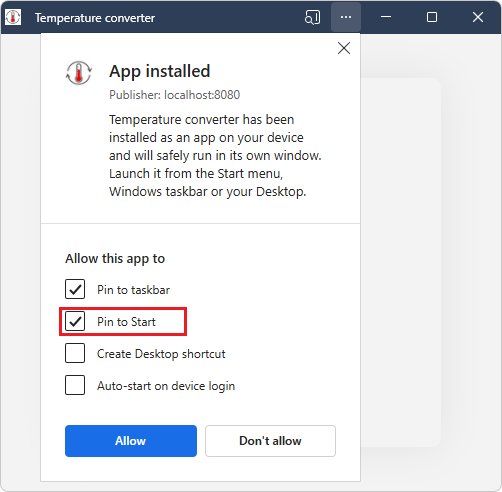
- Select Install in the prompt.
- Tick Pin to Start or Auto-start on device login in the install dialogs if you want them, then close the dialog.
If Edge shows an App available icon in the address bar, selecting it and then Install does the same job.
How to install Outlook PWA in Google Chrome
- Open Chrome and sign in to Outlook.com or Outlook on the web.
- Look for the Install icon at the right end of the address bar and select it if it is there.
- If there is no icon, select More (three dots) at the top right, then Cast, save, and share > Install page as app. Microsoft's page also lists an Install Outlook entry in the same menu.
- Keep or edit the app name in the dialog.
- Select Install. Outlook opens in its own window.
Chrome's install dialog has changed several times; Chrome's detailed PWA install prompts on desktop show what the newer prompt looks like.
How to install Outlook PWA on Windows 11 or Windows 10
The install itself is the Edge or Chrome steps above. What Windows adds is where the app lives afterwards.
- Install Outlook from Edge or Chrome as shown in the previous two sections.
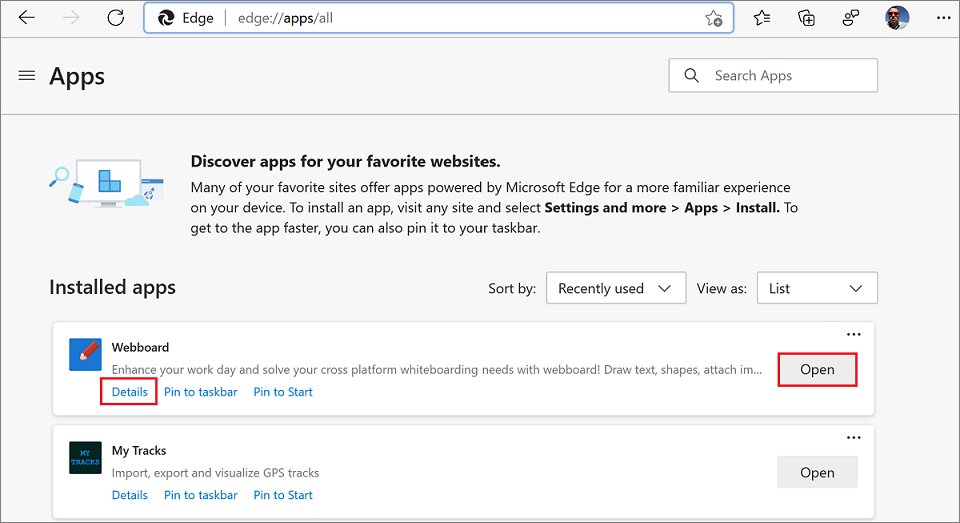
- In Edge, go to
edge://appsand select Details on the Outlook card. - Select Pin to taskbar, Pin to Start or Create Desktop shortcut.
- Turn on Auto-start on device login if you want Outlook open every time you sign in to Windows.
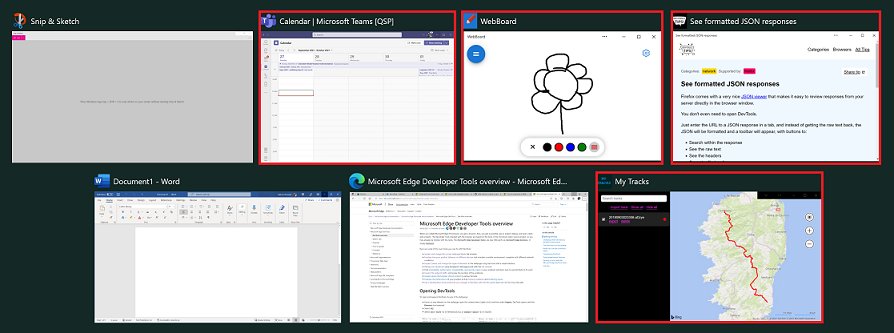
- Open the app from Start or the taskbar. It also appears in Settings > Apps under Add or remove programs like any other Windows app.
Inside the app window, Settings and more (…) also offers Pin to taskbar and Pin to Start directly.
How to install Outlook PWA on macOS
Safari is not covered by Microsoft's Outlook PWA instructions, so use Edge or Chrome on a Mac. The menus match the Windows versions.
- Using Microsoft Edge on Mac: sign in to Outlook, then select Settings and more (…) > Apps > Install this site as an app > Install.
- Using Chrome on Mac: sign in to Outlook, then select More > Cast, save, and share > Install page as app > Install.
- Reopen the app later from
edge://appsorchrome://appsin the browser you used, or from your Mac's app launcher.
How to install Outlook PWA on ChromeOS
- Open Chrome on your Chromebook and sign in to Outlook.com or Outlook on the web.
- Select Install in the address bar, or More > Cast, save, and share > Install page as app.
- Select Install.
- Open Outlook from the launcher, where Chrome places installed web apps.
Microsoft lists Outlook.com and Outlook on the web as installable in Chrome, which is the only browser on a standard Chromebook. Chrome on a Linux desktop installs it the same way, which is the main route to Outlook on Linux since Microsoft makes no Linux app.
How to turn on notifications for Outlook PWA
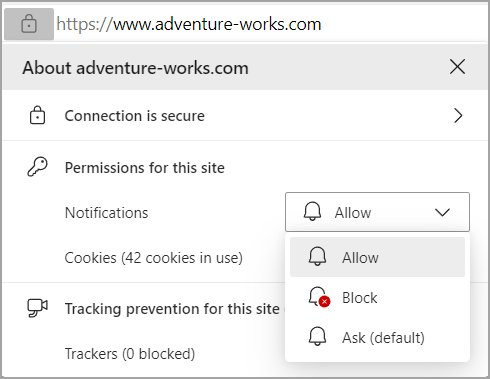
Notifications need three switches on: Outlook's own setting, the browser's site permission, and your system notification settings.
- Enable notifications in Outlook: open Settings, go to General > Notifications, and turn on the toggles under Notify me about for mail and calendar.
- Allow notifications in Edge: select Settings and more > Settings > Privacy, search, and services > Site permissions > All sites, pick the Outlook site, and set Notifications to Allow.
- Allow notifications in Chrome: select More > Settings > Privacy and security > Site settings > Notifications, then add the Outlook address next to Allowed to send notifications.
- Check system notification settings: make sure notifications are on for the browser in Windows, macOS or ChromeOS.
- Send yourself a test email and confirm the alert appears.
Microsoft notes that Edge site notifications still appear even when Edge is closed once they are allowed.
How to use multiple Outlook accounts as PWAs
One installed app shows the account you are signed in to in that browser profile. For two mailboxes in two app windows, give each account its own profile.
- Create a second browser profile. In Chrome, select the Profile icon at the top right and choose Add Chrome profile; Edge also supports multiple profiles.
- Open the new profile's window and sign in to the second Outlook account.
- Install Outlook from that window using the Edge or Chrome steps above.
- Rename the app in the install dialog, for example "Outlook Work", so the two icons are easy to tell apart.
- Pin both apps to the taskbar or launcher.
How to check Outlook PWA installed correctly
- Close the browser completely, then open Outlook from Start, the taskbar or the launcher. It should open without the browser's tab strip.
- Go to
edge://appsorchrome://appsin the browser you used and confirm an Outlook entry is listed. - On Windows, press Alt+Tab with Outlook open and confirm it shows as a separate app.
- Open Settings and more (…) in the Outlook window title bar in Edge; the App info menu shows the app name and publisher.
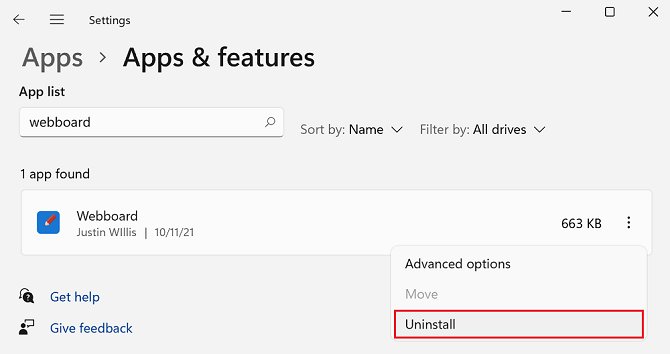
How to uninstall Outlook PWA
- Uninstall from Microsoft Edge: go to
edge://apps, select Details on the Outlook card, then Uninstall. Choose whether to delete app history and data, and select Uninstall again. - Uninstall from Chrome on Windows, Mac or Linux: open the Outlook app, select More at the top right, then Uninstall Outlook > Remove. Tick the box to delete app data from Chrome if you want.
- Uninstall on a Chromebook: right-click the Outlook icon in the launcher, select Uninstall, optionally tick Also delete browsing data, then select Uninstall.
- Uninstall from Windows Settings: open Settings, search for Add or remove programs, select the Outlook PWA and uninstall it.
Removing the app does not delete any email. Your mailbox stays on Microsoft's servers and still opens in the browser.
Troubleshooting Outlook PWA installation problems
No install icon in the address bar
The icon appears only when the browser detects an installable app, and not on every page.
- Make sure you are signed in and looking at your inbox, not the sign-in page.
- Use the menu route instead: Settings and more > Apps > Install this site as an app in Edge, or More > Cast, save, and share > Install page as app in Chrome.
- Update the browser and try again.
Outlook password not working in the app
The app uses the same Microsoft sign-in as the browser, so a rejected password is an account problem, not a PWA problem.
- Sign in to Outlook in a normal browser tab to confirm the password fails there too.
- For a personal account, reset it through Microsoft account recovery at account.live.com/password/reset.
- For a work or school account, contact your IT administrator, who manages the password.
The installed app disappears after signing out
PWAs are not supported in FSLogix virtual desktop environments and are removed at sign-out.
- Ask your administrator whether your desktop uses FSLogix.
- Use Outlook in a browser tab or the new Outlook for Windows on that machine instead.
No notifications from the Outlook app
One of the three notification switches is off, or Teams is set to Do not disturb.
- Work through the notification steps above: Outlook setting, browser site permission, then system settings.
- Check that your status in Teams is not Do not disturb, which Microsoft lists as a cause of missing Outlook notifications in new Outlook.
Is Outlook PWA safe?
Yes. The Outlook PWA is Microsoft's own site running in your own browser, with the same sign-in and security as the browser tab. Microsoft notes that PWAs use secure HTTPS endpoints and other browser safeguards, and no installer file is downloaded. Install it only from outlook.com or outlook.office.com, never from a link in an email or a third-party download site.
Who should use Outlook PWA?
Use the Outlook PWA if you already work in Outlook on the web or Outlook.com and want it in its own window, especially on a Mac, a Chromebook or a PC without Microsoft 365. It costs nothing, installs in seconds and uses the mailbox you already have. If you need controllable offline storage, pick the new Outlook for Windows; if you rely on .pst files or mail merge, stay on classic Outlook.
For background on how Chrome's install screen evolved, there is a first look at Chrome's desktop PWA install UI.
Frequently Asked Questions
What is Outlook PWA?
Outlook PWA is Outlook on the web or Outlook.com installed as a progressive web app from Microsoft Edge or Google Chrome. It opens in its own window, gets a taskbar or launcher icon, and uses the same mailbox as the browser version.
What does PWA mean in Outlook?
PWA stands for progressive web app. In Outlook it means the web version of Outlook has been installed by your browser so it behaves like a desktop app, with its own window, icon and notifications.
What is Outlook PWA mail, and what does it mean in email?
Outlook PWA mail is simply your Outlook.com or work mailbox opened through the installed web app. It is not a different email service or address; messages sent from it are ordinary Outlook emails.
What is the PWA version of Outlook?
The PWA version is the web edition of Outlook packaged as an app by Edge or Chrome. It differs from the new Outlook for Windows, which installs from the Microsoft Store, and from classic Outlook, which comes with Microsoft 365 or Office.
How do I open Outlook in PWA?
Install it first from Edge or Chrome, then open it from the Start menu, taskbar, launcher, edge://apps or chrome://apps. It opens straight to your inbox in a window without browser tabs.
How do I use Outlook PWA?
Use it exactly like Outlook on the web: read and send mail, manage your calendar and change settings from the gear icon. Pin it to the taskbar and allow notifications so it works like a desktop mail client.
What is the difference between Outlook PWA and Outlook?
Outlook PWA is the web version in an app window and runs anywhere Edge or Chrome runs. The new Outlook for Windows is a real installed app with controllable offline storage, and classic Outlook adds .pst files and mail merge.
Is there an Outlook PWA download?
No. There is no separate Outlook PWA download or installer. Your browser creates the app from outlook.com or outlook.office.com when you select Install this site as an app in Edge or Install page as app in Chrome.
Why is my Outlook password not working?
The PWA uses the same Microsoft sign-in as the browser, so a rejected password is an account issue. Test it in a browser tab, reset a personal account at account.live.com/password/reset, or contact IT for a work account.






How to add PWA Outlook to desktop - Techdows
[…] progressive web app (PWA) is a website that installs and runs like a desktop app. The Outlook PWA is still Outlook on the web or Outlook.com, just running in a dedicated […]