To pair AirPods with an iPhone or iPad, turn on Bluetooth, open the case with the AirPods inside next to the device, and follow the setup animation; on a Mac, Windows PC or Android phone, put the AirPods in pairing mode until the status light flashes white, then select them in the Bluetooth list.
This guide covers every model, including AirPods 4, AirPods Pro 3 and AirPods Max, the steps for Windows 11, Android, Apple Watch and Apple TV, and what to do when AirPods won't pair.
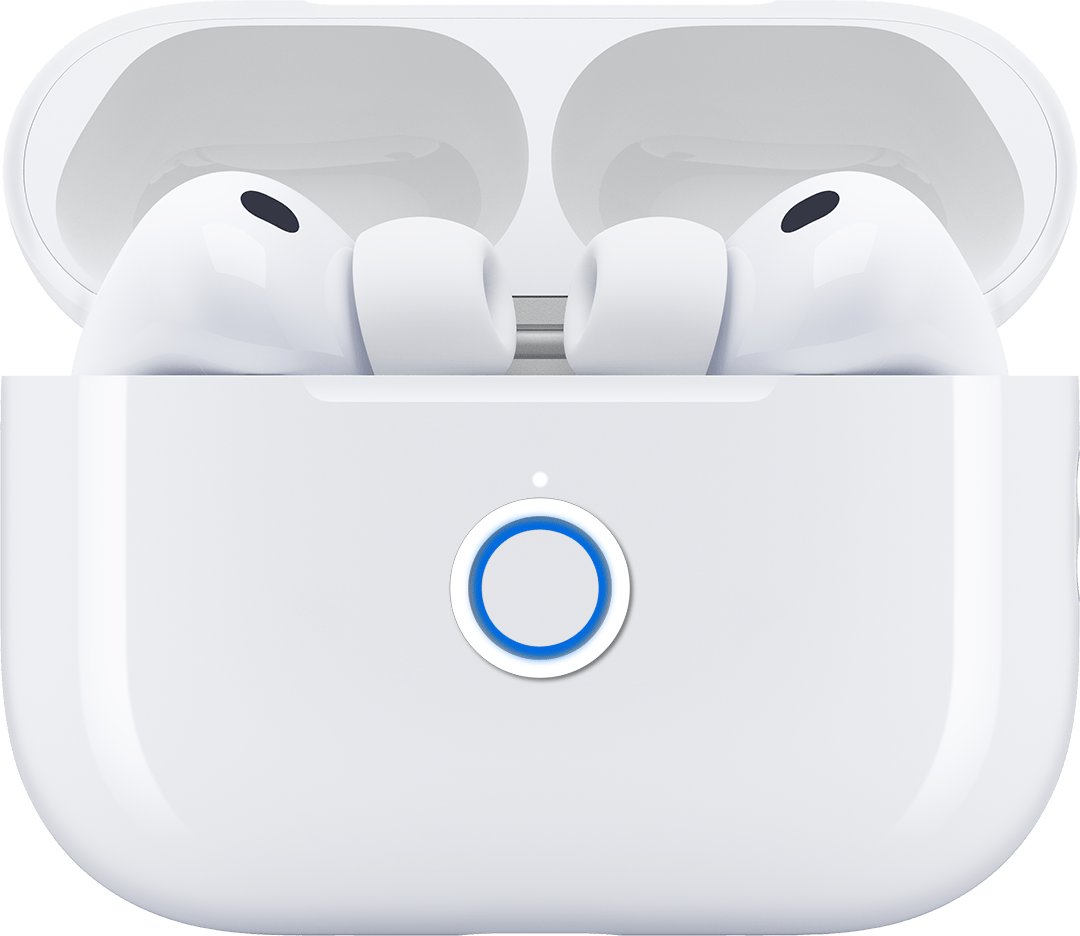
How to pair AirPods to your iPhone or iPad
An iPhone or iPad is the quickest place to pair, because the setup animation does the work. Once paired here, the AirPods also connect to your other Apple devices signed in to the same Apple Account.
- Update the iPhone or iPad to the latest iOS or iPadOS, and make sure it is on Wi-Fi or cellular data so Find My features are available.
- Open the Settings app, tap Bluetooth, and turn Bluetooth on.
- AirPods or AirPods Pro: open the case with the AirPods inside and hold it next to the iPhone or iPad until the setup animation appears.
- AirPods Max: take them out of the Smart Case and, within 60 seconds, hold them next to the device until the setup animation appears.
- Follow the onscreen instructions, then tap Done.
- Put the AirPods in your ears and play a song to test the connection.
No animation after a few seconds? Put the AirPods in pairing mode by hand (next section) and select them under Settings > Bluetooth instead.
Which AirPods pairing method should you use?
The method depends on the device you are pairing with, not on how old the AirPods are. Only iPhone and iPad show the automatic setup card; everything else uses the Bluetooth list.
| Pairing with | Use this method | Why |
|---|---|---|
| iPhone or iPad | Open the case next to the device and follow the setup animation | Fastest route, and it links the AirPods to your Apple Account |
| Mac, Apple TV, Apple Watch or Apple Vision Pro on the same Apple Account | Nothing; they connect automatically after iPhone setup | Pairing on one Apple device carries over to the others |
| Mac or Apple TV on a different Apple Account | Pairing mode, then select the AirPods in Bluetooth settings | No setup animation appears on these devices |
| Windows 11 or Windows 10 laptop or PC | Pairing mode, then add them as a Bluetooth device | Windows treats AirPods as a standard Bluetooth headset |
| Android phone or tablet | Pairing mode, then Pair new device | Listening and calls work; Siri does not |
| Smart TV, game console or other Bluetooth gear | Pairing mode, then the device's own Bluetooth menu | Any Bluetooth audio device can see AirPods in pairing mode |
How to put AirPods in pairing mode
Pairing mode makes the AirPods visible to any device. The action differs by model: AirPods 4 and AirPods Pro 3 cases have no button on the back, and AirPods 5 use the same double-tap on the front.
| AirPods model | How to enter pairing mode | What you should see |
|---|---|---|
| AirPods 1, 2 or 3, AirPods Pro 1 or 2 | With the AirPods in the case and the lid open, press and hold the setup button on the back of the case for about 5 seconds | Status light flashes white |
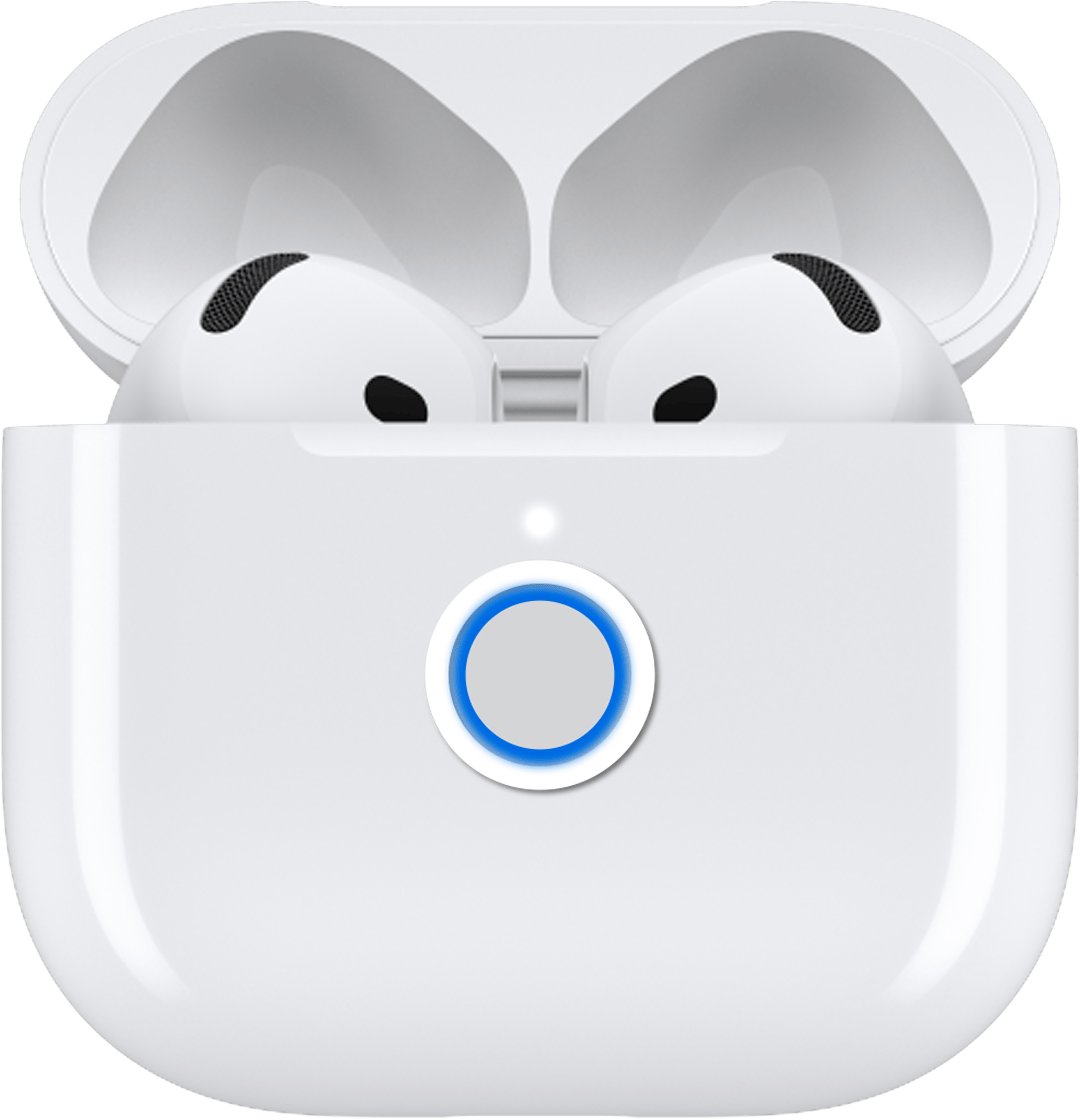
| AirPods 4 (both models), AirPods 5 (both models), AirPods Pro 3 | With the AirPods in the case and the lid open, hold the case next to the device and double-tap the front of the case | Status light flashes white |
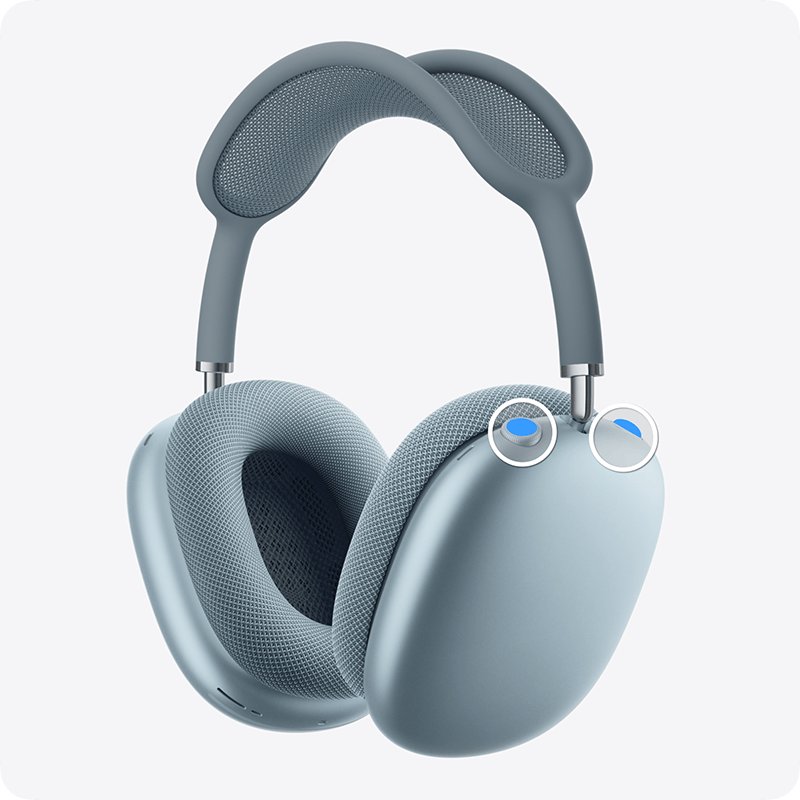
| AirPods Max | Press and hold the listening mode button for about 5 seconds | Status light flashes white |
Not sure which AirPods you have? Check the back of the case: no button there means a double-tap model such as AirPods 4 or AirPods Pro 3.
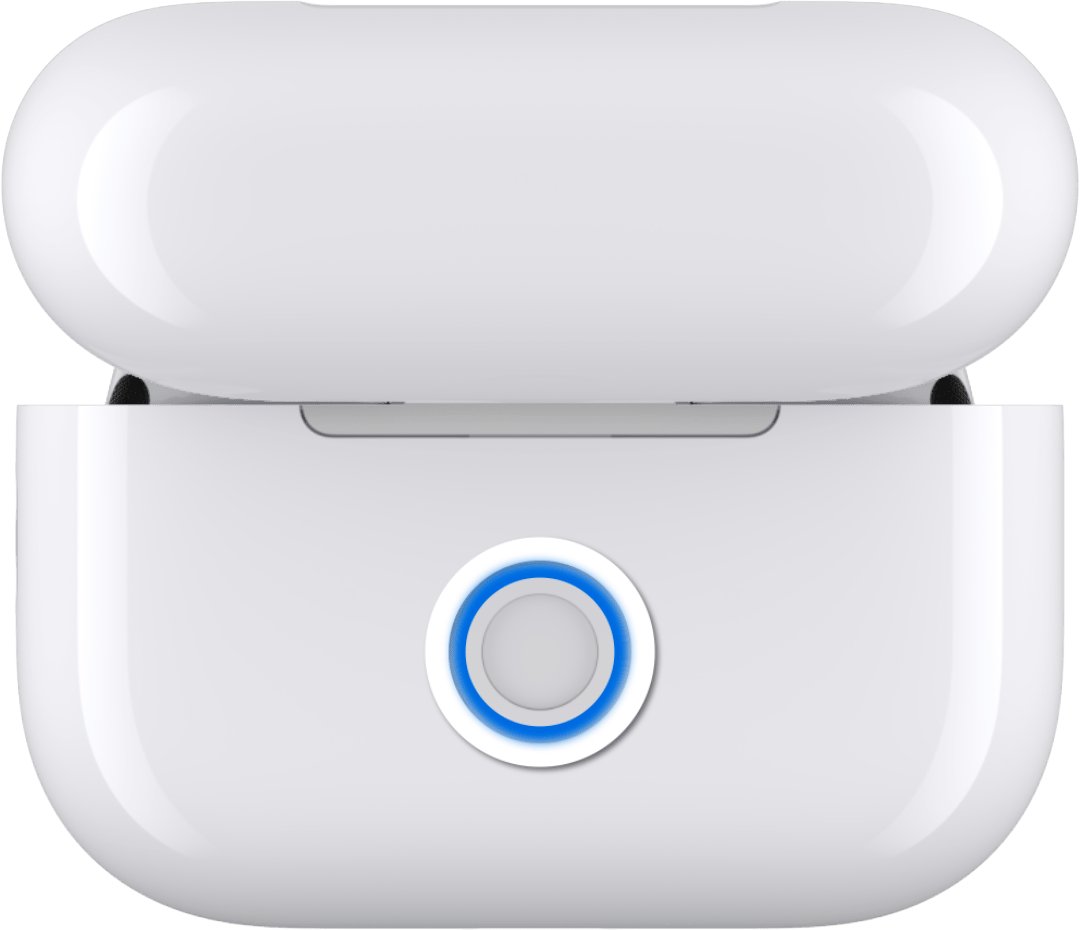
How to pair AirPods 4 and AirPods Pro 3 manually
Use these steps for AirPods 4, AirPods 5 or AirPods Pro 3 when the setup animation does not appear, or when you pair with a Mac, Apple TV or Apple Vision Pro.
- Put both AirPods in the charging case and open the lid.
- Hold the open case next to the device you want to pair.
- Double-tap the front of the case until the status light flashes white.
- Open Settings on the device (System Settings on a Mac) and select Bluetooth.
- Select your AirPods when they appear in the list; on a Mac, click Connect.
- Play audio to confirm the AirPods are connected.
For AirPods 1 to 3 and AirPods Pro 1 or 2, step 3 is different: press and hold the setup button on the back of the case until the light flashes white.
How to pair AirPods Max
AirPods Max have no charging case to open, so the Smart Case and the listening mode button take its place. A pair of AirPods Max can belong to only one Apple Account at a time.
- On an iPhone or iPad, turn on Bluetooth under Settings > Bluetooth.
- Take the AirPods Max out of the Smart Case.
- Within 60 seconds, hold them next to the iPhone or iPad until the setup animation appears, then follow the onscreen steps.
- For a Mac, PC or Android device, press and hold the listening mode button for about 5 seconds, until the status light flashes white.
- Select the AirPods Max in that device's Bluetooth list.
Bought them used? The previous owner must remove the AirPods Max from their Apple Account before they will pair to yours. AirPods Max can also connect by an Apple audio cable instead of Bluetooth.
Pairing AirPods with non-Apple devices
AirPods work as a Bluetooth headset with Android phones and other non-Apple devices. You can listen and talk, but Siri is not available.
- On the Android device, swipe down from the top of the screen and touch and hold Bluetooth.
- Tap Pair new device.
- Put the AirPods in pairing mode: press and hold the setup button (AirPods 1 to 3, AirPods Pro 1 or 2), double-tap the front of the case (AirPods 4, AirPods 5, AirPods Pro 3), or hold the listening mode button (AirPods Max).
- When the status light flashes white, tap the AirPods in the list.
- Follow any on-screen instructions until the AirPods show as Connected.
If Pair new device is missing, look under Available devices or tap More > Refresh. Some Android phones put the switch under Settings > Connections > Bluetooth instead. TVs, consoles and other Bluetooth gear follow the same pattern: open their Bluetooth menu, then put the AirPods in pairing mode.
How to pair AirPods with a Windows 11 laptop or PC
Windows pairs AirPods like any Bluetooth headphones on Windows 11, so the PC needs Bluetooth built in or a USB Bluetooth adapter.
- Select the Network, Sound or Battery icon next to the time and date on the taskbar.
- Make sure the Bluetooth tile is on, then select the Manage Bluetooth devices arrow on that tile.
- Put the AirPods in pairing mode for your model until the status light flashes white.
- Select the AirPods under New devices.
- Follow any extra instructions, then select Done.
On Windows 10, select Start > Settings > Devices > Bluetooth & other devices > Add Bluetooth or other device > Bluetooth, choose the AirPods, then select Done. Once paired, Windows reconnects the AirPods automatically whenever Bluetooth is on and they are in range, so you only need to connect AirPods to a Windows PC once.
Pairing AirPods across your other Apple devices
After you set up AirPods on one Apple device, they connect automatically to your other Apple devices signed in to the same Apple Account. Use these steps for a device on another account, or one that does not show the AirPods.
| Apple device | Steps |
|---|---|
| Mac | Open System Settings > Bluetooth, put the AirPods in pairing mode next to the Mac, select them in the device list and click Connect |
| Apple Watch | Open Settings > Bluetooth on the watch and tap your AirPods |
| Apple TV 4K or Apple TV HD | Open Settings > Remotes and Devices > Bluetooth, put the AirPods in pairing mode, then select them below Headphones |
| Apple Vision Pro | Open Settings > Bluetooth, put the AirPods in pairing mode, then tap them below Other Devices |
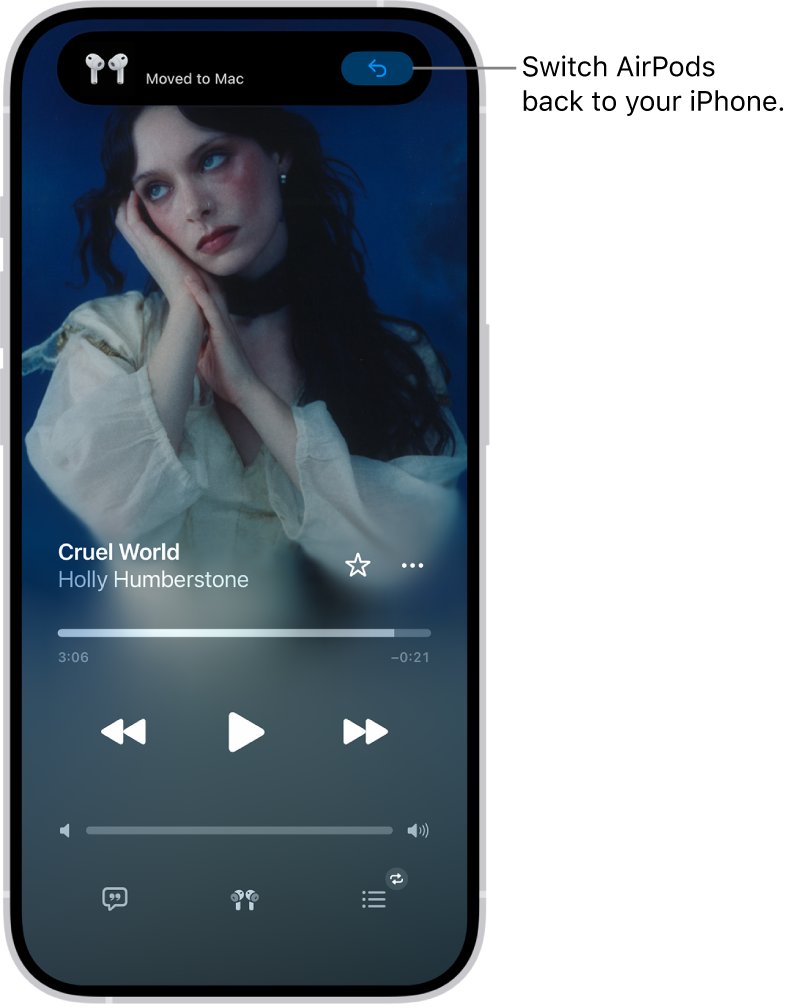
| Switching between devices | Wear the AirPods near the iPhone or iPad and tap the AirPods icon on the Lock Screen, the Now Playing screen or in Control Center |
Each device needs its latest software first. On a MacBook or iMac, showing Bluetooth in the menu bar makes it quicker to connect AirPods to a Mac later.
Why AirPods sometimes won’t pair
Most pairing failures come down to power, software or the wrong pairing gesture for the model.
| Cause | Fix |
|---|---|
| The iPhone, iPad or Mac is not on the latest software | Update iOS, iPadOS or macOS, then try again |
| One AirPod or the case is not charging | Put both AirPods in the case and make sure both are charging |
| Bluetooth is off on the device | Turn it on under Settings > Bluetooth (iPhone) or System Settings > Bluetooth (Mac) |
| The lid is closed or the AirPods are out of the case | Open the case with both AirPods inside, next to the device |
| The wrong gesture for the model | Double-tap the front of an AirPods 4, AirPods 5 or AirPods Pro 3 case instead of looking for a setup button |
| The AirPods jump to another Apple device | Change automatic switching to When Last Connected to This iPhone |
| Used AirPods Max are still on the seller's Apple Account | Ask the previous owner to remove them from their account |
| A Windows PC does not list the AirPods | Set Bluetooth devices discovery to Advanced |
How to reset AirPods before pairing again
Reset clears the AirPods back to factory settings when pairing keeps failing. First remove them from your device: on iPhone, open Settings, tap the AirPods name near the top and tap Forget This Device, which removes them from every device on your Apple Account.
| AirPods model | Reset steps | Reset worked when |
|---|---|---|
| AirPods 1, 2 or 3, AirPods Pro 1 or 2 | Put the AirPods in the case, close the lid and wait 30 seconds. Open the lid, then press and hold the setup button for about 15 seconds | The status light flashes amber, then white |
| AirPods 4 or 5, AirPods Pro 3 | Put the AirPods in the case, close the lid and wait 30 seconds. Open the lid, then double-tap the front of the case three times | The status light flashes amber, then white |
| AirPods Max | Press and hold the Digital Crown and the listening mode button together for about 15 seconds | The light changes from flashing amber to flashing white |
Then pair them again from the top of this guide. A quicker restart, closing the AirPods in the case for at least 10 seconds, is worth trying before a full reset.
Still can’t pair your AirPods?
Why won't my AirPods pair with my iPhone?
The AirPods are not in pairing mode, or the iPhone is missing an update or has Bluetooth off.
- Update the iPhone and check that Bluetooth is on.
- Put both AirPods in the case, close the lid, wait 15 seconds, then open it.
- Double-tap the front of the case (AirPods 4, AirPods 5, AirPods Pro 3) or press and hold the setup button (other models) until the light flashes white.
- Hold the open case next to the iPhone and follow the steps on the screen.
- Reset the AirPods if the light never flashes white.
Why won't my AirPods pair with my laptop or PC?
Windows is not discovering them, or an old pairing record is in the way.
- Turn on the Bluetooth tile in Quick Settings.
- Go to Start > Settings > Bluetooth & devices > Devices, open Bluetooth devices discovery and choose Advanced.
- If the AirPods are already listed, select More options next to them, then Remove device > Yes.
- Put the AirPods in pairing mode and add them again.
- Run the Bluetooth troubleshooter under Start > Settings > System > Troubleshoot > Other troubleshooters.
Why won't my AirPods pair to my Android phone?
The phone scanned before the AirPods entered pairing mode.
- Put the AirPods in pairing mode first and wait for the white light.
- Touch and hold Bluetooth, tap Pair new device, or tap More > Refresh under Available devices.
- Tap the AirPods and accept any prompt.
AirPods keep disconnecting after I pair them
Automatic switching moves them to another Apple device on your account, or audio moves to a car or speaker.
- On the iPhone, open Settings and tap the AirPods name near the top.
- Tap Connect to This iPhone (under Audio & Routing if it is not shown) and choose When Last Connected to This iPhone.
- To keep audio in the AirPods when the phone joins a car or speaker, go to Settings > General > AirPlay & Continuity and turn on Keep Audio with Headphones.
AirPods that pair but stay silent on a PC are a different problem; fix AirPods not working on Windows 11 when sound or the microphone fails after pairing.
Tips for trouble-free AirPods pairing
| Tip | Why it helps |
|---|---|
| Pair with your iPhone first | Your other Apple devices on the same Apple Account then connect without any pairing |
| Pair while the iPhone is on Wi-Fi or cellular | Without a connection, Find My features may not be set up |
| Keep both AirPods charging in the closed case | AirPods shut down and charge whenever they sit in the case with the lid closed |
| Learn your model's pairing gesture | AirPods 4, AirPods 5 and AirPods Pro 3 pair with a double-tap on the front of the case, not a button press |
| Know what Forget This Device does | It removes the AirPods from every device on your Apple Account, so plan to pair them again |
| Set automatic switching to your liking | When Last Connected to This iPhone stops the AirPods jumping to a Mac or iPad mid-song |
Once they are paired, add your AirPods to Find My so you can locate them if one goes missing.
AirPods pairing FAQ
How do I put AirPods in pairing mode?
Open the case with both AirPods inside. On AirPods 1 to 3 and AirPods Pro 1 or 2, press and hold the setup button on the back for about 5 seconds; on AirPods 4, AirPods 5 and AirPods Pro 3, double-tap the front of the case. The status light flashes white.
Can I pair AirPods with a Windows PC?
Yes. AirPods pair with any Windows 11 or Windows 10 PC that has Bluetooth, as a standard Bluetooth headset. Put them in pairing mode, open the Bluetooth quick setting or Bluetooth settings, and select them under New devices. Siri is not available on Windows.
Why won't my AirPods pair with my laptop?
Usually the AirPods are not in pairing mode or Windows is not showing them. Wait for the white status light, set Bluetooth devices discovery to Advanced in Settings, and remove any old AirPods entry before you add them again.
How do I pair AirPods Pro 3?
Open the case next to your iPhone or iPad and follow the setup animation. For any other device, keep the AirPods in the open case, double-tap the front of the case until the status light flashes white, then select them in the Bluetooth list. The AirPods Pro 3 case has no setup button.
How do I pair AirPods 4?
Open the case next to an iPhone or iPad and follow the onscreen steps. For a Mac, PC or Android phone, double-tap the front of the open case until the light flashes white, then pick the AirPods in Bluetooth settings. Both AirPods 4 models use this double-tap.
How do I pair AirPods Max?
Take the AirPods Max out of the Smart Case and hold them next to your iPhone or iPad within 60 seconds until the setup animation appears. For other devices, press and hold the listening mode button for about 5 seconds until the light flashes white.
Why won't the pairing pop-up appear on my iPhone?
The pop-up appears only when the case is open with the AirPods inside, next to an iPhone with Bluetooth on. Close the lid for 15 seconds, open it, then use the setup button or double-tap to enter pairing mode; you can also select the AirPods in Settings > Bluetooth.
How do I pair AirPods to a brand-new iPhone?
Sign in to the new iPhone with the same Apple Account, and AirPods already set up on your account connect automatically. If they do not appear, open the case next to the new iPhone, put them in pairing mode and follow the setup animation.
Can I pair one AirPod at a time?
Pairing is done through the charging case, so both AirPods pair together as a set. After that, you can wear just one AirPod; audio plays in whichever AirPods you are wearing, and the pair stays linked to your device.
Do AirPods work with Android and Windows?
Yes. AirPods work as a Bluetooth headset with Android phones, Windows PCs and other non-Apple devices, so you can listen to audio and take calls. Siri is not available on them, and the automatic setup animation appears only on iPhone and iPad.
Why do my AirPods keep disconnecting after I pair them?
Automatic switching is the usual cause: AirPods move to whichever Apple device on your account starts playing audio. On iPhone, open the AirPods settings and set Connect to This iPhone to When Last Connected to This iPhone to stop it.