To add the Outlook PWA to your desktop, sign in to Outlook in Microsoft Edge, select Settings and more > Apps > Install this site as an app, then create a desktop shortcut from the edge://apps page.
This guide covers the Edge and Chrome routes, the desktop shortcut, shared mailboxes, removal, and fixes for installs that fail or open in the wrong place.
Step-by-step guide to add PWA Outlook to desktop
These steps use Microsoft Edge, which ships with Windows 11 and Windows 10. They work for both Outlook on the web (work or school accounts) and Outlook.com (personal Microsoft accounts).
- Step 1: Open Outlook in your browser. In Edge, go to
outlook.comfor a personal account oroutlook.office365.comfor a work or school account, and sign in. - Step 2: Access the browser menu. Select Settings and more (the three dots) at the top-right of the Edge window.
- Step 3: Install as PWA. Select Apps > Install this site as an app. In some Edge versions, Apps sits under More tools. You can also select the App available icon in the address bar when Edge shows it.
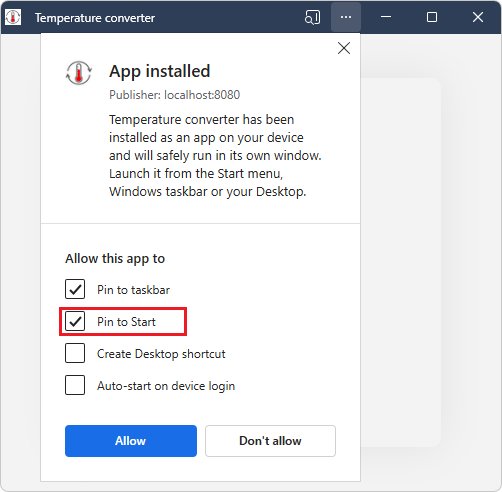
- Step 4: Confirm installation. Select Install. In the dialog that follows, tick Pin to Start or Auto-start on device login if you want them.
- Step 5: Launch Outlook PWA. Outlook now opens in its own window and appears in the Start menu, on the taskbar while running, and in Alt + Tab.
- Add the desktop icon. In Edge, go to
edge://apps, select Details on the Outlook card, then select Create Desktop shortcut.
Double-click the new desktop icon to open Outlook straight into your mailbox, without a browser tab. Other sites install the same way in Edge, so you can also add Pandora to your desktop as its own app.
Install Outlook PWA in Edge or Chrome: which to use
| Your situation | Use this | Why |
|---|---|---|
| You use the browser that came with Windows | Microsoft Edge | Install this site as an app and the desktop shortcut option are both built into Edge |
| Chrome is your everyday browser and is already signed in to Outlook | Google Chrome | Chrome offers Install Outlook in its menu and keeps your existing sign-in |
| You want Outlook to open the moment you sign in to Windows | Edge or Chrome | Edge has Auto-start on device login; Chrome has Launch at startup on chrome://apps |
| You need a shared mailbox in its own window with its own alerts | Either browser, then Open another mailbox | The shared mailbox opens in a separate Outlook on the web window |
| Your PC uses roaming FSLogix profiles (common on virtual desktops) | A pinned browser tab instead | Edge PWAs are not kept after you sign out in FSLogix environments |
Prerequisites for adding PWA Outlook to desktop
| Requirement | Details |
|---|---|
| A supported browser | Microsoft Edge (Chromium-based) or Google Chrome on Windows 10 or Windows 11 |
| An Outlook account | A personal Microsoft account for Outlook.com, or a work or school account for Outlook on the web |
| A signed-in session | Sign in to Outlook in the browser first; the install option appears on the Outlook page itself |
| Permission to install web apps | On a managed work PC, your IT admin can control whether browser apps can be installed |
| A current browser version | Older builds may show different menu labels; update Edge or Chrome before you start |
How to install Outlook PWA in Google Chrome
Chrome installs Outlook the same way and adds it to the Start menu like any other app.
- Open Chrome and sign in to Outlook at
outlook.comoroutlook.office365.com. - Select Customize and control Google Chrome (the three dots) at the top-right.
- Select Install Outlook. In newer Chrome builds, the route is Cast, save, and share > Install page as app….
- Alternatively, select the Install icon at the right end of the address bar.
- Follow the on-screen prompt to finish. Outlook opens in its own window.
- To add a desktop icon, go to
chrome://apps, right-click Outlook, select Create shortcut, choose Desktop, and select Create.
Add a shared mailbox or another account to Outlook PWA
The Outlook PWA is Outlook on the web in its own window, so shared mailboxes work the same way. Your admin must first make you a member of the shared mailbox.
- Open the Outlook PWA from your desktop or Start menu.
- Right-click Folders in the left pane and select Add shared folder or mailbox.
- Type the shared mailbox address, such as [email protected], and confirm. It appears in your folder list.
- For separate new-mail alerts, select your name on the navigation bar, select Open another mailbox, enter the address and select Open.
- To use a different personal or work account instead, select Account manager, choose Sign out, and sign back in with the other account.
On Exchange on-premises mailboxes, right-click your primary mailbox name instead of Folders in step 2.
How to check Outlook PWA is installed on your desktop
- Open Start and type Outlook. The installed web app appears in the results with the Outlook icon.
- Open it and check that it runs in its own window with no browser tabs or address bar.
- Press Alt + Tab. Outlook shows as a separate app, apart from your browser windows.
- In Edge, go to
edge://apps(orchrome://appsin Chrome) and confirm Outlook is listed. - Open Settings in Windows, search for Add or remove programs, and confirm Outlook appears in the installed apps list.
Understanding PWA and Outlook integration
A progressive web app (PWA) is a website that installs and runs like a desktop app. The Outlook PWA is still Outlook on the web or Outlook.com, just running in a dedicated window.
| Question | Answer for the Outlook PWA |
|---|---|
| What runs it? | Microsoft Edge or Google Chrome, in the background, without a visible browser window |
| Which Outlook does it show? | Outlook on the web for work or school accounts, or Outlook.com for personal accounts |
| Where does it appear in Windows? | Start menu, taskbar (pinnable), Alt + Tab, and Add or remove programs |
| Does it work offline? | Microsoft says the installed web version lets you access your account while you are offline |
| Is it the same as new Outlook for Windows? | No. The PWA is the web version of Outlook installed through your browser |
Additional tips: pin Outlook PWA to taskbar and start it automatically
These options let Outlook behave like an installed mail app. The same Edge pages work when you add Slack to the desktop or other web apps.
| Tip | Edge | Chrome |
|---|---|---|
| Pin to the taskbar | edge://apps > Details > Pin to taskbar |
Right-click the running Outlook icon on the taskbar and pin it |
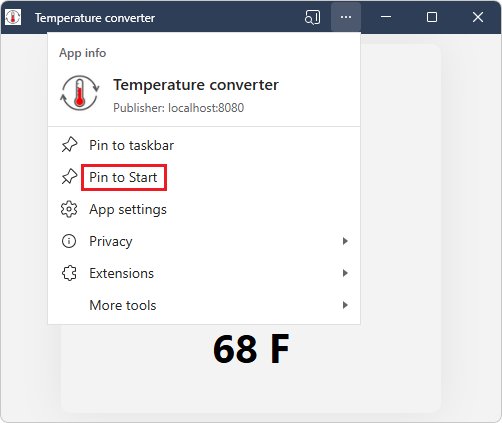
| Pin to Start | edge://apps > Details > Pin to Start |
Right-click Outlook in the Start menu app list and pin it |
| Open at Windows sign-in | edge://apps > Details > turn on Auto-start on device login |
chrome://apps > right-click Outlook > Launch at startup |
| Reach app options | Select Settings and more (…) in the Outlook window title bar for App settings | Select More > App info > Settings in the Outlook window |
| Create a desktop icon | edge://apps > Details > Create Desktop shortcut |
chrome://apps > right-click Outlook > Create shortcut |
How to uninstall Outlook PWA from Edge, Chrome or Windows
- In Edge, go to
edge://appsand select Details on the Outlook card. - Select Uninstall, choose whether to delete app history and data, then select Uninstall again.
- In Chrome, open the Outlook app window, select More at the top-right, choose the option to uninstall Outlook, and select Remove.
- From Windows, open Settings, search for Add or remove programs, select Outlook, and uninstall it like any other app.
- Delete any leftover desktop shortcut by right-clicking it and selecting Delete.
Uninstalling the PWA does not delete any email. Your mailbox stays on Microsoft's servers and still opens in the browser.
Troubleshooting common issues when adding PWA Outlook to desktop
1. PWA not installing properly
The install started from a signed-out page, an outdated browser, or a blocked install on a managed PC.
- Sign in to Outlook fully so your Inbox is showing before you open the browser menu.
- Update Edge or Chrome, restart the browser, and try Install this site as an app or Install Outlook again.
- On a work PC, ask your IT admin whether installing browser apps is allowed on your device.
2. Missing or disabled ‘Add to desktop’ option
Browsers install the app first; the desktop icon is a separate step, and the menu label differs by browser.
- In Edge, look under Settings and more > Apps, or More tools > Apps on older builds.
- In Chrome, look for Install Outlook or Cast, save, and share > Install page as app….
- After installing, create the desktop icon from
edge://apps> Details > Create Desktop shortcut, orchrome://apps> Create shortcut.
3. PWA fails to launch or opens incorrectly
The shortcut points to an app that was removed, or the app is opening the wrong account.
- Open Outlook from
edge://apps> Open (orchrome://apps) to bypass a broken desktop shortcut. - If it still fails, uninstall the app, sign in to Outlook in the browser again, and reinstall it.
- Delete the old desktop shortcut and create a fresh one from the apps page.
4. Authentication and sync issues
The PWA shares the browser profile's sign-in, so it can open a different account than you expect.
- Select Account manager in Outlook to see which account is signed in.
- Select Sign out, then sign in again with the correct work, school or personal account.
- For a work account that will not sign in, sign in at Microsoft365.com and open Outlook from the app launcher, then reinstall the PWA.
- If your work password is rejected, reset it at passwordreset.microsoftonline.com if your admin allows it, or contact your admin.
5. Compatibility and security settings
Some environments do not keep installed web apps, and some browsers do not offer the install option.
- Use Microsoft Edge or Google Chrome; these are the browsers that install Outlook as a PWA.
- On virtual desktops that use FSLogix profiles, expect the PWA to vanish after you sign out, and pin a browser tab instead.
- Keep your browser's built-in security features on; the Outlook PWA does not require any of them to be turned off.
Benefits of using PWA Outlook on desktop
| Benefit | What it means day to day |
|---|---|
| Own window | Outlook is no longer lost among browser tabs and shows up separately in Alt + Tab |
| Desktop, Start and taskbar launch | Open your mailbox with one click, like an installed program |
| Offline access | The installed web version lets you reach your account while you are offline |
| Auto-start at sign-in | Outlook can open as soon as you sign in to Windows |
| Nothing extra to download | The app runs on the browser you already have and updates with Outlook on the web |
| Easy removal | Uninstall from the browser or Add or remove programs without touching your email |
Many other sites install the same way; you can add Twitch to the desktop with the identical Edge menu.
Best practices for managing PWA Outlook
| Practice | Why it matters |
|---|---|
| Install from the real Outlook address only | Use outlook.com or outlook.office365.com so the app points at Microsoft's sign-in |
| Keep Edge or Chrome updated | The PWA runs on your browser, so browser updates are app updates |
| Install in the browser profile that holds the right account | The app uses that profile's sign-in, which avoids opening the wrong mailbox |
| Avoid installing it on a shared PC | Anyone who opens the app on that profile reaches your signed-in mailbox |
| Review the app list now and then | Remove duplicates or old installs from edge://apps or chrome://apps |
Outlook PWA desktop install FAQ
What is PWA in Outlook?
PWA stands for progressive web app. The Outlook PWA is Outlook on the web or Outlook.com installed through Edge or Chrome, so it opens in its own window, appears in the Start menu and taskbar, and works like a desktop app.
How do I install Outlook PWA?
Sign in to Outlook in Microsoft Edge, select Settings and more, then Apps, then Install this site as an app, and confirm with Install. In Chrome, select the three-dot menu and choose Install Outlook.
How do I add Outlook PWA to the desktop?
After installing it in Edge, go to edge://apps, select Details on the Outlook card and choose Create Desktop shortcut. In Chrome, go to chrome://apps, right-click Outlook, select Create shortcut, tick Desktop and select Create.
How do I download the Outlook PWA?
There is no separate file to download. The Outlook PWA installs directly from the Outlook website through Edge or Chrome, using the browser's install option, so nothing runs from an installer package.
How do I enable or activate Outlook PWA?
There is no setting to switch on inside Outlook. Installing it from the browser menu is the activation step; once installed, open it from the Start menu, taskbar, desktop shortcut, or the edge://apps page.
How do I open Outlook in PWA mode?
Open the installed Outlook app from Start, the taskbar or its desktop shortcut. In Edge you can also go to edge://apps and select Open on the Outlook card, which launches it in its own window.
How do I add a shared mailbox to Outlook PWA?
In the Outlook PWA, right-click Folders, select Add shared folder or mailbox, and enter the mailbox address. Your admin must have given you access first. Use Open another mailbox to see it in a separate window.
Can I add another account to Outlook PWA?
Each Outlook PWA uses one signed-in account from its browser profile. To switch, select Account manager, sign out and sign in with the other account, or install Outlook again from a second browser profile.
Should I use Outlook or the Outlook PWA?
Use the PWA if you already work in Outlook on the web and want it in its own window. It is the same web version of Outlook, not a different mail program, so features match what you see in the browser.
How do I uninstall the Outlook PWA?
In Edge, go to edge://apps, select Details on the Outlook card, then Uninstall. You can also remove it from Add or remove programs in Windows Settings. Your email is not deleted.
Bottom line: should you add Outlook PWA to your desktop?
Install Outlook as a PWA in Microsoft Edge and add the desktop shortcut from edge://apps if you use Outlook on the web or Outlook.com every day. It takes under a minute, needs no download, keeps your mailbox in its own window with Start, taskbar and auto-start options, and uninstalls cleanly without touching your email.