Repair or reset the app that shows the File System error in Settings > Apps > Installed apps, then run DISM and sfc /scannow if the error appears in more than one app.
Below are all the fixes for the Photos app version of the error (-2147219196), Store app re-registration, update rollbacks, chkdsk for drive errors, and a Windows reinstall that keeps your files.
How to fix file system error in Windows 11
The message reads File System Error followed by a negative code, and it most often appears when Photos or another Microsoft Store app opens a file. Start with the app, then scan Windows.
- Select Start > Settings > Apps > Installed apps.
- Select the More icon (three dots) next to the app that shows the error, such as Photos, then select Advanced options.
- Select Repair. If the error comes back, return to the same page and select Reset.
- If the error appears in several apps, type cmd in Start search, right-click Command Prompt and select Run as administrator.
- Run
DISM.exe /Online /Cleanup-image /Restorehealthand wait for it to finish. - Run
sfc /scannowin the same window and keep it open until verification reaches 100%. - Restart the PC and open the same file again.
File system error on Windows 11/10
Where the error appears tells you which fix to start with. Match your case to a row, then jump to that section.
| Where you see the error | Start with | Why |
|---|---|---|
| Opening pictures or videos in Photos | Repair, then reset the Microsoft Photos app | The damage sits in the app package, not in your picture files |
| Photos still fails after a reset | Re-register, then reinstall the Photos app | Rebuilds the app registration or replaces the package |
| Several Store apps, or Settings links that open ms-settings pages | Re-register all Microsoft Store apps | Every inbox app gets a fresh registration for your account |
| The error started right after a Windows update | Uninstall the most recent Windows update | Rolls back the change that coincided with the error |
| Files on one drive fail to open or copy | Run chkdsk on that drive | Checks the file system and metadata of that volume for errors |
| Errors across Windows, not tied to one app | Run an SFC and DISM scan | Repairs the component store, then replaces damaged system files |
| Nothing above clears it | Reinstall Windows 11 with Reinstall now | Repairs system files and keeps your apps, files and settings |
Run the Windows Store Apps troubleshooter
The troubleshooter checks Store app settings and offers fixes it can apply for you. It takes a minute and changes nothing without asking.
- On Windows 11, select Start > Settings > System > Troubleshoot > Other troubleshooters.
- Find Windows Store Apps in the list and select Run.
- Apply any fix the troubleshooter offers, then close it.
- On Windows 10, go to Settings > Update & Security > Troubleshoot, select Windows Store apps and then Run the troubleshooter.
- Open the file that showed the error again.
If Windows Store Apps is missing from the list on your build, move on to the repair steps below; they reach the same app package directly.
Repair the Microsoft Photos app
Repair fixes the Photos app files in place and is the safest first step, because it leaves the app's settings as they are.
- Close the Photos app.
- Select Start > Settings > Apps > Installed apps.
- Type Photos in the search box above the list.
- Select the More icon next to Photos, then select Advanced options.
- Select Repair and wait for it to finish.
- Open the picture that showed the error.
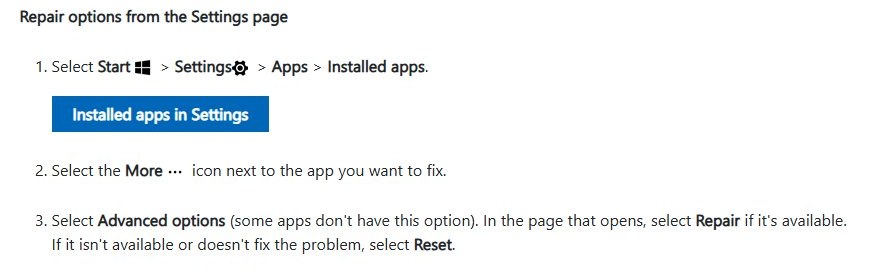
On Windows 10 the same page opens from Settings > Apps > Apps & features: select Photos, then Advanced options.
Reset the Microsoft Photos app
Reset goes further than Repair: it clears the app's data, such as its settings, and returns Photos to a fresh state. Your picture files stay where they are in Pictures, OneDrive or other folders.
- Close the Photos app.
- Open Settings > Apps > Installed apps and search for Photos.
- Select the More icon next to Photos > Advanced options.
- Select Reset, then select Reset again in the confirmation box.
- Open Photos and load the picture that showed the error.
Install Microsoft Store updates
An outdated Photos build, or an outdated framework package it depends on, can keep throwing the error after a repair. Microsoft Store updates them together.
- Select Start, then select Microsoft Store from the apps list.
- Select Library.
- Select Get updates and wait until every listed update finishes.
- If the Store itself will not open or load, press Windows logo key + R, type
wsreset.exeand select OK. - Wait about ten seconds: a blank Command Prompt window opens, closes, and Microsoft Store reopens with its cache cleared.
- Run Get updates again, then restart the PC.
Re-register the Photos app
Re-registering rebuilds the link between your account and the installed Photos package, which fixes a registration that broke or never finished. Close Photos first.
Get-AppxPackage -Name Microsoft.Windows.Photos | ForEach-Object { Add-AppxPackage -Path ($_.InstallLocation + '\AppxManifest.xml') -Register -DisableDevelopmentMode }Type PowerShell in Start search, open Windows PowerShell, paste the line and press Enter. Get-AppxPackage finds the installed Photos package, and Add-AppxPackage -Register -DisableDevelopmentMode registers that existing installation again from its manifest file.
You should see: The prompt returns with no red error text. Open Photos and load the picture that failed.
Re-register all Microsoft Store apps
Use this when the File System error shows up in more than one app, or when Settings links such as ms-settings pages fail. Close every open app before you start.
Get-AppxPackage | ForEach-Object { Add-AppxPackage -Path ($_.InstallLocation + '\AppxManifest.xml') -Register -DisableDevelopmentMode }Run it in Windows PowerShell. Without a name, Get-AppxPackage lists every app package installed for your account, and the loop re-registers each one from its own manifest. It works through dozens of packages, so let it finish before you close the window.
You should see: The prompt comes back after the last package. Restart the PC, then open the app that showed the error.
Reinstall the Photos app
When Repair, Reset and re-registration all fail, remove the Photos package and install a fresh copy from Microsoft Store. Your pictures are separate files and are not removed.
- Close Photos, then open Windows PowerShell from Start search.
- Run
Get-AppxPackage -Name Microsoft.Windows.Photos | Remove-AppxPackageto remove the app from your account. - Open Microsoft Store and select Library.
- Find Microsoft Photos and select Install. If it is not listed, search the Store for Microsoft Photos and install it from its page.
- Open Photos once the install finishes and load the picture that failed.
Change Photos app ownership to TrustedInstaller
TrustedInstaller is the service account Windows uses to own protected system folders such as WinSxS. If you or a tool took ownership of the Photos package folder, setting the owner back can clear the error.
Skip this fix if the owner check in step 3 does not show your own account name.
- Type PowerShell in Start search, right-click Windows PowerShell and select Run as administrator.
- Run
$p = (Get-AppxPackage -Name Microsoft.Windows.Photos).InstallLocationto store the Photos package folder path. - Run
(Get-Acl -Path $p).Ownerto see the current owner of that folder. - If the result is your own account, run
icacls $p /setowner "NT SERVICE\TrustedInstaller" /t /c /qto make TrustedInstaller the owner of the folder and everything in it. - Run
(Get-Acl -Path $p).Owneragain. It should now read NT SERVICE\TrustedInstaller. - Restart the PC and open Photos.
Install pending Windows 11/10 updates
Windows updates replace system components that Store apps rely on, so a missing update can keep the error alive after the app is repaired.
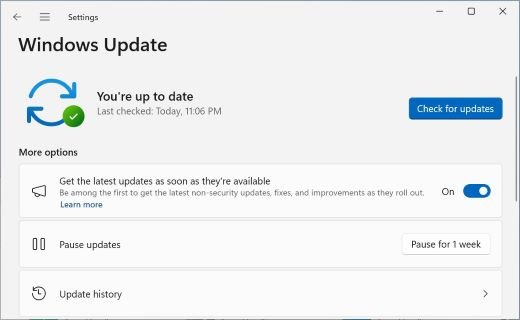
- Select Start > Settings > Windows Update.
- Select Check for updates.
- Install everything listed, including updates that wait for a restart.
- Restart the PC when Windows asks, then return to Windows Update and select Check for updates again until nothing new appears.
- On Windows 10, the same button is under Settings > Update & Security > Windows Update.
Uninstall the most recent Windows update
If the File System error started the day an update installed, remove that update. Some updates cannot be uninstalled, and removing a security update leaves that fix off your PC until it reinstalls.
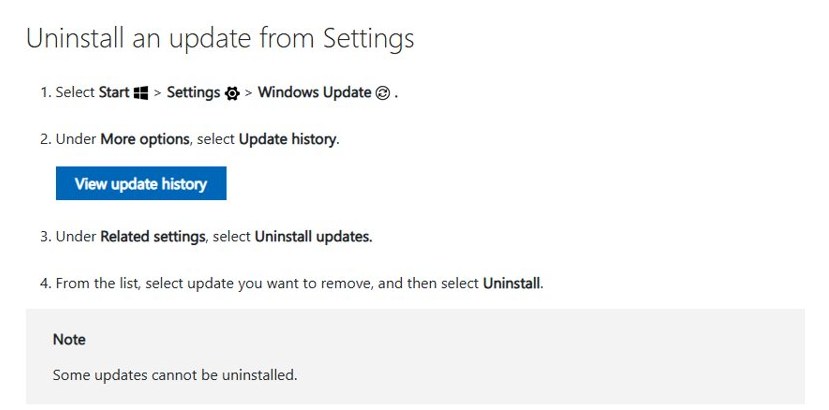
- Select Start > Settings > Windows Update.
- Under More options, select Update history.
- Under Related settings, select Uninstall updates.
- Find the update that installed when the error started and select Uninstall.
- Confirm, then restart the PC.
If Windows will not start, boot into the Windows Recovery Environment and select Troubleshoot > Advanced options > Uninstall Updates instead.
Run an SFC and DISM scan
DISM repairs the Windows component store first, and SFC then uses that store to replace damaged system files. Run them in this order from an elevated Command Prompt.
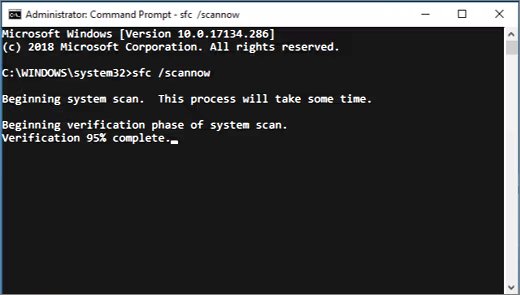
A System File Checker scan checks every protected system file, so leave the window open until verification reaches 100%.
DISM.exe /Online /Cleanup-image /Restorehealth
sfc /scannow
Type cmd in Start search, right-click Command Prompt and select Run as administrator. Run the DISM line, wait for it to finish (it can take several minutes), then run sfc /scannow in the same window.
You should see: Windows Resource Protection did not find any integrity violations, or Windows Resource Protection found corrupt files and successfully repaired them. Restart the PC after a repair.
Run chkdsk to fix file system errors on a Windows 11 drive
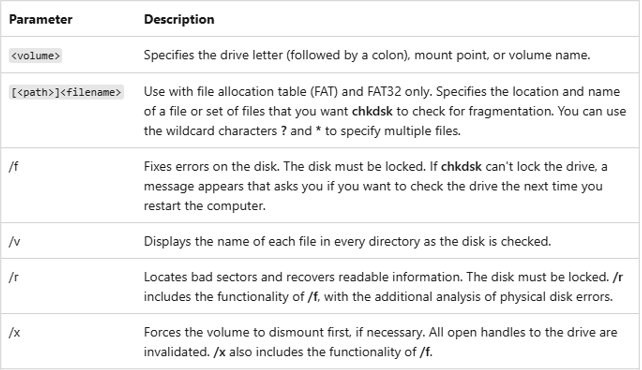
Chkdsk checks a volume's file system and metadata for logical and physical errors. Without parameters it only reports, so add /f to fix what it finds.
chkdsk C: /fRun it from an elevated Command Prompt and swap C: for the drive that holds the failing files. On the Windows drive you see Chkdsk cannot run because the volume is in use by another process; type Y and restart, and chkdsk checks and fixes the drive during startup. Use /r instead of /f to also locate bad sectors and recover readable data, which takes much longer on hard drives.
You should see: A status report that ends without listed errors. Chkdsk exit code 0 means no errors were found, and 1 means errors were found and fixed.
If you run chkdsk on a Windows 11 hard drive with /r, expect a much longer scan than on an SSD.
What the sfc /scannow results mean
| SFC message | What it means | What to do |
|---|---|---|
| Windows Resource Protection did not find any integrity violations | No system files are missing or damaged | Move on to the app fixes or chkdsk |
| Windows Resource Protection found corrupt files and successfully repaired them | Damaged files were replaced | Restart and test the file again |
| Windows Resource Protection found corrupt files but was unable to fix some of them | Some files could not be replaced | Run DISM again, rerun SFC, then check the log for the file name |
| Windows Resource Protection could not perform the requested operation | SFC could not run in normal mode | Run SFC in safe mode and check that the PendingDeletes and PendingRenames folders exist under %WinDir%\WinSxS\Temp |
How to view the SFC and chkdsk logs in Windows 11
The logs show exactly which files SFC replaced and what chkdsk fixed at startup, which tells you whether the repair touched the cause.
- Open Command Prompt as administrator.
- Run
findstr /c:"[SR]" %windir%\Logs\CBS\CBS.log >"%userprofile%\Desktop\sfcdetails.txt"to copy the SFC entries to a file on your desktop. - Open sfcdetails.txt and read the entries with today's date; the file holds every SFC run on the PC.
- Press Windows logo key + R, type
eventvwr.mscand select OK to open Event Viewer. - Expand Windows Logs, right-click Application and select Filter Current Log.
- In Event sources, tick Chkdsk and Wininit, then select OK to see each chkdsk report.
How to repair Windows 11 without losing files
Reinstall now downloads a repair version of the last Windows update installed on the PC, repairs system files and components, and keeps your apps, files and settings. Keep the PC plugged in and online until it finishes.
- Open Settings > System > Recovery.
- Under Fix problems using Windows Update, select Reinstall now.
- Choose whether the PC restarts automatically 15 minutes after the install, then confirm.
- Restart when the reinstall finishes if you did not choose the automatic restart.
- If the error survives a reinstall, go back to System > Recovery, select Reset PC and choose Keep my files. That keeps your documents and photos but removes apps and settings.
Reinstall now can be missing on work or school PCs whose updates are managed by the organization.
Windows 11 file system error troubleshooting
ms-settings file system error when a Settings link opens
Settings pages open through a registered app, so a damaged registration or damaged system files break the link.
- Run
DISM.exe /Online /Cleanup-image /Restorehealth, thensfc /scannow, from an elevated Command Prompt. - Re-register all Microsoft Store apps with the PowerShell loop above.
- Restart and open the same link again. If it still fails, use Reinstall now under Settings > System > Recovery.
Windows 11 file in use error
Another program still holds the file open, so Windows blocks the move, rename or delete.
- Close the program that last opened the file, including apps minimized to the system tray.
- Press Ctrl + Shift + Esc, select the program in Task Manager and select End task.
- Retry the action. If Windows still reports the file in use, restart the PC and try again before opening other apps.
Chkdsk cannot run because the volume is in use by another process
Chkdsk must lock a drive to fix it, and the Windows drive is always in use while Windows runs.
- Type Y at the prompt to schedule the check.
- Restart the PC and let chkdsk finish before Windows loads; it restarts the PC itself after checking the boot drive.
- Read the result in Event Viewer under the Chkdsk and Wininit sources.
SFC says it could not perform the requested operation
SFC could not complete its scan in a normal Windows session.
- Restart Windows in safe mode.
- Check that the PendingDeletes and PendingRenames folders exist under
%WinDir%\WinSxS\Temp. - Run
sfc /scannowagain from an elevated Command Prompt.
Photos still shows the error after every app fix
The problem sits outside the Photos package, in Windows itself or in the drive that holds the pictures.
- Run the SFC and DISM scan, then restart.
- Run
chkdskwith/fon the drive that stores the pictures. - Use Reinstall now to repair Windows while keeping your apps and files.
Windows 11 file system error FAQ
What causes a file system error?
A File System error comes from a damaged app package, damaged Windows system files, or errors in the drive's file system. When it shows only in Photos or another Store app, the app is the cause; when it shows everywhere, scan Windows and the drive.
How do I fix a file system error in Windows 11?
Open Settings > Apps > Installed apps, open Advanced options for the app that shows the error, and select Repair, then Reset. If the error appears in several apps, run DISM and sfc /scannow from an elevated Command Prompt and restart.
How do I fix system files in Windows 11?
Open Command Prompt as administrator, run DISM.exe /Online /Cleanup-image /Restorehealth, then run sfc /scannow. DISM repairs the component store and SFC uses it to replace damaged system files. If SFC cannot fix some files, use Reinstall now in Settings > System > Recovery.
How do I fix system errors in Windows 11?
Install all pending updates from Settings > Windows Update, run DISM and SFC, and check the drive with chkdsk C: /f. If errors continue, Reinstall now under System > Recovery repairs Windows and keeps your apps, files and settings.
How do I fix Windows 11 files that will not open?
If only one app fails to open them, repair or reset that app in Installed apps and install its updates from Microsoft Store Library. If files on one drive fail in every app, run chkdsk with /f on that drive to fix its file system.
How do I fix a Windows 11 installation error?
Run the Windows Update troubleshooter in the Get Help app, then restart and select Check for updates again. A 64-bit upgrade needs at least 20 GB of free space. For error 0x800f0922, disconnect any VPN and try again.
What is the ms-settings file system error in Windows 11?
It appears when a link that should open a Settings page, such as an ms-settings address, fails with a File System error. Damaged app registrations or system files cause it, so run DISM and SFC, then re-register all Microsoft Store apps in PowerShell.
Does chkdsk fix file system errors?
Yes, when you add /f. Plain chkdsk only reports problems, while chkdsk C: /f fixes logical file system errors and /r also locates bad sectors. On the Windows drive, chkdsk schedules the repair for the next restart because the drive is in use.
Will resetting the Photos app delete my pictures?
No. Reset clears the Photos app's own data, such as its settings, but your pictures are separate files in Pictures, OneDrive or other folders.