To view old notifications in Windows 11, press Windows key + N or select the clock on the taskbar; in Windows 10, press Windows key + A to open the Action Center.
This guide covers every place Windows keeps missed alerts, how to find notifications you already cleared, and how to stop them disappearing before you read them.
Method 1: View recent notifications using Notification Center (quickest way)
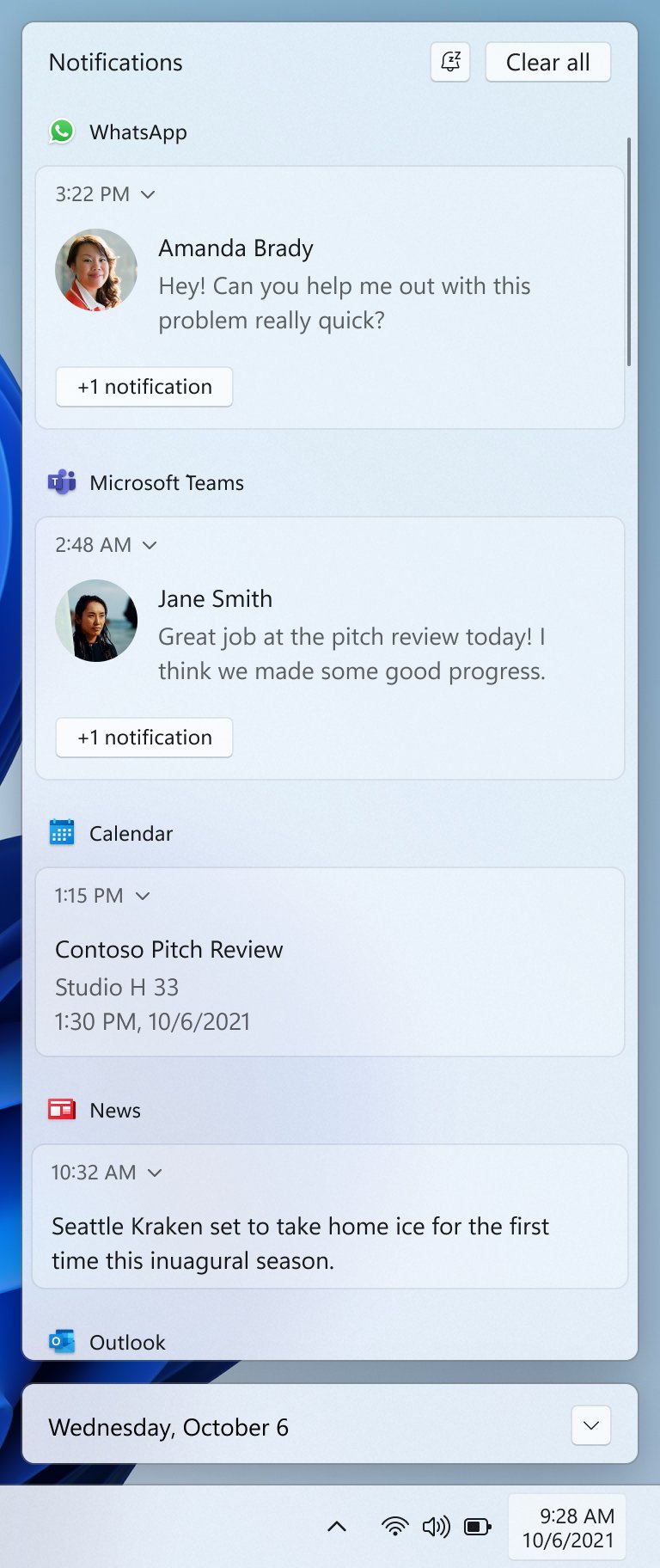
Windows 11 keeps every notification you have not cleared in the notification center. When new ones arrive, the notification bell icon on the taskbar lights up.
- Press Windows key + N, or select the clock or the notification bell icon on the taskbar.
- On a touch screen, swipe in from the side of the screen instead.
- Scroll the list to see older notifications, grouped under each app's name.
- Select the arrow next to a notification's time to expand it and see more details or actions.
- Select a notification to open the app that sent it.
Leave the list alone if you want to come back to it later. Selecting the close button or Clear all removes notifications from the notification center.
How to view old notifications in Windows 10 Action Center
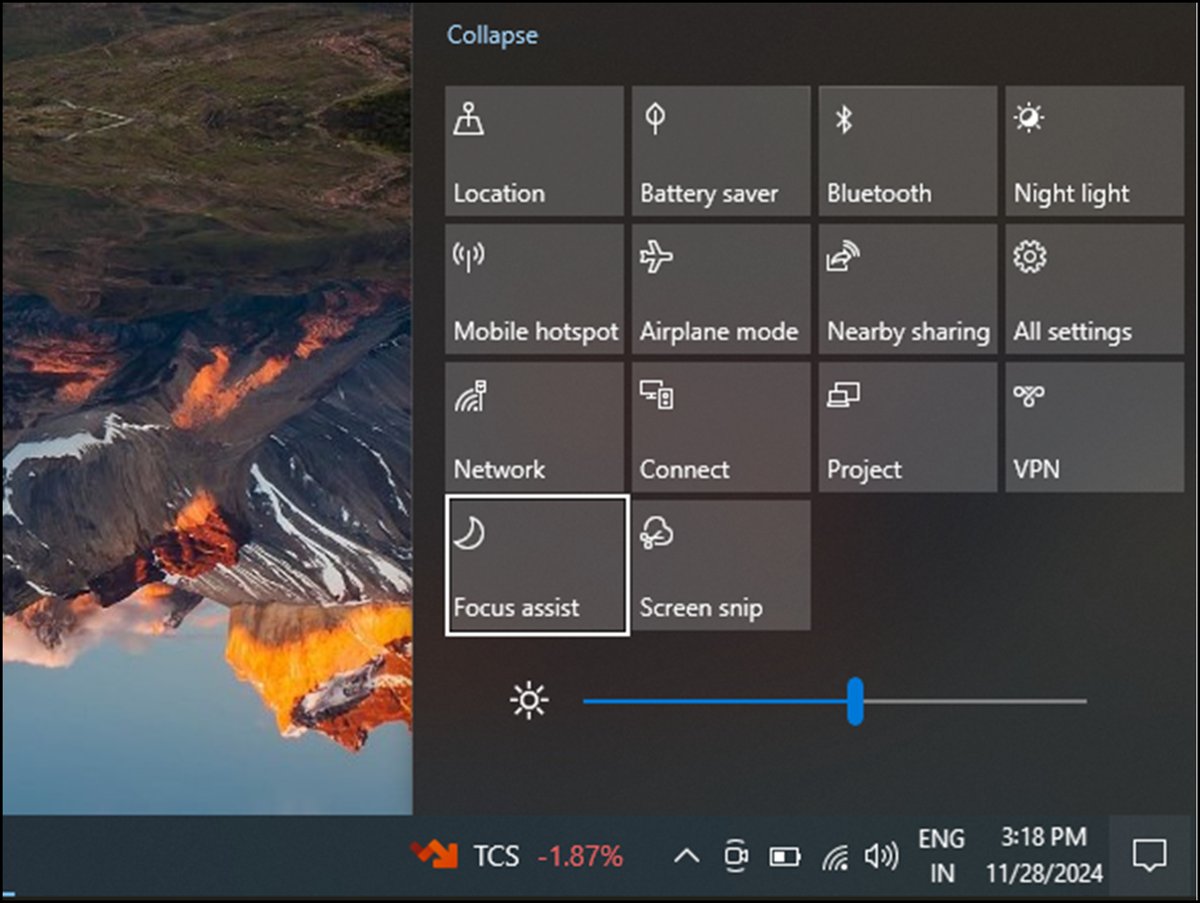
Windows 10 calls the same list the Action Center. Notifications you missed as banners wait there until you clear them.
- Press Windows key + A.
- Or select the notification button icon at the far right of the taskbar.
- On a touch screen, swipe in from the side of the screen.
- Scroll through the list; notifications are grouped by app.
- Select a notification to open it in the app that sent it.
The panel also holds the quick action tiles, and there is more on using the Windows 10 Action Center if you want to rearrange them.
Method 2: View notifications via calendar panel
On Windows 11, the clock on the taskbar opens the notification center and the calendar together, so reminders and the day's dates sit in one panel.
- Select the date and time at the right end of the taskbar.
- Read the notifications at the top of the panel that opens.
- Use the calendar below them to check the date a reminder belongs to.
- Select a calendar or reminder notification to open it in the app that sent it.
- Press Esc or select anywhere outside the panel to close it.
Method 3: Check old notifications using Windows Event Viewer (advanced)
Event Viewer does not keep a copy of notification banners. It does hold the events behind some of them, such as Microsoft Defender Antivirus detections, with the exact date and time.
- Press Windows key + R, type
eventvwr.msc, and select OK. - In the left pane, go to Applications and Services Logs > Microsoft > Windows > Windows Defender > Operational.
- Look through the events for the time the security notification appeared.
- Select an event to read its details in the lower pane.
For update alerts, the record is in Windows Update instead, where you can view installed updates with their install dates.
Method 4: View app-specific notification history
A notification is only a copy of something that happened inside an app. Once Windows has dropped it, the app that sent it is usually the place to find it again.
| Notification came from | Where to find it again | What you will see |
|---|---|---|
| Microsoft Teams | Select Activity in Teams | A timeline of notifications and updates |
| Mail or Outlook | The inbox or folder the message landed in | The original email, even after the banner is gone |
| Calendar | The event in the calendar app | The meeting or reminder the notification announced |
| Microsoft Defender | Event Viewer > Windows Defender > Operational | The detection event with its time |
| A website in a browser | The website itself | The site's own inbox or activity page, if it has one |
Method 5: Enable & review notification settings (prevent missing alerts)
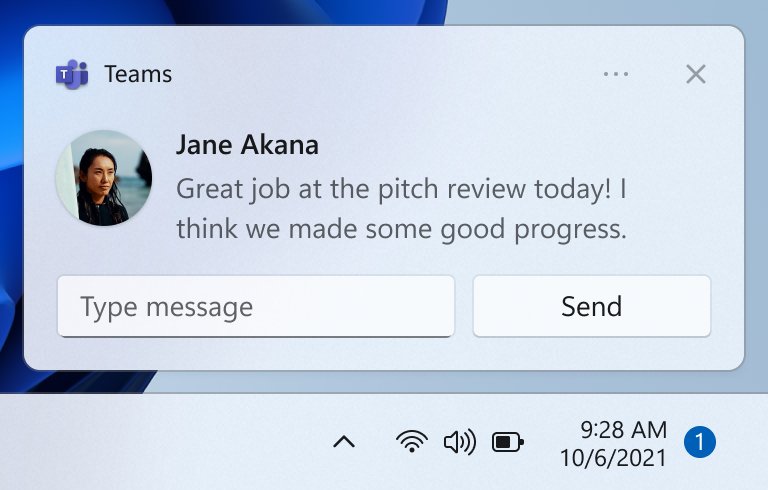
An app can show a banner without saving it to the notification center. Check that setting for each app you do not want to miss.
- Select Start > Settings > System > Notifications.
- Make sure the Notifications switch at the top is On.
- Under Notifications from apps and other senders, select the app you care about.
- Turn on Show notifications in notification center so its alerts stay in the list after the banner closes.
- Set Priority of notifications to Top or High so the app sits above others in the notification center.
On Windows 10, the same options are under Settings > System > Notifications & actions, where Show notifications in action center keeps an app's alerts. If an app is too noisy, you can turn off notifications for it instead.
Method 6: View old notifications via Focus assist history
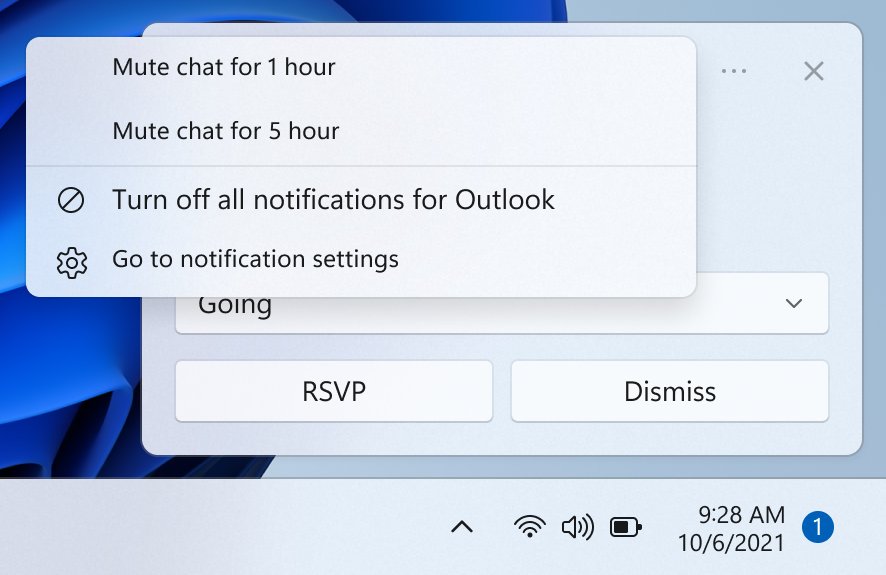
Notifications that arrive while Focus assist, Do not disturb or a focus session is on are not lost. Windows sends them straight to the notification center.
- On Windows 11, turn off Do not disturb from the bell icon in the notification center when you are ready.
- Open the notification center with Windows key + N to review everything that arrived while it was on.
- On Windows 10, open Settings > System > Focus assist.
- Under Automatic rules, turn on Show me a summary of what I missed while focus assist was on.
- When Focus assist ends, open the summary notification to see what was sent to the Action Center.
Notification Logger app lets you view old notifications in Windows 11/10
Windows has no built-in log of notifications you have already cleared. A notification logger app fills that gap by saving its own copy of each notification as it arrives.
| Question | Answer |
|---|---|
| How does a logger read notifications? | Through the Windows notification listener, which lets an app access all of your notifications, including ones from other apps |
| Does it need permission? | Yes. Windows asks you to allow access first, and you can revoke it at any time in Windows Settings |
| Can it show notifications from before you installed it? | No. It only records what arrives while it has access |
| What does it save? | The sending app, the time the notification was created, and its text |
| What happens if you revoke access? | The app stops receiving notifications; it gets an empty list |
Method 7: Check action history via third-party tools (optional)
Only install a logger if you regularly need notifications you have already dismissed. It can read everything your other apps send, including message previews.
- Open Microsoft Store and search for notification logger or notification history.
- Open an app's page and check the publisher, ratings and the permissions it lists before installing.
- Install the app and open it once.
- Allow access when Windows asks whether the app can read your notifications.
- Leave the app installed; it records notifications from this point onward.
- To stop it, uninstall the app or revoke its notification access in Windows Settings.
Can you recover deleted notifications in Windows 11?
No. Once you select the close button or Clear all, Windows removes the notification from the notification center and offers no way to bring it back. The notification center only shows current notifications. To read a cleared one again, open the app that sent it, check its own history such as the Teams Activity feed, or install a logger app so future notifications are saved before you dismiss them.
How to stop notifications from disappearing automatically
By default, Windows notification banners disappear five seconds after they appear. Give yourself longer to read them.
- Select Start > Settings > Accessibility > Visual effects.
- Expand Dismiss notifications after this amount of time.
- Choose a longer time from the list.
- Go to Settings > System > Notifications, select each important app, and keep Show notifications in notification center on so the alert stays in the list after the banner goes.
A banner that times out is not deleted. It moves to the notification center, where it stays until you clear it.
What are notifications in Windows 11?
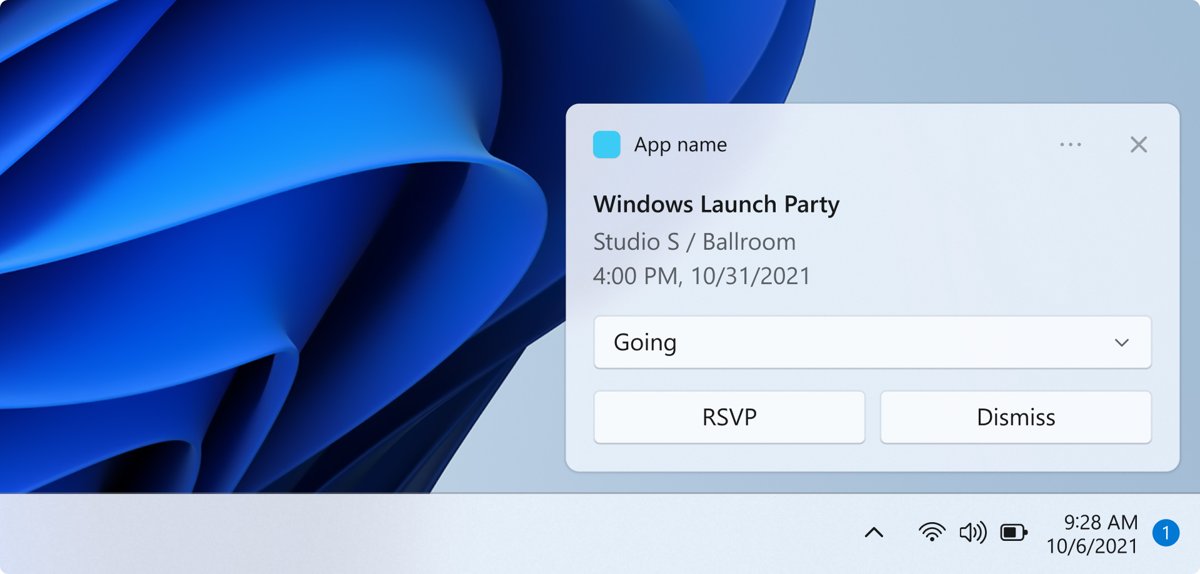
Notifications are short alerts from apps and Windows itself, such as a new email, a calendar reminder or a system update. Each one can appear in up to three places.
| Where it appears | How long it stays | Setting that controls it |
|---|---|---|
| Banner on screen | Five seconds by default, then it closes | Show notification banners, per app |
| Notification center | Until you clear it | Show notifications in notification center, per app |
| Lock screen | Shown before you sign in | Hide content when notifications are on lock screen, per app |
| Do not disturb | Banners are held back; notifications go straight to the notification center | Turn on do not disturb automatically |
Old notifications in Windows FAQ
How do I see old notifications in Windows 11?
Press Windows key + N or select the clock on the taskbar to open the notification center. Every notification you have not cleared is listed there, grouped by app, including ones that arrived while Do not disturb was on.
How do I view old notifications on Windows 10?
Press Windows key + A or select the notification button at the right end of the taskbar to open the Action Center. Notifications stay in the list until you clear them, unless an app is set not to show notifications in action center.
How do I see previous Windows notifications I already cleared?
Windows cannot show them again once they are cleared. Open the app that sent the notification to find the original item, or install a notification logger app from Microsoft Store so future notifications are kept.
How do I view recent Windows notifications?
Look at the notification bell icon on the taskbar; it lights up when new notifications arrive. Select it, or press Windows key + N on Windows 11, to open the notification center with the most recent notifications at the top of each app's group.
Is there a notification history in Windows?
Not a permanent one. The notification center holds current notifications until you clear them, and Windows keeps no log of dismissed ones. Apps such as Microsoft Teams keep their own history, and a logger app can record notifications as they arrive.
Why do my notifications disappear before I can read them?
Banners close five seconds after they appear by default. Increase the time under Settings > Accessibility > Visual effects > Dismiss notifications after this amount of time, and check the notification center for any you missed.
Where do notifications go during Do not disturb?
They go straight to the notification center without showing a banner, apart from alarms, reminders and any priority apps you allow. Turn Do not disturb off and open the notification center to review what you missed.
Why is an app's notification missing from the notification center?
The app may be set to show banners only. Open Settings > System > Notifications, select the app and turn on Show notifications in notification center. On Windows 10, the matching option is Show notifications in action center.