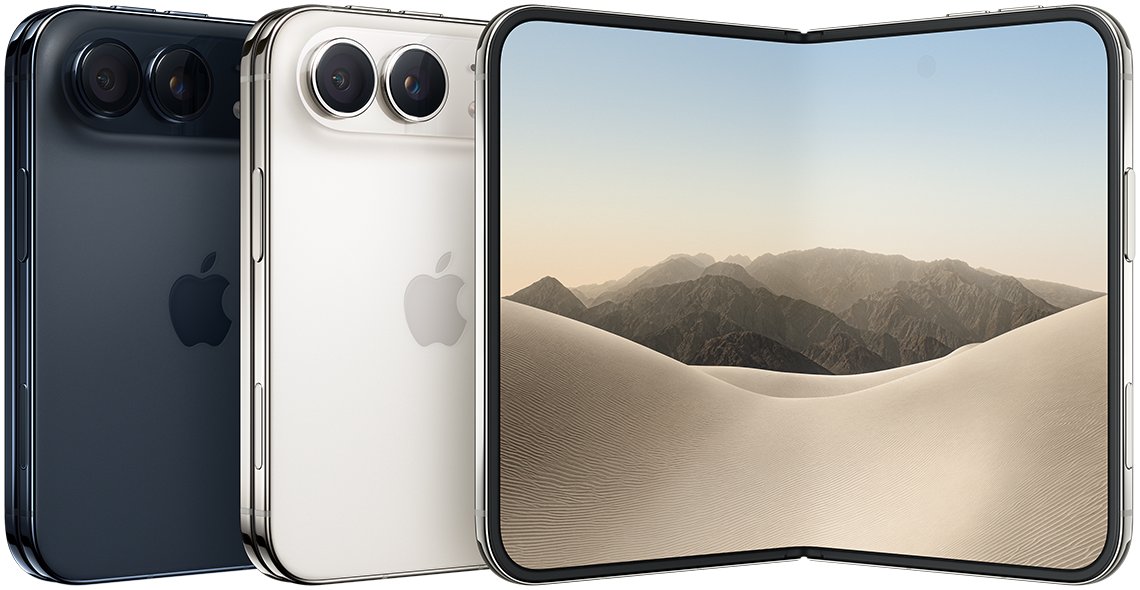
To get Clean Up in Photos on iPhone, you need an iPhone 15 Pro, iPhone 15 Pro Max or an iPhone 16 model or later on iOS 18.1 or later, with the iPhone and Siri set to the same supported language.
This guide covers which iPhones have the Clean Up feature, how to use and undo it, and what to do on an iPhone 14 Pro Max, iPhone 15 or older model that cannot run it.
How to get Clean Up in Photos on iPhone 15 Pro, iPhone 16 and later
Clean Up is part of Apple Intelligence, so it comes with iOS on a supported iPhone. There is no separate app to install from the App Store.
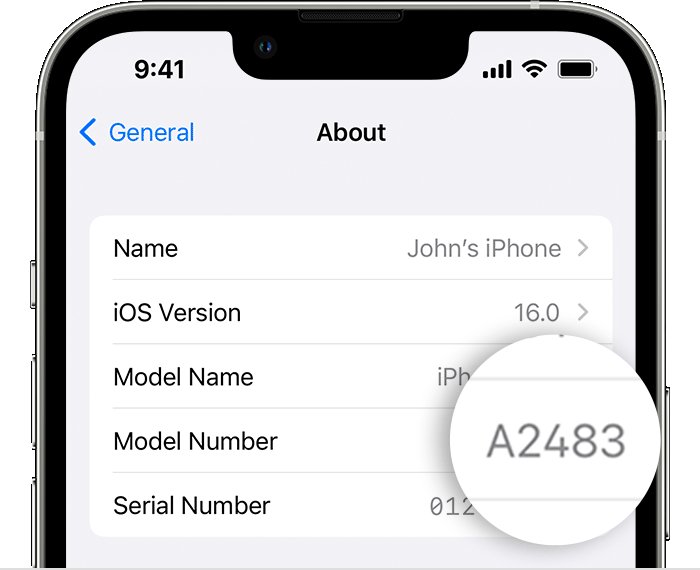
- Open Settings > General > About and check that the iPhone is an iPhone 15 Pro, iPhone 15 Pro Max, or an iPhone 16 model or later.
- Open Settings > General > Software Update and tap Download and Install if an update is waiting. Clean Up needs iOS 18.1 or later.
- Set the iPhone language and the Siri language to the same supported language, such as English.
- Keep enough free space for Apple Intelligence: up to 8 GB on most supported iPhones, and up to 14 GB on iPhone Duo, iPhone 17 Pro models and later, and iPhone Air.
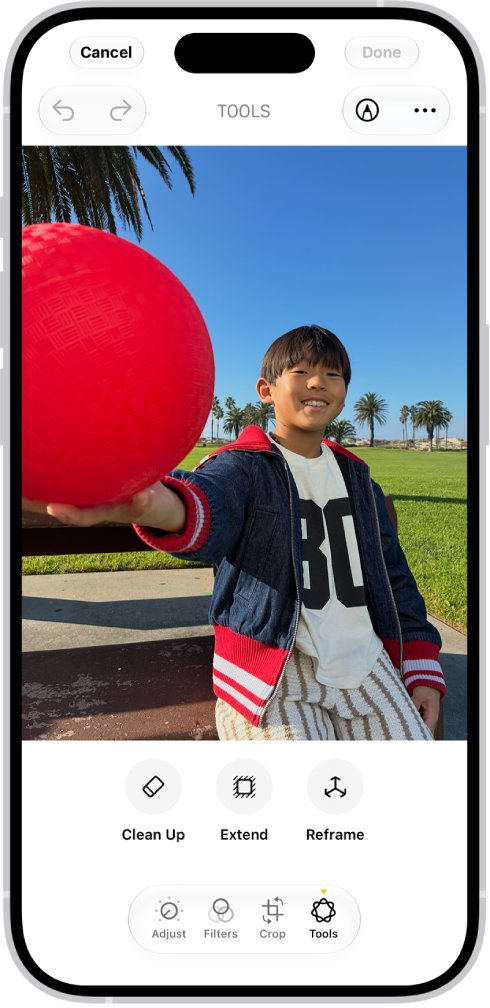
- Open the Photos app, open a photo, and tap the edit icon.
- Tap Tools, then tap Clean Up.
On iOS 27, Apple Intelligence turns on automatically on an eligible iPhone after the update, and Settings has no separate switch for Clean Up. The steps here match iOS 27.
Clean Up in Photos requirements on iPhone
| Requirement | What Clean Up needs | Where to check |
|---|---|---|
| iPhone model | iPhone 15 Pro, iPhone 15 Pro Max, or an iPhone 16 model or later | Settings > General > About |
| iOS version | iOS 18.1 or later; iOS 27 adds Extend and Reframe beside Clean Up | Settings > General > Software Update |
| Language | iPhone and Siri set to the same supported language | Settings > General > Language & Region, then Settings > Siri > Language |
| Storage | Up to 8 GB free, or up to 14 GB on iPhone Duo, iPhone 17 Pro models and later, and iPhone Air | Settings > General > iPhone Storage |
| European Union | iOS 18.4 or later on a supported iPhone | Settings > General > Software Update |
| China mainland | Not available on iPhones bought there, or used there with a China mainland Apple Account | Where the iPhone was bought and your Apple Account country or region |
| Usage | Daily usage limits can apply to the photo editing tools | No setting; limits vary by feature, request and demand |
Which iPhones have Clean Up in Photos?
Clean Up runs only on iPhones that support Apple Intelligence. A software update cannot add it to an older model.
| iPhone | Clean Up in Photos | Reason |
|---|---|---|
| iPhone Duo | Yes | Supports Apple Intelligence |
| iPhone 18 Pro, iPhone 18 Pro Max | Yes | Supports Apple Intelligence |
| iPhone 17, iPhone 17 Pro, iPhone 17 Pro Max, iPhone 17e | Yes | Supports Apple Intelligence |
| iPhone Air | Yes | Supports Apple Intelligence |
| iPhone 16, iPhone 16 Plus, iPhone 16 Pro, iPhone 16 Pro Max, iPhone 16e | Yes | Every iPhone 16 model supports Apple Intelligence |
| iPhone 15 Pro, iPhone 15 Pro Max | Yes | The only iPhone 15 models with Apple Intelligence |
| iPhone 15, iPhone 15 Plus | No | No Apple Intelligence support |
| iPhone 14 Pro Max and every earlier iPhone | No | No Apple Intelligence support |
How to use Clean Up in Photos to remove objects on iPhone
- Open the Photos app and open the photo you want to fix.
- Tap the edit icon, tap Tools, then tap Clean Up.
- Tap an item Photos highlights to remove it, or tap, brush or circle anything else you want gone.
- Pinch with two fingers to zoom or pan when the object is small.
- Use the restore icon to bring back anything removed by mistake.
- To change processing, tap Auto and choose Auto, Fast or High Quality. With High Quality, tap Clean Up to apply the edit.
- Save the edit, then tap Done to close the photo.
The original photo stays recoverable, so you can reset the edit later from the same tool.
How to change iPhone and Siri language for Apple Intelligence
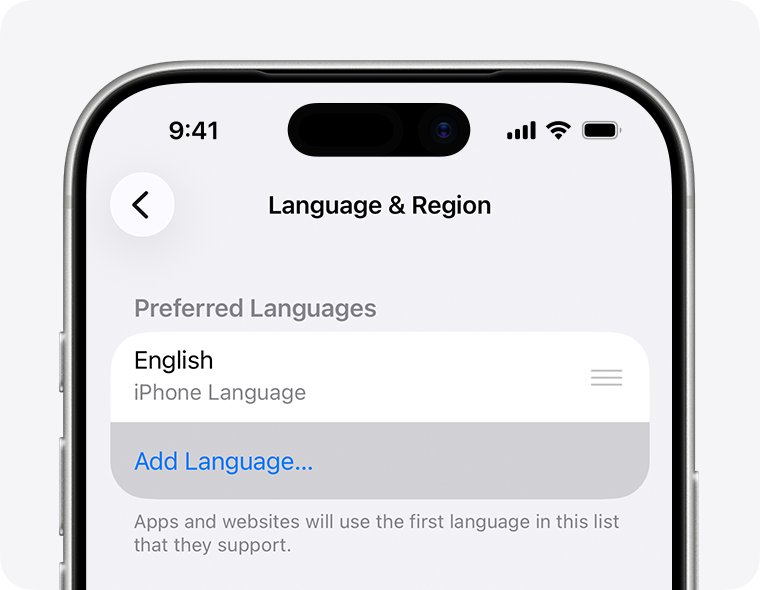
Clean Up stays unavailable while the iPhone language and Siri language differ, or when either is unsupported. Supported languages are English, Chinese (Simplified), Chinese (Traditional), Danish, Dutch, French, German, Italian, Japanese, Korean, Norwegian, Portuguese, Spanish, Swedish, Turkish and Vietnamese.
- Open Settings > General > Language & Region.
- Tap Add Language, choose a supported language, and select it as the primary language when the alert asks.
- Go back to Settings and tap Siri. On some iOS versions, Siri settings sit under Apple Intelligence & Siri.
- Tap Language and choose the same language you set for the iPhone.
- Wait for the new Siri language to download fully, then open a photo and check Tools for Clean Up.
How to free up iPhone storage for Apple Intelligence
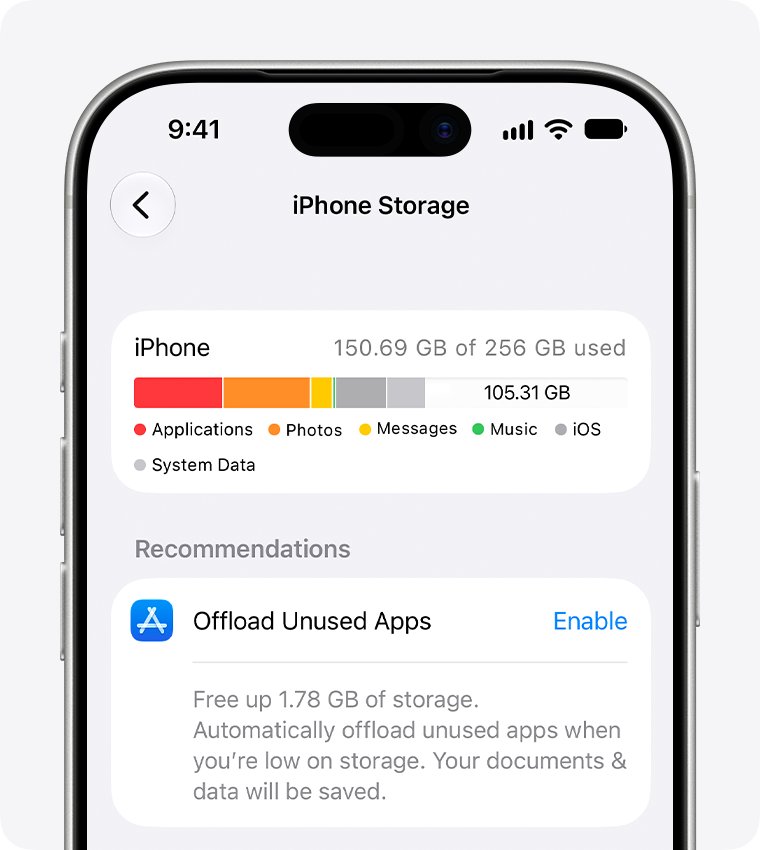
Apple Intelligence models take up to 8 GB on most supported iPhones and up to 14 GB on iPhone Duo, iPhone 17 Pro models and later, and iPhone Air. Use can rise for a while during and after a software update, as new models download and old ones are removed.
- Open Settings > General > iPhone Storage.
- Review the recommendations at the top of the screen and apply the ones that suit you.
- Tap a large app in the list to see how much space it uses.
- Offload the app to free its space but keep its documents and data, or delete it to remove both.
- Delete large videos you no longer need from the Photos app.
- Return to iPhone Storage and check that enough space is free.
How to check if your iPhone has Clean Up in Photos
- Open Settings > General > About and match the model to the supported list above.
- Open Settings > General > Software Update and check that iOS 18.1 or later is installed.
- Open Photos, open any photo, and tap the edit icon.
- Tap Tools. When Clean Up appears in the list, the feature is ready to use.
Clean up, extend and reframe photos on iPhone
iOS 27 groups three Apple Intelligence tools under Tools in the Photos editor. On iOS 27.2 or later, most images edited with them carry a hidden SynthID watermark.
| Tool | What it does | Where to find it |
|---|---|---|
| Clean Up | Removes distracting objects you tap, brush or circle | Photos > edit icon > Tools > Clean Up |
| Extend | Expands the background past the original frame; drag the frame edge to crop | Photos > edit icon > Tools > Extend |
| Reframe | Changes the point of capture after you take the photo | Photos > edit icon > Tools > Reframe |
| Reset | Undoes a saved Clean Up, Extend or Reframe edit | Open the same tool again and tap Reset |
How to undo Clean Up in Photos on iPhone
- While you are still editing, use the restore icon to bring back anything you removed.
- After saving, open the photo in Photos and tap the edit icon.
- Tap Tools, then tap Clean Up.
- Tap Reset to return the photo to how it looked before Clean Up.
iCloud Photos stores your original photos, so you can revert an edit at any time, including one made on a Mac or iPad.
Clean Up in Photos on iPhone 14, iPhone 15 and older models
An iPhone 14 Pro Max, iPhone 15, iPhone 15 Plus or older model cannot run Clean Up on the phone itself. A supported Mac or iPad on the same Apple Account can make the edit for it, because iCloud Photos shows edits on all your devices.
The Mac needs M1 or later with macOS Sequoia 15.1 or later. The iPad needs A17 Pro or M1 and later with iPadOS 18.1 or later.
| Your situation | What to do | Result |
|---|---|---|
| You also have a Mac with M1 or later | Turn on iCloud Photos on both, then in Photos on the Mac double-click the photo and click Edit > Tools > Clean Up | The cleaned photo appears on the iPhone |
| You also have an iPad with A17 Pro or M1 and later | Turn on iCloud Photos on both and use Clean Up in Photos on the iPad | The edit syncs back to the iPhone |
| The object sits near the edge of the frame | Crop it out with the crop tool in the Photos editor | Works on any iPhone, with no Apple Intelligence needed |
| You want Clean Up on the phone itself | Move to an iPhone 15 Pro, an iPhone 16 model or later | Clean Up runs directly in Photos on the iPhone |
To sync, open Settings on the iPhone, tap your name, tap iCloud, tap Photos, and turn on Sync this iPhone. Sign in with the same Apple Account everywhere, and set up iCloud on the iPhone before you edit on the Mac or iPad.
Clean Up in Photos not showing or not working on iPhone
No Clean Up on iPhone 14 Pro Max, iPhone 15 or an older iPhone
The iPhone does not support Apple Intelligence.
- Open Settings > General > About to confirm the model.
- Use Clean Up on a supported Mac or iPad with iCloud Photos turned on.
- Crop the object out in the Photos editor if it sits near the edge.
No Clean Up on iPhone 15 Pro or an iPhone 16 model
iOS is older than iOS 18.1, or older than iOS 18.4 in the European Union.
- Open Settings > General > Software Update.
- Tap Download and Install and follow the onscreen instructions.
- Open a photo after the update, tap the edit icon, and check Tools for Clean Up.
Clean Up missing after a language change
The iPhone and Siri languages do not match, or the new Siri language is still downloading.
- Check the iPhone language in Settings > General > Language & Region.
- Set the same language in Settings > Siri > Language.
- Keep the iPhone on Wi-Fi until the Siri language finishes downloading.
Clean Up missing with storage almost full
Apple Intelligence needs up to 8 GB, or up to 14 GB on some models, for its models.
- Open Settings > General > iPhone Storage.
- Offload or delete large apps and remove videos you no longer need.
- Leave the iPhone on Wi-Fi and power so the models can download.
Clean Up not working in China mainland
Clean Up does not work on iPhones bought in China mainland, or in China mainland with a China mainland Apple Account.
- Open Settings > General > About and tap the part number next to Model Number to see the model number.
- Look up the country code in the model number to see where the iPhone was sold.
- Check the country or region of your Apple Account; Clean Up stays off while both point to China mainland.
Clean Up stops working after many edits
Daily usage limits apply to Apple Intelligence photo editing tools that rely on server-side models.
- Try the edit again later; limits vary by request, demand and other factors.
- Use other Photos tools, such as crop, for urgent edits in the meantime.
Apple Intelligence alert in Settings
Private Cloud Compute is temporarily unavailable or reported an issue.
- Keep using Apple Intelligence; features that run on the iPhone keep working.
- Check Private Cloud Compute on Apple's System Status page and retry later if it shows red or orange.
- Contact Apple Support if System Status shows no outage.
Clean Up in Photos on iPhone FAQ
How do I get the Clean Up feature on iPhone?
Use an iPhone 15 Pro, iPhone 15 Pro Max, or an iPhone 16 model or later, update to iOS 18.1 or later, and set the iPhone and Siri to the same supported language. Then open a photo, tap the edit icon, tap Tools and tap Clean Up.
How do I use Clean Up on iPhone?
Open a photo in Photos, tap the edit icon, tap Tools, then tap Clean Up. Tap a highlighted item, or tap, brush or circle what you want removed, then save the edit and tap Done.
Can I get Clean Up on iPhone 14 Pro Max?
No. Clean Up needs Apple Intelligence, which the iPhone 14 Pro Max does not support on any iOS version. You can use Clean Up on a Mac with M1 or later, or a supported iPad, and let iCloud Photos sync the edit.
Why don't I have Clean Up on my iPhone 15?
The standard iPhone 15 and iPhone 15 Plus do not support Apple Intelligence, so Clean Up never appears. Among iPhone 15 models, only the iPhone 15 Pro and iPhone 15 Pro Max can use it.
Does Clean Up download automatically?
Yes, on a supported iPhone. On iOS 27, Apple Intelligence becomes available automatically after the update, and its models download to the iPhone. You need up to 8 GB of free storage, or up to 14 GB on some models.
Is Clean Up free?
Clean Up is built into iOS on supported iPhones, with nothing extra to buy today. Apple applies daily usage limits to photo editing tools that rely on server-side models, and says expanded access to such features will cost a fee in the future.
Is Clean Up any good?
Clean Up removes the objects you tap, brush or circle, and offers Auto, Fast and High Quality processing. Results depend on the photo, so check the edit before you share it and tap Reset if it falls short.
How do I clean up images on iPhone without Apple Intelligence?
Crop the distraction out with the crop tool in the Photos editor, which works on any iPhone. For object removal, edit the photo with Clean Up on a supported Mac or iPad signed in to the same Apple Account with iCloud Photos on.
Does Clean Up work on iPad and Mac?
Yes. Clean Up works on any iPad with A17 Pro or M1 and later running iPadOS 18.1 or later, and on a Mac with M1 or later running macOS Sequoia 15.1 or later.
Does Clean Up add a watermark to photos?
On iOS 27.2 or later, most images created or edited with Apple Intelligence tools, including Clean Up, include a hidden SynthID watermark. The SynthID Detector can check a photo for it.