When taskbar icons are not showing on Windows 11 or Windows 10, restart Windows Explorer from Task Manager first, because it redraws the taskbar and fixes most missing or blank icons in seconds.
If that does not hold, this guide covers tablet mode, taskbar settings, the icon cache, display drivers, system file repair, System Restore and a fresh user account.
Restart Windows File Explorer from Task Manager
The taskbar belongs to the Windows Explorer process. Restarting it reloads the taskbar, Start button and tray without signing you out. Open File Explorer windows close, so save anything you are moving first.
- Press Ctrl + Shift + Esc to open Task Manager.
- Select More details if Task Manager opens in the compact view.
- On the Processes tab, find Windows Explorer.
- Right-click it and select Restart.
- Wait a few seconds for the taskbar to disappear and come back with its icons.
If the taskbar stays gone, select File > Run new task in Task Manager, type explorer.exe and press Enter.
Disable tablet mode on your PC
In Windows 10 tablet mode, app icons are hidden from the taskbar by default. Windows 11 has no manual tablet mode switch; it changes layout automatically when you detach or fold back the keyboard.
| Windows version | What to do | Result |
|---|---|---|
| Windows 10 | Select the Action center icon next to the clock, then the Tablet mode tile (select Expand if you do not see it) | Tablet mode turns off and app icons return |
| Windows 10, tile missing | Settings > System > Notifications & actions > Edit your quick actions > Add > Tablet mode | The tile appears in Action center |
| Windows 11 2-in-1 | Right-click the taskbar > Taskbar settings > Taskbar behaviors, then clear Optimize taskbar for touch interactions when this device is used as a tablet | The taskbar keeps its desktop layout when folded |
| Windows 11 laptop or desktop | Nothing to change | Tablet layout only applies to 2-in-1 devices |
Enable your app icons in the taskbar settings
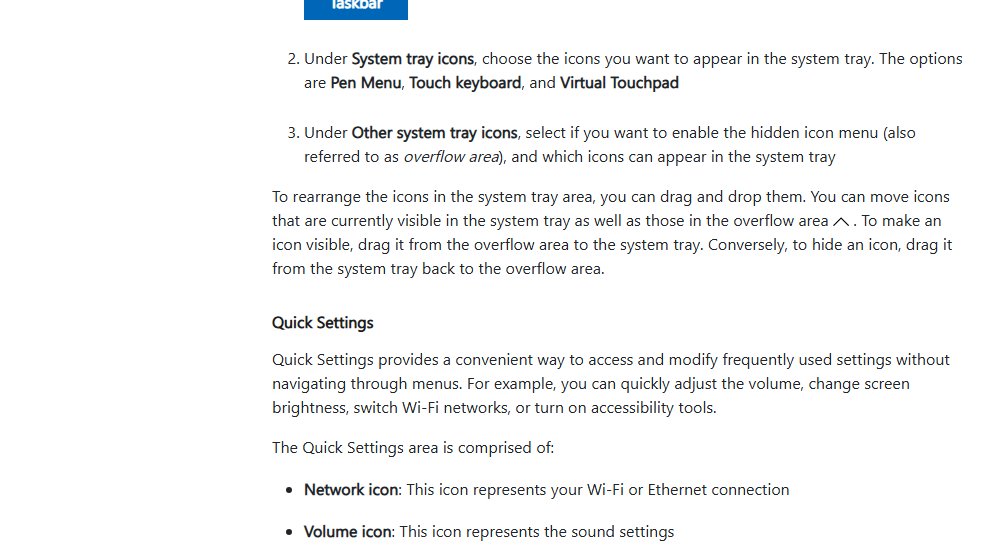
Icons can be switched off or set to hide in the overflow menu. Auto-hide also makes the whole taskbar look empty until you point at the screen edge.
- Right-click an empty part of the taskbar and select Taskbar settings.
- On Windows 11, under Taskbar items, turn on Task view and Widgets, and choose a Search option other than Hide.
- On Windows 11, expand Other system tray icons and turn on the apps you want next to the clock.
- On Windows 10, under Notification area, select Select which icons appear on the taskbar and turn on the apps you want.
- On Windows 10, select Turn system icons on or off and turn on Clock, Volume and Network.
- Expand Taskbar behaviors on Windows 11, or scroll down on Windows 10, and turn off Automatically hide the taskbar if it is on.
Clear Windows’ corrupt icon cache
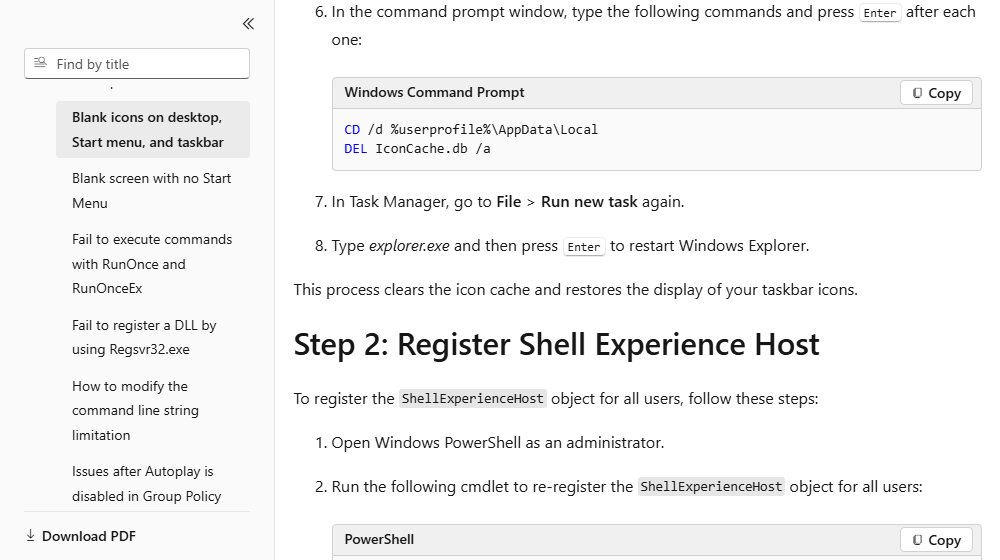
Windows keeps a cache of icon images in IconCache.db. When it is damaged, shortcuts on the taskbar, desktop and Start menu show blank icons, though they still open their apps. Save your work before you start.
- Press Ctrl + Shift + Esc to open Task Manager.
- On the Processes tab, right-click Windows Explorer and select End task. The taskbar disappears.
- Select File > Run new task, type
cmd.exe, tick Create this task with administrative privileges and select OK. - Type
CD /d %userprofile%\AppData\Localand press Enter. - Type
DEL IconCache.db /aand press Enter. - In Task Manager, select File > Run new task again, type
explorer.exeand press Enter. - Check the taskbar. Windows rebuilds the cache as icons load.
Blank icons only on Word, Excel or other Office files are a separate problem with its own Office icon fixes.
Re-register Shell Experience Host for blank taskbar icons
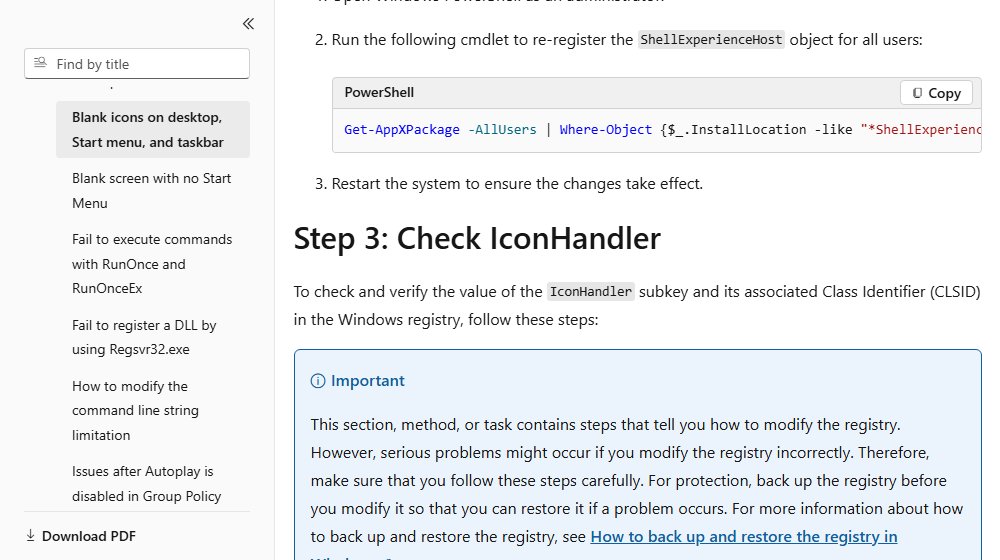
If icons stay blank after clearing the cache, Microsoft's next step is to re-register the Shell Experience Host package for all users. Open Windows PowerShell with Run as administrator and paste the command, then restart the PC.
Get-AppXPackage -AllUsers | Where-Object {$_.InstallLocation -like "*ShellExperienceHost*"} | Foreach {Add-AppxPackage -DisableDevelopmentMode -Register "$($_.InstallLocation)\AppXManifest.xml"}Finds the installed ShellExperienceHost package and registers its manifest again for every account on the PC.
You should see: The prompt returns without red error text. After a restart, taskbar and Start icons show their images.
Update your display adapter drivers
A faulty graphics driver can stop the shell from drawing icons. Windows Update offers tested display drivers as optional updates.
- On Windows 11, select Start > Settings > Windows Update > Advanced options.
- Turn on Receive updates for other Microsoft products.
- Select Optional updates, tick any display or graphics driver and select Download and install.
- On Windows 10, select Settings > Update & Security > Windows Update > View optional updates.
- Restart the PC even if Windows does not ask you to.
- If no driver is offered, get the latest one for your Windows version from your PC or graphics card maker's website.
Clean up junk files on your PC
A nearly full system drive slows Windows and can stop caches being rebuilt. Use the built-in cleanup tools rather than a third-party cleaner.
- Select Start > Settings > System > Storage and check free space on the system drive.
- On Windows 11, select Cleanup recommendations.
- Review each category, tick what you no longer need and select Clean up.
- On Windows 10, type disk cleanup in the taskbar search box and open Disk Cleanup.
- Select the drive, tick Temporary files and other categories you do not need, and select OK.
- Restart Windows Explorer and check the taskbar.
Fix corrupt files on your Windows PC
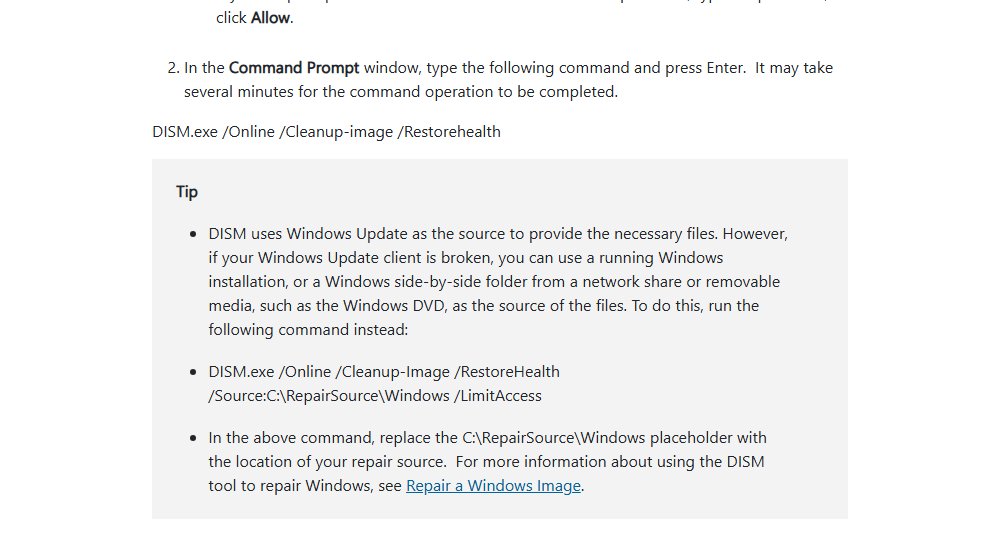
Damaged system files can break the taskbar and Start menu together. Open Command Prompt with Run as administrator, run DISM first, then run sfc /scannow.
DISM.exe /Online /Cleanup-image /RestorehealthRepairs the Windows component store. Then run sfc /scannow, which replaces damaged system files from that store. Keep the window open until verification reaches 100%.
You should see: SFC reports that it did not find any integrity violations, or that it found corrupt files and successfully repaired them. Restart the PC afterwards.
Use System Restore
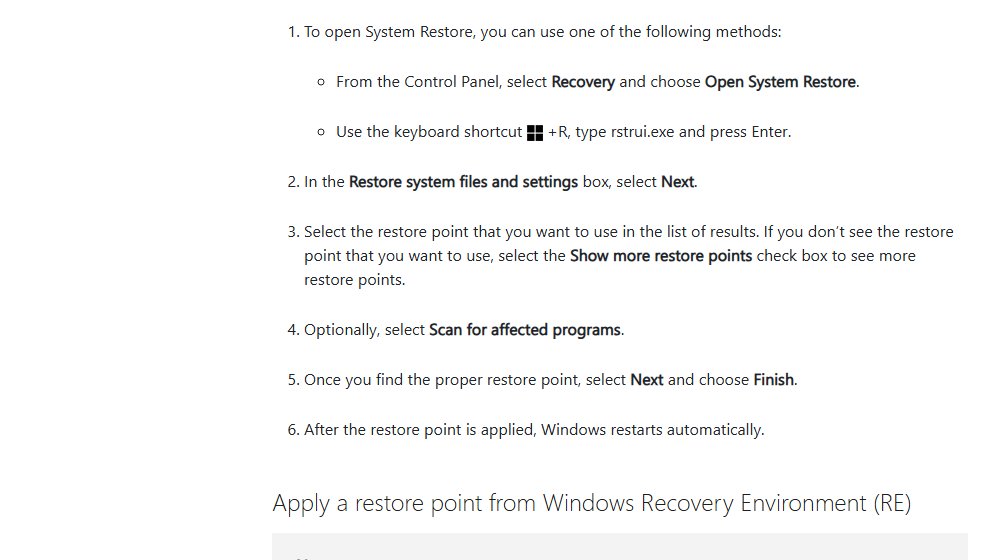
If icons vanished after an update, driver or app install, a restore point from before that date rolls back system files, registry settings and programs. Personal files are not affected, but apps installed after the restore point are removed.
- Press Win + R, type
rstrui.exeand press Enter. You can also open Control Panel > Recovery > Open System Restore. - Select Next on Restore system files and settings.
- Choose a restore point from before the icons disappeared. Tick Show more restore points if needed.
- Select Scan for affected programs to see which apps will be removed or restored.
- Select Next, then Finish. Windows restarts to apply it.
If no restore points are listed, System Protection was off on this PC and this fix is not available.
Create and use a new Windows account
A damaged user profile can break the taskbar for one account only. A test account shows whether the problem is in your profile or in Windows itself.
- Select Start > Settings > Accounts > Other users.
- Next to Add other user, select Add account.
- Select I don't have this person's sign-in information, then Add a user without a Microsoft account.
- Enter a user name and password and finish the prompts.
- Sign out, sign in to the new account and check its taskbar.
- If icons show there, move your files to the new account. To make it an administrator, select it in Other users > Change account type.
Make Windows taskbar display all your favorite icons
Once the taskbar works, pin the apps you use most so they stay on it after a restart.
- Select Start and type the app's name.
- Right-click the app in the results and select Pin to taskbar.
- For an app that is already open, right-click its taskbar icon and select Pin to taskbar.
- Drag pinned icons left or right to reorder them.
- On a multi-monitor setup, turn on Show my taskbar on all displays under Taskbar behaviors on Windows 11, or use the Multiple displays settings on Windows 10.
- To remove an icon, right-click it and select Unpin from taskbar.
Test that taskbar icons stay visible after a restart
- Select Start > Power > Restart.
- After you sign in, confirm pinned apps, the clock, volume and network icons appear.
- Open two apps and check each shows its own icon image, not a blank square.
- Select the ^ arrow next to the clock and confirm hidden tray icons are listed.
- If icons go missing again after a restart, repeat the icon cache step and run SFC.
Taskbar icons missing, blank or hidden: fixes by symptom
Taskbar icons are blank but still open apps
A damaged icon cache or IconHandler registry value.
- Clear IconCache.db as shown above and restart Windows Explorer.
- Re-register Shell Experience Host in an administrator PowerShell window and restart.
- Back up the registry, open
regeditand check that the (Default) value ofHKEY_CLASSES_ROOT\lnkfile\shellex\IconHandleris{00021401-0000-0000-C000-000000000046}. - Under
HKEY_CLASSES_ROOT\CLSID\{00021401-0000-0000-C000-000000000046}\InProcServer32, confirm (Default) isC:\Windows\System32\windows.storage.dll.
Network or internet icon missing from the taskbar
A policy hides the notification area, common on work PCs.
- Check Turn system icons on or off (Windows 10) or the tray settings (Windows 11) first.
- On Pro editions, open
gpedit.mscand go to User Configuration > Administrative Templates > Start Menu and Taskbar. - Check whether Hide the notification area is enabled. On a work PC, ask your IT team before you change it.
All app icons gone on a Windows 10 touch PC
Tablet mode is on and hides app icons on the taskbar.
- Open Action center and turn off the Tablet mode tile.
- Restart Windows Explorer if the icons do not return straight away.
Icons missing in one account only
A damaged user profile.
- Create a new local account and sign in to it.
- If its taskbar works, move your files across and use the new account.
Taskbar icons not showing FAQ
Why are my taskbar icons not showing in Windows 11?
Usually the Windows Explorer process has stalled or the icon cache is damaged. Restart Windows Explorer from Task Manager, then clear IconCache.db if icons stay blank. Also check Taskbar settings for hidden tray icons and auto-hide.
How do I restore missing taskbar icons without restarting the PC?
Open Task Manager with Ctrl + Shift + Esc, right-click Windows Explorer on the Processes tab and select Restart. The taskbar reloads in a few seconds and most missing icons return.
Does clearing the icon cache delete any files?
No. IconCache.db only stores copies of icon images. Deleting it removes those copies, and Windows builds a new cache as icons load again. Your apps, shortcuts and files are not affected.
How do I turn off tablet mode in Windows 11?
Windows 11 has no manual tablet mode switch. It changes layout when you detach or fold back the keyboard on a 2-in-1. To keep the desktop taskbar, clear Optimize taskbar for touch interactions under Taskbar behaviors.
Why is the network icon missing from my taskbar?
It may be switched off in the taskbar's system icon settings, or a Hide the notification area policy is enabled. Check taskbar settings first, then the Start Menu and Taskbar policies in Group Policy Editor.
Will System Restore delete my files?
No. System Restore rolls back system files, registry settings and installed programs, but leaves personal files alone. Apps installed after the restore point are removed, so use Scan for affected programs before you finish.
How do I show hidden icons on the taskbar in Windows 11?
Right-click the taskbar, select Taskbar settings and expand Other system tray icons. Turn on each app you want shown next to the clock. The rest stay in the menu behind the arrow.