Windows PE (WinPE, the Windows Preinstallation Environment) is a small operating system Microsoft provides to install, deploy and repair Windows desktop editions and Windows Server.
This guide covers what WinPE can do, its hard limits, where to download it, how to build and boot a WinPE USB drive, and how it relates to Windows RE and recovery drives.
What is Windows PE
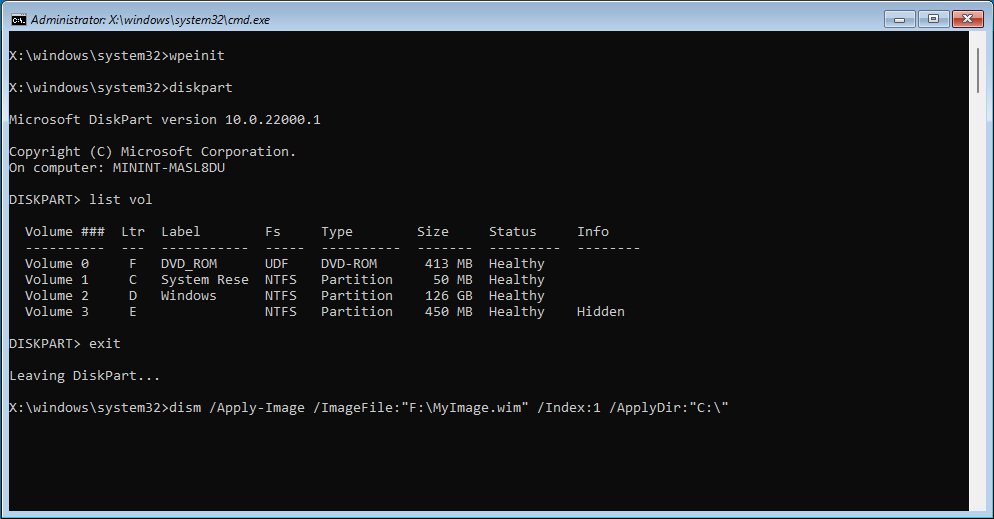
WinPE boots from a USB drive, a CD/DVD, an ISO or a virtual hard disk and runs a Windows command-line environment entirely from memory. Technicians use it to prepare disks, apply Windows images and fix PCs that no longer start.
It is not a normal desktop. There is no Start menu, and Microsoft licenses it for deployment and recovery only.
Use Windows PE when you need to work on a PC from outside its installed Windows: partitioning a disk, capturing or applying an image, or recovering data from a machine that will not boot. WinPE gives you DISM, DiskPart, BCDBoot, networking and scripting without touching the installed operating system, and it is a free add-on to the Windows Assessment and Deployment Kit (ADK).
What can you do with Windows PE
| Task | How WinPE supports it |
|---|---|
| Set up a hard drive before installing Windows | DiskPart and NTFS support for partitioning and formatting |
| Install Windows from a network share or local drive | Apps and scripts can launch Windows Setup |
| Capture and apply Windows images | DISM (Deployment Image Servicing and Management) is built in |
| Modify Windows while it is not running | Offline servicing of the installed image with DISM |
| Repair boot files | BCDBoot rebuilds boot configuration |
| Recover data from an unbootable PC | Copy files to a USB drive or a network share over TCP/IP |
| Automate deployment | Batch files, Windows Script Host, optional PowerShell and HTA, or a custom shell |
WinPE also includes generic networking, graphics and mass storage drivers, optional BitLocker and TPM support, Secure Boot, and Hyper-V integration for running inside a virtual machine.
What is Windows PE environment: Hardware requirements
WinPE has the same hardware requirements as Windows, with a few exceptions that make it suitable for boot media.
| Requirement | Windows PE |
|---|---|
| Hard drive | Not required; WinPE can run entirely from memory |
| Memory | 512 MB for the base version; more if you add drivers, packages or apps |
| RAM disk boot | Needs a contiguous block of RAM large enough for the whole WinPE image (WIM) |
| 64-bit WinPE | Boots 64-bit UEFI and BIOS PCs |
| 32-bit WinPE | Boots 32-bit UEFI and BIOS PCs and 64-bit BIOS PCs; last shipped in the add-on for Windows 10, version 2004 |
| Boot media | USB flash drive, CD/DVD, ISO file or virtual hard disk (VHD/VHDX) |
Windows PE limitations and size limits
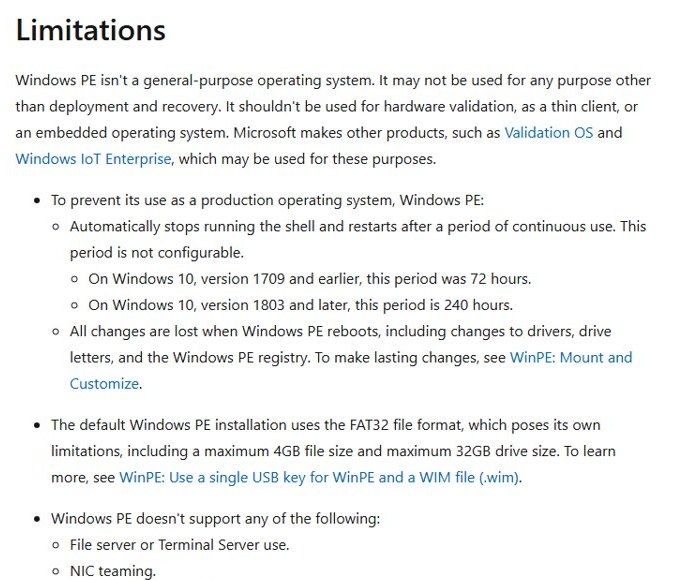
Microsoft builds restrictions into WinPE so it cannot be used as an everyday operating system, thin client or embedded OS.
| Limitation | Detail |
|---|---|
| Automatic restart | The shell stops and the PC restarts after 240 hours of continuous use on Windows 10, version 1803 and later (72 hours on 1709 and earlier); the period cannot be changed |
| Nothing persists | Changes to drivers, drive letters and the WinPE registry are lost on reboot unless you mount and customize the image |
| FAT32 media | The default boot drive is FAT32: 4 GB maximum file size and 32 GB maximum drive size |
| Networking | No domain join, no NIC teaming, no Remote Desktop, and no IPv4 connection from an IPv6 network |
| Server roles | No file server or Terminal Server use |
| Installers and apps | No .msi installs, no .appxbundle packages through DISM, and apps must match WinPE's architecture |
| Boot path | Cannot boot from a path containing non-English characters |
To store a Windows image larger than 4 GB on the same USB key, create a multipartition USB drive with a second NTFS partition.
Windows PE vs Windows Setup vs Windows RE
Windows Setup and the Windows Recovery Environment are both built on WinPE, so the right one depends on the job.
| Your goal | Use this | Why |
|---|---|---|
| Install Windows on one PC | Windows Setup from installation media | Setup runs on WinPE and needs no extra tools |
| Deploy a custom image to many PCs | Windows PE from the ADK | Scripts, DISM and network shares are available |
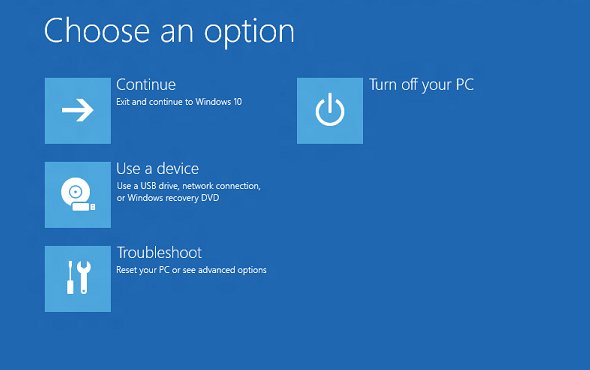
| Repair a PC that will not start | Windows RE (Advanced startup) | Preloaded on Windows 10 and 11 with Startup Repair and System Restore |
| Reinstall Windows on the same PC from USB | A recovery drive | Boots Windows RE and offers Recover from a drive |
| Copy files off an unbootable PC with scripts | Windows PE | Full command line with networking |
If you only need a fresh install, download Windows 11 installation media instead of building WinPE.
Where can you download Windows PE
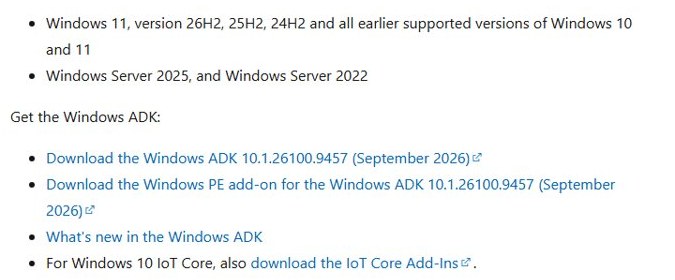
WinPE is not a standalone download. Since Windows 10, version 1809, it ships as a separate add-on to the Windows ADK, and both come from Microsoft Learn's Download and install the Windows ADK page.
- Open the Download and install the Windows ADK page on learn.microsoft.com.
- Pick the ADK that matches the newest Windows version you deploy: ADK 10.1.26100.9457 (September 2026) covers Windows 11, version 26H2, 25H2, 24H2 and earlier, plus Windows Server 2025 and 2022.
- Download and run the Windows ADK installer, and include the deployment tools when it asks which features to install.
- Download the Windows PE add-on for the same ADK version from the same page.
- Run the add-on installer and finish setup.
- Open Deployment and Imaging Tools Environment from Start as an administrator to confirm the tools installed.
ADK 10.1.28000.3481 (October 2026) and its WinPE add-on are only for Windows 11, version 26H1 on x64 and Arm64. Microsoft also asks users to apply the April 9, 2024 security updates to WinPE add-ons from ADK 10.1.25398.1 and earlier.
How to create a bootable Windows PE USB drive
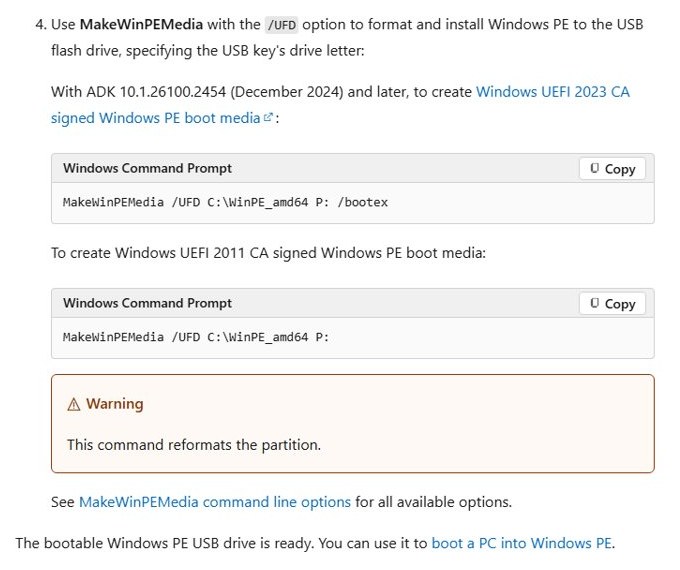
These commands run in Deployment and Imaging Tools Environment as administrator. Replace P: with your USB drive's letter, because MakeWinPEMedia reformats it as FAT32.
- Plug in a USB flash drive you can erase.
- Start Deployment and Imaging Tools Environment as an administrator.
- Create the working files:
copype amd64 C:\WinPE_amd64. - If you will launch Windows 11 Setup from WinPE, add the WinPE-WMI and WinPE-SecureStartup optional components to the image.
- With ADK 10.1.26100.2454 (December 2024) or later, create Windows UEFI 2023 CA signed media:
MakeWinPEMedia /UFD C:\WinPE_amd64 P: /bootex. - For Windows UEFI 2011 CA signed media, run
MakeWinPEMedia /UFD C:\WinPE_amd64 P:instead. - To build an ISO for a virtual machine or a DVD, run
MakeWinPEMedia /ISO C:\WinPE_amd64 C:\WinPE_amd64\WinPE_amd64.iso /bootex.
Choose 2023 or 2011 CA signed media based on the target PC's boot manager revocation state, described in Microsoft's KB5025885.
How to run Windows PE on a PC
- Insert the WinPE USB drive or DVD into the PC you want to work on.
- Turn on the PC.
- Press the boot menu key for your PC; it differs by manufacturer, so check your PC maker's documentation if you do not know it.
- Select the WinPE media from the boot menu.
- Wait for the command prompt window, which means WinPE has finished loading.
- Run
wpeutil rebootorwpeutil shutdownwhen you are done.
On PCs that support both UEFI and legacy BIOS, boot WinPE in the same mode you plan to install Windows in, or Setup can install Windows incorrectly.
How to check WinRE version in Windows 11
Windows RE is built on WinPE, and its version changes only when a cumulative update (LCU) is added to the winre.wim image. Run both commands in an elevated Command Prompt.
- Select Start, type
cmd, right-click Command Prompt and select Run as administrator. - Run
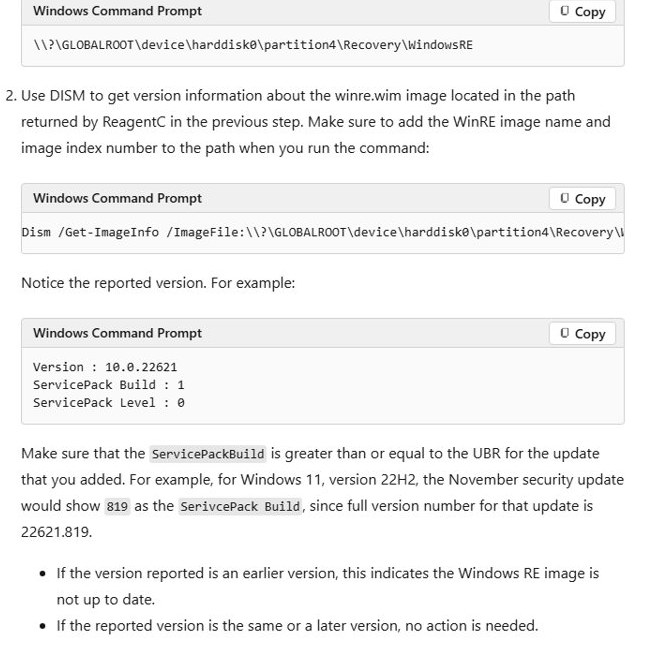
reagentc /infoand note the Windows RE location, for example\\?\GLOBALROOT\device\harddisk0\partition4\Recovery\WindowsRE. - Run
Dism /Get-ImageInfo /ImageFile:\\?\GLOBALROOT\device\harddisk0\partition4\Recovery\WindowsRE\winre.wim /index:1, using your own location from step 2. - Read the Version and ServicePack Build lines in the output.
- Compare ServicePack Build with the update's build number: for 22621.819, a current image shows 819 or higher.
A lower ServicePack Build means the WinRE image is not up to date. Safe OS Dynamic Update packages do not change the number, so check them with DISM /get-packages.
How to create a System Recovery Drive in Windows 11
A recovery drive boots into Windows RE and can reinstall Windows on the PC it was made on. Use an empty USB drive, because the tool erases it.
- Select Start, type Recovery Drive and open it, or run
recoverydrive.exe. - Keep Back up system files to the recovery drive selected and select Next.
- Connect the USB drive, select it in the list and select Next.
- Select Create and wait; copying the files can take a while.
- To use it later, boot from the drive and select Recover from a drive in Windows RE.
- Choose Just remove my files or Fully clean the drive, then select Recover.
The recovery drive does not include personal files, so back those up separately with Windows Backup or File History. Microsoft recommends recreating the drive once a year.
Windows PE not booting or not working: Fixes
Windows PE does not appear when the PC starts
The firmware did not pick up the boot files, or the PC needs extra drivers to boot.
- Open the firmware boot menu again and select the WinPE drive.
- On a UEFI PC, select the boot file manually:
\EFI\BOOT\BOOTX64.EFI. - If the PC needs storage or video drivers to boot, add the same drivers to the WinPE image and rebuild the media.
- Reboot after each change and try again.
Windows PE cannot reach network shares
The generic network drivers do not cover the PC's network adapter.
- Load the adapter's driver in WinPE with
drvload, or add it to the mounted image with DISM. - Run
wpeutil InitializeNetworkafter the driver loads. - Connect to the share with its server name or IP address over the wired LAN.
Windows 11 Setup from WinPE says the PC does not meet minimum requirements
The WinPE image is missing two optional components that Windows 11 Setup checks with.
- Mount the WinPE image with DISM.
- Add the WinPE-WMI and WinPE-SecureStartup optional components.
- Unmount the image with
/commitand rebuild the USB drive with MakeWinPEMedia.
Windows PE restarted on its own or lost my changes
WinPE restarts after 240 hours of continuous use, and nothing you change at runtime survives a reboot.
- Save work to a USB drive or network share, not to the WinPE RAM drive.
- Mount the image and add drivers, scripts or settings there to make them permanent.
- Rebuild the boot media from the updated working files.
Windows PE FAQ
What is Windows PE environment?
The Windows PE environment is a minimal Windows command-line system that runs from memory after booting from USB, DVD, ISO or VHD. It is used to install, deploy and repair Windows and includes DISM, DiskPart, BCDBoot, networking and scripting support.
How do I access Windows PE?
Build WinPE boot media with the Windows ADK and its WinPE add-on, then boot the PC from that USB drive or DVD through the firmware boot menu. Windows Setup and Windows RE also run on WinPE, so installation media and Advanced startup use it behind the scenes.
How to use Windows PE?
Boot into WinPE and work at the command prompt. Typical tasks are DiskPart for partitioning, DISM to capture or apply images, BCDBoot to repair boot files, and copying data to a USB drive or network share from a PC that will not start.
Does Windows PE work on Windows 11?
Yes. The current Windows ADK and WinPE add-on support Windows 11, version 26H2, 25H2, 24H2 and earlier. To run Windows 11 Setup from WinPE, include the WinPE-WMI and WinPE-SecureStartup optional components.
Is there Windows PE for Windows 10?
Yes. The current ADK and WinPE add-on also support all supported Windows 10 versions. The last 32-bit WinPE is in the add-on for Windows 10, version 2004, and it cannot deploy Windows 11.
Is Windows PE free to download?
Yes. Microsoft offers the Windows ADK and the Windows PE add-on as free downloads on Microsoft Learn. WinPE may be used only for deployment and recovery, not as a general-purpose operating system.
What is the difference between Windows PE and Windows Setup?
Windows Setup is the installer that copies Windows onto a PC, and it runs on top of WinPE. WinPE itself is the general environment for deployment and recovery tools, scripts and images, with or without Setup.
How big can a Windows PE USB drive be?
The default WinPE drive is FAT32, which limits it to 32 GB and individual files to 4 GB. For larger images, create a multipartition USB drive with an extra NTFS partition.