When the usbaapl64.inf driver will not install, update or reinstall the iPhone's driver through Device Manager while the phone is connected, unlocked and trusted, then restart Apple Mobile Device Service so iTunes or the Apple Devices app can see the phone.
This guide covers the Microsoft Store versions of iTunes and Apple Devices, manual driver installs with Device Manager and PnPUtil, how to confirm the driver loaded, and fixes grouped by symptom.
Fastest fix for usbaapl64.inf not installing
usbaapl64.inf is the setup file for the 64-bit Apple Mobile Device USB driver, the piece that lets iTunes and the Apple Devices app talk to an iPhone or iPad over USB. Windows installs it against the connected phone, so the phone has to be plugged in and unlocked while you do this.
- Close iTunes and the Apple Devices app.
- Unlock the iPhone, stay on the Home Screen and connect it with a USB cable that carries data, not only charge.
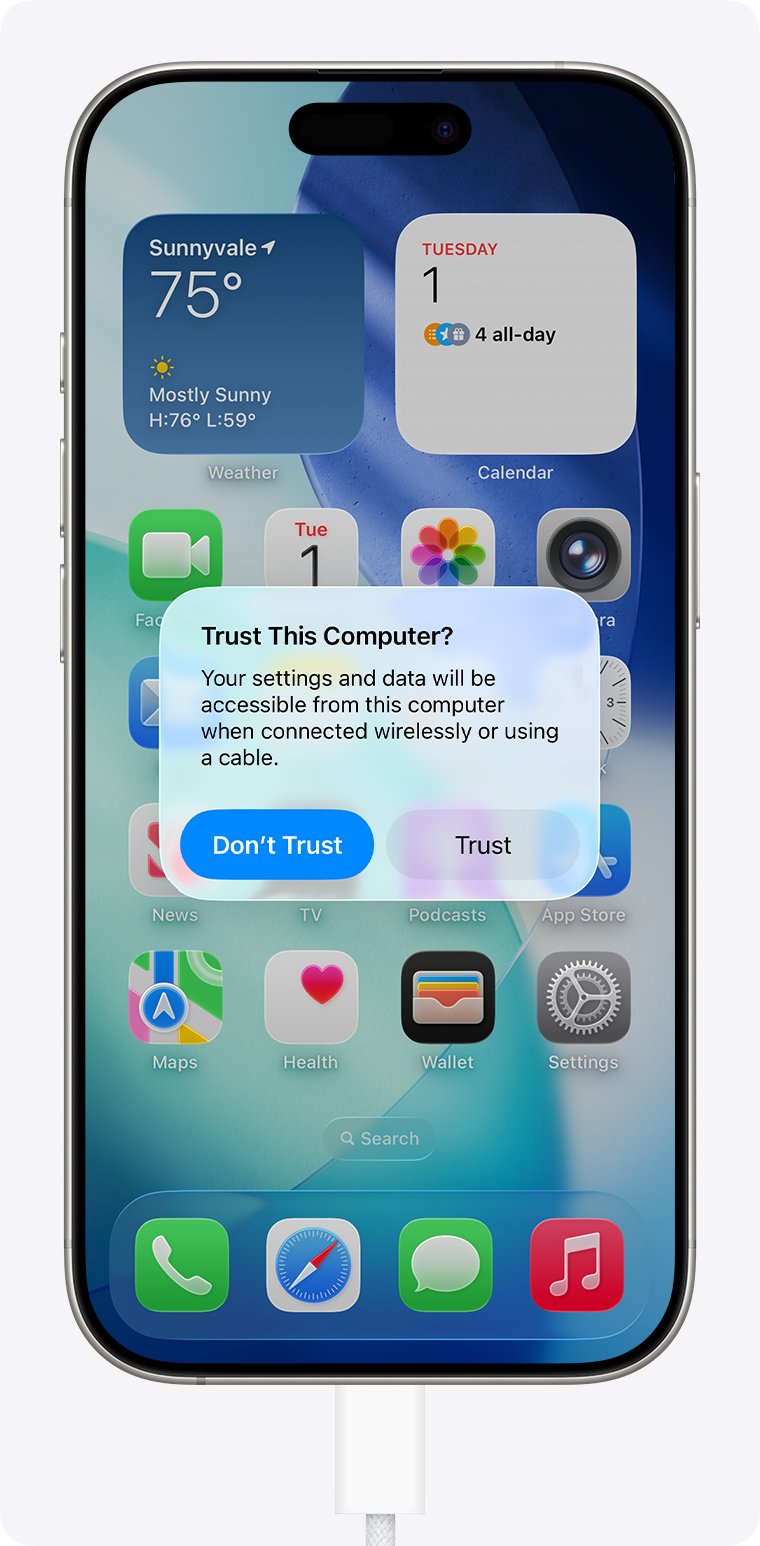
- Tap Trust if the Trust This Computer? alert appears, then enter the passcode.
- Right-click Start and select Device Manager.
- Expand the category that lists the iPhone, right-click the iPhone entry and select Update driver.
- Select Search automatically for updated driver software. If nothing is found, select Search for updated drivers on Windows Update.
- Select Close, disconnect the iPhone, restart the PC and reconnect the phone.
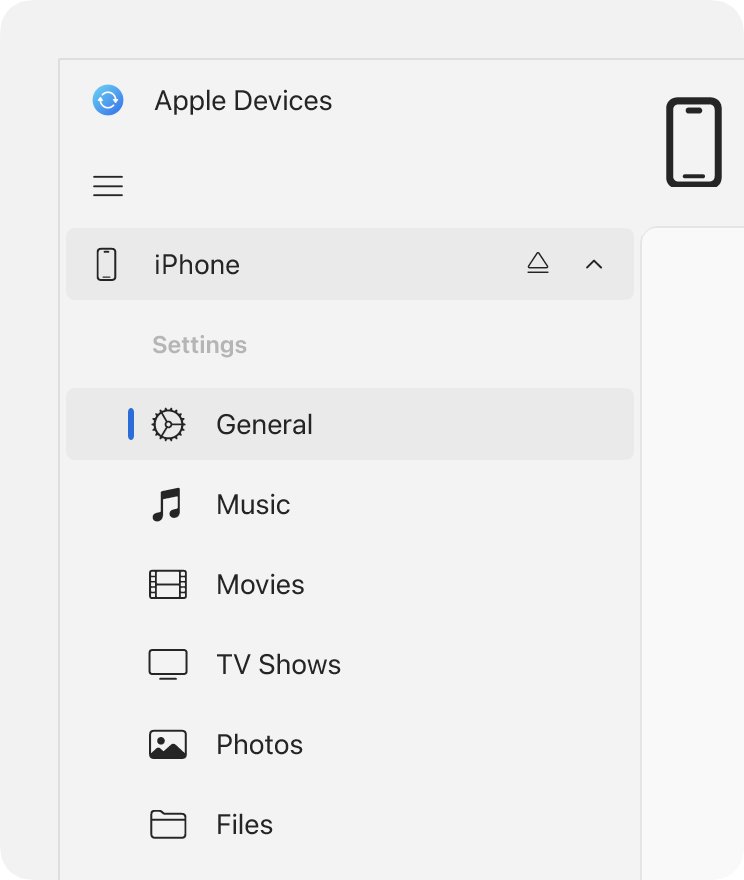
If the phone now appears in the sidebar of the Apple Devices app or in iTunes, the driver installed. If Device Manager still shows a warning on the device, work through the sections below in order.
Which usbaapl64.inf fix to try first
| What you see | Try this | Why |
|---|---|---|
| iPhone shows a yellow warning in Device Manager | Update driver, then Windows Update optional updates | Windows fetches the signed Apple driver package for the connected device |
| Update driver says the best driver is already installed but iTunes still sees nothing | Uninstall the device with its driver software, then reconnect | Removes a damaged or mismatched copy so Windows installs it fresh |
| You have a copy of usbaapl64.inf from Apple's installer | Browse my computer for drivers, or PnPUtil /add-driver | Installs the package from a folder you choose |
| "Apple Mobile Device Service is not started" | Restart Apple Mobile Device Service in services.msc | The driver is fine but the service iTunes uses is stopped |
| Trust alert never appears | Check the iTunes Mobile Device Helper startup item and reset Location & Privacy | The phone and PC never finished the pairing step |
| Nothing happens when you plug in the phone | Change cable and USB port, update Windows and iOS | Windows cannot load any driver for a device it never detects |
What iTunes needs before the Apple USB driver can install
| Requirement | Why it matters | How to check |
|---|---|---|
| iTunes or Apple Devices from the Microsoft Store | Apple now distributes iTunes, Apple Devices, Apple Music and Apple TV for Windows through the Microsoft Store | Open Microsoft Store, search for each app and install any pending update |
| Apple Devices app for managing the phone | Apple moved back up, update, restore and sync for iPhone and iPad to the Apple Devices app; iTunes now handles podcasts and audiobooks | Search the Microsoft Store for Apple Devices and select Get if it is missing |
| Administrator account | Driver installs and PnPUtil commands need administrator rights | Run Command Prompt with Run as administrator |
| Data-capable USB cable | A charge-only cable never presents the phone to Windows, so no driver loads | The phone should chime or vibrate when you connect it |
| Unlocked, trusted iPhone | The phone must accept the computer before iTunes can use it | Tap Trust on the alert and enter the passcode |
| Current Windows and iOS | Apple lists both as checks when a PC does not recognize an iPhone | Settings > Windows Update on the PC, and the latest iOS or iPadOS on the phone |
Reinstall iTunes and the Apple Devices app from the Microsoft Store
The Apple Mobile Device USB driver ships with Apple's Windows software, so a broken or half-finished app install is a common reason it never registers. Reinstalling from the Microsoft Store gives you the current build Apple supports. If you still use the older iTunes installer, remove it first, then get the current iTunes build for Windows from the Microsoft Store.
- Disconnect the iPhone from the PC.
- Select Start > Settings > Apps > Installed apps.
- Uninstall iTunes and Apple Devices, then restart the PC.
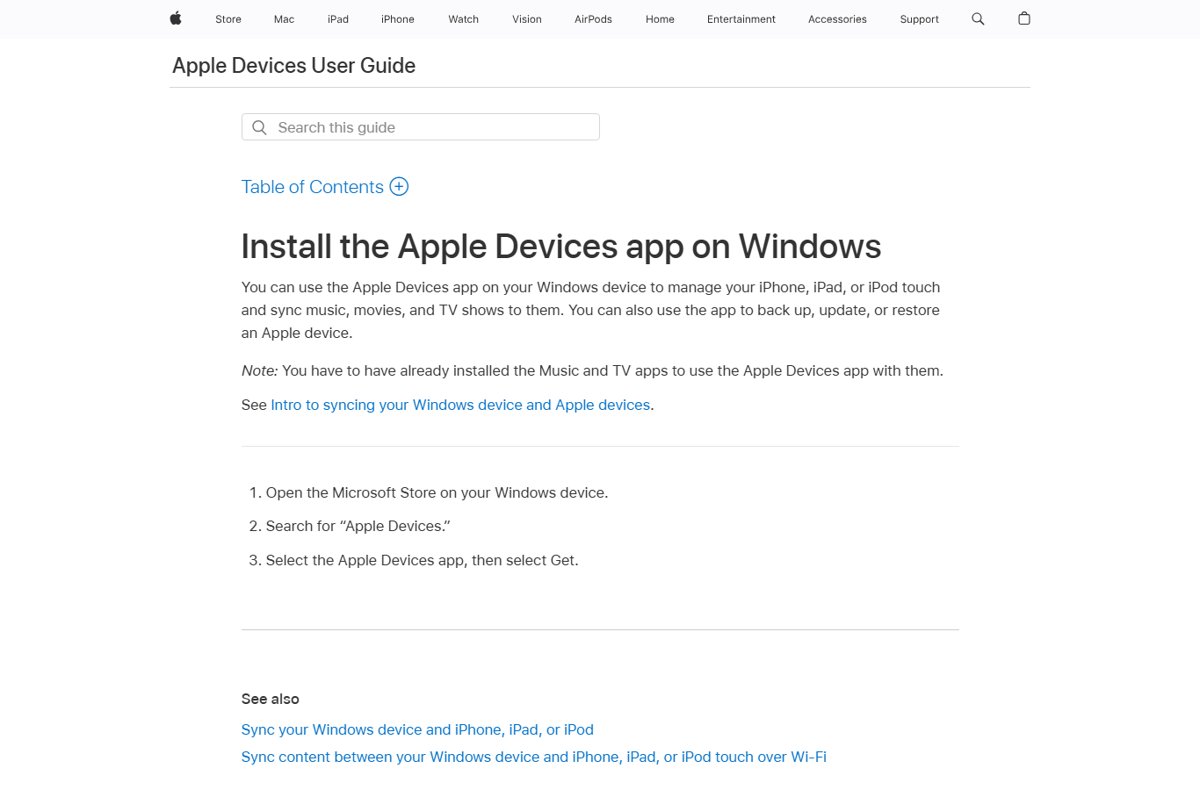
- Open Microsoft Store, search for Apple Devices and select Get.
- Search for iTunes and select Get if you also use iTunes for podcasts or audiobooks.
- Open the Apple Devices app before you connect the phone.
- Connect the unlocked iPhone and tap Trust on the phone.
Update the Apple Mobile Device USB driver through Windows Update optional updates
Windows Update holds driver packages that Windows does not install automatically. If the Apple driver is waiting there, it appears under optional updates while the phone is connected.
- Connect and unlock the iPhone.
- Select Start > Settings > Windows Update > Advanced options.
- Make sure Receive updates for other Microsoft products is turned On.
- Under Additional options, select Optional updates.
- Select any Apple driver listed, then select Download and install.
- Right-click Start, select Shut down or sign out > Restart, even if Windows does not ask for it.
Uninstall and reinstall the iPhone driver in Device Manager
When Windows reports that the best driver is already installed but iTunes still cannot see the phone, the stored copy may be damaged. Removing the device and its driver package forces a clean install on the next connection.
- Close iTunes and the Apple Devices app and connect the iPhone.
- Right-click Start and select Device Manager.
- Select View > Show hidden devices.
- Right-click the iPhone entry and select Uninstall device.
- Select Delete the driver software for this device if the option is shown, then select OK or Uninstall.
- Disconnect the iPhone and restart the PC.
- Reconnect the unlocked iPhone and let Windows install the driver again, then tap Trust.
The delete option only appears when you are signed in as an administrator.
Install usbaapl64.inf manually with Browse my computer for drivers
Use this when you already have a folder that contains usbaapl64.inf, for example from Apple's own iTunes installer. Point Device Manager at the folder, not at a single file.
- Connect and unlock the iPhone.
- Open Device Manager, right-click the iPhone entry and select Update driver.
- Select Browse my computer for drivers.
- Select Browse, choose the folder that holds usbaapl64.inf and select OK.
- Confirm the path and select Next.
- Select Close when Windows reports the driver installed or that the best driver is already installed.
Only use an INF that came from Apple's own software. Driver files from download portals or "driver updater" tools are a common source of unsigned or altered packages.
Install usbaapl64.inf with PnPUtil from Command Prompt
PnPUtil adds a driver package to the Windows driver store and can install it on a matching connected device in one step. Open Command Prompt with Run as administrator, connect the unlocked iPhone, then replace the path below with the folder that holds the file.
pnputil /add-driver "<folder>\usbaapl64.inf" /install/add-driver stages the package in the driver store; /install applies it to any connected device that matches the INF. Run pnputil /scan-devices afterwards to make Windows re-detect the phone.
You should see: PnPUtil reports that the driver package was added and installed on the device. Running pnputil /enum-drivers then lists an Apple driver package with a published name such as oemNN.inf.
How to check the Apple USB driver installed for iTunes
- Open Device Manager and confirm the iPhone entry has no yellow warning icon.
- Right-click the iPhone entry, select Properties and check that Device status says the device is working properly.
- In an administrator Command Prompt, run
pnputil /enum-devices /problemand confirm the iPhone is not listed. - Open the Apple Devices app and confirm the iPhone appears in the sidebar.
What usbaapl64.inf and Apple Mobile Device Service do
| Component | Role | What breaks without it |
|---|---|---|
| usbaapl64.inf | Setup file for the 64-bit Apple Mobile Device USB driver | Windows cannot match a driver to the iPhone, so it shows an unknown or failed device |
| Apple Mobile Device Service (AppleMobileDeviceService.exe) | Background process that lets iTunes recognize iPhone and iPod touch | iTunes shows "This [device] cannot be used because the Apple Mobile Device Service is not started" |
| iTunes Mobile Device Helper | Startup item for the Microsoft Store version of iTunes | The Trust alert may not appear or the PC may not accept your answer |
| Apple Devices app | Updates, backs up, restores, manages and syncs iPhone and iPad | No supported Windows app to manage the phone if iTunes is used only for media |
Apple advises against turning off its background processes, even when iTunes is not running, because they handle device recognition.
usbaapl64.inf still not installing: fixes by symptom
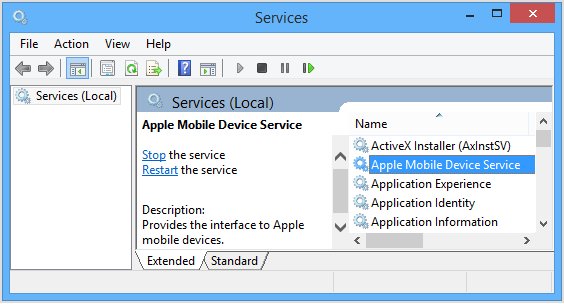
"This iPhone cannot be used because the Apple Mobile Device Service is not started"
The driver is present but the Apple service is stopped or set to manual.
- Close iTunes and disconnect the iPhone.
- Press Windows + R, type
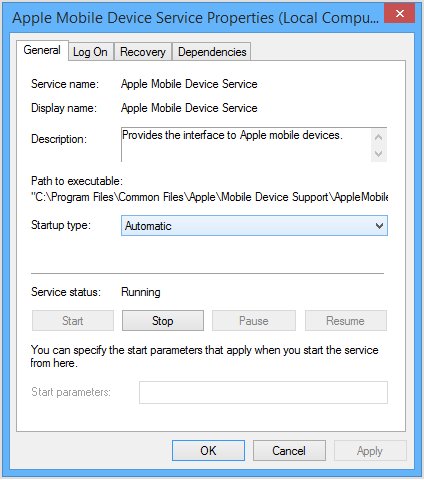
services.mscand press Enter. - Right-click Apple Mobile Device Service and select Properties.
- Set Startup type to Automatic.
- Select Stop, then Start, then OK.
- Restart the PC, open iTunes and reconnect the phone.
The Trust This Computer alert never appears
Pairing never completes, so iTunes cannot use the driver even when it is installed.
- Select Start > Settings > Apps > Startup and turn on iTunes Mobile Device Helper if you use the Microsoft Store version of iTunes.
- Disconnect the iPhone, restart the PC and restart the iPhone.
- On the iPhone, open Settings > General > Transfer or Reset iPhone > Reset > Reset Location & Privacy.
- Reconnect the unlocked iPhone and tap Trust.
The iPhone does not appear in Device Manager at all
Windows never detects the phone, so there is nothing for usbaapl64.inf to install against.
- Check that the phone chimes or vibrates when connected; if not, check its charging port for debris.
- Try another cable that supports both data and charging.
- Plug into a different USB port directly on the PC rather than a hub.
- Run
pnputil /scan-devicesin an administrator Command Prompt to force Windows to look again. - If other USB devices also fail, fix Windows not detecting USB drives first.
The Apple Mobile Device Service keeps stopping or will not start
Apple names third-party security software as the usual cause of this service failing.
- Check whether your security software has blocked or quarantined an Apple component and restore it from the product's own quarantine list.
- Add the Apple apps to the security product's allowed list using its vendor's instructions.
- Check for VPN software that filters USB or network traffic and update it.
- Restart the PC and start the service again in services.msc.
Update driver says the best drivers are already installed
Windows considers the stored package current, even if it is the wrong or a damaged copy.
- Uninstall the iPhone device in Device Manager with Delete the driver software for this device selected.
- Restart the PC.
- Reinstall the Apple Devices app from the Microsoft Store.
- Reconnect the unlocked iPhone and tap Trust.
usbaapl64.inf and iTunes driver FAQ
What is usbaapl64.inf?
usbaapl64.inf is the setup file for the 64-bit Apple Mobile Device USB driver. Windows uses it to install the driver that lets iTunes and the Apple Devices app communicate with an iPhone, iPad or iPod over a USB cable.
Why is the usbaapl64.inf driver not installing?
The usual causes are an incomplete iTunes or Apple Devices install, a phone that was locked or not trusted during setup, a charge-only cable, or a damaged driver copy already in the Windows driver store. Reinstalling the Apple apps and the device driver fixes most cases.
Do I still need iTunes to connect an iPhone to Windows?
No. Apple now uses the Apple Devices app from the Microsoft Store to update, back up, restore and sync an iPhone or iPad on Windows. iTunes for Windows remains for podcasts and audiobooks.
Where do I download the Apple Mobile Device USB driver?
Get it by installing iTunes or the Apple Devices app from the Microsoft Store, or through Windows Update optional updates while the phone is connected. Avoid driver download portals, which can serve altered or unsigned packages.
How do I restart Apple Mobile Device Service?
Press Windows + R, type services.msc and press Enter. Open Apple Mobile Device Service, set Startup type to Automatic, select Stop and then Start, select OK, and restart the PC before reconnecting the phone.
Can I install usbaapl64.inf with a command?
Yes. In an administrator Command Prompt, run pnputil /add-driver followed by the full path to usbaapl64.inf and the /install switch. PnPUtil stages the package and installs it on the connected iPhone.
Why does my iPhone charge but not show up in iTunes?
Charging only needs power, while iTunes needs a data connection, a loaded driver and a trusted pairing. Use a data-capable cable, unlock the phone, tap Trust, and check Device Manager for a warning on the iPhone entry.
Is it safe to use a driver updater tool for the Apple driver?
No. Install the Apple driver only through Apple's apps from the Microsoft Store or through Windows Update. Third-party driver updaters can install the wrong package and are not needed for this fix.
Bottom line on fixing usbaapl64.inf for iTunes
Reinstall the Apple Devices app from the Microsoft Store, then update or reinstall the iPhone driver in Device Manager with the phone unlocked and trusted. The driver installs against the connected phone and ships with Apple's current Windows apps, so a clean app install plus a fresh device install clears most failures; restart Apple Mobile Device Service if iTunes still refuses the phone.