If Gmail will not sign in on a new iPhone, delete the Gmail account from Settings > Apps > Mail > Mail Accounts, add it again, and approve the Google prompt that appears on your old phone or another signed-in device.
This guide covers Apple Mail, the Gmail app and Gmail in Safari, plus the verification, password, cookie and account recovery problems that block a new iPhone.
Fix Gmail sign-in on a new iPhone by re-adding the account
Google's own advice for a mail app that rejects your Gmail password is to remove the account and sign in again with Sign in with Google. On a new iPhone restored from a backup, this replaces the saved account details with a fresh sign-in.
- Open Settings, tap Apps, then tap Mail.
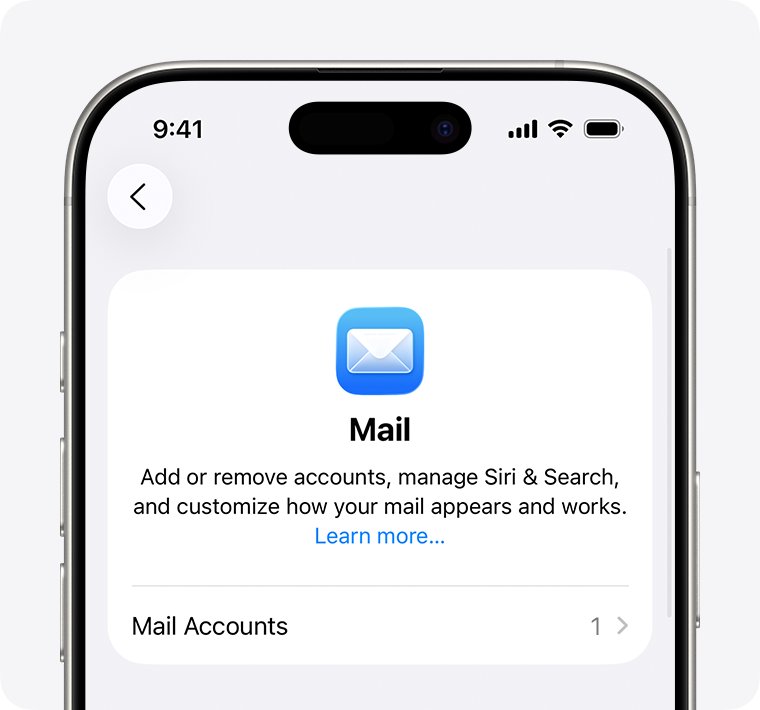
- Tap Mail Accounts, then tap your Gmail account.
- Tap Delete Account and confirm.
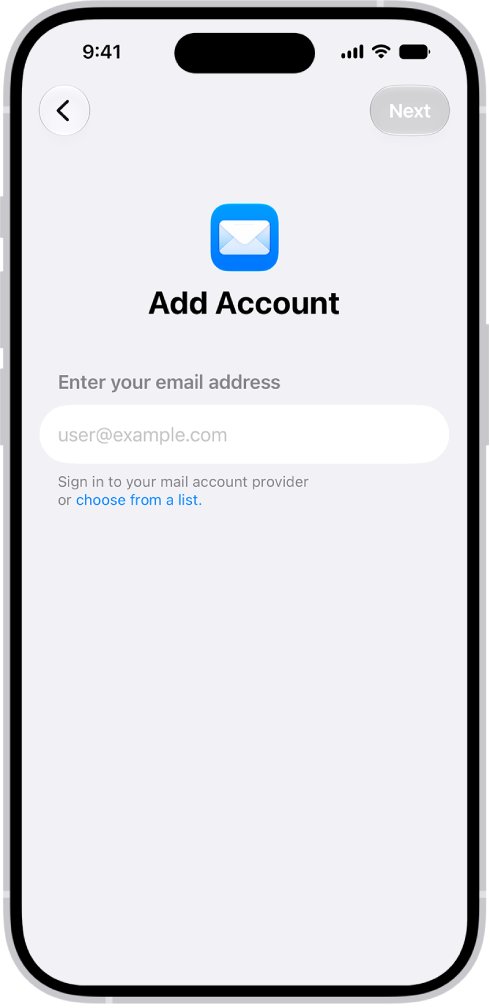
- Go back to Mail Accounts and tap Add Account.
- Enter your Gmail address and follow the Google sign-in prompts with your password.
- Approve the Google prompt or enter the verification code if 2-Step Verification asks for it.
- Tap Next or Save when Mail finishes verifying the account.
Gmail keeps your messages on Google's servers, so they download again once the account is added. Apple advises confirming your mail is stored with the provider before deleting an account.
Which Gmail login fix matches your iPhone problem?
| What you see | Where | Fix to try first |
|---|---|---|
| Authentication failed, or Mail keeps asking for the password | Apple Mail | Toggle Mail off and on for the account, then re-enter the password |
| Username and password not accepted, or invalid credentials | Apple Mail | Delete the account and add it again with Sign in with Google |
| Sign-in waits for a prompt that never arrives | Any app or Safari | Check your old phone for the Google prompt, tap Resend it, or tap Try another way |
| Cookies are turned off or required | Gmail in Safari | Turn off Block All Cookies in Safari settings |
| You need Gmail in Google's own app | Gmail app | Add the account from the Profile menu in the Gmail app |
| Google says it cannot verify the account is yours | Any | Use account recovery from a device and place you normally sign in |
Re-enter your Gmail password when iPhone Mail says authentication failed
- Open Settings and tap Apps.
- Tap Mail, then tap Mail Accounts.
- Tap the Gmail account that shows the authentication failed message.
- Turn Mail off, then turn it on again.
- Enter your email address and password again if the iPhone asks.
- If it still fails, restart the iPhone, or delete the account and add it back.
If you changed your Google password recently, Google says you may need to re-enter your account details or repeat the setup in the mail app.
Approve the Google prompt to sign in to Gmail on a new iPhone
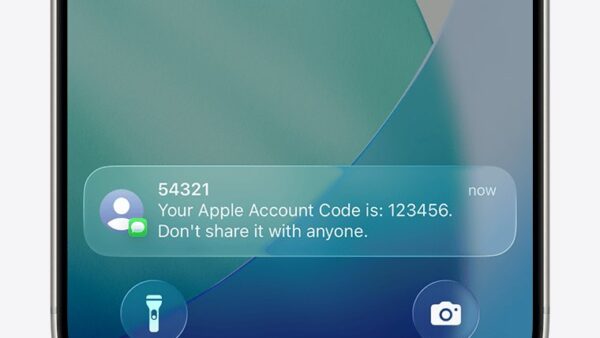
With 2-Step Verification on, Google sends a prompt to a phone already signed in to your account. On a new iPhone, that is usually your old phone, so keep it nearby and online.
- Unlock your old phone and connect it to Wi-Fi or mobile data, with Do Not Disturb off.
- On an iPhone, make sure Gmail, Google, YouTube or another eligible Google app is signed in and has Allow Notifications turned on in Settings > Notifications.
- Start the Gmail sign-in on the new iPhone and tap Yes on the prompt that appears on the old phone.
- If no prompt arrives, tap Resend it on the new iPhone's sign-in screen.
- If the old phone is unavailable, tap Try another way and choose a text code, a backup code, a security key or another listed option.
- Tick Don't ask again on this device only if the new iPhone is yours and not shared.
If you requested several codes, only the newest one works. Once the new iPhone is set up, you can sign out of Gmail on the phone you no longer use.
Sign in to Gmail in the Gmail app on iPhone
- Install the Gmail app from the App Store and open it.
- In the search bar at the top, tap your Profile picture.
- Tap Add another account, then choose Google.
- Enter your Gmail address and password and follow the on-screen steps.
- Verify with the prompt on your device if you use 2-Step Verification.
Signing in to the Gmail app also makes the new iPhone an eligible device for future Google prompts.
Turn on Safari cookies to log in to Gmail on iPhone
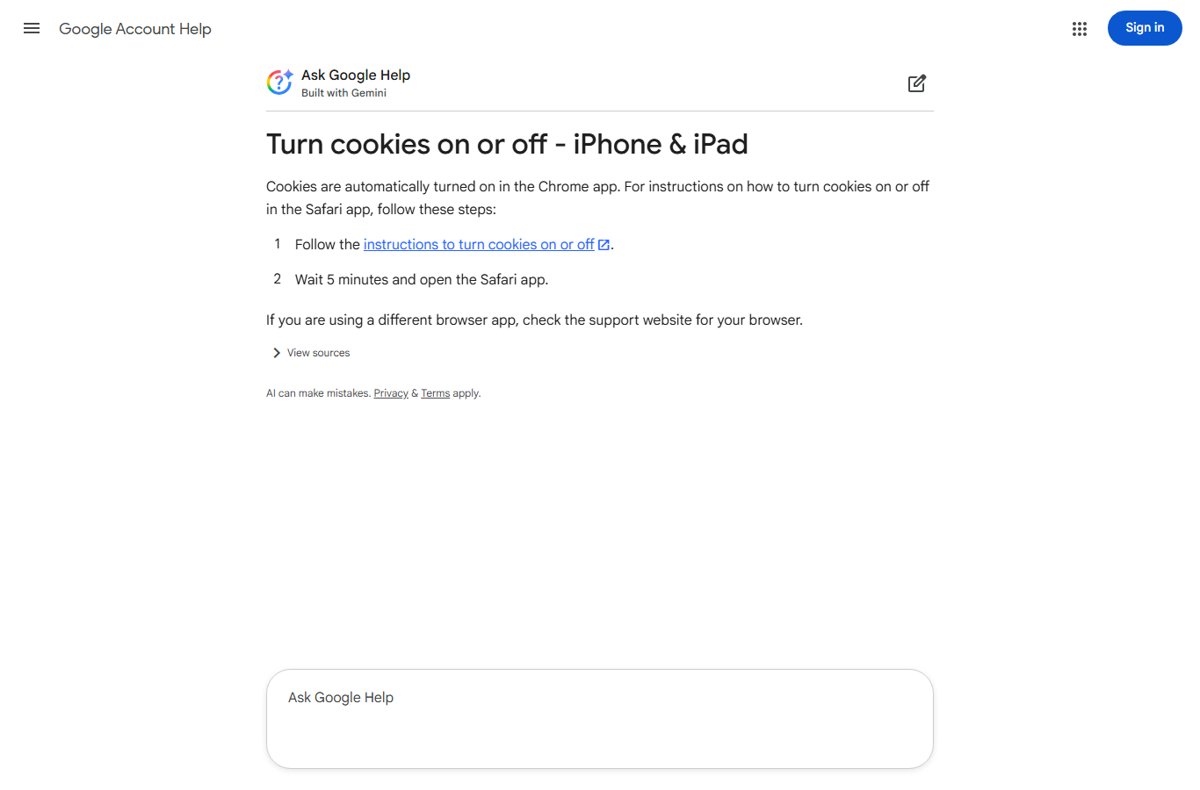
Apple warns that with cookies blocked you will likely not be able to sign in to a site, even with the correct username and password. This is the usual cause when the Gmail sign-in page loops or reports that cookies are off.
- Open Settings and tap Apps.
- Tap Safari, then tap Advanced.
- Turn off Block All Cookies.
- Wait 5 minutes, then open Safari and sign in to Gmail again.
Recover your Google account when Gmail will not accept your password
If the password is wrong or forgotten, no iPhone setting fixes it. Recover the Google account first, then add it to the iPhone.
- Start Google's account recovery from a phone, tablet or computer where you often sign in, ideally the old phone.
- Do it from a location where you usually sign in, such as home or work, using your usual browser.
- Answer as many questions as possible instead of skipping them.
- When asked for the last password you remember, enter the most recent one.
- After you regain access, sign in on the new iPhone with the new password.
Google does not offer phone support for signing in, and it warns never to share passwords or verification codes with anyone offering to recover the account. Changes to recovery details can take up to 7 days to take effect.
Check that Gmail is signed in on your new iPhone
- Open Settings > Apps > Mail > Mail Accounts and confirm the Gmail account is listed with Mail turned on.
- Open the Mail app, select the Gmail inbox and pull down to refresh.
- Send a test message to yourself and confirm it arrives.
- If messages appear only when you open Mail, tap Fetch New Data in Mail Accounts and choose Automatically or a fetch schedule.
Gmail login errors on iPhone and how to fix them
"Username and password not accepted" or "Invalid credentials"
The mail app is using a saved or outdated sign-in instead of Google's current sign-in.
- Update the iPhone to the latest iOS, since Google advises using an up-to-date mail client.
- Delete the Gmail account from Mail Accounts and add it again.
- Choose Sign in with Google when it is offered.
Mail asks for the Gmail password over and over
The password changed or the saved credentials no longer work.
- Sign in to Gmail in Safari with the same address and password to confirm the password works.
- Turn Mail off and on for the account and re-enter the password.
- If it keeps asking, delete the account and add it back.
No Google prompt or verification code arrives
The prompt goes to another signed-in phone that is offline, muted or signed out.
- Connect the old phone to the internet and turn off Do Not Disturb.
- Tap Resend it on the sign-in screen.
- Tap Try another way and use a text code or a backup code.
Safari says cookies are required or turned off
Block All Cookies is on in Safari settings.
- Go to Settings > Apps > Safari > Advanced.
- Turn off Block All Cookies.
- Wait 5 minutes and try Gmail again.
Gmail certificate error stops the login
Security certificates are checked against the iPhone's date and time, so a wrong clock breaks the secure connection.
- Open Settings and tap General.
- Tap Date & Time and turn on Set Time Automatically.
- Reopen Mail or Safari and sign in again.
Gmail on new iPhone login FAQ
Why can't I log in to Gmail on my new iPhone?
The most common causes are a saved account from a backup that no longer authenticates, a Google prompt sent to your old phone, blocked Safari cookies, or a wrong password. Delete and re-add the account in Mail Accounts, then approve the prompt on your old phone.
Why can't I log into my Gmail account at all?
If Gmail rejects your password in Safari as well as in Mail, the problem is the account, not the iPhone. Use Google's account recovery from a device and location where you usually sign in, then sign in on the iPhone with the new password.
Why does Gmail ask me to verify it's me on a new iPhone?
With 2-Step Verification on, signing in with a password needs a second step. Google sends a prompt to a phone already signed in to your account, or you can tap Try another way to use a code or backup code instead.
Do I need an app password for Gmail on iPhone?
Usually not. Google says app passwords are not recommended and are unnecessary in most cases, and advises signing in with your Google Account through Sign in with Google instead. Keep app passwords for older mail apps that offer no Google sign-in.
Can I call Google to get back into my Gmail account?
No. Google says you cannot call it for help signing in to your account. Use the account recovery steps instead, and never give your password or verification codes to a service that offers to recover the account for you.
Will deleting Gmail from my iPhone delete my emails?
Deleting the account removes it from the iPhone only. Gmail messages stay in your Google account and download again when you add the account back. Apple recommends confirming your email is stored with the provider before deleting an account.
Why can I not login to Gmail in Safari on iPhone?
Safari blocks sign-in when Block All Cookies is on. Go to Settings, Apps, Safari, Advanced and turn off Block All Cookies, then wait 5 minutes and sign in again.
Should I use the Gmail app or Apple Mail on my new iPhone?
Either works with Gmail. The Gmail app signs in through Google directly and makes the iPhone eligible for Google prompts, while Apple Mail keeps Gmail alongside your other accounts. If one keeps failing, add the account in the other to confirm the password works.