To transfer contacts from iPhone to Gmail, export them as a vCard file from icloud.com/contacts, then import that file at contacts.google.com, the contact list Gmail uses.
This guide covers the iCloud route, exporting directly from the iPhone or a Mac, syncing a Google account with the iPhone, saving new contacts to Gmail by default, and fixes for contacts that go missing.
How to transfer all contacts from iPhone to Gmail with iCloud
This copies every contact in one go and needs a computer for the Google import. Your iPhone contacts stay where they are.
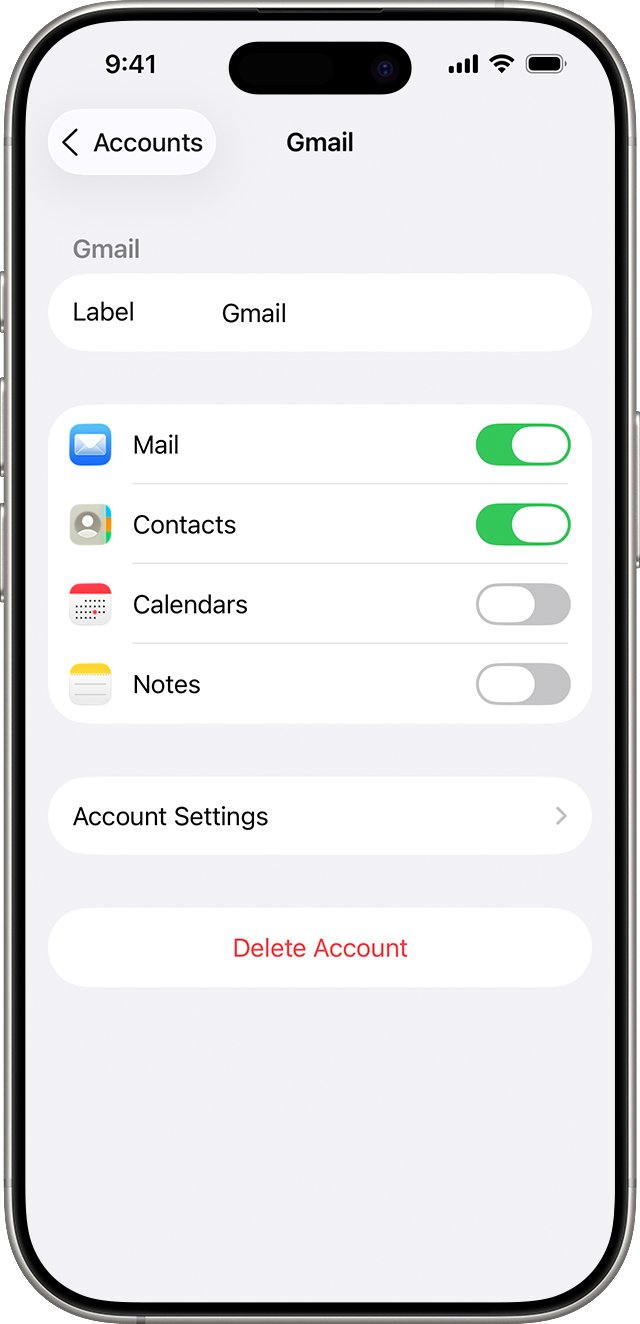
- On your iPhone, go to Settings > [your name] > iCloud, tap See All next to Saved to iCloud, then turn on Contacts.
- On your computer, go to icloud.com/contacts and sign in to your Apple Account.
- Select the Select Menu button, then choose Select All Contacts.
- Select the Actions button, then choose Export vCard and save the .vcf file.
- Go to contacts.google.com and sign in with your Gmail account.
- On the left, click Import, then Select file.
- Choose the .vcf file, then click Import.
Selecting several contacts on iCloud.com produces one vCard file that holds all of them, so you only import once. You can also export iCloud contacts on a Mac or Windows PC and keep the file as a backup.
Best way to move iPhone contacts to a Google account
| Your situation | Use this | Why |
|---|---|---|
| You want every contact in Gmail once | iCloud.com vCard export, then Google import | One file, and it works from any computer |
| You want only some contacts, or don't use iCloud | Export a list from the Contacts app on the iPhone | The file is made on the iPhone and sent by Mail or Messages |
| You already keep contacts in Google and want them on the iPhone | Add the Google account under Contacts Accounts | Changes to a contact appear everywhere |
| You want future contacts saved to Gmail | Set Google as the Default Account | New contacts go to that account automatically |
| You are moving to an Android phone | Copy data during Android setup | Contacts arrive as part of the phone setup |
How to save iPhone contacts to iCloud before moving them to Gmail
iCloud.com only shows contacts stored in iCloud, and Apple says the contacts you see in the Contacts app are stored there once this switch is on. A contact held in another account, such as Exchange, needs its own export from the Contacts app.
- Go to the Settings app on your iPhone.
- Tap [your name], then tap iCloud.
- Tap See All next to Saved to iCloud.
- Turn on Contacts.
- Sign in at icloud.com/contacts with the same Apple Account and check that your contacts appear.
How to export contacts from iPhone without a computer
The Contacts app can export a whole list or a smaller list you create. Use this when you only want some contacts in Gmail.
- Go to the Contacts app on your iPhone.
- Tap the button that shows your contact lists.
- Touch and hold an existing list, or tap Add List to create a new one.
- Tap Export, select the fields you want to include, then confirm.
- Choose Mail and send the exported contact cards to your Gmail address.
Google's import steps start on a computer or an Android device, so finish by opening that email in Gmail on a computer, saving the attachment and importing it at contacts.google.com.
How to import contacts into Gmail from a vCard file
You add the file in Google Contacts, which accepts .vcf and .csv files. Contacts saved to your Google Account are then available when you write email in Gmail.
| Device | Steps | Notes |
|---|---|---|
| Computer | Go to contacts.google.com, click Import on the left, click Select file, choose the file, then click Import | If the menu is hidden, click Menu at the top left |
| Android phone or tablet | Open the Contacts app, tap Organize at the bottom, tap Import from file, pick the account, then select the .vcf file | Pick your Gmail account if the phone has several accounts |
Google imports up to 3,000 contacts at a time and stores up to 25,000 in total. If a detail seems to be missing after the import, look in the notes section of that contact.
How to transfer contacts from iPhone to Gmail on a Mac
If your iPhone contacts already sync to the Contacts app on your Mac, export from there. Use Export vCard rather than Contacts Archive, because an archive is an .abbu file that Google Contacts can't read.
- Go to the Contacts app on your Mac.
- Select the contacts you want to move.
- Choose File > Export > Export vCard, choose a location, then click Save.
- Go to contacts.google.com, click Import, then Select file.
- Choose the .vcf file and click Import.
To include or leave out notes in the file, choose Contacts > Settings on the Mac, click vCard, and change Export notes in vCard before you export.
How to sync Gmail contacts with iPhone
Adding your Google account shows your Google contacts in the iPhone's Contacts app. This doesn't move contacts already stored in iCloud, so use the vCard route for those.
- Go to the Settings app on your iPhone.
- Tap Apps, then tap Contacts.
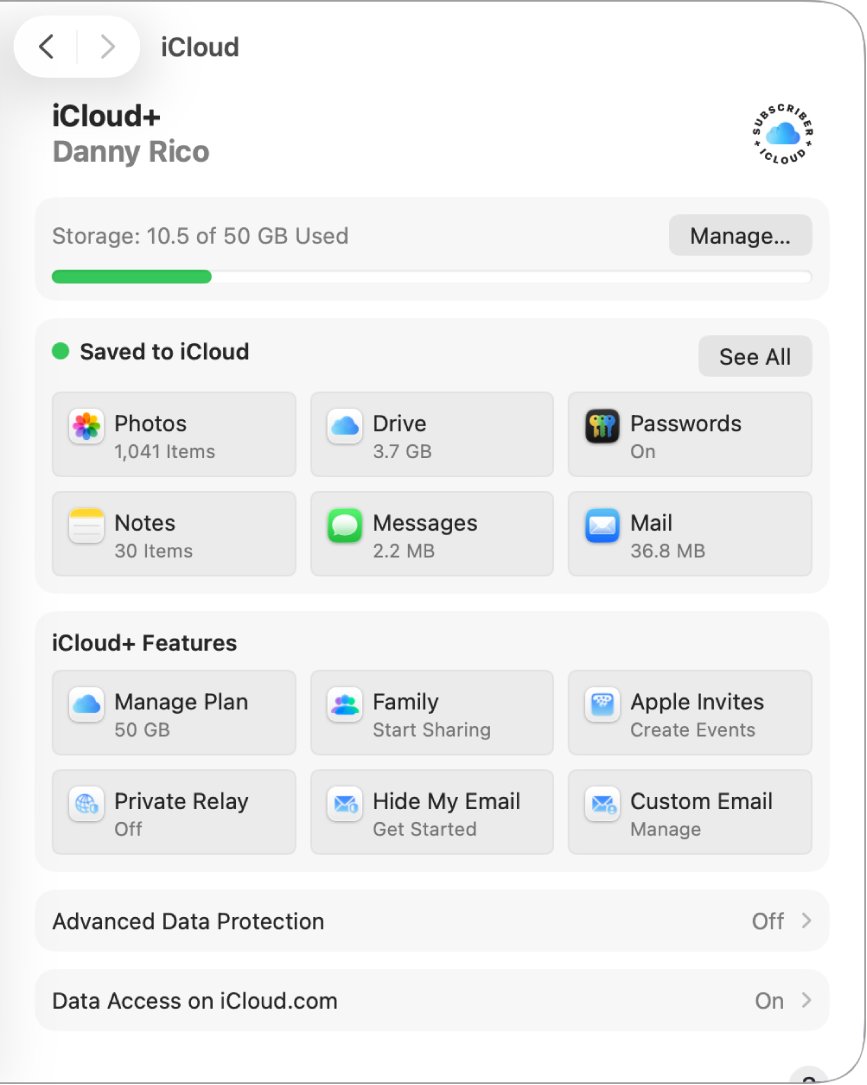
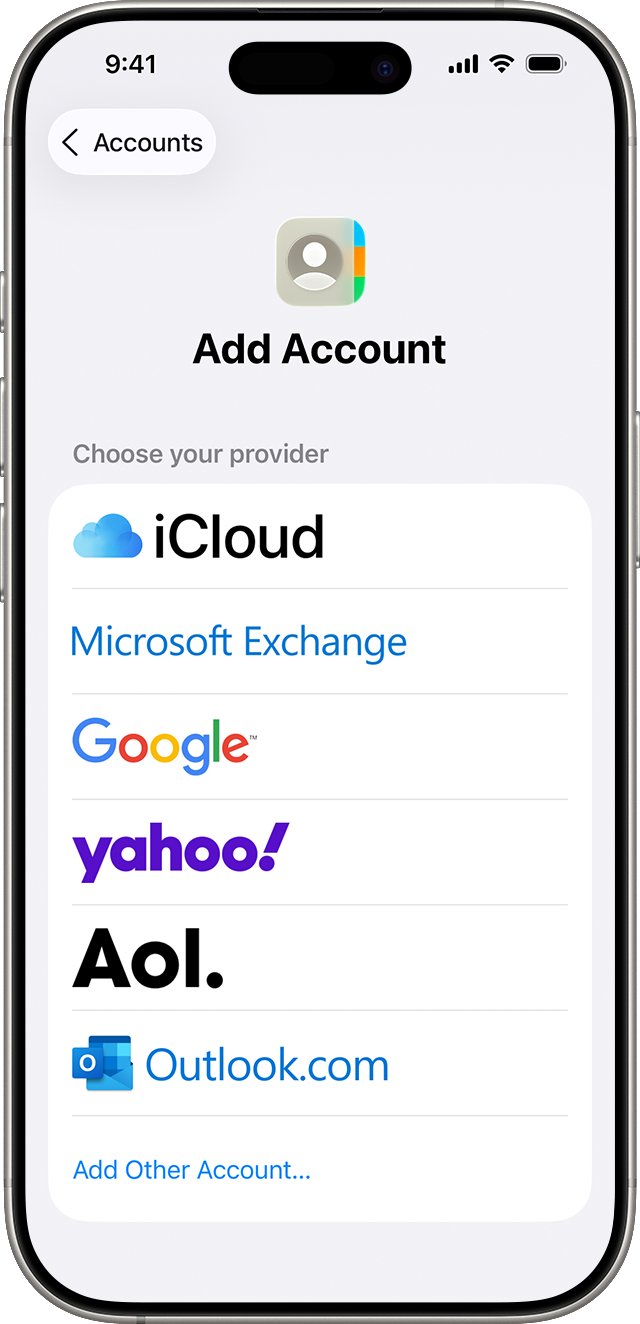
- Tap Contacts Accounts, then tap Add Account.
- Choose Google and sign in.
- Turn on Contacts.
- Open the Contacts app to start the sync.
On an older iOS version without the Apps page, Google's steps start at Settings > Contacts. If Google refuses your sign-in, fix the Gmail login on your iPhone first.
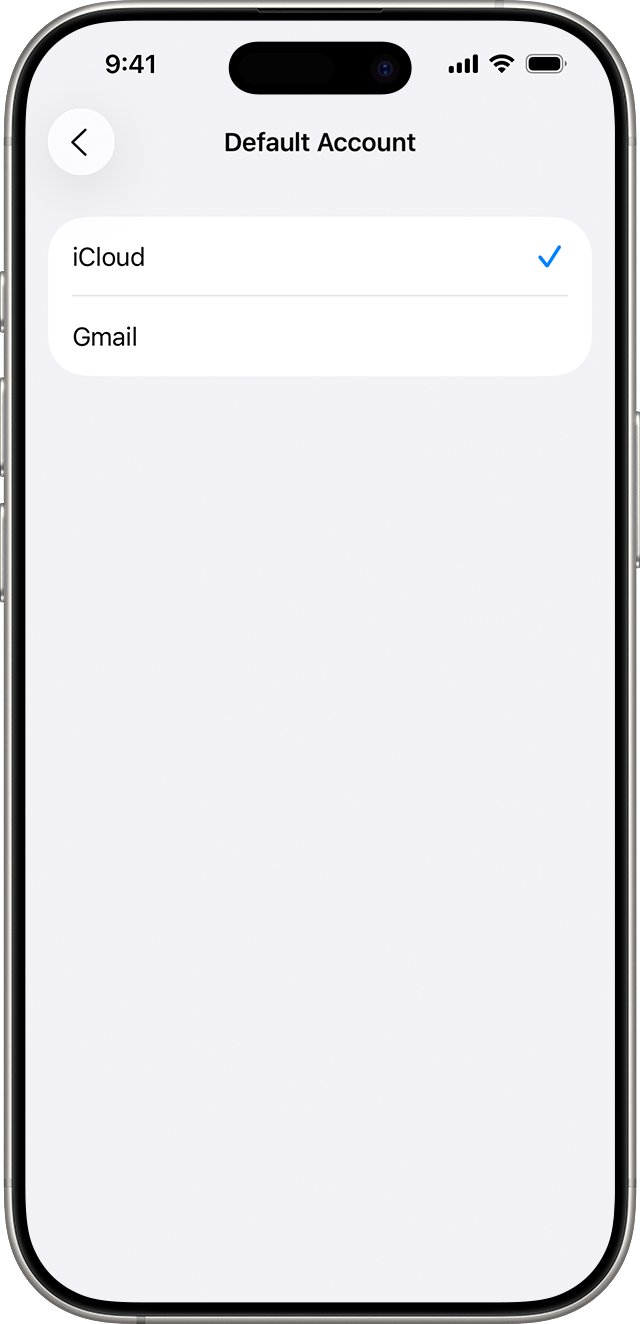
How to save new iPhone contacts to Gmail by default
- Add your Google account to the iPhone and turn on Contacts.
- Go to the Settings app.
- Tap Apps, then tap Contacts.
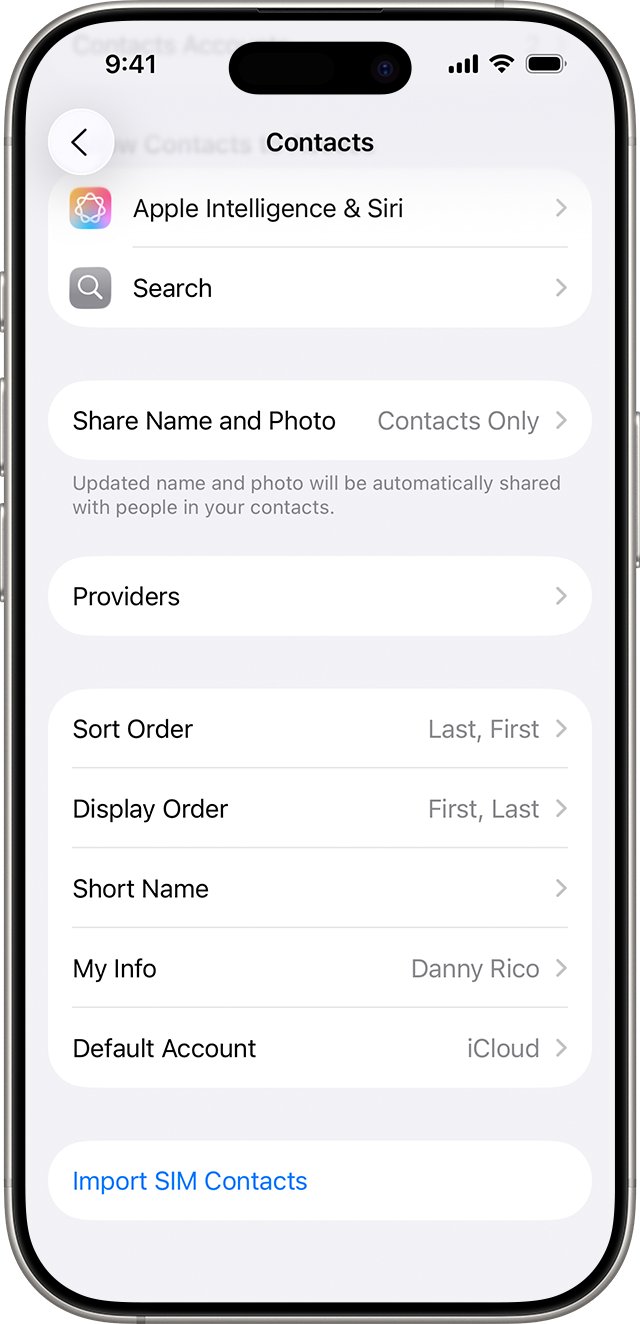
- Tap Default Account.
- Tap your Google account.
New contacts now go straight to Gmail. Contacts you saved earlier stay in the account that already holds them.
How to transfer contacts from iPhone to Excel
Once your contacts are in Google, you can export them as a CSV file, the spreadsheet format the Google Contacts template uses.
- Go to contacts.google.com on a computer.
- Check the box next to any contact, then at the top left click Selection Actions > All.
- At the top right, click More actions > Export.
- Select Google CSV, then click Export.
- Open the downloaded .csv file in Excel.
Where to find iPhone contacts in Gmail
- Go to contacts.google.com with the same Gmail account you imported into.
- Compare the contact count with the list on your iPhone.
- Search for two or three contacts by name, including one with several phone numbers.
- Open a new email in Gmail and type the name of an imported contact in the To field.
- On the iPhone, check Settings > Apps > Contacts > Contacts Accounts to see which accounts are syncing.
iPhone contacts not syncing to Gmail
Why didn't all my contacts transfer from iPhone to Gmail?
The file held more than 3,000 contacts, the account reached 25,000, or some contacts sit in another account on the iPhone.
- Check Settings > Apps > Contacts > Contacts Accounts for other accounts that hold contacts.
- Export any list you missed from the Contacts app.
- Import 3,000 or fewer at a time by exporting smaller lists from the Contacts app and importing each file.
Google contacts are not showing up on iPhone
The Contacts switch is off for the Google account, or the account was added incorrectly.
- Go to Settings > Apps > Contacts > Contacts Accounts and tap your Google account.
- Turn on Contacts.
- If nothing changes, tap Delete Account and add the account again. The contacts remain in Google.
Google Contacts won't import the file
The contacts aren't saved in a format Google accepts.
- Check that the file ends in .vcf or .csv.
- Export it again from iCloud.com or the Contacts app.
- Run the import again at contacts.google.com.
Can't update contact error in Google Contacts
You might have exceeded the Contacts limit of 25,000 contacts or 20 MB, with photos not included.
- Delete contacts from your Trash.
- Export and back up your contacts, then delete the ones you don't need.
- Merge duplicates and shorten long contact fields.
Contacts appear twice after the import
The same person already existed in Google, or you imported the file more than once.
- Go to contacts.google.com.
- At the top left, click Menu > Merge & fix.
- Click Merge on a suggestion, or Merge all to accept them all.
Transfer iPhone contacts to Gmail FAQ
How do I transfer contacts from iPhone to PC?
Go to icloud.com/contacts in a browser on the PC, sign in, choose Select All Contacts and then Export vCard. The browser saves one .vcf file holding every contact. Your iPhone must have Contacts turned on in iCloud first.
How do I transfer contacts from iPhone to Android?
When a new Android device asks to copy data from another device, select iPhone or iPad and follow the prompts. If the Android phone is already set up, import a .vcf in its Contacts app, or transfer contacts to the new phone through your Google Account.
How do I transfer contacts from iPhone to Samsung or Pixel?
Both are Android phones, so select iPhone or iPad when setup offers to copy data. Samsung also offers Smart Switch, which moves contacts from an iPhone by cable, wirelessly or from iCloud. Putting your contacts in Gmail first also works, because they sync when you sign in.
How do I transfer contacts from iPhone to iPad?
Sign in to the same Apple Account on both devices, then go to Settings, tap your name, tap iCloud and turn on Contacts on each one. iCloud keeps the list up to date across both devices without any file.
How do I transfer contacts from iPhone to Mac?
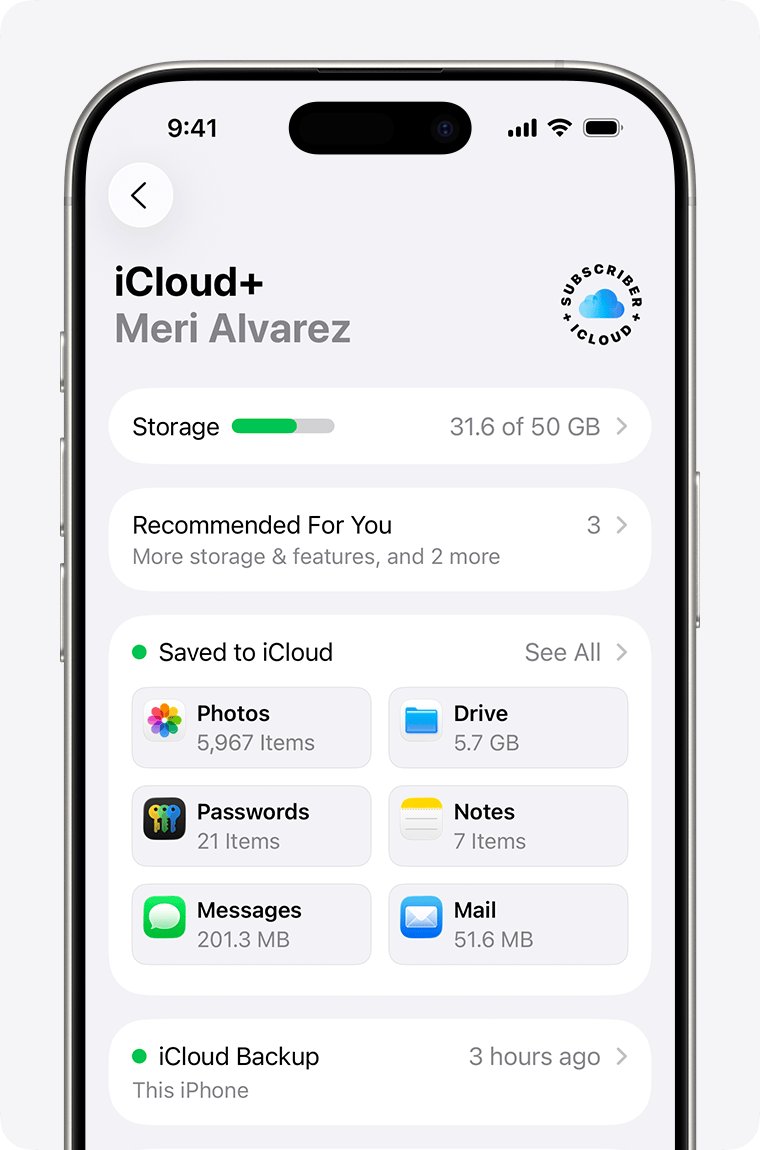
Turn on Contacts in iCloud on the iPhone and on the Mac, using the same Apple Account. On macOS 15 or later, open System Settings, click your name, click iCloud, click See All next to Saved to iCloud, then turn on Contacts.
Can I transfer contacts from iPhone to a SIM card?
Apple's iPhone User Guide lists importing from a SIM card at Settings, Apps, Contacts, Import SIM Contacts, but it lists no option to save contacts to a SIM. Use a vCard file or iCloud to move contacts off an iPhone instead.
Can I transfer contacts from iPhone to iPhone?
Yes. Sign in to the same Apple Account and turn on Contacts in iCloud on both, or move everything from iPhone to iPhone with Quick Start when you set up the new phone.
Will my contacts transfer to a new iPhone?
Yes, if they are in iCloud or another account you sign in to on the new iPhone. Turn on Contacts in iCloud on the old phone first, and add your Google account to the new one to bring Gmail contacts across.
How do I transfer contacts from an iPhone 14 or iPhone SE?
The steps are the same on every iPhone, because they depend on the iOS version and not the model. Use iCloud.com or the Contacts app to create a vCard, then import it at contacts.google.com on a computer.
Why didn't my contacts transfer to my new iPhone?
Usually Contacts is off in iCloud on one phone, or the phones use different Apple Accounts. Apple says you can't see iCloud contacts on a device that isn't signed in or that has the Contacts feature turned off.