Download the Amazon Corretto .msi from AWS, run the wizard, set JAVA_HOME and PATH, then run java -version to confirm the install on Windows 11 or 10.
This guide covers the MSI and winget routes, choosing between Corretto 8, 11, 17, 21 and 25, setting the default Java version, updating, and uninstalling.

How to install Amazon Corretto in Windows
These steps use Corretto 21. Other versions follow the same process, and Corretto 8 adds one prerequisite covered further down.
- Open the Corretto 21 downloads page and download the Windows x64 JDK
.msifile. - Double-click the
.msifile to start the installation wizard. - Follow the wizard. Keep the default folder,
C:\Program Files\Amazon Corretto\, unless you need a custom path. - Set
JAVA_HOMEto the new version folder, such asC:\Program Files\Amazon Corretto\jdk21.0.13_0. - Add
%JAVA_HOME%\binto yourPATHvariable. - Open a new Command Prompt and run
java -version. The output names Corretto and the version you installed.
The AWS instructions treat JAVA_HOME and PATH as a separate step after the wizard, so run through them even if the install finishes without errors.
What is Amazon Corretto?
Amazon Corretto is Amazon's build of the Open Java Development Kit, with long-term support and extra patches for performance, stability and security.
| Question | Answer |
|---|---|
| Cost | Free to use and distribute, under GPLv2 with the Class Path Exception |
| Java SE compatibility | Certified against the Java Technology Compatibility Kit (TCK) |
| Replacing another JDK | Works as a drop-in replacement for Java SE applications that do not rely on features missing from OpenJDK |
| Update schedule | Planned quarterly, with urgent fixes released outside that cycle |
Amazon Corretto 8, 11, 17, 21 or 25 for Windows: versions and support dates
Install the version your application asks for. If nothing specifies one, pick the newest long-term support release.
| Version | Release type | Support ends | Windows support | Choose it when |
|---|---|---|---|---|
| Corretto 25 | Long-term support | October 2032 | Windows 10 or later | You are starting a new project |
| Corretto 21 | Long-term support | October 2030 | Windows 10 or later | Your app or framework targets Java 21 |
| Corretto 17 | Long-term support | October 2029 | Windows 10 or later | Your app or framework targets Java 17 |
| Corretto 11 | Long-term support | January 2032 | Windows 10 or later | An existing app requires Java 11 |
| Corretto 8 | Long-term support | December 2030 | Windows 10 or later | An older app requires Java 8 |
| Corretto 27 | Feature release | April 2027 | Windows 11 or later | You want the newest Java features and can move again soon |
Corretto 26 reached its end of support in October 2026, so do not choose it for a new install.
Download Amazon Corretto for Windows
AWS keeps permanent URLs that always point to the most recent release, which helps when you script an install. Each version also has its own downloads page in the Corretto documentation.
| Package | Permanent URL |
|---|---|
| Corretto 21 x64 JDK, MSI installer | https://corretto.aws/downloads/latest/amazon-corretto-21-x64-windows-jdk.msi |
| Corretto 21 x64 JDK, ZIP archive | https://corretto.aws/downloads/latest/amazon-corretto-21-x64-windows-jdk.zip |
| Corretto 8 x64 JDK, MSI installer | https://corretto.aws/downloads/latest/amazon-corretto-8-x64-windows-jdk.msi |
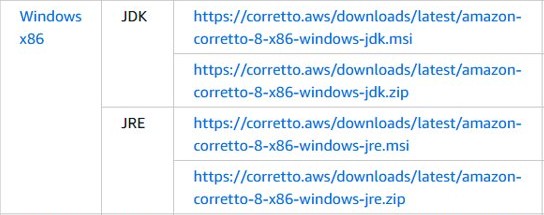
| Corretto 8 x86 JDK, MSI installer | https://corretto.aws/downloads/latest/amazon-corretto-8-x86-windows-jdk.msi |
| Corretto 8 x64 JRE, MSI installer | https://corretto.aws/downloads/latest/amazon-corretto-8-x64-windows-jre.msi |
The URLs follow one pattern: version number, CPU architecture, windows, package type and file extension. Replace 21 with 11, 17 or 25 to reach those releases.
The Corretto 21 downloads page lists Windows x64 packages only, so it has no Windows Arm64 installer. Each package also has MD5 and SHA256 checksum links if you want to confirm the file before running it.

Installing Corretto on Windows 11 or 10
WinGet is a command-line way to install apps on Windows. It comes with App Installer on Windows 11 and modern versions of Windows 10, and it needs Windows 10 version 1809 or later.
The commands below work in Command Prompt, Windows PowerShell or PowerShell 7.
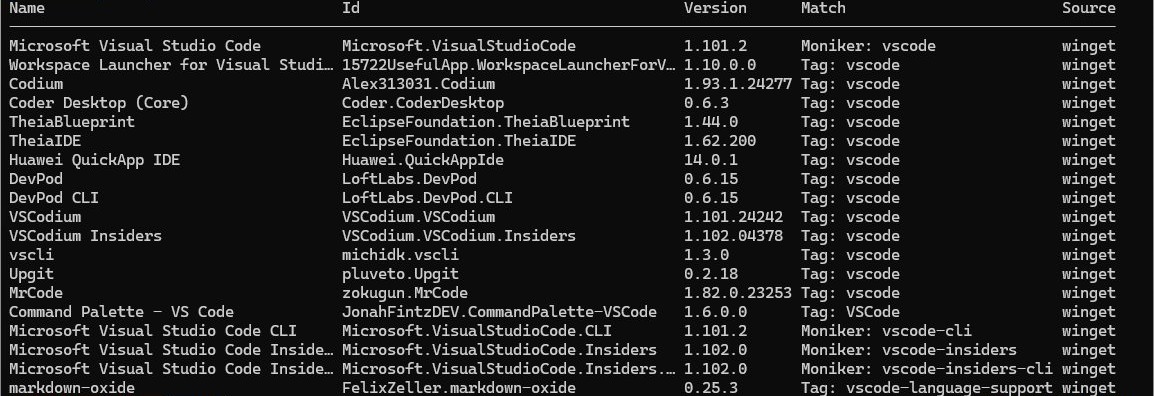
- Right-click Start and open Terminal or Windows PowerShell.
- Run
winget --versionto confirm winget is available. A version number means it is ready. - Run
winget search Correttoto list the packages your winget sources offer. - Copy the value in the Id column for the Corretto version you want. Accept the source agreement if winget asks.
- Run
winget install --id <Id> -e --source winget, replacing<Id>with the value you copied. - Approve the User Account Control prompt if Windows shows one. If you decline it, the install fails.
- Open a new terminal and run
java -versionto see the installed release.
If the search returns no Corretto package, use the MSI route at the top of this page. The -e switch makes winget match the ID exactly, so it cannot pick a similarly named package.
How to set JAVA_HOME for Amazon Corretto on Windows
JAVA_HOME must point at the version folder inside Amazon Corretto, not at the parent folder. Open File Explorer at C:\Program Files\Amazon Corretto\ to read the exact folder name.
- Open Control Panel and select System.
- Select Advanced system settings, then go to the Advanced tab.
- Select Environment Variables.
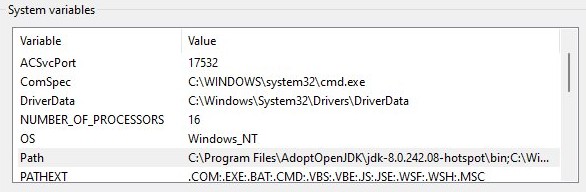
- Under System variables, add a variable named
JAVA_HOMEwith the version folder as its value, such asC:\Program Files\Amazon Corretto\jdk21.0.13_0. - Edit the
Pathvariable and add a new entry containing%JAVA_HOME%\bin. - Save each dialog, then open a new Command Prompt so it picks up the changes.
Terminal windows that were already open keep their old values, which is why a new one is needed.
Set JAVA_HOME for Amazon Corretto from PowerShell
[Environment]::SetEnvironmentVariable('JAVA_HOME', 'C:\Program Files\Amazon Corretto\jdk21.0.13_0', 'Machine')Run this in PowerShell as administrator, because the Machine scope needs that permission. It saves JAVA_HOME for every user and survives a restart. Replace the folder with the one on your PC.
You should see: No output. Open a new PowerShell window and run $Env:JAVA_HOME to print the folder.
Install Amazon Corretto silently with msiexec
Windows Installer can run the Corretto MSI without any dialogs, which suits scripted setups on several PCs.
msiexec.exe /i "C:\Installers\amazon-corretto-21-x64-windows-jdk.msi" /qn /norestartRun it from an administrator Command Prompt and replace the path with your downloaded file. /i installs the package, /qn shows no interface, and /norestart stops the PC from restarting afterwards. Add /L*V "C:\Installers\corretto.log" to write a verbose log.
You should see: The prompt returns with no message. Set JAVA_HOME and PATH, then run java -version in a new window.
Amazon Corretto 8 install on Windows
Corretto 8 is the only long-term support release with one extra requirement: the Visual C++ Redistributable Package for Visual Studio 2013 or newer. Its downloads page also offers x86 builds and a separate JRE.
- Install the Visual C++ Redistributable for Visual Studio 2013 if the PC does not already have it or a newer version.
- Open the Corretto 8 downloads page and choose Windows x64 or Windows x86.
- Download the JDK
.msito build Java applications, or the JRE.msiif you only need to run them. - Double-click the file and follow the wizard.
- Set
JAVA_HOMEto the version folder, such asC:\Program Files\Amazon Corretto\jdk1.8.0_512, and add%JAVA_HOME%\bintoPATH. - Run
java -versionin a new Command Prompt. The first line readsopenjdk version "1.8.0_512"or a later build.
How to check Amazon Corretto version on Windows
java -versionRun this in a new Command Prompt. To see which java.exe Windows is using, run where java. The first path listed is the one that runs.
You should see: openjdk version "21.0.13" 2026-10-20 LTS, followed by lines that include OpenJDK Runtime Environment Corretto-21.0.13.0.11. Your numbers change with each update, but the word Corretto should always appear.
Where does Amazon Corretto install on Windows and macOS?
Each release gets a folder named after its exact version, so the folder name changes when you update.
| Install | Default location | Example version folder |
|---|---|---|
| Corretto 25 on Windows | C:\Program Files\Amazon Corretto\ |
jdk25.0.5_0 |
| Corretto 21 on Windows | C:\Program Files\Amazon Corretto\ |
jdk21.0.13_0 |
| Corretto 17 on Windows | C:\Program Files\Amazon Corretto\ |
jdk17.0.21_0 |
| Corretto 11 on Windows | C:\Program Files\Amazon Corretto\ |
jdk11.0.33_0 |
| Corretto 8 on Windows | C:\Program Files\Amazon Corretto\ |
jdk1.8.0_512 |
| Corretto 21 on macOS | /Library/Java/JavaVirtualMachines/ |
amazon-corretto-21.jdk |
How to set the default Java version on Windows with Corretto
Windows runs the first java.exe it finds in Path, so the order of those entries decides your default when several JDKs are installed.
- Run
where javato list every Java on thePath, in the order Windows finds them. - Open Environment Variables from Advanced system settings.
- Change
JAVA_HOMEto the Corretto version folder you want as the default. - Edit
Pathand move%JAVA_HOME%\binabove any other Java entry. - Save the dialogs and open a new Command Prompt.
- Run
java -versionand check that it reports the version you chose.
How to update Amazon Corretto on Windows
Amazon plans Corretto updates quarterly. If the PC also runs Oracle's build, update Oracle Java on Windows 11 as a separate job, because the two are different products.
- Run
java -versionand note the current release. - If you installed with winget, run
winget upgradeto see whether a newer Corretto package is available, then runwinget upgrade --id <Id> -e. - If you installed from the MSI, download the current
.msifrom the downloads page for your version and run it. - Open
C:\Program Files\Amazon Corretto\and read the name of the new version folder. - Change
JAVA_HOMEto that new folder, because the old path contains the previous version number. - Open a new Command Prompt and run
java -versionto confirm the update.
If an older Corretto entry remains in Programs and Features and nothing depends on it, uninstall it so it cannot be picked up by mistake.
How to use Amazon Corretto
Corretto behaves like any other JDK, so existing command-line options and tools keep working. This short test proves that both the compiler and the runtime work.
- Create a file named
Hello.javain an empty folder. - Add this code and save it:
public class Hello { public static void main(String[] args) { System.out.println("Corretto works"); } } - Open Command Prompt in that folder and run
javac Hello.java. - Run
java Hello. The window printsCorretto works. - To use Corretto in IntelliJ IDEA, go to File > Project Structure > Project Settings > Project.
- In the SDK list, choose Add JDK from disk and select the Corretto version folder, then apply the change.
How to uninstall Amazon Corretto on Windows
- Open Control Panel and select Programs and Features.
- Search for Amazon Corretto and select the version you want to remove, such as Amazon Corretto 21.
- Choose Uninstall and confirm.
- If you prefer winget, run
winget uninstall --id <Id> -e --source wingetinstead of the three steps above. - Delete the
JAVA_HOMEvariable and the%JAVA_HOME%\binentry inPath, or point them at another JDK. - Open a new Command Prompt and run
java -versionto confirm the version is gone.
Fix java is not recognized after installing Amazon Corretto
'java' is not recognized as a command
Path does not include the Corretto bin folder, or the terminal was open before you changed it.
- Close every terminal window and open a new Command Prompt.
- Run
echo %JAVA_HOME%and check that the folder exists in File Explorer. - Correct
JAVA_HOMEif the version number in the path is out of date. - Confirm that
Pathcontains%JAVA_HOME%\bin, then runjava -versionagain.
java -version shows a different Java instead of Corretto
Another JDK appears earlier in Path.
- Run
where javaand read the first result. - Edit
Pathand move%JAVA_HOME%\binabove that entry. - Open a new Command Prompt and run
java -versionagain.
winget is not recognized on Windows 10 or 11
App Installer is missing or winget has not registered for your user account yet, which can happen just after a first sign-in.
- Open PowerShell and run
Add-AppxPackage -RegisterByFamilyName -MainPackage Microsoft.DesktopAppInstaller_8wekyb3d8bbwe. - Open a new terminal and run
winget --version. - If the command still fails, install App Installer from the Microsoft Store and try again.
- Use the Corretto MSI instead if winget stays unavailable, because the MSI does not depend on it.
Amazon Corretto on Windows FAQ
How to install Amazon Corretto in Windows?
Download the Windows x64 JDK .msi from the AWS downloads page, double-click it and follow the wizard. Then set JAVA_HOME to the version folder, add %JAVA_HOME%\bin to PATH, and run java -version in a new Command Prompt to confirm it.
How to install Amazon Corretto 11?
Use the same MSI process as other versions, starting from the Corretto 11 downloads page. The default location is C:\Program Files\Amazon Corretto\, and JAVA_HOME should point at the version folder inside it, such as jdk11.0.33_0. AWS lists support for Corretto 11 until January 2032.
How do you install Amazon Corretto 17?
Download the Corretto 17 Windows .msi, run the wizard, then set JAVA_HOME to the version folder, such as C:\Program Files\Amazon Corretto\jdk17.0.21_0. Add %JAVA_HOME%\bin to PATH. Corretto 17 runs on Windows 10 or later and is supported until October 2029.
How do you install Amazon Corretto 21?
Download amazon-corretto-21-x64-windows-jdk.msi from the AWS permanent URL, run it, and set JAVA_HOME to the version folder, such as jdk21.0.13_0. Add %JAVA_HOME%\bin to PATH. Running java -version should then report Corretto 21 in a new Command Prompt window.
Where can you download Amazon Corretto for Windows?
Use the downloads page in the Corretto documentation on docs.aws.amazon.com, or the permanent URLs at corretto.aws, which always point to the newest release. Avoid third-party download sites, because AWS publishes MD5 and SHA256 checksums for each official package.
How to update Amazon Corretto on Windows?
Run winget upgrade --id <Id> -e if you installed with winget, or run the newest MSI from AWS. Then change JAVA_HOME to the new version folder, because the folder name includes the version number, and confirm the update with java -version.
How to use Amazon Corretto?
Use it like any other JDK. Compile code with javac, run it with java, and point your IDE at the Corretto version folder. AWS describes it as a drop-in replacement for Java SE applications that do not depend on features missing from OpenJDK.
Where does Amazon Corretto install on macOS?
The macOS .pkg installs Corretto in /Library/Java/JavaVirtualMachines/, for example amazon-corretto-21.jdk. Run /usr/libexec/java_home --verbose in Terminal to print the complete path. You need administrator permissions to install or remove it on a Mac.