To log out of Gmail on a PC or Mac, click your profile picture at the top right of Gmail and choose Sign out; on iPhone and Android, the Gmail app has no sign-out button, so you remove the account from the app instead.
This guide covers each device, the iPhone Mail app, Android settings, signing out of a lost phone or laptop remotely, and why Gmail sometimes logs you out on its own.
Where is the logout option in Gmail?
The option sits behind your profile picture on every device, but it is called something different on each one. Find your device in the table and use the exact label shown.
| Where you use Gmail | What to tap or click | Result |
|---|---|---|
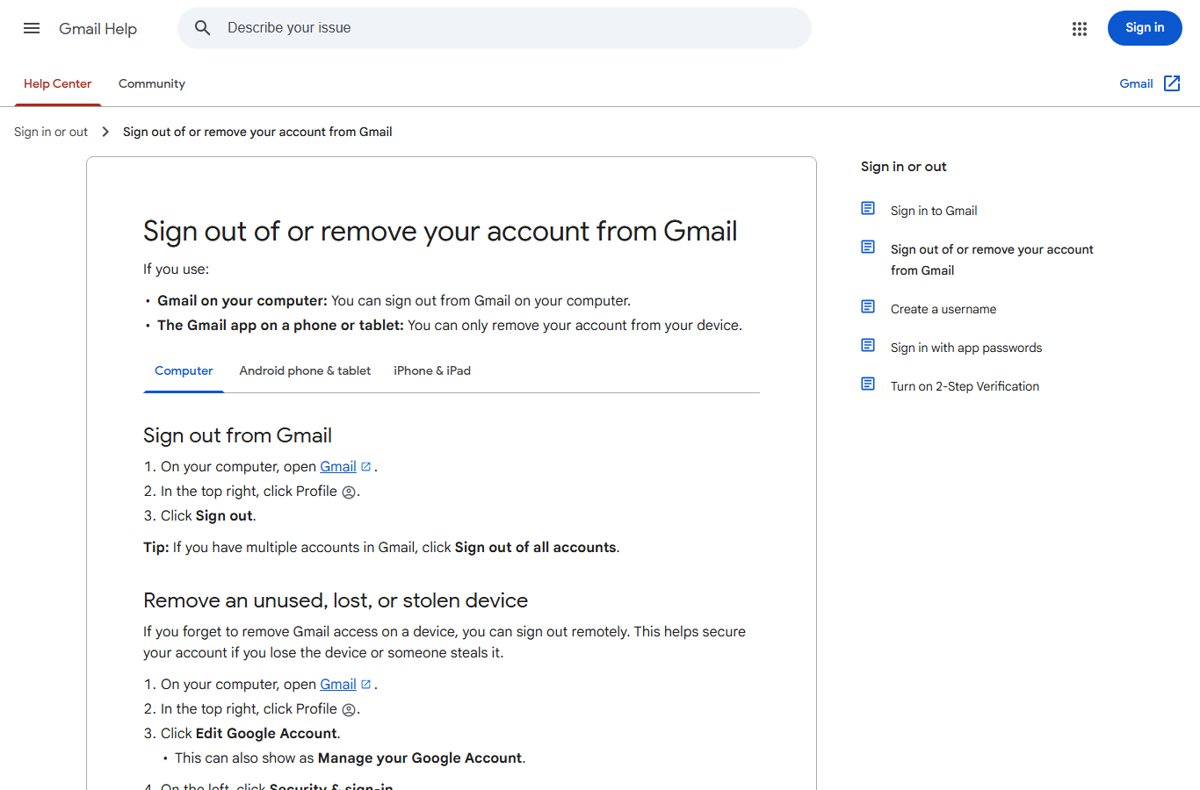
| Web browser on a PC, laptop or Mac | Profile picture > Sign out (or Sign out of all accounts) | Gmail and other Google sites in that browser are signed out |
| Gmail app on iPhone or iPad | Profile icon > Manage accounts on this device > Remove from this device | The account leaves the Gmail app and other Google apps on the phone |
| Gmail app on Android | Profile icon > Manage accounts on this device > the account > Remove account | The account is removed from the phone |
| Apple Mail app on iPhone | Settings > Apps > Mail > Mail Accounts > the Gmail account > Sign Out or Delete Account | Gmail stops arriving in Apple Mail |
| A device you no longer have | Google Account > Security & sign-in > Manage all devices > the device > Sign out | That device loses access to your account |
How Gmail logout works across devices
Gmail does not have its own login: you sign in with your Google Account. In the Gmail app on a phone, removing that account also signs it out of other Google apps on the device, such as Maps and YouTube.
That is why the web version offers a real sign-out, while the phone apps only let you remove the account from the device.
| Action | Where it is available | What it affects | What stays the same |
|---|---|---|---|
| Sign out | Gmail in a web browser | All Google accounts signed in to that browser, if you pick Sign out of all accounts | Your Google Account, emails and settings |
| Remove account from the app | Gmail app on iPhone, iPad and Android | Gmail plus other Google apps on that device, such as Maps and YouTube | The Google Account itself; it is not deleted |
| Turn off Mail for the account | Apple Mail on iPhone | Mail stops syncing that Gmail account | The account stays set up and can be turned back on |
| Remote sign-out | Google Account device page | One device or session you pick | Every other signed-in device |
| Change password | Google Account security settings | Signs you out everywhere except devices used to verify it is you, some linked third-party apps and some home devices | Your emails and account data |
How to logout from Gmail on PC or Mac browser
This works the same on Windows laptops, desktops and Macs, in any browser. It is also the answer for how to log out of a Gmail account in a laptop.
- Open Gmail in your browser.
- Click your profile picture at the top right of the page.
- Click Sign out.
- If more than one Google account is signed in, click Sign out of all accounts.
- Close the browser window if you are on a shared or public computer.
Chrome has its own sign-in separate from Gmail. If Chrome still shows your profile after you sign out of Gmail, click Profile at the top right of Chrome and choose Remove account from Chrome, or Sign out of Chrome if that option shows instead.
On a computer you only borrow, open Gmail in an Incognito window with Ctrl + Shift + N on Windows or Command + Shift + N on a Mac. Chrome deletes that session's cookies and site data when you close every Incognito window.
How to logout from Gmail on iPhone
The Gmail app for iPhone and iPad signs you out by removing the account from the device. Your mail stays in your Google Account and comes back when you sign in again.
- Open the Gmail app on your iPhone.
- Tap your profile icon at the top right.
- Tap Manage accounts on this device.
- Tap Remove from this device next to the account you want to sign out of.
- Confirm the prompt if the app asks.
Removing the account here also signs it out of other Google apps on the iPhone, such as Google Maps and YouTube.
How to log out of Gmail in the iPhone Mail app
If you read Gmail in Apple's built-in Mail app instead of the Gmail app, the account lives in iPhone Settings. Apple gives you two choices: turn Mail off for the account, or sign out completely.
- Open the Settings app on your iPhone.
- Tap Apps, then tap Mail.
- Tap Mail Accounts, then tap your Gmail account.
- To pause Gmail without removing it, turn off Mail.
- To remove the account from Mail and every app that uses it, tap Sign Out or Delete Account.
This does not cancel your Gmail address. It only removes the account from the iPhone, and you can add it back later from Mail Accounts > Add Account.
How to logout from Gmail on Android
Android phones are signed in to a Google Account at the system level, so the Gmail app removes the account rather than signing it out. This is the quickest way to log out of a Gmail account on an Android phone or tablet.
- Open the Gmail app.
- Tap your profile icon at the top right.
- Tap Manage accounts on this device.
- Select the account you want to remove.
- Tap Remove account at the bottom of the screen and confirm.
Removing the account from Gmail also signs it out of other Google apps on the phone, such as Maps and YouTube.
How to remove a Gmail account from Android settings
Use the Settings app when the Gmail app will not open, or when you want to see every account on the phone in one list. The menu name varies by phone maker and Android version.
- Open your phone's Settings app.
- Tap Passwords & accounts. If it is not there, look for Users & accounts, Passwords, passkeys & autofill, Password, passkeys & accounts or Manage accounts.
- Under Accounts, tap the Gmail account you want to remove.
- Tap Remove account.
- Tap Remove account again, then tap Delete to confirm.
- If this is the only Google Account on the phone, enter your pattern, PIN or password when asked.
Google notes that some of these steps only work on Android 14 and up. If your menus look different, update Android or use the Gmail app method above.
How to sign out of Gmail remotely from other devices
Use this when you left Gmail open on a work PC, a friend's phone, or a device that is lost or stolen. Google lists devices you are signed in to now and those used in the last few weeks.
- Go to your Google Account at
myaccount.google.com, or in Gmail click or tap your profile picture and choose Manage your Google Account. - Select Security & sign-in.
- In the Your devices panel, select Manage all devices.
- Select the device or session you want to remove.
- Select Sign out.
- If several sessions show the same device name, sign out of each one to remove all access from that device.
Devices you have already signed out of show a Signed out label on the same page. If the device was stolen, also change your Google password, which signs you out almost everywhere. You change your Gmail password under Security & sign-in at myaccount.google.com, then sign back in on the devices you keep.
What happens when you remove a Gmail account from your device
Removing an account clears it from that one device. It never deletes your Google Account, and your email is still there when you sign in somewhere else. To close the mailbox itself, delete your Gmail account from the Data & privacy page of your Google Account.
| Device | What is removed | What is not affected |
|---|---|---|
| iPhone or iPad (Gmail app) | The account in Gmail and in other Google apps on the device, such as Maps and YouTube | Your mailbox, contacts and Google Account |
| iPhone (Apple Mail) | The account from Mail and all apps that use it on the iPhone | The Gmail account itself; Apple says it is not cancelled |
| Android (Gmail app or Settings) | The account and the data tied to it on the phone, including email, contacts and settings stored on the device | The copies stored in your Google Account |
| PC or Mac browser | The sign-in for that browser | Other browsers and devices that are still signed in |
To take the Google Account off an Android phone completely, remove it in Settings > Passwords & accounts as well. Android then removes the account's associated data from the device.
How to check you are logged out of Gmail everywhere
- In the browser you signed out of, open Gmail again; you should see the Google sign-in page or an account chooser, not your inbox.
- On iPhone or Android, open the Gmail app and tap the profile icon; the removed account should no longer be listed.
- On a computer or another phone, open your Google Account and go to Security & sign-in > Manage all devices.
- Check that the device you meant to sign out now shows Signed out, or no longer has an active session.
- Sign out of any remaining session you do not recognise.
Why does Gmail log out automatically?
Match what you see to a symptom below. Most unexpected logouts come from cleared cookies or a password change.
Gmail logs out automatically in the browser
Deleting cookies signs you out of sites that remember you, and some browser settings or privacy windows delete cookies when you close them.
- Check whether you are using an Incognito or private window; its cookies are deleted when you close every one of those windows.
- Check your browser's privacy settings for any option that deletes cookies or site data on exit, and turn it off for normal use.
- Stop any cleanup tool or routine that deletes Cookies and other site data.
- Sign in to Gmail again in a normal window.
Gmail account logged out on every device at once
Changing or resetting your Google password signs you out everywhere except devices used to verify your identity.
- Sign in again on each device with your new password.
- If you did not change the password, open Security & sign-in > Manage all devices and look for devices you do not recognise.
- Sign out of unknown devices, then change your password at once.
- Turn on 2-Step Verification from Security & sign-in > Turn on 2-Step Verification.
Can't log out of one specific Gmail account
The browser menu signs out every account together, while the apps let you pick one.
- On iPhone, Android or iPad, open Manage accounts on this device in the Gmail app and remove only that account.
- In a browser, use Sign out of all accounts, then sign back in to the accounts you want to keep.
- To end one account's browser session without touching the others, sign in to that account on another device and sign the session out from Manage all devices.
No logout option in the Gmail app
The phone apps do not have a sign-out button; they remove the account from the device instead.
- Tap your profile icon in Gmail.
- Tap Manage accounts on this device.
- Use Remove from this device on iPhone or Remove account on Android.
Security tips after logging out of Gmail
Logging out closes one door. These steps make sure nothing else is left open, especially after using a shared computer or losing a phone.
| Situation | What to do |
|---|---|
| You used a shared or public computer | Sign out of Gmail, then delete Cookies and other site data from that browser before you leave |
| Chrome still shows your profile | Use Remove account from Chrome; signing out of Gmail does not sign you out of Chrome |
| A phone or laptop is lost or stolen | Sign it out from Manage all devices, then change your Google password |
| You see a device, location or browser you do not recognise | Sign that session out and change your password; a shared computer or a recent factory reset can also explain an odd entry |
| Your account has only a password | Turn on 2-Step Verification under Security & sign-in |
| You often borrow other computers | Open Gmail in an Incognito window so cookies are deleted when you close it |
Gmail logout FAQ
How do I log out of Gmail on a laptop?
Open Gmail in your browser, click your profile picture at the top right and click Sign out. If several accounts are signed in, click Sign out of all accounts. If Chrome itself is signed in, remove the account from Chrome's Profile menu too.
How do I log out of Gmail on my phone?
Open the Gmail app, tap your profile icon and tap Manage accounts on this device. On iPhone tap Remove from this device; on Android select the account and tap Remove account. Your email stays safe in your Google Account.
Where is the logout option in Gmail?
On a computer, it is under your profile picture at the top right of Gmail, labelled Sign out. The Gmail phone apps have no sign-out button; you remove the account under Manage accounts on this device instead.
How do I log out of Gmail from other devices?
Open your Google Account, select Security & sign-in, then Manage all devices under Your devices. Select the device or session and choose Sign out. If one device shows several sessions, sign out of each of them.
Why does my Gmail account log out automatically?
The usual causes are deleted cookies, a private or Incognito window, or a password change. Changing your Google password signs you out everywhere except devices used to verify your identity. Check Manage all devices for sessions you do not recognise.
How do I log out of one specific email in Gmail?
In the Gmail app, open Manage accounts on this device and remove just that account. In a browser, Gmail signs out all accounts together, so sign out of all and sign back in to the ones you want, or sign that session out remotely. The first account you sign back in to usually becomes the default Google account in that browser.
How do I log out of Gmail from Google?
Gmail uses your Google Account, so you sign out from any Google page. Go to a page such as google.com, select your profile picture or initial at the top right, and choose Sign out, or Sign out of all accounts to sign out every account in that browser.
Will deleting the Gmail app log me out of my account?
Google's help does not list deleting the app as a way to sign out, so remove the account instead. In the Gmail app, tap your profile picture > Manage accounts on this device and remove the account, which also signs it out of other Google apps such as Maps and YouTube. On Android, you can also remove it under Settings > Passwords & accounts.
Does removing Gmail from my phone delete my emails?
No. Removing the account only takes it off that device. Your Google Account, emails and contacts stay online, and they return when you sign in again on any phone or computer.
How do I log out of Gmail on a tablet?
On an iPad, open the Gmail app, tap your profile icon, tap Manage accounts on this device and tap Remove from this device. On an Android tablet, use the same menu and tap Remove account.
Bottom line: which Gmail logout option should you use?
Use Sign out in the browser on a PC or Mac, remove the account under Manage accounts on this device on iPhone and Android, and use Manage all devices in your Google Account for any device you cannot reach. Each route matches how that device holds your sign-in. None of them deletes your Google Account, so you can always sign back in, while a remote sign-out plus a password change is the only safe answer for a lost or stolen device.