To recover a Google account without your old phone, open accounts.google.com/signin/recovery, enter your address, and select Try another way until Google offers a method you still have: a backup code, a recovery email, another phone number, a signed-in device, or its recovery questions.
This guide walks through each of those routes in order, what to do when Authenticator or a passkey lived on the lost phone, how long recovery takes, and how to lock the account down once you are back in.
The fastest way to get back in without the old phone
Use a computer or tablet you normally sign in on, in the browser you usually use, from home or work. Google's own recovery tips name these three details because they help it recognise you.
- Open accounts.google.com/signin/recovery in your usual browser.
- Enter the Gmail address or phone number of the account and select Next.
- Enter the last password you remember when asked.
- When Google asks for the old phone, select Try another way.
- Pick the first option you can still complete, such as Enter one of your 8-digit backup codes or a code sent to your recovery email.
- Answer every remaining question, then set a new password when prompted.
Wrong guesses do not end the process, and Google sets no limit on how many times you can try.
Which recovery route matches what you still have?
Find the row that describes what you still have, then jump to that step. Anything near the top of the table gets you back in faster than the recovery questions.
| What you still have | Use this route | Why it works |
|---|---|---|
| Printed or downloaded backup codes | Step 6: backup code | Each 8-digit code replaces the second step once |
| A laptop, tablet or second phone still signed in | Step 7: signed-in or trusted device | Google can send a prompt to it or skip the second step |
| Your old phone number on a new SIM | Step 5: text or call code | The carrier moves the number, so codes arrive again |
| Access to your recovery email inbox | Step 4: recovery email code | Google verifies you through that inbox |
| A security key or a passkey on another device | Step 9: key or passkey | Either one stands in for the phone |
| Authenticator codes synced to the account on another device | Step 8: Authenticator | Synced codes appear on any device signed in to the app |
| None of the above | Step 10: recovery questions | Google decides from your answers, device and location |
| You do not know the address either | Step 11: find your username first | Recovery needs the exact account |
Before You Start: What You Need to Know
Recovery is a self-service process. No person at Google reviews your case by phone, so the details you bring decide the outcome.
| Fact | What it means for you |
|---|---|
| Attempts are unlimited | A failed attempt does not lock you out of trying again |
| Familiar device, browser and location count | Start from the computer and network you usually sign in from |
| Some questions may not appear | Google shows only the checks that fit your account |
| Recovery info cannot be added while locked out | You work with whatever was on the account before the phone was lost |
| Work and school accounts follow different rules | The administrator, not Google, restores those |
| Google does not work with recovery services | Any company charging to recover your account is not affiliated with Google |
Do not create a replacement account yet. Google lists that only as the last step, after recovery has failed.
Step 1: Go to the Official Google Account Recovery Page
The only safe starting point is Google's own sign-in domain. Google states it never asks for your password or codes by email, phone call or message, and that you should only enter them at accounts.google.com.
- Type accounts.google.com/signin/recovery into the address bar yourself instead of following a link from an email or ad.
- Check that the address bar still shows accounts.google.com after the page loads.
- Enter the email address or phone number linked to the account.
- Select Next to begin the questions.
Step 2: Enter the Last Password You Remember
Google asks for the last password you remember, even though you are recovering the account. Details matter here, so avoid typos.
- Type the most recent password you can recall, paying attention to uppercase and lowercase letters.
- If you cannot remember the latest one, enter an earlier password. The more recent it was, the better.
- If no password comes to mind with confidence, type your best guess instead of skipping.
- Select Next to move on to the second step.
Step 3: Use “Try Another Way” to Skip the Old Phone
When Google sends a prompt or code to the phone you no longer have, that screen is not a dead end. Try another way lists the other verification methods the account supports.
- On the screen that asks you to check your phone, select Try another way.
- Read the list of options Google shows for this account.
- Choose the first one you can complete right now.
- If that option fails, return with Try another way and pick the next one.
- If only phone-based options appear, keep answering; Google moves on to the recovery questions in Step 10.
The list only contains methods that were added to the account before the phone was lost. Backup options you never set up will not appear.
Step 4: Recover Using Your Recovery Email
Google can verify you through an email address you added to the account. That can be the recovery email, an alternate email you sign in with, or the contact email Google uses for service notices.
- When asked for an email you can check now, enter one that is already on the account.
- Open that inbox on any device.
- Find the Google message with the verification code, checking Spam or Junk if it is missing.
- Enter the code on the recovery page and select Next.
- Reset your password when Google prompts you.
Google may also send a code to the Gmail address you are recovering. That only helps if the inbox still reaches you through another email client or forwarding; otherwise select Try another way.
Step 5: Recover Using a Backup Phone Number You Still Have
A lost phone does not mean a lost number. Ask your carrier to transfer the number to a new phone or SIM card, then use it like any other backup phone.
- Get your number moved to a new phone or SIM by your carrier, or pick up another phone whose number is on the account.
- Go to the Google sign-in page and enter your address and password.
- Select Try another way or More options.
- Select Get a verification code.
- Enter the code you receive by text or call.
- If no code arrives, select More options and then Get help.
If you requested several codes, only the newest one works. If the number itself is gone for good, move on to Step 6 or Step 10.
Step 6: Use Backup Codes If You Saved Them
Backup codes exist for exactly this situation. Each set holds 10 codes of 8 digits, and every code works once.
- Look for a printout, or search your computer for a file named Backup-codes-username.txt with your username, such as Backup-codes-google123.txt.
- Sign in to your Google Account with your address and password.
- Select Try another way.
- Select Enter one of your 8-digit backup codes.
- Type an unused code and select Next.
- Cross the code off your list, because it is now inactive.
Accounts enrolled in the Advanced Protection Program cannot download backup codes, so this route does not exist for them.
Step 7: Check If You’re Still Signed In Somewhere
Any computer, tablet or second phone that is still signed in can rescue you. If you ever ticked Don't ask again on this computer on a device, that device can sign in without the second step.
- Check every laptop, tablet, work computer and old phone where you use Gmail, YouTube or Chrome.
- On a device that is still signed in, do not sign out.
- On that device, open accounts.google.com/signin/recovery and complete recovery from there.
- If recovery offers a Google prompt, accept it on that signed-in device.
- Once back in, go to myaccount.google.com/security and update your sign-in methods.
Google's own advice for a stuck recovery is to use the device you are already signed in on, because it carries the most trust.
Step 8: If You Used Google Authenticator on the Old Phone
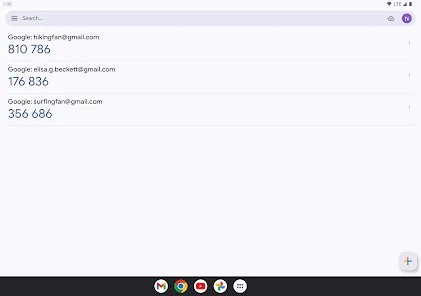
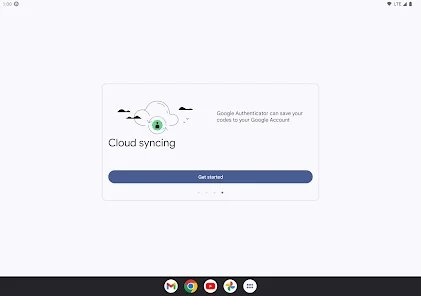
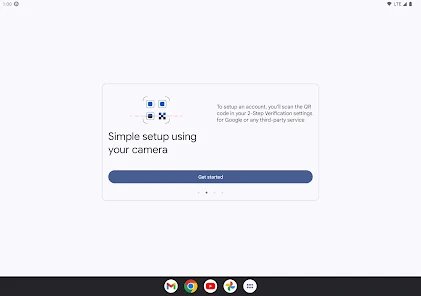
Authenticator can save its codes to your Google Account. If sync was on, the codes follow you to any phone where you sign in to the app; if it was off, the codes only existed on the lost phone.
| Your Authenticator setup | What to do |
|---|---|
| Codes synced to your Google Account | Install Authenticator on a new phone, sign in to the app with the same account, and the codes sync automatically |
| Codes synced, but you cannot sign in to the app | Use another route first (backup code, backup phone, recovery email), then sign in to Authenticator |
| App used without an account (no sync) | The codes are gone with the phone. Recover with Steps 4 to 7 or Step 10, then set Authenticator up again |
| Old phone lost or stolen | Remote-erase it or remove it from your account, and relink each site that used those codes |
Sync needs Authenticator 6.0 or later on Android, or 4.0 or later on iPhone. Once you are back in, a newly added Authenticator may take up to 7 days to show up as a sign-in option.
Step 9: If You Used a Security Key or Passkey
A hardware security key or a passkey stored on another device can replace the lost phone at sign-in. A passkey also bypasses the second step entirely, because it proves you hold an unlocked device.
- Open the Google sign-in page and enter your username.
- If Google asks for the lost phone, select Try another way and pick your security key, then insert or tap it.
- For a passkey on another phone, select Try another way and Use your passkey, then scan the QR code with that phone.
- Verify with the fingerprint, face or screen-lock PIN of the device that holds the passkey.
- After signing in, remove the passkey tied to the lost phone under Security & sign-in > Passkeys and security keys.
If a passkey is not offered, make sure the device holding it has its screen lock turned on. If the lost phone held your only passkey or key, use Step 10; with Advanced Protection, only a backup security key works.
Step 10: Use the Account Recovery Form Carefully
When every quick route fails, Google's recovery page turns into a series of questions. There is no separate paper form; your answers on that page are the claim Google reviews.
- Answer every question and do not skip any; a best guess is better than a blank.
- Enter an email address or phone number where Google can reach you now.
- Enter the code Google sends to that address or number to prove you control it.
- Record a short selfie video if prompted; it is compared with one you added earlier.
- Watch the contact address, including Spam, for a message titled Your Google support inquiry.
- If you see Google couldn't verify this account belongs to you, try again later from a familiar device.
Accounts protected by 2-Step Verification with no second step available can take 3 to 5 business days for Google to confirm it is you.
Step 11: If You Forgot the Gmail Address Too
Google can look up your username if you know the full name on the account and either its phone number or its recovery email.
- Open accounts.google.com/signin/usernamerecovery.
- Enter the phone number or recovery email linked to the account.
- Enter the first and last name exactly as they appear on the account.
- Confirm it is you with the code Google sends.
- Pick the matching address from the list of usernames, then start again at Step 1.
If you cannot reach that phone number or recovery email, username lookup cannot finish, so check old devices and email clients for the address instead.
Step 12: After You Get Back In, Secure the Account Immediately
The lost phone may still be signed in to your account, and anyone who finds it could use that session. Close it off before anything else.
- Go to your Google Account, select Security & sign-in, then Manage all devices under Your devices.
- Select the lost phone and choose Sign out.
- Under How you sign in to Google, select Password, set a new password, and select Change Password.
- Remove the lost phone's passkey or security key under Passkeys and security keys.
- Under 2-Step Verification, select Continue under Backup codes, then Refresh to get a fresh set of 10.
- Update Recovery phone and Recovery email, and add a Recovery contact.
- Open Review security events and select No, it wasn't me on anything you do not recognise.
Changing your password signs you out everywhere except devices you use to verify it is you, some third-party apps and home devices with access.
What If Your Account Is Managed by Work, School, or Family Link?
Google's recovery page is built for personal accounts. Managed accounts are restored by the person or organisation that controls them.
| Account type | Who restores access | What to do |
|---|---|---|
| Work or school (Google Workspace) | Your administrator | Try your 2-Step Verification backup options first, then contact your IT team |
| Child under 13 (or the local age) with Family Link | The parent | In the Family Link app, select the child, then Controls > Account settings > Change password |
When a parent resets a child's password, the child's 2-Step Verification turns off and both receive an email. The child can turn it back on after signing in.
How to check recovery worked
Getting past the sign-in screen is only half the job. Confirm that the account is fully yours and that the lost phone no longer has a way in.
- Open myaccount.google.com/security and confirm you can view it without another prompt.
- Check google.com/devices and confirm the lost phone shows Signed out.
- Under How you sign in to Google, confirm the recovery phone and recovery email are ones you control.
- Sign out, then sign back in using your new password and your new second step.
- Open Gmail and confirm that recent messages and your settings are intact.
Common Problems and What to Do
"Google couldn't verify this account belongs to you"
Your answers, device or location did not give Google enough confidence.
- Wait a day, then return to the recovery page on the device and network you use most.
- Enter the most recent password you can remember, exactly.
- Add an email address you can check now and complete its code.
- Answer every question instead of skipping.
No verification code arrives
Unusual sign-in details can block text codes, or the phone plan or signal cannot receive them.
- Check whether Google sent a prompt to another signed-in device instead.
- Confirm your plan and phone accept text messages, and that you have a connection.
- Use only the newest code if you requested several.
- Select Try another way and pick a non-phone option.
Recovery request is on a security hold or delayed
Google adds a delay when a claim looks unusual, so the real owner can deny it.
- Watch your recovery email and phone for Google's notice about the request.
- If you regain another way to verify, such as a usual device, start recovery again from it.
- Wait out the hold; it can last a few hours or several days.
No phone and no recovery email on the account
Only the recovery questions are left, so Google relies on your answers and familiar device.
- Use Step 7 to find any device that is still signed in.
- Complete Step 10 from that device or your usual computer.
- Provide a new email address you can check so Google can reach you.
Back in, but you cannot change recovery info
Something about the current sign-in looks different, so Google blocks changes for now.
- Try again from a device you normally sign in on.
- Try again from a location where you normally sign in.
- Otherwise wait a week and try from the current device.
What Not to Do During Recovery
Most recovery scams target people in exactly this position: locked out, anxious and searching for a phone number.
| Do not | Why |
|---|---|
| Pay a "Google account recovery" service | Google does not work with any account or password recovery service |
| Share a password, verification code or backup code | Google only asks for them at sign-in on accounts.google.com |
| Call a "Google support" number from an ad or search result | Google offers no phone help for signing in to your account |
| Sign out of a device that is still signed in | It may be your fastest way back in |
| Skip questions on the recovery page | Unanswered questions give Google less to go on |
| Switch devices and networks between attempts | Unfamiliar sign-ins count against the claim |
| Open a replacement account first | Google lists it only as the fallback once recovery fails |
How to Avoid This Problem in the Future
Each backup below gives Google one more way to trust you when a phone goes missing. Set them up while you are signed in, because none can be added during recovery.
| Backup | Where to add it | Note |
|---|---|---|
| Recovery phone | Security & sign-in > Recovery phone | A mobile number that gets texts and belongs only to you; not a Google Voice number |
| Recovery email | Security & sign-in > Recovery email | An address you use regularly, other than the one you sign in with |
| Recovery contact | Security & sign-in > Recovery contacts | A trusted person with a Google Account; usable 7 days after they accept |
| Backup codes | 2-Step Verification > Backup codes | Print them and store them with important documents |
| Passkey on a second device | myaccount.google.com/signinoptions/passkeys | Only on devices you own and do not share |
| Synced Authenticator | Sign in to the Authenticator app | Codes move with you to a new phone |
| Recovery selfie video | Security & sign-in > Selfie video | Not available for Workspace, child or Advanced Protection accounts |
If you let Chrome save passwords to your Google Account, that account becomes the key to every other login, which makes these backups worth ten minutes today.
Can You Contact Google Support to Recover a Free Gmail Account?
No. Google states that you can't call it for help signing in to your account, so the recovery page is the only official route for a free Gmail account. Google One members can reach support by chat, phone or email, but that support covers membership, features and storage rather than sign-in. Any number or agent promising to restore a free account is not Google, and the Google Account Help Community offers answers from community members, not account access.
How Long Does Google Account Recovery Take?
A backup code or recovery email works in minutes. The waits below apply when Google needs more time to be sure.
| Situation | Typical wait |
|---|---|
| Backup code, recovery email or backup phone code | Immediate |
| Security hold on a recovery request | A few hours to several days |
| 2-Step Verification account with no second step available | 3 to 5 business days |
| New recovery phone, email or Authenticator after changes | Up to 7 days to take effect |
| New recovery contact | 7 days after they accept the invite |
| Replying to a disabled suspicious sign-in method | 30 days to confirm you added it |
If you changed recovery info recently, Google advises trying recovery again a few days later.
Quick Recovery Checklist
| Check | Done when |
|---|---|
| Start on your usual device, browser and network | You are at accounts.google.com/signin/recovery |
| Enter your last remembered password | Google moves to the second step |
| Select Try another way | You see the list of other methods |
| Use a backup code, recovery email, backup phone, signed-in device, key or passkey | Google accepts the verification |
| Answer every recovery question if nothing else works | You get a new password or an email from Google |
| Sign out the lost phone and refresh backup codes | google.com/devices shows the phone signed out |
| Add recovery phone, email and a recovery contact | All three are listed under Security & sign-in |
If recovery still fails after repeated attempts, Google's advice is to create a new Google Account and add recovery info to it from day one.
Frequently Asked Questions
How do I recover my Google account without a phone?
Go to accounts.google.com/signin/recovery, enter your address and last password, then select Try another way. Use a backup code, a recovery email code, a signed-in device or a passkey. If none exist, answer the recovery questions from a device you normally use.
How do I recover my Google account without a recovery email?
Use a phone-free option on the Try another way list, such as a backup code or a device still signed in. Without either, answer Google's recovery questions and supply any email you can check now so Google can send a code and reach you.
Can Google recover my account for me?
Google does not restore accounts by phone or on request. Its recovery page decides from your answers, device and location. Google also does not work with any paid recovery service, so anyone offering to recover the account for a fee is not Google.
How do I retrieve a Google account without the phone number?
Ask your carrier to move the number to a new SIM if you still own it. If the number is gone, use backup codes, a recovery email, a signed-in device or a passkey, then replace the old number in your recovery settings.
Can I recover a Google account without a phone or an email?
Yes, but only through the recovery questions. Use your usual device, browser and location, enter your most recent password and answer everything. Accounts with 2-Step Verification and no second step can take 3 to 5 business days to confirm.
How do I recover a Google account without 2-Step Verification access?
Select Try another way at the second step and use a backup code, another phone number on the account, a security key, a passkey on another device, or a trusted computer where you chose Don't ask again. If none work, complete account recovery.
Why am I not able to recover my Google account?
Google did not have enough evidence that the account is yours. Try again from the device and network you use most, enter an exact recent password, and answer every question. Attempts are unlimited, and a wait after recent changes can help.
Can I recover my Google account without the password?
Yes. Enter your best guess at the last password, or any older password you remember, and continue. Google then verifies you another way and asks you to set a new password that you have not used on this account.




How to Sign into YouTube TV Without a Google Account - Techdows
[…] How to Recover Google Account Without Old Phone: Step-by-Step Guide for the recovery options that do not need the old […]
How to reset Roblox password without email – full guide - Techdows
[…] If the account has an email you can no longer open, getting that inbox back is often quicker than going through Support. Each email provider runs its own recovery process, and for a Gmail address you can recover the Google account without your old phone. […]