If your iPhone 17 Pro Max cannot connect to Wi-Fi after iOS 26.0.1, install the latest iOS update first, then rejoin the network and restart the router before you reset network settings.
This guide covers the iOS 26 Wi-Fi bug Apple fixed, the iPhone settings that block a connection, router checks, and what to do when only one network fails.
Fastest fix for iPhone 17 Pro Max Wi-Fi not connecting
- Open Settings and tap Wi-Fi; make sure Wi-Fi is on.
- Tap your network name and enter the password if asked.
- Check for the blue checkmark next to the network name.
- If there is no checkmark, go back to Settings and confirm Airplane Mode is off.
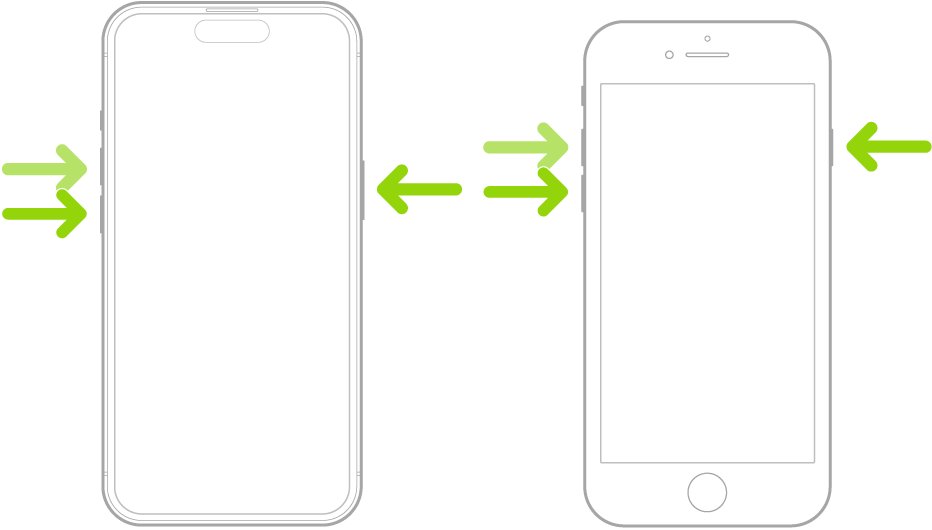
- Force restart the iPhone: press and release volume up, press and release volume down, then hold the side button until the Apple logo appears.
- Restart your router and modem by unplugging them, then plugging them back in.
- Join the network again from Settings > Wi-Fi.
iOS 26 Wi-Fi disconnect bug on iPhone 17 Pro models
Apple's release notes confirm a Wi-Fi problem on the iPhone 17 line at launch. The fix shipped in iOS 26.0.1, and many later iOS 26 releases have followed.
| iOS version | What Apple says about Wi-Fi | What to do |
|---|---|---|
| iOS 26 | Wi-Fi and Bluetooth may occasionally disconnect on iPhone 17, iPhone Air and iPhone 17 Pro models | Update |
| iOS 26.0.1 | Fixes that Wi-Fi and Bluetooth disconnect issue, plus a cellular connection bug after updating to iOS 26 | Update further if a newer version is offered |
| Later iOS 26 releases (26.1 to 26.7.1) | Bug fixes and security updates | Install the newest one Software Update offers |
If Wi-Fi still fails on iOS 26.0.1 or later, the cause is usually a setting on the iPhone or the router rather than the launch bug.
iPhone 17 Pro Max can't connect to Wi-Fi: match the symptom to the fix
| What you see | Likely cause | Fix |
|---|---|---|
| Wi-Fi switch is dimmed (grayed out) | The Wi-Fi radio is not responding | Restart the iPhone |
| Network does not appear in the list | Hidden network, MAC filtering or out of range | Move closer, check router settings |
| Connected but "No Internet Connection" | Router, modem or ISP problem | Restart router and modem, test other devices |
| Only one network fails | Router settings or the saved network profile | Forget and rejoin, change the private address, check router security |
| Every network fails | iPhone network settings or software | Update iOS, reset network settings, then contact Apple |
| Works until a VPN app is active | VPN or security software | Uninstall it and test again |
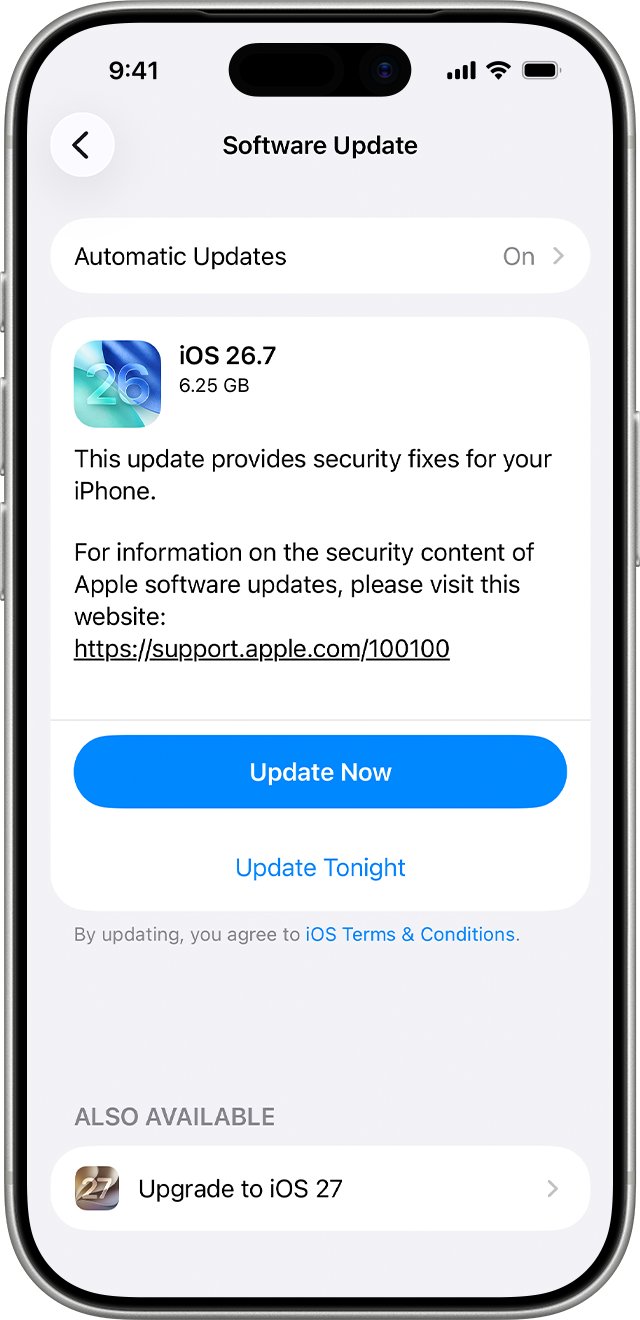
Update iPhone 17 Pro Max to the latest iOS
Apple advises installing the latest software before changing Wi-Fi settings. If your Wi-Fi is down, connect another way, or update from a computer.
- Back up the iPhone using iCloud or your computer.
- Plug the iPhone into power.
- Open Settings and tap General.
- Tap Software Update to see the installed version and any available update.
- Tap Download and Install and follow the onscreen instructions.
If no update appears over the air, use a Mac or Windows PC to update the iPhone. A VPN or proxy connection can stop the iPhone reaching Apple's update servers.
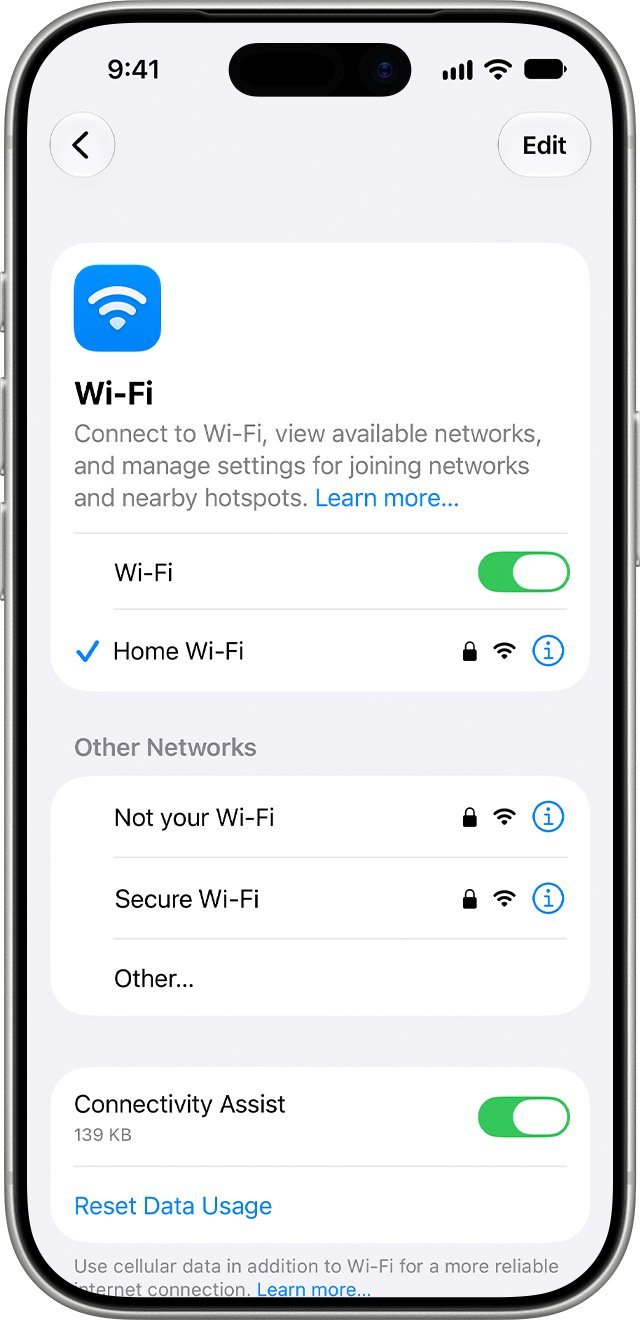
Turn off Connectivity Assist and check Wi-Fi settings on iPhone
- Open Settings and tap Wi-Fi.
- Make sure Wi-Fi is turned on.
- Scroll down and make sure Connectivity Assist is off.
- Tap the network name to join it.
- Look for the blue checkmark and the Wi-Fi icon in the upper corner of the screen.
If you do not know the password, ask the network owner or join the network with a QR code from another device.
Change the private Wi-Fi address for one network
Your iPhone uses a different private Wi-Fi address on each network. Some routers with MAC filtering or device allowlists reject it, so change the setting for that network only.
- Open Settings and tap Wi-Fi.
- If you are not connected to the network, tap Edit in the upper-right corner.
- Tap the More Info button next to the network name.
- Tap Private Wi-Fi Address.
- Choose Fixed or Off, then rejoin the network.
Off uses the iPhone's hardware MAC address. Use it only when the network requires it, and update iOS first.
Uninstall VPN and security apps that block Wi-Fi
- Uninstall the VPN or security app.
- Restart the iPhone.
- Join the Wi-Fi network again and test it.
- If the app caused it but you need it, contact the VPN manager or app developer.
Check Wi-Fi router settings for iPhone 17 Pro Max
| Router setting | Apple's recommendation | Why it matters |
|---|---|---|
| Firmware | Install the latest version | Apple also asks you to confirm the router supports your iPhone |
| Security | WPA3 Personal, or WPA2/WPA3 Transitional | Old modes such as WEP, TKIP and WPA/WPA2 mixed reduce reliability and trigger warnings |
| Network name (SSID) | One unique name for all bands | Different names per band stop devices connecting reliably |
| Hidden network | Disabled | A hidden network can stop the iPhone finding it |
| Bands | Try the other band, for example 5 GHz instead of 2.4 GHz | Range and interference differ by band |
After you change router settings, forget the network on the iPhone and join it again so it picks up the new settings.
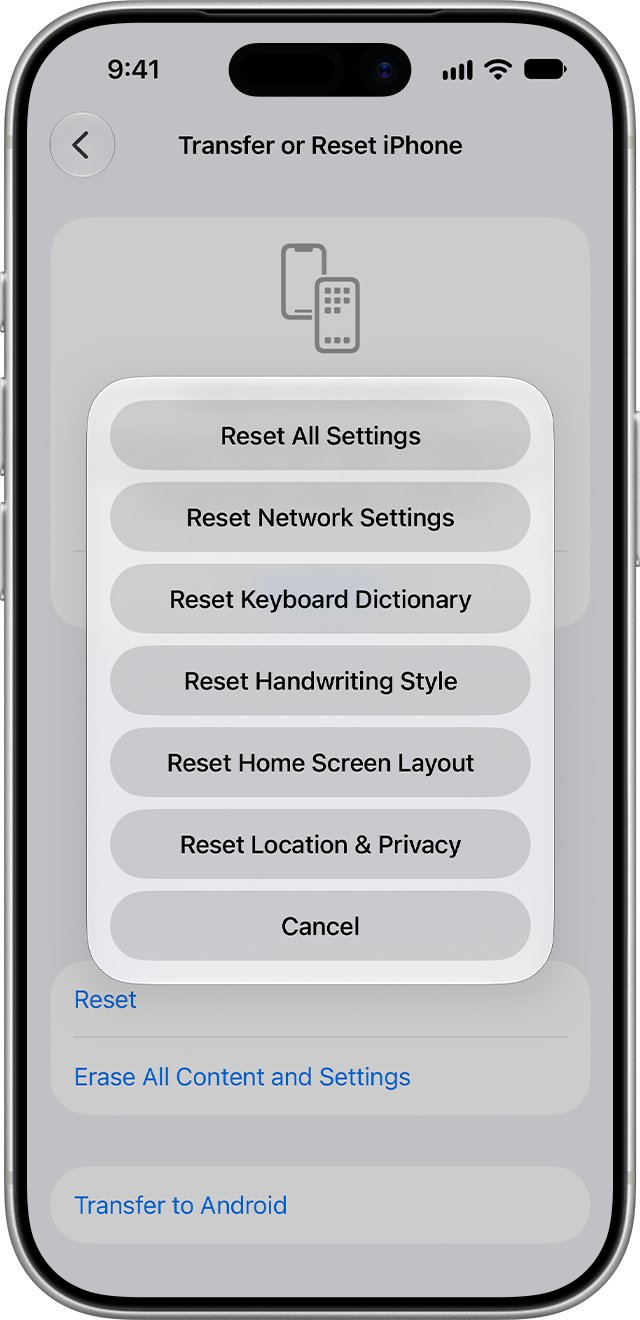
Reset network settings on iPhone 17 Pro Max
Use this only after the other fixes fail. It removes all saved Wi-Fi networks and passwords, cellular settings, and VPN and APN settings.
- Open Settings and tap General.
- Tap Transfer or Reset iPhone.
- Tap Reset.
- Tap Reset Network Settings and confirm.
- Join your Wi-Fi network again and enter its password.
On a work or school network, ask the IT administrator before resetting. After a reset, the iPhone also uses a new private address on each network.
Check iPhone Wi-Fi is working again
- Open Settings > Wi-Fi and confirm the blue checkmark next to your network.
- Check the Wi-Fi icon in the upper corner of the screen.
- Open Safari and load a page with cellular data turned off.
- Open Settings > General > Software Update and confirm you are on the newest iOS.
iPhone Wi-Fi still not connecting: fixes by symptom
Why isn't my Wi-Fi connecting on any network?
The problem is on the iPhone, not a single router.
- Try a Wi-Fi network in a different location.
- Update iOS and reset network settings.
- If the iPhone still cannot join any Wi-Fi network, contact Apple Support.
Can't connect to Wi-Fi at home but other networks work
The router or its settings are rejecting the iPhone.
- Check whether other devices connect to the same network.
- Update the router firmware and confirm it supports your iPhone.
- Restart the router and modem.
- Change the iPhone's private Wi-Fi address for that network.
Connected to Wi-Fi but no internet
The router, modem or internet provider is down.
- Test the same network on another device.
- Restart the router and modem.
- If no device can get online, contact your internet service provider.
Wi-Fi setting is grayed out
Apple's documented fix for a dimmed Wi-Fi switch is a restart.
- Restart the iPhone.
- If it stays dimmed, install the latest iOS update from a computer.
iPhone 17 Pro Max Wi-Fi after iOS 26 update FAQ
Did iOS 26.0.1 fix Wi-Fi on iPhone 17 Pro Max?
Yes. Apple's iOS 26.0.1 release notes list a fix for Wi-Fi and Bluetooth occasionally disconnecting on iPhone 17, iPhone Air and iPhone 17 Pro models. If Wi-Fi still fails after that update, install the newest iOS and check your network settings.
Why isn't my Wi-Fi connecting on my iPhone?
The usual causes are Airplane Mode, a router problem, a VPN or security app, or a saved network setting that no longer matches the router. Check Settings > Wi-Fi, restart the iPhone and router, and remove VPN apps before resetting network settings.
Can't connect to Wi-Fi on iPhone but other devices can?
Then the router works and the iPhone side is at fault. Update iOS, forget and rejoin the network, change the Private Wi-Fi Address to Fixed or Off for that network, and reset network settings as a last step.
Cannot connect to Wi-Fi after resetting network settings?
A reset removes every saved network and password, so you must join the network again and type its password. If the router uses MAC filtering, add the iPhone's new private address or set Private Wi-Fi Address to Fixed.
Does Connectivity Assist stop Wi-Fi working?
Connectivity Assist adds cellular data alongside Wi-Fi for a more reliable connection. Apple's Wi-Fi troubleshooting asks you to turn it off while you test, so you can see whether Wi-Fi itself is connecting.
Should I switch my iPhone to 5 GHz or 2.4 GHz?
Try the other band if your router offers both. Apple suggests joining another frequency, such as 5 GHz instead of 2.4 GHz, and using one network name for all bands so the iPhone connects reliably.
When should I contact Apple about iPhone Wi-Fi?
Contact Apple when the iPhone cannot connect to any Wi-Fi network, in any location, after you update iOS and reset network settings. That points to the iPhone rather than a router or internet provider.
Bottom line: fixing iPhone 17 Pro Max Wi-Fi after iOS 26.0.1
Update to the newest iOS, restart the iPhone and router, then work through the private address and router settings before resetting network settings. Apple fixed the launch Wi-Fi bug in iOS 26.0.1, so remaining failures are usually network settings that a rejoin or reset clears.