Optimize Storage keeps your full-resolution photos and videos only in iCloud and leaves smaller versions on your iPhone or iPad, so you need an internet connection to open an original and you need a separate copy of your library for a real backup.
This guide explains how the setting works, what it changes for offline access, backups, data use and deletion, and how to turn it on, turn it off, or keep a full copy elsewhere.
How to turn on Optimize Storage for Photos on iPhone or iPad
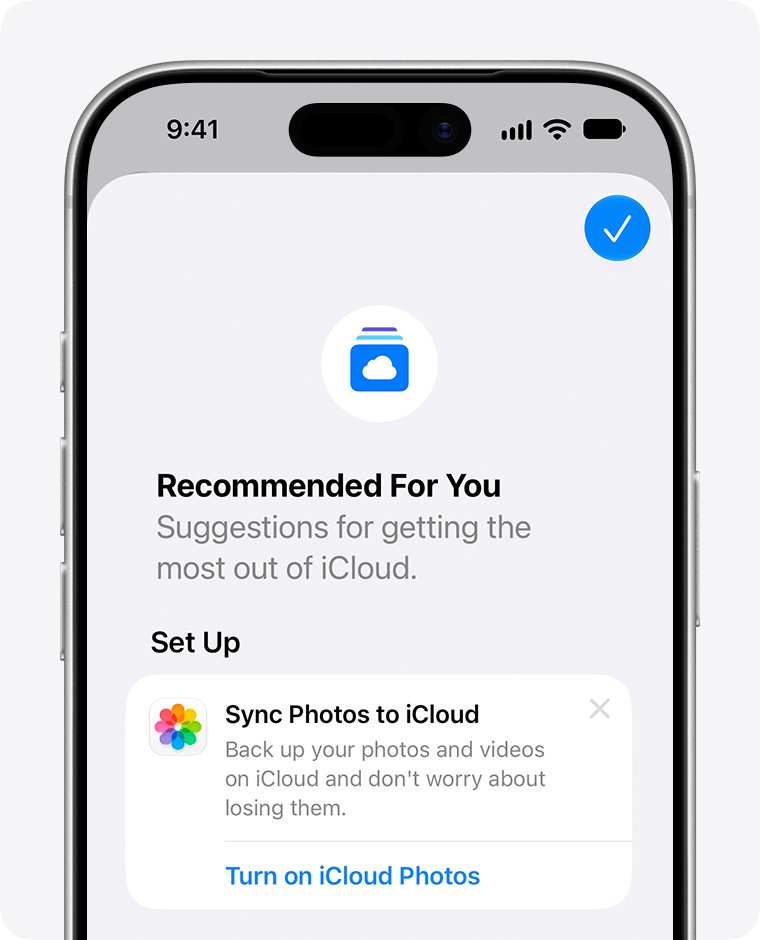
Optimize Storage only exists when iCloud Photos is turned on. These steps turn on both.
- Open the Settings app, tap your name, then tap iCloud.
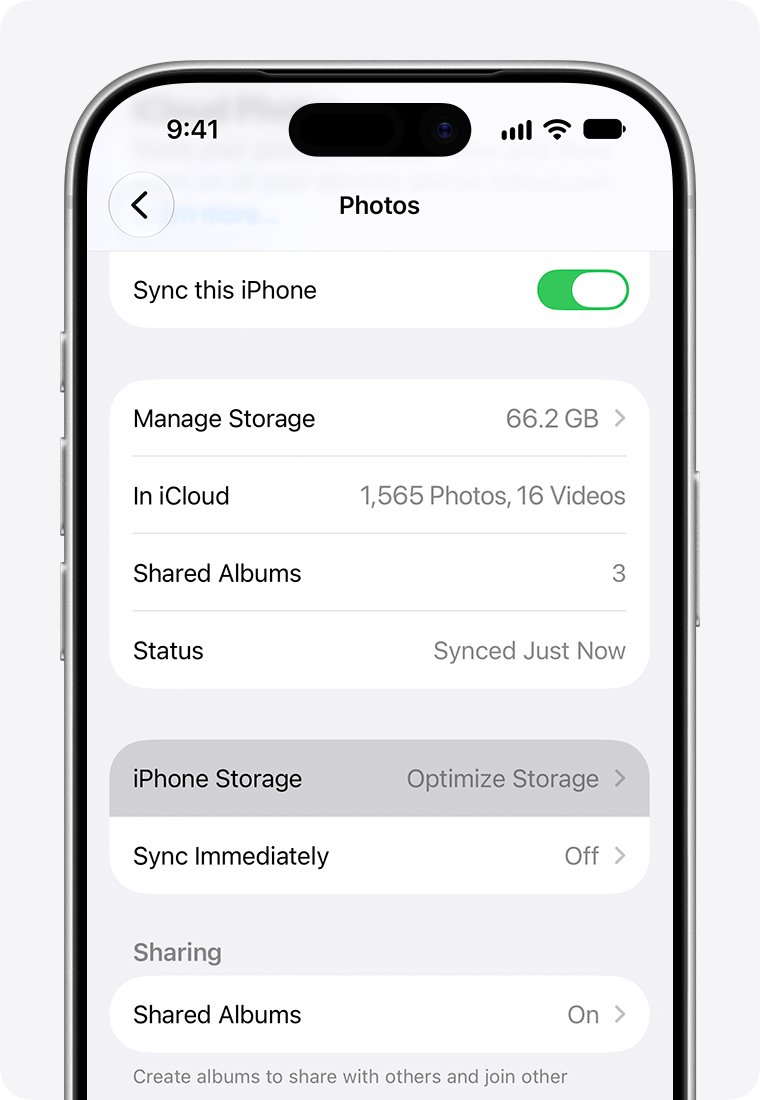
- Under Saved to iCloud, tap Photos.
- Turn on Sync this iPhone (or Sync this iPad) if iCloud Photos is off.
- Tap iPhone Storage (or iPad Storage), then choose Optimize Storage. In iOS 26 or earlier, choose Optimize Storage directly on the Photos screen.
- Keep the device on Wi-Fi and power so the library can finish uploading to iCloud.
What does Optimize Storage do in iPhone Photos?
With Optimize Storage on, iCloud Photos keeps the original, high-resolution version of every photo and video in iCloud. The device keeps space-saving versions and starts optimizing with the items you open least, only when it needs more device storage.
| Setting | What stays on the iPhone or iPad | What stays in iCloud | Device storage used |
|---|---|---|---|
| Optimize Storage | Space-saving versions, with originals downloaded when you open them | Full-resolution originals | Lower, and it shrinks further as the device fills up |
| Download and Keep Originals | Full-resolution originals | Full-resolution originals | The full size of your library |
| iCloud Photos off | Full-resolution originals | Nothing in iCloud Photos; photos go into iCloud Backup instead | The full size of your library |
Optimize Storage frees device storage only. Your iCloud storage still holds the whole library at full size, so the iCloud plan has to be large enough for it.
Optimize Storage pros and cons on iPhone
| Thing to consider | What happens with Optimize Storage | Who it affects most |
|---|---|---|
| Offline access | Opening, editing or sharing a full-quality original needs the device to download it over Wi-Fi or cellular | Travellers, flights, areas with weak signal |
| Cellular data | Originals you open away from Wi-Fi download over your cellular plan | People on capped or roaming data |
| Which photos stay local | The device chooses, starting with the items you access least; you cannot pin a photo | Anyone who needs a document photo or ticket at short notice |
| iCloud storage | The full library still counts against your iCloud plan | People on the free 5 GB plan |
| iCloud Backup | Photos in iCloud Photos are not included in iCloud Backup, so the device backup does not hold them | Anyone who thinks a device backup protects photos |
| Deleting photos | Deleting on one device deletes everywhere iCloud Photos is on, and Recently Deleted keeps items only 30 days | Anyone cleaning up storage on a single device |
| Full iCloud storage | If you exceed the plan, uploads stop and deleted items skip Recently Deleted | Large libraries on small plans |
Should I use Optimize Storage or Download and Keep Originals?
| Your situation | Choose | Why |
|---|---|---|
| Device storage is nearly full and your library is large | Optimize Storage | Frees the most space without deleting anything from your library |
| You often edit or share originals without Wi-Fi | Download and Keep Originals | Every original is already on the device |
| You travel abroad or rely on limited cellular data | Download and Keep Originals, if storage allows | Avoids downloading originals over roaming or capped data |
| You back up your iPhone to a computer and want the photos in that backup | Download and Keep Originals | Only originals stored on the device can be copied from it in full |
| You keep a full copy on a Mac set to Download Originals to this Mac | Optimize Storage | The Mac holds a second full-resolution copy outside iCloud |
| Your iCloud plan is smaller than your library | Neither until you upgrade or reduce the library | Uploads pause when iCloud storage is full |
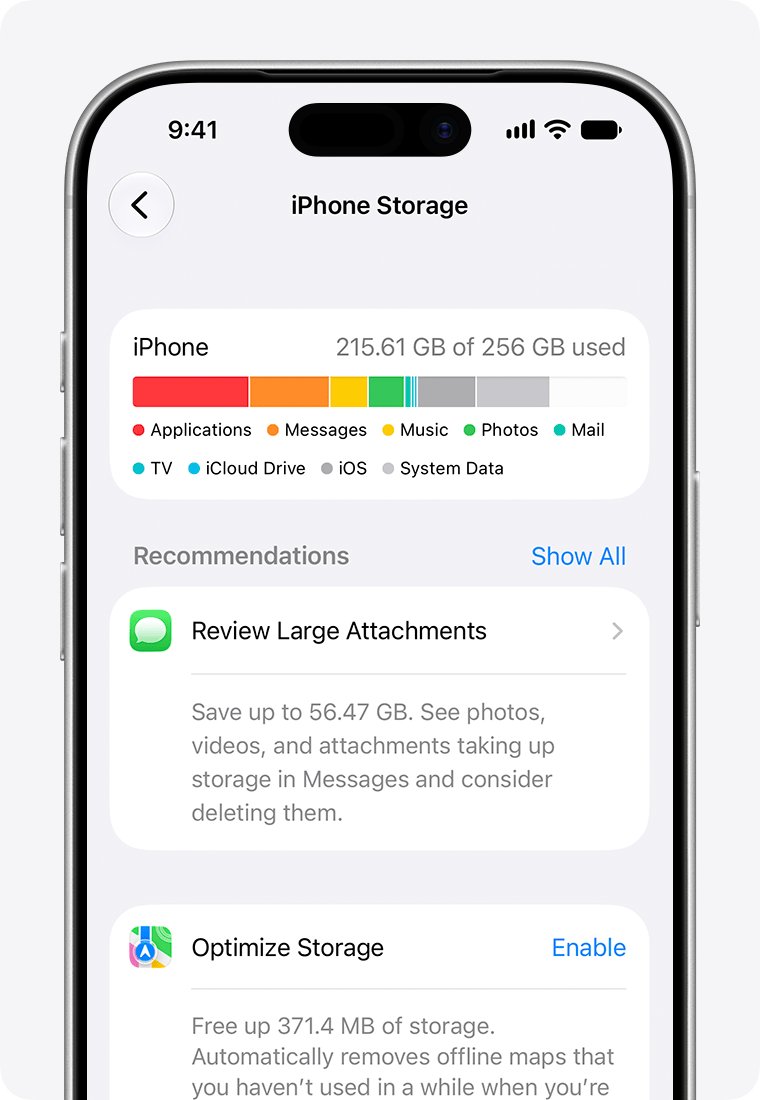
Check iPhone storage and iCloud storage before you switch
Device storage and iCloud storage are separate. Optimize Storage helps the first and does nothing for the second.
- Open Settings, tap General, then tap iPhone Storage (or iPad Storage) to see how much device storage is used.
- Note how much space Photos takes in that list.
- Go back to Settings, tap your name, then tap iCloud to see the iCloud storage bar.
- Tap Storage or Manage Account Storage and confirm there is room for the whole photo library.
- If the library is larger than your free iCloud space, upgrade the plan or remove photos before you turn on iCloud Photos.
Keep a full-resolution copy of iCloud Photos on a Mac or PC
A second full-resolution copy outside iCloud protects you if photos are deleted from iCloud Photos. Pick one of these routes.
- On a Mac, open Photos, choose Photos > Settings, then click iCloud.
- Select Download Originals to this Mac so the Mac stores the full-size versions too.
- On a Windows PC, sign in to iCloud for Windows and turn on iCloud Photos; the photos appear in File Explorer or Microsoft Photos.
- From any browser, go to iCloud.com/photos, sign in and select up to 1,000 items at a time.
- Click the More button, choose More Download Options, select Unmodified Originals, then click Download.
- Back up the Mac or PC copy to an external drive as well.
Export unmodified originals from iPhone Photos
Use this to save specific originals, such as ID scans or tickets, to a place you control.
- Connect to Wi-Fi and make sure iOS is up to date.
- Open Photos and go to your Library.
- Tap Select, then choose the photos and videos to save.
- Tap the Share button, then tap Export Unmodified Originals.
- Choose a folder in the Files app. It opens to iCloud Drive; tap the back arrow to pick an external drive under Locations.
- Tap Save.
Use cellular data for iCloud Photos downloads
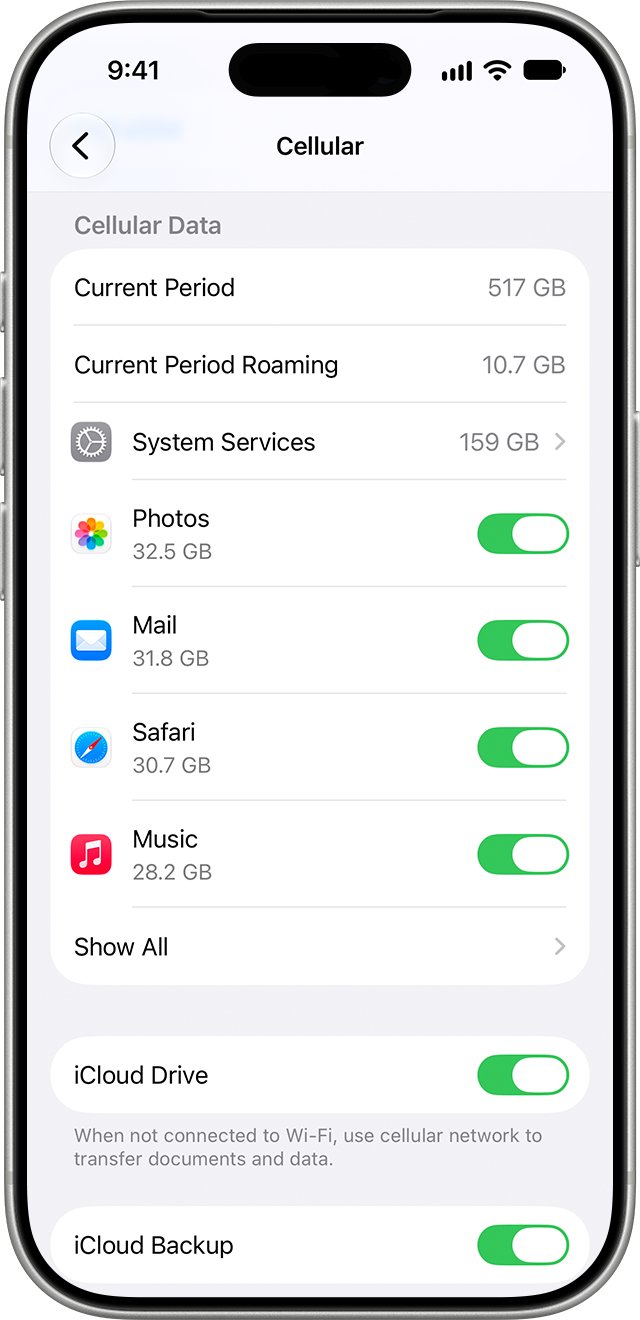
Originals you open away from Wi-Fi need cellular data. If cellular data is off for an app, it only uses Wi-Fi.
- Open Settings and tap Cellular (or Mobile Data).
- Check that Cellular Data is on.
- Scroll to the list of apps and make sure Photos is allowed to use cellular data.
- Turn off Data Roaming before you travel if you do not have an international data plan.
Turn off Optimize Storage and download originals to iPhone
Switching back downloads every original to the device, so you need enough free device storage for the whole library first.
- Check Settings > General > iPhone Storage and confirm the free space is larger than your photo library.
- Connect the iPhone or iPad to Wi-Fi and power.
- Open Settings, tap your name, tap iCloud, then tap Photos.
- Tap iPhone Storage (on iOS 26 or earlier, stay on the Photos screen), then choose Download and Keep Originals.
- Leave the device connected until the originals finish downloading.
Check iCloud Photos upload status on iPhone
Confirm the library is fully uploaded before you rely on Optimize Storage or delete anything.
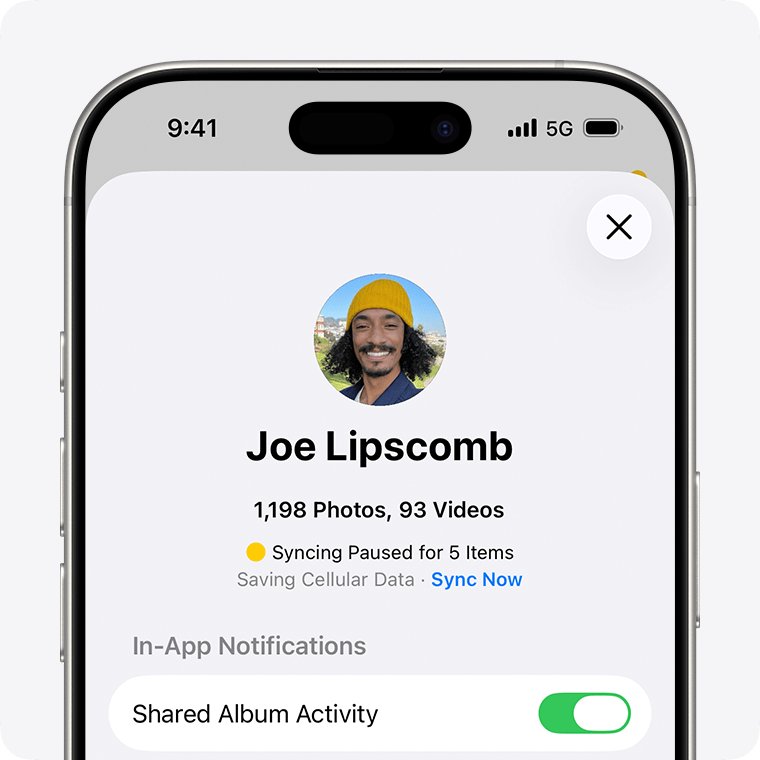
- Open the Photos app and tap Collections.
- Tap the profile button in the upper corner.
- Read the library status below your name and photo count. In iOS 17 or earlier, go to Library > All Photos and scroll to the bottom.
- Follow any status message, such as a paused upload or full iCloud storage.
- Wait until the status shows the library is up to date before you remove photos or change settings.
iCloud Photos not syncing with Optimize Storage: fixes
Syncing paused: Low Data Mode or Low Power Mode
Syncing stops to reduce network data use or save battery.
- Turn off Low Data Mode or Low Power Mode in Settings.
- Connect to Wi-Fi and power.
- Let the device sync overnight.
Syncing paused: Low Battery or Needs to Cool Down
Battery is below 20 percent, or the device is protecting itself from heat.
- Charge the device.
- Let it cool down for a few minutes.
- Tap Sync Now if it appears.
iCloud storage is full
The library is larger than the iCloud plan, so uploads stop.
- Go to Settings > [your name] > iCloud and check usage.
- Delete photos or other data you no longer need, or upgrade to a larger iCloud+ plan.
- Check the library status again in Photos.
Some photos are in an Unable to Upload album
Those items failed to upload to iCloud.
- Open the Unable to Upload album.
- Edit each item, then check whether it uploads.
- Upload the items again from the iPhone or iPad.
Do not turn iCloud Photos off to force a sync. Turning it off restarts the whole syncing process.
Optimize Storage for Photos FAQ
Does Optimize Storage delete my photos?
No. Optimize Storage keeps every photo and video in iCloud at full resolution and replaces the copies on your iPhone or iPad with smaller versions. Originals download again when you open them.
Can I see optimized photos without internet?
You can see the space-saving versions offline. Opening, editing or sharing a full-resolution original that is not on the device needs Wi-Fi or cellular data to download it.
Does Optimize Storage save iCloud storage?
No. It saves device storage only. iCloud still stores the full-resolution original of every photo and video, so the whole library counts against your iCloud plan.
Are iCloud Photos included in iCloud Backup?
No. When iCloud Photos is on, photos and videos sync to iCloud and are left out of the daily iCloud Backup. Keep a separate copy on a Mac, PC or external drive.
If I delete a photo on my iPhone, is it deleted from iCloud?
Yes. With iCloud Photos on, deleting a photo on one device deletes it from iCloud and every device using iCloud Photos. It stays in Recently Deleted for 30 days.
Can I choose which photos stay on my iPhone?
No. Optimize Storage decides which items to shrink and starts with the photos and videos you access least. To keep a specific original, export it with Export Unmodified Originals.
How do I get my original photos back on my iPhone?
Go to Settings, tap your name, tap iCloud, tap Photos, and choose Download and Keep Originals. You need enough free device storage for the whole library.
Is it Optimise or Optimize Storage?
Both spellings refer to the same setting. Optimise is the British spelling and optimize is the American one; Apple's US support pages call the setting Optimize Storage.