When Apple Pay is not working, the cause is usually the card issuer, the merchant, a missing passcode or Face ID setting, or a Wallet glitch that a restart and an iOS update clear.
The 10 ways to fix Apple Pay not working on iPhone below run from quickest to slowest, then cover how to test a payment, what each error means, and when Apple Pay stopped working because of your bank rather than your phone.
Common reasons behind Apple Pay issues and the fix for each
Match what you see to a row, then jump to that fix. Apple does not approve or decline cards for Apple Pay, so a declined payment is almost always a card issuer question.
| What happens | Likely cause | Try this fix |
|---|---|---|
| Apple Pay worked yesterday and fails everywhere today | An Apple Pay or Wallet outage, or a stuck iPhone process | Fix 1, then Fix 3 |
| The wrong card is charged | Another card sits at the front of the Wallet stack | Fix 2 |
| Payment is declined but the physical card works | Card issuer block, limit or PIN request | Fix 10 |
| Face ID or Touch ID never asks to approve the payment | Payments are not turned on under Use Face ID For, or no passcode is set | Fix 4 |
| Nothing happens at the contactless terminal | Terminal does not accept Apple Pay, or another app is the default contactless app | Fix 5 and Fix 6 |
| The Apple Pay button fails in an app or website | Connection issue, old iOS version, or wrong billing details | Fix 3 and Fix 5 |
| Card shows an error in Wallet | Card token out of date on this device | Fix 7 |
| Apple Pay never appears in Wallet at all | Device, region or Apple Account not eligible | Fix 8 and Fix 9 |
Important precautions before fixing Apple Pay
A few of these fixes change what is stored on your iPhone. Read this table before you remove a card, a passcode or an Apple Account.
| Action | What it does to Apple Pay | Precaution |
|---|---|---|
| Turn off the passcode | Removes every credit, debit, prepaid, transit and student ID card from that device | Leave the passcode on while you troubleshoot |
| Sign out of iCloud | Removes the same cards from the device | Stay signed in unless Apple Support asks you to sign out |
| Remove a card on iPhone | Removes it from that iPhone only, not from your other devices | Keep the physical card nearby so you can add it again |
| Install an iOS update | Can fix Wallet and payment bugs | Back up the iPhone with iCloud or a computer first |
| Phone lost or stolen | Marking it as lost in Find My turns off Apple Pay on it | Mark it as lost, then call your card issuers |
Fix 1: Check Apple Pay availability and system status
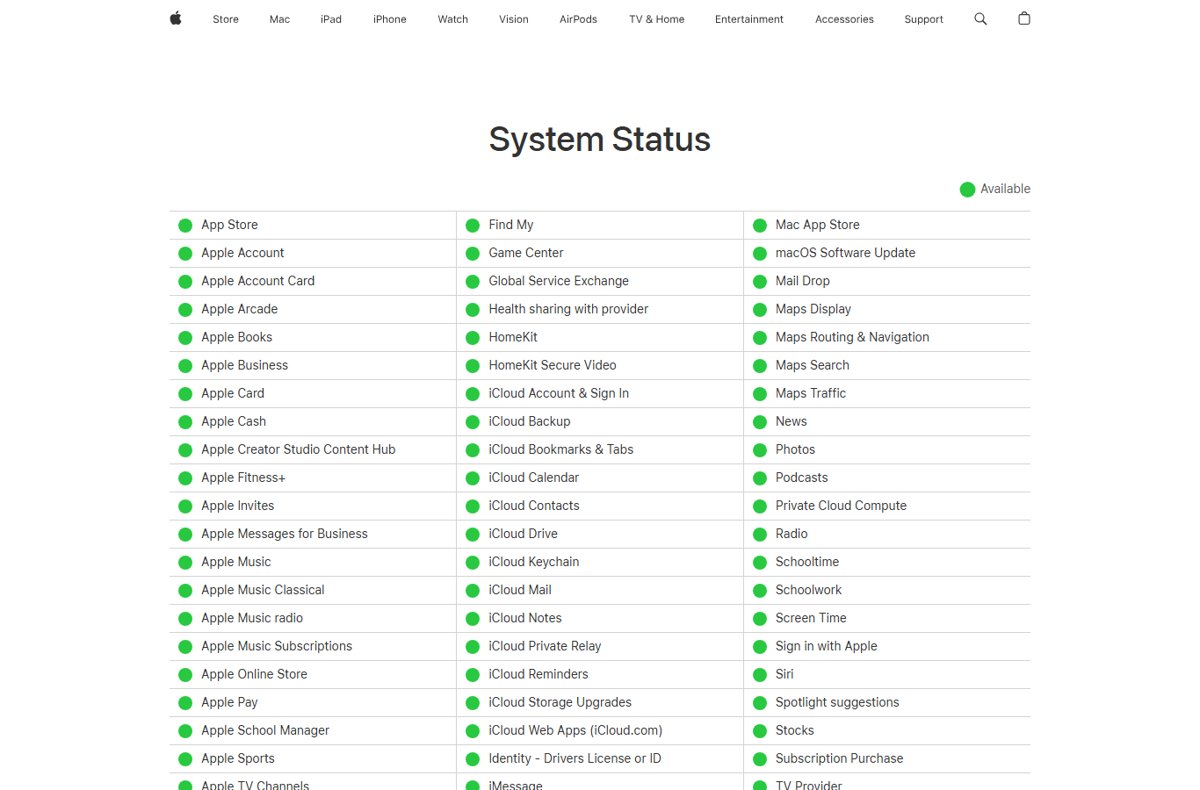
Start outside your phone. If Apple's servers are down, or the store or website never accepted Apple Pay, no setting on your iPhone will change the result.
- Open apple.com/support/systemstatus in any browser.
- Find Apple Pay and Wallet in the list and check that both show a green Available dot.
- At a store, look for the contactless payment symbol or the Apple Pay mark on the terminal.
- Online or in an app, check that the checkout shows an Apple Pay button before you blame the iPhone.
- Confirm your country or region appears on Apple's list of countries and regions that support Apple Pay.
- If any of these checks fails, wait for the outage to clear or pay another way, then try again later.
Apple notes that the merchant must also accept your card and your payment network, so a terminal can take Apple Pay in general and still refuse one card.
Fix 2: Confirm your card, Wallet, and default payment settings
The first card you add becomes the default card on that device. If a different card keeps getting charged, or the default card has expired, change it.
- Open the Wallet app and tap your card to check that it shows no error and is not an expired card.
- Touch and hold the card you want to pay with.
- Drag it in front of your other cards to make it the default.
- Or go to Settings > Wallet & Apple Pay > Apple Pay Defaults and set Default Card, shipping address, email and phone number.
- On Apple Watch, open the Apple Watch app on iPhone, tap Wallet & Apple Pay in the My Watch tab, tap Apple Pay Defaults, then Default Card.
- At checkout, tap Change Payment Method or Other Cards & Pay Later Options, tap the Info button next to a card, then Set as Default Card.
Review billing, shipping and contact details in Apple Pay Defaults too. A billing address that does not match your bank's record can make online orders fail.
Fix 3: Restart your iPhone and update iOS
A restart clears a stuck Wallet or payment process. Apple lists the latest version of iOS as a requirement for Apple Pay, so update right after.
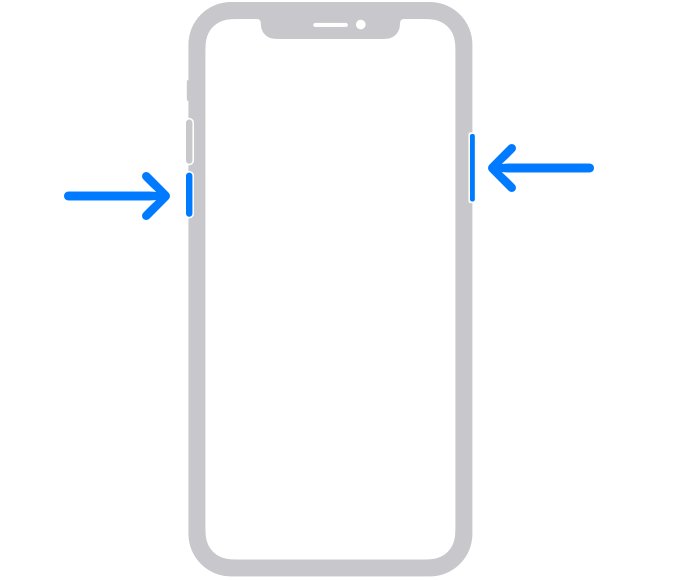
- On iPhone X or later, press and hold either volume button and the side button until the power-off slider appears.
- On iPhone 6, 7, 8 or SE (2nd or 3rd generation), press and hold the side button instead.
- Drag the slider and wait 30 seconds, then hold the side button until the Apple logo appears.
- Back up the iPhone, plug it into power and connect to Wi-Fi.
- Go to Settings > General > Software Update.
- Tap Download and Install if an update is listed, then follow the onscreen instructions.
- Try Apple Pay again once the iPhone restarts on the new version.
VPN or proxy connections can stop the iPhone from reaching Apple's update servers. Turn them off for the update if the download stalls.
Fix 4: Fix Face ID, Touch ID, passcode, and region settings
Apple Pay needs Face ID, Touch ID or a passcode on the device. Face ID also needs payments switched on as one of its uses, or it will not approve them.
- Go to Settings > Face ID & Passcode, or Touch ID & Passcode on an iPhone with a Home button.
- If you see Turn Passcode On, tap it and set a passcode.
- Under Use Face ID For, turn on the option that lets Face ID approve payments.
- If Face ID often fails to recognise you, tap Set Up an Alternate Appearance or Reset Face ID and set it up again.
- Go to Settings > General > Language & Region and check that Region is a country on Apple's list of places that support Apple Pay.
- Open Wallet and try a payment again.
After five failed Face ID or Touch ID attempts, the iPhone asks for the passcode. Enter it, then retry the payment.
Fix 5: Troubleshoot NFC, internet, and in-app payment issues
In stores, Apple Pay talks to the terminal over NFC from the top of the iPhone. In apps and on websites, it needs a working connection and accurate contact details.
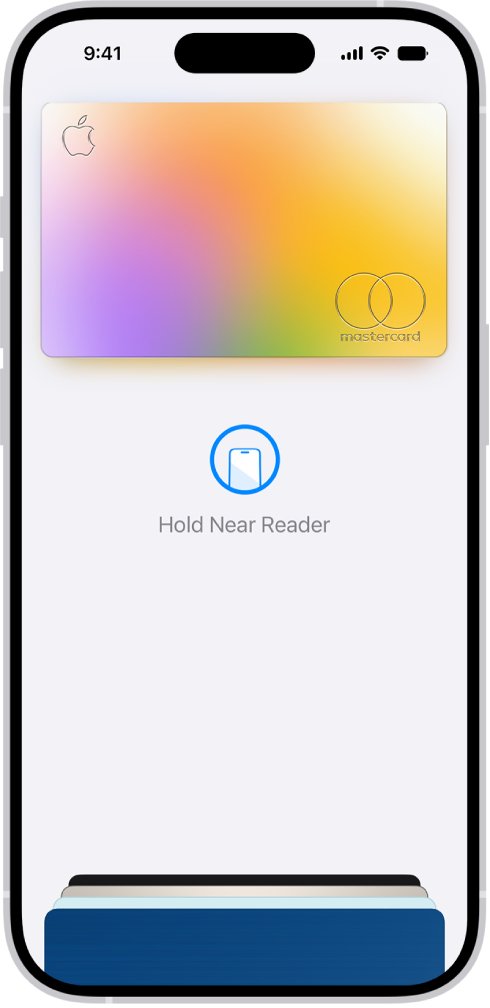
- At a terminal, double-click the side button (Face ID) or the Home button (Touch ID) before you approach the reader.
- Approve with Face ID, Touch ID or your passcode when your default card appears.
- Hold the top of the iPhone near the contactless reader until Done or a checkmark appears.
- If the terminal asks for a PIN or signature, follow it; card issuers and merchants can set limits and PIN requirements.
- For apps and websites, switch between Wi-Fi and mobile data, then tap the Apple Pay button again.
- At checkout, check the payment method, billing and shipping addresses and contact information before you authenticate.
- In a third-party browser, click Apple Pay at checkout and scan the code with the iPhone camera; this needs iOS 18 or later.
Fix 6: Set Apple Wallet as the default contactless app on iPhone
If you picked another app as your default contactless app, that app opens at the terminal instead of Wallet, and your Apple Pay cards are not shown.
- Open the Wallet app before you reach the terminal.
- Select the card you want to pay with.
- Double-click the side button and approve with Face ID or your passcode.
- Hold the iPhone near the reader to finish the payment.
- To make this automatic again, open Settings and choose Apple Wallet as your default contactless app.
Express Mode cards, keys and passes keep working even when Wallet is not the default app.
Fix 7: Remove and re-add your card to Apple Wallet
Removing a card on iPhone only removes it from that iPhone. Adding it again gives the device a fresh card token from your issuer.
- In Wallet, tap the card that is failing.
- Tap the More button, then Card Details.
- Scroll down and tap Remove Card.
- Tap the Add Card button in Wallet, then Debit or Credit Card and Continue.
- Hold the physical card close to the iPhone, or tap Enter Card Details Manually.
- Complete any verification your bank asks for, such as a text code or its app.
- After re-adding the card, drag it to the front if it should be the default, then test a small payment.
Fix 8: Check Apple Pay device compatibility
Some devices cannot use Apple Pay in stores at all. Find your device in this table before you spend time on settings.
| Device | Compatible models | Where Apple Pay works |
|---|---|---|
| iPhone | Models with Face ID, and models with Touch ID except iPhone 5s | Stores, apps, Safari, third-party browsers, transit |
| iPad | iPad Pro, iPad Air, iPad and iPad mini with Touch ID or Face ID | Apps and the web only, not store terminals |
| Apple Watch | Series 1 and later | Stores, apps, transit |
| Mac | Models with Touch ID, or 2012 and later paired with an Apple Pay iPhone or Apple Watch | Web and apps only |
| Apple Vision Pro | Apple Vision Pro | Safari and apps |
On a Mac without Touch ID, turn on Allow Payments on Mac under Settings > Wallet & Apple Pay on iPhone to approve Mac purchases from the phone.
Fix 9: Turn on two-factor authentication for your Apple Account
Apple Pay requires an Apple Account signed in on the device with two-factor authentication. A locked, inactive or disabled account can also block cards from Wallet.
- Go to Settings and tap your name at the top.
- If you are not signed in, sign in with your Apple Account.
- Tap Sign-In & Security.
- Turn on two-factor authentication and follow the onscreen instructions.
- Or sign in at account.apple.com and tap Upgrade Account Security.
- Open Wallet and add your card again if it was removed.
Fix 10: Contact your bank, merchant, or Apple Support
Any card in Apple Pay is offered by the card issuer, and only the issuer can lift a block or raise a limit. Pick the right contact for the problem.
| Problem | Who to contact | What to ask |
|---|---|---|
| Declined payment, Could Not Add Card, Invalid Card, Card Device Limit | Your bank or card issuer first | Whether the card supports Apple Pay and whether a block, limit or extra verification applies |
| One store or website fails while others work | The merchant | Whether the terminal or checkout accepts Apple Pay and your card network |
| Wallet crashes, cards vanish, or every card fails on one device | Apple Support at support.apple.com/contact or the Apple Support app | A device or Apple Account check |
| Lost or stolen iPhone | Apple Support and each card issuer | Mark the device as lost and remove the cards |
How to test Apple Pay after a fix
- Double-click the side button or Home button and check that your default card appears.
- Approve with Face ID, Touch ID or your passcode.
- Pay at a contactless terminal and wait for Done or a checkmark on screen.
- Open Wallet, tap the card and scroll down to check the transaction in its recent activity.
- For online payments, complete a small purchase with the Apple Pay button and confirm the order email or receipt.
Apple Pay not working: errors and symptoms
Why is Apple Pay declining even though my card works normally?
The card issuer controls Apple Pay approval, limits and PIN rules, not Apple.
- Check that the merchant accepts your card network.
- Call the number on the back of your card and ask whether Apple Pay payments are blocked or limited.
- Remove and add the card in Wallet after the issuer clears the block.
Apple Pay does not pop up at the store terminal
Another app is the default contactless app, or the double-click was not registered.
- Open Wallet and select the card manually.
- Double-click the side button, approve, and hold the top of the iPhone at the reader.
- Set Apple Wallet as the default contactless app in Settings.
Apple Pay not working in apps or on websites
Connection problems, old iOS, or a checkout that does not support Apple Pay.
- Check apple.com/support/systemstatus for Apple Pay and Wallet.
- Update iOS in Settings > General > Software Update.
- Check billing and shipping details in Settings > Wallet & Apple Pay > Apple Pay Defaults.
Could Not Add Card, Invalid Card or Card Device Limit
The card issuer refused the card or has reached its device limit.
- Confirm with the issuer that the card supports Apple Pay.
- Ask the issuer to clear the card device limit or any security hold.
- Add the card again from Wallet with the Add Card button.
All cards disappeared from Wallet
The passcode was turned off or the iPhone was signed out of iCloud.
- Turn on a passcode in Settings > Face ID & Passcode.
- Sign back in to your Apple Account in Settings.
- Use Cards Found For You in Wallet to add cards you used before.
Apple Pay not working: frequently asked questions
Why is my Apple Pay not working?
Apple Pay usually fails because the card issuer declined the payment, the merchant does not accept Apple Pay or your card network, Face ID is not allowed to approve payments, or iOS is out of date. Restart the iPhone, update iOS and check Apple's system status first.
Why would Apple Pay not work when my card works?
The card issuer controls Apple Pay separately from the plastic card and can block the device card, set transaction limits or ask for a PIN. Apple does not approve or decline cards, so call your bank and ask whether Apple Pay payments are blocked.
Why can't I use Apple Pay at all?
You need a compatible device, a supported card from a participating issuer, an Apple Account with two-factor authentication, Face ID, Touch ID or a passcode, and a supported country or region. If any of these is missing, Apple Pay is not offered on the device.
Why won't my Apple Pay work at the terminal?
The terminal may not accept Apple Pay or your card network, or another app may be your default contactless app. Open Wallet, choose the card, double-click the side button, approve, and hold the top of the iPhone near the reader until Done appears.
Why doesn't my Apple Pay work in apps?
In-app Apple Pay needs a working internet connection, the latest iOS and correct billing and shipping details. Switch between Wi-Fi and mobile data, update iOS, and check your details in Settings, Wallet & Apple Pay, Apple Pay Defaults before trying again.
Will removing and re-adding my card fix Apple Pay?
It often fixes a card that shows an error only on one device, because adding it again requests a new device card from your issuer. Removing a card on iPhone does not remove it from your other devices, and you can add it again later.
Can't get Apple Pay to work after updating iOS?
Restart the iPhone after the update, then check that payments are still on under Use Face ID For in Face ID & Passcode settings. If cards show errors, remove and re-add them, and call your card issuer if payments are still declined.
When should I contact Apple Support instead of my bank?
Contact your bank for declines, card errors and device limits, because the card issuer controls the card. Contact Apple Support when Wallet itself fails, every card fails on one device, cards vanish, or your Apple Account is locked or disabled.
Bottom line: why Apple Pay stops working and what fixes it
Restart the iPhone, update iOS and check that Face ID is allowed to approve payments before anything else, then call your card issuer if a payment is still declined. Those steps clear the device-side causes in a few minutes, and every remaining cause, from blocks to limits to device-card errors, is controlled by the bank that issued the card.