To write a review on Google, open the place in Google Maps while signed in to your Google Account, select Write a review, pick a star rating, add your text and post it.
This guide covers reviews from a computer, iPhone and Android, what Google removes, joining Local Guides and its points, editing or deleting a review, and why a review may not appear.
How to write a review on Google
You need a Google Account, because only signed-in users can leave a review. If you do not have one, create a Google Account first; a Gmail address works.
- On your computer, go to maps.google.com and sign in.
- Search for the business or place you want to review.
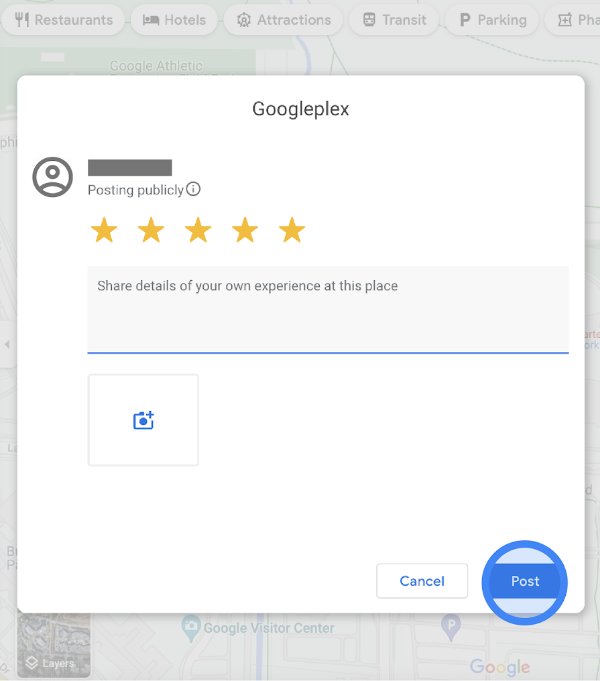
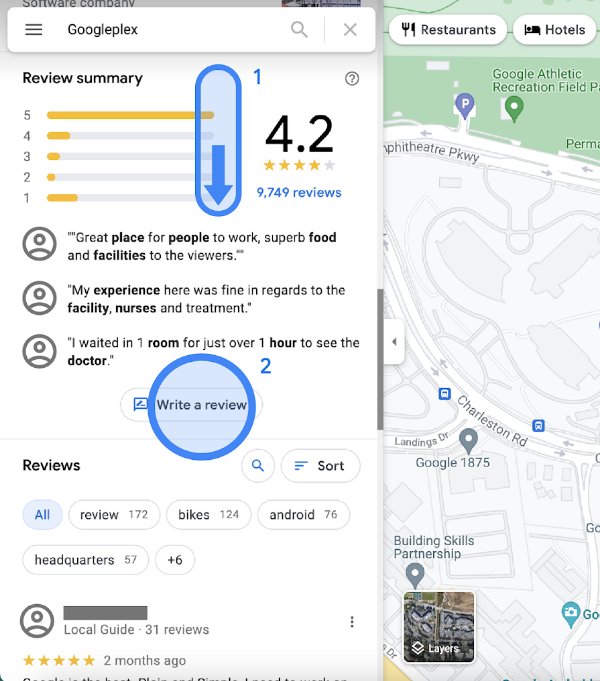
- In the panel on the left, scroll down and click Write a review.
- Click the stars to give your score, from one to five.
- Type your review in the text box, add photos if you have them, and post it.
Your review stays on Google Maps until you take it down, and you can change the text, rating or photos at any time.
How to write a Google review on iPhone or Android
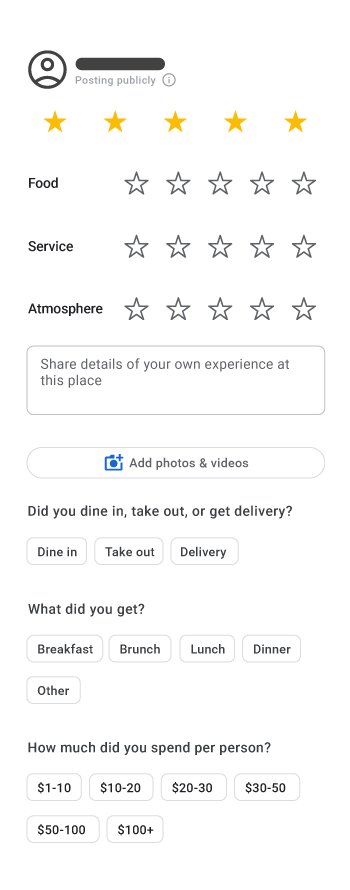
The Google Maps app works the same way on iPhone, iPad and Android phones and tablets. The app may also ask short questions about your visit, and answering them earns Local Guides points.
- Open the Google Maps app and make sure you are signed in.
- Search for the place or tap it on the map. If several locations appear, tap the right one.
- Tap the place's name or address at the bottom of the screen.
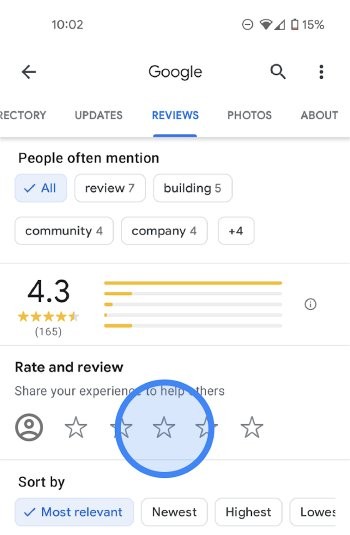
- Tap Reviews at the top, then tap the five empty stars.
- Tap the stars to score the place and type your review under Share more about your experience.
- Answer any detail questions that fit your visit, then post the review.
You can also tap Contribute in the app and pick Write review to see suggested places you have visited.
Who can see your Google review?
Every Google review is public, and there is no anonymous option. Check these details before you post.
| What others can see | Details |
|---|---|
| Your name | The name on your Google Maps profile, shown next to the review |
| Your other contributions | Other reviews, photos and videos you added to Google Maps, with their location info |
| A custom display name | Open your Google Maps profile, select Edit profile and tick Use a custom display name & picture for posting to post under a different name and picture |
| The post date | The date of your last edit replaces the original post date |
Google does not pay people to write reviews, so any offer of money for a review is not from Google.
Google review guidelines: what gets a review removed
Google moderates reviews under its Maps user-generated content policy. A review removed for breaking the policy is not reinstated, and repeated violations can suspend or end your posting privileges.
| Not allowed | Examples |
|---|---|
| Fake and misleading content | Fake reviews, impersonation, misinformation and misrepresentation |
| Inappropriate content | Harassment, hate speech, offensive language, profanity, sexually explicit content |
| Personal information | Personal information about other people |
| Off-topic content | Off-topic text, advertising and solicitation |
| Unclear and repetitive content | Unclear or repetitive text, defacement and mischief |
Stick to what happened on your visit, and the review stays up.
How to become a Local Guide
Local Guides is Google Maps' contributor program. It is free, open to individuals rather than businesses, and available wherever Google Maps is, as long as you meet your country's age requirement.
- Open the Google Maps app and sign in with your personal Google Account.
- Tap Contribute at the bottom of the screen to start contributing.
- Post a review, rating or photo; each published contribution earns points.
- Tap Contribute > View your profile to see your level, points and badges.
- On a computer, go to maps.google.com/localguides and click Sign up now to get Local Guides news and event invites by email.
Points and levels can take up to 24 hours to update after a contribution is published.
Google Local Guides points and levels
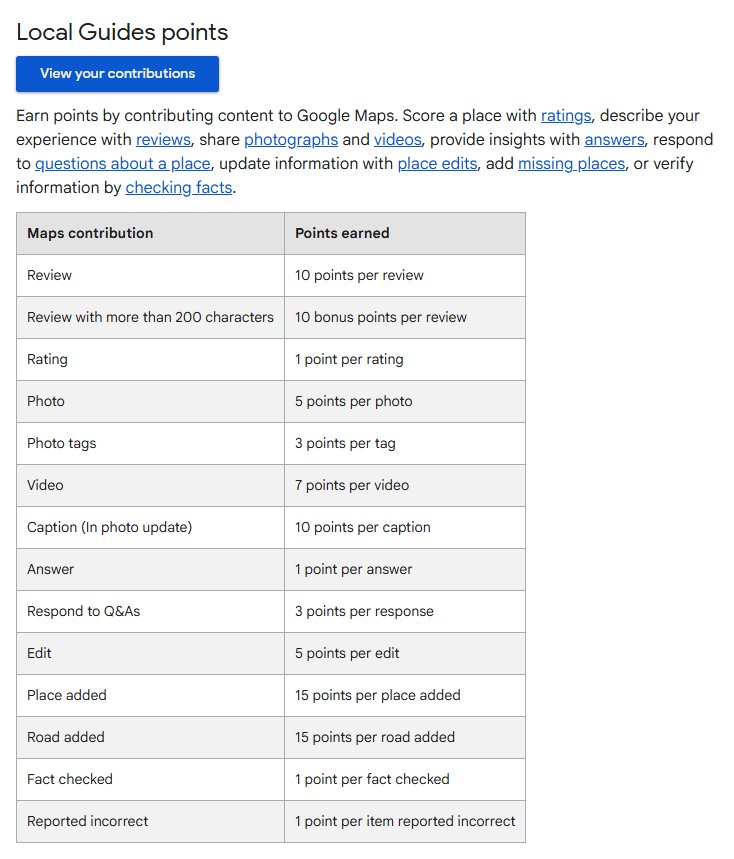
A review earns 10 points, and a review longer than 200 characters earns 10 more. The Local Guides badge appears on your contributions once you reach Level 4.
| Contribution | Points | Level | Points needed |
|---|---|---|---|
| Review | 10 | Level 1 | 0 |
| Review over 200 characters | 10 bonus | Level 2 | 15 |
| Rating | 1 | Level 3 | 75 |
| Photo | 5 | Level 4 | 250 |
| Video | 7 | Level 5 | 500 |
| Edit to place info | 5 | Level 6 | 1,500 |
| Place or road added | 15 | Level 7 | 5,000 |
| Answer | 1 | Level 8 | 15,000 |
| Fact checked | 1 | Level 9 | 50,000 |
| Respond to Q&As | 3 | Level 10 | 100,000 |
Points do not expire, but they drop if Google removes your content for a policy violation.
How to find, edit and delete reviews
Every review you posted sits in your Google Maps contributions. The same menu lets you share, edit or remove it.
- On a computer, open Google Maps, click Menu at the top left and select Your contributions > Reviews.
- On a phone, open the Google Maps app, tap Contribute > View your profile and tap See all reviews.
- Next to the review, select More.
- Choose Edit review to change the text, stars or photos, then post it again.
- Choose Delete review and confirm to remove it for good.
- To send a review to someone, select Share at the bottom of the review.
There are other ways to find your Google reviews too, including reviews left on your own business.
Help others by writing Google reviews
A useful review tells the next visitor what to expect. Google's points system rewards the same habits that make a review helpful.
| Do this | Why it helps |
|---|---|
| Write more than 200 characters | Specific detail is more useful to readers and earns 10 bonus points |
| Describe what you ordered, bought or used | Readers can judge whether your experience matches what they need |
| Answer the detail questions Maps shows | Adds details about your experience and earns Local Guides answer points |
| Add a photo or video of the place | Shows the place as it is today and earns 5 or 7 points |
| Update your review after a return visit | Keeps the review current; the edit date becomes the post date |
| Review only places you actually visited | Fake or secondhand reviews break the content policy and get removed |
Business owners can send customers a review link or QR code, which is a fast way to find the right listing when a place has several branches.
Google review not showing
Your new review does not appear on the business page
Reviews are checked against Google's policies, which can take a few days.
- Wait a few days, then search for the place again in Google Maps.
- Check Your contributions > Reviews to make sure the review was posted from the account you expect.
Your review was removed
Removed reviews usually broke a policy, such as spam or off-topic content, and are not restored.
- Read the prohibited content list and compare it with what you wrote.
- Post a new review that describes your own visit only, without links, personal details or promotions.
You cannot leave a review in the Maps app
Older phones and older Google Maps versions can fail when posting reviews.
- Update Google Maps from the App Store or Play Store.
- Check that you are signed in to a Google Account in the app.
- Try again, or post the review from maps.google.com on a computer.
There is no Write a review button for a place
Google can temporarily turn off reviews for some Business Profiles or business categories.
- Check that you opened the correct listing, not a similar business nearby.
- Come back later, because the restriction is temporary in these cases.
Writing Google reviews FAQ
Do I need a Google Account to write a review?
Yes. Customers must be signed in to a Google Account to leave a review. A free personal account works, and the review appears under the name on your Google Maps profile.
Can I write an anonymous Google review?
No. All Google reviews are public, and there is no anonymous option. You can post under a custom display name and picture by turning on that option in Edit profile on your Google Maps profile.
How long does it take for a Google review to show up?
Policy checks can delay a review's appearance by a few days. If it still does not show after that, check Your contributions to confirm it posted from the right account.
Can I edit a Google review after posting it?
Yes. Open Your contributions > Reviews in Google Maps, select More next to the review and choose Edit review. The date of your last edit then shows as the review's post date.
How do I delete a Google review?
In Google Maps, go to Your contributions > Reviews, or Contribute > View your profile > See all reviews on a phone. Select More next to the review, choose Delete review and confirm.
How many points do you get for a Google review?
A review earns 10 Local Guides points, and a review longer than 200 characters earns 10 bonus points. A star rating on its own earns 1 point, and photos earn 5 points each.
Does Google pay for reviews?
No. Google does not pay reviewers, and reviews are voluntary. Local Guides earn points, levels and perks such as early access to features, not money.
Can a business remove my Google review?
Only through Google. A business can report a review it believes breaks Google's policies, and Google removes reviews that break them. Reviews removed for policy violations are not restored.