Install the free YouTube app from the App Store on iPhone and iPad, from Google Play on Android, or from your TV's own app store; on a Windows PC, install youtube.com as an app with Chrome or Edge.
This guide covers each device, why Windows has no separate YouTube program, how to update or remove the app, and what to do when it will not install or play.
Step by step tutorial: Installing YouTube apps
The install route depends on the device. Find yours in the table, then follow the matching section below for the full steps.
| Your device | Where to get YouTube | What to select |
|---|---|---|
| iPhone or iPad | App Store | Get, then confirm with the side or top button |
| Android phone or tablet | Google Play Store | Install |
| Windows or Mac computer with Chrome | youtube.com in Chrome | Install page as app, or the install icon in the address bar |
| Windows PC with Microsoft Edge | youtube.com in Edge | Install this site as an app |
| Smart TV, streaming device or game console | The device's app store | The YouTube app, then sign in |
| Apple TV | App Store on Apple TV | The YouTube app |
The YouTube app is free on every platform. YouTube Premium and movie rentals are optional purchases inside it.
How to install the YouTube app on iPhone and iPad
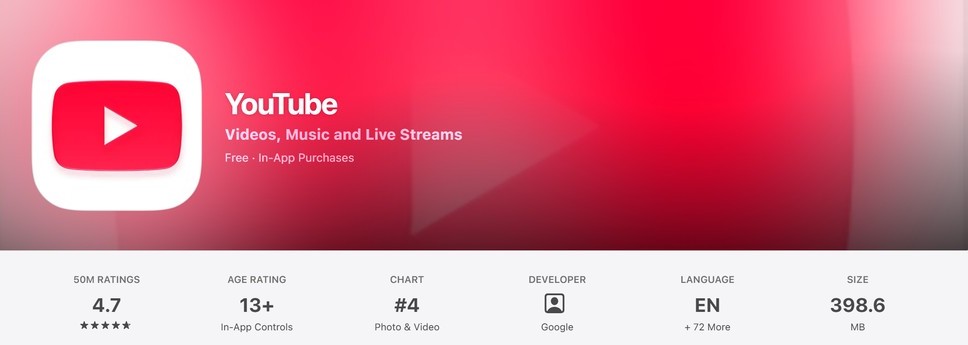
The App Store listing says the YouTube app requires iOS 17.0 or later, and it is sold by Google LLC. It also works on Apple TV.
- Open the App Store on your iPhone or iPad.
- Tap the Search tab and type YouTube.
- Pick the listing from Google LLC named YouTube.
- Tap Get.
- Double-click the side button on iPhone, or the top button on iPad, to confirm, and use Face ID, Touch ID or your Apple Account password if asked.
- Tap Open when the download finishes, then sign in with your Google Account.
If you see Open instead of Get, the app is already on the device or in your purchases. A missing App Store usually means Content & Privacy Restrictions are on and Installing Apps is not set to Allow, and changing that setting is the first step to get the App Store back.
How to install the YouTube app on Android
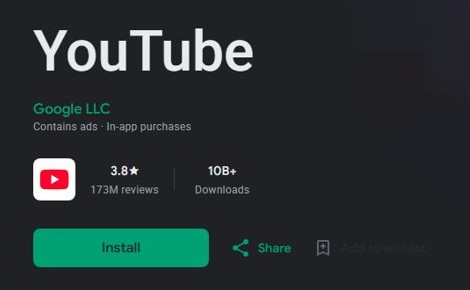
Google Play has the official YouTube app for Android phones and tablets, published by Google LLC. It is free, contains ads, and offers in-app purchases.
- Open the Google Play Store app.
- Search for YouTube.
- Select YouTube from Google LLC.
- Select Install.
- Select Open when the install finishes, then pick the Google Account to use.
You can also go to play.google.com in a browser, sign in, and choose your phone or tablet from the device dropdown before you select Install. YouTube's help lists phones and tablets running Android 6.0 Marshmallow or later as supported devices.
How to install YouTube app on PC with Google Chrome
Chrome can install youtube.com as a web app on Windows, Mac and Linux computers. The app opens in its own window and gets an icon on the taskbar or dock.
- Open Chrome on your computer.
- Go to youtube.com.
- Select the install icon at the right of the address bar if it appears.
- Or select More at the top right, then Cast, save, and share, then Install page as app.
- Follow the on-screen prompt to finish the install.
- Open YouTube from the Start menu, taskbar or dock like any other app.
The steps are the same on a Lenovo, HP or any other Windows laptop, because the YouTube app on a PC is the website running in its own window.
How to install YouTube app on Windows 11 with Microsoft Edge
Microsoft Edge can install any website as an app, and it lists installed apps on its edge://apps page.
- Open Microsoft Edge.
- Go to youtube.com.
- Select Settings and more (the three dots) at the top corner of the browser.
- Select More tools, then Apps, then Install this site as an app.
- Open edge://apps and select Details on the YouTube card.
- Select Pin to taskbar, Pin to Start or Create Desktop shortcut.
If YouTube installs as a progressive web app, Edge may also prompt you to install it as soon as the page loads. Installed apps open from edge://apps or from the shortcut you pinned. The same approach works for other sites, and Windows has more ways to install apps on a laptop or PC.
Why is there no YouTube app for Windows?
Google publishes YouTube apps for phones, tablets, TVs and consoles, but on computers YouTube runs in the browser. Google Play also states that its Android apps cannot be used on Windows or Mac computers.
| Computer | Official way to use YouTube | Requirement from YouTube's help |
|---|---|---|
| Windows 11 or Windows 10 | youtube.com, or youtube.com installed as an app in Chrome or Edge | Windows 7 or later with the newest Chrome or Firefox |
| Mac | youtube.com in Safari or Chrome, or installed as a Chrome app | Mac OS X 10.7 or later with the newest Chrome, Firefox or Safari |
| Ubuntu Linux | youtube.com in Chrome or Firefox, or a Chrome app | Ubuntu 10 or later |
| Chromebook | youtube.com, or the Android app from Google Play where supported | A supported Chromebook |
How to install the YouTube app on a smart TV or game console
YouTube's help says to download the YouTube app on your smart TV and then sign in or cast to it. Support depends on the brand and model year, so check your device against this list from YouTube's supported devices page.
| Device type | Models YouTube lists | Where to install |
|---|---|---|
| Smart TVs | LG (2016 and later), Samsung (2017 and later), Roku TVs, select Hisense, Sharp, Sony and Vizio SmartCast models, select Android TV and Fire TV Edition TVs | The TV's built-in app store |
| Streaming devices | Apple TV (4th generation and 4K), Chromecast with Google TV, Fire TV Stick and Fire TV Cube models, NVIDIA Shield | The device's app store |
| Game consoles | PlayStation 5, PlayStation 4, Xbox Series X, Xbox Series S, Xbox One family | The console's store |
| Smart displays | Nest Hub and Nest Hub Max | Built in |
| Cable TV boxes | Select devices such as Xfinity X1 | The provider's app menu |
On most of these devices, open the app store, search for YouTube, install it, then open the app and sign in. The supported-device list is published for YouTube Primetime Channels, so it is a guide to current models rather than a full list. The YouTube app on a TV is not the same as the YouTube TV app, which is a separate service with its own help center.

How to update the YouTube app on iPhone, Android and Apple TV
Store apps update automatically by default on iPhone and iPad. Update by hand when YouTube shows an error or a feature is missing.
| Device | Update path | Result |
|---|---|---|
| iPhone or iPad | App Store > your photo > App Updates > Update next to YouTube | The latest version installs |
| Android | Google Play Store > profile icon > Manage apps & device > See details > Update | YouTube updates, or Update all updates every app |
| Android, automatic | YouTube's Play page > More > Enable auto update | YouTube updates itself from then on |
| Apple TV 4K or Apple TV HD | App Store > Purchased > YouTube > Update | The TV app updates |
| Chrome or Edge app on PC | Nothing to install | The app always loads the current youtube.com |
| Smart TV or console | The device's app update option | Check for app updates if videos show errors |
How to uninstall the YouTube app on PC
- Open Microsoft Edge and go to edge://apps.
- Select Details on the YouTube card.
- Select Uninstall.
- Choose whether to also delete app history and data, then select Uninstall again.
Removing the app does not delete your YouTube account, subscriptions or history. Those stay with your Google Account and appear again when you sign in.
Tips for using YouTube apps
| Tip | How | Why it helps |
|---|---|---|
| Use one Google Account everywhere | Sign in with the same account on phone, TV and PC | Subscriptions, history and playlists follow you, and the phone works as a TV companion |
| Cast to a TV from the phone app | Tap Cast in the YouTube app | Videos play on the TV while the phone controls playback; youtube.com in a mobile browser cannot cast |
| Link a TV on another Wi-Fi network | Use a TV code from the TV app | Lets the phone control the TV without sharing a network |
| Use the phone as a remote | Tap Cast, then Remote | On-screen controls and voice search for the TV app |
| Check your connection for HD and 4K | Aim for 5 Mbps for 1080p and 20 Mbps for 4K UHD | YouTube recommends these sustained speeds |
| Keep the browser current on a PC | Update Google Chrome, Firefox or Safari | YouTube needs the newest version of a supported browser |
YouTube app not installing or not working
Match what you see to a group below. Each starts with the usual cause.
The App Store is missing on iPhone or iPad
Content & Privacy Restrictions block app installs.
- Open the Content & Privacy Restrictions settings in Screen Time.
- Find iTunes & App Store Purchases.
- Set Installing Apps to Allow.
- Swipe down on the Home Screen and search for App Store with Spotlight if it still does not appear.
The YouTube app will not install on an older iPhone
The App Store listing requires iOS 17.0 or later.
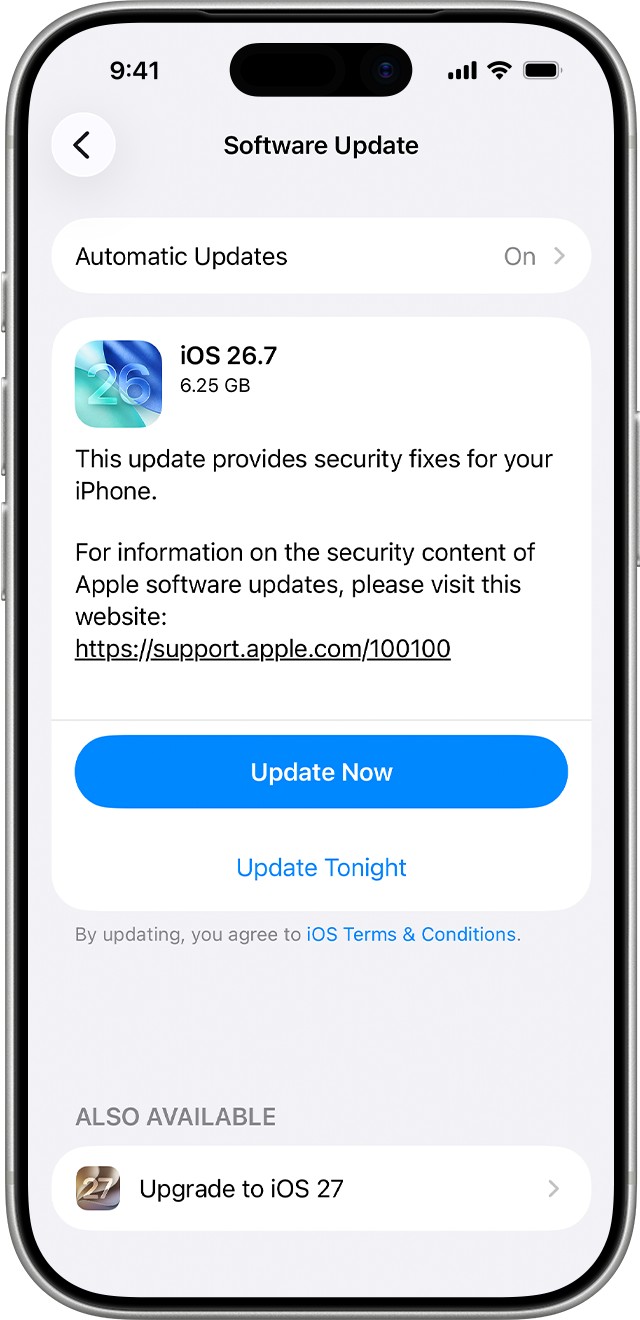
- Open Settings > General > Software Update.
- Install any available update.
- Use youtube.com in Safari if the iPhone cannot run iOS 17.
The YouTube app is not working properly after install
An outdated app, a stale session or a connection problem.
- Close and restart the YouTube app, or restart the device.
- Update the YouTube app from the App Store or Google Play.
- Check that you are signed in to YouTube.
- On a TV, power cycle the TV or streaming device, then check for app updates.
- Check your internet speed against the 500 Kbps minimum YouTube lists.
An Android update for YouTube does not install
A pending permission prompt, an account sign-in error, or a needed restart.
- Accept any new permissions the update asks for.
- Fix any sign-in error on the Google Account, since it can stop automatic updates.
- Restart the phone and select Update again in Google Play.
YouTube app install FAQ
Is the YouTube app free?
Yes. The YouTube app is free to download on the App Store and Google Play, and free on smart TVs and consoles. It contains ads and offers in-app purchases, such as a YouTube Premium subscription.
How do I install the YouTube app on iPhone?
Open the App Store, search for YouTube, and tap Get on the listing from Google LLC. Confirm with a double-click of the side button. The app requires iOS 17.0 or later.
Can I install the YouTube app on Windows 11?
There is no separate YouTube program for Windows 11. Open youtube.com in Microsoft Edge and choose Settings and more > More tools > Apps > Install this site as an app, or use Install page as app in Chrome.
How do I install the YouTube app on my laptop?
Open youtube.com in Chrome or Edge on the laptop and install it as an app from the browser menu. It then opens in its own window from the taskbar, the same way on a Lenovo or any other Windows laptop.
Why is there no YouTube app for Windows?
Google runs YouTube on computers through the browser and publishes apps only for phones, tablets, TVs and consoles. Google Play apps also cannot run on Windows or Mac, so a browser-installed app is the official option.
How do I install YouTube on my desktop?
Go to youtube.com in Chrome, select More > Cast, save, and share > Install page as app, and follow the prompt. In Edge, install the site as an app, then pin it to the taskbar or desktop from edge://apps.
Can I install YouTube on any smart TV?
No. YouTube lists supported models, such as LG TVs from 2016, Samsung TVs from 2017, all Roku TVs and select Sony, Hisense, Sharp and Vizio models. Older TVs can use a supported streaming device instead.
How do I update the YouTube app?
On iPhone, open the App Store, tap your photo, then App Updates and Update. On Android, open Google Play, tap your profile icon, then Manage apps & device and Update. TVs update from their own app menus.
Can I use the same account on multiple devices?
Yes. Sign in with the same Google Account on each device. Your subscriptions and history follow you, and a phone signed in to the same account works as a companion for the TV app.
Do I need the YouTube app to cast to my TV?
On a phone or tablet, yes, because you cannot cast from youtube.com in a mobile browser. On a computer you can cast from the browser, and YouTube must be installed on the TV or streaming device.